

Almacenamiento de tu copia de seguridad en Dream Objects
Bienvenido a nuestra guía sobre cómo guardar tus copias de seguridad en Dream Objects, el Almacenamiento en la Nube de DreamHost. Es súper importante mantener tus datos seguros, y Dream Objects es un lugar estupendo para hacerlo. Ya sea que gestiones un sitio web, hagas programación o simplemente quieras un lugar seguro para tus archivos, te guiaremos paso a paso para enviar tus copias de seguridad a Dream Objects sin problemas. ¡Prepárate para mejorar la gestión de tus datos y mantener tus cosas importantes seguras con el increíble servicio de Almacenamiento en la Nube de DreamHost!
Añadir un Bucket
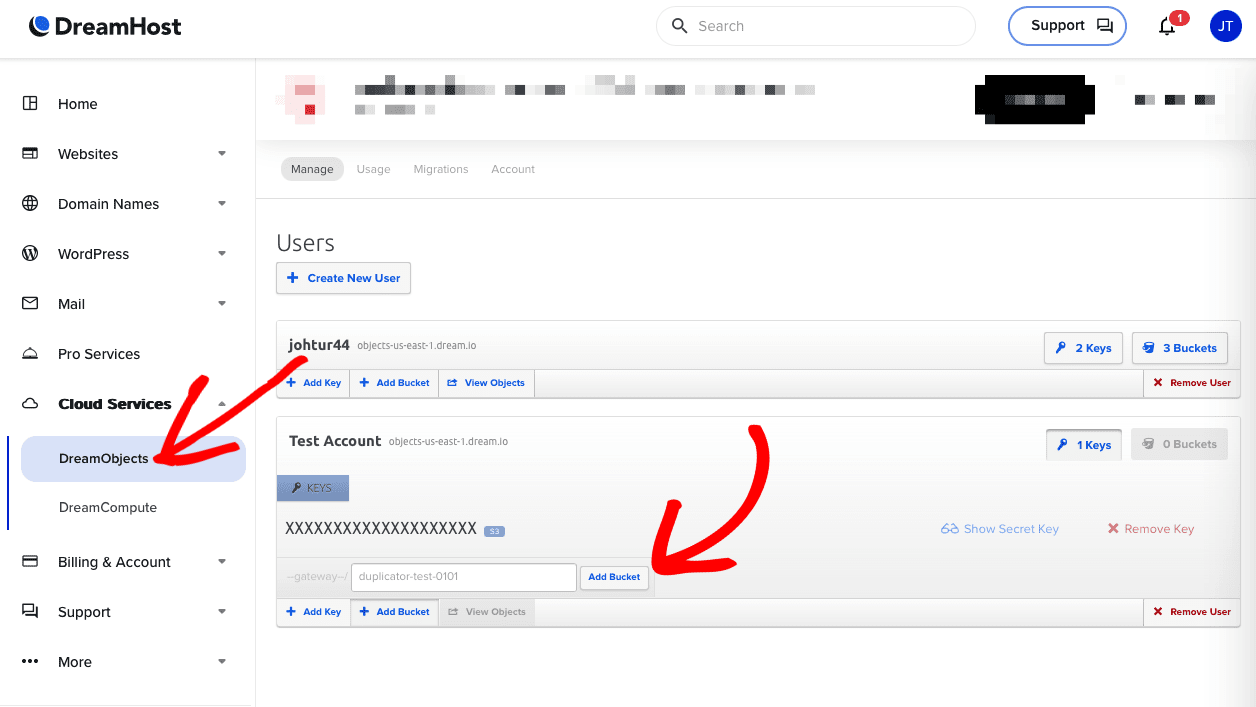
Para empezar, navega a tu cuenta de DreamHost » Servicios en la Nube » DreamObjects » Debajo de tu cuenta de Usuario » haz clic en Añadir Bucket y asígnale un nombre:
Localización de las Claves de Autorización
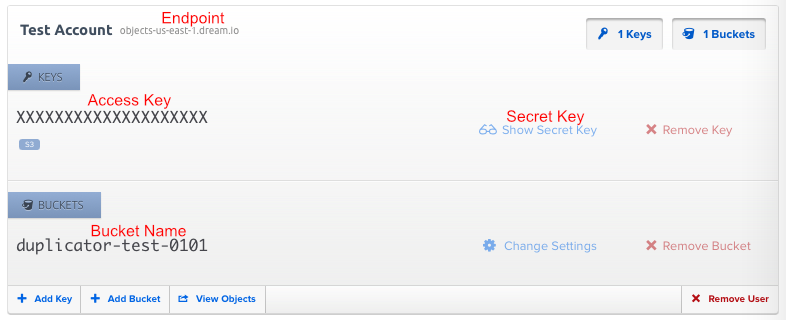
Desde la misma página, puedes localizar tus detalles de Autorización y autenticarla. Por favor, consulta la imagen de abajo:
Conexión de Dream Objects con Duplicator
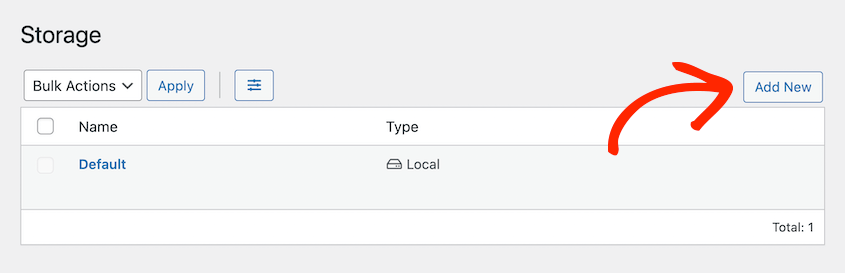
Para empezar, ve a Duplicator Pro » Almacenamiento » Añadir Nuevo:
Nombra el nuevo almacenamiento y selecciona el Tipo como Dream Objects. Debajo de Autorización, copia la Clave de Acceso, la Clave Secreta, el Endpoint y el Nombre del Bucket de tu Cuenta de Dream Object. Finalmente, haz clic en Guardar Proveedor:
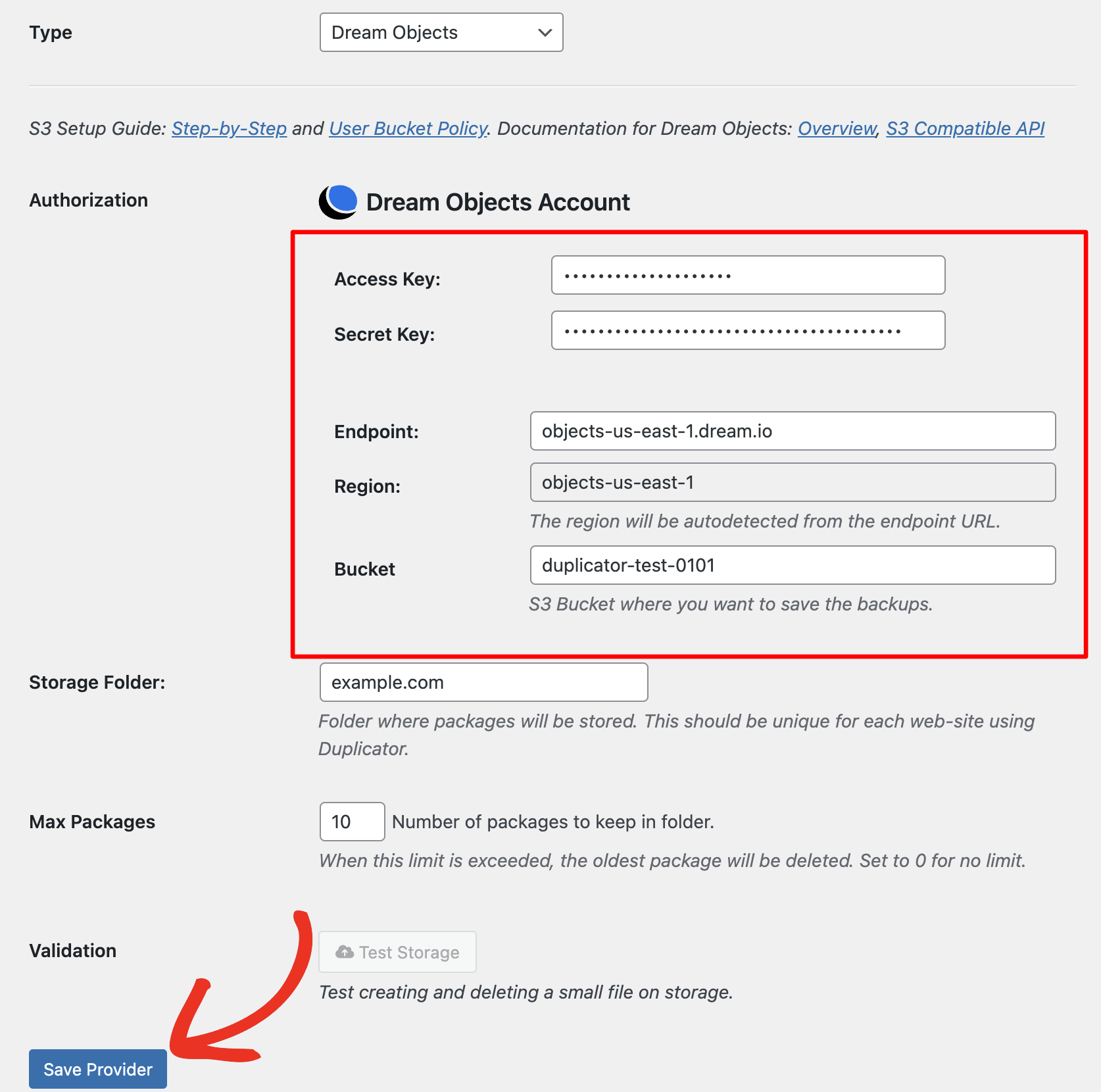
A continuación, haz clic en Probar Almacenamiento, y verás un mensaje de éxito. Si no es así, repasa los pasos anteriores y asegúrate de no haber omitido nada.
Puedes establecer el número de copias de seguridad que deseas almacenar en la carpeta definida en el campo Máx. Copias de Seguridad.


