Best Free Offsite Backup Storage for WordPress (2026)
John Turner
John Turner
A few years ago, a hosting provider’s server failed. Not a graceful failure with a warning email — a complete loss. Files gone. Database gone. And the backup? Also on that server.
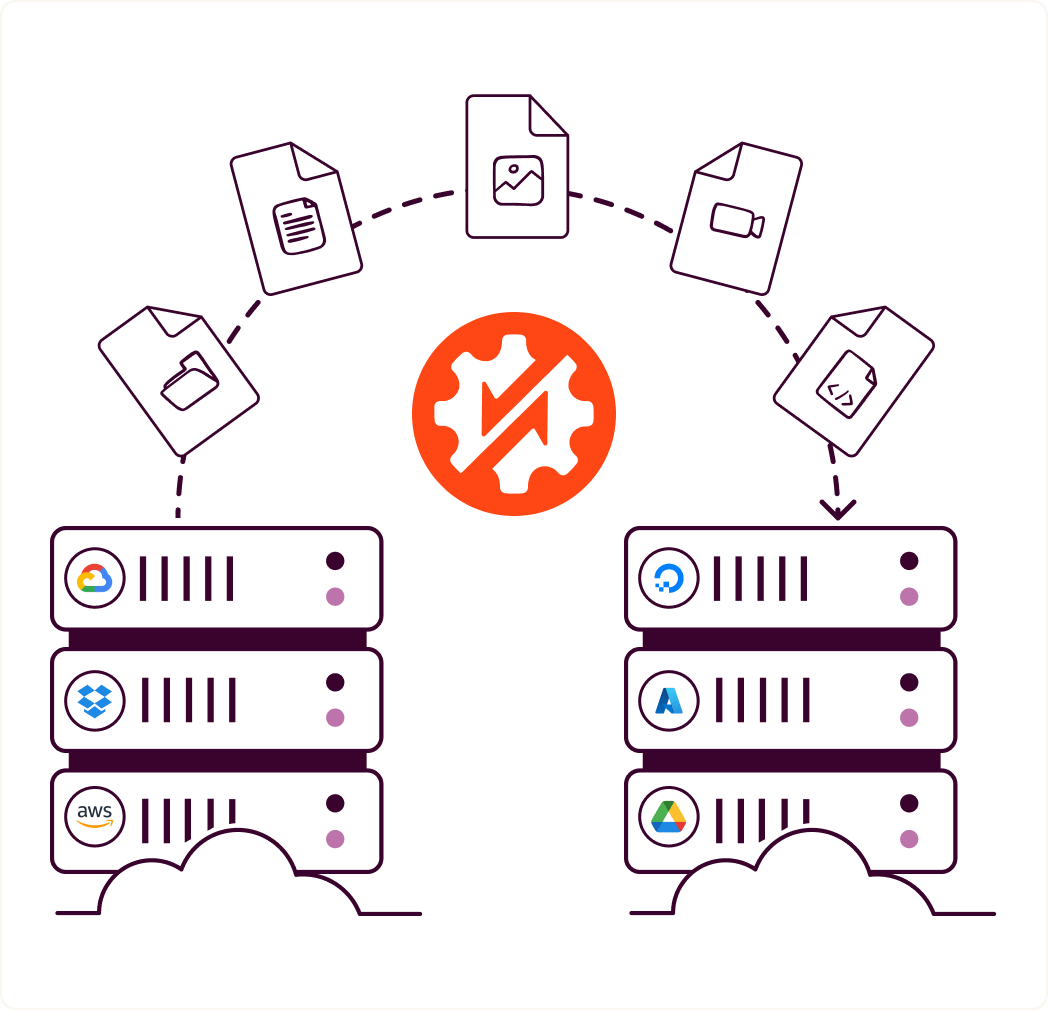
That’s the thing about on-server backups: they fail at exactly the same moment your site does. An offsite backup lives somewhere else entirely. If your host goes down, catches fire, or closes overnight, your data is still sitting safe in a different location.
The good news is that you don’t have to spend any money to get this protection.
Several cloud storage providers offer free tiers that are large enough for most WordPress sites. We’ve connected all of them to Duplicator Pro and tested each one for setup friction, restore speed, and where the free tier breaks down.
Here are the key takeaways:
- Most free storage: Google Drive has 15GB free, easiest setup, works for most small to medium sites
- Best for restore-heavy workflows: Cloudflare R2 has 10GB free with zero egress fees, so restoring doesn’t cost extra
- Best for sites that will outgrow free: Backblaze B2 has 10GB free, then $6/TB/month, the cheapest paid scaling of any option here
- For sites that have outgrown free tiers entirely: Duplicator Cloud is a paid, purpose-built WordPress backup storage option. It’s not free, but it’s the best off-site option for WordPress sites (especially if you’re already using Duplicator).
- The plugin connecting all of these: Duplicator Pro integrates with every storage destination on this list. It handles the backup, the scheduling, and the transfer. The storage is just where your files land.
Table of Contents
- Free Offsite Backup Storage at a Glance
- Why On-Server Backups Fail You When You Need Them Most
- What to Look for in a Free Off-Site Storage Tier
- Why Trust Us?
- 7 Best Free Offsite Backup Options for WordPress
- Google Drive: Best Free Option for Most WordPress Sites
- Amazon S3: Best for Enterprise-Grade Reliability at Scale
- Google Cloud: Best for Google Ecosystem Businesses
- Backblaze B2: Best When You'll Outgrow the Free Tier
- Cloudflare R2: Best for Restore-Heavy Workflows
- Microsoft OneDrive: Best for Windows-First Users
- Dropbox: Easiest Setup, Smallest Free Tier
- When Your Site Outgrows Free Storage
- Frequently Asked Questions (FAQs)
Free Offsite Backup Storage at a Glance
| Storage | Free Tier | Paid Pricing | Setup Complexity | Egress Fees |
| Google Drive | 15GB | $3/month (100GB) | Very Easy | No |
| Cloudflare R2 | 10GB | $0.015/GB/month | Moderate | No |
| Backblaze B2 | 10GB | $6/TB/month | Moderate | Minimal |
| Amazon S3 | 5GB + 100GB transfer | $0.023/GB/month | Complex | Yes |
| Google Cloud Storage | 5GB/month | $0.020/GB/month | Complex | Yes |
| Microsoft OneDrive | 5GB | $2/month (100GB) | Very Easy | No |
| Dropbox | 2GB | $10/month (2TB) | Very Easy | No |
Why On-Server Backups Fail You When You Need Them Most
Your hosting provider probably runs backups. Most do. The problem is where those backups live.
If they’re on the same server as your site, a hardware failure can take both out simultaneously. If they’re on the same hosting account, a billing dispute or account suspension could lock you out of everything at once. A ransomware attack that encrypts your site files often reaches backup directories on the same server too.
Off-site means physically separate, on a different company’s servers, in a different data center, or under a different account. When your hosting goes wrong, your backup is completely unaffected.
What to Look for in a Free Off-Site Storage Tier
Not all free tiers are useful for backup purposes. Two things matter most.
- Storage amount vs. your site size.
A 2GB Dropbox free tier won’t hold a single full backup of a medium-sized WordPress site. Before picking a destination, check your current site size. That number tells you immediately whether a given free tier will last more than one or two backups.
- Egress fees on restore.
Some cloud providers charge you when you download data, which is exactly what happens during a restore.
Google Drive, OneDrive, Dropbox, and Cloudflare R2 have no egress fees. Amazon S3 and Google Cloud charge for outbound data transfers. A 10GB restore from S3 incurs charges. Know this before you choose.
Why Trust Us?
Duplicator is a WordPress plugin specifically made for backups and migrations. We know backups. It’s what Duplicator does.
The Duplicator team has helped millions of WordPress users back up their websites. Because of this, we’ve spent a lot of time exploring different backup methods and storage solutions.
We’ve tested these offsite storage options ourselves, extensively. We understand what works well for WordPress backups and what doesn’t.
This article isn’t just theory. It’s based on real-world testing and experience. We want to give you practical advice you can actually use to protect your WordPress site.
We use these tools ourselves, and we know they can help you too!
7 Best Free Offsite Backup Options for WordPress
Over the years, I’ve tested many different offsite backup solutions. These are the ones I keep coming back to when I need reliable, free options for my WordPress sites.
Each has its strengths, and I’ve personally used all of them at different times depending on my needs.
Google Drive: Best Free Option for Most WordPress Sites

When I first started looking for the best free offsite backup software and services, Google Drive was my go-to choice. It offers 15GB of free storage.
Many people already have a Google account. This means you likely have Google Drive available right away. It’s convenient.
Google Drive gives you a certain amount of free storage space. This space can be used for all sorts of files, including website backups.
I found connecting Google Drive to WordPress incredibly straightforward using a plugin like Duplicator. The backups upload quickly and restoring from them has always been reliable in my experience.

What I like most about Google Drive is how easy it is to access my backups from any device. Whether I’m on my phone or laptop, I can quickly check that my backups are there.

The main challenge I’ve faced is when my websites grew larger than the free storage limit. But for small to medium WordPress sites, Google Drive has served me well.
For a free and easy starting point, especially when paired with Duplicator, Google Drive is a good choice.
What we liked:
- 15GB is the largest free tier on this list. Holds multiple backup copies of a typical small site.
- OAuth authorization means no API key management. Click, allow, done.
- Backups appear as regular files in your Drive. You can see them, download them, and verify them without logging into any technical dashboard.
- Accessible from any device. If you’re restoring from a different machine, your backup is already there.
What we didn’t like:
- 15GB fills up fast if your site has a large media library. One large site backup can consume the entire free tier.
- Shared across all Google services (Gmail, Photos, Drive). If your Gmail inbox is full, your backup quota shrinks.
- Not designed for backup workflows. No retention management, no automatic cleanup of old backup files.
Why we chose Google Drive:
The combination of free storage and setup simplicity puts Google Drive ahead of every other option for most users. You’re not configuring API keys or creating cloud storage buckets. You authorize Duplicator to access your Drive, pick a folder, set a schedule, and you’re done. I had a complete backup running in a few minutes on the first try.
Amazon S3: Best for Enterprise-Grade Reliability at Scale

Amazon S3 is a bit different from Google Drive, Dropbox, and OneDrive. It’s part of Amazon Web Services (AWS).
AWS is a big platform with many services for websites and apps. S3 stands for Simple Storage Service. It’s basically online storage in the cloud.
It gives you 5GB of storage and 100GB of data transfers. For many small WordPress websites, this free tier can be enough for backups.
I decided to try out Amazon S3’s free tier for my WordPress backups to see how it worked. It’s a bit more technical to set up compared to Google Drive or Dropbox.
Since it’s an object storage service, you need to create what’s called a “bucket”. Think of a bucket as a folder in the cloud where you store your files.

Connecting WordPress to S3 requires a plugin that supports S3 backups. Many backup plugins, including Duplicator, can send backups to S3.
You need to enter your AWS credentials into your backup plugin. This lets the plugin access your S3 bucket.

It took me a little more time to figure out the setup compared to the simpler options. However, once it was set up, backups to S3 worked reliably.
S3 is known for being very dependable and fast. It’s designed for businesses, so it’s built to handle a lot of data. Even with the free tier, you get access to Amazon’s powerful infrastructure.
The free tier limits can be a bit complex to understand at first. They have limits on storage, and also on data transfers. You need to keep an eye on your usage to stay within the free tier if you don’t want to pay.
Also, restoring from S3 might be a bit more technical than restoring from Google Drive or Dropbox, depending on the plugin you use.
But if you are a bit tech-savvy, or willing to learn, Amazon S3’s free tier can be a powerful free option for offsite backups. It gives you access to enterprise-level storage for free, at least to start with.
What we liked:
- 100GB of free data transfer covers a lot of restore cycles during the 12-month free tier.
- IAM-based access control lets you create a backup-specific user with minimal permissions.
- Multiple storage classes (Standard, Intelligent-Tiering, Glacier) let you reduce storage costs for older backups.
- Backed by AWS infrastructure with industry-leading uptime and durability.
What we didn’t like:
- The free tier expires after 12 months. After that, standard pricing applies.
- Egress fees apply after 100GB/month. Restoring large backups regularly gets expensive.
- Most complex setup of any option here.
- Easy to accidentally configure permissions incorrectly, making backups inaccessible.
Why we chose Amazon S3:
If you’re already in the AWS ecosystem, S3 is a natural choice. The 99.999999999% durability claim isn’t marketing; it’s backed by the way S3 replicates data across multiple physical locations. For high-value sites where backup integrity is non-negotiable, that architecture is worth something.
Google Cloud: Best for Google Ecosystem Businesses

Google Cloud is similar to Amazon Web Services (AWS). It’s Google’s platform for cloud computing services.
Like AWS, Google Cloud offers many services for websites and applications. One of these services is Google Cloud Storage. This is where you can store data in the cloud.
Just like Amazon S3, Google Cloud Storage has a free tier. It gives you 5GB of storage per month.
I decided to test Google Cloud Storage’s free tier for my own WordPress backups. The setup process was somewhat similar to Amazon S3.
You need a Google Cloud account. Then you have to create a “bucket” in Google Cloud Storage. This bucket is where your backup files will be stored.

To connect WordPress to Google Cloud Storage, you need a backup plugin that supports it. Duplicator Pro, for example, can be configured to send backups to Google Cloud.

I found the setup was a bit more involved than Google Drive, but similar in complexity to Amazon S3. It took a little patience to get it right the first time.
Google Cloud’s infrastructure is fast and reliable. Even with the free tier, you are using the same technology that powers Google’s own services. This gives you a sense of confidence in the storage.
What we liked:
- 5GB free monthly. The quota refreshes, unlike some one-time free tiers.
- Integrates with Google Cloud IAM for precise access control.
- Multiple storage classes: Standard, Nearline, Coldline, Archive for cost management.
- Works with Duplicator Pro via the S3-compatible API.
What we didn’t like:
- Egress fees apply when downloading backup files for restoration. Not ideal for frequent restores.
- Setup requires creating a GCP project, enabling the API, creating a service account, and downloading a JSON key. Time-consuming for first-time users.
- 5GB monthly free is the smallest effective free tier on this list for ongoing backup use.
Why we chose Google Cloud:
If your infrastructure runs on Google Cloud (Cloud Run, Cloud SQL, or GKE), keeping your WordPress backups there too simplifies access control and billing. Outside of that specific context, Google Drive is easier to set up and offers the same 5GB free. Google Cloud Storage is the right choice when the team context justifies the setup complexity.
Backblaze B2: Best When You’ll Outgrow the Free Tier

I discovered Backblaze B2 when looking for something more affordable than Amazon S3. The first 10GB of storage is free, which covers many smaller WordPress sites.
What impressed me most was the pricing structure. When I exceeded the free storage, the cost was much lower than other cloud providers I’d used before.

Setting up Backblaze B2 was simpler than S3 in my experience. I had my first backup running within 15 minutes of creating an account.
The download speed when restoring backups has been consistently fast for me. This became especially important when I had to quickly restore a client’s website after a plugin conflict.

It’s a good step up from the completely free options if you need more storage or want a very cost-effective long-term solution.
What we liked:
- Cheapest paid storage tier of any option on this list at $6/TB/month.
- Consistent restore speeds. Download performance was reliable across multiple test runs.
- Simple application key system for authentication. No complex IAM policies required.
- Works natively with Duplicator Pro without any workaround configuration.
What we didn’t like:
- Egress is free only up to 3x your monthly storage amount. Restoring very large backups repeatedly can incur fees.
- The dashboard is functional but not polished. Finding specific backup files takes more clicks than Drive or OneDrive.
Why we chose Blackblaze B2:
Amazon S3 and Google Cloud cost roughly $23/TB/month. Backblaze B2 costs $6/TB/month. That’s not a minor difference. For anyone who anticipates needing paid storage, starting on B2 means the transition from free to paid is low-friction and low-cost.
Cloudflare R2: Best for Restore-Heavy Workflows

Cloudflare R2 is one of the newer options I’ve tried. It offers 10GB of free storage and doesn’t charge for outbound data transfers, which caught my attention immediately.
When I first set up R2 for backups, I noticed it was designed to be S3-compatible. This meant I could use the same backup plugins I was already familiar with (like Duplicator!).

The performance has been solid in my testing. Backups complete quickly, and the Cloudflare network ensures good speeds when restoring data.
What I like best about R2 is knowing my backup costs won’t suddenly spike if I need to restore a large website. The predictable pricing gives me peace of mind.
Plus, they don’t charge for data egress. “Egress” means downloading your data out of storage. Many cloud storage providers charge for this.
Cloudflare R2 makes egress free. For backups, this can be a big benefit, especially if you need to restore your website. Restoring involves downloading your backup files, and with R2, this download is free.
What we liked:
- Zero egress fees. Download your backup as many times as you want at no cost.
- S3-compatible API means Duplicator Pro connects to it using the same integration as Amazon S3.
- 10GB free tier with predictable paid scaling at $0.015/GB/month after that.
- No data transfer fees between Cloudflare’s network and your origin server, either.
What we didn’t like:
- Setup requires creating a Cloudflare account, enabling R2, creating a bucket, and generating API tokens. More steps than Google Drive or OneDrive.
- No native mobile app for browsing your backup files. Access is through the Cloudflare dashboard or API.
- Requires comfort with S3-style configuration. Not ideal for non-technical users.
Why we chose Cloudflare R2:
The no-egress-fee model is a genuine structural advantage for backup use cases. Every other provider that charges for egress (Amazon S3, Google Cloud) creates a situation where restoring a large site costs real money. R2 eliminates that entirely. For anyone who restores frequently (developers, agencies, anyone running pre-launch checks), that’s a meaningful difference.
Microsoft OneDrive: Best for Windows-First Users

I switched to OneDrive for some of my WordPress backups when I realized it came included with my Microsoft 365 subscription. Even without a subscription, it offers 5GB of free storage.
What I noticed right away was how well OneDrive integrated with my existing workflow. Since I already had the OneDrive app installed, accessing my backups became part of my daily routine.
The backup speed has been consistent in my testing. I’ve never had to wait long for even larger backups to upload.

If you use Windows or other Microsoft services, you might already have a OneDrive account. This makes it easily accessible for many users. The free plan gives you a starting amount of storage space to use.
Like the other free options, OneDrive’s free storage is limited. Depending on the size of your website and how many backups you keep, you might need to upgrade to a paid plan for more storage.
What we liked:
- OAuth authorization. No API keys or bucket configuration.
- Files appear in standard OneDrive folder view. Browsing backups is intuitive.
- Microsoft 365 subscribers often have 1TB of OneDrive storage included, which makes the free tier limitation irrelevant.
- Accessible on Windows, macOS, iOS, and Android.
What we didn’t like:
- 5GB free is the second-smallest free tier on this list. You’ll hit the ceiling quickly on a site with a large database or media library.
- Standalone OneDrive paid plans are more expensive per GB than Backblaze B2 or Cloudflare R2 for backup-only use cases.
Why we chose Microsoft OneDrive:
OneDrive’s main appeal is familiarity. For users in a Microsoft 365 environment, OneDrive fits naturally into an existing workflow. The 5GB free tier is on the smaller side. It’ll hold a backup or two for a typical site, but upgrading to 100GB through Microsoft 365 is straightforward if you’re already paying for the suite.
Dropbox: Easiest Setup, Smallest Free Tier

Dropbox is another free offsite backup option that I’ve tried. Like Google Drive, Dropbox is a popular service that many people use for file storage and sharing.
It offers 2GB of free storage, which I’ve found useful for smaller WordPress sites. You can use this free space to store your website backups.
In my experience, Dropbox is also quite easy to use for WordPress backups, especially when you use Duplicator. Duplicator can connect to Dropbox just like it connects to Google Drive.

I found the setup process to be similar. You link Duplicator to your Dropbox account. Then, you can set up automatic backups to be sent to Dropbox.

However, the free storage on Dropbox is less than what Google Drive offers. This might be a limitation if you have a larger website or want to keep many backups. You might need to upgrade to a paid plan for more space.
Despite the storage limits, Dropbox is another good free option to consider, especially if you are already a Dropbox user.
What we liked:
- Fastest setup of any option on this list. Two clicks to authorize, one field to fill in.
- No egress fees. Restoring downloads don’t cost anything extra.
- File versioning in Dropbox lets you access previous versions of backup files if needed.
- Reliable sync and consistent performance.
What we didn’t like:
- 2GB free is not useful for most WordPress sites beyond very small blogs.
- Paid Dropbox plans are expensive relative to storage amount compared to B2 or R2.
- Dropbox’s sync model is not designed for large file management. Uploading a 5GB backup archive can behave unexpectedly.
Why we chose Dropbox:
Dropbox makes the list because setup literally takes two minutes. But we’ll be honest about the limitation: 2GB is not a useful free tier for most WordPress sites. A database backup plus files for a typical business site will often exceed it. The reason to use Dropbox for offsite backup is if you’re already paying for a Dropbox plan that includes meaningful storage. At that point, the integration is simple and the storage is already purchased.
When Your Site Outgrows Free Storage
Every storage destination above has a free tier that works, until it doesn’t. Consumer cloud storage was designed for documents, photos, and collaboration files. It wasn’t designed for WordPress backup workflows.
The limits show up in specific ways.
- Retention policies don’t exist: old backup files sit in your Drive or Dropbox until you manually delete them, consuming your quota.
- Restore verification is manual: you download the file, check its size, hope it’s intact.
- Access control is account-level: if your Google account gets compromised, your backups are compromised.
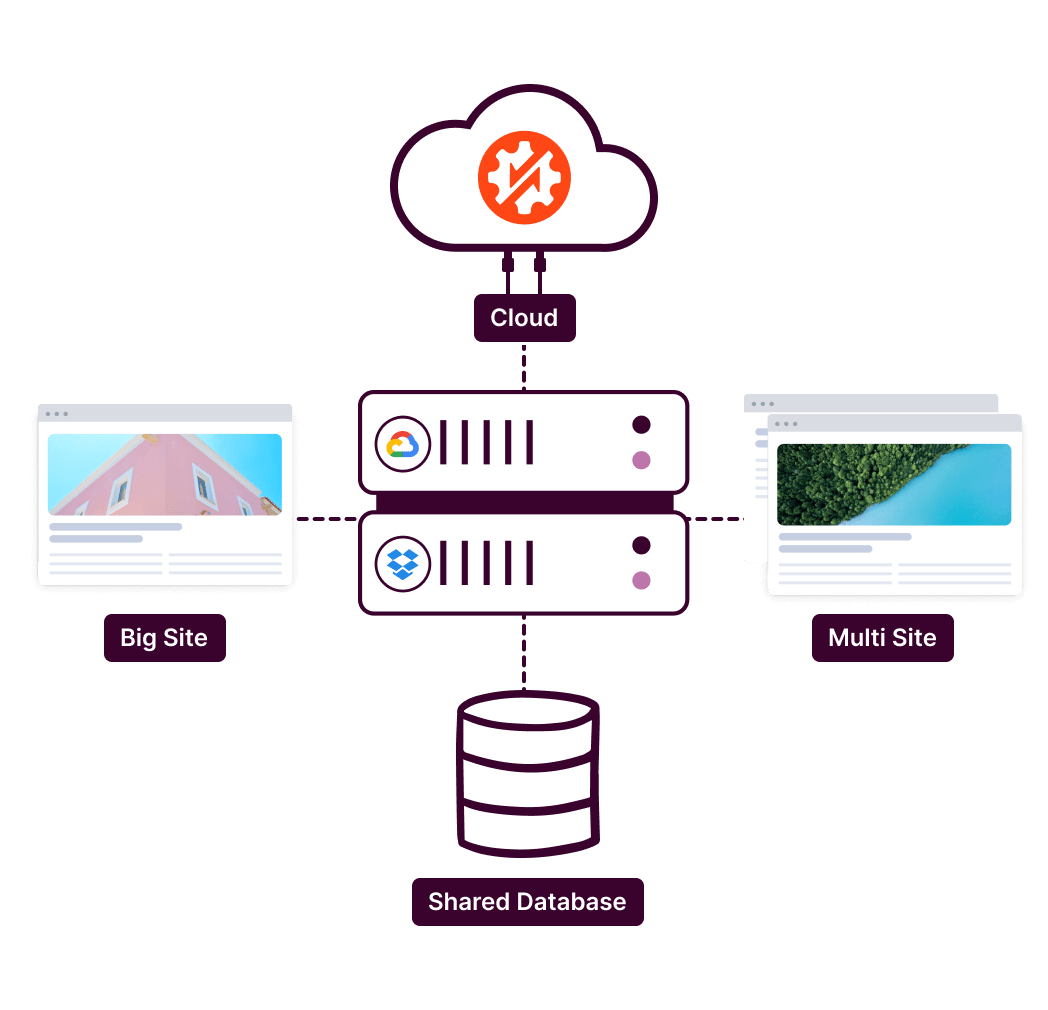
Duplicator Cloud is purpose-built backup storage. It’s not free, but it’s the right choice when you’ve outgrown consumer storage tiers, want backup-specific retention policies, or need storage that’s fully integrated into the Duplicator dashboard rather than bolted on as an afterthought.

What Duplicator Cloud does differently:
- Retention policies built in. Set how many backups to keep; older ones are removed automatically.
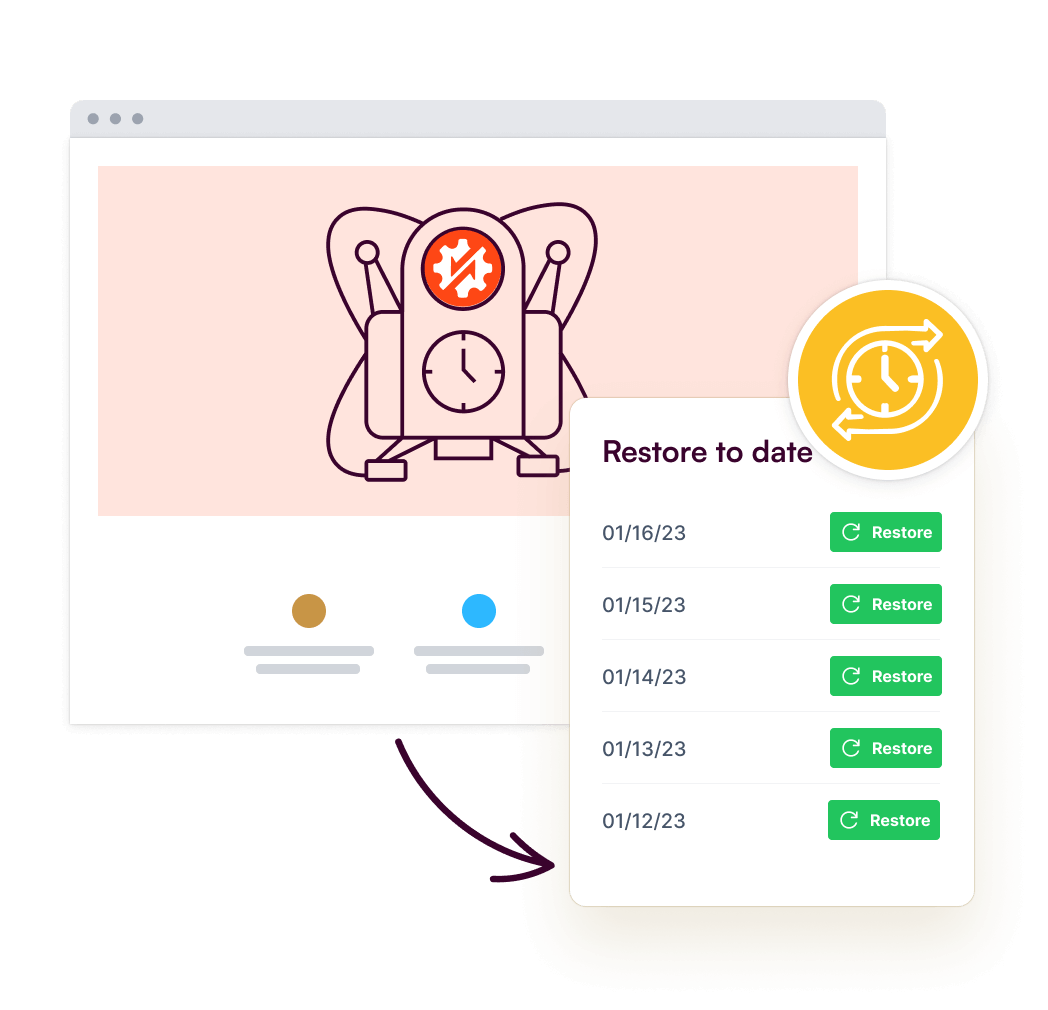
- One-click restore directly from the Duplicator dashboard, without logging into a separate cloud console.
- Remote restores from the cloud when your dashboard is broken.
- Storage is under your Duplicator account, not tied to a personal Google or Microsoft login.
- No egress fees on restores
Who Duplicator Cloud is for: Agencies managing multiple client sites, developers who run frequent backup-and-restore cycles, and anyone who’s hit the ceiling on free storage tiers and wants backup-specific management without the complexity of configuring S3 or GCS.
Frequently Asked Questions (FAQs)
How do I back up my data offsite?
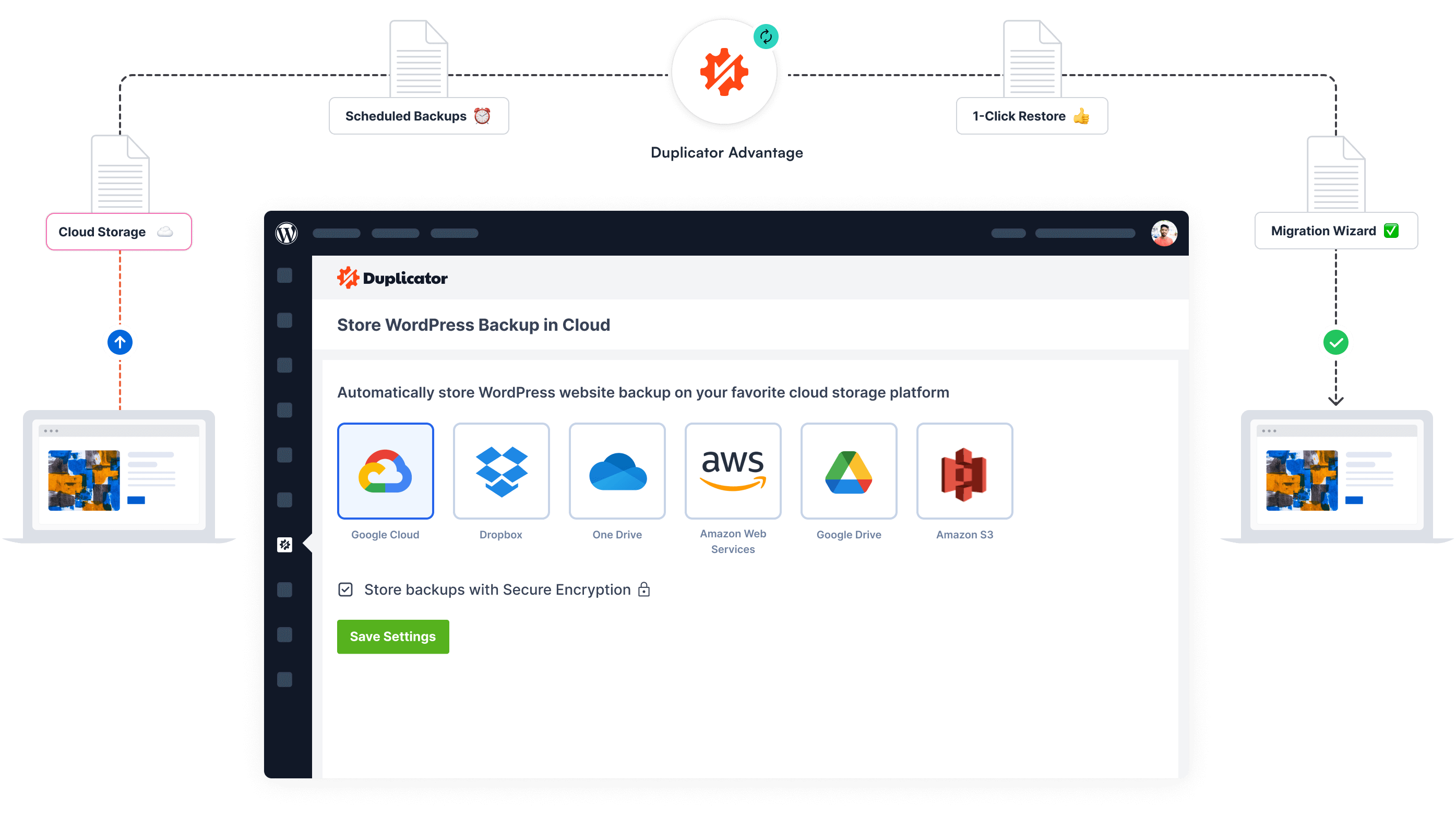
To back up your data offsite, you can use a WordPress backup plugin like Duplicator. Create a new storage location and add your third-party account details. Since Duplicator is so flexible, you can use Google Drive, Dropbox, Amazon S3, or any other cloud storage mentioned in this list!
What is the disadvantage of an offsite backup?
One potential downside of offsite backups is the initial setup. Connecting your website to an offsite storage can take a little time to configure, but it’s made easier with backup plugins like Duplicator. Also, restoring a large website from offsite storage can take longer than restoring from a local backup, as it depends on your internet speed.
What is the best free backup software?
There isn’t one single “best” free backup software for everyone. However, I’d recommend using Duplicator with free online cloud backup software like Google Drive, Cloudflare R2, or Backblaze B2. Duplicator handles the data backup process within WordPress, and the cloud storage provides the offsite location.
What is the difference between cloud and offsite backups?
“Offsite” means storing backups in a separate physical location. “Cloud backup” is a type of offsite backup that uses cloud storage services. So, all cloud backups are offsite, but not all offsite backups are necessarily in the cloud. For example, you could use a physical hard drive at a different location as an offsite backup.
In the context of WordPress and these free options, we are generally talking about cloud-based offsite backups.
Set Up Your First Off-Site Backup Today
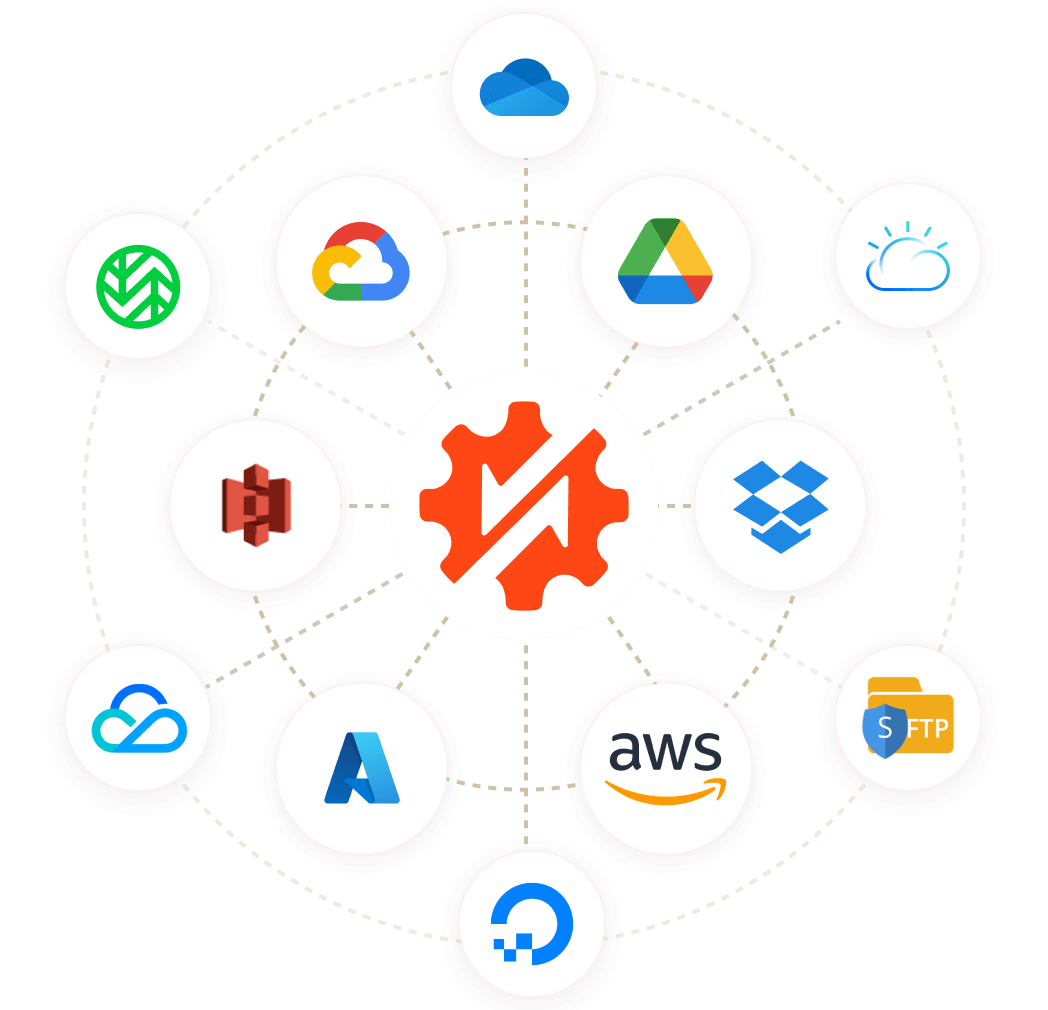
You have several free options for offsite backups. Google Drive, Dropbox, OneDrive, Amazon S3, Google Cloud, Cloudflare R2, and Backblaze B2 all provide cost-effective ways to store your backups safely in the cloud.
Each option has its own pros and cons, especially regarding storage limits and setup. But the most important thing is to choose one and start backing up regularly.
Don’t wait until something bad happens to think about backups!
Storage is only half the equation. You still need a backup plugin to create the backup and send it there. Duplicator Pro connects to every option on this list, handles the backup schedule, and manages retention so your free tier doesn’t quietly fill up and stop working.
While you’re here, I think you’ll like these other WordPress guides: