


Come migrare un sito WordPress GRATUITAMENTE nel 2026
 Joella Dunn
Joella Dunn
Joella Dunn
 John Turner
John Turner
John Turner
Ever felt the need to move your WordPress site to a new location?
Maybe you’re switching web hosts, creating a staging environment, or just want a fresh start. Whatever your reason, website migration doesn’t have to be a headache or a drain on your wallet.
With the right tools, you’ll migrate your WordPress site for free. I’ll show you how!
Ecco i punti chiave:
- Professional WordPress migration services cost $50-$500+, but you can do it yourself for free
- Duplicator Lite is a free plugin trusted by over 1 million users that makes migration simple
- The process involves creating a backup, uploading it to your new server, setting up a database, and running the installer
- Total migration time is just a few minutes of hands-on work, even for beginners
- You’ll need both a hosting plan and database access on your new server to complete the migration
Indice
What’s the Average Cost to Migrate a WordPress Site?
Professional WordPress migration services typically charge between $50 to $500+. The wide range in pricing comes from several factors:
- Site size: Large sites with more pages and media files generally cost more to migrate.
- Complexity: E-commerce sites or those with custom functionality may require additional work.
- Additional services: Some providers offer extras like performance optimization or security audits.
- Timeframe: Rush jobs often come with a higher price tag.
While professional services guarantee results and time savings, they’re not always necessary. For many site owners (especially those with smaller sites), a DIY approach can be just as effective.
There are plenty of WordPress migration plugins out there, and some are free. The premium versions cost anywhere from $50-$100 a year.
That covers how you’re migrating your data, but you’ll still need to set up the new website. If you’re transferring to another WordPress hosting company, you’ll have to purchase a hosting plan and possibly a new domain name.
How to Migrate a WordPress Site for Free
Now that we’ve covered the potential costs, let’s dive into the free migration process!
Here’s how to migrate your WordPress site for free:
- Step 1: Install Duplicator Lite: A free plugin that creates complete site backups and lets you migrate them anywhere that supports WordPress
- Step 2: Create a Full Site Backup: Generate a backup archive file and installer to package your entire website
- Step 3: Migrate the Backup: Upload both files to your new server’s root directory via FTP or file manager
- Step 4: Create a New Database: Set up a fresh MySQL database with a user and password on your new host
- Step 5: Finish the Migration: Run the installer script to deploy your site and complete the move
Step 1: Install a Free WordPress Migration Plugin
When it comes to free WordPress migration, Duplicator stands out as a powerful and user-friendly solution. This popular plugin has earned the trust of over a million WordPress users, and for good reason.
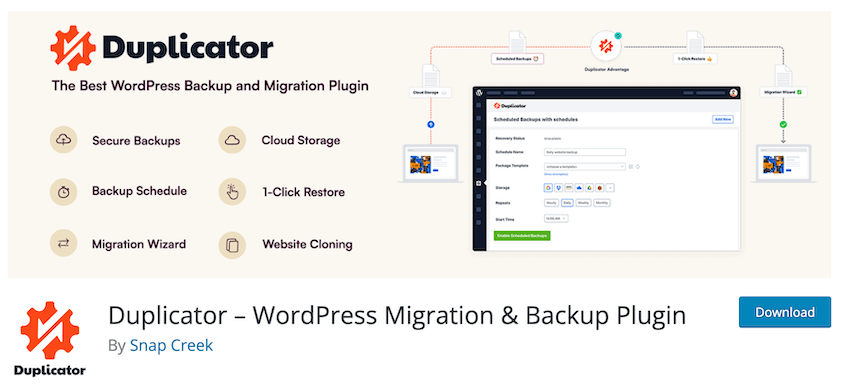
Duplicator works by creating backups of your site, which include all your files, databases, and settings. This backup can then be transferred to a new location, effectively “duplicating” your site on the new server.
The best part? Duplicator has a completely free version!
To migrate your website for free, install Duplicator on your current WordPress site. Then, activate it.
Step 2: Create a Full Site Backup
Now it’s time to create a complete backup of your site. This backup will contain everything you need to migrate your site.
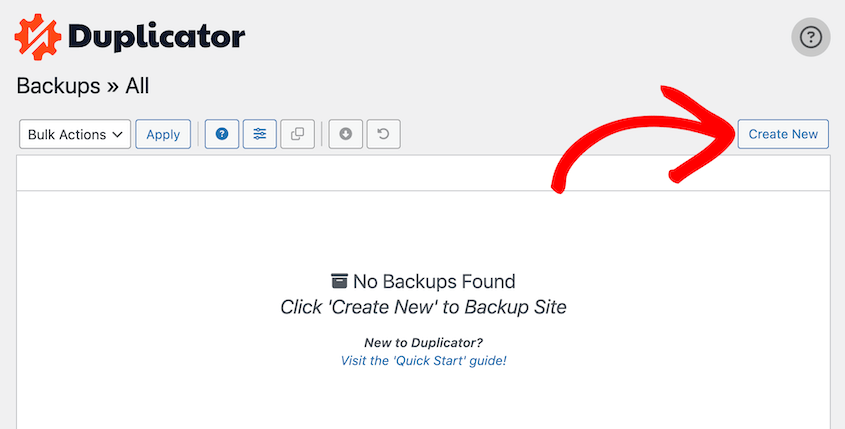
In your WordPress dashboard, go to Duplicator » Backups » Create New.
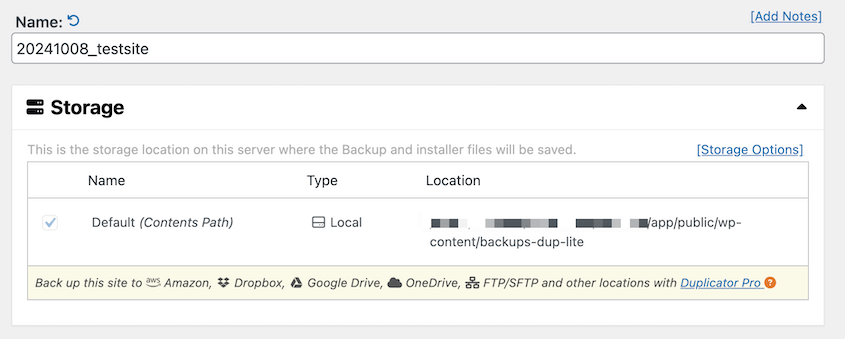
Name the backup. Select Local as the storage location.
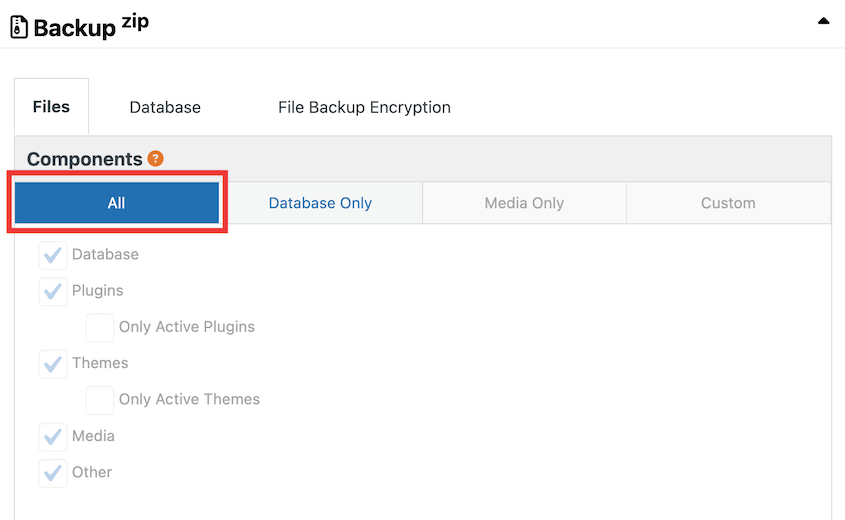
Expand the Backup section. Under Components, select All.
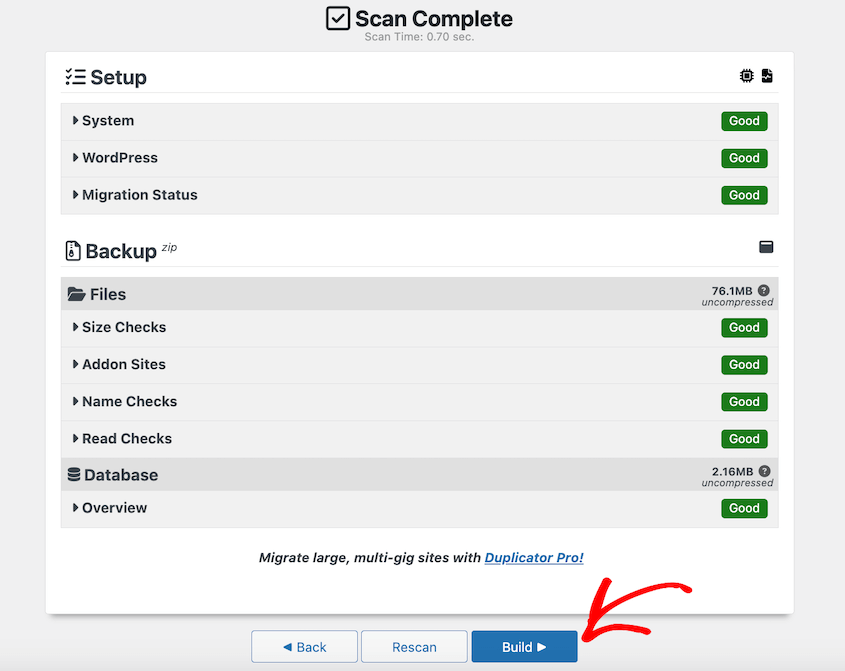
Duplicator will now scan your site. It’ll check for potential issues that might affect the migration.
Once you’re satisfied with the scan results, click Build.
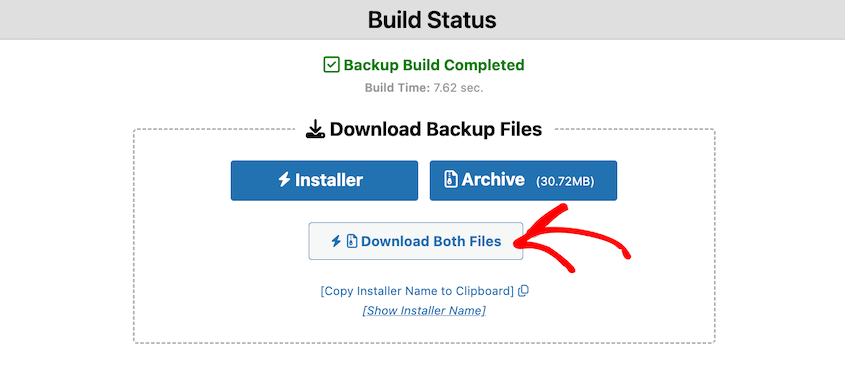
When it’s done, you’ll see two backup files available for download: the archive and the installer. Download both of these.
Step 3: Migrate the Backup to Another Site
Now that you have your backup, it’s time to move it to your new server.
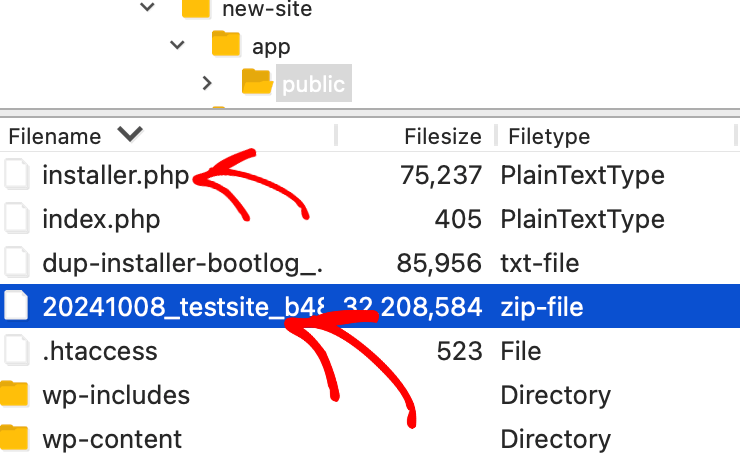
Access your new server using FTP, cPanel, or your hosting provider’s file manager. Navigate to the root directory where you want your new WordPress website to be (usually public_html).
Upload both the installer.php file and the archive zip file to this directory.
If you have issues uploading large files, check with your hosting provider about PHP upload limits or use an FTP client that supports chunked uploads.
Passaggio 4: Crea un nuovo database
Before you can install your site on the new server, you need to set up a fresh database.
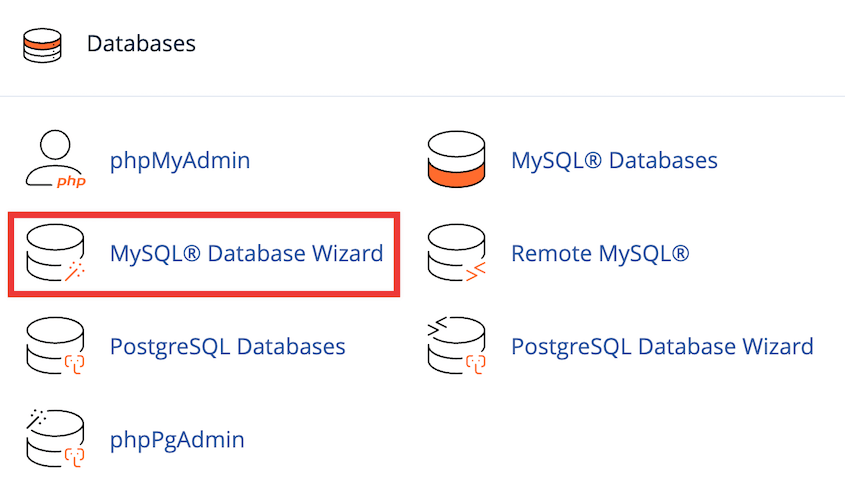
To do this, access your hosting control panel (often cPanel). Open the MySQL Database Wizard.
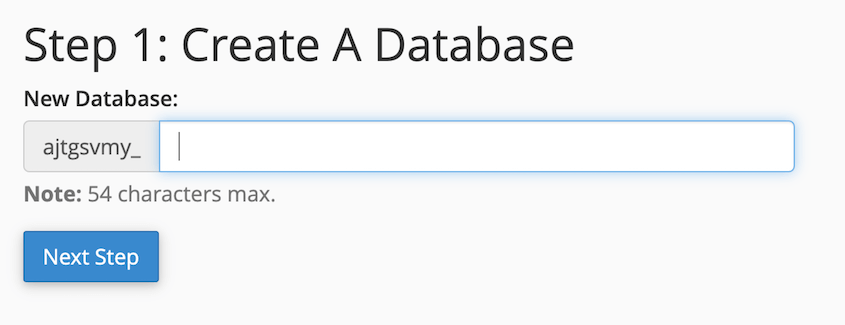
Name the new database and continue to the next step.
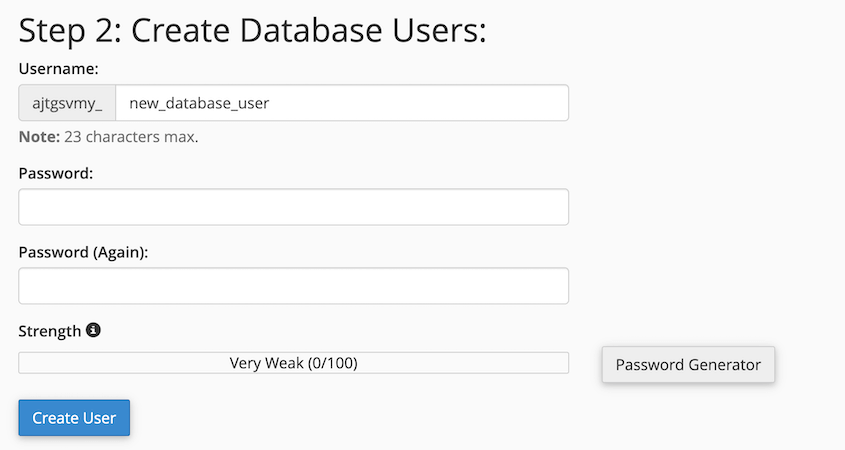
Create a new database user and password.
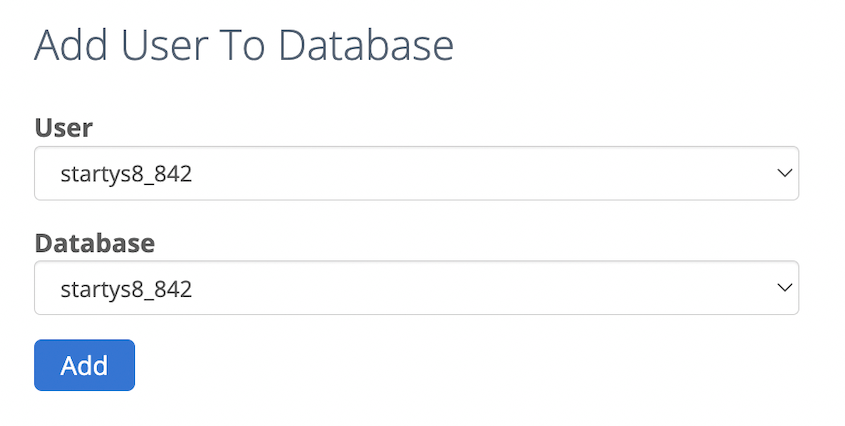
Assign the new database user to the database you just created. Make sure the user has all privileges for the database.
Save the new database name, username, and password. You’ll need these in the next step.
Step 5: Finish the Migration
Open a web browser and navigate to the installer.php file on your new server. The URL will look something like: http://yournewdomain.com/installer.php
You’ll see the Duplicator installer page.
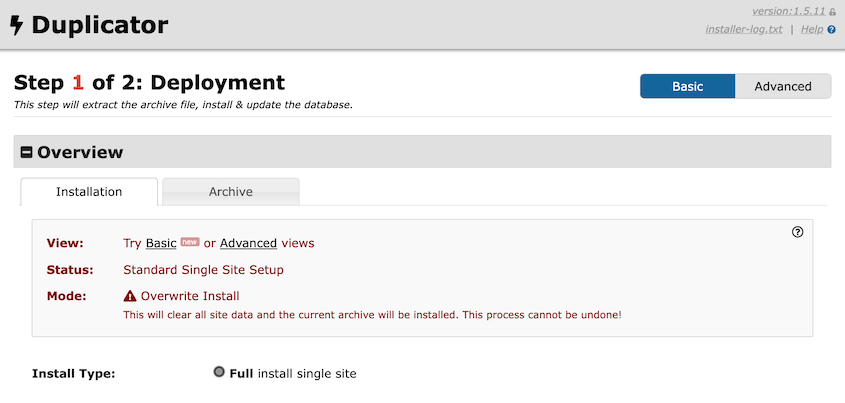
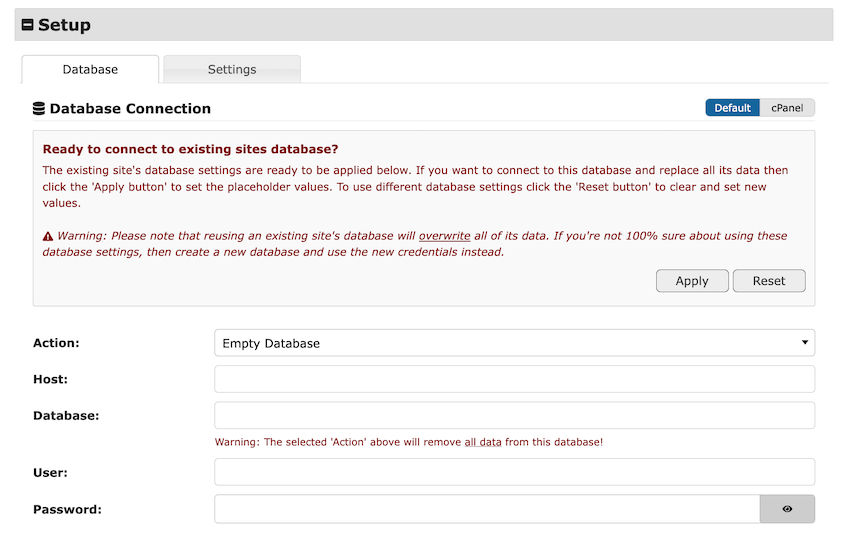
Scroll down to the Setup section. Here, enter your new database information.
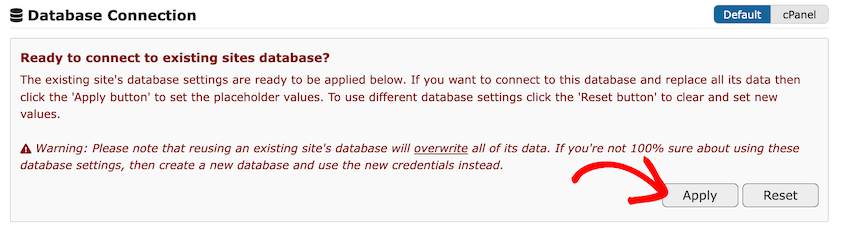
Duplicator may already find the existing database. In that case, hit Apply.
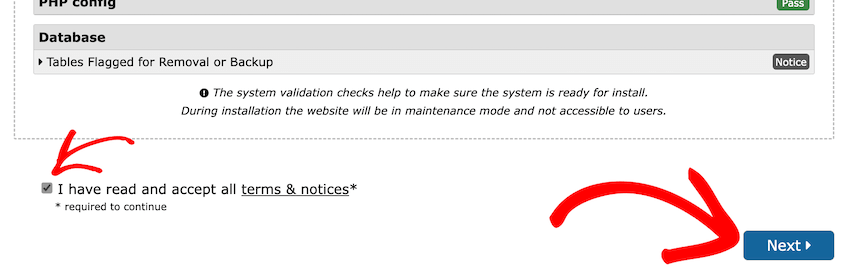
Then, click on Validate. Accept the terms and notices and continue to the next step.
In the pop-up, confirm the installation.
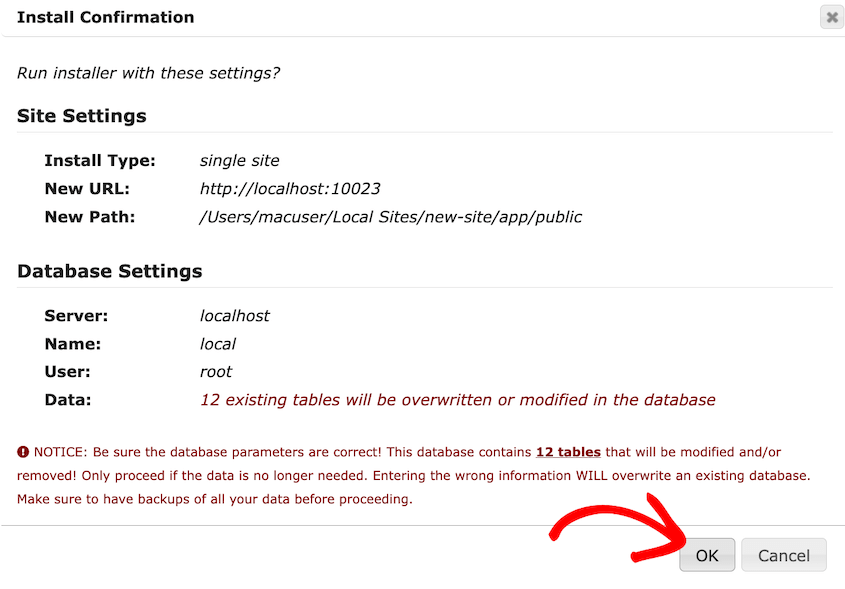
At this point, Duplicator will migrate your WordPress site for you. It’ll do an automated search and replace and other necessary migration tasks.
Once the installation is complete, you’ll see a final report. Review it for any warnings or notices.
You’ll want to automatically delete the installer files as you log in. Click on the Admin Login button to access your newly migrated site.
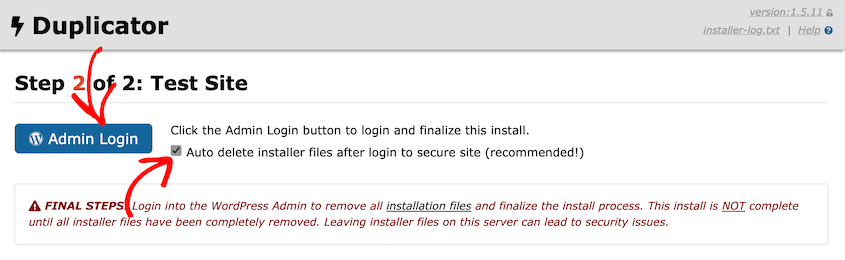
Congratulations! You’ve successfully migrated your WordPress site for free using Duplicator. Your site should now be up and running on its new home.
To finish the migration, here are a few extra (optional) tasks:
- Test your site thoroughly. Check all pages, posts, and functionalities.
- Update your DNS settings if you’ve moved to a new domain.
- If using SSL, make sure it’s properly set up on the new server.
- Clear your browser cache and test the site in incognito mode to ensure everything’s working as expected.
Domande frequenti (FAQ)
How do I migrate a WordPress site without a plugin?
It’s possible to migrate a WordPress site manually, but it’s more complex and time-consuming. The process involves exporting your database with phpMyAdmin, copying all your files via FTP, importing the database to the new server, and updating configuration files.
An automated migration plugin like Duplicator does these steps for you, reducing the risk of errors and saving time.
Another plugin-free migration option is to rely on your web hosting provider. Especially if you have a managed WordPress hosting plan, the expert WordPress support team will handle this for you. But, you’ll have to be migrating within the same host.
How do I copy a whole WordPress site?
Copying a WordPress site, also known as cloning, is essentially the same as migration. You can use Duplicator to create a full copy of your site. Just follow the steps in this guide, but instead of moving to a new host, you’ll be creating a duplicate on the same server or a local environment.
How do I clone a WordPress site for free?
Duplicator is an excellent free tool for cloning WordPress sites. Simply create a full backup of your site and download it. Upload it wherever you need a cloned copy.
Other free methods include using cPanel’s built-in tools or WordPress’s export/import features, but these may not capture all site elements as comprehensively as Duplicator.
You can also use other top WordPress migration plugins like All-in-One WP Migration or Migrate Guru. However, they don’t handle WordPress multisite or large sites as well as Duplicator.
How long does it take to migrate a WordPress site?
To migrate a WordPress site with a plugin like Duplicator, it’ll only take a few minutes. With manual methods, it might take 15-30 minutes for a small site and an hour or more for larger sites.
Your migration time could increase because of these factors:
- Site size: Larger sites with more content take longer.
- Server speed: Both your original and new server’s performance affect migration time.
- Your internet connection: This impacts download and upload times for backup files.
Remember, most of this time is spent waiting for processes to complete. The actual hands-on time is usually much less (especially with a migration plugin).
Start Your Cost-Free Migration
Migrating a WordPress site doesn’t have to be a costly task. With Duplicator, you have a powerful, free tool at your disposal that simplifies the entire process.
The best part about learning to migrate your site yourself? You’re no longer dependent on expensive services or hosting company schedules.
You’ve gained a valuable skill that gives you complete control over your website’s future. Whether you’re moving hosts, creating staging sites, or just want to experiment without risk, you now have the knowledge to do it confidently.
Are you ready to move your website? Upgrade to Duplicator Pro for easy drag-and-drop migrations and expert support!
Mentre sei qui, penso che ti piaceranno queste guide aggiuntive su WordPress:
- The Ultimate WordPress Migration Checklist: Master the Move!
- Come migrare un sito WooCommerce
- La guida completa alla migrazione di siti web SEO
- Migrazioni Senza Soldi: I Migliori Plugin di Migrazione WordPress GRATUITI
- I 9 migliori plugin per clonare un sito WordPress




