


I Found the Best CDN for WordPress on Any Budget
Your server is in Dallas, but your visitor is in Sydney. That’s 8,500 miles of latency before a single image loads.
You’ve compressed files, updated plugins, and paid for better hosting. But half your visitors are still bouncing because geography doesn’t care about your caching plugin.
A Content Delivery Network fixes this. It puts copies of your site on servers worldwide, so users in Mumbai or London aren’t waiting for data to cross three oceans.
CDNs change how your content travels. When you serve your content quickly to anyone in the world, you won’t have lags that cost you conversions.
In this post, I’ll recommend the best WordPress CDNs. These tools will stop you from losing traffic to a spinning loading wheel!
Here are the key takeaways:
- A CDN distributes your site across global servers, cutting load times for distant visitors and reducing strain on your origin server
- WordPress doesn’t include a built-in CDN—you’ll need to add one through a plugin or DNS-level service
- CDNs improve your Core Web Vitals (a Google ranking factor), protect against traffic spikes and DDoS attacks, and can lower bandwidth costs
- Budget-friendly options start at $1/month (Bunny.net) or are free (Cloudflare), while specialized CDNs like Envira focus on preserving image quality
- Setup takes 5-10 minutes with plugin-based CDNs, but always back up your site first and verify SSL settings to avoid redirect loops
Table of Contents
What is a CDN?
A CDN is a network of servers spread across the globe. Without one, every visitor hits your main server. If that server is in Virginia and someone visits from Tokyo, they’re waiting for data to travel halfway around the world. With a CDN, they hit a Point of Presence (PoP) near them instead.
Think of it like this: your origin server is a warehouse. The CDN is a chain of physical stores. When someone in Singapore needs your homepage, they grab it from the Singapore store, not the warehouse in Ohio.
CDNs mostly handle static assets like images, CSS files, and JavaScript—the heavy stuff that doesn’t change with every page load.
Your server still handles the dynamic content (like database queries or user logins). However, offloading the big files to a CDN means your server isn’t choking on image requests while trying to process checkout forms.
The result is faster load times, lower server strain, and visitors who actually stick around.
Does WordPress Have a CDN?
No, the core WordPress software doesn’t come with a CDN. You have to add one yourself.
Some managed hosts, like WP Engine and Kinsta, bundle a CDN. But that’s the host providing it, not WordPress itself.
If you’re self-hosted and want a CDN, you’ll need to shop for one yourself.
Why Use a CDN for Your WordPress Site?
It all comes down to having a faster site, better uptime, and lower costs. That’s why CDNs exist.
Speed matters to Google.
Core Web Vitals are a ranking factor. If your Largest Contentful Paint (LCP) is slow, you’re getting buried in search results.
A CDN fixes this by cutting load times in half for users far away from your server.
Traffic spikes crash your site.
You get featured in a newsletter. Someone shares your post on Reddit. Suddenly 5,000 people hit your site at once.
A single server can’t handle that. It buckles. Your site goes down right when you need it most.
A CDN spreads the load across dozens of servers. Your hosting stays stable while the CDN absorbs the surge.
DDoS attacks are real.
Hackers flood sites with fake traffic to take them offline. A CDN acts as a filter, blocking malicious requests before they ever reach your main server.
You’ll save on bandwidth.
If your host charges for data transfers, offloading images and files to a CDN can drop your monthly bill. The CDN serves the heavy assets. Your host only handles the essentials.
Our Favorite CDNs for WordPress Websites
Here’s a quick overview of the best CDN services for WordPress:
- Bunny.net: Pay-as-you-go pricing starting at $1/month with beginner-friendly setup and 110 global PoPs
- Cloudflare: Industry standard with a free tier, 330 global locations, and comprehensive DDoS protection
- Envira CDN: Specialized for photographers and visual portfolios; preserves image quality without compression
- Sucuri: Security-first CDN with malware scanning, firewall protection, and up to 60% speed improvement
- KeyCDN: Developer-focused option with granular caching control and high performance across 6 continents
Bunny.net
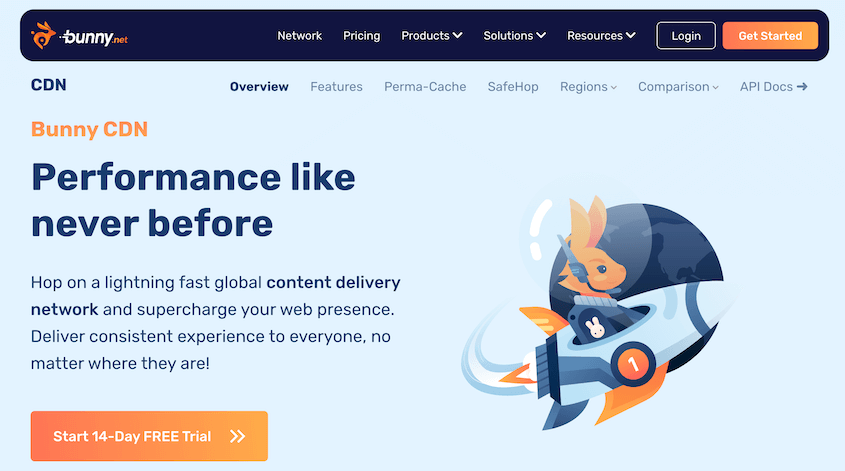
Bunny.net is the budget option that doesn’t feel cheap.
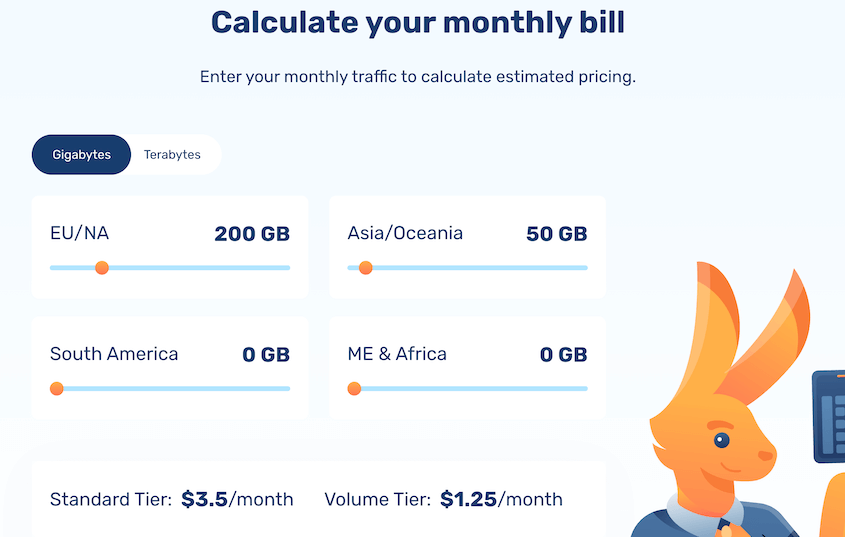
Most CDNs lock you into $20-per-month minimums. Bunny uses pay-as-you-go pricing, with a $1 monthly minimum.
It even has a handy calculator, so you can figure out what your custom site’s CDN would cost.
The dashboard is built for beginners. You paste an API key, connect your site, and you’re done in five minutes.
Here are some of the Bunny.net features I liked:
- Free SSL certificate
- 110 global PoPs
- Real-time monitoring
- Video optimization
- Instant cache purging
- Affordable pricing
- Extra Bunny.net tools like image optimizer and cloud storage
Cloudflare

Cloudflare is the industry standard for a reason. It has 330 global locations to help serve your static and dynamic content much faster.
Unlike other options on this list, the Cloudflare CDN has a free tier. This gives beginners an opportunity to build a global audience without extra fees.
Instead of installing a plugin, you change your nameservers at your domain registrar (GoDaddy, Namecheap, etc.). Cloudflare sits between your site and the entire internet—not just delivering files, but filtering traffic.
However, Cloudflare’s caching can be aggressive. Sometimes you update a page, and visitors still see the old version because Cloudflare is holding onto it. You can purge the cache manually, but it’s an extra step.
Here are some key features from Cloudflare I liked:
- Unmetered DDoS protection
- Web Application Firewall (WAF)
- Accelerated Mobile Pages (AMP)
- Bot mitigation
- 330 global PoPs
- Free plan
Envira CDN
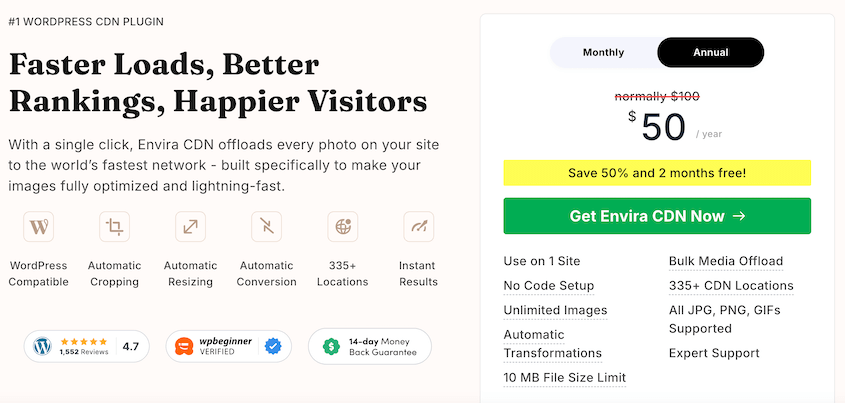
Envira CDN is tied to the Envira Gallery plugin. It’s a great option if you’re running a photography site or visual portfolio.
General CDNs compress images to save bandwidth. That’s fine for blog headers, but it affects high-res photography. Colors get muddy, and details vanish.
Envira CDN is tuned for visual quality. It speeds up your galleries without destroying your work.
If you use it alongside Envira Gallery, you’ll get extra protection features like watermarks and right-click blocking. This way, people can’t steal your images.
Here are some of the Envira CDN features I liked:
- One-click setup
- Supports unlimited images
- Automatic image size conversion
- Automatic image cropping
- 335+ global PoPs
- Supports JPG, PNG, GIF
Sucuri

Sucuri is a security company that happens to offer a CDN.
Most people install Sucuri for the security features. It scans your site for malware, blocks brute-force login attempts, and stops SQL injections before they touch your database.
Sucuri includes a CDN to help with load times. It claims to improve page loading speed by an average of 60%.
Here are some of the Sucuri features I liked:
- DDoS protection
- Virtual patching
- Multiple caching options
- Web Application Firewall
- Up to 60% page speed improvement
- No installation
KeyCDN
KeyCDN is the developer’s choice. It’s built for users who want granular control over caching rules without dealing with a “black box” service.
The performance is top-tier. KeyCDN is known for strict privacy standards and low latency across 6 continents.
They also built the CDN Enabler plugin—a lightweight WordPress connector with easy purge caching and REST API support.
Here are some of the KeyCDN features I liked:
- HTTP cache header control
- GZIP compression
- DDoS protection
- Two-factor authentication
- Easy-to-use WordPress CDN plugin
How to Successfully Migrate Your Site to a CDN
First, let’s clear something up: setting up a CDN won’t be a full migration. Your files stay on your host. You’re just changing the path they take to reach visitors.
But before you touch anything, create a backup of your site.
Use Duplicator to create a full snapshot of your site. If you misconfigure SSL settings or break something during setup, you can roll back with one click instead of panic-Googling at midnight.

There are two ways to connect a CDN to WordPress.
Services like Bunny.net and KeyCDN use plugins. You install the plugin, paste your API key, and hit save. It takes five minutes.
Cloudflare and Sucuri work at the DNS level. You log into your domain registrar (like GoDaddy or Namecheap) and change your nameservers.
This routes all traffic through the CDN first. Not just images—everything. It’s more comprehensive, but also more involved.
Watch out for SSL settings. This is where people break their sites.
If your site uses HTTPS (it should), set your CDN’s SSL mode to “Full” or “Full (Strict)”. If you leave it on “Flexible,” you’ll get infinite redirect loops. Your site will load forever and never finish.
Now, test your setup. Go to GTmetrix and run a waterfall chart.
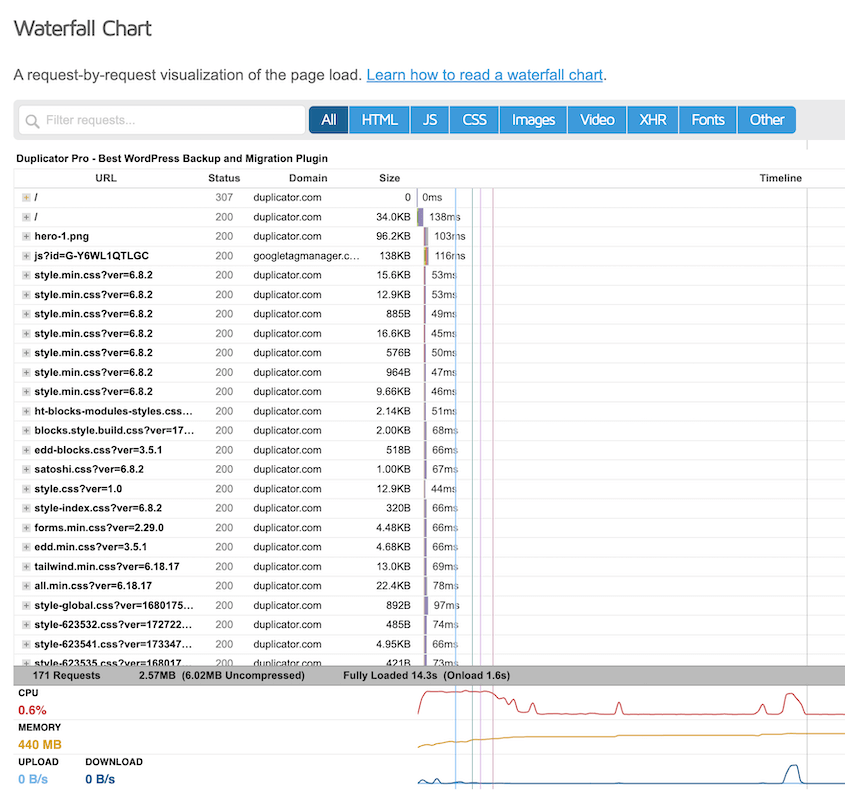
Look at the HTTP headers for your images. If they say “HIT” or show your CDN’s domain, it’s working. If they still point to your origin server, something’s misconfigured.
Frequently Asked Questions (FAQs)
What’s the best free CDN for WordPress?
Cloudflare has the best free CDN for WordPress because its free tier includes global delivery, DDoS protection, and SSL—features that other CDNs charge $20/month for.
What’s the best CDN for performance and security?
Cloudflare or Sucuri are the best CDNs for performance and security. Both combine firewalls with CDN delivery. For pure speed on a budget, Bunny.net wins.
What’s the best CDN for image optimization?
Bunny.net with the Optimizer add-on or Cloudflare with the Polish feature enabled. Both compress JPEGs and convert to WebP automatically, saving server resources. However, go for Envira CDN if you run a photography site that can’t compromise on image quality.
How do I choose a CDN for my WordPress site?
If you have low traffic and a tight budget, I’d use Cloudflare’s free CDN. For heavy image galleries or photography sites, use Bunny.net or Envira CDN. Nervous about changing DNS settings? Stick to plugin-based options like Bunny.net or KeyCDN.
Install a CDN to Avoid Slow Loading Times
Speed is a competitive advantage. Every extra second of load time will cost you conversions.
A CDN fixes this, and you don’t need to overthink it. Pick one from this list, spend a few minutes on setup, and test your speed with GTmetrix.
Your bounce rate will drop. Your Core Web Vitals will improve. You’ll stop bleeding traffic to a loading spinner.
A CDN protects against traffic spikes, but it doesn’t protect against bad updates or human error. Before you change DNS settings or install caching plugins, take a full backup.
Duplicator Pro creates a complete restore point of your site. If something breaks during setup, you’re not scrambling to fix it. You just roll back.
And if you decide to move to a managed host with a built-in CDN, Duplicator handles the migration without downtime. Try it out today!
While you’re here, I think you’ll like these other WordPress guides:
- How to Optimize Your WordPress Database: Get a Fast Site in 10 Steps
- Your WordPress Site is Bleeding Money Every Second It’s Slow (Here’s the Fix)
- 11 WordPress Maintenance Tasks You Won’t Want to Forget
- How to Automatically Back Up WordPress (Beginner’s Guide)
- Why Backup Compression Works So Well For WordPress Sites



