


So installieren Sie WordPress auf LocalWP
 Joella Dunn
Joella Dunn
Joella Dunn
 John Turner
John Turner
John Turner
Sie müssen sich nicht mit kompliziertem Code und Serverkonfigurationen herumschlagen, um eine Website zu erstellen.
Wie wäre es, wenn Sie Ihre WordPress-Website in einer sicheren Offline-Umgebung erstellen und testen könnten, und das völlig kostenlos?
Dieser Leitfaden konzentriert sich auf die Verwendung von Local von Flywheel, einem fantastischen Tool für die lokale Installation von WordPress. Wenn Sie ein Anfänger sind, ist Local eine gute Wahl. Es ist lokale WordPress-Entwicklung leicht gemacht.
In diesem Beitrag werde ich Ihnen zeigen, wie Sie WordPress auf LocalWP installieren.
Hier sind die wichtigsten Erkenntnisse:
- LocalWP (ehemals Local by Flywheel) ist eine kostenlose App, mit der Sie WordPress auf Ihrem Computer installieren können, ohne dass Sie einen Live-Server einrichten oder eine Live-Internetverbindung benötigen.
- Sie können innerhalb weniger Minuten eine voll funktionsfähige lokale WordPress-Website einrichten, wobei PHP, MySQL und SSL automatisch konfiguriert werden.
- LocalWP unterstützt den Import Ihrer bestehenden Live-Website über Duplicator, sodass Sie Änderungen sicher testen können, bevor sie in die Produktion gehen.
- Integrierte Tools wie Adminer für die Datenbankverwaltung und der Zugriff auf WP Admin mit einem Klick machen separate Entwicklertools überflüssig.
- Wenn Sie bereit sind, übernimmt Duplicator Pro auch den umgekehrten Vorgang – mit nur wenigen Klicks wird Ihre fertige lokale Website zurück auf Ihren Live-Server übertragen.
Inhaltsverzeichnis
Was ist LocalWP?
LocalWP (früher bekannt als Local by Flywheel) ist eine anfängerfreundliche Anwendung, mit der Sie WordPress-Websites auf Ihrem Computer erstellen und verwalten können. Es handelt sich um ein lokales Entwicklungstool, das den Prozess der Erstellung und des Testens von WordPress-Websites vereinfachen soll.
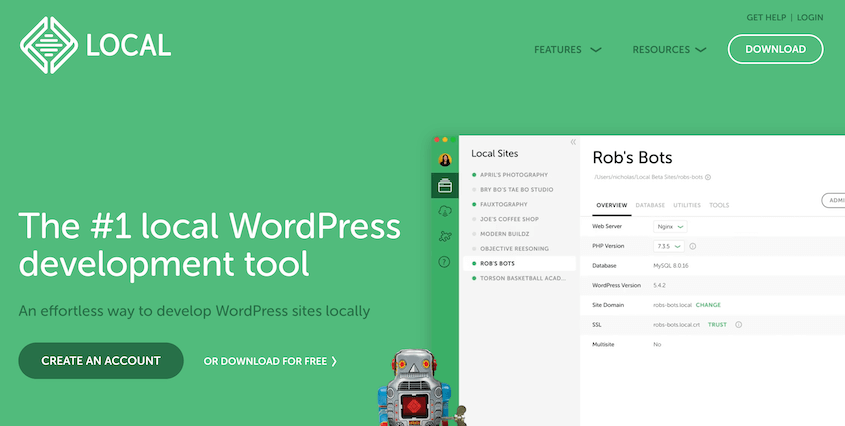
Local wurde von WP Engine entwickelt und ist unter WordPress-Entwicklern sehr beliebt.
Es beseitigt viele der technischen Hürden, die mit der Einrichtung einer lokalen Umgebung verbunden sind. Jeder kann WordPress-Seiten erstellen, ändern und testen, ohne eine Live-Internetverbindung zu benötigen.
Zu den wichtigsten Merkmalen von Local gehören:
- WordPress-Installation mit einem Klick
- Einfache Standortverwaltung
- Plattformübergreifende Kompatibilität (Windows, Mac und Linux)
- Integrierte Tools für die Datenbankverwaltung
- Automatische SSL-Zertifikate für lokale Websites
- Cloud-Backups
- Live-Links zur privaten Freigabe Ihrer lokalen WordPress-Website
Einer der größten Vorteile von Local ist seine Einfachheit. Sie können innerhalb weniger Minuten eine neue WordPress-Website einrichten, ohne Datenbanken oder Server-Einstellungen manuell konfigurieren zu müssen.
Es ist erwähnenswert, dass die Nutzung von Local kostenlos ist, was es zu einer zugänglichen Option für Entwickler auf allen Ebenen macht.
Vorteile der Installation von WordPress auf Local by Flywheel
Lokale Umgebungen sind in der Regel viel schneller als Live-Server. Dieser Geschwindigkeitsschub ermöglicht es Ihnen, Änderungen vorzunehmen und die Ergebnisse fast sofort zu sehen, wodurch der Entwicklungsprozess beschleunigt wird.
Sobald Sie Ihre lokale Website eingerichtet haben, können Sie daran arbeiten, ohne eine Internetverbindung zu haben. Dies ist ideal für Entwickler, die unterwegs sind oder in Gebieten mit unzuverlässigem Internet arbeiten.
Local macht es einfach, mehrere WordPress-Sites auf Ihrem Computer zu erstellen und zu verwalten. Sie können mit nur wenigen Klicks zwischen verschiedenen Projekten wechseln und so Ihre Arbeit organisiert und effizient gestalten.
Local vereinfacht komplexe Aufgaben mit integrierten Tools für die Verwaltung Ihrer Datenbank, die Handhabung von SSL-Zertifikaten und sogar die Live-Schaltung Ihrer Website, wenn sie fertig ist.
So installieren Sie WordPress lokal mit Flywheel
Sind Sie bereit, WordPress auf Local by Flywheel zu installieren? Lassen Sie uns Schritt für Schritt durch den Prozess gehen.
- Schritt 1: Local by Flywheel herunterladen und installieren: Laden Sie die kostenlose App für Windows, Mac oder Linux von der offiziellen LocalWP-Website herunter und führen Sie das Installationsprogramm aus.
- Schritt 2: Lokale Umgebung einrichten: Erstellen Sie eine neue Website, geben Sie ihr einen Namen und eine lokale Domain und wählen Sie Ihre PHP-Version, Ihren Webserver und Ihre MySQL-Version aus.
- Schritt 3: WordPress einrichten: Geben Sie Ihre Administrator-Anmeldedaten ein, aktivieren Sie optional Multisite und starten Sie Ihre lokale Website mit einem Klick.
- (Optional) Schritt 4: Migrieren Sie Ihre Live-Website zu LocalWP: Verwenden Sie Duplicator Pro, um Ihre Live-Website zu packen und in LocalWP abzulegen, wobei Sie die leere Installation durch eine vollständige Kopie Ihrer echten Website ersetzen.
Schritt 1: Herunterladen und Installieren von Local by Flywheel
Um loszulegen, müssen Sie Local auf Ihrem Computer installieren. Vergewissern Sie sich jedoch zunächst, dass Ihr Computer die folgenden Anforderungen erfüllt:
- 4Gb RAM
- 1,5 GB Festplattenspeicher
Für macOS-Benutzer: Installieren Sie Catalina (10.15) oder eine höhere Version. Unter Windows aktualisieren Sie auf eine Version ab 8.1.
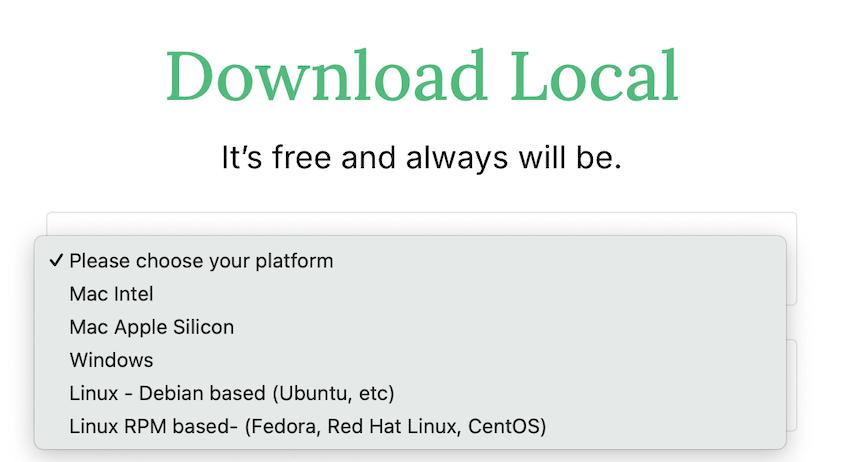
Rufen Sie dann die offizielle LocalWP-Website auf und klicken Sie auf die Schaltfläche Download. Wählen Sie im Pop-up-Fenster Ihre Plattformkompatibilität aus.
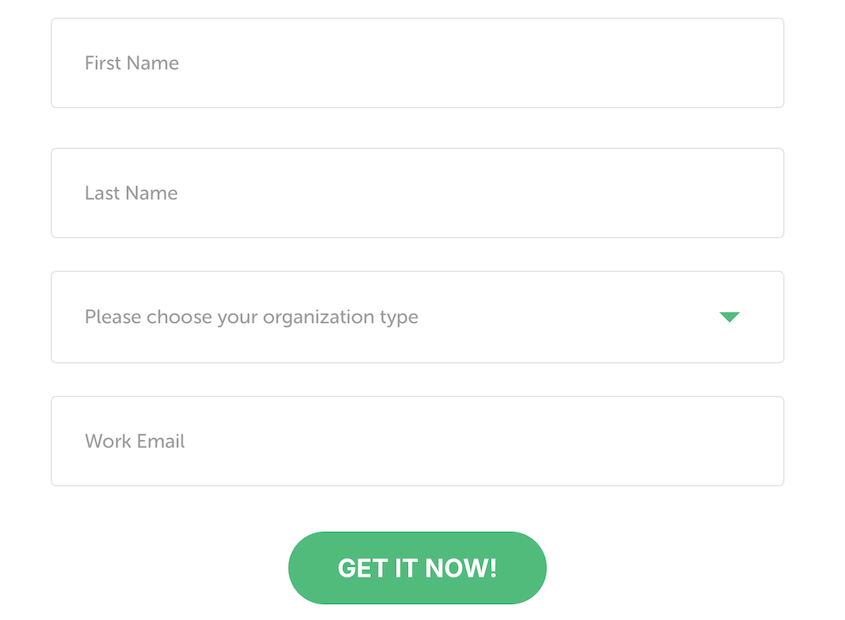
Geben Sie Ihren Vornamen, Nachnamen, Organisationstyp und Ihre Arbeits-E-Mail ein. Klicken Sie auf Jetzt holen, um Local herunterzuladen.
Sobald der Download abgeschlossen ist, führen Sie das Installationsprogramm aus und folgen Sie den Anweisungen auf dem Bildschirm.
Schritt 2: Einrichten einer lokalen Umgebung
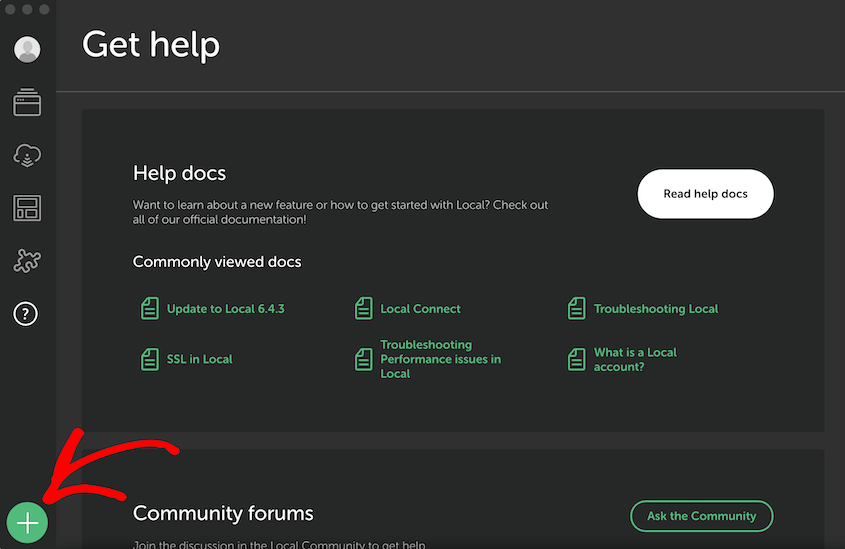
Nach der Installation von Local starten Sie die App. Klicken Sie auf die Schaltfläche +, um eine neue Seite hinzuzufügen.
LocalWP bietet Ihnen die Wahl: Sie können mit einer benutzerdefinierten WordPress-Installation beginnen oder ein vorkonfiguriertes "Blueprint" verwenden. Blueprints sind im Wesentlichen Website-Vorlagen, die Sie zur Vorinstallation von Plugins, Themes und anderen Daten verwenden können.
Wenn Sie eine völlig leere Website erstellen möchten, wählen Sie Neue Website erstellen und Weiter.
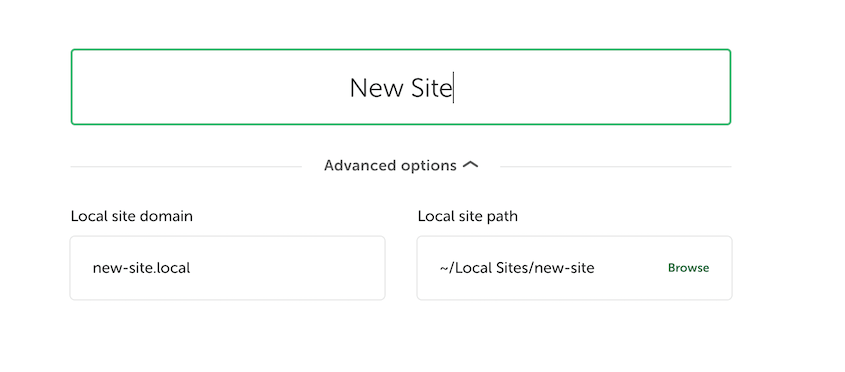
Geben Sie einen Namen für Ihre Website ein. Dies gilt auch für die lokale Domäne (z. B. mysite.local). Sie können jedoch die Domäne und den lokalen Site-Pfad in den erweiterten Optionen anpassen.
Jetzt ist es an der Zeit, Ihre Umgebungseinstellungen zu wählen. Für Anfänger wählen Sie die Option Bevorzugt. LocalWP wird Ihre Website mit einer optimalen PHP-Version, einem Webserver und einer MySQL-Version einrichten.
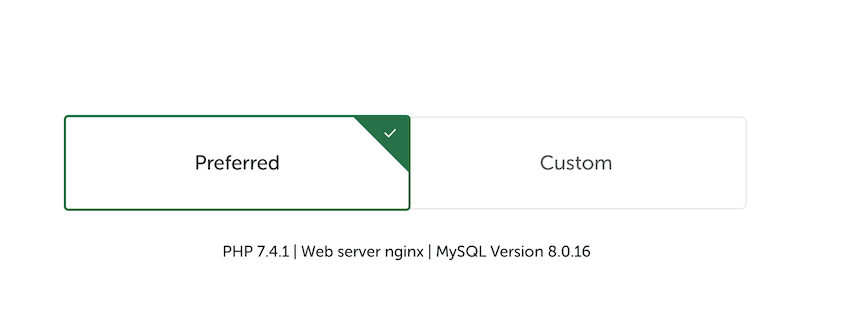
Wenn Sie möchten, können Sie eine eigene Umgebung einrichten. So haben Sie mehr Flexibilität bei der Auswahl:
- PHP-Version
- Webserver (Nginx oder Apache)
- Version der MySQL-Datenbank
Klicken Sie anschließend auf Weiter.
Schritt 3: WordPress einrichten
Als Nächstes gelangen Sie auf die Hauptseite für die Einrichtung. Geben Sie den Benutzernamen, das Passwort und die E-Mail-Adresse ein, mit denen Sie sich in Ihrem lokalen wp-admin-Dashboard anmelden möchten.
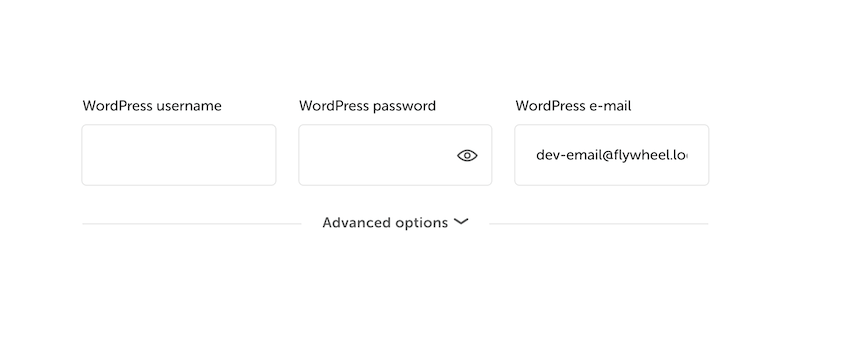
Normalerweise ist die Erstellung eines WordPress-Multisite-Netzwerks ein ziemlich komplizierter Prozess. Mit LocalWP ist es ganz einfach.
Öffnen Sie einfach die erweiterten Optionen und wählen Sie ein Unterverzeichnis oder eine Subdomain aus.
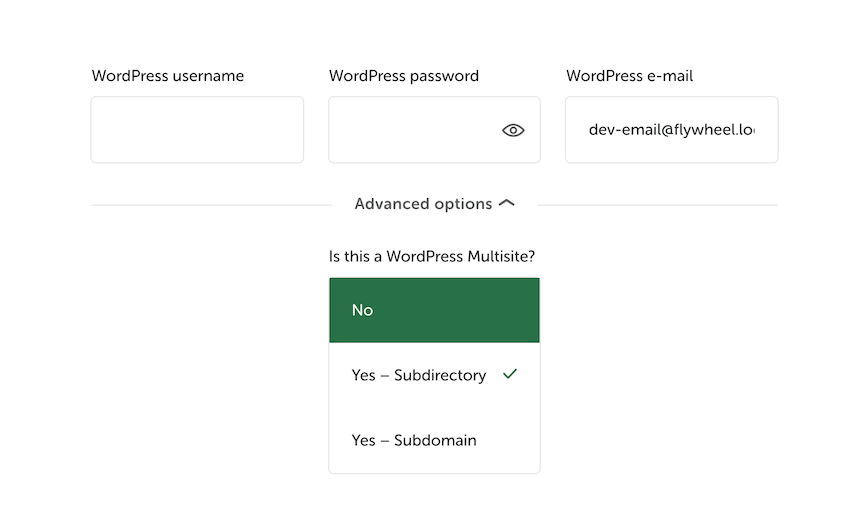
Klicken Sie auf die Schaltfläche Site hinzufügen, und Local erstellt Ihre lokale WordPress-Site innerhalb weniger Minuten!
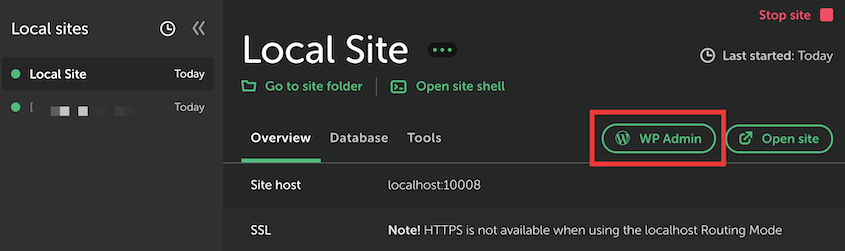
Sie können auf das WordPress-Administrationspanel Ihrer neuen Website zugreifen, indem Sie auf WP Admin klicken.
(Optional) Schritt 4: Migrieren Sie Ihre Live-Site zu LocalWP
Haben Sie bereits eine WordPress-Website, die anderweitig gehostet wird? Sie können diese ganz einfach zu Local verschieben, um sie neu zu gestalten oder andere Aktualisierungen vorzunehmen, die Sie nicht auf Ihrer Live-Website testen möchten.
Hier kommt Duplicator, mein Lieblings-Plugin für WordPress-Migrationen, ins Spiel. Duplicator packt Ihre gesamte Website in ein Backup und kann sie an jeden Ort verschieben, der WordPress unterstützt, sogar in eine lokale Umgebung.
Installieren und aktivieren Sie Duplicator Pro auf Ihrer Live-WordPress-Website. Sie können die kostenlose Version verwenden, aber ich würde ein Upgrade empfehlen, um schnelle Drag-and-Drop-Importe, Cloud-Speicher und verschlüsselte Backups zu erhalten.
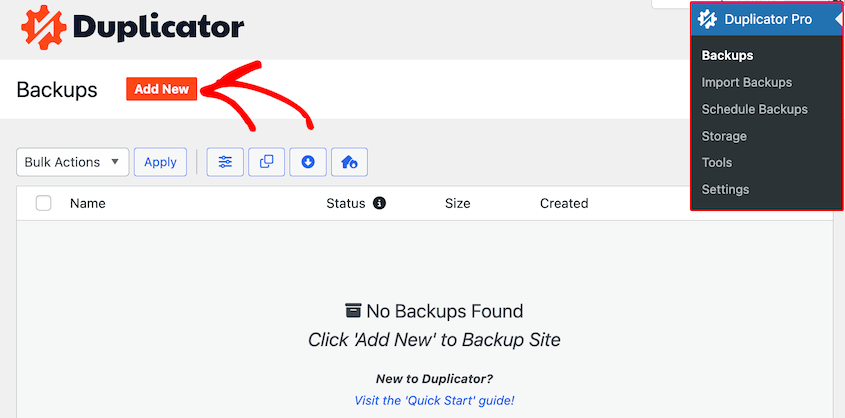
Wählen Sie dann Backups " Neu hinzufügen.
Um alle Ihre Daten auf die lokale Website zu migrieren, wählen Sie im Abschnitt „Backups“ die Option „Vollständige Website“ aus.

Fahren Sie mit der Erstellung des Backups fort. Laden Sie die Backup-Archivdatei herunter, sobald sie fertig ist.
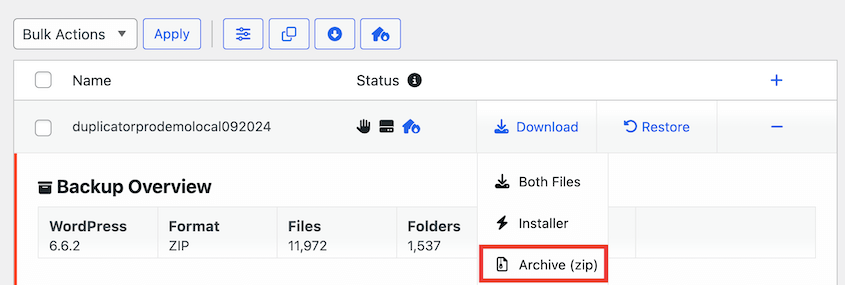
Öffnen Sie Ihre neue LocalWP-Website und installieren Sie Duplicator auch hier. Suchen Sie die Seite Backups importieren und legen Sie Ihre Backup-Datei dort ab.

Duplicator ersetzt die leere lokale Website durch eine Kopie Ihrer Live-Site. Sie können dann Änderungen vornehmen und wissen, wie sich diese auf Ihre echten Daten auswirken.
Wie Sie Ihre Änderungen auf Ihre Live-Site migrieren
Sie haben Ihre lokalen Änderungen an Ihrer WordPress-Website abgeschlossen? Dann ist es an der Zeit, sie auf Ihren Live-Server zu übertragen.
Mit Duplicator Pro können Sie Ihre lokale WordPress-Website mit nur wenigen Klicks auf einen Live-Server übertragen. Erstellen Sie einfach ein vollständiges Backup Ihrer lokalen Website und laden Sie es herunter.
Öffnen Sie dann Ihre Live-Site und legen Sie das lokale Backup auf der Seite Backups importieren ab. Das war's!
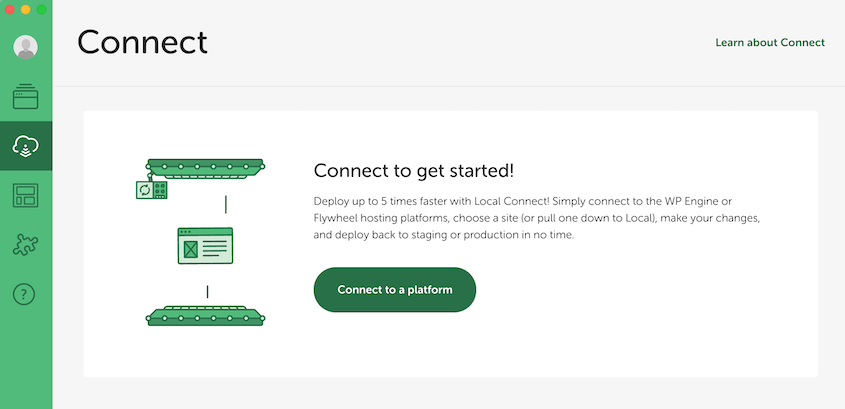
Wenn Ihre Live-Website auf WP Engine oder Flywheel gehostet wird, können Sie die Connect-Funktion nutzen. LocalWP stellt eine direkte Verbindung zur Live-Website her und setzt Ihre Änderungen schnell um.
LocalWP-Dateien und -Datenbank lokalisieren
LocalWP bietet viele codefreie Methoden zur Erstellung und Verwaltung einer lokalen WordPress-Site. Aber was ist, wenn Sie eine Theme-Datei schnell bearbeiten oder Ihre Datenbank überprüfen möchten?
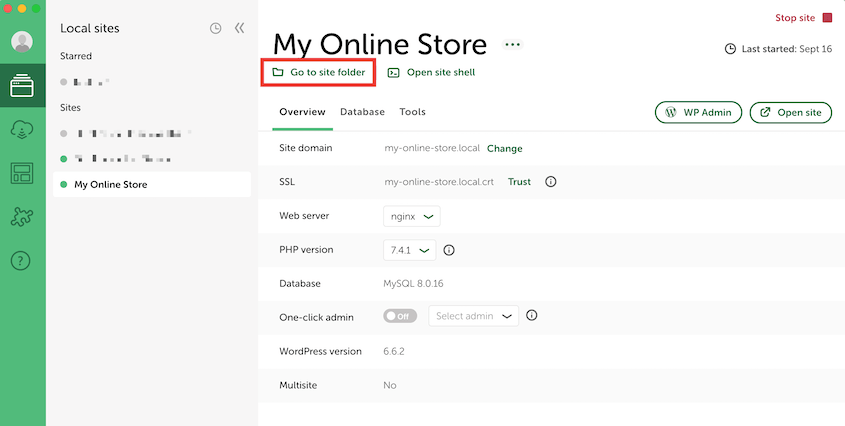
Um die Dateien Ihrer Website zu öffnen, suchen Sie Ihre Website auf LocalWP. Klicken Sie unter dem Titel Ihrer Website auf Go to site folder.
Gehen Sie im Ordner Ihrer Website zu app " public. Hier finden Sie die bekannte WordPress-Dateistruktur.
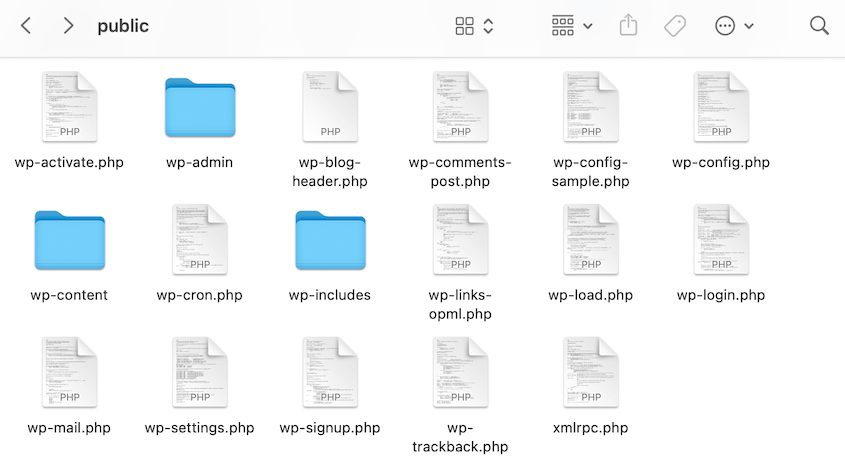
Wenn Sie auf eine Datei doppelklicken, wird sie in Ihrem Standard-Texteditor geöffnet.
Die Bearbeitung Ihrer Datenbank ist ein ähnlicher Prozess. Öffnen Sie LocalWP erneut und suchen Sie die Registerkarte Datenbank. Klicken Sie auf Open Adminer.
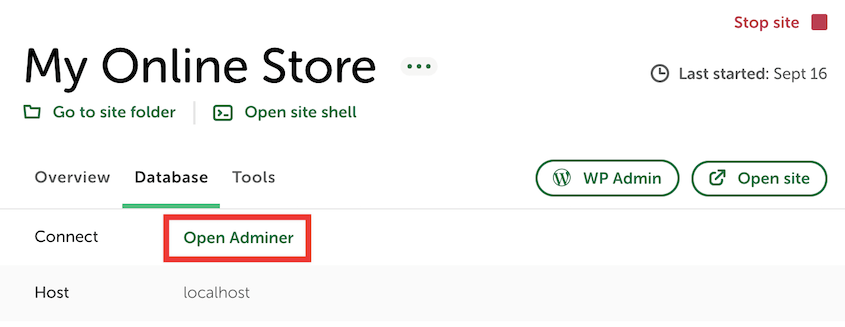
Dann können Sie diesen Datenbankmanager in einem Browserfenster verwenden.
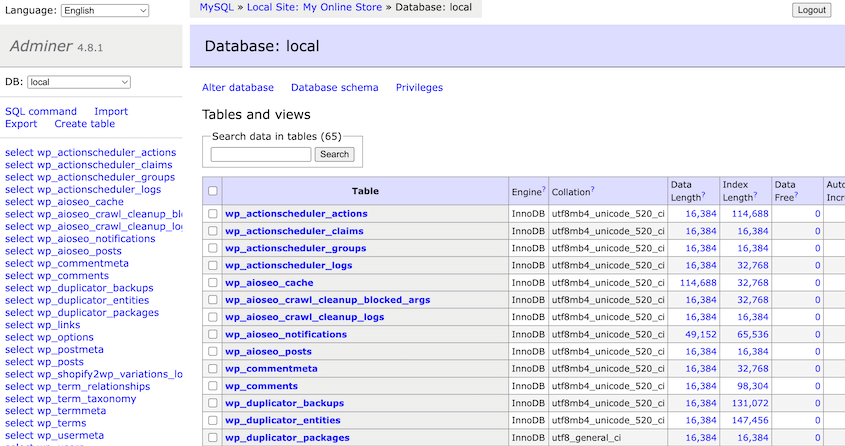
Local by Flywheel macht die Arbeit mit den Dateien und der Datenbank Ihrer Website zum Kinderspiel und gibt Ihnen die Kontrolle, die Sie brauchen, während alles organisiert bleibt.
Häufig gestellte Fragen (FAQs)
Wie kann ich meine WordPress-Website auf einem lokalen Server bereitstellen?
Wenn Sie WordPress lokal installieren möchten, erstellen Sie zunächst eine lokale WordPress-Site mit Tools wie LocalWP, MAMP, WAMP oder XAMPP. Erstellen Sie dann ein Backup Ihrer Live-Site mit Duplicator Pro. Importieren Sie diese in Ihre lokale Website, um die Standardkonfiguration zu ersetzen.
Wie kann ich eine Website in Local by Flywheel importieren?
Installieren Sie Duplicator Pro sowohl auf Ihrer Live- als auch auf Ihrer lokalen Website. Erstellen Sie ein vollständiges Backup Ihrer Live-Site und laden Sie es herunter. Importieren Sie sie dann in Ihre lokale Umgebung, indem Sie die Seite " Backups importieren " von Duplicator verwenden.
Wie viel kostet Local by Flywheel?
Die Nutzung von Local by Flywheel ist völlig kostenlos.
Einrichten, Testen und Versenden
Die Installation von WordPress auf Local eröffnet eine Welt der Möglichkeiten für die effiziente Entwicklung und das Testen von Websites. Sie sind bereit, offline zu arbeiten, frei zu experimentieren und Ihre Website zu perfektionieren, bevor sie live geht.
Von hier aus ist der beste nächste Schritt, Ihre lokale Umgebung so zu nutzen, wie sie gedacht ist. Testen Sie Plugin-Updates, bevor sie in die Produktion gehen, erstellen Sie ein Redesign, ohne Besucher zu stören, oder experimentieren Sie mit neuen Funktionen, bis sie genau richtig sind.
Da das Einrichten einer neuen lokalen Website nur wenige Minuten dauert, gibt es keinen Grund mehr, riskante Tests direkt auf einem Live-Server durchzuführen.
Wenn Sie bereit sind, die Änderungen zu veröffentlichen, macht Duplicator Pro den Push zurück auf Ihre Live-Website genauso reibungslos wie den Import. Erstellen Sie eine vollständige Sicherung Ihrer lokalen Website, laden Sie sie auf die Importseite Ihres Live-Servers hoch, und schon sind Ihre getesteten Änderungen live. Kein FTP-Gehate, kein manuelles Exportieren von Datenbanken, kein Grübeln, ob Sie eine Datei übersehen haben.
Möchten Sie Ihre Website ohne Datenverlust in eine lokale Testumgebung verschieben? Laden Sie Duplicator Pro für einfache und sichere Drag-and-Drop-Migrationen herunter!
Während Sie hier sind, werden Ihnen diese zusätzlichen WordPress-Anleitungen bestimmt gefallen:
- So verschieben Sie eine Live-WordPress-Site auf einen lokalen Host
- So verschieben Sie eine lokale WordPress-Site auf einen Live-Server
- Die 10 besten lokalen Entwicklungsumgebungen (Expertenauswahl)
- Intelligenter, nicht härter programmieren: WordPress-Entwicklertools für jeden Profi
- So sichern und stellen Sie WordPress aus der Ferne wieder her




