


How to Track EVERY Change on Your WordPress Site (Before It Breaks)
 Joella Dunn
Joella Dunn
Joella Dunn
 John Turner
John Turner
John Turner
Something changed on your site. A setting looks different, a page got edited, or a plugin disappeared from your active list. Nobody on the team is owning up to it.
WordPress stores two separate kinds of change history, and most site owners only know about one of them.
This post covers both: the built-in revision system for content, and activity logging for everything else.
Here are the key takeaways:
- WordPress has two change history systems: revisions and activity logs. Revisions track content edits. Activity logs track everything else.
- Built-in revisions save snapshots of posts and pages every time you hit Save or Publish. You can browse and restore previous versions from inside the block editor.
- Revisions don’t record logins, plugin changes, settings edits, or user account activity. An activity log plugin is required for that.
- Activity Log by Duplicator tracks 60+ events across your entire dashboard, starts logging immediately on activation, and is the only activity log plugin that exports logs in both CSV and JSON formats.
- Using Activity Log and Duplicator together, you’ll have a complete record of every change on your site, and be able to roll back any bad updates.
Table of Contents
- What Does Change History Mean in WordPress?
- How Do You See Content Change History Using WordPress Revisions?
- What Does WordPress Revision History Not Track?
- How to See Your Full WordPress Change History with an Activity Log
- Combining Revisions and Activity Logs for Full Site Visibility
- Who Needs WordPress Change History Tools?
- Frequently Asked Questions (FAQs)
What Does Change History Mean in WordPress?
WordPress can store two types of change history: content revisions and site activity logs. Revisions save snapshots of your posts and pages every time you hit Save or Publish. Activity logs record everything else, like logins, plugin changes, and settings edits.
These two systems track very different things.
If you edited a blog post last Tuesday, revisions will show you exactly what changed. But if someone installed a plugin, created a new admin account, or changed your site’s URL, revisions won’t show any of that. For that kind of history, you need an activity log plugin.
Most site owners rely on revisions alone and don’t realize how much is going unrecorded.
How Do You See Content Change History Using WordPress Revisions?
WordPress has a built-in revision system for posts and pages. Here’s how it works and where to find it.
How WordPress Revisions Work
Every time you click Save Draft, Update, or Publish, WordPress saves a copy of that content. This revision history stacks up over time and you can browse back through them whenever you need to.
WordPress also autosaves your work every 60 seconds as a temporary backup. Autosaves are separate from revisions and don’t overwrite your published content. They’re just there to help you recover if something goes wrong mid-edit.
Revisions are stored in your database until you delete them or set a limit. They work for posts, pages, and any custom post types that have revisions enabled.
How to Access the Revision History for a Post or Page
- Open any post or page in the block editor
- Look for Revisions in the right-hand sidebar under the Post or Page tab
- If you don’t see it, click Screen Options at the top right and enable the Revisions panel
- Click Revisions to open the comparison screen
- Use the slider to move between saved versions. Removed content is highlighted in red, added content in green
- Use the Previous and Next buttons to step through one revision at a time
- Check Compare any two revisions to jump between non-adjacent versions
- Click Restore This Revision to roll back to a selected version
WordPress Revision History Limits
Revisions only track changes to a post’s title, content body, and excerpt. That’s it.
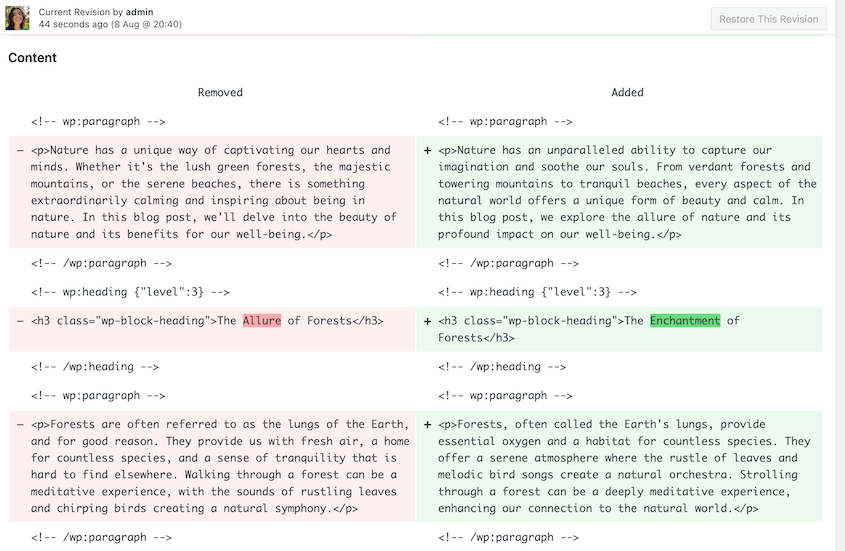
Changes to the post author, featured image, permalink, or custom fields don’t trigger a new revision. The revision screen also doesn’t clearly show you which user made a specific change, just that a change was made.
Anything outside the editor, settings pages, plugin activity, user accounts, leaves no trace in revisions at all.
Not every user can see every revision. Here’s how access breaks down:
- Administrators and editors can access all revisions across the site
- Authors can view revisions for their own posts
- Contributors can see revisions on their own drafts only
What Does WordPress Revision History Not Track?
Built-in revisions cover content edits and nothing else. A large portion of what actually happens on a WordPress site leaves no trace by default.
Here’s what WordPress revisions won’t record:
- User logins, logouts, and failed login attempts
- Plugin installs, updates, activations, and deactivations
- Theme switches and customizer changes
- Core WordPress settings like your site URL, admin email, and permalink structure
- New user accounts and role changes
- Media file uploads and deletions
- WooCommerce product edits, order changes, and store settings
Think about what that means in practice. Someone installs a plugin that conflicts with your checkout process. A new admin account gets created that you didn’t authorize. Your permalink structure gets changed and half your site’s URLs break. None of that shows up in revisions.
When something breaks and the cause isn’t inside a post or page, revisions give you nothing to work with. That’s where an activity log fills the gap.
How to See Your Full WordPress Change History with an Activity Log
An activity log records every action taken across your WordPress dashboard, not just content edits. The best way to set one up is to install an activity log plugin.
Activity Log by Duplicator is built by the same team behind one of the most widely used WordPress backup plugins. It tracks 60+ events across 9 categories:
- User
- Content
- Media
- Plugin
- Theme
- WordPress
- Appearance
- Taxonomy
- Settings
It starts logging the moment you activate it. Each log entry shows the event type, the user who triggered it, a timestamp, the IP address, and a severity level.
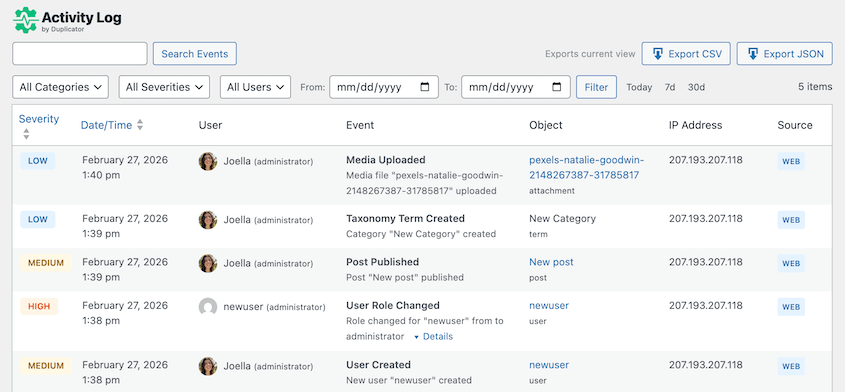
Every logged event gets assigned a severity level so you can triage quickly without scrolling through hundreds of routine entries.
- Low: Routine activity like saved drafts or approved comments
- Medium: Changes worth knowing about, such as plugin updates or content edits
- High: Actions that warrant attention, including new user accounts, failed logins, or role changes
- Critical: Large-scale errors that affect the entire site
Filtering to High and Critical first is the fastest way to spot anything that needs your attention.
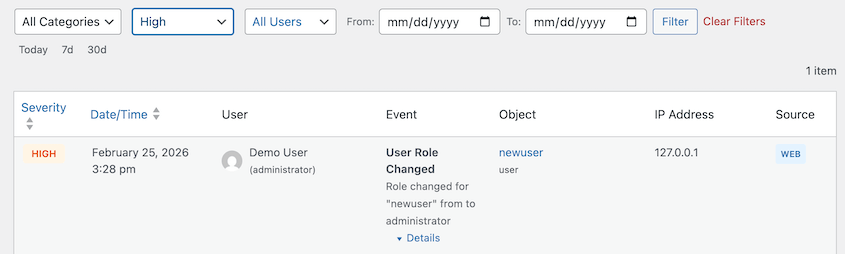
The plugin is available as a standalone starting at $29/year. It’s also included free with Duplicator Elite, a bundle that combines Duplicator for backups and migration, WP Media Cleanup, and Activity Log.
How to Customize Your WordPress Activity Log
Once the plugin is running, there are a few things worth setting up to get more out of it.
Set up email notifications
You don’t need to check the dashboard manually to stay on top of important events. Activity Log by Duplicator lets you set up email alerts for high-priority activity.
Go to the plugin settings and add notifications for events like failed login attempts, role changes, or core settings edits.
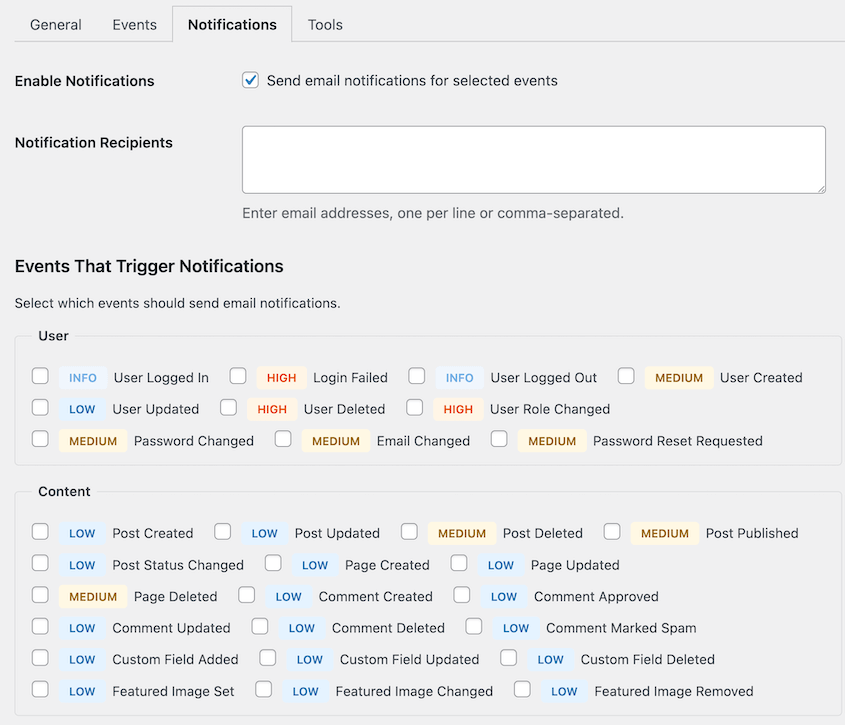
You can choose which severity levels trigger an alert and where those alerts get sent. For agency sites, pointing critical alerts to a shared inbox means nothing slips through.
Find what you need with filters
The log dashboard can fill up fast on an active site. Filters let you cut through the noise.
You can filter by:
- Date range
- User
- Event category
- Severity level
Combining filters is the fastest way to investigate a specific incident. If you know roughly when something happened and which user was logged in, you can narrow the timeline down to a handful of entries in seconds.
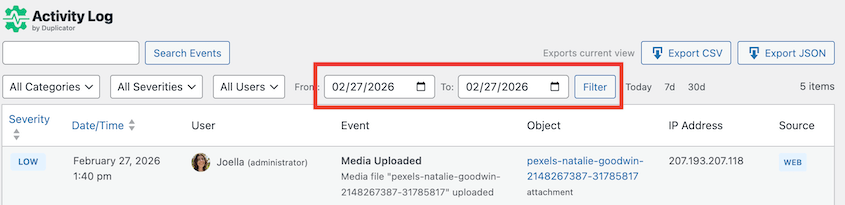
Export logs for reporting
When you need to share log data outside WordPress, the export feature handles it.
Logs export in CSV for client reports and spreadsheets, or JSON for programmatic use. Apply your filters before exporting so you’re pulling a targeted dataset rather than the full log history.
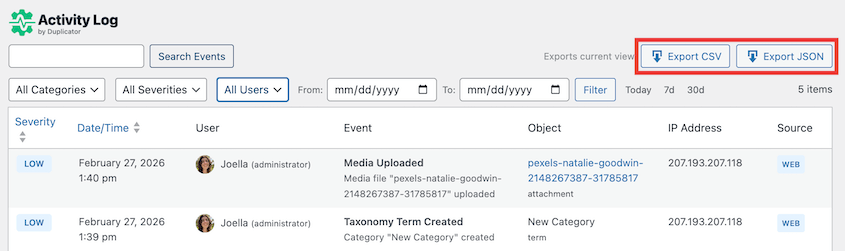
For agencies, a filtered CSV is a straightforward way to answer client questions about what changed and when.
Most activity log plugins only offer CSV. JSON export is specific to Activity Log by Duplicator, which makes it the better fit for developers who need to pipe log data into other tools or automate reporting workflows.
Apply your filters before exporting so you’re pulling a targeted dataset rather than the full log history.
Manage logs with WP-CLI
Activity Log by Duplicator includes WP-CLI support for developers managing multiple sites.
The basic export command is:
wp duplicator-activity-log exportAdd flags to filter by date range and set the output format directly from the command line. Pair that with a simple script and you can pull logs across an entire client portfolio without logging into each site individually.
Purge schedules can be scripted the same way, keeping log databases lean across all your sites automatically.
Combining Revisions and Activity Logs for Full Site Visibility
Revisions and activity logs work best together.
The activity log shows you what changed across the whole site. Revisions show you the exact before-and-after for content edits. Each one covers what the other misses.
Pair both with Duplicator backups and you have a complete picture:
- The activity log tells you what happened and when.
- Revisions show you what the content looked like before the change.
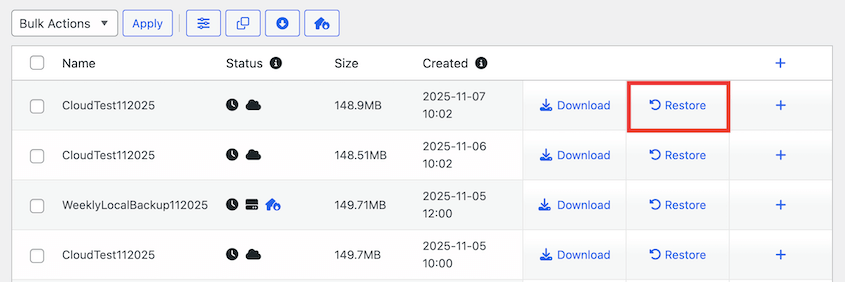
- A backup lets you undo it entirely if needed.
In practice, the workflow looks like this. Something breaks on your site. You open the activity log first to narrow down the timeframe and identify which user was active.
From there you can check revisions if the issue is content-related, or restore a backup if the change goes deeper than a single post or page.
That sequence is faster than trying to investigate blind.
Who Needs WordPress Change History Tools?
Most WordPress sites would benefit from having both systems in place. But the reasons vary depending on how you use the site.
- Solo site owners
An activity log catches changes you made yourself and forgot about. It sounds obvious, but it happens more than most people admit. Having a record means you’re not guessing when something stops working.
- Content teams and bloggers
When multiple people are publishing and editing, things go wrong without a clear owner. Revisions show you what changed in a post. The activity log shows you who deleted a draft, who published something early, or who edited a page they weren’t supposed to touch.
- Agencies
Clients ask what changed on their site. With an activity log running, you can answer that question with specifics and timestamps instead of guesswork. Exportable logs make it easy to put that information in front of a client without giving them direct dashboard access.
- WooCommerce store owners
Price changes, order modifications, and shipping setting edits all affect revenue. If something changes in your store and you don’t know who did it or when, that’s a real business problem. Traceability matters when money is involved.
- Developers managing multiple sites
WP-CLI support and exportable logs fit into automated site management workflows. You don’t need to log into each site individually to pull the data you need.
Frequently Asked Questions (FAQs)
Does WordPress have a built-in change history?
Only for post and page content, through the revisions system. Logins, plugin changes, and settings edits require an activity log plugin like Activity Log by Duplicator.
Can I see who made a change in WordPress?
The built-in revisions screen doesn’t clearly attribute changes to a specific user. An activity log plugin records the exact user, timestamp, and IP address for every tracked event. I’d recommend Duplicator’s Activity Log for a more exact change history.
Do WordPress revisions slow down my site?
Revisions themselves don’t affect front-end performance, but they can cause database bloat over time if left unmanaged. Limiting revisions via wp-config.php keeps the database lean without losing all version history.
Is logging IP addresses GDPR compliant?
Logging IPs is permitted under GDPR as long as it’s disclosed in your privacy policy and data isn’t retained longer than necessary. Activity Log by Duplicator automatically redacts passwords and API keys from all log entries.
What happens to my activity log if I restore a backup?
The log stored in your database will revert to the state it was in when the backup was taken. Export your logs regularly to keep records outside the plugin database, especially before running a restore.
Start Tracking Every Change on Your WordPress Site
WordPress revisions cover one slice of what changes on a site. They’re useful for content edits, but they leave most site activity completely unrecorded.
For full visibility, you need an activity log running alongside them. Together, they give you a clear record of what changed, who changed it, and when.
Activity Log by Duplicator is available as a standalone plugin starting at $29/year. If you want the full toolkit, Duplicator Elite bundles Activity Log together with Duplicator for backups and migration, and WP Media Cleanup. Three things most WordPress sites are missing, covered in one package.
Install Activity Log by Duplicator and you’ll have a complete change history running on your site within minutes!
While you’re here, I think you’ll like these other resources:
- WordPress Doesn’t Track Activity by Default: Here’s What I Do About It
- WordPress Database Maintenance: What to Do Weekly, Monthly, and Quarterly
- How Real-Time Backups Monitor and Protect Your Changes Instantly
- How to Undo Changes in WordPress (5 Methods)
- Most WordPress Activity Log Plugins Tell You What Broke—Only One Helps You Fix It
- I Switched From WP Activity Log to Duplicator’s Activity Log: Here’s What I Found Out




