

WordPress Revision History: How to View, Manage, and Restore Post Revisions
 Joella Dunn
Joella Dunn
Joella Dunn
 John Turner
John Turner
John Turner
Have you ever wished you could undo a change you made to one of your WordPress posts or pages?
Maybe you deleted a paragraph by mistake or your latest update didn’t quite hit the mark. This is where WordPress revision history comes to the rescue.
WordPress revision history is a built-in feature that saves a copy of your content each time you save or update it. It keeps multiple versions of your posts and pages as you edit them, allowing you to revisit and restore earlier drafts.
This incredibly useful tool ensures that you never lose your hard work.
In this post, I’ll show you what WordPress revision history is and how to use it in your daily workflow.
Here are the key takeaways:
- WordPress automatically saves every version of your posts and pages as you edit them, creating a complete revision history
- You can easily restore any previous version by accessing the Revisions section in your post editor
- Limit revisions to prevent database bloat by adding a simple code snippet to your wp-config.php file
- Delete old revisions using a plugin like DB Optimizer to improve site performance
- Consider using Duplicator Pro for comprehensive site backups and version control beyond individual posts
Table of Contents
- What Is WordPress Revision History?
- How to Use WordPress Revision History
- How to Restore Posts and Pages with WordPress Revision History
- Revisions vs. Autosaves: What WordPress Saves Automatically
- How to Find Revisions in the Site Editor
- How to Limit Post Revisions in WordPress
- How to Delete Old Post Revisions in WordPress
- How to Disable WordPress Post Revisions
- Pros and Cons of WordPress Revision History
- How to Better Manage WordPress Revisions
- FAQs About WordPress Revision History
- Revisions Are a Safety Net, Not a Mess to Live With
What Is WordPress Revision History?
WordPress revision history is an automatic version control system for your posts and pages. Each time you save a draft or update your content, WordPress creates a new revision. These revisions are essentially snapshots that include all the changes made, complete with timestamps and author information.
The beauty of this feature is that it operates quietly in the background. Each time you save or update your content, WordPress keeps a copy of that version.
This means that if something goes wrong (like an accidental deletion or a formatting error) you can easily revert to a previous version.
Whether you’re a blogger, a content creator, or a website administrator, it’s important to learn about WordPress post revisions. This can vastly improve your workflow and content quality.
How to Use WordPress Revision History
To view your post’s revision history, open the post or page in the block editor. In the Settings sidebar, select the Post (or Page) tab. Next to Revisions, click the number.
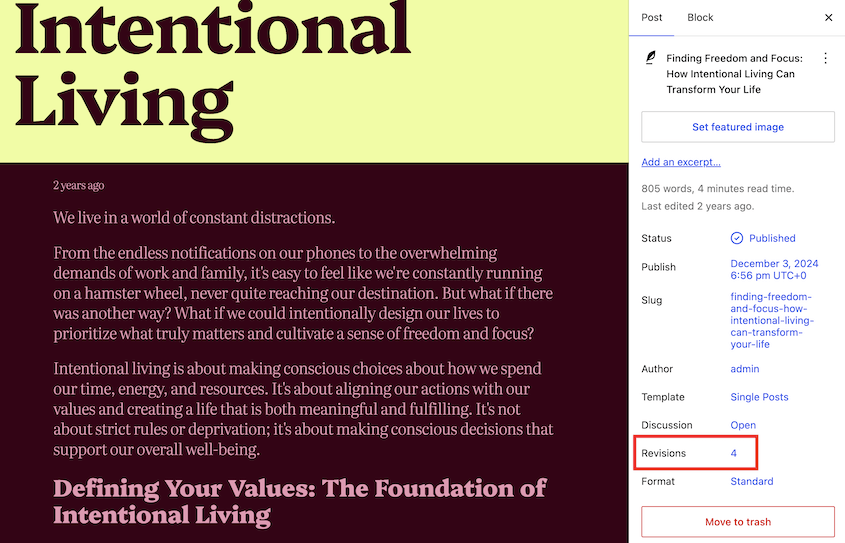
In WordPress 7.0 and later, this opens the visual revisions screen inside the block editor. Use the slider at the top or the list of revisions to move between versions. Added content is marked in green, removed content in red, and changed content in yellow.
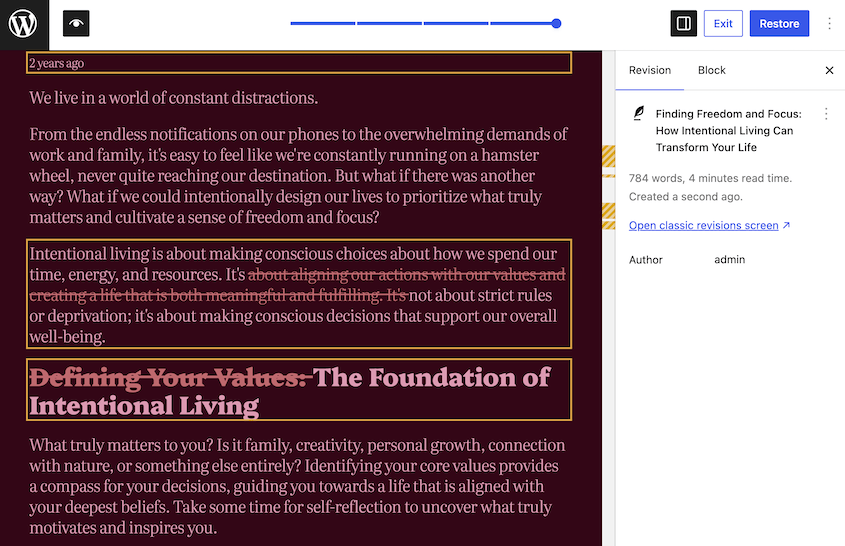
If you need to restore a previous revision, hit the Restore button in the top-right corner.
If you prefer the old view, click Open classic revisions screen. It shows revisions side by side and lets you compare any two revisions, not just neighboring ones. On WordPress 6.9 and earlier, clicking the Revisions number takes you straight to this classic screen.
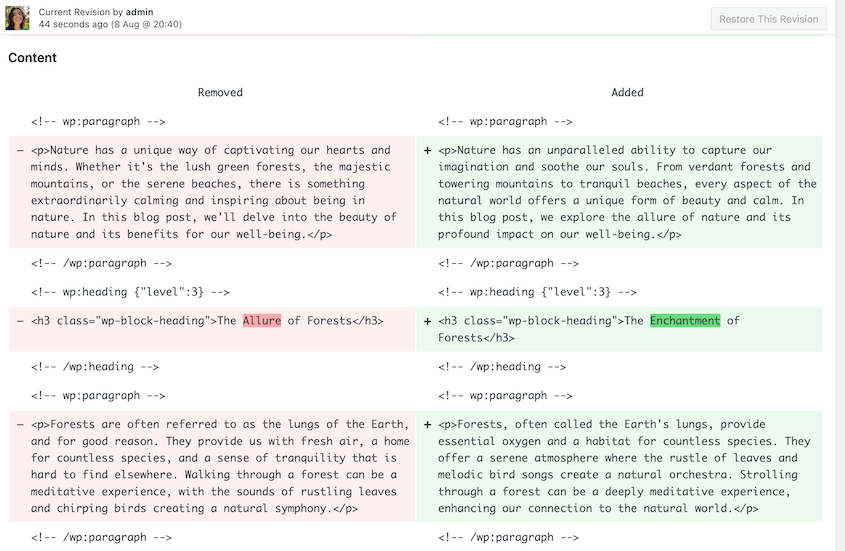
If you accidentally delete content or make unwanted changes, you can quickly revert to a previous version. This saves you from rewriting or re-formatting sections from scratch.
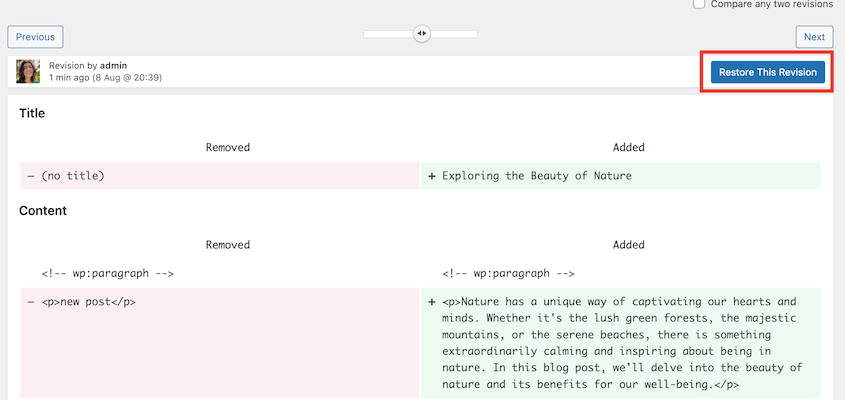
Multiple authors and editors can work on the same post. Revisions track who made which changes and when, improving transparency and collaboration.
Sometimes, your initial draft may need refining. Revision history allows you to experiment with different versions and revert to a better one if needed.
It’s like having an undo button for your entire editing process.
How to Restore Posts and Pages with WordPress Revision History
The revision history feature in WordPress is invaluable for making sure your content evolves smoothly. But what happens when you need to revert to an earlier version?
On the revision comparison screen, a slider at the top lets you move between different revisions. Slide it to find the version you want to restore.
Once you find the correct version, click the Restore button at the top right of the screen.
WordPress will revert the content to the selected revision. It will take you back to the block editor, where you can continue editing the post.
This process works for both posts and pages, giving you control over all your content.
Revisions vs. Autosaves: What WordPress Saves Automatically
WordPress saves your work in two different ways, and it’s easy to mix them up.
Revisions are created each time you click Save Draft, Update, or Publish. They stack up over time, and each one stays in your history until you delete it or hit your revision limit.
Autosaves happen in the background every 60 seconds while you edit. WordPress only keeps one autosave per user for each post, and each new autosave replaces the last one. Autosaves never overwrite your published content. They’re just there to rescue your work if your browser crashes before you save.
That means WordPress doesn’t create a new revision every minute. If you edit for an hour without saving, you’ll have one autosave, not 60 revisions. In the revisions screen, an autosave is labeled Autosave so you can tell it apart.
How to Find Revisions in the Site Editor
If you use a block theme, your site’s design has its own revision history, separate from your posts and pages.
To see style changes, go to Appearance » Editor » Styles, open the three-dot menu, and click Revisions. You’ll see saved versions of your colors, typography, and layout settings, and you can apply an older one.
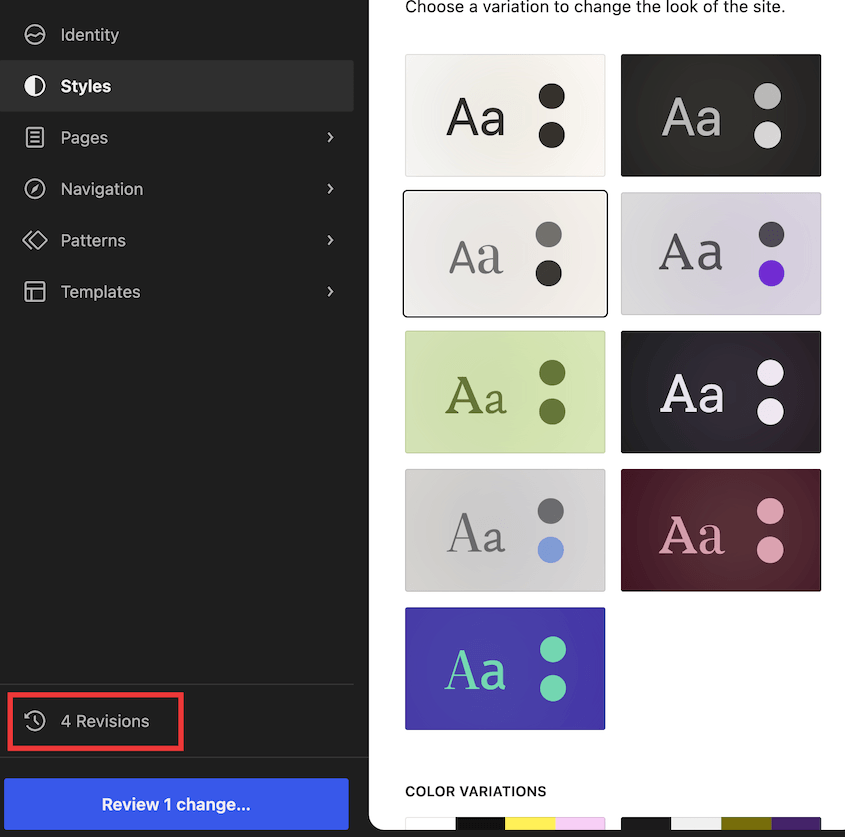
Templates and template parts, like your header and footer, have revisions too. Open one in the Site Editor, and you’ll find a Revisions link in its sidebar once it’s been saved more than once.
Classic themes don’t have design revisions, and changes made in the Customizer aren’t saved as revisions at all. For those, a full-site backup is your safety net.
How to Limit Post Revisions in WordPress
While WordPress revision history is a powerful tool, it can sometimes lead to database bloat if not managed properly.
Every version of a post or page is stored in your database, and over time, this can slow down your site. Keeping fewer revisions reduces the size of your database, which can improve overall site performance.
By limiting revisions, you ensure that server resources are not wasted on storing excessive amounts of data. You’ll also have a leaner database that’s easier to manage, back up, and restore.
The simplest way to limit WordPress revisions is by adding a line of code to your wp-config.php file.
Use an FTP client or your web host’s file manager to locate the wp-config.php file in the root directory of your WordPress installation. Download and open this file using a text editor (like Notepad or any code editor).
Insert the following line of code above the line that says /* That's all, stop editing! Happy publishing. */:
define('WP_POST_REVISIONS', 5);In this example, WordPress will save only the most recent five revisions of each post or page, plus one autosave. Older revisions are trimmed the next time you update each post. You can adjust this number according to your needs.
Save the changes and upload the modified wp-config.php file back to your server.
By limiting the number of revisions, you can keep your WordPress site running smoothly without sacrificing the ability to revert to previous versions when needed.
How to Delete Old Post Revisions in WordPress
Over time, as you create and edit content, your WordPress site can accumulate a large number of post revisions. Deleting old revisions can help improve your site’s performance.
If you are comfortable working directly with your database, you can manually delete WordPress revisions using phpMyAdmin. Choose the database for your WordPress site from the list on the left.
Navigate to the SQL tab and copy-paste the following query:
DELETE FROM wp_posts WHERE post_type = 'revision';Click Go to run the query. This will delete all post revisions from your database, including autosaves. If your database table prefix isn’t wp_, change it in the query first. Also note that this query leaves each revision’s custom fields behind in the wp_postmeta table, which is why a plugin is the cleaner option for most people.
If you prefer a more user-friendly approach, several plugins can help you manage and delete revisions. You won’t have to touch any code.
DB Optimizer scores your database’s revision bloat as part of its overall health score (0-100), then lets you clean up excess revisions in a couple of clicks.
First, check your database health. Look at the Revisions score to see if you have built-up old revisions.
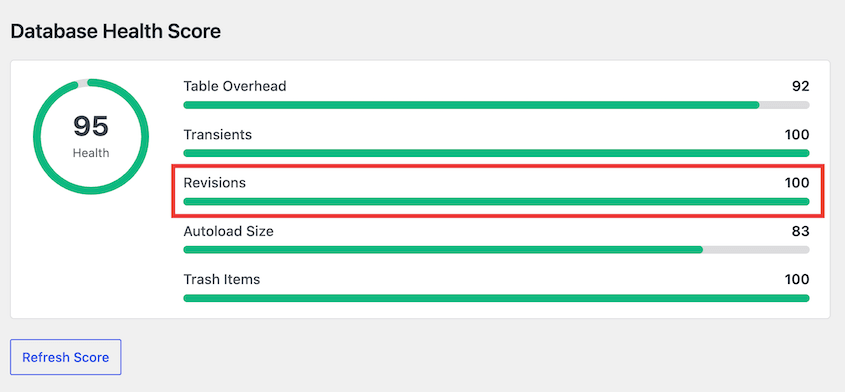
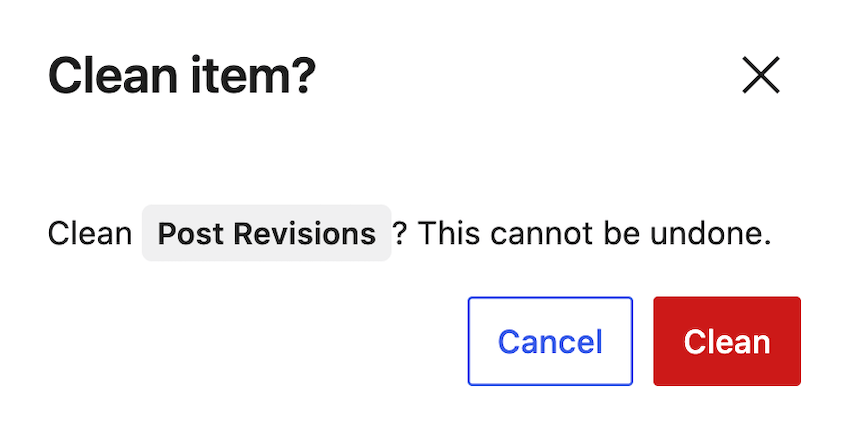
Head over to Cleanup to remove them. Click on the Clean button next to Post Revisions.

In the pop-up window, confirm that you want to remove post revisions.
Another plugin you can use is Advanced Database Cleaner. It helps remove database clutter like spam comments, unused tables, and post revisions.
How to Disable WordPress Post Revisions
There may be scenarios where disabling WordPress revision history altogether makes sense. You might want to do this on sites that rarely change or where performance optimization is critical.
To disable WordPress revisions, download and open your wp-config.php file. Insert the following line of code:
define('WP_POST_REVISIONS', false);Save the changes and upload the file back to your server.
While disabling revisions can save space and improve performance, it comes with some trade-offs:
- Without revisions, you can’t access previous versions of your posts and pages. Any accidental deletion or error will require manual correction.
- Revisions allow you to experiment with your content over multiple drafts. Disabling them limits this flexibility.
- If multiple authors or editors contribute to your site, you’ll have a harder time tracking changes and managing collaborative edits.
Weigh these pros and cons carefully to decide if disabling revisions is the right choice for your site. For many users, limiting rather than completely disabling revisions provides the best balance between functionality and performance.
Pros and Cons of WordPress Revision History
Like every feature, WordPress revision history has its advantages and disadvantages. Understanding these can help you make an informed decision about how to use this feature effectively on your site.
Pros of WordPress Revision History
- Easy Content Recovery
This feature provides revisions to undo changes when needed. If you make a mistake or delete important content accidentally, you can quickly revert to an earlier version without losing your work.
- Improved Collaboration
For sites with multiple authors and editors, revisions make tracking changes easier. Everyone can see who made what changes and when, facilitating better collaboration and accountability.
- Effective Content Management
Revisions allow you to experiment with different drafts and ideas. This flexibility helps you refine your content over time, ensuring the final version is as polished as possible.
Cons of WordPress Revision History
- Potential Database Bloat
Over time, saved revisions can take up significant space in your database. This can slow down your site, especially if you have a large number of posts and pages with many revisions.
- Can Be Overwhelming
Having too many revisions can clutter your editing interface and make it difficult to manage your content. You might not be able to easily find a specific revision.
- Performance Impacts
For very large sites with extensive content, the sheer number of saved revisions can negatively impact server performance. Frequent database queries for revisions can lead to slower response times.
How to Better Manage WordPress Revisions
Managing WordPress revisions effectively ensures your site remains efficient, organized, and high-performing. Let’s explore some tools and practices that can help you keep your revisions under control.
Use WordPress Revision History Plugins
One powerful tool for revision history is Duplicator, a plugin that goes beyond simple backups. It can also help you create and restore versions of your website.
Duplicator allows you to create full site backups, including all content, themes, plugins, and settings. This is useful not just for recovery but also for maintaining different versions of your site.
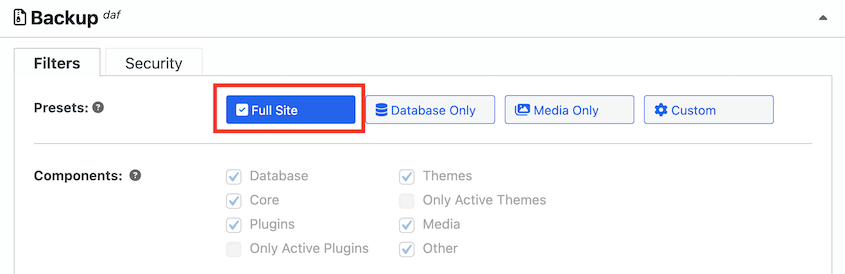
You can use Duplicator to save snapshots of your site at different stages. Your backups can be a revision history log for your entire site, not just individual posts or pages.
With Duplicator, restoring your site to a previous state is straightforward. In your backup log, find the right version. Then, hit Restore.
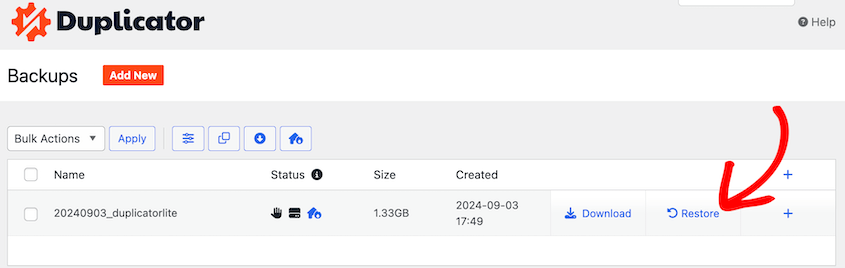
You can completely disable WordPress revisions if you’d like. You might find it easier to manage different versions of your complete website, rather than specific posts/pages.
If you want to keep track of every change made to your WordPress site, Activity Log by Duplicator is built for exactly that.
It logs post and page edits, plugin activations and deactivations, user logins, settings changes, and more—all from a clean dashboard inside your WordPress admin.
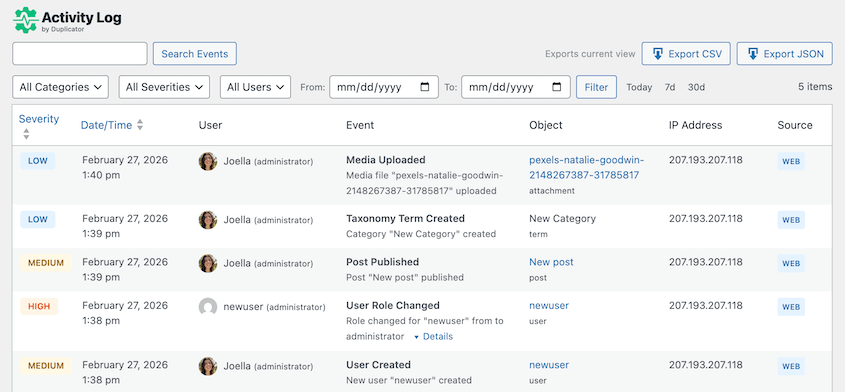
Because Activity Log is made by the Duplicator team, it works alongside the same tool you use for backups and migrations. Every change is timestamped and tied to a specific user, which makes it easy to spot what broke and when.
Set a Revision Limit
While it’s possible to disable WordPress revisions, it’s often better to limit them instead. This way, you maintain some history without overloading your database. You’ll keep the most recent versions without excessive database growth.
Do Regular Cleanups
Periodically clean up old revisions using plugins or manual methods. This helps maintain optimal database size and performance.
Use Optimization Plugins
Plugins like DB Optimizer can simplify revision management and other database optimization tasks. It’ll keep your site running smoothly while you focus on writing new content.
Solve Issues With WordPress Revisions
If you’re experiencing issues with WordPress revisions not showing, it could be due to plugin conflicts or server misconfigurations. To fix WordPress revisions, try deactivating plugins, checking your wp-config.php file, or consulting with your WordPress hosting provider.
FAQs About WordPress Revision History
How do I find revision history in WordPress?
To find revision history in WordPress, go to the post or page you want to check. In the block editor, open the Settings sidebar, select the Post or Page tab, and click the number next to Revisions. In the Classic Editor, the Revisions box appears below your content.
Can I restore a previous version of my WordPress site?
Yes, you can use the built-in revision feature to restore previous versions of posts or pages. For entire site backups and restoration, use a plugin like Duplicator. It can restore previous backups with just one click, even in the free version.
How many revisions does WordPress keep?
By default, WordPress keeps an unlimited number of revisions. You can set a specific number of revisions by adding a line of code in your wp-config.php file.
How do I turn off revision history in WordPress?
Add the code snippet define('WP_POST_REVISIONS', false); to your wp-config.php file. This will disable revisions completely.
What is the difference between a version and a revision?
In WordPress, a revision is a saved copy of a single post or page that you can compare or restore. A version usually refers to the WordPress software itself, like WordPress 6.9 or 7.0. People sometimes say “version history” when they mean revisions, but updating WordPress doesn’t create revisions of your content.
Does WordPress revision history track software version updates?
No, WordPress revisions track changes to individual posts and pages. For a history of WordPress software releases (5.0, 6.0, etc.), see the WordPress release archive.
Revisions Are a Safety Net, Not a Mess to Live With
WordPress revision history (or version history) is one of those features you don’t think about until you need it. Then it saves your post, or your sanity.
The key is balance. Keep enough revisions to roll back a bad edit. Don’t let them pile up until your database is dragging.
Set a reasonable limit with WP_POST_REVISIONS. Run DB Optimizer every few months to clear out what’s built up. And if you ever need to go back further than your post history allows, a full site backup with Duplicator has you covered.
That’s it. A few small habits, and you’ll never lose work or slow down your site because of changes you made months ago.
For comprehensive site version control and easy backups, try Duplicator Pro. It’s a game-changer for managing your WordPress site efficiently! Plus, the Pro and Elite plans include DB Optimizer.
While you’re here, I think you’ll like these extra WordPress guides:
- How to Restore WordPress From a Backup
- Best Free WordPress Backup Plugins
- How to Optimize Your WordPress Database
- How to Clean Up a WordPress Site
- How to Set Up a WordPress Audit Trail in Under 10 Minutes
- 7 WordPress Database Warning Signs Most Site Owners Miss




