

How to Set Up a WordPress Audit Trail in Under 10 Minutes
 Joella Dunn
Joella Dunn
Joella Dunn
 John Turner
John Turner
John Turner
You log into WordPress, and something is off.
A plugin you didn’t install is active. A post was edited at 2am. A user’s role got changed, and nobody on your team did it.
You go looking for answers and find nothing. No log. No record. There’s no way to know what happened or who did it.
That’s the default state of every WordPress site. WordPress doesn’t log user actions. It never has.
There’s no built-in record of who published what, who changed a setting, who logged in from where, or who deleted something. If something goes wrong on your site, you’re starting from zero unless you set up a log before the problem happened.
That’s what this tutorial covers. I’ll walk you through setting up a full WordPress audit trail.
By the end, you’ll know exactly what’s happening on your site, who’s doing it, and what to do when something looks wrong.
Here are the key takeaways:
- WordPress has no built-in audit trail. Nothing is logged by default, which means without a plugin already running before something goes wrong, that history doesn’t exist.
- The log only captures events from the moment of activation forward. If you’re setting this up after an incident, the log won’t recover what happened before you installed it.
- Activity Log by Duplicator tags every event with a severity level (Critical, High, Medium, Low, or Info), so you can triage what actually matters instead of scrolling through hundreds of routine entries.
- Pairing Activity Log by Duplicator with Duplicator Pro gives you two layers of protection: a log to understand what happened, and a backup to restore from if you need to act on it.
Table of Contents
WordPress Doesn’t Keep an Audit Trail by Default
Most site owners assume WordPress is tracking changes somewhere in the background. It isn’t.
There’s no native log of user actions in WordPress core. No record of who edited a post, who installed a plugin, who changed your site’s admin email, or who logged in from an IP address you don’t recognize.
When something goes wrong, that information is gone unless a plugin was already capturing it.
An audit trail fills that gap. It’s a timestamped record of every action taken on your site, tied to a specific user account and IP address.
Think of it as a security camera for your WordPress admin. It doesn’t prevent problems, but it tells you exactly what happened and who was responsible.
A complete audit trail covers these categories of activity:
- User logins and logouts, including failed login attempts and sessions terminated from unknown locations
- Content changes, including post edits, status changes, and deletions
- Plugin and theme activity, including installs, activations, deactivations, and updates
- WordPress settings changes, including modifications to your site URL, admin email, permalink structure, and user registration settings
- User account changes, including new user registrations, role modifications, and password resets
- Media library activity, including uploads, edits, and deletions
One thing to know before you start: a log only captures events from the moment it goes active. If something happened on your site before you installed a logging plugin, that history is not recoverable from the log. Setting this up now, before anything goes wrong, is the entire point.
How to Set Up a WordPress Audit Trail
Setting up an audit trail for WordPress takes under ten minutes. Here’s the full process:
- Step 1: Install Activity Log by Duplicator: Get the plugin running on your site, which takes under two minutes and requires no coding.
- Step 2: Review the default event settings: Confirm the right activity categories are enabled for your site type, but the defaults cover most sites.
- Step 3: Set up email notifications: Configure alerts for Critical and High severity events so you hear about problems immediately instead of discovering them days later during a manual log review.
- Step 4: Read your first log entry: Learn what each entry contains, what the severity color coding means, and how to filter the log so you can find a specific event quickly on an active site.
- Step 5: Respond to a suspicious event: An audit log means nothing if you can’t recover from suspicious activity. Restore a clean backup with one click using Duplicator Pro (which pairs with Activity Log)
Step 1: Install Activity Log by Duplicator
Activity Log by Duplicator is a WordPress plugin that records every meaningful action on your site in real time. It tracks 60+ event types across nine categories:
- Users
- Content
- Media
- Plugins
- Themes
- WordPress core settings
- Appearance
- Taxonomies
- Site settings
Every event is tagged with a severity level (Critical, High, Medium, Low, or Info), so you can triage what matters instead of scrolling through a list of hundreds of entries.
The plugin also redacts sensitive data automatically. If a password or API key is involved in a logged event, that value is hidden in the log. You get the audit record without exposing credentials.
To install it, purchase Activity Log, which starts at $29 yearly. You can also get it for free in the Duplicator Elite plan, which includes WP Media Cleanup and Duplicator Pro.
Download the plugin and upload it to WordPress.
Activate your license key under Activity Log » Settings. After activation, you’ll see a green checkmark. That’s your confirmation the plugin is running.
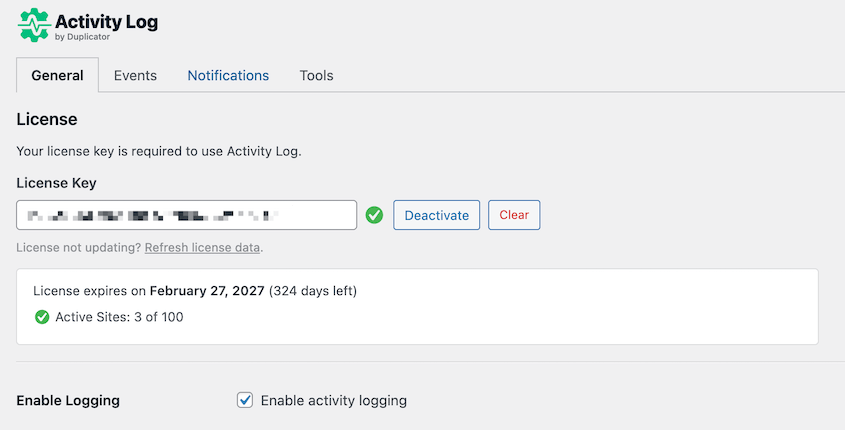
Logging starts now!
Step 2: Review the Default Event Settings
Activity Log by Duplicator tracks 60+ event types. Some sites won’t need every category active, so spend a few minutes checking what’s enabled before you start relying on the log.
From your sidebar, go to Activity Log » Settings, then click the Events tab.
You’ll see a list of the nine tracking categories: User, Content, Media, Plugin, Theme, WordPress, Appearance, Taxonomy, and Settings. Each category can be toggled on or off.
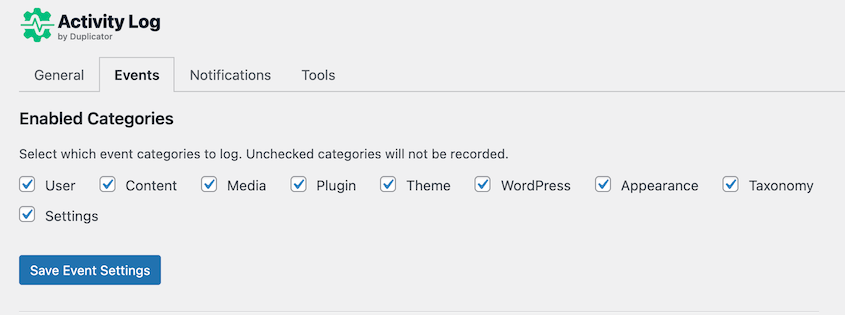
If you want to see what’s included in each category, scroll down to the Registered Event Types. Click on the category you’re unsure about.
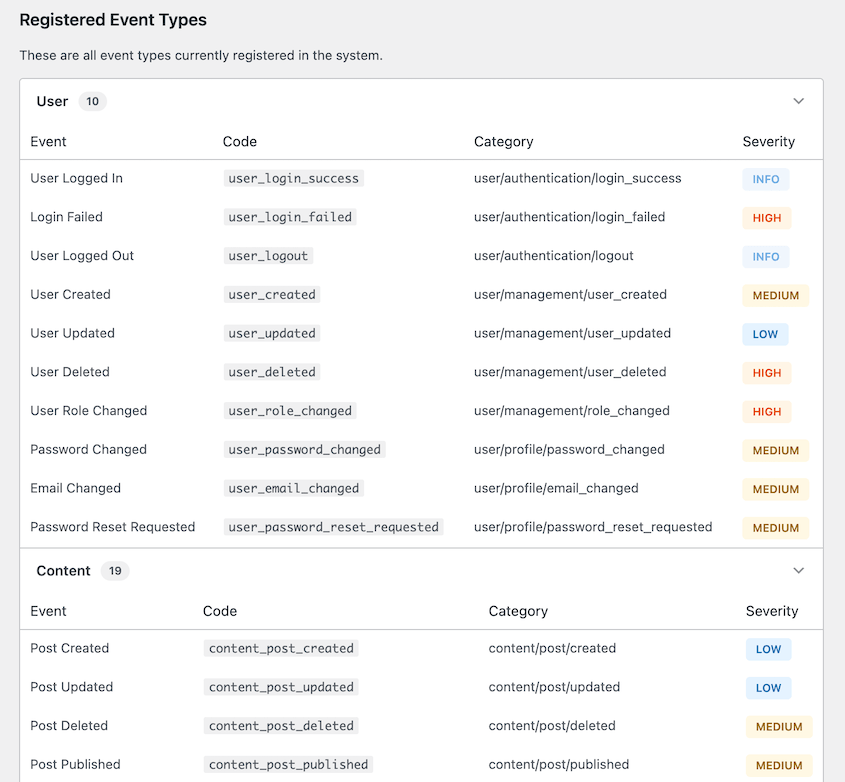
For a typical site, the defaults cover the most important activity. Logins, content changes, plugin installs, and settings changes are all captured out of the box.
If you run a multi-author site, a membership site, or any site where multiple people have admin or editor access, open the User category and make sure it’s fully enabled.
Activity Log will capture role changes, password resets, and new user registrations. These events need to be monitored for account problems.
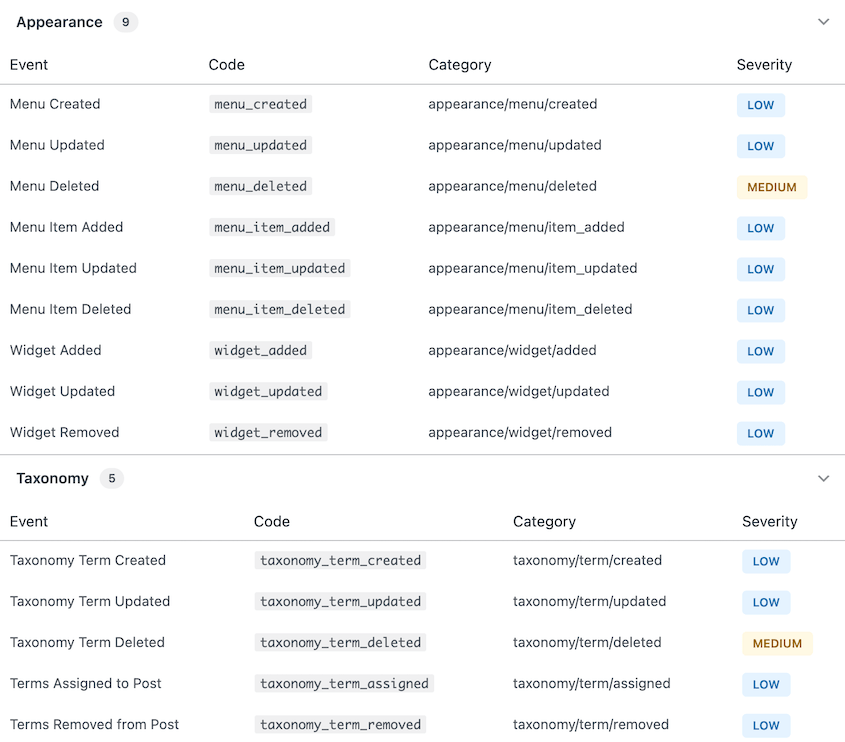
On a high-traffic site, a fully enabled log grows fast. You could consider disabling categories that have mostly low-severity events, like Appearance or Taxonomy.
When you open the log, you’ll start seeing entries populate within minutes of normal site activity.
Step 3: Set Up Email Notifications
The log only helps if you see it. Checking it manually every day isn’t realistic, which is why email notifications are important.
You’ll get alerts the moment a high-severity event happens, so you find out about a suspicious login or an unexpected plugin install right away.
From your sidebar, go to Activity Log » Settings and click the Notifications tab. Toggle on email notifications and enter the address where you want alerts sent.
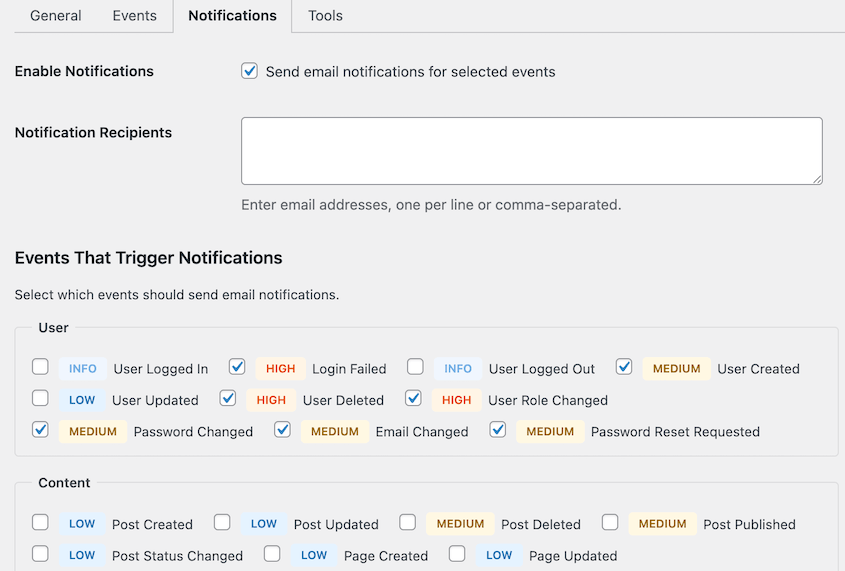
You’ll see a list of event types, each with a toggle for triggering emails. I’d recommend enabling notifications for Critical and High severity events. These cover the actions with real security implications: failed login spikes, admin role changes, plugin installs, and core settings modifications.
Leave Info, Medium, and Low severity events as log-only for now. Those categories cover routine content activity like post updates, tag additions, and media uploads.
Enabling all email alerts generates noise that trains you to ignore your inbox, which defeats the purpose. However, this is completely up to you and your preferences.
A quick note on what the severity levels mean:
- Critical covers actions with major site-wide impact.
- High covers security-relevant changes that warrant prompt attention: deleted users, failed logins, or changed user roles
- Medium covers standard editorial activity: page deletions or plugin deactivations
- Low covers minor or cosmetic changes: set featured images, updated posts, or approved comments.
- Info covers standard activity like your logins/logouts.
To confirm notifications are working, log out and try fake login credentials. A failed login event is High severity. If your notification email arrives within a minute or two, you’re set up correctly.
Step 4: Read Your First Log Entry
Knowing how to read a log entry will turns the audit trail from a data dump into something useful.
Each row in the log represents a single event. Reading left to right, you’ll see the severity level indicator, the timestamp, the event description, the user who triggered it, the IP address the action came from, and the source.
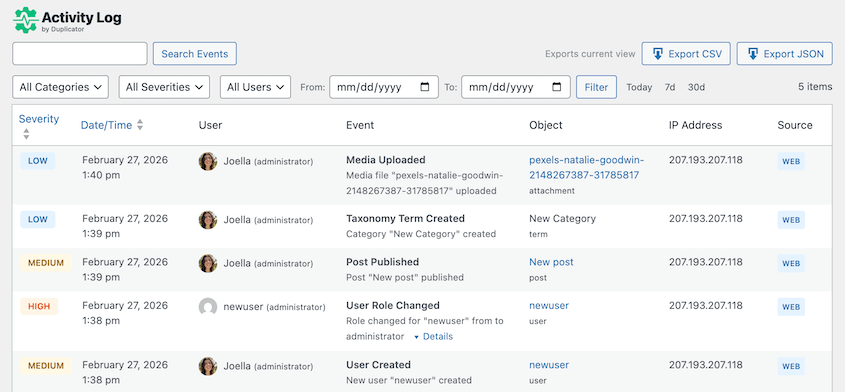
The severity levels are color-coded for fast scanning.
- 🔴 High
- 🟡 Medium
- 🔵 Low
On a healthy site, most entries will be yellow and blue. Red entries are worth reading every time you see them.
To filter the log, use the controls at the top. You can filter by category, severity level, or date range.
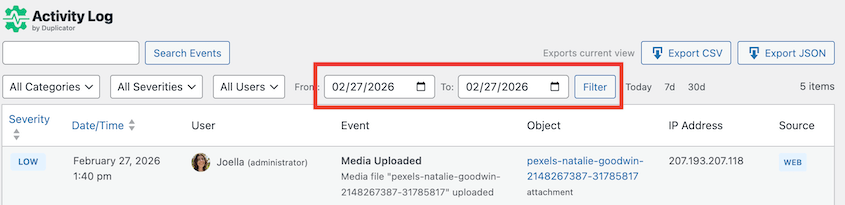
On an active site with multiple users, filtering is how you find anything quickly. Start with severity, then narrow by date range to the window you care about.
What normal looks like: logins from your usual IP address, content updates from known author accounts, and plugin updates during your regular maintenance window. After a week of reviewing the log, you’ll develop a clear sense of your site’s baseline. Anything outside that pattern is worth a second look.
Step 5: Respond to a Suspicious Event
Finding something malicious in the log is only useful if you know what to do next. The audit trail tells you what happened. Duplicator Pro lets you undo it.
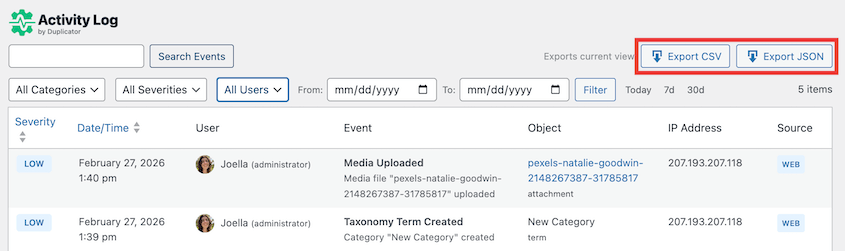
Before taking any action, record the full details of the event: timestamp, user account, IP address, and exactly what was changed. Export the log entry as a CSV or JSON file using the export button at the top of the Activity Log screen.
If you’re running Duplicator, find your most recent clean backup. You want to know exactly what you have before you start making changes. A clean backup from before the suspicious event is your fallback for every scenario below.
Here are the four most common scenarios for finding suspicious activity in WordPress and what to do in each one.
A login from an unfamiliar IP address
Check whether the user account belongs to a real team member and ask them to confirm the login. If they cannot confirm it, go to Users » All Users, open that user’s profile, and scroll to the bottom.
Click Log Out Everywhere to terminate all active sessions for that account. Then force a password reset. If there’s any chance site-wide credentials were shared or reused, change the admin password too.
Check the log for other events tied to that same IP address in the same time window. A login is rarely the only thing a compromised account touches.
A plugin was installed that you didn’t install
Deactivate and delete the plugin immediately, unless someone on your team can confirm they installed it intentionally. Then check the log for other events tied to the same user or IP address in the same time window.
A plugin install rarely happens on its own. Look for settings changes, user role modifications, or file edits that bracket the install.
If the log shows the plugin was active for more than a few hours before you caught it, treat the site as potentially modified.
Manually reverting every change a malicious plugin may have made is not realistic. It’s much easier to do a full restore from a known-clean backup.
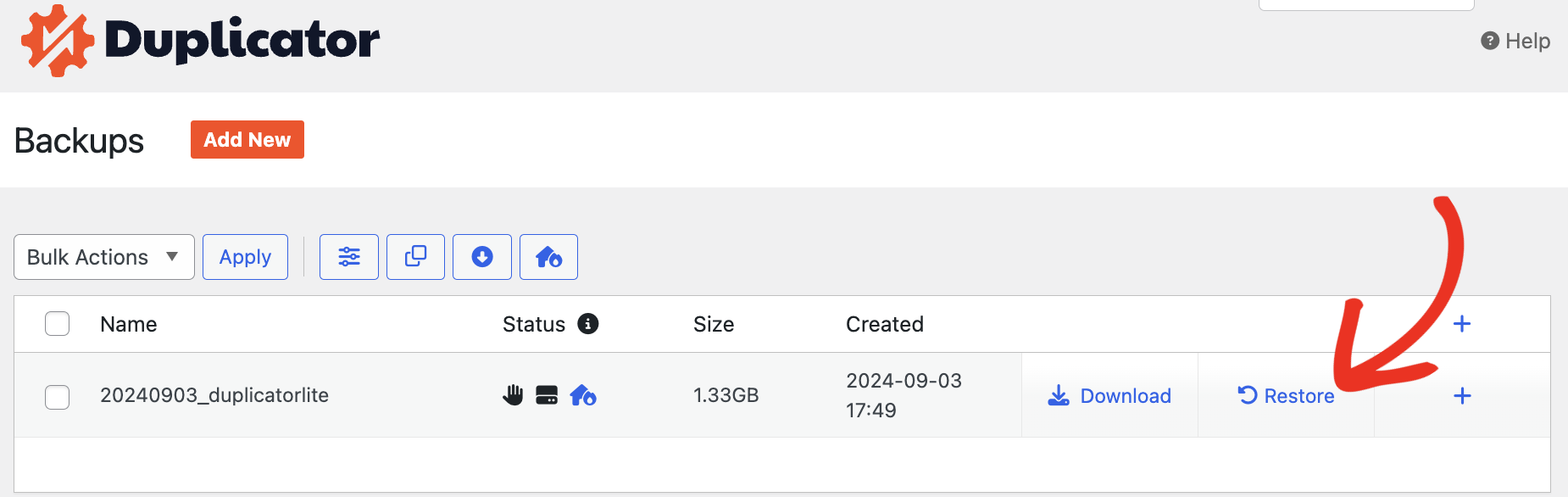
Open Duplicator Pro, go to Backups, and identify the most recent backup that predates the install event. Restore that backup with one click.
A settings change appeared that no one claims
The log entry will show the specific setting that was changed and, in many cases, the value it was changed to. Compare the current setting against what it should be.
If it’s a single change, you can revert it manually. Go to the relevant settings screen and restore the correct value.
If the log shows multiple settings touched in a short window, don’t try to reconstruct them one by one. Open Duplicator Pro, find a backup from before the event window, and restore.
One isolated setting change is a five-minute fix. A sweep of coordinated changes is a recovery job, and Duplicator Pro handles it in a few clicks.
After restoring, confirm the backup date in the Duplicator Pro dashboard and cross-check the Activity Log to make sure the restored version predates every suspicious entry.
A user’s role was elevated without explanation
Role changes are High severity events. If you didn’t make the change, treat the account as potentially compromised.
Revert the role immediately by going to Users » All Users, clicking the account in question, and changing the role back in the Role dropdown.
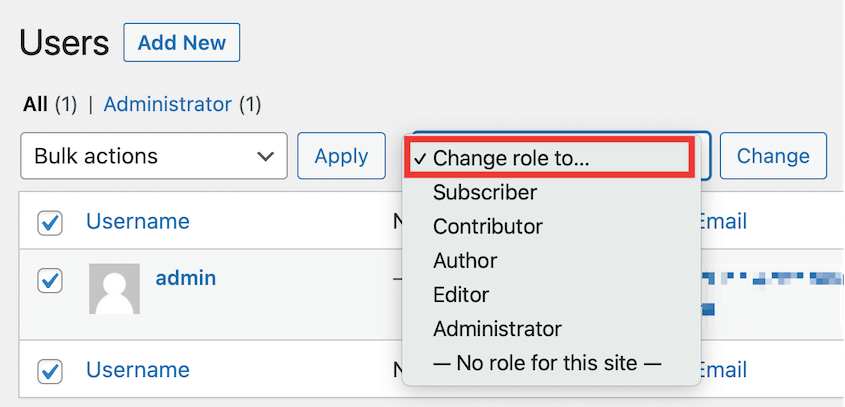
Then review the full Activity Log for that user account from the moment the role was elevated forward. Look for any actions the elevated permissions would have made possible: plugin installs, settings changes, new user creations, or file modifications.
If those actions exist in the log, use Duplicator Pro to restore a backup that predates the role change. It’s faster and more reliable than hunting down every change an elevated account may have made.
Frequently Asked Questions (FAQs)
What is a WordPress audit trail?
A WordPress audit trail is a log of every action taken on your site, tied to a specific user, a timestamp, and an IP address. It tells you who did what and when. WordPress does not keep one by default, so you need a plugin to create one. Without it, there’s no way to reconstruct what happened on your site after the fact.
Does WordPress have a built-in activity log?
No. WordPress core doesn’t log user actions, content changes, or settings modifications. Nothing is recorded by default. Without a dedicated plugin running before an incident occurs, that history doesn’t exist.
Can I see who deleted a post in WordPress?
Yes, if Activity Log by Duplicator was active at the time. The plugin logs post deletions, including the post title, the user who deleted it, and the timestamp.
What’s the difference between an audit trail and a security log?
An audit trail records every action on the site, including routine ones like publishing a post or updating a user profile. A security log focuses on security-relevant events specifically: failed logins, role changes, and plugin installs. Activity Log by Duplicator covers both. Every event has a severity level, so you can filter for security events or view the full picture depending on what you need.
Your Site Has a Memory Now
Before you installed Activity Log by Duplicator, your WordPress site had no record of anything. Every login, settings change, and plugin install happened and disappeared without a trace. If something went wrong, you were guessing.
That’s no longer the case. You have a running log of every meaningful action on your site, tagged by user, timestamp, IP address, and severity level.
You know how to read an entry, how to filter for what matters, and what to do when something looks wrong. That’s a significant shift in how much control you have over your own site.
Going forward, make log review a habit. Check the activity log once a week, focus on High and Critical entries first, and investigate anything outside your site’s normal pattern.
Most of the time it’ll be nothing. Occasionally it’ll be the thing you needed to catch early.
Every unlogged action on your site is a blind spot. A plugin gets installed, a setting gets changed, an account gets compromised, and without an audit trail, you find out weeks later, if at all. The log doesn’t prevent problems, but it means you’re never left guessing about what happened or who did it.
Over 1.5 million WordPress professionals use Duplicator to protect their sites. Activity Log by Duplicator gives you a complete, searchable record of everything happening on your site, with severity-based triage, email alerts, and sensitive data redaction built in.
Pair Activity Log with Duplicator Pro, and you have a log to understand what happened and a backup to restore from if you need to act on it.
If this tutorial helped, these guides are worth reading too.
- Most WordPress Activity Log Plugins Tell You What Broke—One Helps You Fix It
- WordPress Security Checklist: Step-by-Step Guide to Protect Your Site
- WordPress Maintenance Checklist: 20 Essential Tasks (2026)
- How to Create a WordPress Staging Site (For Safe Testing)
- Stop Getting Locked Out of WordPress: The Prevention Guide I Wish I Had
- WordPress Doesn’t Track Activity by Default: Here’s What I Do About It
- How to Track EVERY Change on Your WordPress Site (Before It Breaks)




