

The wp-config.php File Settings Every WordPress Site Owner Should Know
 Joella Dunn
Joella Dunn
Joella Dunn
 John Turner
John Turner
John Turner
You just moved your WordPress site to a new hosting provider. Everything seemed to go smoothly during the transfer.
Then you visit your homepage and see a database connection error.
The good news is that most of the time, this error points to one specific file that needs attention: wp-config.php.
Your wp-config.php file is WordPress’s control center. It contains the database credentials your site needs to function, plus security keys, debugging settings, and other core configurations.
When you move hosts or change database details, this file needs updating to match your new environment.
Here’s what we’ll cover to get you confidently working with this critical file:
- Where to find your wp-config.php file and the best ways to access it safely
- The essential database settings and security configurations that keep your site running
- Clear instructions for editing the file through cPanel File Manager or FTP clients
- Migration-specific changes that prevent connection errors and broken functionality
- Recovery strategies when edits go wrong and your site won’t load
Table of Contents
- What is the wp-config.php File?
- Where is wp-config.php Located?
- Essential wp-config.php Settings Every Site Owner Should Know
- How to Edit Your wp-config.php File
- How wp-config.php Affects WordPress Migrations
- Common Ways to Edit wp-config.php
- Common wp-config.php Problems and How to Fix Them
- How to Restore Your wp-config.php File
- Frequently Asked Questions (FAQs)
What is the wp-config.php File?
The wp-config.php file contains all the essential information WordPress needs to come alive on a web server.
At its core, wp-config.php stores your database connection credentials. When someone visits your site, WordPress immediately checks this file to find your database username, password, host address, and database name.
Without these four pieces of information (or if any of them are wrong), WordPress can’t retrieve your posts, pages, or settings from the database.
The file also has your unique security keys, your site’s URL settings, debugging configurations, and memory limits.
Your theme files, plugin files, and even your content uploads can be missing temporarily without completely killing your site. But wp-config.php? If it’s corrupted, missing, or contains incorrect information, your entire site displays error messages instead of content.
Where is wp-config.php Located?
You’ll find the wp-config.php file in your WordPress root directory. That’s the main folder containing wp-content, wp-includes, and wp-admin.
Some security-conscious users move wp-config.php one level up from the WordPress root directory. This puts sensitive database credentials outside the web-accessible folder structure. WordPress is smart enough to check this parent directory automatically if it can’t locate the file in its usual spot.
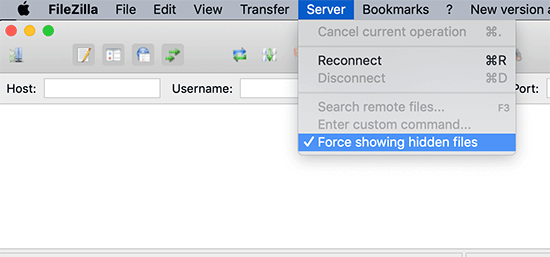
Can’t find wp-config.php anywhere? Check your file manager’s visibility settings first.
Some FTP clients and hosting panels hide files that start with certain characters by default. You’ll have to show hidden files in your client’s view options.
Essential wp-config.php Settings Every Site Owner Should Know
These wp-config.php settings control whether your WordPress site functions securely—or at all.
Database Connection Details
Your database credentials are the first thing WordPress checks when loading any page.
- DB_NAME tells WordPress which database contains your content.
- DB_USER and DB_PASSWORD provide access credentials.
- DB_HOST points to your database server location.
When you see database connection errors, one of these four values is usually wrong.
Authentication Keys and Salts
Authentication keys and salts add randomness to how WordPress encrypts user passwords and login sessions. When someone logs into your site, WordPress uses these strings to create unique, encrypted cookies that verify their identity.
Without proper keys, your login system becomes predictable enough for attackers to exploit through brute force attacks or session hijacking.
Database Table Prefix
WordPress uses the prefix wp_ by default for all database table names. Your posts live in wp_posts, your options in wp_options, and user data in wp_users. This standard naming makes WordPress predictable, which creates both convenience and security concerns.
Some site owners change their table prefix to something like abc123_ or mysite_ during installation. The thinking is sound: automated attacks often target standard WordPress table names with SQL injection attempts. If your tables are named xyz_posts instead of wp_posts, basic attacks fail immediately.
Debug Settings
WP_DEBUG controls error visibility through a simple true/false setting in wp-config.php.
Set it to true, and WordPress displays error messages directly on your site’s pages. You’ll see red warning text, fatal error details, and notices about outdated code that needs attention.
WP_DEBUG_LOG offers a safer alternative for production environments. This setting creates an error log file at /wp-content/debug.log instead of displaying messages publicly. You get the diagnostic information you need without exposing technical details to visitors.
Absolute Path
WordPress needs to know exactly where it lives on your server, and that’s where ABSPATH comes in. This constant defines the complete server path to your WordPress installation—not the web URL visitors see, but the actual folder structure on the hosting server.
On typical shared hosting, ABSPATH looks like /home/username/public_html/ or /home/username/public_html/blog/ if WordPress sits in a subdirectory.
Local development environments show paths like C:\xampp\htdocs\mysite\ on Windows or /Applications/MAMP/htdocs/mysite/ on Mac systems.
WordPress uses this absolute path information to locate files reliably, regardless of how your URLs are structured or what directory your site operates from. When WordPress needs to include a theme file, load a plugin, or access uploaded media, it builds the complete file path using ABSPATH as the starting point.
How to Edit Your wp-config.php File
Let me show you how to edit the wp-config.php file on your website.
Back Up Your Website
I’ve learned from experience that you should always back up your site before touching wp-config.php.
Wp-config.php uses PHP syntax, and PHP is unforgiving. A single missing semicolon, an extra quotation mark, or one misplaced character will generate a fatal error that takes down your entire site.
Unlike a broken theme or plugin, wp-config.php errors prevent WordPress from loading at all.
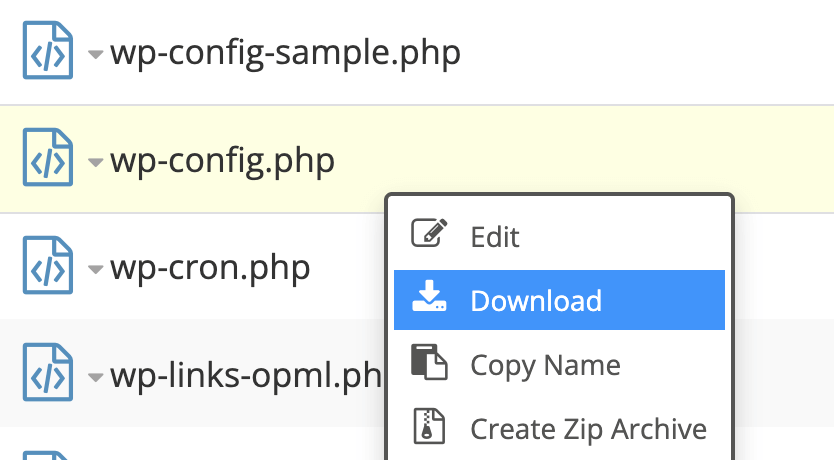
If you’re using an FTP client like FileZilla, right-click the file and select Download.
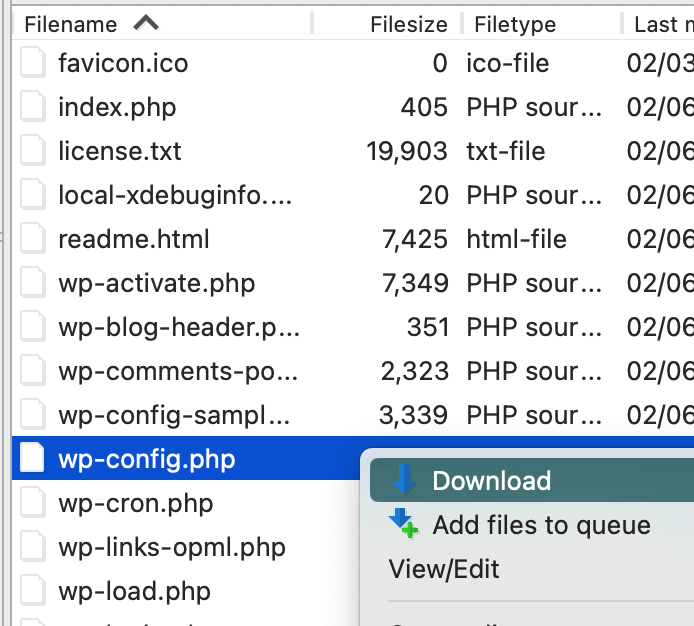
cPanel file managers work similarly. Find the wp-config.php file, right-click, and hit Download.
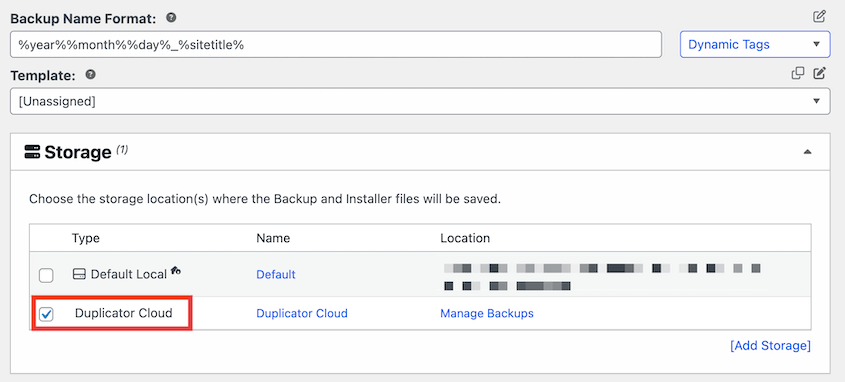
For easier restore methods, use Duplicator to create a full-site backup. Store it in the cloud to ensure it doesn’t get corrupted.
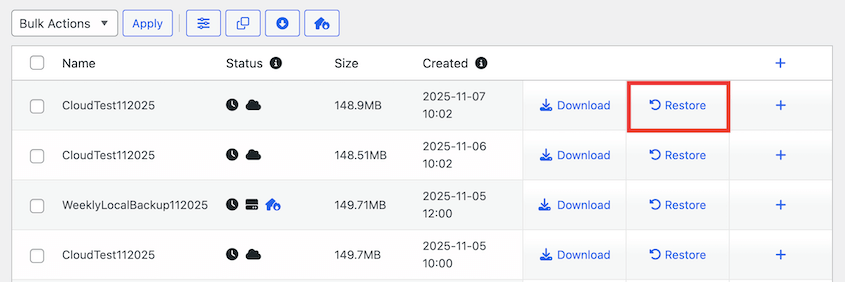
If anything goes wrong, find that backup in your admin dashboard and hit Restore.
For more devastating errors, re-upload the backup and installer file to your site’s root directory. Launch the restoration with this URL: https://your-domain/installer.php
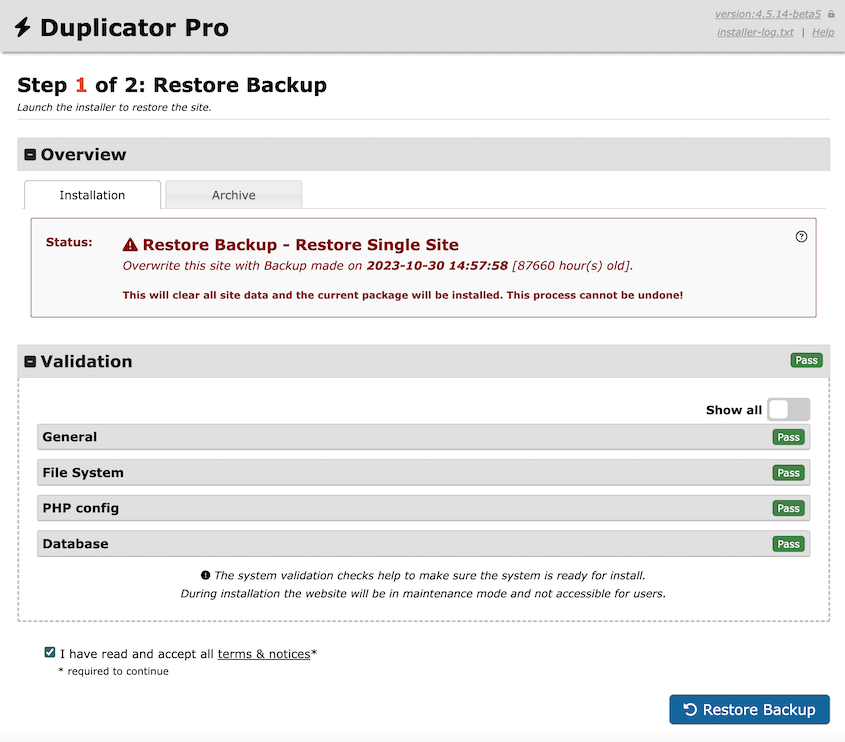
Duplicator will roll back your site even if it’s completely down!
Edit wp-config.php with FTP
FTP gives you direct server access to edit wp-config.php when cPanel isn’t available or you prefer desktop software control.
Locate your FTP credentials in your hosting account’s control panel, usually in the FTP Accounts section. You’ll need the hostname (often your domain name or ftp.yourdomain.com), username, and password. Some hosts provide these details in your welcome email.
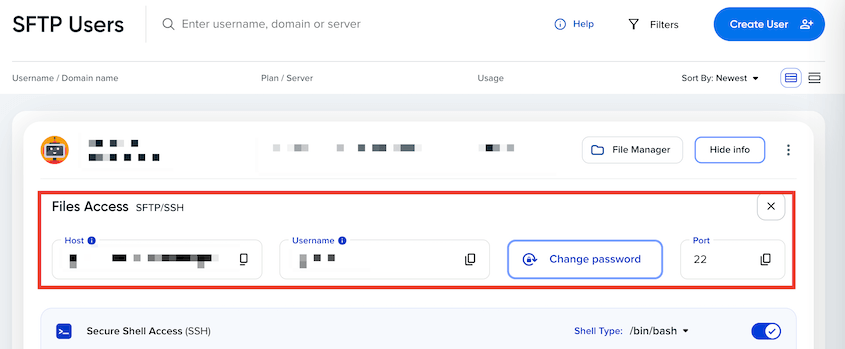
Open your FTP client and enter these connection details. FileZilla users input the information in the Quickconnect bar. Once connected, you’ll see your server’s directory structure in the right panel.

Browse to your website’s main folder, typically named public_html, www, or your domain name.
Right-click wp-config.php and select Download to save a copy to your computer. This creates both your working copy and a backup in case edits go wrong.
Open the downloaded file in a plain text editor like Notepad++ or VS Code. Avoid Microsoft Word or rich text applications that add invisible formatting characters that break PHP syntax.
Make your changes carefully, checking that every quote mark, semicolon, and parenthesis remains intact. Save the file as plain text without any byte order mark (BOM) encoding.
Upload the modified file back to your server, overwriting the original. Most FTP clients ask for confirmation before replacing existing files.
Visit your website in a fresh browser window within 30 seconds of uploading. If you see your homepage normally, the edits worked. If you encounter errors or white screens, immediately upload your backup copy to restore functionality while you troubleshoot the syntax issue.
Edit wp-config.php with cPanel
cPanel’s File Manager provides the most straightforward way to edit wp-config.php directly on your server. Everything happens through your hosting control panel’s web interface.
Log into your hosting account’s cPanel dashboard and locate the File Manager icon, usually found in the Files section. Click it to open your server’s directory browser in a new window or tab.
When the file manager opens, click on public_html or your domain name folder to reach your website’s files.
If you’re running multiple sites, navigate to the specific folder containing your WordPress installation.
You’ll recognize the correct directory when you see wp-admin, wp-content, and wp-includes folders alongside wp-config.php and other core WordPress files.
Right-click on wp-config.php in the file listing and select Edit.
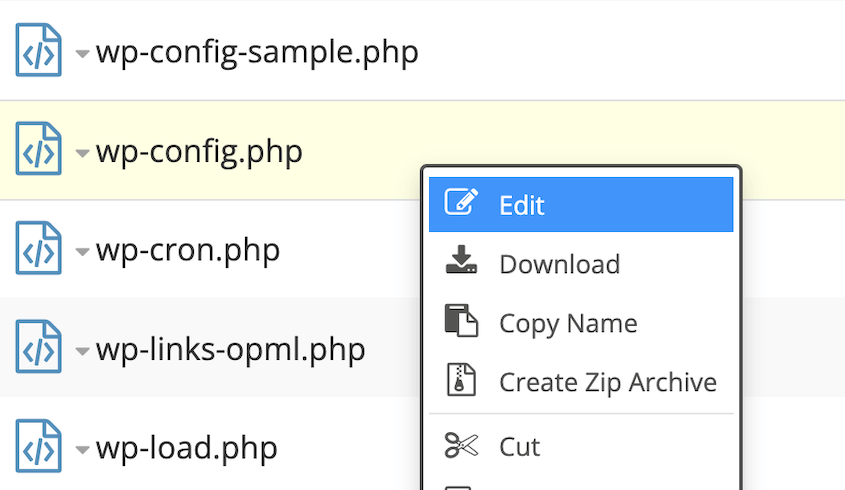
The file opens in cPanel’s built-in text editor, displaying all your current configuration settings. Make your changes carefully, paying attention to quotation marks, semicolons, and proper PHP syntax.
Save the changes when you’re finished editing. The changes take effect immediately—there’s no re-upload step.
How wp-config.php Affects WordPress Migrations
I’ve seen perfectly planned migrations turn into multi-day disasters because nobody thought to check the database connection settings until the moved site displayed connection errors.
Here’s what happens during a typical migration failure: you successfully transfer all your WordPress files to the new hosting provider and import your database. Everything looks complete. But when you visit your migrated site, WordPress can’t connect to the database because your wp-config.php file still contains the old hosting provider’s database credentials.
Your previous host used database settings like localhost for DB_HOST and oldhost_dbuser for DB_USER. Your new hosting provider assigns completely different credentials—maybe mysql.newhost.com for the server address and newhost_wp123 for the username.
WordPress has no way to know about this change unless you update wp-config.php with the new hosting environment’s database information.
URL mismatches cause another layer of problems even after you establish database connections.
Your old site URLs and file paths get hardcoded throughout WordPress in ways that aren’t immediately obvious. Database content, theme settings, and plugin configurations often reference absolute URLs or server paths that point to your previous hosting setup.
Even with proper database connections, these mismatched references create broken links, missing images, and administrative access issues.
Duplicator Pro handles these complex URL and path updates automatically during migrations. Instead of manually hunting through database records and configuration files to find hardcoded references, Duplicator Pro’s migration process updates URLs, paths, and wp-config.php settings in one coordinated operation.
Common Ways to Edit wp-config.php
Most site owners discover wp-config.php editing through necessity—fixing database connection errors or troubleshooting broken migrations. But once you’re comfortable with the file’s structure, several practical improvements become accessible for debugging problems, hardening security, and optimizing performance.
Debugging
Setting define('WP_SCRIPT_DEBUG', true); transforms debugging from guesswork into targeted problem-solving. Instead of seeing cryptic references, error messages point to readable function names and logical line numbers in properly formatted code.
WP_DEBUG_DISPLAY controls whether error messages appear directly on your site pages or stay hidden from visitors. When set to false, errors still get generated and logged, but they won’t show up as red text warnings interrupting your site’s design.
I combine these settings strategically depending on the environment. On development sites, I enable both WP_DEBUG and WP_DEBUG_DISPLAY to see problems immediately.
On staging servers, I use WP_DEBUG with WP_DEBUG_LOG but disable WP_DEBUG_DISPLAY to catch issues without breaking the visual testing experience.
Security Improvements
WordPress uses file editing protections to prevent unauthorized changes through the admin interface. If your hosting account gets compromised or someone gains admin access who shouldn’t, these constants create barriers against the most damaging attacks.
DISALLOW_FILE_EDIT removes the theme and plugin editor screens from your WordPress dashboard entirely. Without this protection, anyone with admin access can inject malicious PHP code directly through Appearance » Theme Editor or Plugins » Plugin Editor.
DISALLOW_FILE_MODS takes protection one step further by preventing all file modifications through the WordPress admin interface. This includes plugin installations, theme uploads, WordPress core updates, and automatic background updates.
FORCE_SSL_ADMIN requires encrypted HTTPS connections for all WordPress admin activities. Login pages, dashboard access, and administrative functions refuse to work over unencrypted HTTP connections.
Set define('FORCE_SSL_ADMIN', true); when your site handles sensitive information or operates under compliance requirements that mandate encrypted administrative access.
The constant works independently of your general site SSL setup—you can force admin encryption while allowing HTTP for public pages.
Performance Improvements
High-traffic sites with frequent content updates face a hidden performance problem: database bloat from unlimited post revisions. WordPress saves every draft, auto-save, and published version of your content by default.
WP_POST_REVISIONS controls how many versions WordPress keeps for each post or page. Setting define('WP_POST_REVISIONS', 3); limits storage to your current version plus three previous revisions.
That’s usually enough for recovering accidentally deleted content or reverting problematic edits without the database overhead of unlimited history.
The WordPress dashboard uses more memory than your public pages, especially during plugin installations, theme customizations, or bulk content operations. WP_MAX_MEMORY_LIMIT specifically controls memory availability for administrative tasks.
Adding define('WP_MAX_MEMORY_LIMIT', '512M'); provides breathing room for memory-intensive operations like importing large XML files, batch processing images, or handling complex plugin configurations.
WordPress keeps deleted content in trash for 30 days before permanent removal. Setting define('EMPTY_TRASH_DAYS', 7); reduces the retention period to one week, automatically purging deleted content more aggressively.
News sites or busy forums benefit from shorter trash periods because deleted content rarely needs recovery after a few days.
Common wp-config.php Problems and How to Fix Them
Most wp-config.php problems fall into predictable patterns. Once you know what to look for, these errors become diagnostic tools rather than mysterious disasters.
White Screen of Death
Your site displays a blank white page instead of content. This usually means PHP can’t parse your wp-config.php file because of syntax problems.
Missing semicolons cause this more than anything else. Every line in wp-config.php that starts with define must end with a semicolon. Delete one accidentally, and PHP stops processing the entire file.
The same thing happens with mismatched quotes—opening a string with a single quote but closing with a double quote breaks PHP parsing completely.
I’ve watched site owners spend hours troubleshooting complex theories when the real problem was typing 'DB_NAME', 'database_name"); instead of 'DB_NAME', 'database_name');. That extra quote mark kills the entire site.
The fix is straightforward if you kept that backup file: upload your original wp-config.php file to restore functionality immediately, then retry your edits more carefully.
Error Establishing a Database Connection
The good news here is that WordPress itself works fine—it just can’t reach your database.
Check your four database constants first: DB_NAME, DB_USER, DB_PASSWORD, and DB_HOST. One of these doesn’t match your hosting provider’s actual database settings.
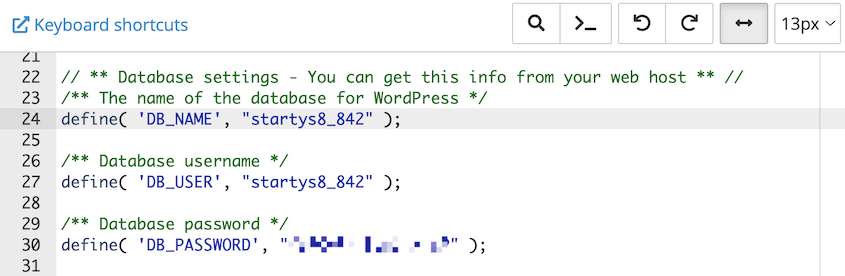
Permission and Encoding Problems
Sometimes your wp-config.php file contains correct information, but WordPress still can’t read it. File permissions might be too restrictive (WordPress needs at least 644 permissions to read the file), or the file encoding contains hidden characters that break PHP parsing.
This happens when you edit wp-config.php in Microsoft Word or other rich text programs that add invisible formatting codes. Always use plain text editors like Notepad++ or VS Code for wp-config.php modifications.
Wrong file ownership also prevents WordPress from reading wp-config.php even with correct permissions. Your hosting provider can fix ownership issues, but they’re not always obvious until you’re troubleshooting access problems.
How to Restore Your wp-config.php File
When wp-config.php edits break your site, backup restoration beats troubleshooting every time.
If you’ve got a recent Duplicator backup from before your changes, you’ll have full functionality restored in under five minutes. Just hit Restore.
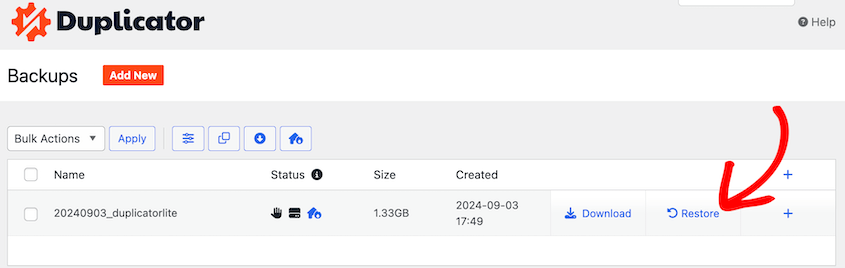
This instantly rolls back your site, avoiding hours of debugging syntax errors or database connection problems.
When backup restoration isn’t possible, you can rebuild wp-config.php from scratch using WordPress’s sample template. Download wp-config-sample.php from a fresh WordPress installation and rename it to wp-config.php.
The sample file contains all the basic structure you need. Replace the placeholder database credentials with your actual values from your hosting control panel’s database section.
Frequently Asked Questions (FAQs)
What happens if I accidentally delete my wp-config.php file?
Restore your wp-config.php from a backup immediately if you have one. If not, you can recreate the file using wp-config-sample.php from a fresh WordPress download. Rename it to wp-config.php and add your database credentials from your hosting control panel.
What do I do if my wp-config.php file is missing?
If your wp-config.php file is missing, WordPress can’t connect to your database, and your site will go offline. You can fix it by copying wp-config-sample.php, adding your database name, user, and password, and saving it as wp-config.php in your WordPress root folder. Once uploaded, your site should start working again.
Where is my wp-config.php file?
Your wp-config.php file is located in the root WordPress directory, usually named public_html, www, or the main folder that contains wp-admin, wp-content, and wp-includes. You can access it using your host’s file manager or an FTP client. If you don’t see it, your host may store it one level above the root for security.
What does wp-config.php do?
The wp-config.php file tells WordPress how to connect to your database and run your site. It stores important settings like database credentials, security keys, and debugging options, which WordPress reads every time a page loads. If this file is missing or misconfigured, your site won’t work.
Take Control of Your WordPress Configuration
Wp-config.php is a powerful but predictable file. Database connection errors, security improvements, and performance optimizations all follow logical patterns once you understand the file’s structure and purpose.
Here’s an extra tip: create a documentation file listing your custom wp-config.php settings and their purposes. When you need to recreate the file or migrate to a new server, you’ll have a reference for your specific configuration choices instead of trying to remember what each custom setting accomplished.
Ready to take full control of your WordPress migrations and backups? Duplicator Pro creates complete site backups that include your wp-config.php settings, making site moves and recovery scenarios straightforward instead of stressful.
While you’re here, I think you’ll like these related WordPress guides:
- Do You Need a Staging Site?
- WordPress REST API for Beginners: Access Your Content Anywhere
- How to Edit Your Hosts File Before WordPress Migrations (Windows, Mac, & Linux Tutorial)
- How to Import Files in WordPress
- How to Undo Changes in WordPress (5 Methods)
- How to Restore a WordPress Site to a Previous Date Without a Backup




