

How to Install WordPress on a Subdomain (Fresh Install or Full Site Clone)
 Joella Dunn
Joella Dunn
Joella Dunn
 John Turner
John Turner
John Turner
You need WordPress running on a subdomain. Simple enough — until the subdomain won’t load, the database throws an error you’ve never seen before, or you realize mid-install that you have no backup of the site you just copied.
These aren’t edge cases. They’re the standard experience for anyone who hasn’t done this before.
I’ve set up WordPress on subdomains more times than I can count, for staging environments, client review sites, separate blogs, and testing grounds. Two steps get skipped almost every time.
The first is waiting for DNS propagation before assuming something broke. The second is taking a backup before cloning a live site.
This tutorial covers how to handle WordPress subdomains two ways: a fresh WordPress install on a subdomain and copying an existing site to a subdomain. Pick the one that best fits your situation.
Either way, I’ll flag the failure points before you hit them, not after.
Here are the key takeaways:
- There are two ways to get WordPress on a subdomain: clone an existing site with Duplicator Pro or do a fresh install via Softaculous or manually
- New subdomains can take up to 24 hours to resolve in a browser: a “site can’t be reached” error right after setup doesn’t mean something broke
- Always back up your main site before cloning it: the cloning process doesn’t touch the original, but a backup protects you when you push changes back to production
- Set staging subdomains to noindex in Settings » Reading, or search engines will index them as duplicate content
- The five most common errors after install: database connection failure, DNS not resolving, 404s on all pages, redirect loops on wp-admin, and SSL not covering the new subdomain
Table of Contents
Why Install WordPress on a Subdomain?
A subdomain gives you a second WordPress install that runs completely independently from your main site. Same server and domain, but separate files, database, and admin login.
When you push a plugin update on a live site and something breaks, you have no clean way to test the fix without touching production. When a client wants to review a redesign before it goes live, your options are a screenshot or handing them access to your real site. Neither works well.
A subdomain solves both of these problems. It gives you a place to run WordPress that’s genuinely isolated from the site your visitors see.
Here are the situations where I see people set them up most often:
- Staging environment: Run a full copy of your production site at staging.yoursite.com. Test updates, migrations, and redesigns before they touch anything live.
- Client preview site: Build the site before it needs to go live. Give the client a real URL to click around in, not a mockup.
- Separate project on the same domain: A store at shop.yoursite.com, a knowledge base at docs.yoursite.com, or a course platform at learn.yoursite.com. Each is its own WordPress install with its own codebase.
- Testing ground: Try a new page builder, a caching plugin, or a full theme swap without risking the site that’s generating traffic.
The underlying reason is always the same: you want the ability to break something without consequence.
If you’re not sure whether a subdomain is the right structure for your situation, the next section covers when a subdirectory is the better choice.
Subdomain or Subdirectory: Which One Do You Need?
Before touching your hosting account, make sure a subdomain is actually what you need. Getting this wrong means redoing the setup from scratch.
A subdomain sits in front of your domain: staging.yoursite.com. It’s treated as a separate site by your server and by search engines.
A subdirectory sits after it: yoursite.com/staging. Same server, same domain authority, no extra DNS configuration.
Use a subdomain when you want a fully independent WordPress install. Here’s when you might need one:
- Staging environment: Test updates, redesigns, or new plugins on a copy of your site before touching production
- Separate store: Run WooCommerce on shop.yoursite.com without it sharing a codebase with your main site
- Docs site: Host product documentation or a knowledge base that stands on its own
- Client preview URL: Give a client a working URL to review before you migrate to their domain
Use a subdirectory when you’re adding a blog or content section to an existing site and want that content to benefit from your main domain’s authority. Google treats subdomains as separate entities, so any authority your main domain has built up doesn’t automatically carry over.
How to Clone an Existing WordPress Site to a Subdomain
This method copies your entire existing WordPress site to the subdomain. Use it when you’re setting up a staging environment, building a client preview, or testing a major change without touching production.
Here’s what you’ll do:
- Back up your main site with Duplicator Pro: Create a full-site backup and download both the archive and installer files
- Create the subdomain and database: Register the subdomain in cPanel and set up a fresh MySQL database and user for the cloned site
- Upload the Duplicator backup to the subdomain: Place the archive and installer in the subdomain’s document root
- Run the Duplicator installer: Walk through the standalone installer wizard, enter your database credentials, and let Duplicator extract and deploy the full site automatically
- Update site URLs and test: Confirm both WordPress URL fields point to the subdomain and check that links and images load correctly
Step 1: Back Up Your Main Site with Duplicator Pro
Cloning a WordPress site manually means copying files via FTP, exporting a database, importing it somewhere new, and then hunting down hundreds of hardcoded URLs in the database row by row.
I’ve done it that way. I don’t ever want to do it again.
Duplicator handles cloning in a single workflow. It packages your entire WordPress site into two files. Drop those two files on the subdomain, run the installer, and Duplicator rebuilds the full site automatically. URL replacement, database import, and file extraction are all handled without touching a single line of code.

Over 1.5 million WordPress professionals use it for exactly this kind of work: staging environments, client preview sites, migrations, and disaster recovery.
Here’s what makes it worth using for subdomain installs specifically:
- Full-site packaging: Captures every file and database table in a single archive, including plugins, themes, uploads, and WordPress core
- Standalone installer: Runs on a blank subdomain without WordPress pre-installed
- Automatic URL replacement: Rewrites every URL in the database from your original domain to the subdomain during install, no manual find-and-replace required
- Database connection validation: Tests your credentials before the install runs so you catch typos before they produce a white screen
- Selective filters: Exclude specific files, folders, or database tables if you only need part of the site cloned
- Scheduled backups: Run automatic backups on a set schedule so you always have a clean snapshot before pushing changes
- One-click restore from cloud storage: Restore directly from Duplicator Cloud if anything goes wrong
- Disaster recovery URL: Restores a site even when WordPress is completely locked out
Start on your main domain. In wp-admin, go to Duplicator Pro » Backups and click Add New.
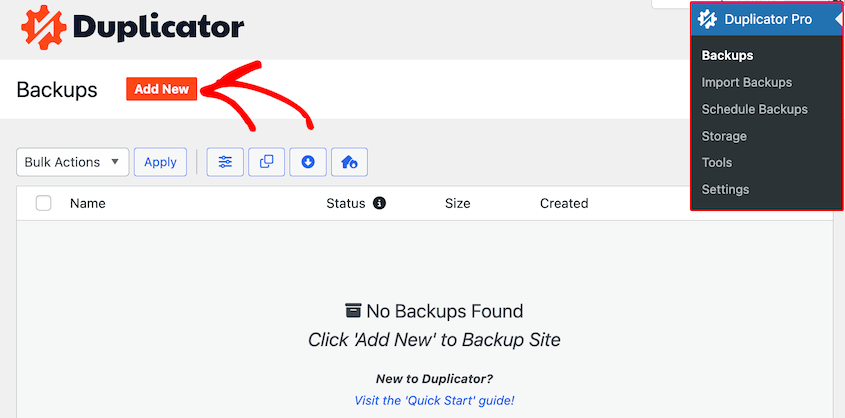
Choose the Full Site backup preset if you want to migrate all data to the staging subdomain. However, Duplicator is flexible enough to offer other presets, plus file and database filters.

When the build completes, download both files: the archive (.zip or .daf) and installer.php. Keep them together in the same folder on your computer.
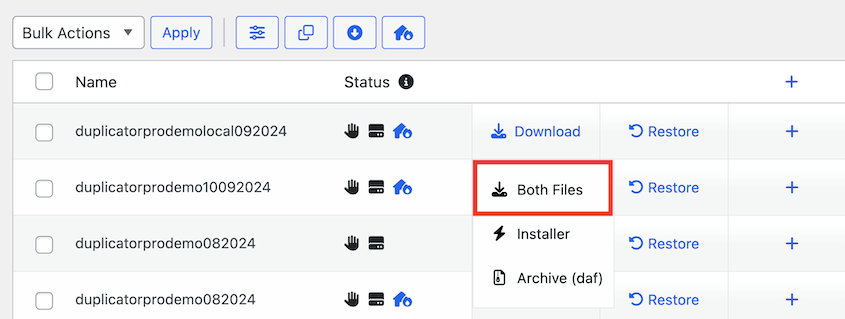
You should end up with two files saved locally, named something like 20260407_yoursite_archive.zip and installer.php.
Step 2: Create the Subdomain
First, you’ll register the subdomain with your server and create the folder where WordPress files will live. I’ll show you how to do this with Bluehost, but many hosts have similar processes (especially if they use cPanel).
Sign into your hosting account and open cPanel.
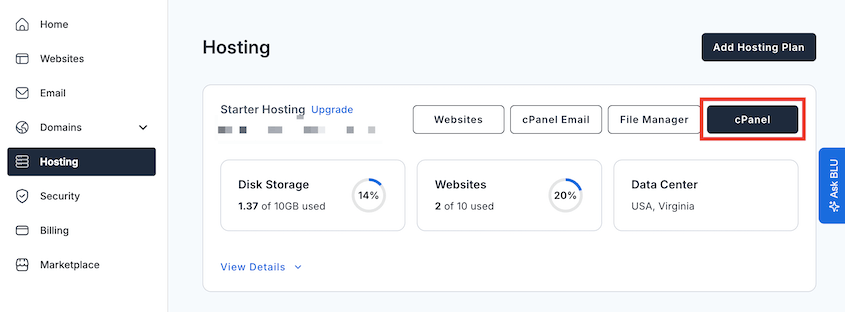
Find the Domains section. Newer versions of cPanel consolidate everything under a single Domains tool. Older versions have a separate Subdomains tool listed under the Domains section, but either works.
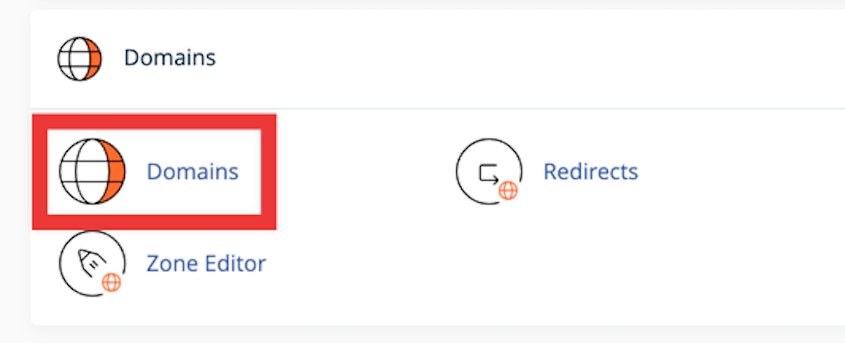
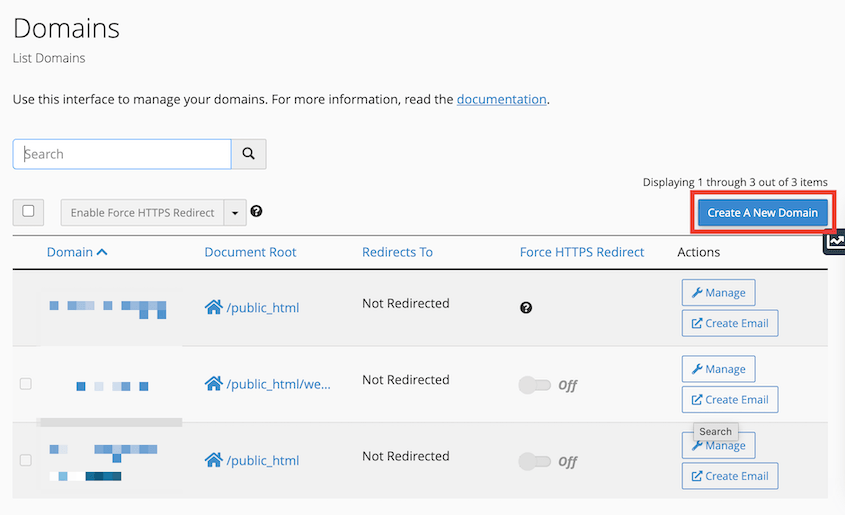
For Bluehost, I opened the Domains page. From there, I clicked on Create A New Domain.
Enter the subdomain you want to use (like staging.yoursite.com). Uncheck the option to share the document root with your main domain.
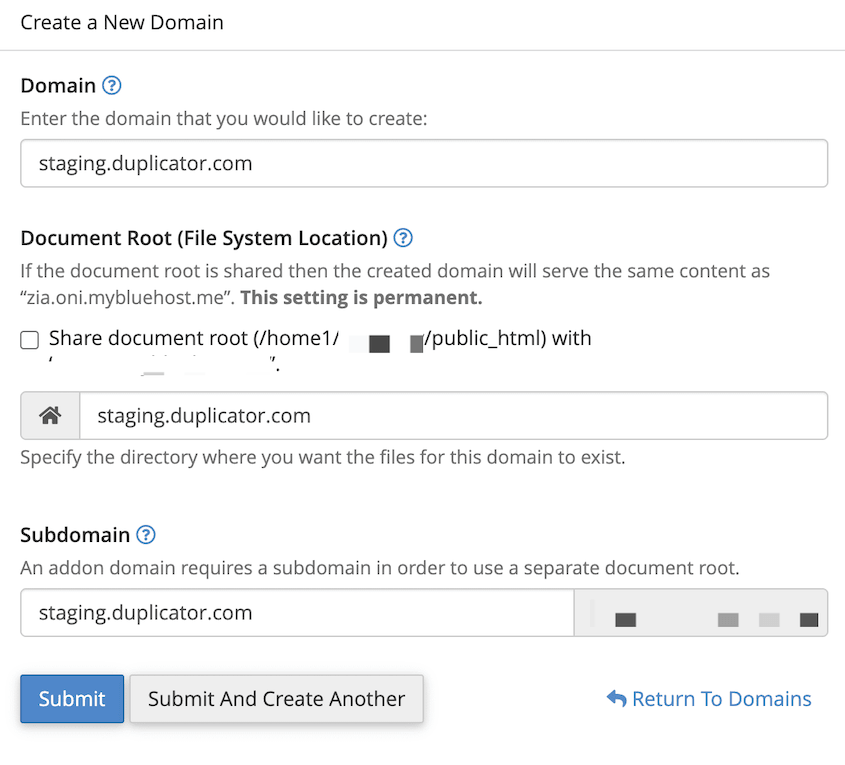
Click Submit.
Don’t try to load the subdomain in a browser yet. New subdomains can take anywhere from a few minutes to 24 hours to resolve, depending on your host and DNS TTL settings.
Loading it immediately and getting a “This site can’t be reached” error doesn’t mean something broke. It means DNS hasn’t propagated yet. Wait, then check propagation at whatsmydns.net before troubleshooting anything.
Step 3: Create a Database for the Subdomain
WordPress needs a database to store your content, settings, users, and plugin data. This step creates that database and a user with permission to access it.
In cPanel, scroll to the Databases section and open MySQL Databases.
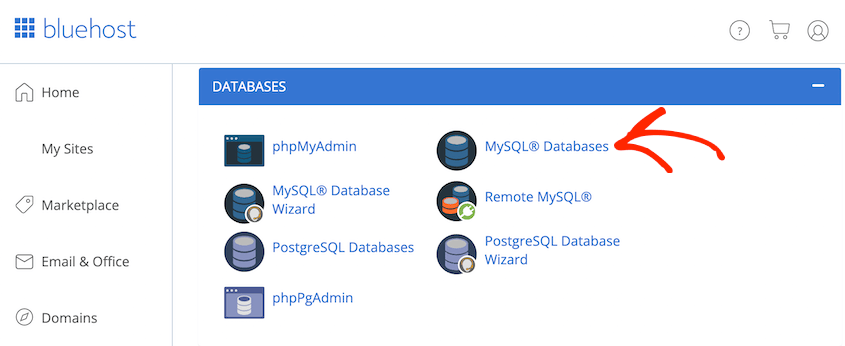
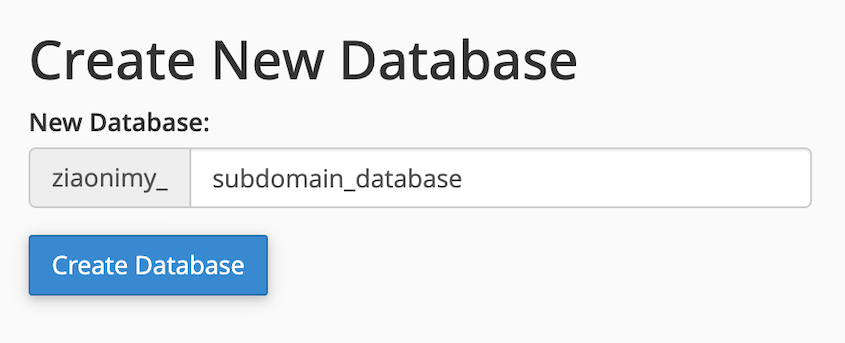
Under Create New Database, enter a name and click Create Database. Use something identifiable like sitecom_staging so you can tell it apart from your other databases.
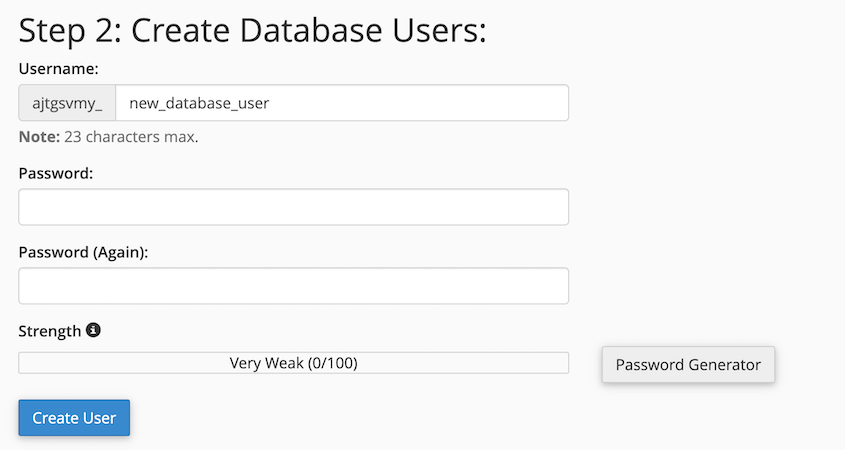
Create a new user. Use a strong password and save it in a password manager. You’ll need it in the next step, and there’s no way to retrieve it later without resetting it.
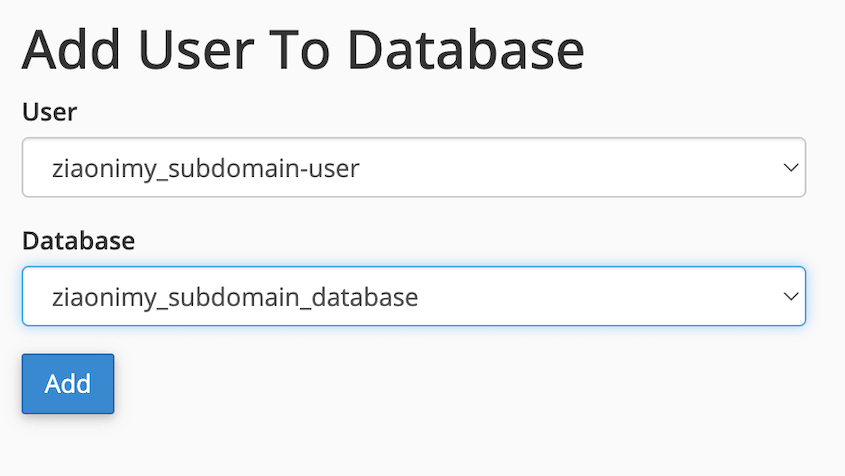
Scroll further to Add User to Database. Select the user and database you just created.
On the next screen, give the new user all privileges.
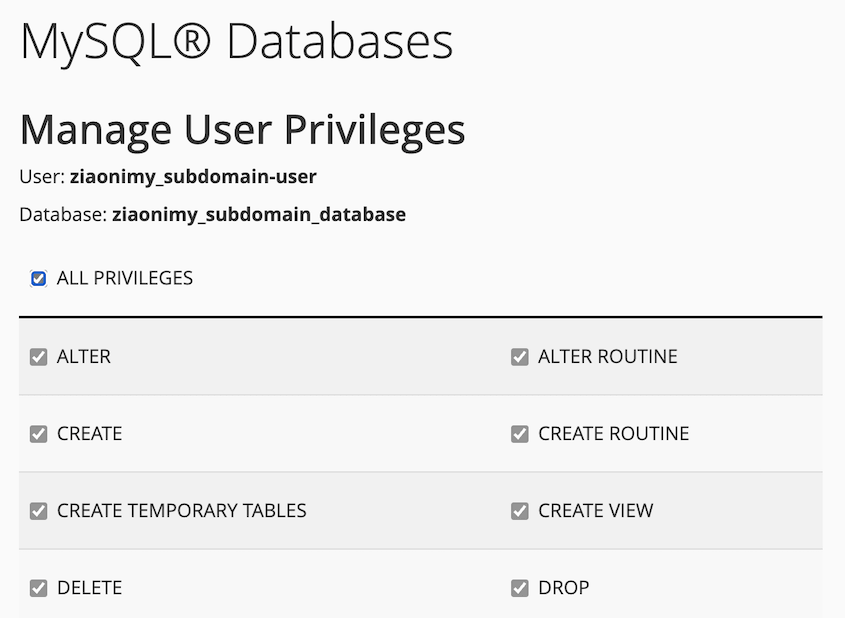
When done, your new database appears in the MySQL Databases list with the new user listed beneath it under Users in this Database.
Keep your database name, username, and password handy. You’ll need them in Step 5.
Step 4: Upload the Duplicator Backup to the Subdomain
In cPanel File Manager, navigate to the document root for your new subdomain.
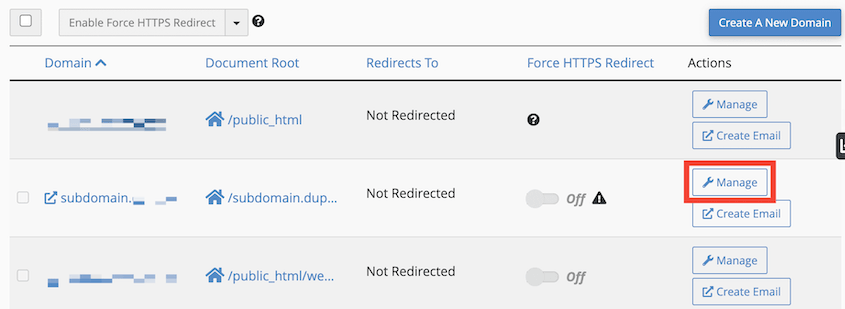
You’ll already be on the cPanel Domains page. Hit Manage next to the subdomain.
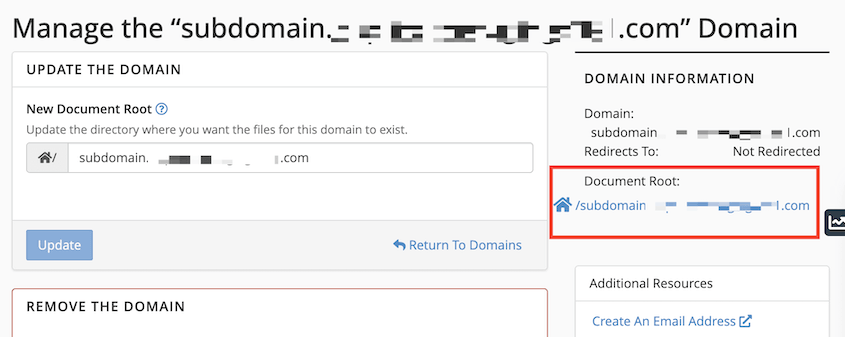
Then, click on the document root to go straight to the files in cPanel.
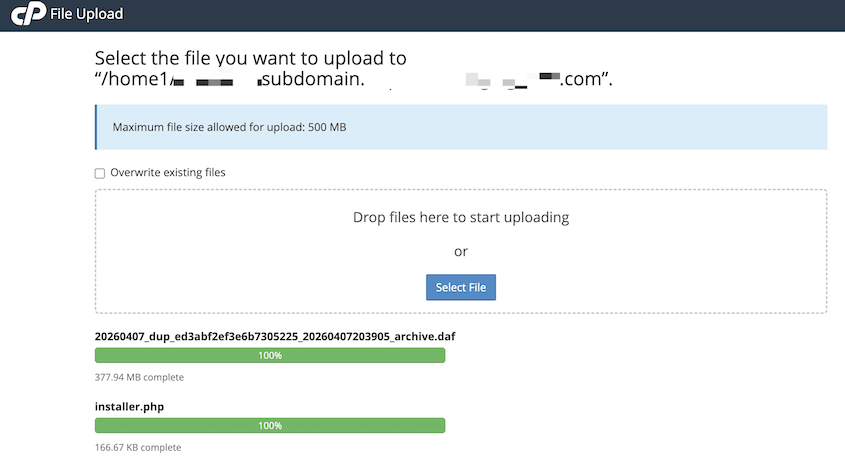
Upload both files: the archive and installer.php.
Step 5: Run the Duplicator Installer
Visit staging.yoursite.com/installer.php in your browser. Replace this with your subdomain’s URL.
Duplicator’s standalone installer will automatically launch. This installer runs even without WordPress installed yet — that’s by design.
In the Setup section, enter your new database credentials. Scroll down and validate the connection.
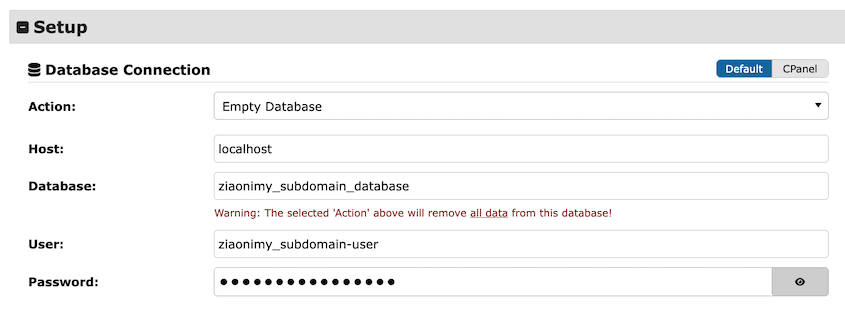
Now you’ll need to accept the terms and notices. Continue with the installation.
In the pop-up, confirm that you want to replace what’s currently on the subdomain with your imported data.
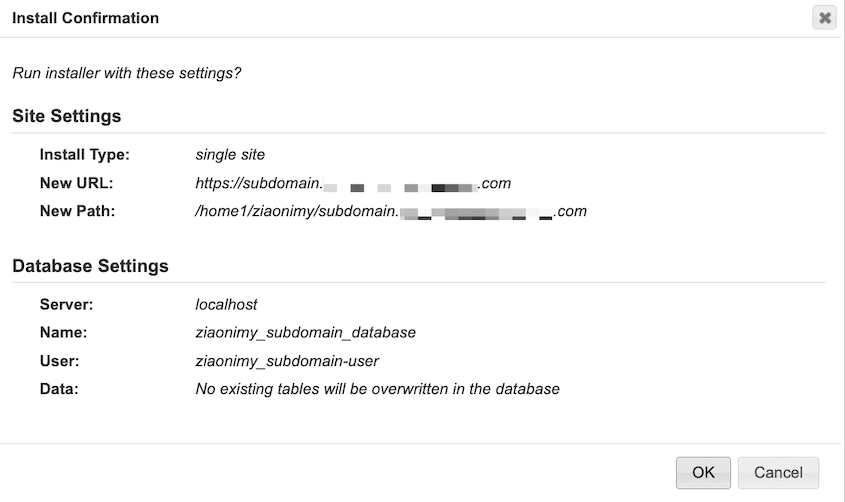
The installer will connect to the database, extract the archive, import your site’s data, and update all URLs from your original domain to the subdomain automatically. All you’ll have to do is log in.
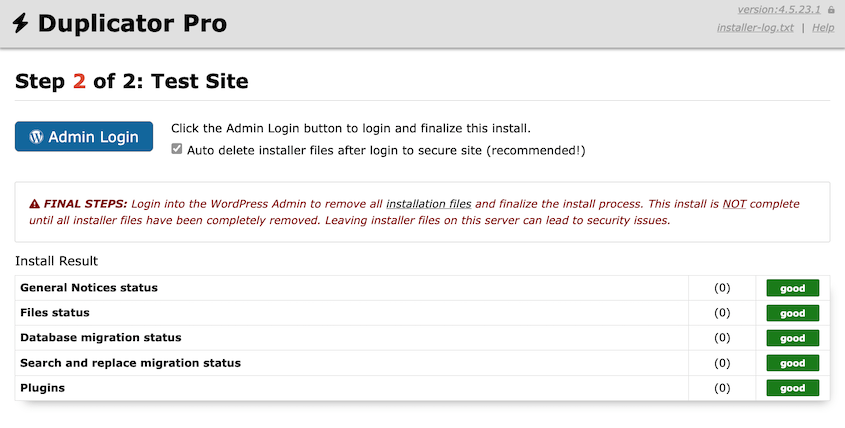
Once you do, you’ll see that all of your data was imported to the subdomain!
Step 6: Update Site URLs and Test
To make sure everything is working correctly, go to Settings » General. Confirm both URL fields show the subdomain, not the original domain.
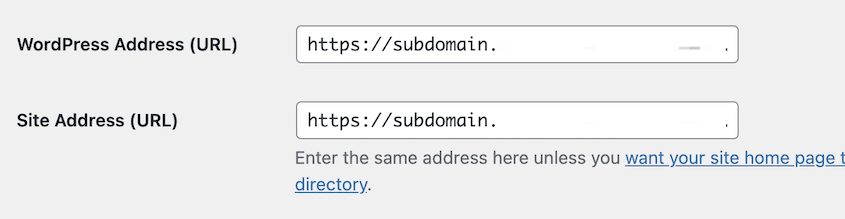
Duplicator handles URL replacement automatically during the install, but a manual re-save forces WordPress to flush any cached values.
Then test a handful of internal links and check that images load. If anything redirects back to the original domain, re-save both URL fields in Settings » General. The site should load cleanly at the subdomain with no redirects back to the original.
How to Install WordPress on a Subdomain Manually
This section covers the fresh install path: a clean WordPress install at your subdomain with no content carried over.
Here’s what you’ll do:
- Create the subdomain in your hosting control panel: Add the subdomain in cPanel and note the document root it assigns — you’ll upload files there
- Set up a MySQL database and user: Create a database, create a user, and assign All Privileges
- Install WordPress using Softaculous or manually: Use the one-click installer if your host offers it, or upload WordPress files directly via File Manager
- Configure wp-config.php (manual install only): Enter your database credentials into the setup wizard or create the config file manually if permissions block the automatic write
- Complete the WordPress installation wizard: Set your site title, admin credentials, and email, then run the final install
- Verify your URL settings: Confirm both WordPress Address and Site Address fields in Settings » General show the subdomain exactly
Step 1: Create the Subdomain in Your Hosting Control Panel
Follow the same process as Step 2 in the method above. Create the subdomain in cPanel, note the document root it assigns, and wait for DNS to propagate before testing it in a browser.
If you need a walkthrough, read this post on the WPBeginner blog: How to Create a Subdomain.
One difference here: leave the document root empty after creating the subdomain. Softaculous will place its files there automatically, and the manual method requires a clean folder before the WordPress upload.
Step 2: Create a MySQL Database and User
Follow the same process as Step 3 in the method above. Create a database, create a user, and assign All Privileges.
For a full walkthrough of this step, see my tutorial on creating WordPress databases.
Keep your database name, username, and password somewhere accessible. You’ll enter them in Step 4.
Step 3: Install WordPress in the Subdomain
You have two methods here.
- Use Softaculous if your host supports it. It’ll handle the file upload and initial configuration for you.
- Use the manual method if your host doesn’t offer a one-click installer or you want full control over the setup.
Method A: One-Click Install via Softaculous
In cPanel, find the Softaculous Apps Installer and open it.
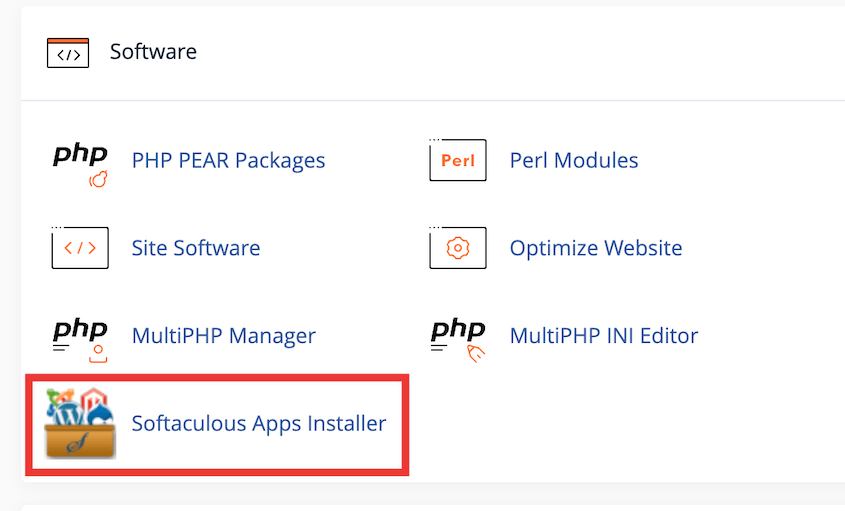
Select WordPress from the app list. In the Choose Domain dropdown, select your new subdomain.
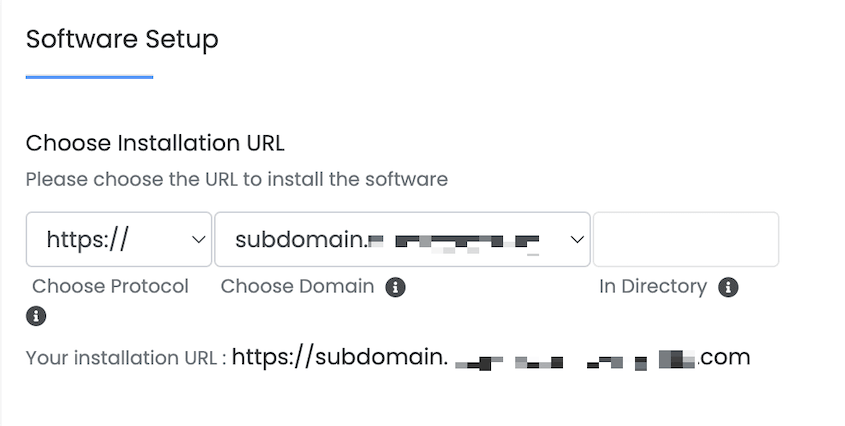
Leave the In Directory field blank. If you enter anything here, WordPress installs in a subfolder instead of at the root of the subdomain, and your URLs will reflect that.
Fill in your site title, admin username, admin password, and admin email. Under Advanced Options, confirm the database name matches what you created in Step 2, or let Softaculous create a new one automatically.
Click Install and wait for the confirmation screen.
When it finishes, you’ll see a green confirmation page with links to your new site and wp-admin.
Method B: Manual Install
Go to wordpress.org, download the latest WordPress zip file, and unzip it on your computer.
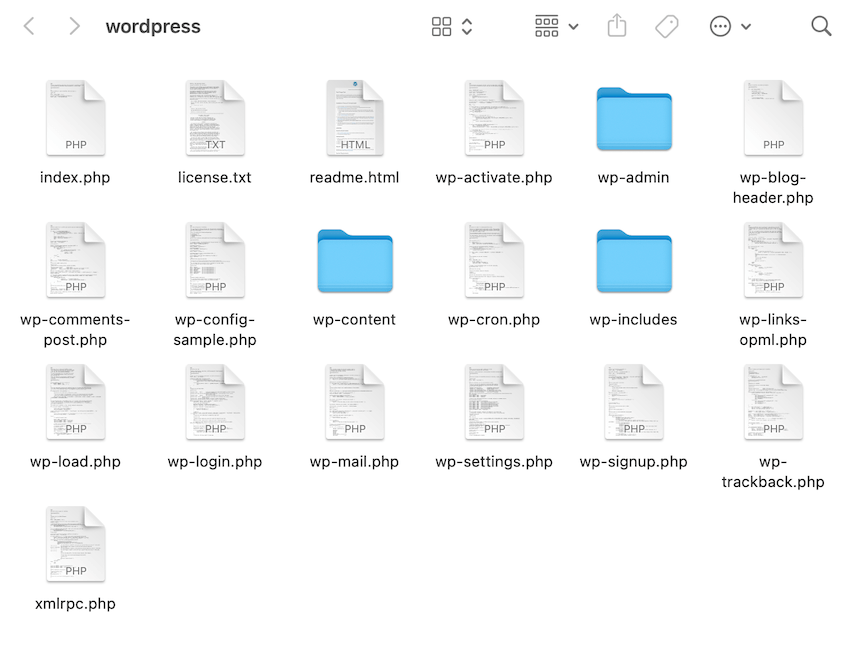
In cPanel File Manager, navigate to the document root for your subdomain. Upload the contents of the wordpress folder into that directory. Not the folder itself — its contents. Everything inside it: wp-admin, wp-content, wp-includes, and all the loose files at the root level.
Once the upload finishes, visit your subdomain in a browser. You should see the WordPress setup screen with a “Let’s go!” button.
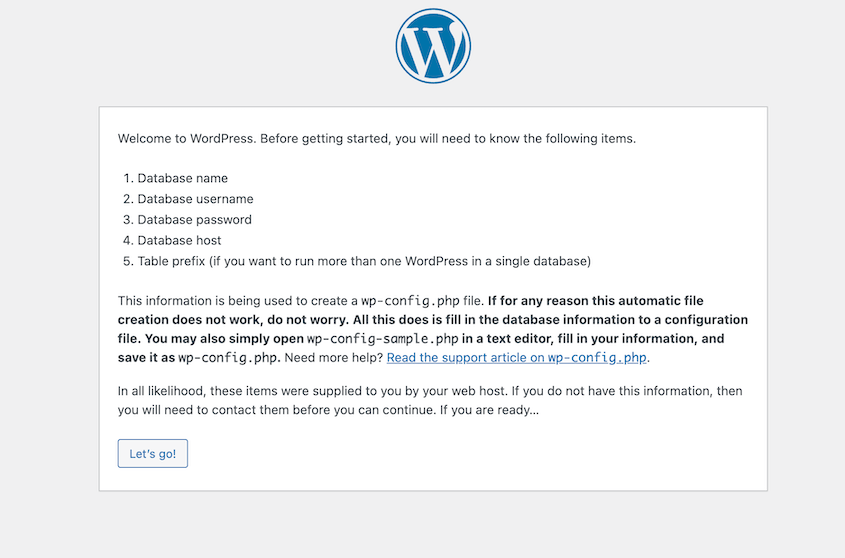
Manual install users continue to Step 4. If you used Softaculous, skip to Step 5.
Step 4: Configure wp-config.php (Manual Install Only)
This step only applies if you used the manual install method. Softaculous handles this automatically.
On the WordPress setup screen, click Let’s go! Enter your database name, username, password, and database host. The host is often localhost. If it isn’t, your hosting provider’s documentation will tell you what to use instead.
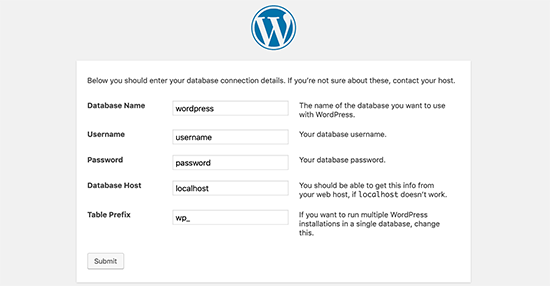
Check every credential before clicking Submit. A single typo here produces the “Error establishing a database connection” screen, and tracking down which field is wrong takes longer than getting it right the first time.
WordPress will attempt to write wp-config.php automatically. If file permissions block it, the setup screen will display the file contents and ask you to create the file manually.
If that happens, open File Manager, navigate to the document root for your subdomain, create a new file named wp-config.php, paste the generated content in, and save it.
Go back to the setup screen and click Run the installation.
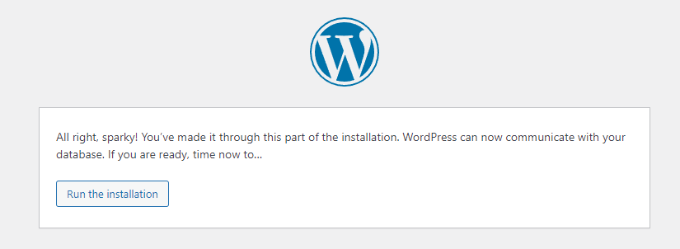
When wp-config.php is in place, the WordPress welcome screen loads and asks for your site title and admin details.
Step 5: Complete the WordPress Installation Wizard
This is the final step of the install itself. WordPress asks for a few details, then sets up the database tables and creates your admin account.
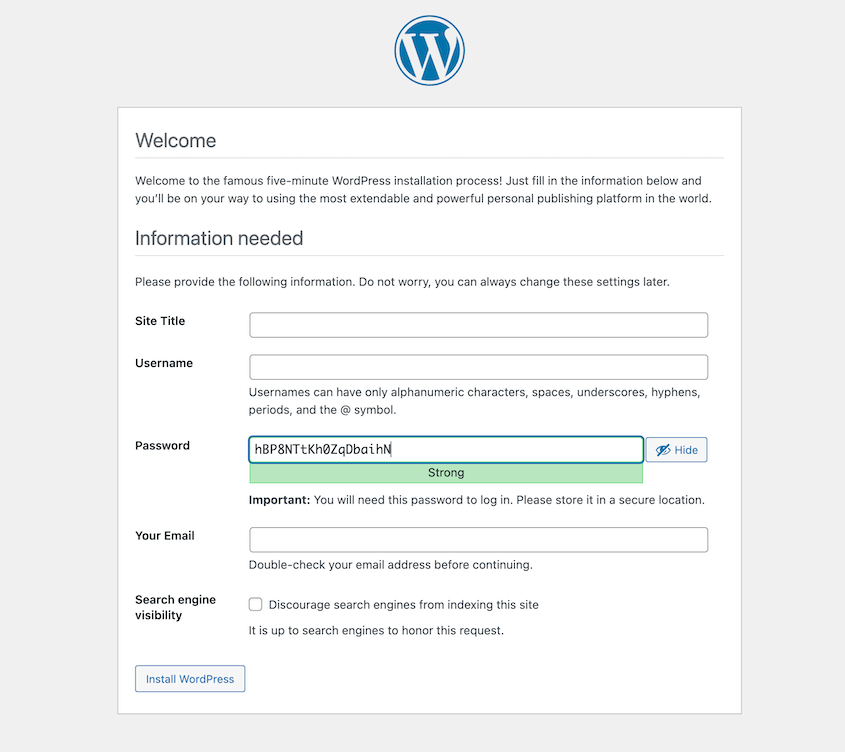
On the welcome screen, enter your site title, admin username, password, and email address. Choose your admin password carefully. This is the account that controls everything on the site.
Click Install WordPress.
When the install finishes, a confirmation screen appears with a Log In button. Click it and you’ll land at the wp-admin login screen at staging.yoursite.com/wp-admin.
Step 6: Verify Your WordPress URL Settings
One of the most common post-install problems is WordPress storing the wrong URL internally. It takes two minutes to check and saves a lot of grief later.
Log into wp-admin and go to Settings » General. Look at two fields: WordPress Address (URL) and Site Address (URL). Both should show your subdomain exactly: https://staging.yoursite.com with no trailing slash.
If either field shows your main domain instead of the subdomain, correct it before doing anything else. Wrong URL settings cause redirect loops that can lock you out of wp-admin entirely.
Click Save Changes once you’ve confirmed both fields are correct. Both URL fields should match your subdomain, and the site should load correctly when you visit it in a browser.
Troubleshooting Common Errors After Installing WordPress on a Subdomain
Most problems after a subdomain install fall into a small set of categories. Here’s what you’re most likely to see, and the fix for each.
“Error Establishing a Database Connection”
You load the subdomain and get a white screen with this message instead of your site.
The credentials in wp-config.php don’t match the database you created. One wrong character (a transposed letter, a capital where there shouldn’t be one, or an extra space) breaks the connection entirely.
Open wp-config.php in File Manager and check DB_NAME, DB_USER, DB_PASSWORD, and DB_HOST one at a time against the credentials in cPanel’s MySQL Databases section.
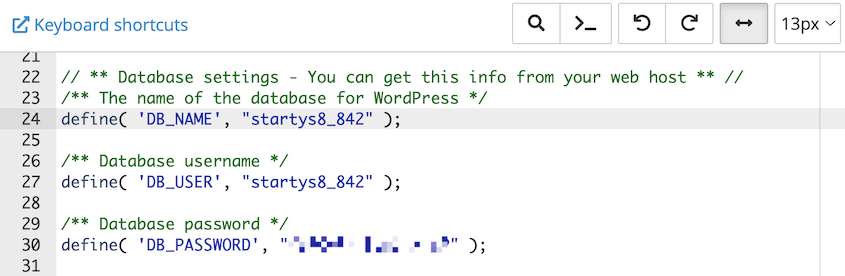
DB_HOST is almost always localhost, but some managed hosts use a custom value. If localhost isn’t working, check your host’s documentation for the correct database host string.
The Subdomain Doesn’t Load at All
You visit the subdomain and get “This site can’t be reached” or a DNS error.
DNS propagation for a new subdomain isn’t instant. Depending on your host and your DNS TTL, it can take a few minutes or up to 24 hours for the subdomain to resolve from your location.
Wait, then check whatsmydns.net to see whether the subdomain is resolving from different locations around the world.
If it’s still not resolving after 24 hours, log back into cPanel and verify the subdomain was actually created with the correct document root. It’s easy to think you clicked Create and not have the action go through.
404 Errors on Every Page Except the Homepage
The homepage loads fine, but any other URL returns a 404.
WordPress permalink rewrites aren’t active. Either the .htaccess file is missing from the document root, or the server’s mod_rewrite module isn’t enabled for that directory.
Go to Settings » Permalinks in wp-admin and click Save Changes without changing anything. This regenerates the .htaccess file.
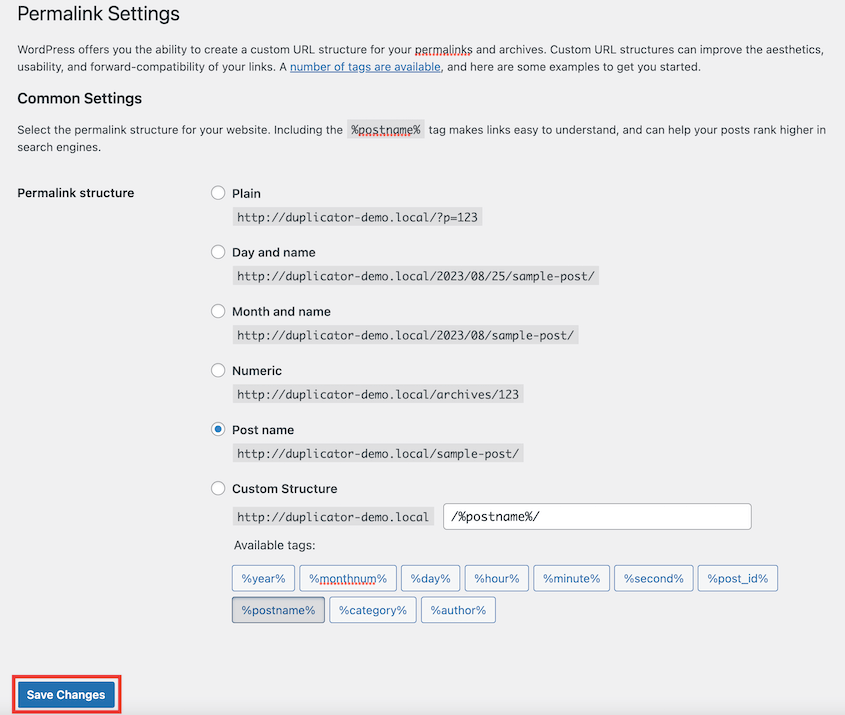
If 404s persist, open File Manager and check whether .htaccess exists at the document root of the subdomain. The file may be hidden, so toggle Show Hidden Files in File Manager if you don’t see it.
If it’s genuinely missing, the WordPress documentation includes the default .htaccess content you can paste in manually.
Redirect Loop on wp-admin
The browser keeps redirecting and eventually shows ERR_TOO_MANY_REDIRECTS or a similar error.
The siteurl or home values stored in the database don’t match the subdomain URL. WordPress redirects to the stored URL, which triggers another redirect, which triggers another.
Go to Settings » General in wp-admin and check both URL fields.
If you can’t get into wp-admin at all, use phpMyAdmin in cPanel to edit the wp_options table directly. Find the rows named siteurl and home and update both values to your subdomain URL. Save, then try loading wp-admin again.
SSL/HTTPS Errors After Install
The browser shows a certificate warning, or the site loads with mixed-content errors even though your main domain has SSL.
Your SSL certificate doesn’t cover the new subdomain. Most shared hosting SSL certificates need to be reissued or expanded when you add a subdomain.
In cPanel, go to SSL/TLS and check whether your current certificate lists the subdomain.
If it doesn’t, use AutoSSL (available in most cPanel installs under SSL/TLS) to issue a free certificate that covers it. The process usually takes under a minute. After the certificate is issued, go back to Settings » General in wp-admin and update both URL fields to use https:// instead of http://.
Frequently Asked Questions (FAQs)
Can I install WordPress on a subdomain if I already have WordPress on my main domain?
Yes. A subdomain runs as a completely independent WordPress install. It has its own files, database, plugins, and themes. Nothing on the subdomain affects your main site, and nothing on your main site affects the subdomain. The only thing they share is the parent domain name.
Will a WordPress subdomain affect my main site’s SEO?
Not directly. Google treats subdomains as separate entities, so the subdomain’s content is indexed independently. That also means any domain authority your main site has built up doesn’t carry over automatically. If SEO consolidation matters to you, a subdirectory is the better structure. For staging environments or isolated projects, it makes no difference.
Do I need a separate hosting plan for a WordPress subdomain?
No. Subdomains live on the same hosting account as your main domain. You’re using the same server, storage, and bandwidth allocation. The only limit is what your current hosting plan allows in terms of the number of databases and subdomains, which varies by host and plan tier.
Can I use a subdomain as a staging site and then push changes to production?
Yes, and this is one of the most common reasons to set one up. With Duplicator Pro, you can back up the staging subdomain and deploy it to your production site. Run your changes on staging, test everything, then push when you’re confident.
What’s the difference between a subdomain and a subdirectory for WordPress?
A subdomain (staging.yoursite.com) is treated as a separate site by your server and by search engines. It needs its own DNS configuration, its own database, and its own WordPress install. A subdirectory (yoursite.com/staging) is a folder within your existing site. It inherits your main domain’s DNS settings and, from an SEO standpoint, shares its authority. Subdirectories are simpler to set up. Subdomains give you full isolation.
What happens if I forget to back up before cloning my site to a subdomain?
The clone process itself doesn’t touch your main site. Duplicator backs it up, but doesn’t modify it. So forgetting a backup before the clone isn’t catastrophic on its own. The risk is what happens next. If you’re using the subdomain for staging and eventually push changes back to production, you want a clean backup from before that push. Take one with Duplicator before any changes go live.
Your Subdomain Is Live. Here’s What to Do Next.
Getting WordPress installed on a subdomain is the straightforward part. What trips people up is what comes after: the subdomain drifts from production, SSL lapses, or a staging site quietly gets indexed by Google and starts creating duplicate content problems.
If you’re running a staging environment, keep it in sync with production. That means updating WordPress core, plugins, and themes on staging whenever you update production. A staging site running an older version of a plugin than production isn’t actually staging; it’s a different site, and test results from it don’t mean much.
The last thing worth doing before you consider this finished: test your SSL certificate covers the subdomain and note when it expires. AutoSSL renews automatically on most cPanel hosts, but managed hosts handle this differently. Know how yours works before the cert lapses and your subdomain starts throwing browser warnings.
Every install, every migration, every push from staging to production is a moment where something can go wrong. The sites that recover quickly are the ones with a clean backup already in place — not the ones scrambling to find one after the fact.
Over 1.5 million WordPress professionals use Duplicator Pro to handle backups, migrations, and staging. One backup. Two files. Everything you need to restore a site from scratch or move it anywhere.
If this tutorial helped, these guides are worth bookmarking too.
- How to Move a WordPress Website from a Subdomain to a Main Domain
- How to Install WordPress in a Subdirectory
- How to Move a WordPress Website to a New Host
- Do You Need a Staging Site?
- How to Back Up Your Website’s Staging Site Before Every Push




