

[NEW] Duplicator DB Optimizer: Clean Your WordPress Database Before It Becomes a Problem
 Joella Dunn
Joella Dunn
Joella Dunn
 John Turner
John Turner
John Turner
Your WordPress database doesn’t stay clean on its own.
Every time you edit a post, another revision gets saved. Plugins create temporary data and leave most of it behind when they’re done. Old drafts, orphaned metadata, and expired transients all pile up quietly in the background.
None of it affects what visitors see, but it impacts everything else. Database clutter takes up space, making your backups larger than they need to be, and slowing down migrations when you’re trying to move quickly.
The hardest part is that you can’t easily notice how bad things have gotten. Unless you’re comfortable running SQL queries directly, there’s no simple way to know whether your database is in good shape or quietly turning into a problem.
Here at Duplicator, we built a brand-new plugin to solve that issue: DB Optimizer.
DB Optimizer monitors your WordPress database health and gives you a safe, straightforward way to clean it up.
Ready to see what DB Optimizer has to offer?
Diagnose Your Database Health
Most WordPress database optimization plugins don’t show you a health score. They just give you a list of things to delete. That’s useful, but it doesn’t tell you whether your database is actually in good shape or how far it is from getting there.
DB Optimizer fixes that. The dashboard displays a live score from 0 to 100 and rates these parts of your database:
- Table Overhead
- Transients
- Revisions
- Autoload Size
- Trash Items
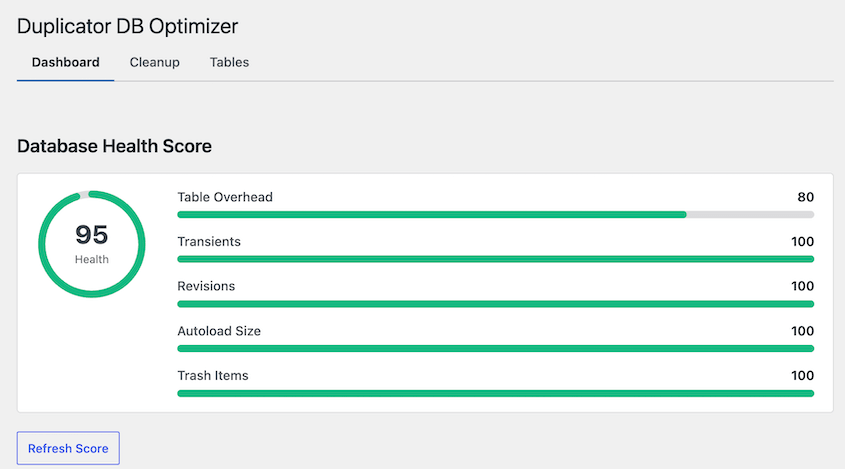
Each one gets a progress bar so you can see which areas are healthy and which ones are pulling the score down.
Color-coded grades make it quick to read. Green means you’re in good shape. Yellow means something needs attention. Red means it’s time to clean up. Hit Refresh Score at any time to see where things stand.
DB Optimizer turns database maintenance from a guessing game into something you can actually stay on top of.
Remove Clutter From Your Database
Once you’ve checked your health score, the Cleanup tab is where you actually do something about it.
DB Optimizer organizes database cleanup into three categories.
- Posts & Pages: WordPress saves a new revision every time you edit a post or page. Those copies stick around indefinitely until you do something about them.
- Comments: On any site that allows comments or gets linked to from other sites, spam comments, pingbacks, and trackbacks accumulate faster than you’d expect.
- Transients & Cache: Transients are supposed to clean themselves up automatically. Often, they don’t.
Before anything runs, a summary bar shows you the total number of items available for cleanup and the amount of reclaimable space across your entire database. You decide what to clean and what to leave alone.
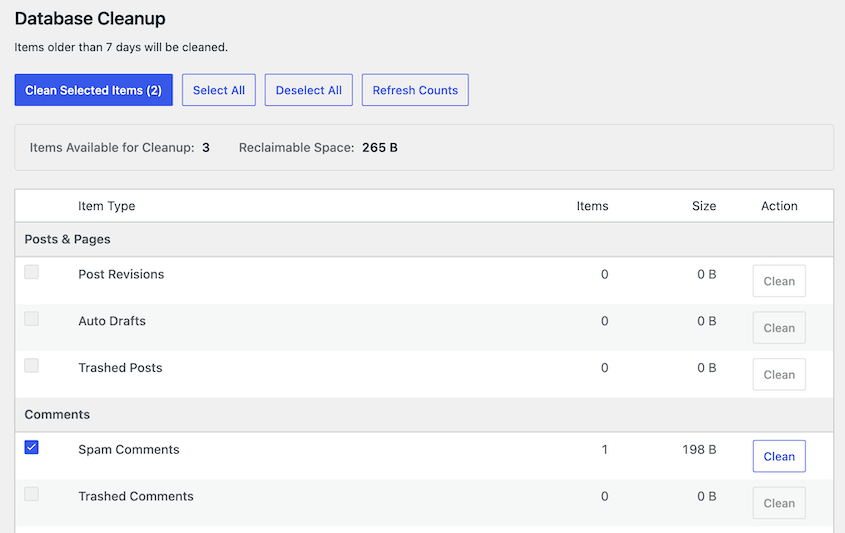
Each cleanup type shows an item count and estimated size so you know exactly what you’re looking at before anything gets deleted.
Clean Before You Migrate to Avoid Carrying Dead Weight
One of the main reasons we built DB Optimizer is to make site migrations faster and cleaner.
When your database is full of junk, a migration carries all of it along for the ride. Backups include every orphaned record and expired transient, so transfers take longer. And if something goes wrong mid-migration, there’s more to sort through.
Now, you can use DB Optimizer to check your health score, clean what’s dragging it down, create a Duplicator backup, then migrate. A cleaner database means a smaller backup, a faster transfer, and a lot less that can go wrong.
Never Accidentally Delete Data You Still Need
The most common reason site owners avoid cleaning their databases isn’t laziness. It’s fear.
What if you delete a post revision you actually need? What if you wipe out something a plugin is still using? What if you clean up transients that aren’t actually expired yet?
DB Optimizer allows you to skip cleanups for new data. It defaults to 7 days, which means anything created in the last week is off-limits, no matter what cleanup types you’ve selected. Only items older than your threshold get touched.
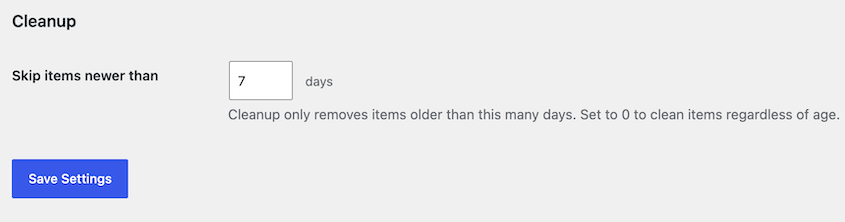
If you’re preparing for a migration and want a clean slate, set it lower. If you’re being cautious on a sensitive site, set it higher.
If you want to clean everything regardless of age, set it to 0. Your preference saves automatically and applies every time you run a cleanup.
See Exactly What You’re Removing Before It’s Gone
Even with a retention setting in place, you’ll want to know exactly what’s about to be deleted before you pull the trigger. Cleanup permanently removes database records. There’s no undo.
That’s why DB Optimizer shows you a complete preview before anything runs. Every cleanup type displays an item count and the reclaimable space it represents.
Review the full list, deselect any data you want to keep, and confirm when you’re ready.
If you’d rather not run everything at once, you can clean individual data types one at a time. It’s a slower approach, but it gives you full control over what gets removed and when.
Avoid Accidental Data Loss with Duplicator Backups
Even with a preview and a retention setting, there’s still one thing worth doing before any cleanup: taking a backup.
If Duplicator is installed on your site, DB Optimizer detects it automatically. You’ll get a direct link to create a backup before you clean up your database.
It’s a reminder that’s hard to miss, and it takes two minutes to do.
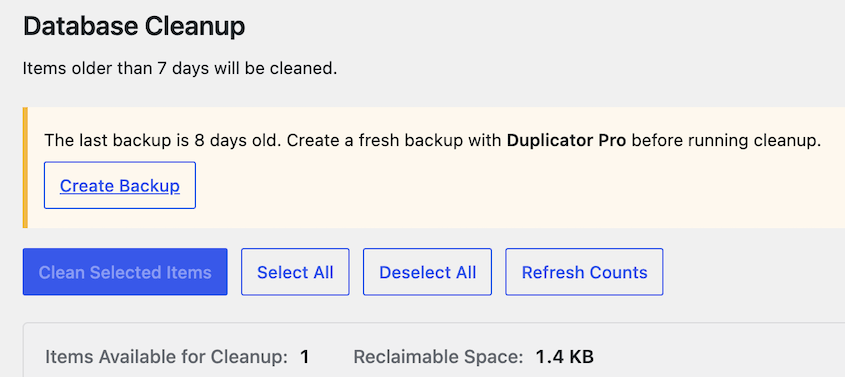
If you delete something you didn’t intend to, a backup means you can get it back. Without one, a cleanup mistake is permanent.
Live Stats and Full Table Management
The health score tells you how your database is doing overall, but sometimes you need to dig into the details.
You’ll also get a real-time snapshot of your database: total size, table count, overhead size, and wasted space. It updates every time you hit Refresh, so you can see the impact of a cleanup immediately after running it.
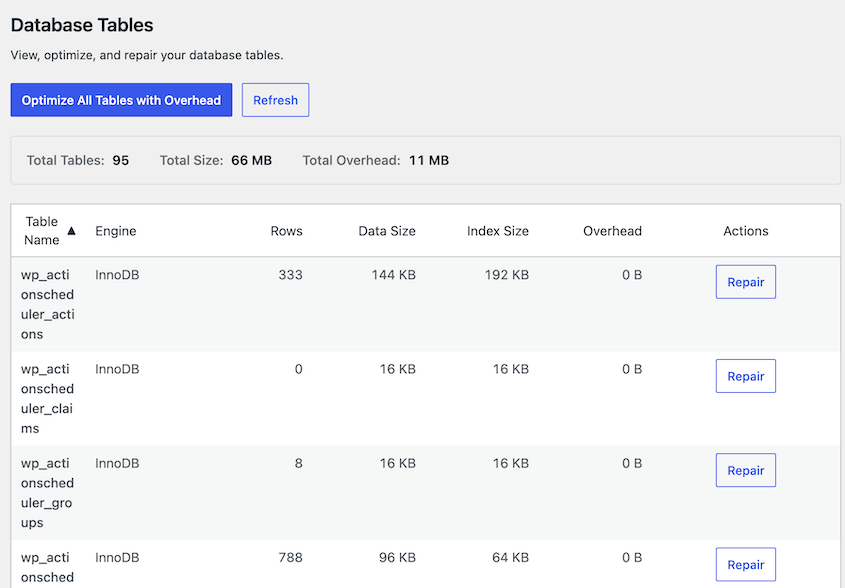
Tables carrying overhead are highlighted and show an Optimize button. You can handle them individually or clear them all at once.
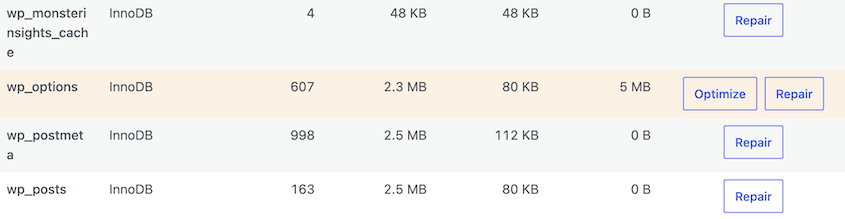
Every table also has a Repair button available regardless of overhead. Table corruption can happen when a database operation gets interrupted unexpectedly, and catching it early prevents bigger problems down the line.
Everything You Need to Maintain a Healthy WordPress Site
DB Optimizer is the third companion plugin the Duplicator team has released this year.
WP Media Cleanup finds unused image variations in your media library and removes them to free up server space. Activity Log tracks every login, setting change, plugin update, and user action across your site. And now DB Optimizer brings that same level of visibility and control to your database.
If you’re already using Duplicator Pro to back up and migrate your WordPress sites, DB Optimizer is a natural next step. Together, they cover the full picture.
Duplicator keeps your site recoverable, and DB Optimizer keeps your database healthy enough that you rarely need to recover in the first place.
All four tools (Duplicator Pro, WP Media Cleanup, Activity Log, and DB Optimizer) are bundled in the Duplicator Elite plan. It’s also in the Duplicator Pro plan with just Duplicator and WP Media Cleanup.
To try out DB Optimizer, you can get it as a standalone plugin starting at $29/yr.
If you’re on a lower plan or just getting started with Duplicator, this is a great time to upgrade. You’ll get a complete toolkit for keeping your WordPress site healthy.
While you’re here, check out Duplicator’s other new features:
- Announcing One-Click Staging and Remote Cloud Restores for Bold Changes, Zero Consequences
- [New Plugin] Activity Log: Track Every Change, Login, and Action on Your WordPress Site
- [NEW] WP Media Cleanup Deletes Unused Images Hiding in Your Media Library
- [New] Cloud Backups Just Got Simpler: Duplicator Cloud Eliminates Third-Party Storage
- Duplicator’s New Migration Service: Move Your Website Without Lifting a Finger




