

WordPress Migration Checklist: 26 Steps From Prep to Launch (2026)
 Joella Dunn
Joella Dunn
Joella Dunn
 John Turner
John Turner
John Turner
Moving is always a hassle, whether you’re packing up your home or your website.
Just like relocating to a new house, migrating your WordPress site requires careful planning and execution. One misstep, and you risk losing precious data or tanking your site’s performance.
In this post, I’ll give you a comprehensive WordPress migration checklist!
You’ll learn:
- How to properly prepare your site before starting the migration process
- Essential steps to safely move your WordPress files and database
- Post-migration tasks to ensure everything works perfectly
- Common mistakes to avoid during website transfers
- Tools and plugins that make migrations easier for beginners
Your WordPress Migration Checklist
What is a Website Migration?
In a website migration, you’ll move your entire website to a different location. This might be a new hosting company, server, domain name, or Content Management System (CMS).
Why Migrate Your WordPress Website?
Migrating your website might seem like a huge hassle. You’ve already spent precious time setting up your site on your current hosting provider and domain name, so why move it?
There are many reasons why it can be beneficial to migrate your WordPress website. Here are just a few.
- Moving to a more powerful or reliable hosting provider can lead to increased traffic, performance, and scalability.
- You might want to migrate to a new domain name to improve brand recognition.
- If you experience hacks or cyber attacks, you’ll probably want to migrate to a new environment with better security.
- As your website grows, you’ll need to migrate to a server that can handle increased traffic and resource demands.
- Transitioning from another content management system to WordPress, or the other way around, requires you to migrate all of your original content.
- Changing hosting providers might give you better customer support for technical issues.
Pre WordPress Migration Checklist
Once you decide to migrate your website, you’ll need to move all of your content and other data to the new location. If you skip a step along the way, this could lead to data loss.
With some thorough planning, you can easily migrate your WordPress website and avoid putting your data at risk.
I’ll show you everything you need to do before, during, and after a migration to make the transition as smooth as possible!
Here’s a quick overview of your pre-migration checklist:
- Define your goals, scope, timeline, and budget
- Audit your site for potential risks
- Benchmark your site’s performance and SEO
- Clean up unused plugins, themes, and data
- Back up your original website to protect against data loss
- Update WordPress, plugins, and themes to prevent compatibility issues
- Set up your new hosting account or domain in advance
- Run a test migration on a staging site
- Choose the right time for the migration during low-traffic periods
- Inform your audience about the move
- Put your WordPress site in maintenance mode
- Disable caching, security, and redirect plugins that could interfere with the migration
1. Define Your Goals and Scope
Before you touch a single file, get clear on why you’re migrating. Are you switching hosts for better performance? Moving to a new domain? Redesigning while you migrate?
Each scenario changes how complex your project becomes. Your goal decides the tools you’ll need, how long the move will take, and how much it will cost.
Set a realistic timeline. A simple blog might migrate in a few hours, but a large online store could need days of preparation and testing.
Then, budget for the new hosting plan, a new domain if you’re switching, and any premium tools or developer help you’ll need.
2. Audit Your Site for Potential Risks
A simple blog will migrate differently than an online store with thousands of products. Before the move, look for anything that could cause trouble:
- Complex plugins like WooCommerce, membership systems, or booking tools
- Custom code or child theme changes
- Hard-coded URLs in your content or widgets
- Server requirements, like your PHP version or memory limit
- Large media libraries or databases
- Third-party integrations, like payment gateways or email services
You don’t need to solve every problem now. You just need to know what you’re dealing with, so nothing surprises you mid-migration.
3. Benchmark Your Site’s Performance
You’ll need a “before” snapshot to know whether the migration worked.
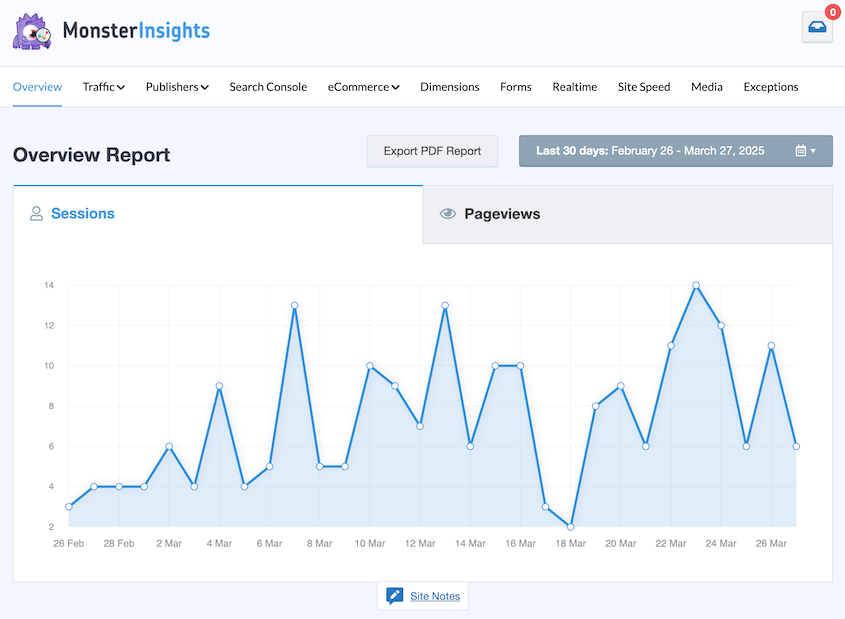
I run speed tests on key pages using tools like GTmetrix or Google PageSpeed Insights. For tracking and analytics, I check MonsterInsights to record current traffic patterns and conversion rates.
In Google Search Console, export your top pages and queries and note how many pages Google has indexed. It’s also worth crawling your site to get a full list of URLs and catch any broken links that already exist.
After the move, compare your new site against these numbers. You’ll spot problems right away instead of weeks later.
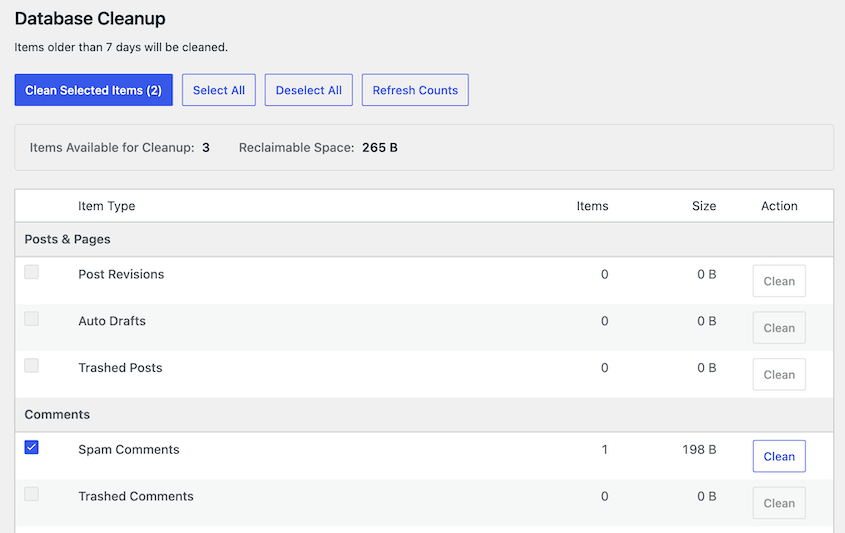
4. Clean Up Your Site
A bloated site takes longer to transfer and gives you more chances for something to break. So, do some housekeeping before you move.
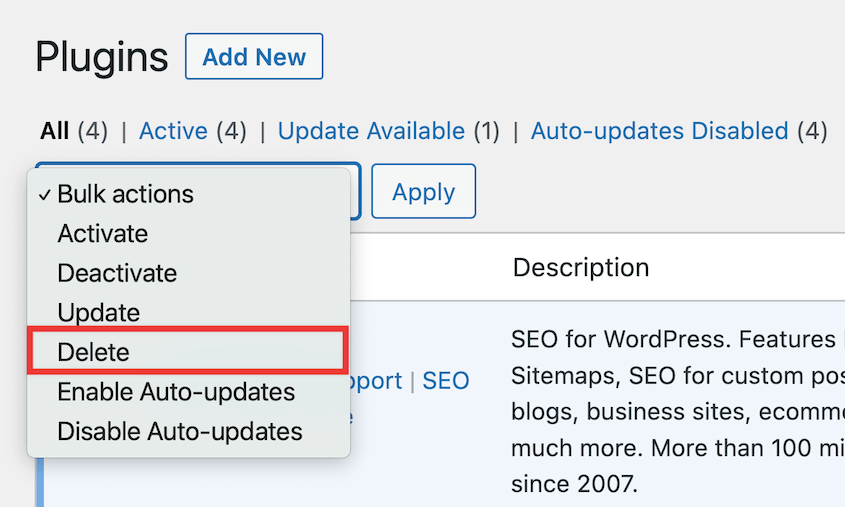
Delete unused plugins and themes, since even deactivated ones can cause conflicts.
Then, optimize your database. The goal is to migrate only what you actually need.
DB Optimizer is a great tool for this. It’ll give you a database health score and allow you to instantly remove unnecessary bulk.
Remove extra media files, too, but make sure they aren’t used anywhere first. I like using WP Media Cleanup for bulk removal of unused image variations.
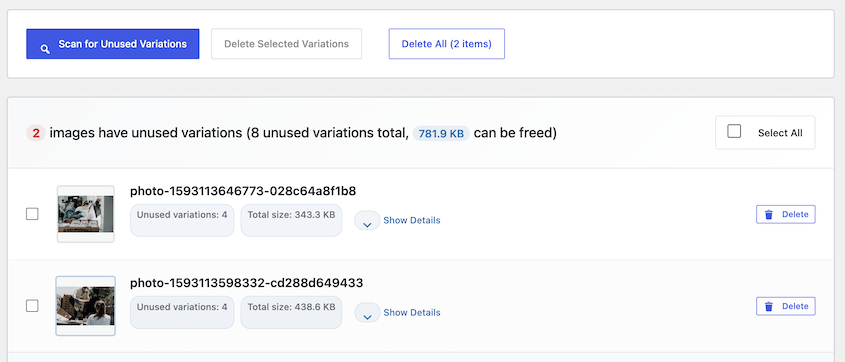
For more tips, see our guide on cleaning up a WordPress site!
5. Back Up Your Original Website
Now it’s time to back up your current WordPress website.
This way, you’ll have a copy on hand if anything goes wrong during the migration. You’ll be able to simply restore this backup and instantly revert your site back to how it was before the move.
The easiest and fastest way to create backups is to install a WordPress backup plugin. With this tool, you won’t have to manually export copies of your files and database.
Duplicator is a flexible plugin that can help you with WordPress backups and migrations. It allows you to quickly download your entire website as a zip file. You can save this as a backup or use it to migrate your data to a new host.
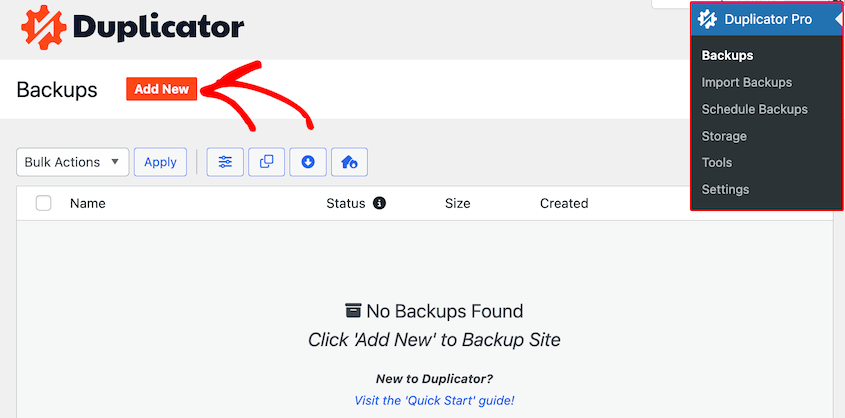
To back up your website, go to Duplicator Pro » Backups » Add New.
After naming the backup, select a storage location. Duplicator stores backups on your own server by default, but I recommend keeping a copy in the cloud. Your backup won’t be sitting on the server you’re about to leave.
You can send backups off-site to Duplicator Cloud, even on the free version. Paid plans add cloud storage like Google Drive, OneDrive, or Dropbox.
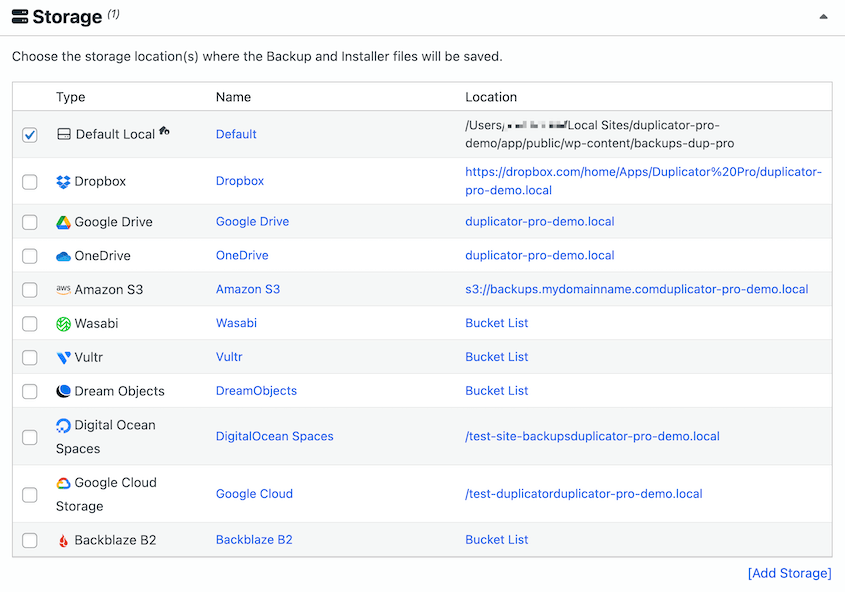
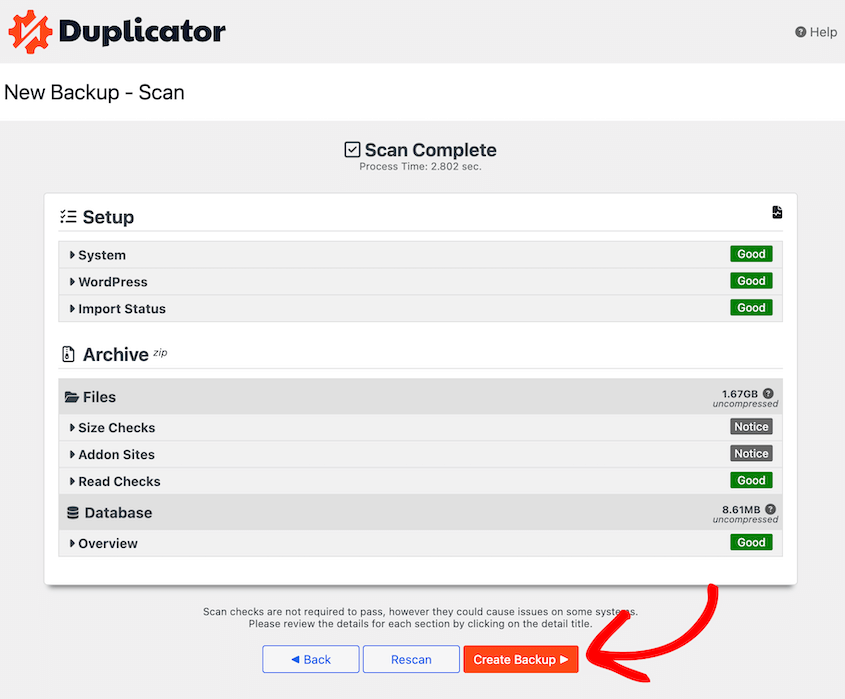
Then, hit Next. Duplicator will scan your website and inform you of any issues before starting the backup.
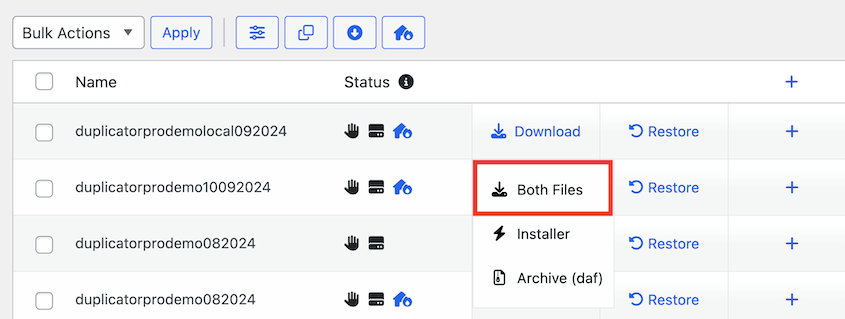
Once the backup is finished, you’ll see it on the Backups page. To save it, hit Download » Both Files.
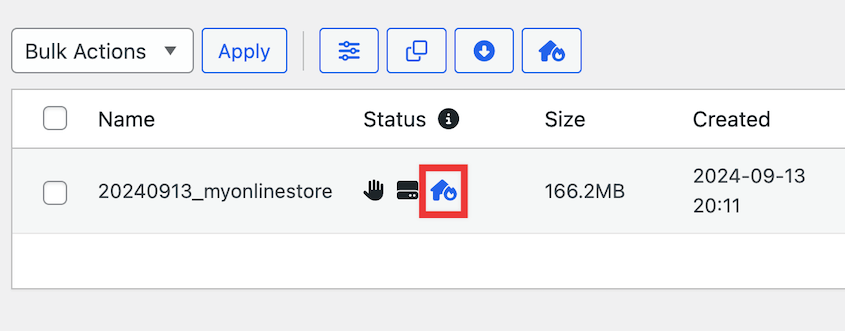
It’s also a good idea to set up disaster recovery. This allows you to restore your backup even if you can’t access your WordPress dashboard due to a critical error.
Find the backup and click on the blue house icon.
Next, click on Set Disaster Recovery. This is what saves you if the migration goes wrong and you lose access to wp-admin.
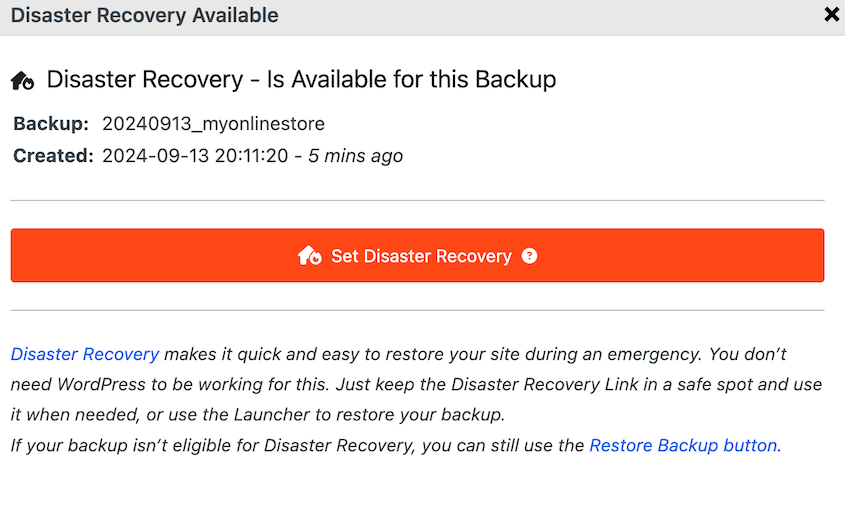
Either copy the recovery URL or download the launcher file.
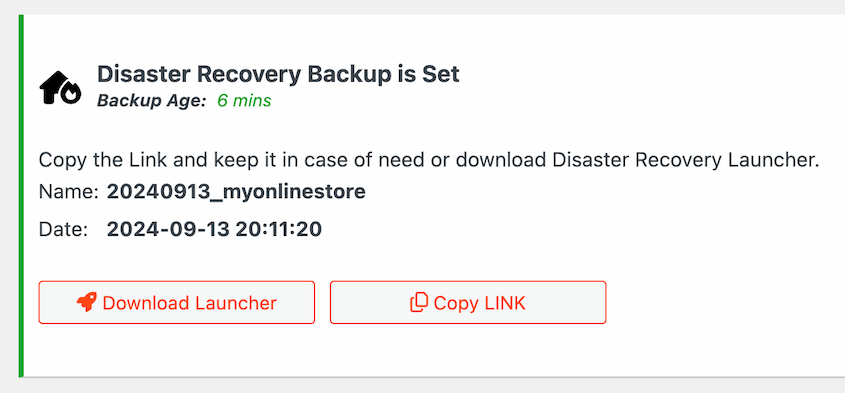
Be sure to save the URL in a safe place. If you need to, paste it into a browser window and immediately launch the Duplicator recovery wizard. Alternatively, simply open the launcher file.
6. Update WordPress, Plugins, and Themes
Outdated software can cause compatibility issues during or after the migration process. So, it’s a good idea to update everything on your site to the latest versions.
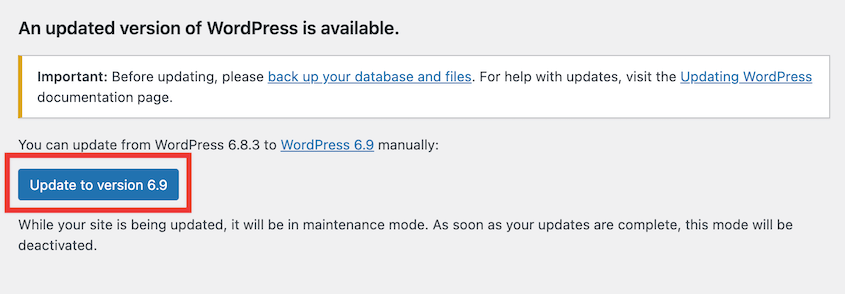
Make sure to update WordPress core software along with plugins and themes. You’ll save yourself the hassle of dealing with errors later!
7. Set Up Your New Hosting Account or Domain
In a migration, you’ll transfer your website files and database to the new location. During this process, you won’t want to have to worry about purchasing a hosting plan or domain name.
If you’re moving to a new web host, consider setting up your account beforehand. Find the right plan for your needs and log into your control panel.
While you’re there, check that the new server runs the same PHP version as your old one, or a newer one that your plugins and theme support. A PHP mismatch is one of the most common reasons a migrated site breaks.
To make things easier, you can also install WordPress on the new host. Many hosting services do this for you or have one-click installations.
If you’re moving to a new domain name, you can purchase one through a domain registrar. On the other hand, you may be able to get a free domain from your web host.
Before migrating your site, be sure to have all of this information readily available:
- Login information for your old and new hosting control panel
- Login information for your old and new website
- The nameserver information for the new web host
- Login information for your domain registrar
- FTP/SFTP credentials
Preparing this information in advance will help you migrate your website smoothly. If you have to worry about locating login credentials during the move, you might face more downtime than necessary.
8. Run a Test Migration
If your site is complex, do a test run before the real move. Migrate a copy of your site to a staging site or a temporary install on your new host, using the same tools and steps you’ll use for the real migration.
Plugin conflicts, missing dependencies, and server configuration issues all show up during testing, where they can’t hurt your live site. Finding a problem now will save you hours compared to fixing a broken live site.
9. Choose the Right Time for the Migration
Especially if you have a large audience, you won’t want to move your website at the wrong time.
The goal of any migration is to ensure a seamless transition for your visitors. Choosing the right time can minimize the impact on user experience.
Plan your migration during periods of lower traffic or activity. Weekends, late at night, or other off-peak hours are often preferred to carry out migrations.
A day or two before the move, lower the TTL (time to live) on your domain’s DNS records. This tells browsers to check for changes more often, so your DNS update in Step 21 takes effect faster.
Even if you minimize downtime as much as possible, your site may still go down at some point during the migration. By choosing a time when your website experiences the least traffic, you can reduce the number of users who might be inconvenienced.
If you’re not sure when to plan your migration, I’d recommend using an analytics plugin like MonsterInsights. This will give you an overview of your organic traffic, so you’ll know when your periods of downtime are.
10. Inform Your Audience About the Move
You can’t guarantee that zero visitors will be on your website as you start migrating it. This is why I’d suggest notifying your audience before the migration, so they know what to expect.
If other people work on your site, give them a heads-up, too. Content creators should hold off on publishing, and support staff should expect questions. Decide who’s doing the migration and who’s testing afterward.
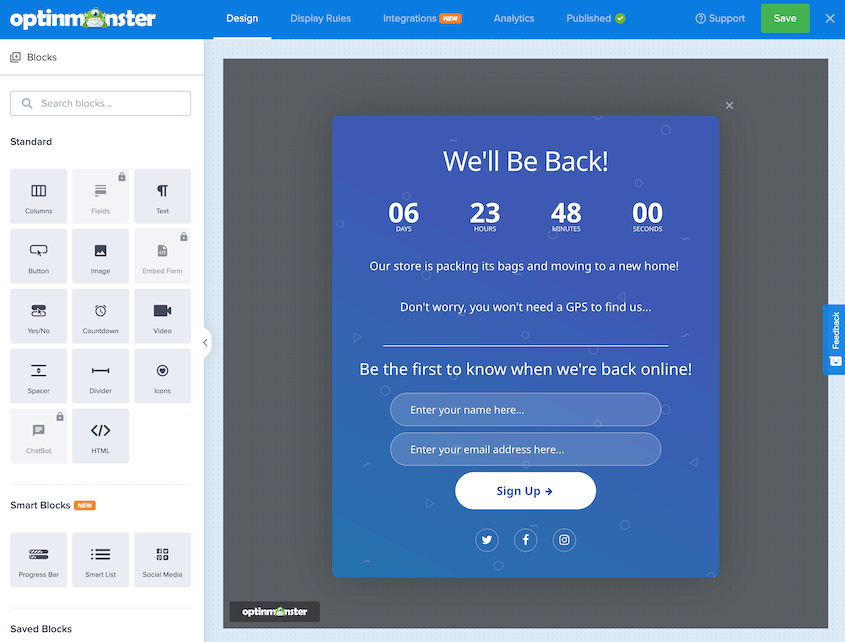
By creating a notification, you’ll urge customers to make their purchases before your site goes down. You can also let them know when your website will be back up, reducing the chances that a customer will turn to your competitor.
OptinMonster is a lead generation plugin that makes it easy to build pop-ups for your website. You can use a drag-and-drop builder to create countdown timers, coupon wheels, and email sign-ups.
You’ll inform your customers exactly what’s going on with your site and when you’ll be back online.
11. Put Your WordPress Site in Maintenance Mode
At the appropriate time, you’ll need to put your website into maintenance mode. This ensures that you can work out any bugs or other errors before you make your new site live.
Essentially, your visitors will see a maintenance mode page instead of your usual content. You’ll work on major changes behind the scenes without worrying about accidentally breaking anything on your site.
Another benefit of using a maintenance mode page is that it tells users what’s going on. They’ll know why your website is down and when to expect your content to be back up again.
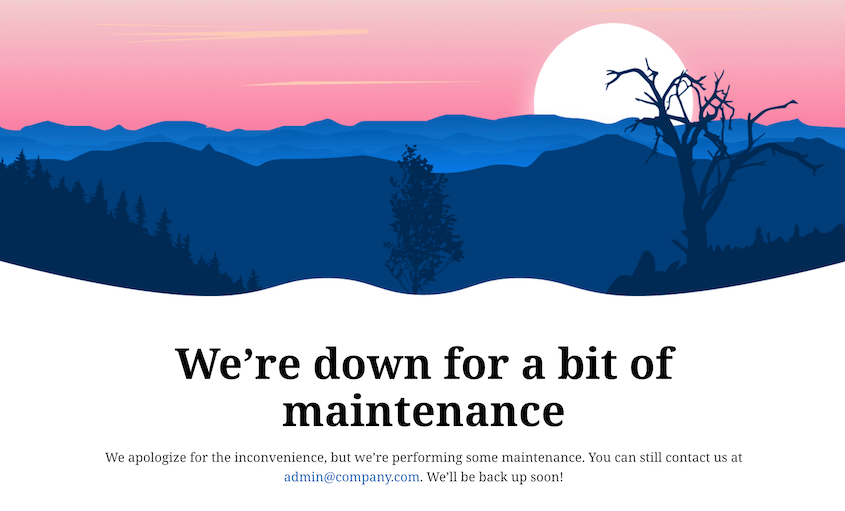
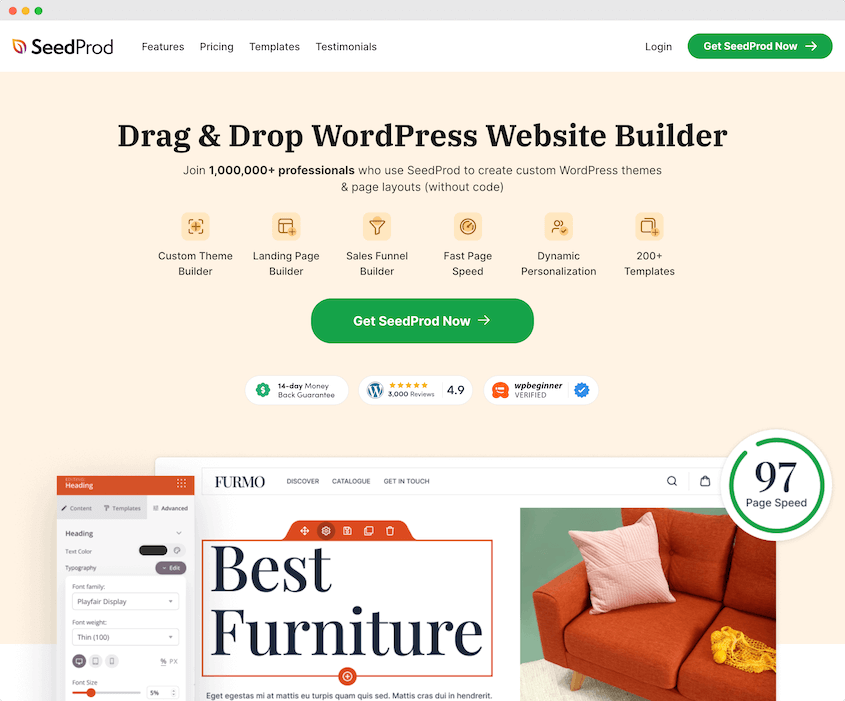
I like using SeedProd to build custom maintenance pages. This page builder plugin comes with drag-and-drop functionality and many maintenance page templates.
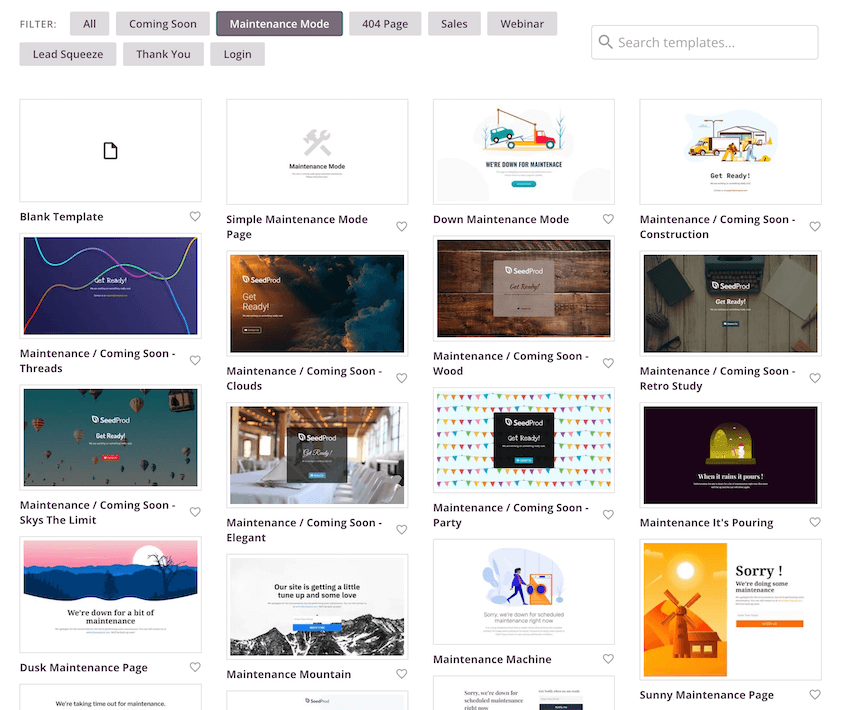
Once you activate the plugin, click on Set up a Maintenance Mode Page. Then, you can select a pre-designed template. This avoids the need to create one from scratch.
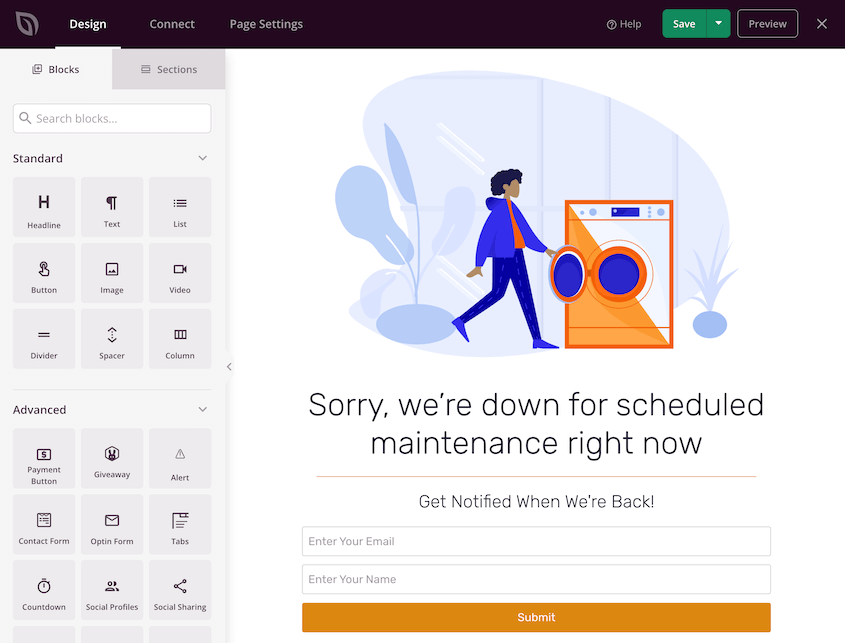
Add new blocks, text, buttons, opt-in forms, or other custom elements. You’ll be able to simply drag and drop them onto the page.
When you’re ready, save and publish the page. Find the Maintenance Mode box and activate it.
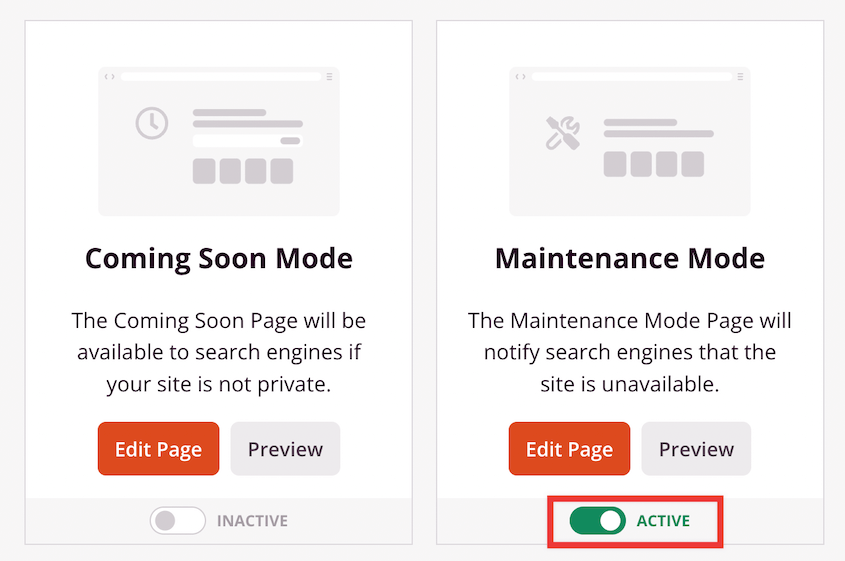
Now your old WordPress site is in maintenance mode! This provides a better experience for visitors since they’ll see a custom maintenance page instead of a 404 error.
12. Disable Caching, Security, and Redirect Plugins
Before migrating your website, temporarily disable any plugins involved with caching, security, and redirects. These plugins can interfere with the migration process and lead to unexpected issues.
For example, many WordPress security plugins set up firewalls. This can limit or block requests necessary for a migration.
If you don’t disable caching, redirect, or firewall plugins, you could get a 403 Forbidden or 500 Internal Server error. To prevent any issues, be sure to deactivate them before getting started.
WordPress Migration Checklist
Now that you’ve prepared, it’s time to migrate! Let’s walk through the steps to move your entire website without any downtime or data loss.
Here’s a quick overview of your migration checklist:
- Choose reliable tools like Duplicator (free plugin) or migration services
- Create a copy of your website files and database
- Update your hosts file to test the new site privately
- Create a new database on your new server
- Migrate your files and database using your chosen method
13. Choose the Right Tools
To get started, you’ll need to figure out how you’ll perform the migration. Manual migrations are possible, but they require technical expertise and come with some extra risks.
Fortunately, many tools can help you move your data successfully.
If you’re moving to a new WordPress hosting provider, many companies will migrate your website for you. You won’t have to worry about transferring your files onto a new server.
However, you could also use a WordPress migration plugin. As I mentioned earlier, Duplicator is the best choice for simplifying backups, migrations, and cloning.
Instead of exporting your files and database separately, Duplicator saves all of it in a single zip file. On the paid plans, you can drag and drop that file into the new WordPress install.
Lite makes the same move a little different. You’ll upload the archive and installer to the new server over FTP or cPanel, then run the installer.
Here are some extra features that you’ll get with Duplicator:
- File and database filters to customize backups
- Supports large sites, plus WordPress multisite networks (Pro and Elite plans)
- Step-by-step migration wizard
- One-click restores
- Doesn’t require WordPress to be installed
- Custom search and replace
- One-click staging (Pro and Elite plans)
- Media and database cleanup (Pro and Elite plans)
- WordPress activity logging (Elite plan)
Duplicator Lite is available as a free migration tool. If you want extra functionality like drag-and-drop migrations, scheduled backups, and more cloud storage options, upgrade to Duplicator Pro.
Then, install the plugin on your old site. For Duplicator Pro, copy and paste your license key into the License settings.
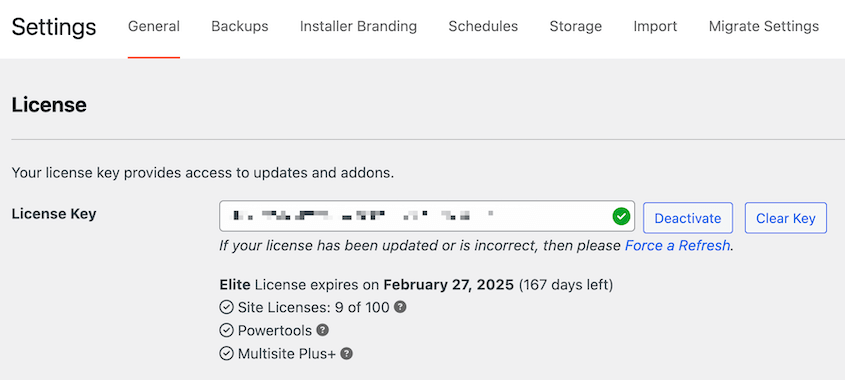
Now you’ll be ready to migrate your WordPress website.
14. Create a Copy of Your Website
The first step in a WordPress migration is to download copies of your current site’s files and database. With Duplicator, you can do this without ever leaving your dashboard.
Start by backing up your site. You can expand the Backup section to choose exactly what data you want migrated to the new site.
To migrate everything, click on Full Site.
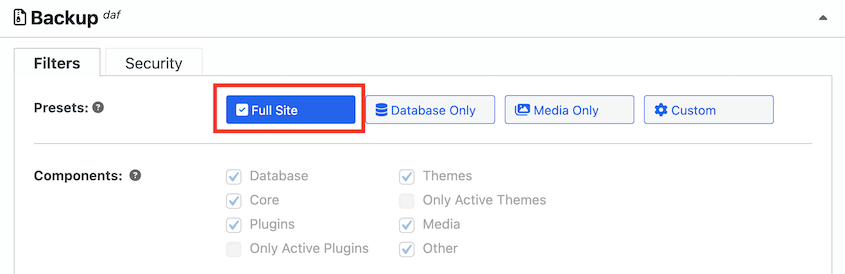
Finish building the backup. Then, download both the archive and installer files.
15. Update Your Hosts File
No matter what type of website you’re running, you’ll likely want to reduce downtime during a migration. This ensures that your site’s user experience and search engine ranking don’t suffer.
By updating your hosts file, you essentially create a private pathway to the new server’s IP address on your computer. This means that while you’re testing and refining the migrated site on the new server, the live site on the old server remains unaffected.
Although this sounds complicated, even beginners can update their hosts file. For Mac users, open Terminal and run this command:
sudo nano /private/etc/hostsAt the bottom of the hosts file, paste your new IP address and domain name:
192.168.1.22 www.example.comAfter this, continue migrating your WordPress site. However, remember to delete this entry once you’re finished.
16. Create a New Database
Your new website also needs a new WordPress database. If you or your web host has already created one, move on to the next step.
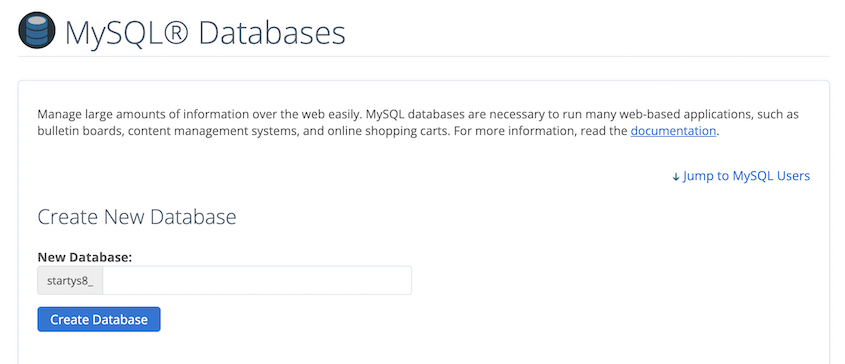
Otherwise, open your new host’s control panel and find the option to edit your MySQL databases.
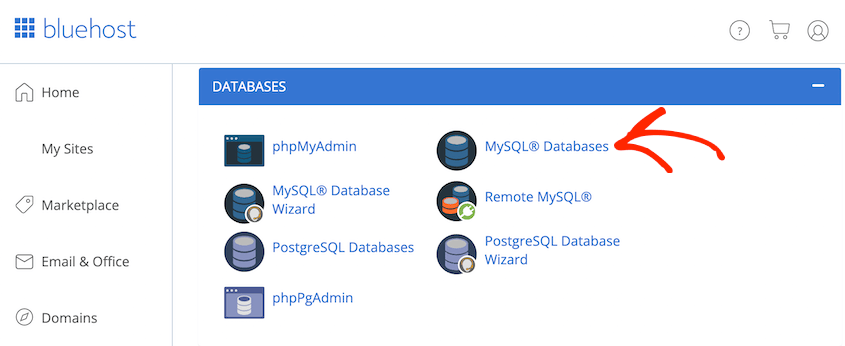
Then, create a new database by naming it.
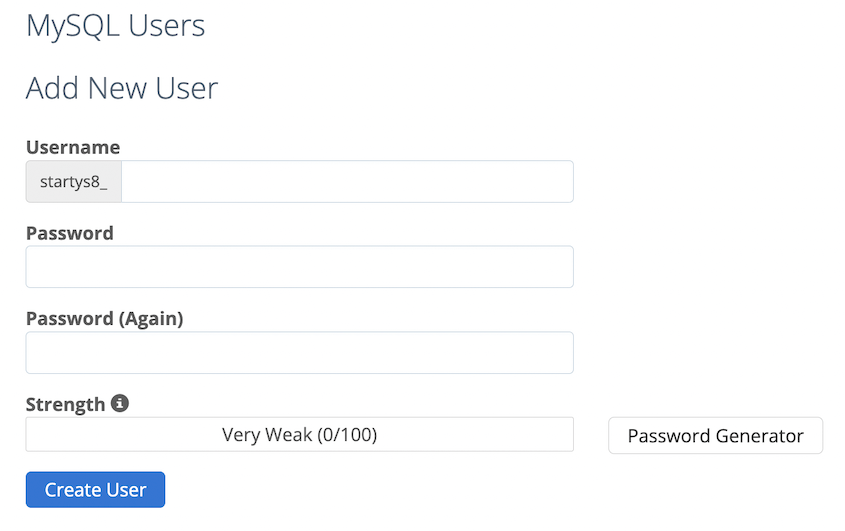
You’ll also need to add a new user to the database.
Finally, assign the new user to the new database.
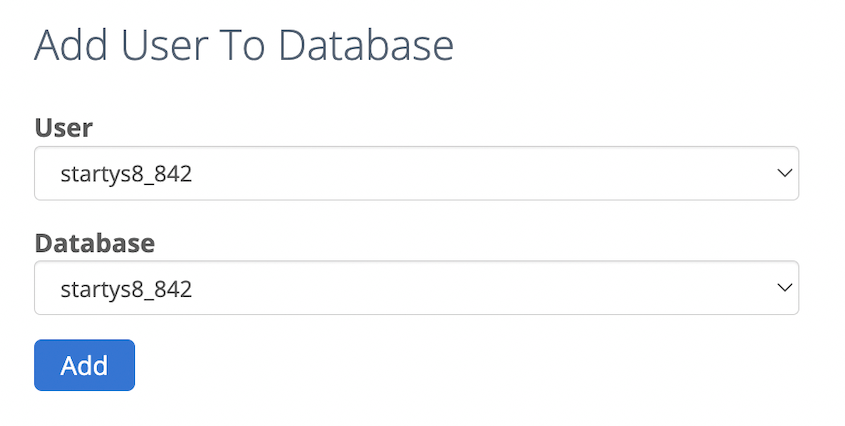
Feel free to give the user all privileges. Be sure to remember your database name, user, and password for the next step.
17. Migrate Your Files and Database
Next, you’re going to transfer your WordPress backup to the new website. This will clone your website to the new location, moving all of your plugins, themes, images, and other files.
If you’re a beginner, open your WordPress dashboard and install Duplicator Pro. Then, find the Import Backups page and upload your archive file.
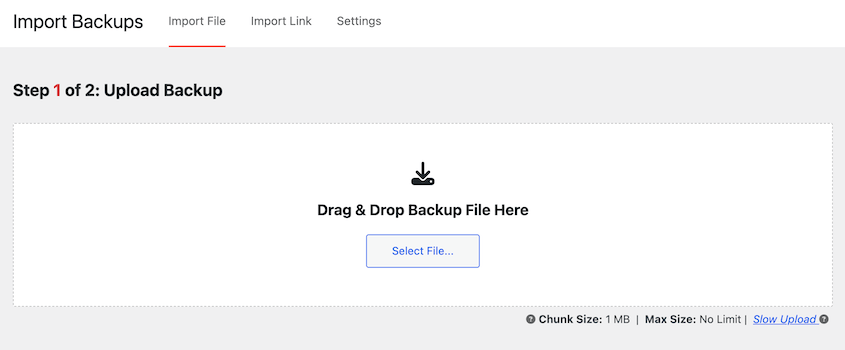
However, you don’t even need to install WordPress!
To save time, open a file manager like FileZilla or cPanel and connect to your new host. Empty your public_html directory and upload the archive and installer files.
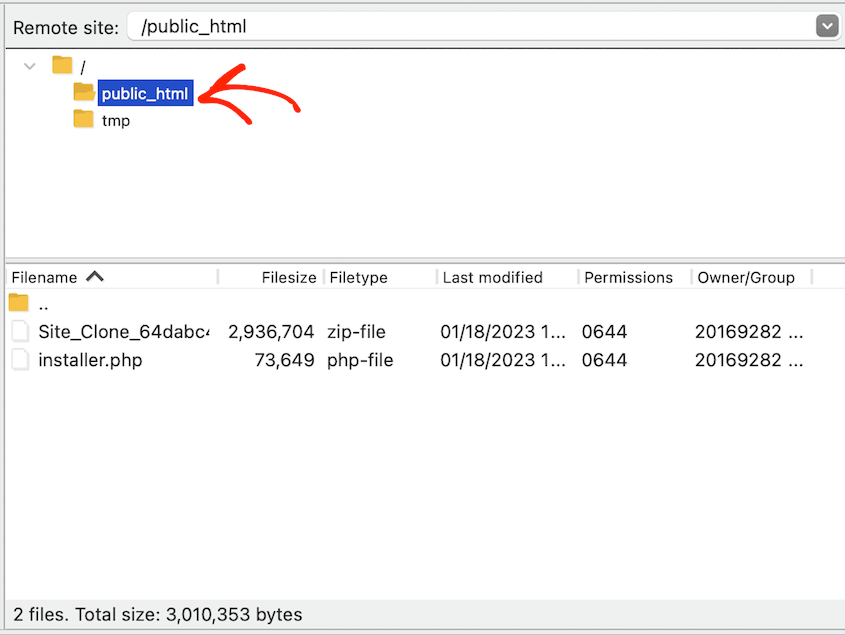
Now open a browser window and find this URL: https://your-domain/installer.php
This will automatically launch the Duplicator installer.
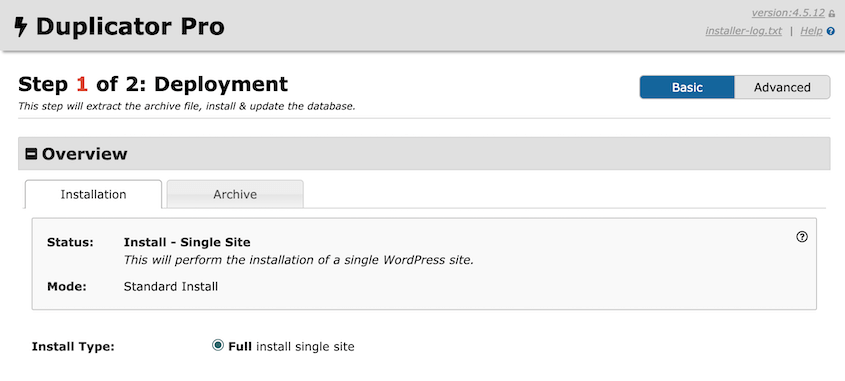
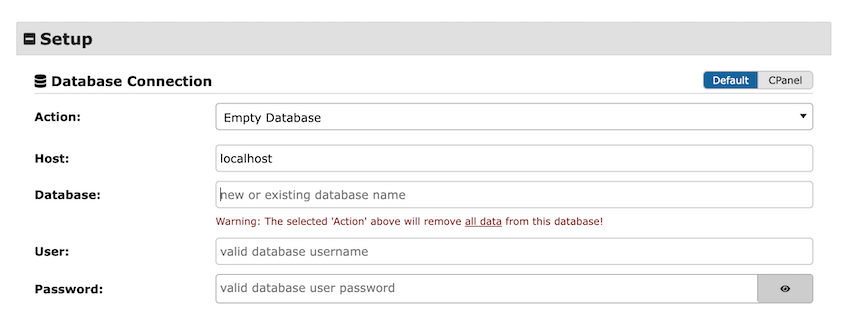
In the Setup section, enter your database information. You’ll need to fill out your host name, database name, user, and password.
At the bottom of the page, hit Validate. After reviewing any of the notices, accept them and continue.
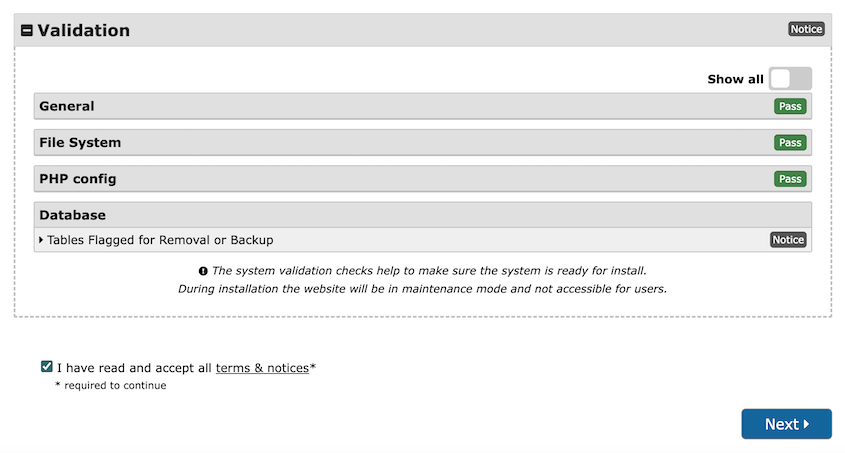
In the pop-up window, confirm the installation.
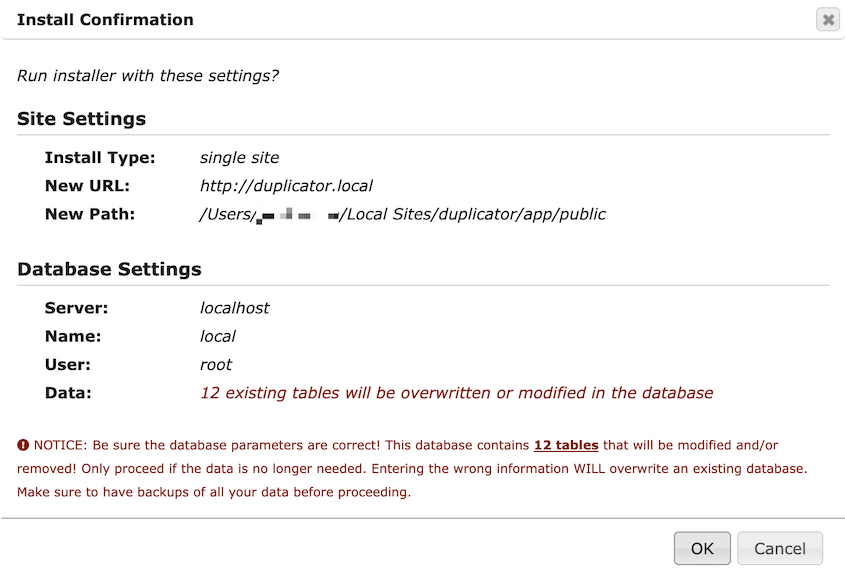
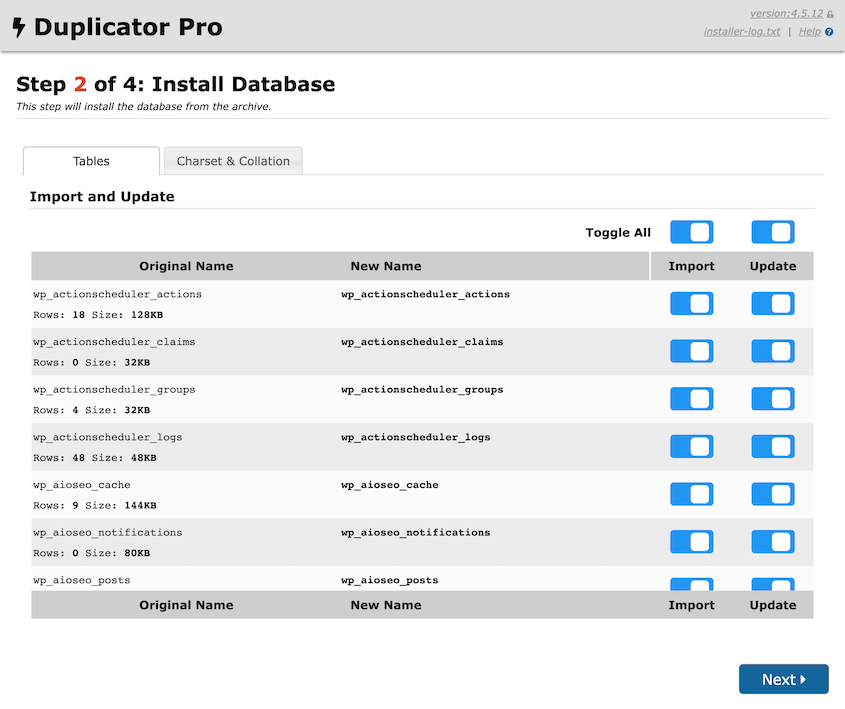
If you need to, you can select specific database tables to avoid importing or updating.
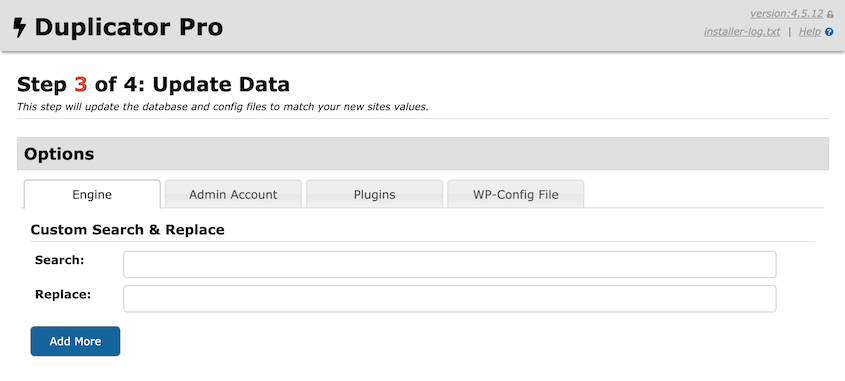
Without Duplicator, you’d have to manually search your database for your old URL and replace it with the new one. Duplicator will do this for you. Simply enter your old and new URLs.
After this, your site will be migrated to the new server, host, or domain! You’ll see information about the installation.
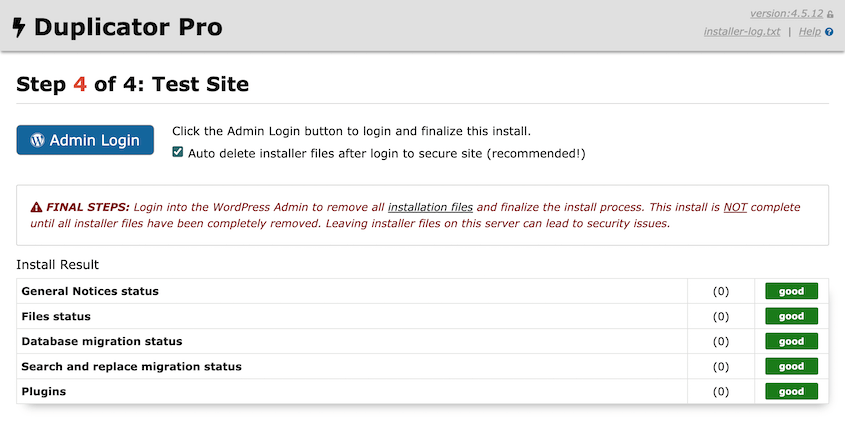
Use the Admin Login button to access your migrated website!
Post WordPress Migration Checklist
Once you migrate your files and database, the hard part is over. However, there are a few extra tasks I’d recommend doing to complete the migration successfully.
Here’s a quick overview of your post-migration checklist:
- Check your new website’s speed and functionality
- Scan for broken links and fix any issues
- Add redirects if you switched domains
- Update your DNS settings to point to the new server
- Inform Google of the migration through Search Console
- Test your SSL certificate to ensure security
- Crawl your new website to identify any problems
- Perform final checks on all site features
- Close your old hosting account after waiting 30-60 days
18. Check Your New Website’s Speed and Functionality
A migration is a tricky process, so you’ll want to review your entire website to make sure it looks and feels the same as the old one. To do this, review both the appearance and functionality of the new site.
Be sure to test the comments section, forms, checkout page, or any other useable elements. For membership sites, make sure that the user dashboards are working correctly.
Sometimes, your newly migrated website might not be working correctly. Here are a few common fixes:
- Reset permalinks to resolve URL structure errors
- Update database URLs to resolve redirection problems
- Check file permissions so content displays correctly
It’s also a good idea to check your website’s speed. If you migrated to a better web host or hosting plan, the server should contribute to a faster loading time.
To test this, use the IsItWP Speed Test. By entering your new website’s URL, you’ll immediately get a performance score.
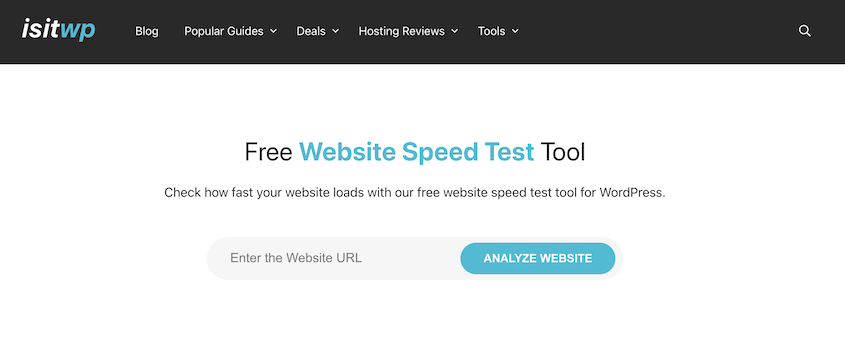
If you receive a poor score, you might need to contact your new web host’s support team to resolve the issue. In the meantime, check out this guide on boosting WordPress speed and performance.
19. Scan For Broken Links
It’s fairly common for your site to have some broken links after a migration. These can not only harm user experience, but Search Engine Optimization (SEO). Fixing broken links can help maintain your website’s search engine rankings and visibility.
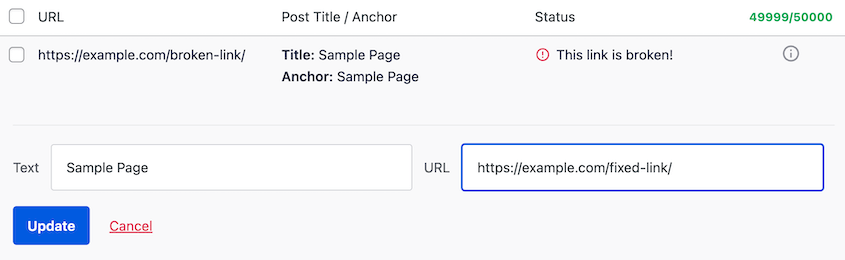
The Broken Link Checker plugin automatically scans for broken links and allows you to fix them. For more details, check out our tutorial on how to fix broken links.
20. Add Redirects
If you decided to switch domains, you’ll want old visitors to be able to find your new website. To do this, set up permanent redirects.
All in One SEO is a WordPress SEO plugin with a useful Redirection Manager. Rather than using a separate redirect plugin, you can use AIOSEO to send visitors to the correct page.
Once you activate the Redirection Manager, open the Full Site Redirect tab. Toggle on the Relocate Site option at the top of the page.
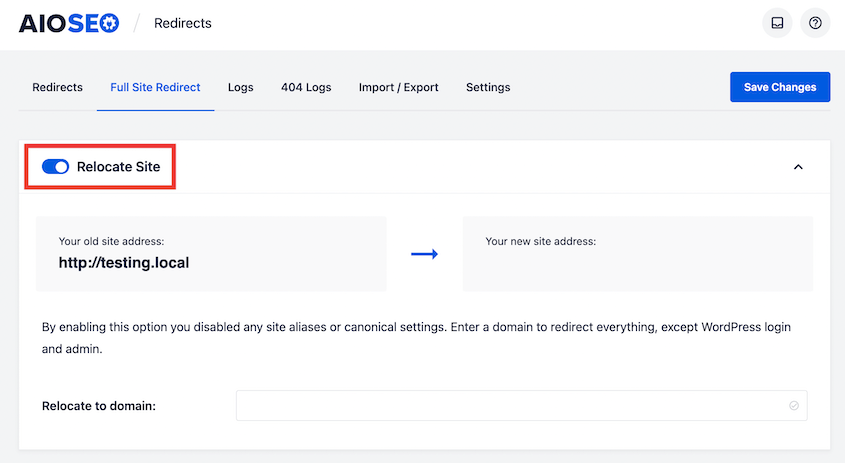
Then, add your new domain name to the Relocate to domain field.
Hit Save Changes to finish setting up the 301 redirects. Now, whenever someone visits the old URL, their web browser will automatically redirect to the new one.
21. Update Your DNS
After you move to a new host, it’s time to connect your old domain to the new server. To do this, log into the account where you manage your domain (your domain registrar, which is often your old host) and locate your DNS settings.
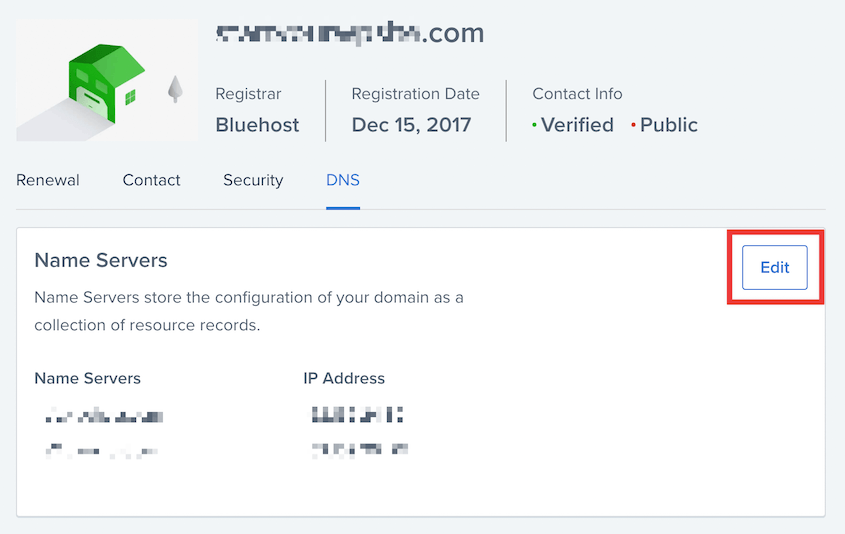
Then, edit your nameservers. Choose Custom as the Setup Type.
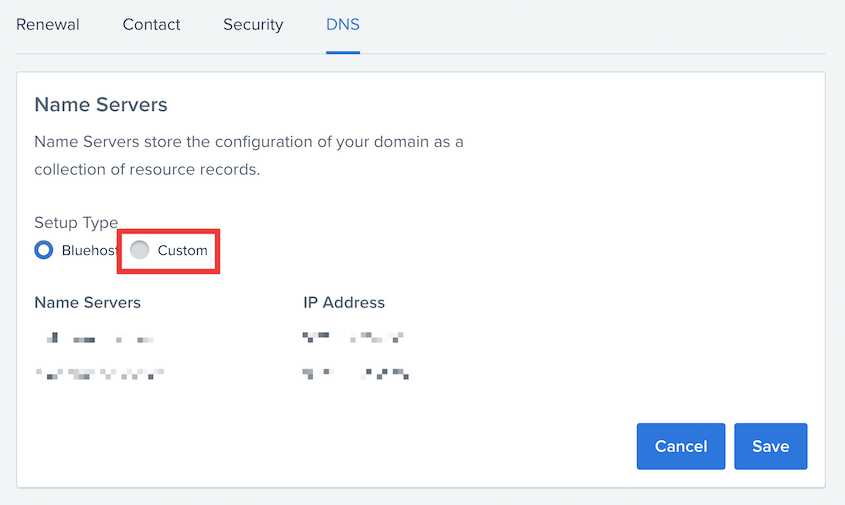
In the blank fields, add your new hosting provider’s nameservers. This will point your domain to the new host, but keep in mind that updates to DNS records can take up to 48 hours to propagate.
22. Inform Google of the Migration
As a website owner, you’ve probably spent a long time building a good SEO strategy. To avoid losing your ranking, it’s important to inform Google that you’ve made the move.
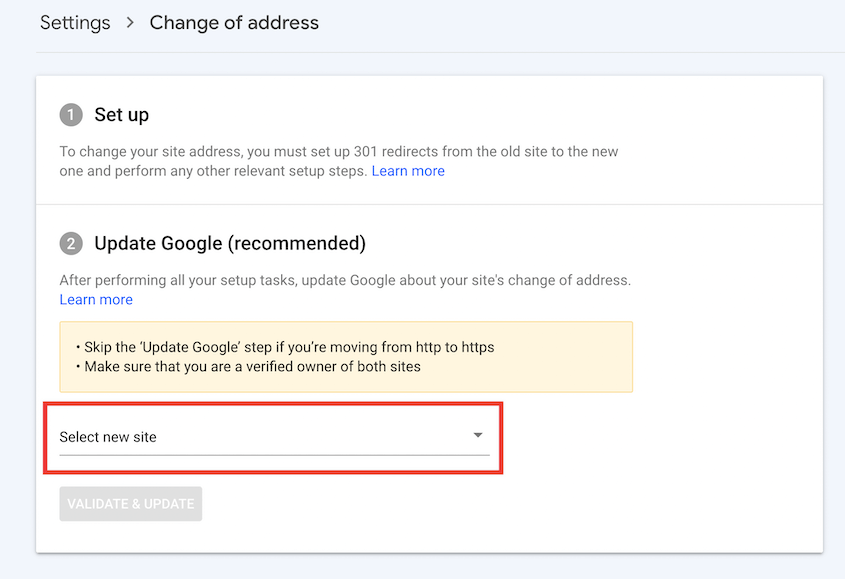
This step applies if you switched to a new domain. If you haven’t already, add both your original and new websites as properties in Google Search Console. For help getting started with this, read this comprehensive guide on Google Search Console.
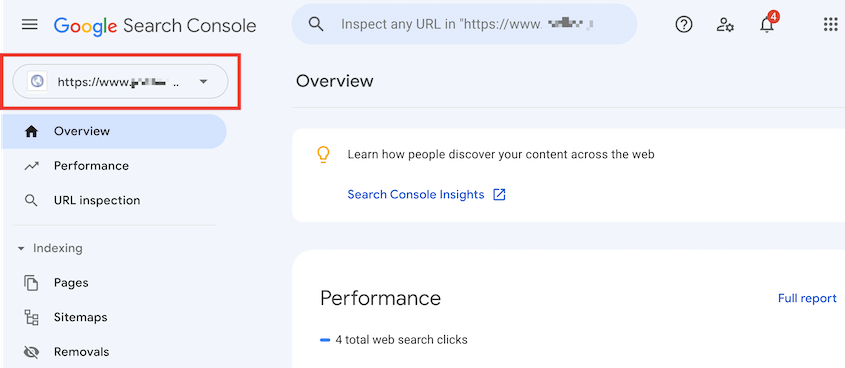
Using the dropdown in the top left corner, select your old URL as the property.
Next, go to Settings » Change of address.
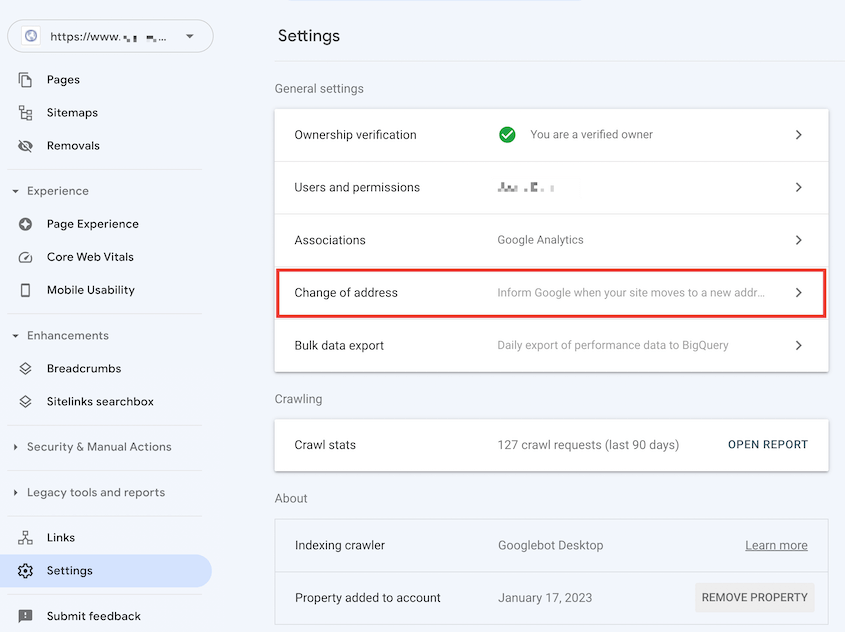
Then, select your new website and hit Validate & Update.
To make sure your site can be indexed by Google, you can use the URL inspection tool in Google Search Console. This allows you to enter any page URL from your site.
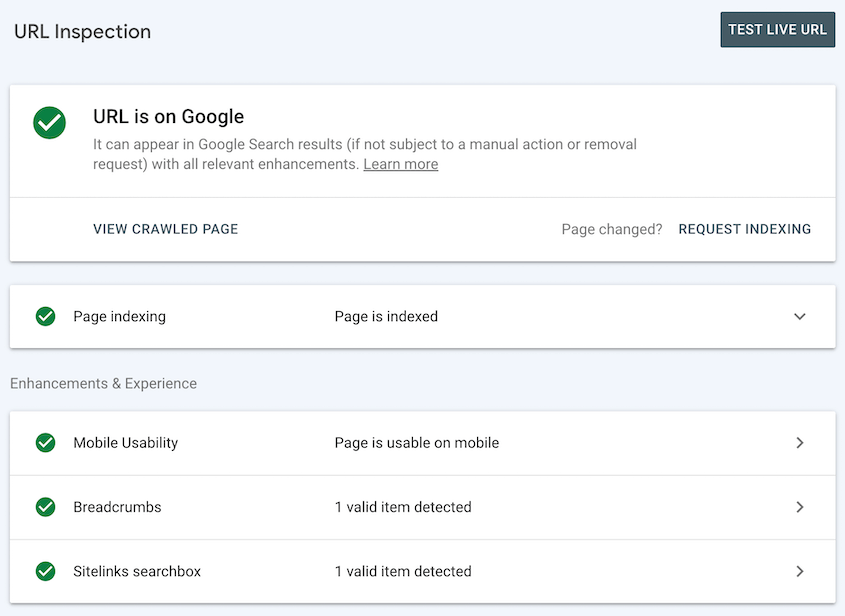
You’ll know if any indexing problems are affecting your site’s search visibility.
23. Test Your SSL Certificate
An SSL (Secure Sockets Layer) certificate is responsible for encrypting the data exchanged between your server and a visitor’s browser. Testing your SSL after a migration can help you maintain your high level of security.
First, visit your site using an incognito window. If your SSL certificate is working, you’ll see a padlock icon next to your website’s URL.
24. Crawl Your New Website
You can also consider crawling your new WordPress site. Using tools like Screaming Frog or Ahrefs, you’ll identify duplicate content, broken links, or other issues.
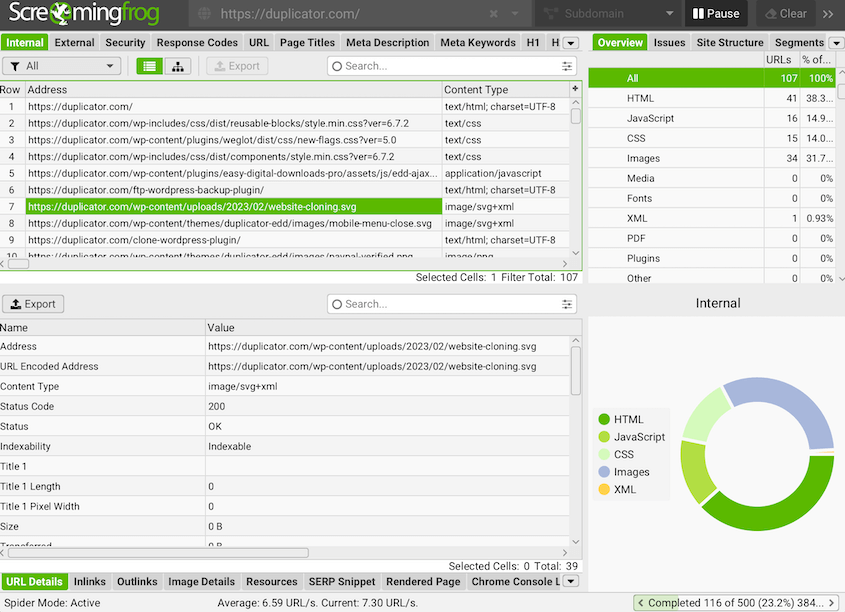
This helps you become more aware of how your site is functioning. You’ll audit any SEO problems and avoid the dreaded dip in ranking after a site migration.
25. Final Checks
It’s time to put the finishing touches on your freshly migrated WordPress site! Don’t skip this step—you might find an error that you didn’t notice on the first walk-through.
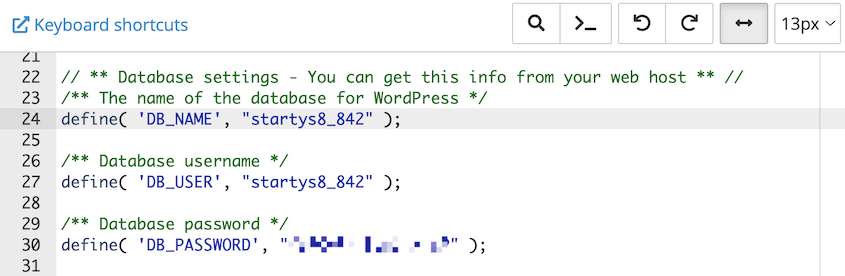
First, confirm that your wp-config.php file is correctly pointing to the new database. Duplicator automatically updates this for you, but it doesn’t hurt to check.
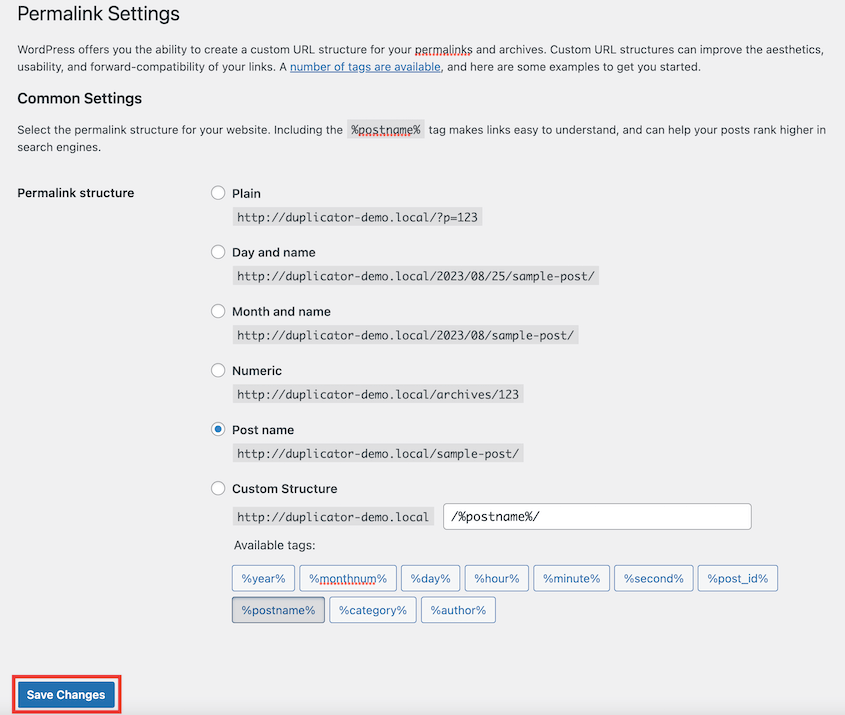
Next, give your permalinks a quick reset. This can resolve any URL issues carried over during the move. Simply go to your permalink settings, don’t change anything, and save your changes.
Test that everything is working as expected on the new server. Click through comments, forms, and e-commerce features. Take note of any glitches or other errors.
You’ll want accurate data on your new site’s performance. So, verify that your analytics and marketing tracking codes are set up correctly.
Finally, visit your new WordPress site in different web browsers. See how it looks on different screen sizes, like mobile devices.
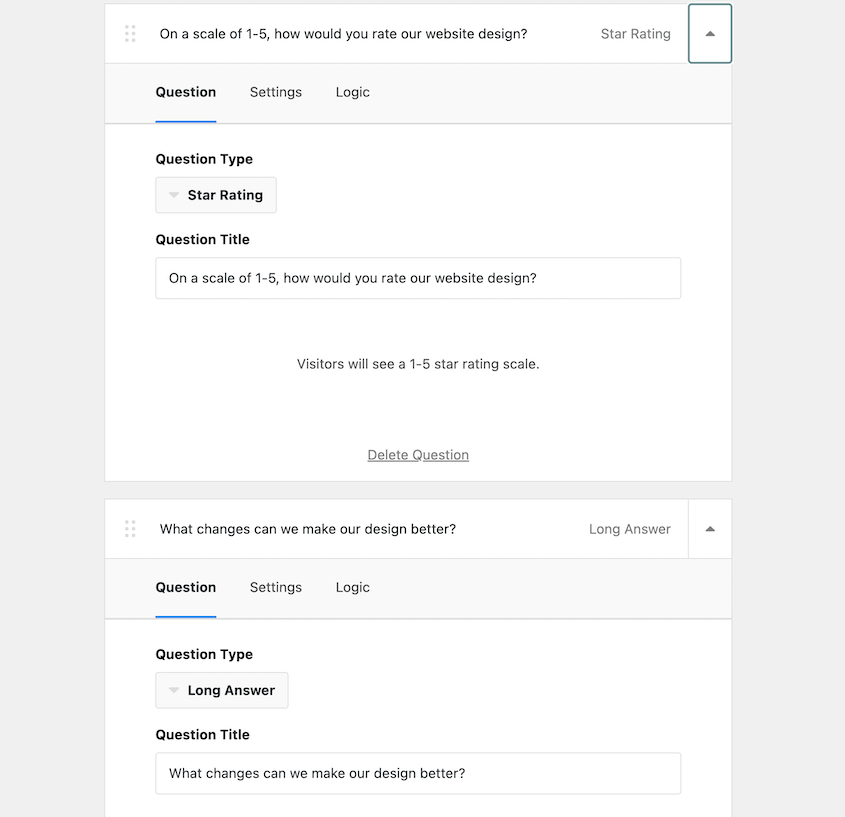
I’d recommend using a tool like User Feedback to get feedback from your visitors. Since they’re the ones using your site, they can tell you if anything isn’t working.
After these final checks, you’re good to go! Take down any maintenance mode pages and enjoy your new website. Remember to close any old hosting accounts you don’t plan on using again.
26. Close Your Old Hosting Account
After successfully migrating your WordPress site, you’ll want to properly close out your old hosting account. This ensures you’re not paying for unnecessary services.
Before canceling, double-check that everything on your new site is working perfectly. Verify that all content, functionality, and performance match or exceed your previous hosting environment.
You’ve already migrated your content, but do a final review. Export any remaining emails, databases, or files you might want to keep as a backup.
Then, log into your old hosting provider’s control panel and disable auto-renewal for your hosting plan and domain.
Many hosting providers require you to contact their support team to officially cancel your account. Be prepared to explain that you’re migrating to a new host.
Ask the support team to completely delete your hosting account and remove all associated data. This helps protect against potential security risks.
Save any email confirmations or support ticket references proving you’ve officially closed the account. This can be helpful if any billing disputes arise later.
FAQs About WordPress Migrations
What do I need to migrate a WordPress site?
To migrate your WordPress site, you’ll need a WordPress migration plugin like Duplicator. With this tool, you can create a copy of your website and seamlessly move it to another host, server, or domain name.
How long does it take to migrate a WordPress site?
Migrating a WordPress site only takes a few minutes with the right tools. Duplicator is a migration plugin that can migrate your website in a fraction of the time it takes to move your data manually. However, you’ll also need to remember that it takes up to 48 hours for your DNS to propagate after any changes.
What are the steps to migrate a website?
To migrate a WordPress site, create a backup of your entire site with Duplicator. Then, download the generated archive and installer files. Use a file manager to connect to your new server and upload these backup files to the root directory. To finish the migration, visit https://your-domain/installer.php and follow the Duplicator migration wizard.
How do I prepare for a website migration?
You can prepare for a website migration by setting up your new hosting account and backing up your old website. You’ll also need to plan the migration during a low-traffic time and inform your audience about the upcoming move. Additionally, consider putting your website in maintenance mode and deactivating any caching, firewall, and redirect plugins.
Is it hard to migrate a website?
No, it’s not hard to migrate a website. If you’re a beginner, you can use a user-friendly migration plugin like Duplicator. Its paid plans let you drag and drop your WordPress site into a new location. You won’t have to worry about manually exporting or importing your files and database.
How much downtime should I expect during a migration?
With good planning, downtime can be minimal. Your old site stays live while you build and test the new one, so the main delay is DNS propagation after you point your domain to the new host. That can take anywhere from a few minutes to 48 hours, so lower your DNS TTL a day or two before the move to speed it up.
How do I migrate a website without losing SEO?
To migrate a website without losing SEO, keep your URLs the same wherever you can. If any URLs have to change, set up 301 redirects from each old URL to its new one before you go live.
Record your rankings, traffic, and indexed pages before the move so you have something to compare against. After the migration, submit your sitemap in Google Search Console, then watch for crawl errors and 404s over the next few weeks.
How much does it cost to migrate a WordPress site?
You can migrate a WordPress site for free if you do it yourself with the free version of Duplicator. Your main costs are usually the new hosting plan and, if you’re switching domains, a new domain name. Premium migration tools or hiring a developer or migration service will add to that, especially for large or complex sites.
Conclusion
I hope this guide gave you a full WordPress migration checklist to prepare for and successfully move your website!
You may also like these extra WordPress migration guides:
- How to Migrate a WordPress Site Easily (Beginner’s Guide)
- How Much Does It Cost to Migrate a WordPress Site?
- How to Migrate a WooCommerce Site (Beginner-Friendly Guide)
- 5 Best WordPress Migration Services for Simple Transfers
- How to Migrate a Large WordPress Site (The Easy Way)
- The Complete Guide to SEO Migration (No Risk of Traffic Loss)
Do you want an easy-to-use tool that will migrate your WordPress site for you? Try out Duplicator Pro to start taking advantage of drag-and-drop migrations!




