

Duplicator Lite Just Got Better: 1-Click Restores, Cloud Storage, and Encryption in 5.0
 Joella Dunn
Joella Dunn
Joella Dunn
 John Turner
John Turner
John Turner
If you use the free Duplicator plugin, you already have a solid backup routine.
You build one before a big update. You keep a copy handy in case something breaks. And when it’s time to move your site, you already have the files you need.
We launched Duplicator Lite 5.0 to make your routine backups even easier. The free plugin now runs on the same engine as Duplicator Pro, and it brings some of Pro’s most useful tools with it.
Ready to see what you can do with the newest version of Duplicator Lite?
Table of Contents
- Undo a Bad Update in One Click
- Store Your Backups in Duplicator Cloud
- Restore Your Site When Locked Out of wp-admin
- Protect the Private Data Inside Every Backup
- Let Your AI Assistant Handle Backups
- Figure Out Why a Backup Won't Finish
- Keep Working While Your Backup Builds
- Set Up Your Next Site Faster
- Ready for Backups That Run Themselves?
Undo a Bad Update in One Click
Duplicator Lite could always restore your website. You’d just have to download the archive and installer files, connect to your server over FTP, upload both files, and walk through the restoration wizard.
It works, and it’s a good option if you’re locked out of your dashboard. However, we added a faster way to get back online.
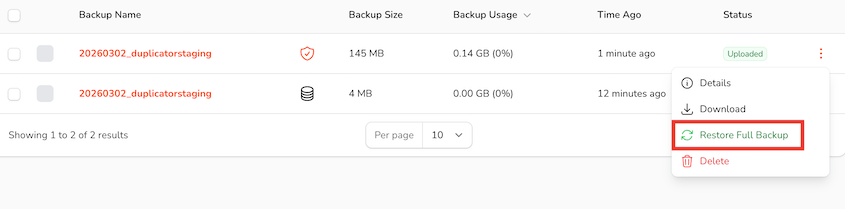
In Duplicator Lite 5.0, you can restore backups in one click. Open your Backups page, find the backup you made before the error, and hit Restore.
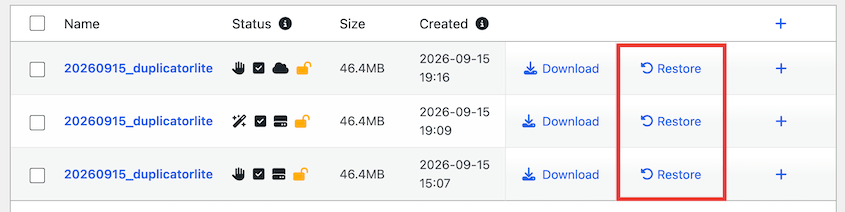
The installer runs on its own and puts your site back the way it was.
Your fix takes a few clicks, and you never leave wp-admin.
That makes it much easier to undo changes in WordPress whenever an update or edit doesn’t go the way you planned.
Store Your Backups in Duplicator Cloud
Careful site owners know a backup shouldn’t only live on the server it protects. If a catastrophic error happens to your site, you want a clean copy you can reach.
Duplicator Lite 5.0 can now send backups straight to Duplicator Cloud, our own backup storage.
To connect it, go to your Storage page and click Connect next to Duplicator Cloud.
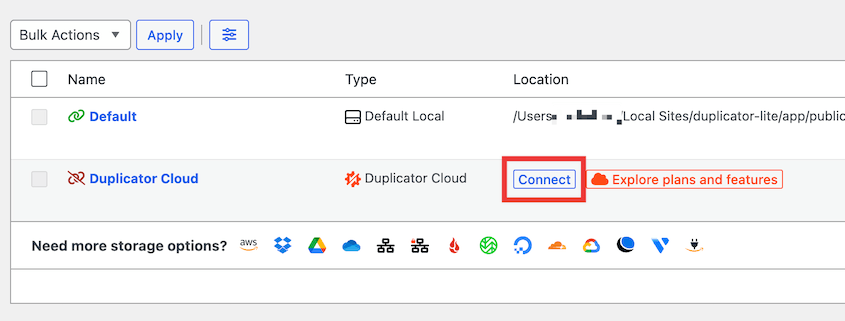
Choose a storage plan, then paste your connection token.
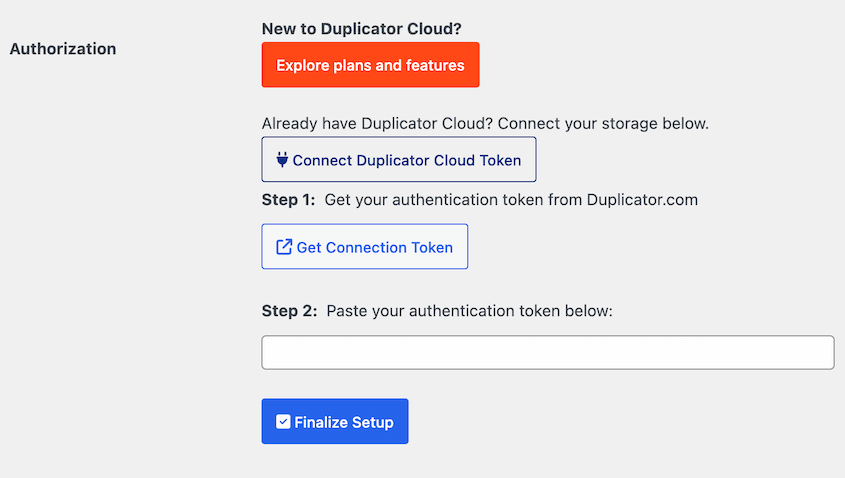
After that, your backups can go off-site as part of your normal routine. Choose Duplicator Cloud in your backup storage settings.
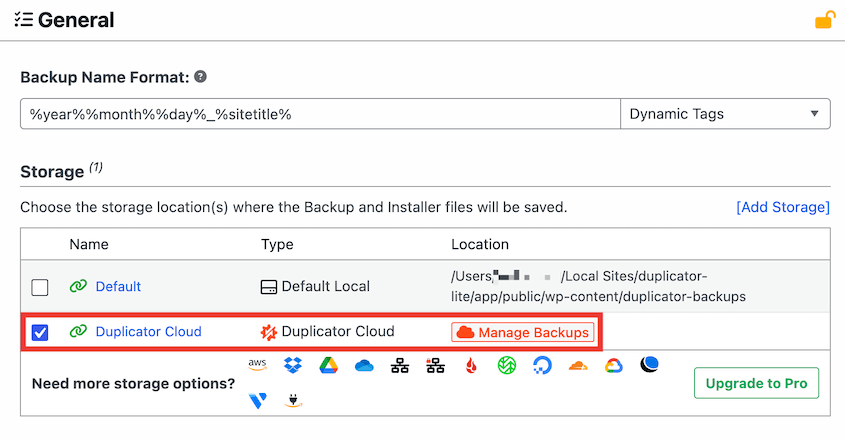
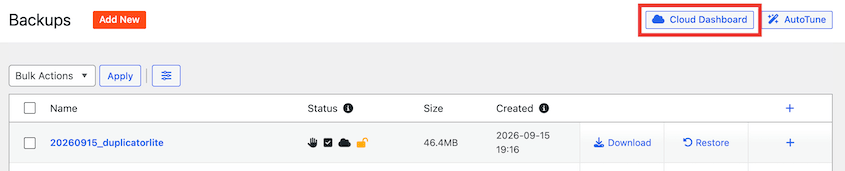
To browse and download your cloud backups, use the Cloud Dashboard button.
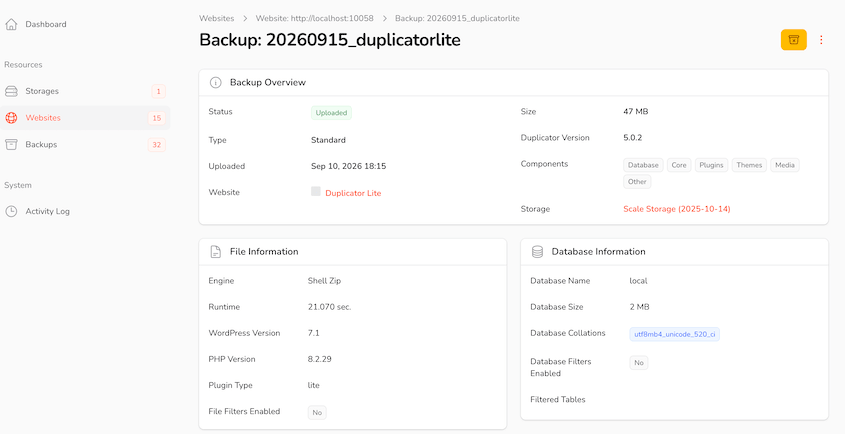
Here, you can manage your connected sites and see how much storage you’ve used. When you click on a backup, it’ll show you the included data, runtime, PHP version, size, and much more.
Your local storage is now more flexible, too. You can set up multiple local storage folders, each with its own retention setting.
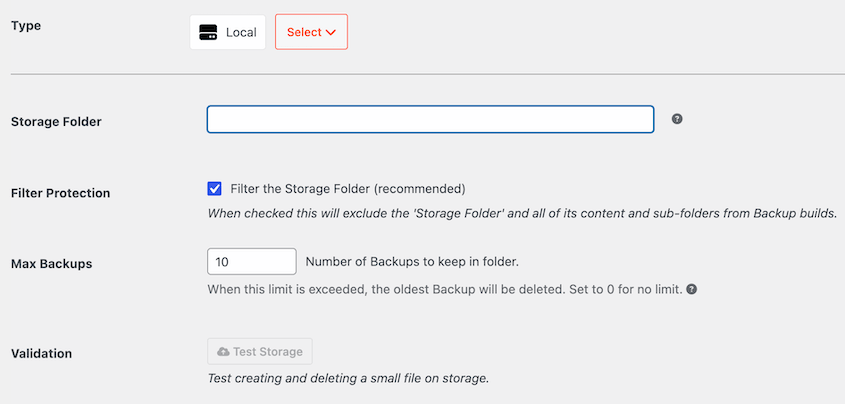
Older backups get cleared out on schedule, so they don’t slowly fill up your hosting space.
Restore Your Site When Locked Out of wp-admin
Now picture a bigger problem.
Your site won’t load, and neither will wp-admin. Maybe your host is having a bad day, or your server is gone entirely.
If you’ve kept a copy on your computer, you’re in better shape than most. But getting that copy back online usually means uploading files over FTP and running the installer manually while your site stays down.
With Duplicator Lite 5.0 and Duplicator Cloud, you have a faster path.
In your Duplicator Cloud dashboard, add a recovery connector with your site’s FTP or SFTP details.
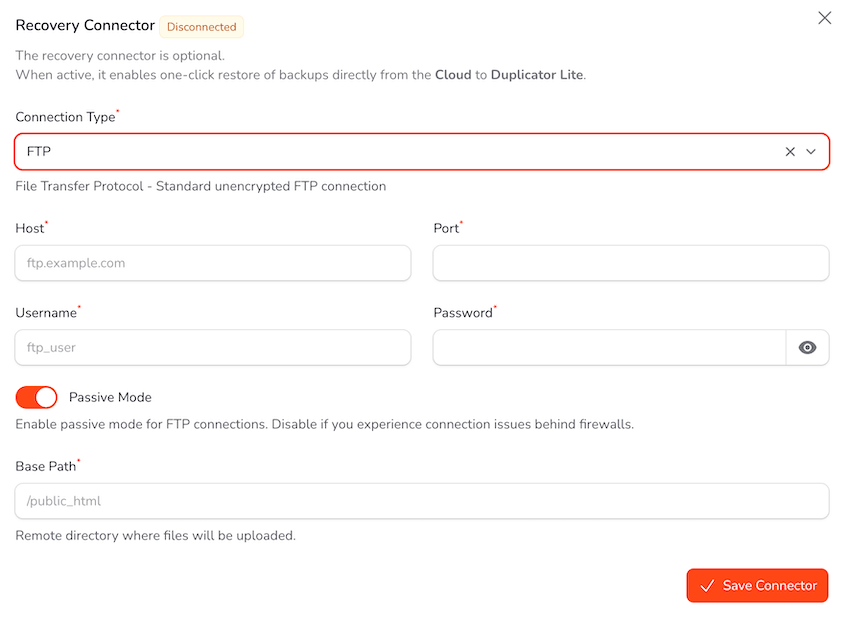
If your site ever goes down, sign in to Duplicator Cloud from any browser, pick a backup, and restore your site from there.
Protect the Private Data Inside Every Backup
A backup is a complete copy of your site. That includes your database, which holds user accounts, form entries, and customer orders.
Once you download that file, it can end up in a lot of places. It might sit in your downloads folder, get synced to a cloud drive, or be sent to a developer who’s helping with your site.
Until now, keeping that file private was up to you.
Duplicator Lite 5.0 lets you encrypt your backups with a password, using AES-256 encryption. This works with both DupArchive and ZIP archives.
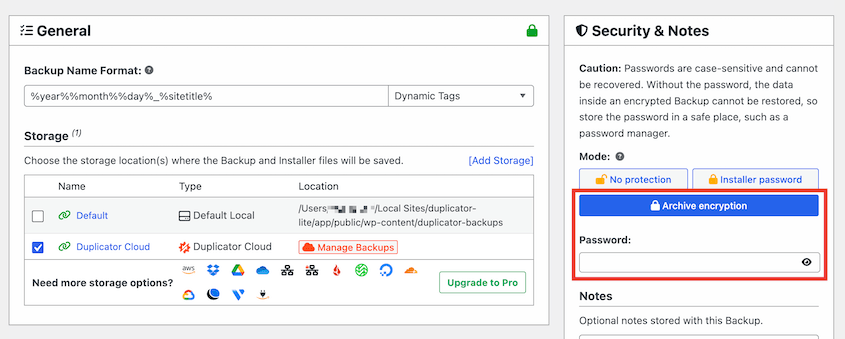
Your backup stays protected wherever it goes.
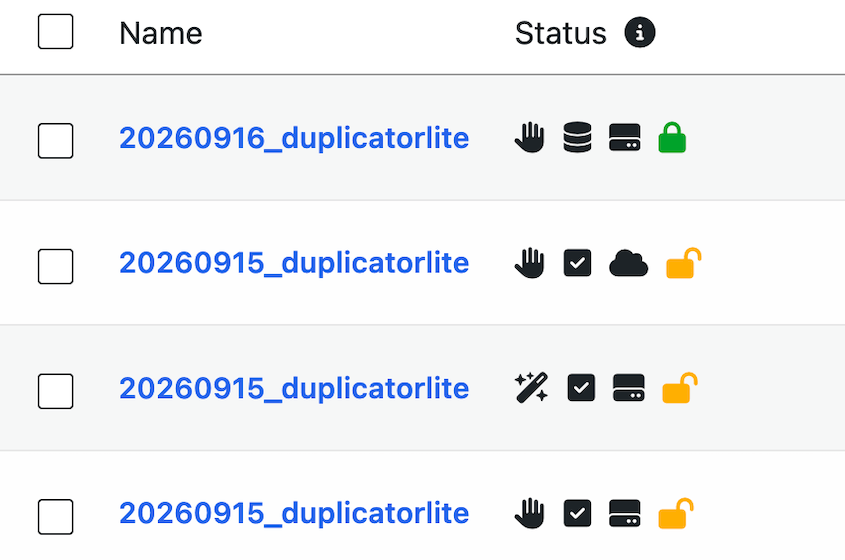
Your Backups screen also shows a security icon for each backup. You can tell at a glance which backups are encrypted, which are password-protected, and which are open.
Let Your AI Assistant Handle Backups
If you use an AI assistant to help run your site, it can now make backups for you.
Duplicator works with the WordPress Abilities API, which arrived in WordPress 6.9. Connect your assistant through the free WPVibe plugin, then ask it to back up your site.
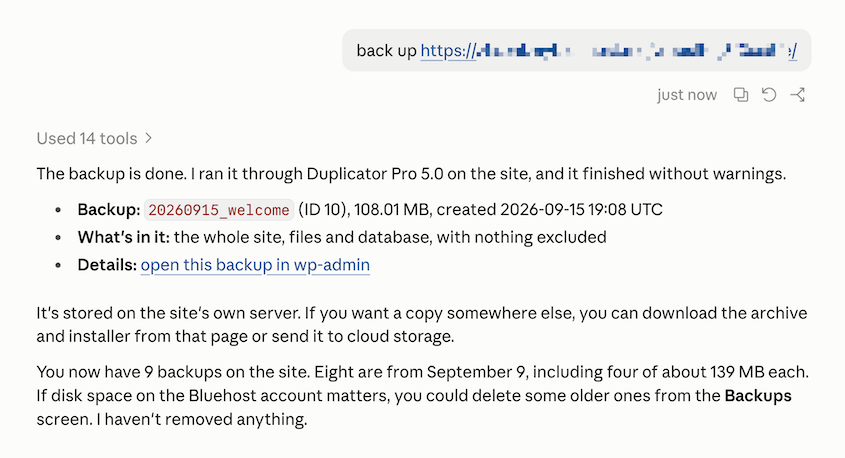
Your assistant creates the backup with Duplicator and lets you know when it’s done.
Figure Out Why a Backup Won’t Finish
Every server is set up a little differently. A backup that runs smoothly on one host can stall on another because of a PHP limit, a missing extension, or a folder that isn’t writable.
The best backup settings depend on your specific website, so we designed Duplicator 5.0 to do that detective work for you.
Before a backup starts, Duplicator checks your setup for common problems. If it finds one, it stops right away and tells you what to fix.
If a backup still fails, you’ll get an explanation and a checklist. When the fix is a setting, you’ll see an Apply button that changes it for you.
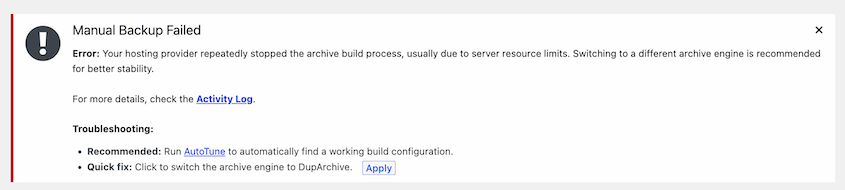
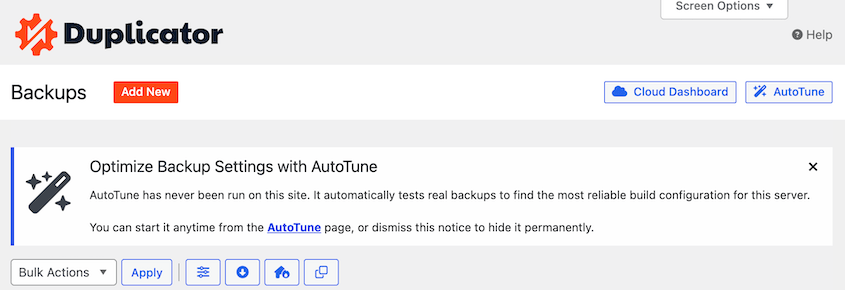
For stubborn servers, AutoTune runs real test backups and adjusts one setting at a time until a backup succeeds.
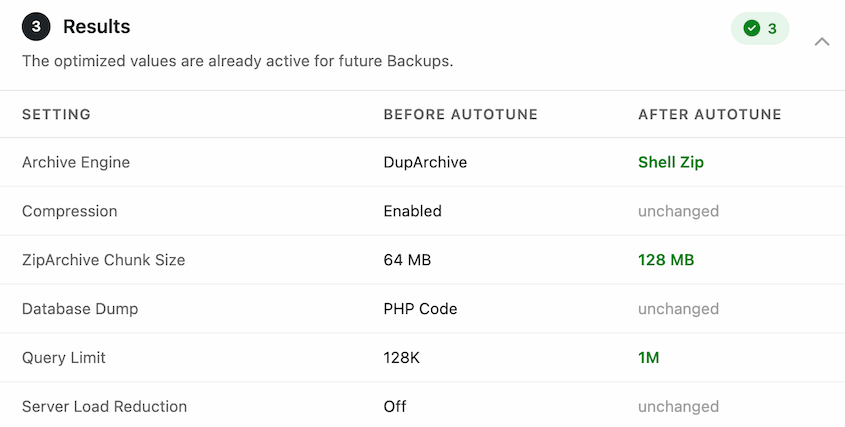
You’ll find it at the top of your Backups screen or under Tools » AutoTune.
Keep Working While Your Backup Builds
Backing up a large site can take time. If you’ve ever kept a browser tab open and waited for a build to finish, you know the feeling.
In Duplicator Lite 5.0, backups build in the background. You can keep working in WordPress while progress updates right in your Backups list.
There’s even more happening under the hood. Here’s what the new engine gives you:
- Resumable backups: Each backup runs in smaller steps and picks up where it left off after an interruption, which helps on sites with lots of files or large databases.
- Smaller backup files: Your database is compressed inside the archive, which saves disk space and storage.
- Managed host support: Backups now work on WP Engine, GoDaddy Managed WordPress, Flywheel, Pantheon, and WordPress.com.
Set Up Your Next Site Faster
If you manage more than one site, you’ve probably configured Duplicator the same way more than once.
Duplicator Lite 5.0 lets you export your settings and import them on another site.
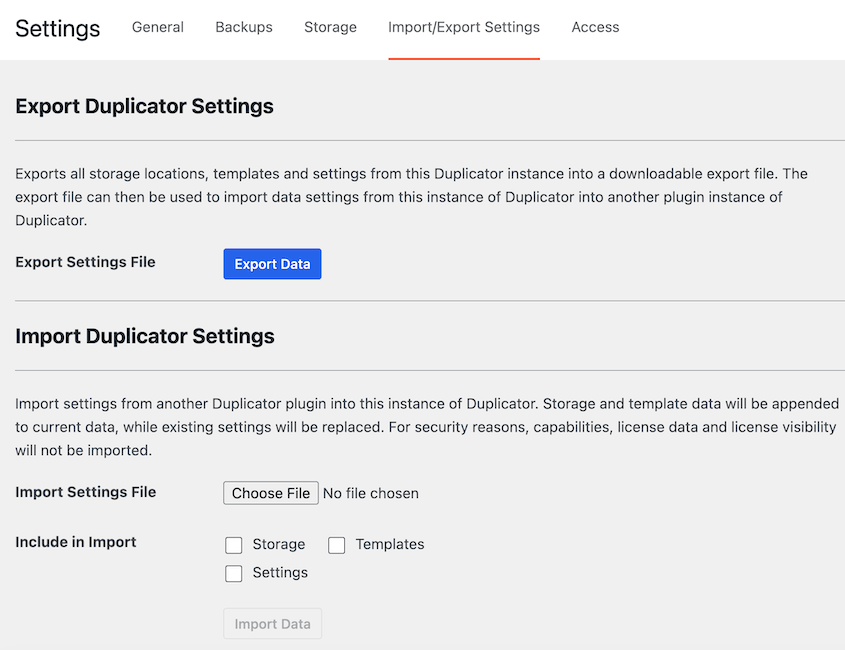
Set things up once and carry those settings wherever you go.
Ready for Backups That Run Themselves?
Duplicator Lite 5.0 gives you more ways to restore, store, and protect your backups. Update your plugin to enjoy one-click restores, cloud backups, and encryption.
There’s still one step that’s up to you: remembering to create backups.
Duplicator Pro can take care of that step, too. It runs your backups on a schedule, so a recent copy of your site is always ready to restore.
With Duplicator Pro, you can:
- Schedule automatic backups (hourly, daily, weekly, or monthly)
- Send backups to 10+ storage destinations, including Google Drive, Dropbox, and Amazon S3
- Migrate sites with drag-and-drop
- Test changes on a staging site before they go live
- Clean up unused images with WP Media Cleanup
- Optimize your database with DB Optimizer
- Track site activity with Activity Log
While you’re here, check out Duplicator’s other new features:
- [New] Introducing Duplicator 5.0: AI-Powered Backups, AutoTune, and More
- [New] Cloud Backups Just Got Simpler — Duplicator Cloud Eliminates Third-Party Storage
- Announcing One-Click Staging and Remote Cloud Restores for Bold Changes, Zero Consequences
- [NEW] WP Media Cleanup Deletes Unused Images Hiding in Your Media Library




