

How to Run a WordPress Database Health Check in 15 Minutes
 Joella Dunn
Joella Dunn
Joella Dunn
 John Turner
John Turner
John Turner
WordPress ships with a tool called Site Health. Most people use it to get a quick look at database health, but it can’t clean anything.
Site Health is not a complete database-audit tool. It reports database size, server/client version and charset, and checks the count and aggregate size of autoloaded options. It doesn’t audit revisions, table overhead, transient residue, or plugin tables.
In this post, I’ll show you how to run a real WordPress database health check, what each number should look like, and what’s worth acting on. It takes about 15 minutes.
By the end you’ll have five recorded numbers, a verdict on each, and a date to check them again.
Quick takeaways:
- WordPress has a tool called Site Health, but it doesn’t offer a comprehensive database health check. It reports size, version, and character set, and measures little about what’s inside.
- Site Health gives you a free size baseline in about 30 seconds. DB Optimizer‘s 0 to 100 score tells you which of five metrics is causing problems.
- Healthy autoload sits under roughly 800KB, and wp_options under 3 to 5MB on a typical site. Past those figures, it’s worth acting.
- Revisions are uncapped by default so that metric refills on its own unless you set WP_POST_REVISIONS in wp-config.php.
Table of Contents
- What Does a WordPress Database Health Check Cover?
- What You Need Before You Start
- How to Run a WordPress Database Health Check
- Step 1: Get Your Database Size Baseline in Site Health
- Step 2: Score Your Database With DB Optimizer
- Step 3: Read the Five Metrics and Find What's Dragging the Score Down
- Step 4: Audit Your Tables for Overhead and Orphans
- Step 5: Back Up Before You Delete Anything
- Step 6: Clean What's Safe, Then Re-Score
- How Often Should You Run a WordPress Database Health Check?
- Troubleshooting a WordPress Database Health Check
- Frequently Asked Questions (FAQs)
- Check the Numbers Before Your Site Tells You Something's Wrong
What Does a WordPress Database Health Check Cover?
A database health check isn’t a size check. Size on its own tells you almost nothing.
A 500MB WooCommerce database holding ten years of real orders can be in better shape than a 60MB blog where three quarters of the rows are post revisions.
What you’re measuring is composition. How much of this database is content you’d miss, and how much is residue?
Here’s what a real health check covers:
- Total size and growth rate. The number matters less than how fast it’s climbing between checks. A database that grew 40% in a quiet quarter is telling you something.
- Table overhead. Space that deleted rows left behind and MySQL hasn’t reclaimed yet. It’s dead air inside the table.
- Autoload size. The options WordPress loads on every single page request, whether the page needs them or not. This is the metric that hits performance most directly.
- Row junk. Post revisions, auto drafts, trashed posts, spam comments, expired transients, pingbacks, trackbacks, and cached oEmbed responses. All of it accumulates by default, and none of it clears itself.
- Orphaned tables and metadata. When you delete a plugin, it can leave behind tables and rows.
What You Need Before You Start
Most of this runs from your dashboard for free. Here’s the full list:
- Admin access to WordPress. Site Health and DB Optimizer both live in your dashboard.
- A current backup, taken with Duplicator. A database-only backup covers this work and finishes in a fraction of the time a full backup takes.
- DB Optimizer, if you want an in-depth database check. It’s free with Duplicator Pro.
- phpMyAdmin or hosting database access. Optional, and only for the manual route in Step 4.
How to Run a WordPress Database Health Check
Here’s how to check your WordPress database health:
- Step 1: Get your database size baseline in Site Health. Free, no plugin, about 30 seconds, and it gives you the one number you’ll track over time.
- Step 2: Score your database with DB Optimizer. Turns a size figure into a 0 to 100 score with five bars, so you can see which part of the database is the problem.
- Step 3: Read the five metrics and find what’s dragging the score down. The thresholds that separate a normal reading from one worth acting on, metric by metric.
- Step 4: Audit your tables for overhead and orphans. Finds the specific tables carrying dead space, plus the leftovers from plugins you removed.
- Step 5: Back up before you delete anything. The step that turns a bad cleanup into a minor inconvenience.
- Step 6: Clean what’s safe, then re-score. Removes the junk behind a preview and a retention window, then gives you an “after” number to set against your baseline.
Step 1: Get Your Database Size Baseline in Site Health
Start here even if you’re planning to install a plugin in a minute. This step costs nothing, takes about 30 seconds, and produces the number you’ll compare against every time you run this again.
Go to Tools » Site Health in your dashboard, then click the Info tab at the top.
Expand the Directories and Sizes section. You’ll see your database size in MB.
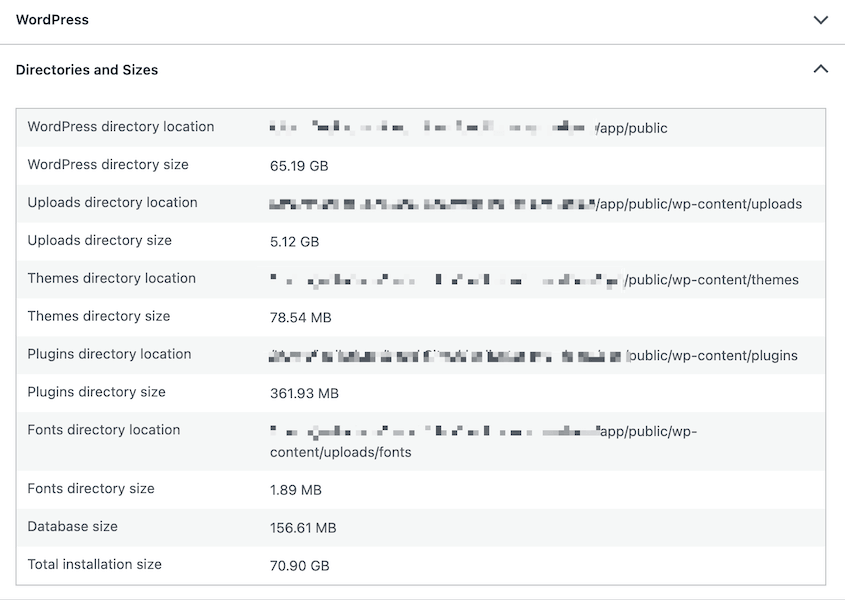
Write it down with today’s date.
While you’re on this screen, expand the Database section further down the page. It shows the extension (MySQL or MariaDB), the server version, the client version, and the character set.
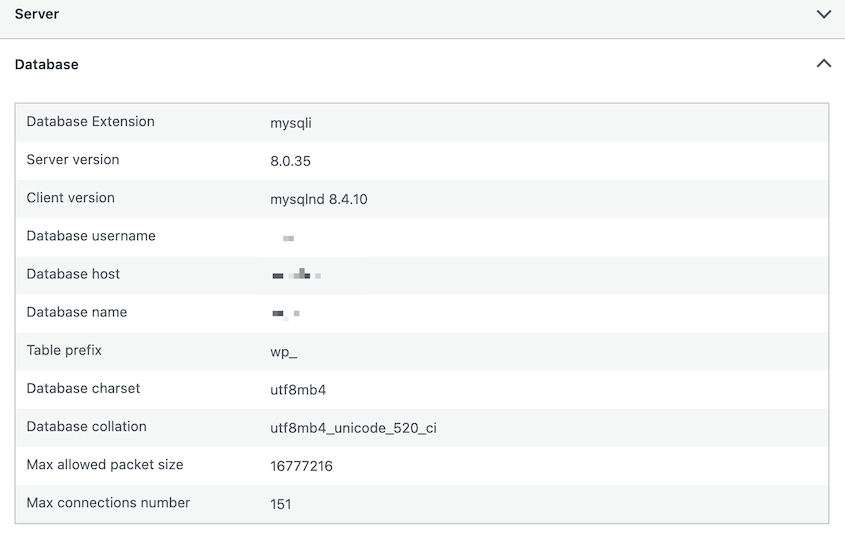
That’s everything Site Health knows about your database.
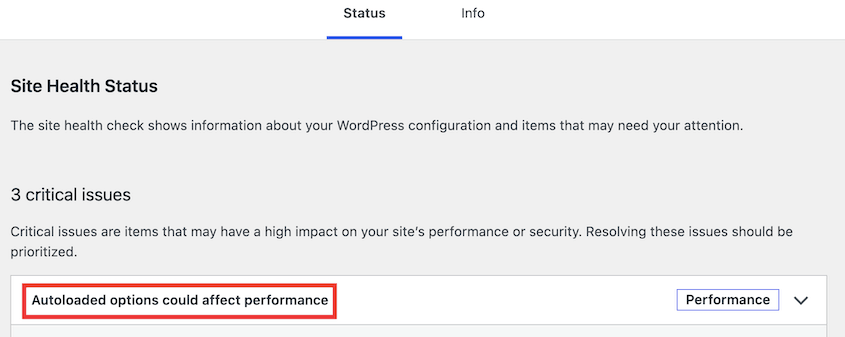
The Status tab doesn’t assess revisions, table overhead, plugin-table ownership, or general database bloat. It does, however, assess autoloaded options on supported WordPress versions. It’ll prompt you to clean autoloaded data if it’s flagged.
Step 2: Score Your Database With DB Optimizer
A size figure tells you the database is big. It doesn’t tell you why. For that, you need something that reads what’s inside, which is what DB Optimizer does.
Install DB Optimizer and open it from your dashboard. The main screen leads with a health score between 0 and 100, and below it, five color-coded progress bars:
- Table overhead
- Transients
- Revisions
- Autoload size
- Trash items
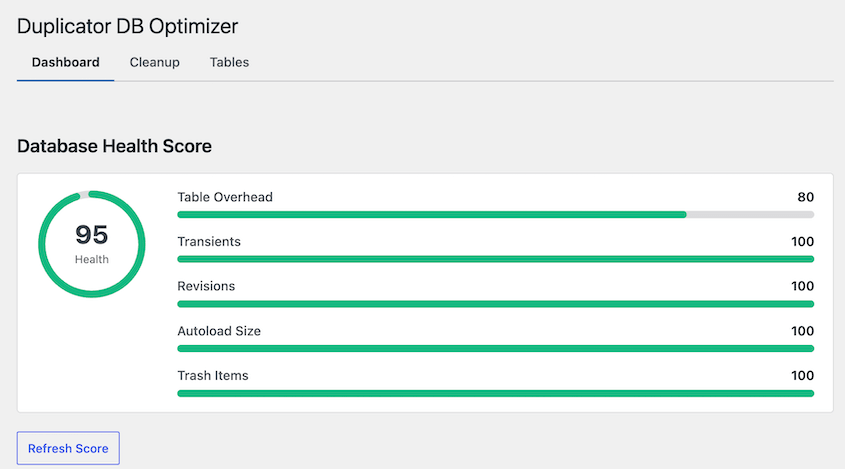
Read the bars, not just the number. A 62 caused by revisions is a ten-minute fix. A 62 caused by autoload size is a longer afternoon, for reasons I’ll get into in Step 3.
The Refresh Score button re-measures on demand. Use it after any change so you’re never reading a stale number.
Step 3: Read the Five Metrics and Find What’s Dragging the Score Down
A low database health score doesn’t mean much until you know what normal looks like for that metric. These are the numbers I judge against:
| Metric | Healthy | Worth attention |
|---|---|---|
| Autoload size | Under roughly 800KB | 1MB and up |
| wp_options table | Under 3 to 5MB on a typical site | 10MB or more |
| Post revisions | Capped at 3 to 5 per post | Uncapped, which is the default |
| Table overhead | Near zero after an optimize run | Growing between every check |
| Trash and spam | Emptied on a schedule | Months of accumulation |
Autoload, revisions, overhead, and trash each get their own bar on the score screen. The wp_options row is one you’ll read on the tables view in Step 4.
Here’s what each metric measures and what to do when it’s out of range.
Autoload size is the set of options WordPress loads into memory on every page request, including the requests that never use them. Under roughly 800KB is fine. At 1MB and up you’re paying that cost on every single hit, and the cause is usually a few plugins storing large arrays in wp_options.
Revisions are the most common reason for a bad score and the easiest thing to fix. WordPress saves an unlimited number by default. Every save and every autosave of every post, kept forever. On a site with a few hundred posts and more than one editor, revisions routinely outnumber the real content rows.
Transients are cached values with an expiration date on them. WordPress doesn’t reliably clear the expired ones, so they accumulate. Removing them is safe, and anything still needed regenerates on its own.
Trash items cover trashed posts and pages plus spam comments. WordPress empties the trash after 30 days by default. Spam comments stay until something removes them.
Table overhead is the space deleted rows left behind. Deleting a thousand revisions doesn’t shrink the table on its own. It leaves a thousand gaps, and an optimize run is what rebuilds the table and reclaims them.
Step 4: Audit Your Tables for Overhead and Orphans
The score tells you what kind of junk you have. The tables view tells you where it lives, which matters when one table turns out to be responsible for most of the problem.
In DB Optimizer, open the tables view. It lists every table in your database with its size and its overhead. You can optimize and repair one table or the entire database.
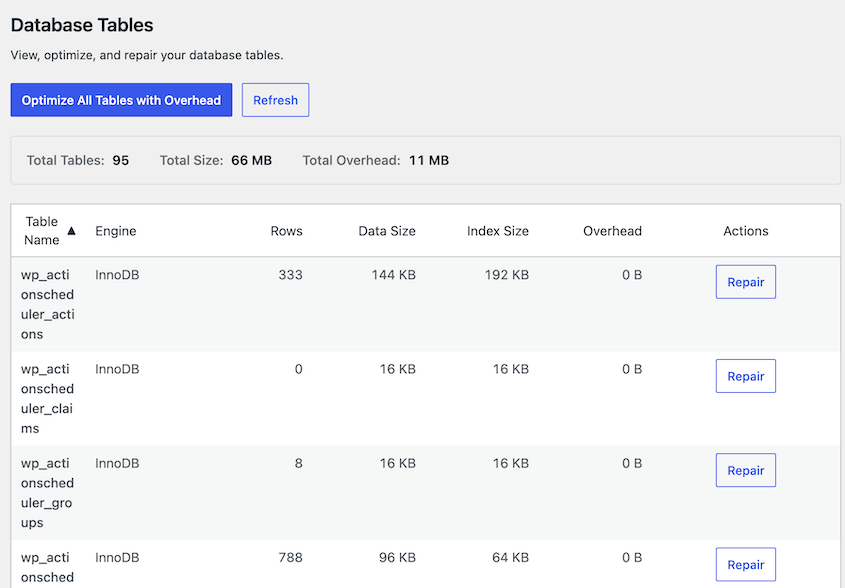
Sort by size and read your top five. On a typical site you’d expect wp_posts, wp_postmeta, and wp_options near the top. If wp_options is up there, hold it against the 3 to 5MB benchmark from Step 3.
There’s a manual route that shows you the same thing if you already have database access. Open phpMyAdmin from your hosting control panel, select your database, and sort the table list by the Size column.
Skip this if phpMyAdmin isn’t something you normally use, because the plugin view covers it.
Now look for tables that don’t belong to anything anymore.
Orphaned tables usually carry your table prefix plus a plugin name, left by a plugin you deleted months or years ago. WordPress removes plugin files on delete. It rarely removes plugin tables, because the plugin author has to write that cleanup routine, and plenty never do.
Don’t drop a table you can’t identify. Search the table name, check it against the plugins you’ve removed, and if you can’t place it with confidence, leave it alone. A leftover table costs you a few MB. Dropping a live one costs you a restore.
Step 5: Back Up Before You Delete Anything
From here on, you’re deleting database rows, and that’s why you need a backup.
Create a backup of your site. A backup from last week doesn’t cover a change you’re making today, and the entire value of a restore point is that it sits immediately before the risky action.
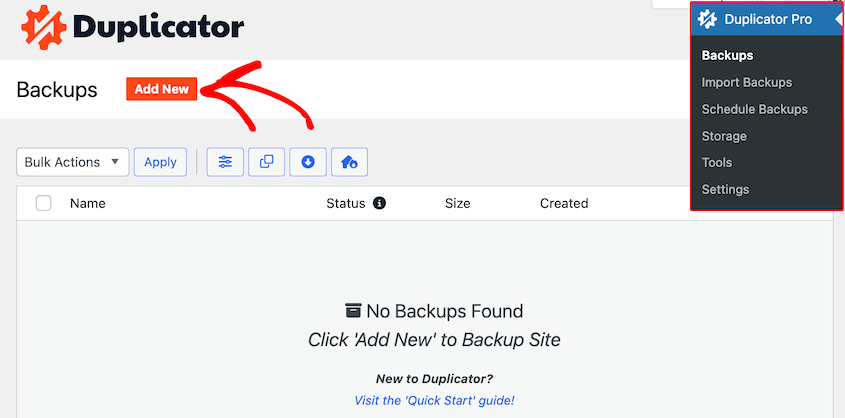
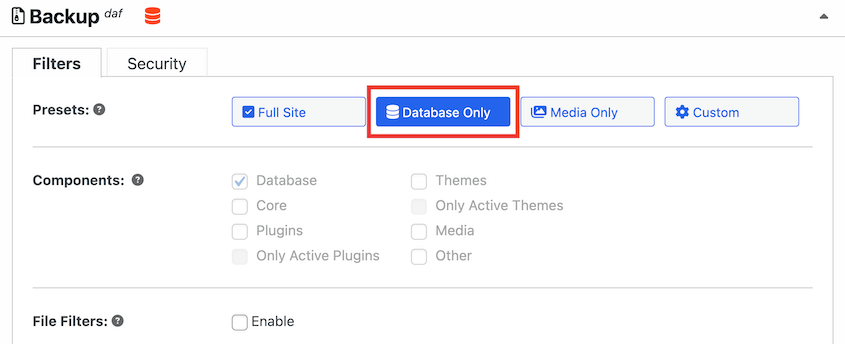
A database-only backup is plenty for this work. Duplicator Pro can build one that skips your files completely, so it finishes in a fraction of the time a full backup takes.
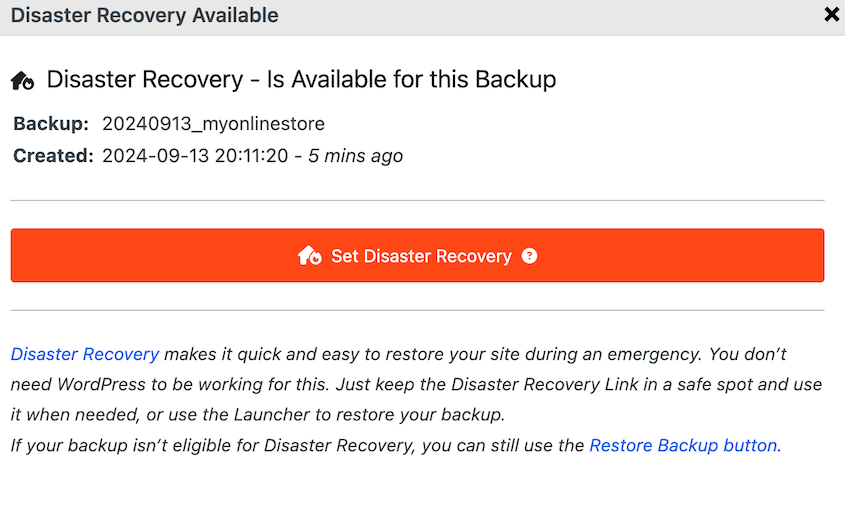
If you’d rather have the fastest possible rollback, create a full-site backup with a recovery point instead.
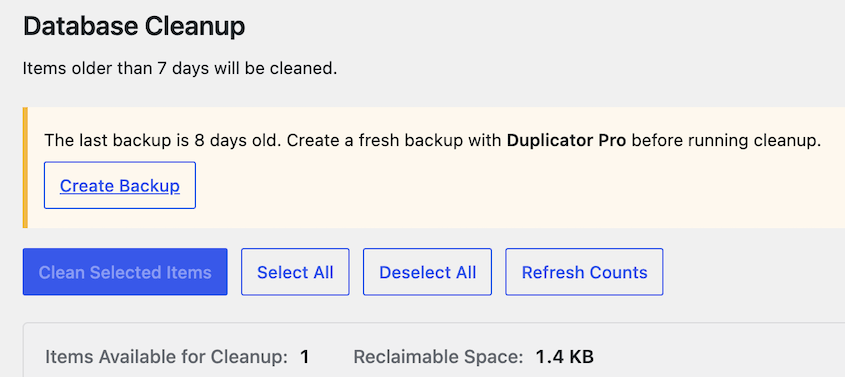
With Duplicator Pro installed alongside DB Optimizer, you’ll get a backup status warning on the cleanup screen before anything runs. It’s checking for exactly this.
Step 6: Clean What’s Safe, Then Re-Score
With a backup in place, the cleanup is the least eventful part of the whole process.
Open the Cleanup tab.
Select what you want removed, then read the preview before going further. It shows item counts and the space you’d reclaim, so you’re never confirming a number you haven’t seen.
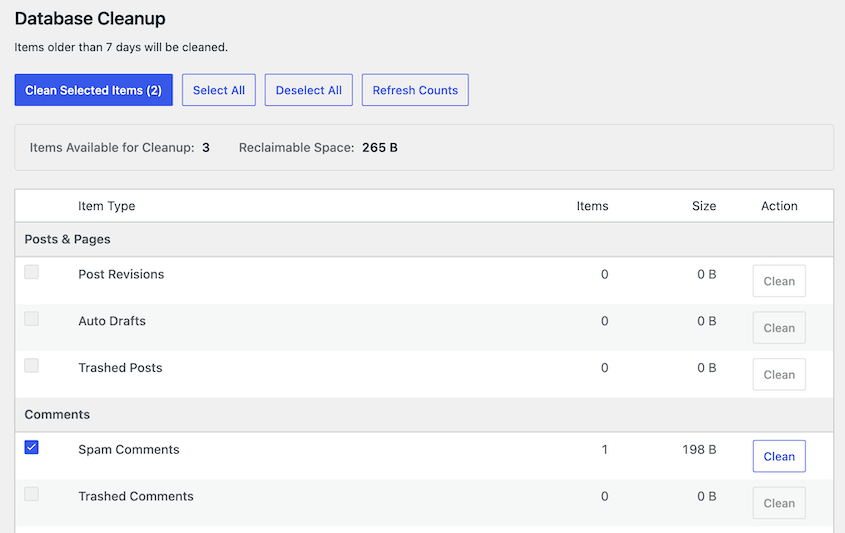
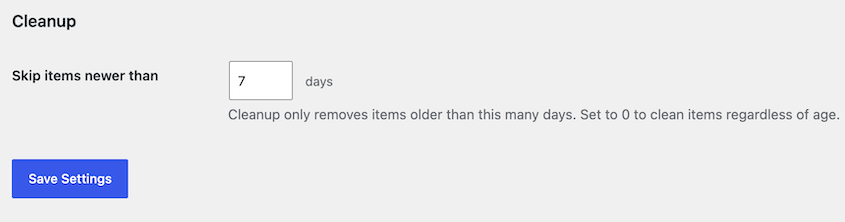
One more thing to check before cleaning: the retention setting. The default protects anything from the last 7 days, and you can adjust it. Find this value in DB Optimizer’s settings.
Once you’re ready, click Clean Selected Items and confirm.
When it finishes, hit Refresh Score and write the new numbers next to the old ones. That comparison is the reason you took a baseline in Step 1.
How Often Should You Run a WordPress Database Health Check?
Database bloat comes back. This isn’t a problem you solve once; it’s one you keep at a manageable level.
The right cleaning schedule depends on how much your site is doing day to day.
Here’s the schedule I use:
- Monthly cleanups for active blogs, WooCommerce stores, and membership sites. Anything with regular publishing, orders, or user activity is generating rows every day.
- Quarterly cleanups for a static site that gets edited a few times a year. Go longer than that, and you lose the growth-rate signal because you won’t have enough readings to compare.
A few moments are worth an off-schedule check. These are the ones where I always look first:
- Before a migration. A bloated database makes every part of a move slower and gives the import more chances to time out.
- After removing plugins. That’s when orphaned tables could appear.
- After a bulk import. Large imports generate revisions and postmeta rows in volume.
- Before a launch or a sale. Traffic amplifies whatever inefficiency you’re already carrying.
Troubleshooting a WordPress Database Health Check
Most of these show up on larger sites. Here are the problems I see most often and what to do about each.
Directories and Sizes Just Says “Loading” and Never Finishes
What you see: The Directories and Sizes section in the Health Check spins indefinitely, and no database size ever appears.
Why it happens: WordPress calculates those figures live by walking your directories. On a site with a large uploads folder, that can take longer than the request allows. It also relies on loopback requests, which some hosts and security plugins block.
How to fix it: Give it a couple of minutes first if the site is big. If it still won’t resolve, check the loopback request test on the Status tab. That’s usually the culprit, and your host can explain it in one reply. You can also read the database size straight from your hosting control panel or phpMyAdmin.
Why Doesn’t Site Health’s Database Size Match What Your Host Reports?
What you see: Site Health says 180MB. Your hosting panel says 400MB.
Why it happens: They’re counting different things. Site Health reports data plus indexes. Hosts often report allocated disk space, which includes room your database isn’t using yet. Some of them fold in binary logs or stored backups.
How to fix it: Pick one source and stay with it. The absolute figure matters much less than watching the same measurement move over time, so consistency beats precision here.
You Found Tables You Don’t Recognize
What you see: Tables in your database with names you can’t place.
Why it happens: Plugins create their own tables, and most don’t remove them on uninstall. Some hosts and security tools add tables too. A few will belong to plugins that are still active under a name you wouldn’t guess from the outside.
How to fix it: Search the exact table name before doing anything with it. Check it against the plugins you’ve deleted. If you can identify it as a leftover and you have the backup from Step 5, dropping it is reasonable. If you can’t identify it, leave it. Never drop a table to find out what it did.
Frequently Asked Questions (FAQs)
Does WordPress have a built-in database health check?
Not in the sense most people mean. The Site Health tool under Tools reports your database size, your MySQL or MariaDB version, and your character set. It doesn’t measure revisions, overhead, autoloaded options, or orphaned tables. You can pass every Site Health test with a database that’s mostly accumulated junk.
How big is too big for a WordPress database?
There’s no single number because it depends on what the site does. A WooCommerce store with years of real orders can run several hundred MB and be in good shape. A small blog over 100MB is usually carrying a lot of revisions and transients. Judge composition and growth rate between checks, not the total on its own.
Do I need a plugin to check my database health?
Not for size. Tools » Site Health gives you that for free in about 30 seconds. You do need something extra to see what’s inside: revisions, overhead, autoload size, and trash counts. That requires either a plugin like DB Optimizer or direct access through phpMyAdmin, where you write the queries yourself.
Will a database health check slow down my site?
Measuring won’t. Reading table sizes and counting rows is cheap, and you can do it on a live site in the middle of the day without anyone noticing. The part that carries a cost is optimizing large tables, because that rebuilds them and holds a lock while it runs. Schedule that for your quietest window.
Is it safe to delete post revisions and transients?
Yes, with two conditions. Keep a retention window so recent revisions survive (DB Optimizer protects the last 7 days by default), and take a backup first. Revisions are old copies of posts you’ve already published. Expired transients are cached values past their expiration date, and anything still needed regenerates on its own.
Check the Numbers Before Your Site Tells You Something’s Wrong
You now have something most sites don’t: a dated baseline, a verdict on five metrics, and a date to check them again. A WordPress database health check isn’t difficult work.
The reading that matters most is the one you take next time. A database that grew 15% during a busy quarter is fine. The same growth on a site you barely touched means something is writing rows you don’t know about. That’s worth troubleshooting before it causes problems like backup timeouts.
Duplicator Pro allows you to schedule backups, store data in the cloud, and roll back your site if an error happens. When you upgrade to Pro, you’ll get DB Optimizer for free!
If this tutorial helped, these guides are worth bookmarking too.
- How to Optimize Your WordPress Database: Get a Fast Site in 10 Steps.
- WordPress Database Cleanup: A Beginner’s Guide to Removing the Junk
- How to Fix a Slow WordPress Database: A 4-Step Checklist
- 7 WordPress Database Warning Signs Most Site Owners Miss
- The Best WordPress Database Optimization Plugin for 2026 (Plus 4 Alternatives)
- How to Update Your WordPress Database (+ Fix the Update Required Loop)




