

How to Update Your WordPress Database (+ Fix the Update Required Loop)
 Joella Dunn
Joella Dunn
Joella Dunn
 John Turner
John Turner
John Turner
You updated WordPress, and now your dashboard won’t stop telling you the database needs an update too.
You click the button. It says “No update required, your database is already up to date.” Then you reload the page, and the same message is back.
This happens more than people realize, and it’s not always obvious why.
Sometimes it’s a caching issue or a version mismatch between your WordPress files and your database. Other times, it’s a corrupted table that’s quietly been a problem for months and only now is blocking something.
In this guide, I’ll walk you through the standard update process first, then cover ways to fix the loop if you’re stuck in it.
I’ll also show you how to check your database’s health before you update, so you’re less likely to hit this in the first place.
Here are the key takeaways:
- The one-click dashboard update handles the database automatically; Methods 2 and 3 (forcing via URL, WP-CLI) are only needed for manual file updates or Multisite networks
- The “update required” loop is rarely a real database problem. It’s most often a stale object cache or caching plugin serving an outdated admin screen, fixable in minutes
- A health check before you update can prevent the loop entirely. Table overhead and structural issues that DB Optimizer flags are a common reason updates get stuck partway through
- Database updates and database configuration are different things — schema updates happen automatically after a core update; connection details in wp-config.php only need changing after a migration
- Always back up with Duplicator before updating. If a plugin conflict breaks something during the update, restoring from backup is faster than troubleshooting blind
Table of Contents
- Why Update Your WordPress Database?
- Before Updating Your WordPress Database
- How to Update Your WordPress Database
- How to Fix the WordPress Database Update Required Loop
- How to Update Your WordPress Database Configuration
- Frequently Asked Questions (FAQs)
- Your Database Is Updated, Here's What to Watch Next
Why Update Your WordPress Database?
Every WordPress core update can include changes to the database structure, not just the code. New features sometimes need new tables, new columns, or changes to how existing data is organized.
When you update WordPress, the core files update first. Then, if the new version needs database changes, WordPress shows you a notice asking you to update the database too.
Skip this step, and you end up running new WordPress code against an old database structure. Plugins that depend on the new schema throw errors. Some admin screens stop loading correctly.
In some cases, the site stays usable but specific features quietly fail.
The database update itself is usually fast. It’s the getting-stuck part that takes time, which is why most of this guide is about prevention and troubleshooting rather than the update itself.
Before Updating Your WordPress Database
Two things before you touch the Updates page: back up everything, and check your database’s current health.
Skipping either one makes troubleshooting more necessary.
Step 1: Back Up Your Full Site
Before you update your WordPress database, create a full backup of your site. This includes your database, files, and any other important data.
Having a recent, reliable backup will allow you to easily restore your site if anything goes wrong during the update process.
To do this, I’d recommend using Duplicator. Unlike other backup plugins, it can get your website back to normal even if it’s completely offline.
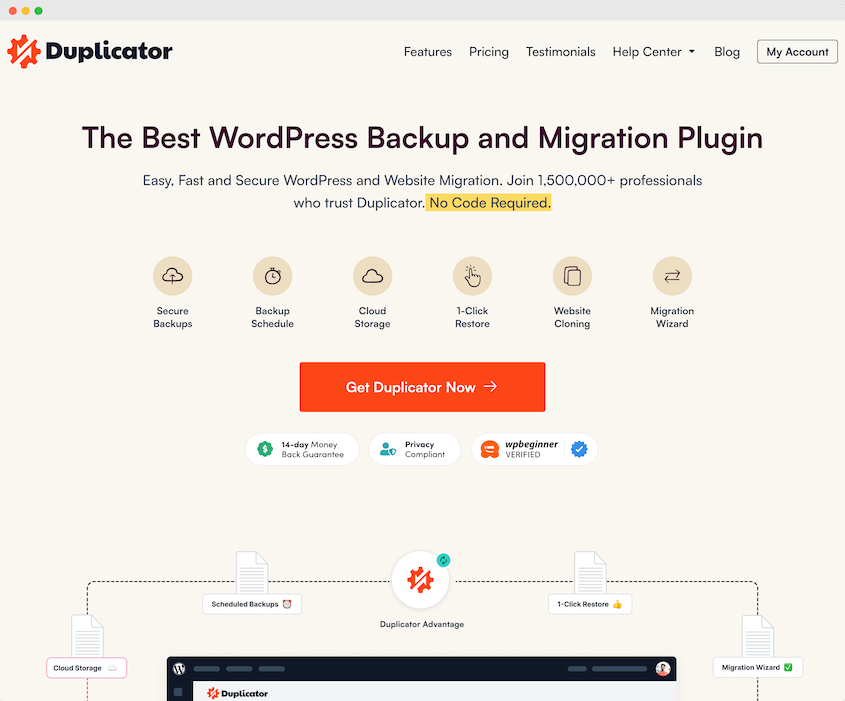
Open Duplicator from your WordPress dashboard and create a new backup. For a core update, back up your full site, not just the database.
Core updates touch files as well as the database, so a database-only backup won’t cover you if the file update causes a problem.

Name the backup something you’ll recognize later and choose a storage location. If you have cloud storage connected (like Duplicator Cloud), Duplicator can send the backup there automatically.
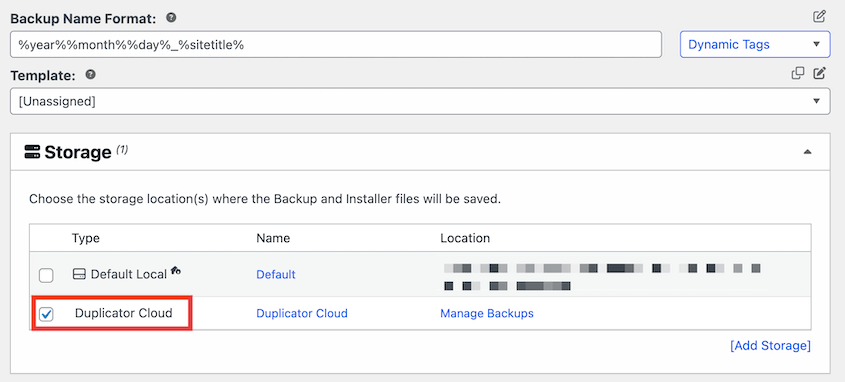
Once the backup completes, you’ll see it listed on the Backups page. That’s your restore point if anything in the next steps goes wrong.
Just in case anything goes wrong, it’s a good idea to set this backup as the disaster recovery point. Click on the blue house icon.
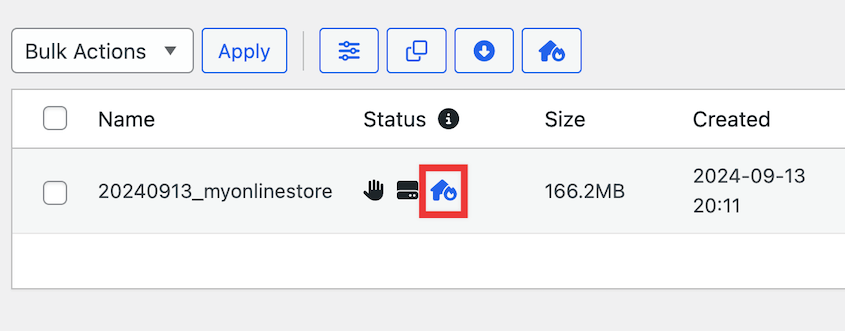
Once you set disaster recovery, you’ll get two different ways to restore your site. Either copy the recovery link or download the launcher file.
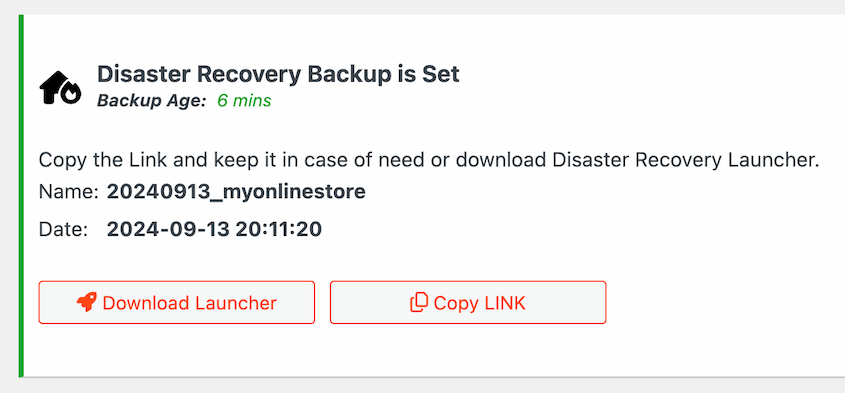
If you get completely locked out of your admin dashboard, paste the recovery link into a browser window. Or, open the launcher file. Duplicator will automatically restore this backup you just created.
I do this before every core update, even minor ones. The five minutes it takes is nothing compared to troubleshooting a broken site without a backup.
Step 2: Run a Database Health Check with DB Optimizer
This step catches what the standard update process doesn’t check: a database that’s already got issues before you even start.
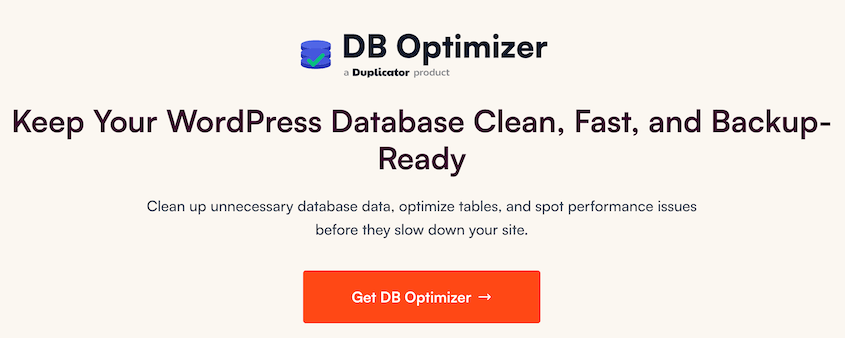
Before updating, let’s clean up your database with DB Optimizer. This plugin is free with Duplicator Pro.
The first thing you’ll see is a health score from 0 to 100, broken into five areas: Table Overhead, Transients, Revisions, Autoload Size, and Trash Items.
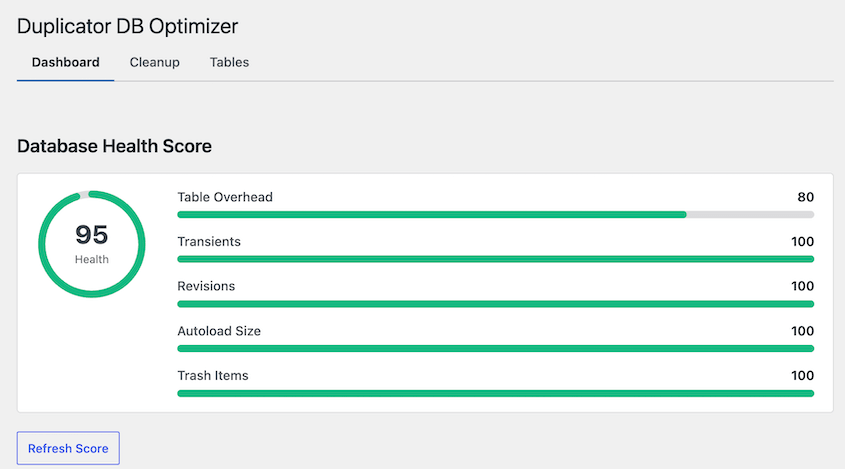
You’re looking for one thing in particular here: table overhead. If that bar is yellow or red, it usually means one or more tables have accumulated wasted space or, in some cases, structural issues from incomplete operations.
A database with table-level problems is more likely to run into trouble during a schema update. If a table the update needs to modify is already in a bad state, the update can fail partway through, which is one of the ways people end up stuck in the loop I mentioned earlier.
Open the Cleanup tab and run all of the optimizations available.
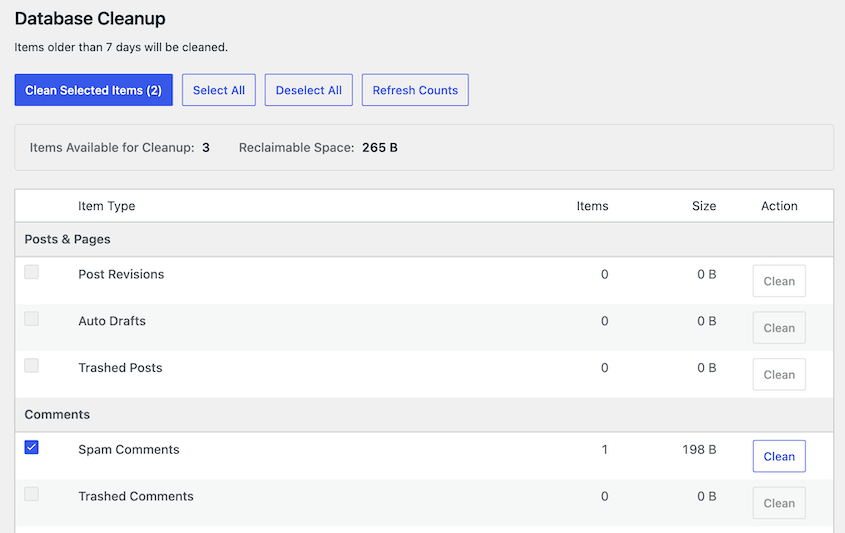
Then, head over to the Tables tab. Optimize any tables with overhead.
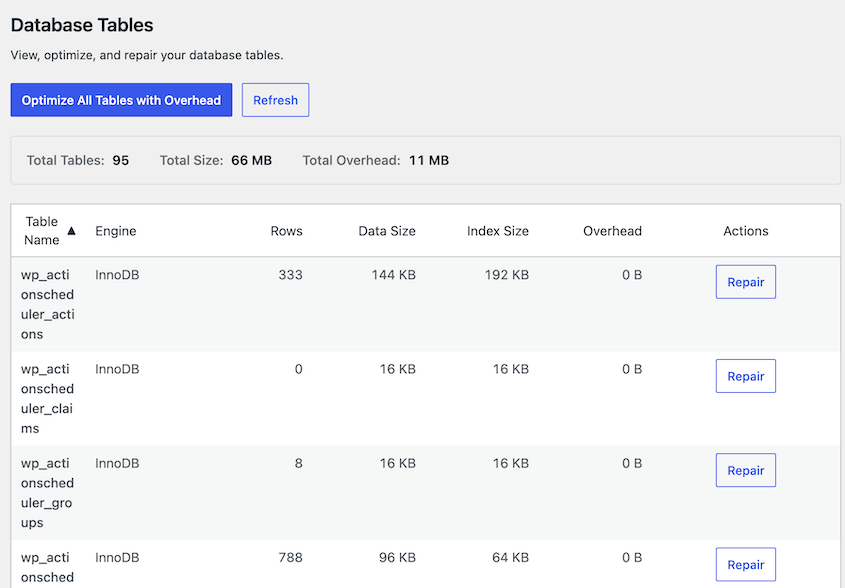
Once your health score looks reasonable and table overhead is clear, you’re ready to update!
How to Update Your WordPress Database
There are three ways to run a WordPress database update. Here’s what you’ll do:
- Method 1: The one-click dashboard update: the standard path for most updates, where WordPress prompts you automatically after a core update
- Method 2: Force the update via URL: for when you’ve updated WordPress files manually and the database prompt doesn’t appear on its own
- Method 3: Use WP-CLI: for updating the database from the command line, useful for Multisite networks or when the dashboard method won’t load
Most people only need Method 1. The other two are there for the situations where Method 1 doesn’t apply or doesn’t work.
Method 1: The One-Click Dashboard Update
Usually, upgrading WordPress databases is an easy process. Start by updating your website to the latest version of WordPress. You can do this on the Updates page.
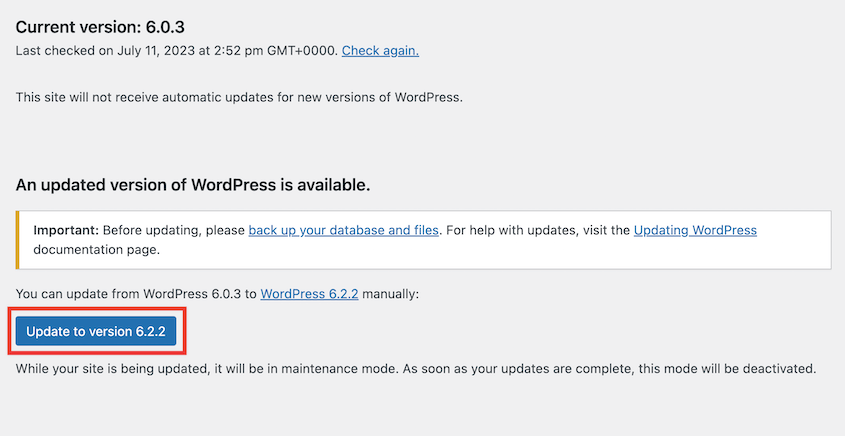
If your database also needs updating, a notice will pop up. Click on Update WordPress Database.
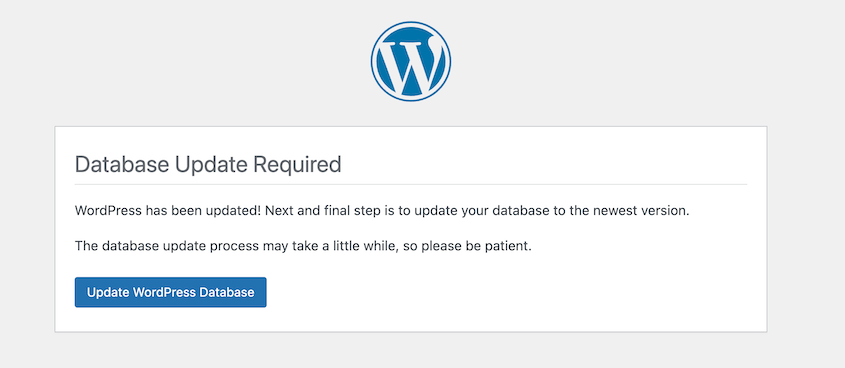
When it’s done, you’ll see a success message and a Continue button. Click it, and you’ll land back in your dashboard like normal.
If no database changes were needed for that version, you won’t see this screen at all. That’s normal. Not every core update includes database changes.
Method 2: Force the Database Update via URL
Use this if you updated your WordPress files manually, through FTP or your hosting file manager, and the database update prompt never appeared.
Open your browser and go directly to: yourdomain.com/wp-admin/upgrade.php
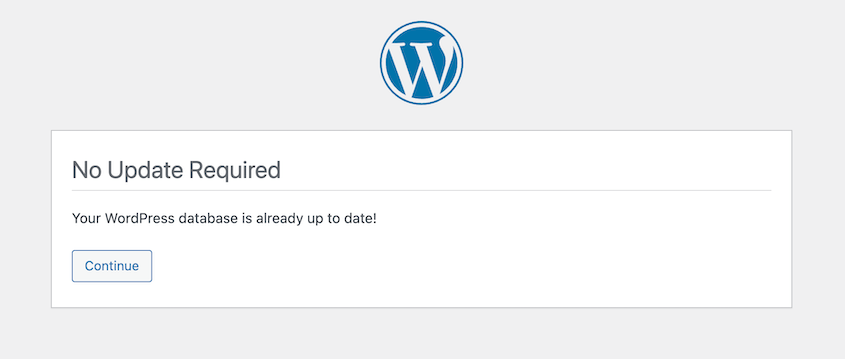
Be sure to update this with your site URL. WordPress will tell you if your database is up to date.
Method 3: Use WP-CLI
If you have SSH access to your server, WP-CLI offers the fastest way to run a database update, and it’s especially useful if the dashboard isn’t loading correctly.
Connect to your server via SSH and navigate to your WordPress root directory:
cd /path/to/your/wordpressThen run:
wp core update-dbThis updates the database for a single site installation. You’ll see a confirmation message once it’s done.
If you’re managing a Multisite network, use this instead to update every site in the network at once:
wp core update-db --networkWP-CLI gives you direct output, so if something fails, you’ll see an error message. That makes it useful for diagnosing problems even if you end up fixing them through the dashboard.
How to Fix the WordPress Database Update Required Loop
When you update your WordPress database, you might get stuck in a “database update required” loop. This happens when WordPress detects that your database needs an update, but for some reason, the update process doesn’t complete successfully.
If this error happens, WordPress will continually prompt you to update the database on every page load, creating an endless loop.
Let’s start by checking that the db_version value in your database is the same in the version.php file.
In cPanel, open Databases » phpMyAdmin. Select your database and click on the wp_options table. Write down the option_value for the db_version.
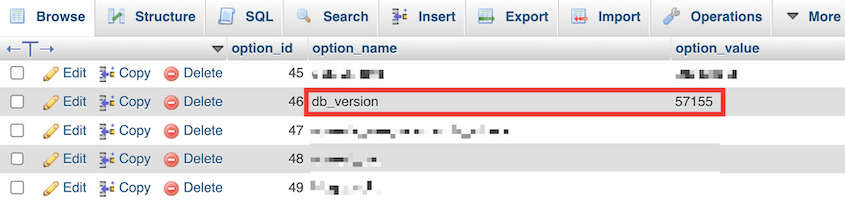
Next, open your site files. Go to the wp-include directory and find the version.php file. In this file, you should see a line like this:
$wp_db_version = 57155;Make sure these values are the same. You may need to update your version.php file.
Another way to fix this error is to find the object-cache.php file in your wp-content directory. Delete or rename this file.
How to Update Your WordPress Database Configuration
You may also need to update the WordPress database connection details in your site’s configuration file (wp-config.php). This file contains the credentials and settings needed for WordPress to connect to your database.
The wp-config.php file is located in the root directory of your WordPress installation. Inside this file, you’ll find the following database connection details:
- DB_NAME: The name of your WordPress database
- DB_USER: The username used to access your WordPress database
- DB_PASSWORD: The password used to access your WordPress database
- DB_HOST: The host or server where your WordPress database is located
These values can change if you’ve migrated your site to a new host or server. You’ll need to update your WordPress database after migrations.
It’s important to be very careful when modifying the wp-config.php file, as a single typo can prevent your site from connecting to the database. Always make a backup of your wp-config.php file before making any changes.
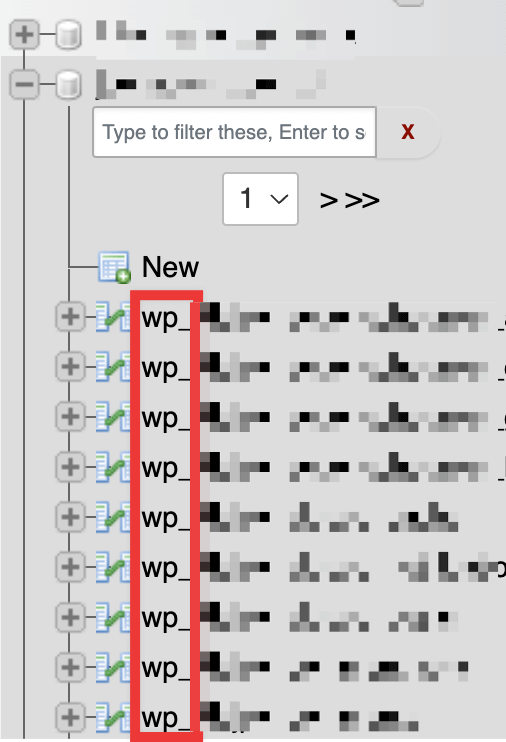
To check your WordPress database configuration settings, open phpMyAdmin. Select your database.
Check the first part of the table names to get your database prefix. This will most likely be wp_.
Head back to the Databases section and click on MySQL Databases.
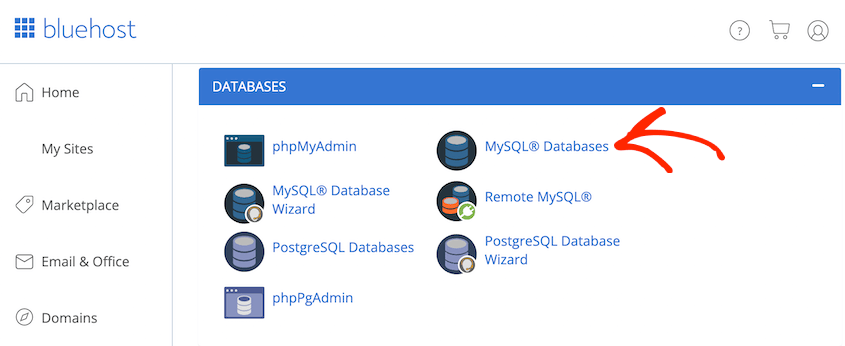
Find your current database. Note the username and password for it.
Now you can open your wp-config.php file. Edit the database name, user, and password with the information you just discovered.
Set the DB_Host to localhost. Add your table prefix as well.
After this, save the file.
Frequently Asked Questions (FAQs)
How do I access my WordPress database?
You can access your WordPress database with a tool like phpMyAdmin. This database manager is often provided by your web hosting provider. phpMyAdmin allows you to view and manage all the tables and data in your WordPress database.
Where are WordPress database settings?
The database connection details for your WordPress website are stored in the wp-config.php file, located in the root directory of your WordPress installation. This file contains the essential credentials needed for WordPress to connect to your database, including the database name, username, password, and host.
How do I check my WordPress database version?
To check if you need to update your WordPress database version, go to yourdomain.com/wp-admin/upgrade.php. If there is an available update, WordPress will prompt you to install it.
How do I reset my WordPress database?
To reset your WordPress database, check to see if you have a database backup with the functionality you’re looking for. A plugin like Duplicator will keep a full log of your backups. If you find the right one, restore it.

If you need to completely reset it to the default settings, you can use a plugin like DB Reset Pro.
Can you restore the WordPress database?
Yes, you can restore your WordPress database from a backup. Once you have a database backup, Duplicator will give you easy-to-use Restore buttons next to it.
Does updating WordPress automatically update the database?
WordPress checks whether the new core version requires database changes and shows you a notice if it does. The database update itself isn’t fully automatic. You need to click Update WordPress Database on the notice that appears after the core files update. If no schema changes are needed for that version, you won’t see this notice at all.
What happens if I don’t update my WordPress database?
Your site keeps running, but you may run into compatibility issues. Plugins or themes that expect the new database schema can throw errors, certain admin screens may not load correctly, and some new WordPress features won’t work. The longer you wait, the more updates stack up, which makes troubleshooting harder if something eventually breaks.
Your Database Is Updated, Here’s What to Watch Next
Your WordPress database is now running on the current version, matching your updated core files. Your site continues running exactly as before, just on an updated foundation.
Keep an eye on plugins after a core update, especially in the days right after. Some plugins ship their own database changes that run independently of the WordPress core update, and those can surface issues a day or two later.
Run a DB Optimizer health check again after the update. Some update processes leave behind temporary data or additional overhead. A quick post-update check (and cleanup if needed) helps you start from a clean baseline.
Every database update carries some risk, even a small one. The difference between a quick fix and a stressful afternoon usually comes down to whether you have a backup you can actually restore.
Over 1.5 million WordPress professionals use Duplicator to back up their sites before every update, migration, and major change. DB Optimizer is included with Duplicator Pro, so you can check your database’s health and back it up before every update.
While you’re here, I think you’ll like these extra WordPress guides:
- How Black Bike Media Rescued a 2.4GB Corrupted Database
- How to Optimize Your WordPress Database: Get a Fast Site in 10 Steps
- How to Copy a WordPress Database (4 Methods)
- 13 Best WordPress Database Plugins for Easy Data Management
- WordPress 101: How to Create a WordPress Database




