

The Safe Way to Back Up WordPress With AI Agents
 Joella Dunn
Joella Dunn
Joella Dunn
 John Turner
John Turner
John Turner
When I connect an AI client to a site now, the first thing I give it isn’t a task. It’s the ability to back the site up.
Duplicator 5.0 makes that possible. AI can create a backup, check whether it finished, and list the backups you already have.
This makes it easy to start your workflow with a safety net. You’ll always have a backup to restore if your AI client makes a change you didn’t intend.
In this tutorial, I’ll show you how to use an AI client to create a verified backup on request, plus a clear path back if anything breaks.
Quick takeaways:
- Your AI assistant can create backups. Duplicator gives it three abilities (list, create, and check status).
- It’s free. AI backups work in the free Duplicator plugin as well as Pro, with no license needed.
- WordPress 6.9 is the hard requirement. The abilities are built on the Abilities API.
- Confirm the backup completed before you let an assistant change anything, using both the status ability and the wp-admin Backups screen.
- A backup stuck at 0% usually isn’t broken. If your host forces browser-side builds, the backup waits until someone loads a page on your site.
Table of Contents
- Why Back Up Your WordPress Site With AI?
- What Can an AI Assistant Do With Your Backups?
- What You'll Need Before You Start
- How to Back Up Your WordPress Site With AI
- What to Do If Your AI Assistant Breaks Something
- Troubleshooting AI Backups
- Frequently Asked Questions (FAQs)
- Give Your AI Assistant an Undo Button
Why Back Up Your WordPress Site With AI?
Duplicator has been able to back up your site for years. You might be used to using wp-admin for everything, but AI can make WordPress maintenance quick and easy.
The backup happens where the work happens
You’re already in the AI chat window, asking what you want done. Asking for a backup costs one sentence and no context switch.
Most people who skip backups don’t doubt that backups work. They don’t want to interrupt whatever they were in the middle of. If you’re using AI for a specific task, you can easily start your conversation with a backup.
It turns into a rule instead of a habit
Back up, confirm it finished, then make the change. Put that at the top of any conversation and let the assistant do the work.
For agencies, it’s the same three steps on every client site. Your AI assistant can check which backups already exist before adding another one.
You can hand off the waiting
Duplicator lets AI check a backup’s progress, so you can ask whether it finished rather than watching a progress bar in wp-admin.
What Can an AI Assistant Do With Your Backups?
Duplicator hands your assistant three abilities:
- List recent backups, with each one’s name, date, status, and size
- Create a new backup, either full-site or database-only
- Check the progress of a backup until it completes
Your assistant can see what you already have, make a new one, and tell you when it’s finished.
However, it can’t restore your site. A restore overwrites everything on a live site with an older copy of it. That decision belongs to you, an admin.
AI builds the safety net. Data restores are still your call, and I’ll show you later exactly how that works.
AI can’t do anything you couldn’t do yourself
Every ability runs through a permission check before it does anything. The assistant acts as the WordPress account behind the connection, so it inherits that account’s capabilities and nothing beyond them.
Duplicator splits those more finely than you might expect. Creating a backup requires the backup creation capability. Listing backups and checking their status require only basic Duplicator access. An account can be allowed to look at your backups without being allowed to build them.
In the free version, all of this is admin only. Assigning these actions per role or per user is advanced permissions, and that needs a Pro-tier license.
The connection between your AI assistant and your site has its own controls on top of this, including approval prompts before anything destructive and access you can pull at any time.
What You’ll Need Before You Start
Here’s what you need to back up your WordPress site with AI:
- WordPress 6.9 or newer. Duplicator’s backup abilities are built on the WordPress Abilities API, which arrived in 6.9. Check Dashboard » Updates before you do anything else.
- Duplicator 5.0 or newer. You can use either the free or Pro versions. AI backups aren’t gated behind a license, so you can follow this entire guide without paying for anything.
- The free WPVibe plugin. You’ll install it from inside Duplicator in Step 2, so there’s nothing to download now.
- An AI assistant that speaks MCP. Claude, ChatGPT, Cursor, Windsurf, and OpenCode all qualify.
WPVibe’s free plan includes a daily allowance of WordPress actions. Ordinary use won’t come close to it. A script that asks for backups in a loop might. For more daily usage, see WPVibe’s premium plans.
How to Back Up Your WordPress Site With AI
I’ll show you six easy steps to create AI WordPress backups. The first three set up the connection, the next two get you a backup you can trust, and the last one makes it a repeatable process.
Here’s what you’ll do:
- Step 1: Install Duplicator and check your WordPress version. Put backup abilities on your site, and make sure your site has the WordPress Abilities API.
- Step 2: Install and connect WPVibe. Build the bridge between your site and your assistant.
- Step 3: Add the MCP server URL to your assistant. Point your assistant at your site.
- Step 4: Prompt your first backup. One sentence to your assistant to instantly create a WordPress backup.
- Step 5: Verify the backup finished. Confirm the backup is real and complete.
- Step 6: Put the backup at the front of every AI workflow. Turn these steps into a pattern you reuse without thinking about it.
Step 1: Install Duplicator and Check Your WordPress Version
Your AI assistant doesn’t know how to back up a WordPress site, and it can’t figure it out. What it can do is call abilities that a plugin has registered with WordPress. Duplicator 5.0 registers three of them, which is what makes AI backups possible.
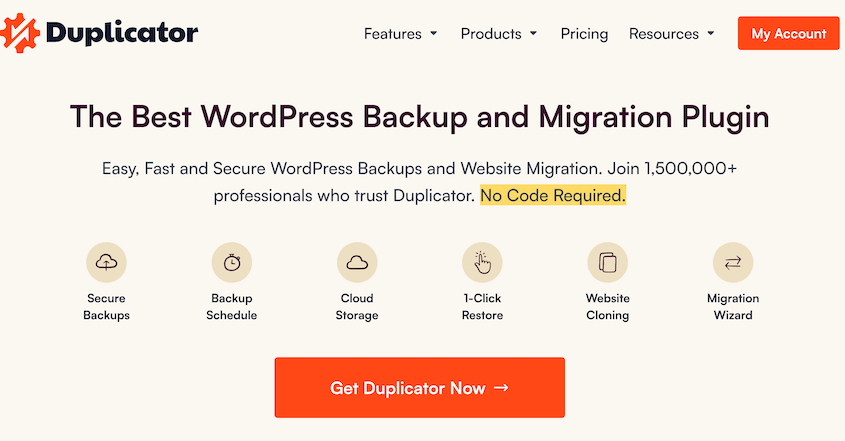
The free version and Pro both register those abilities, so start with whichever one you have.
I always recommend Duplicator Pro because it adds helpful features like one-click staging, cloud storage, and disaster recovery. However, the free version works too.
Install and activate Duplicator. If you’re using the premium version, activate your license key.
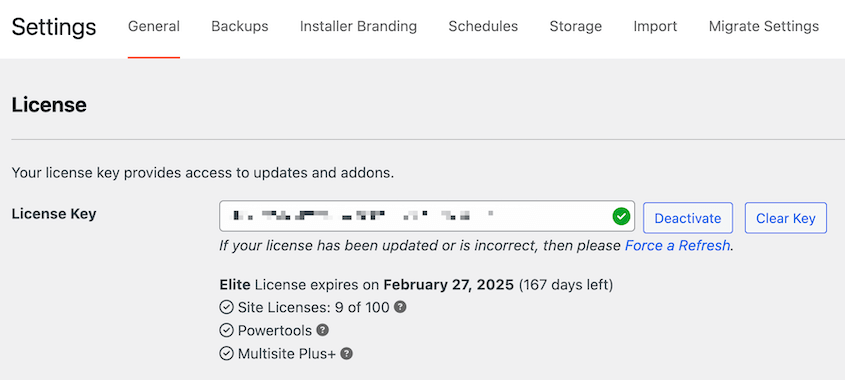
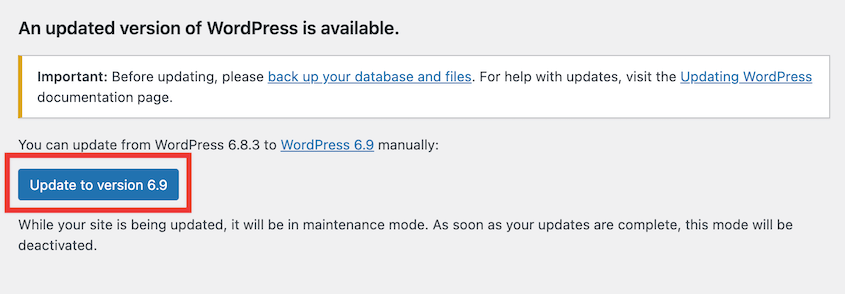
Before you go further, check your WordPress version under Dashboard » Updates. Below 6.9, the abilities won’t register at all. So, update your WordPress site to at least 6.9.
Step 2: Install and Connect WPVibe
Duplicator registers backup API abilities. Something still has to carry them to your AI assistant, and that’s what WPVibe does.
WPVibe is a free plugin that connects your WordPress site to Claude, ChatGPT, Cursor, and other AI clients over MCP.
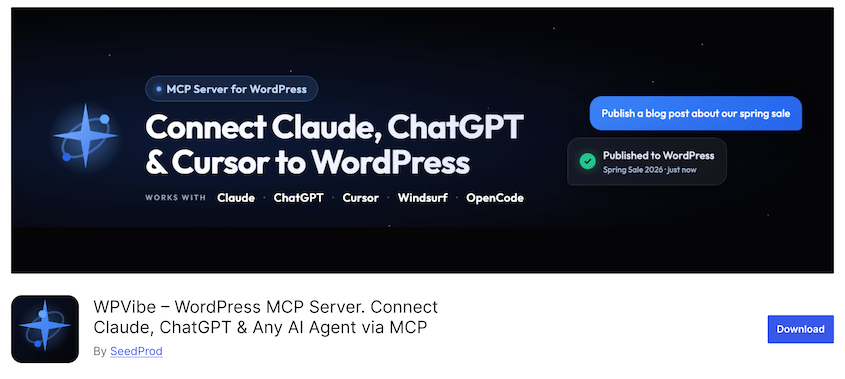
MCP (Model Context Protocol) is the standard AI clients use to talk to outside tools. WPVibe handles the authentication, so you’re never pasting an API key into a field and hoping you got it right.
It brings its own guardrails on top of WordPress permissions too. You’ll get approval prompts before anything destructive runs, a record of what was done, and access you can revoke whenever you want.
You don’t need to go hunting for it. Duplicator installs it for you.
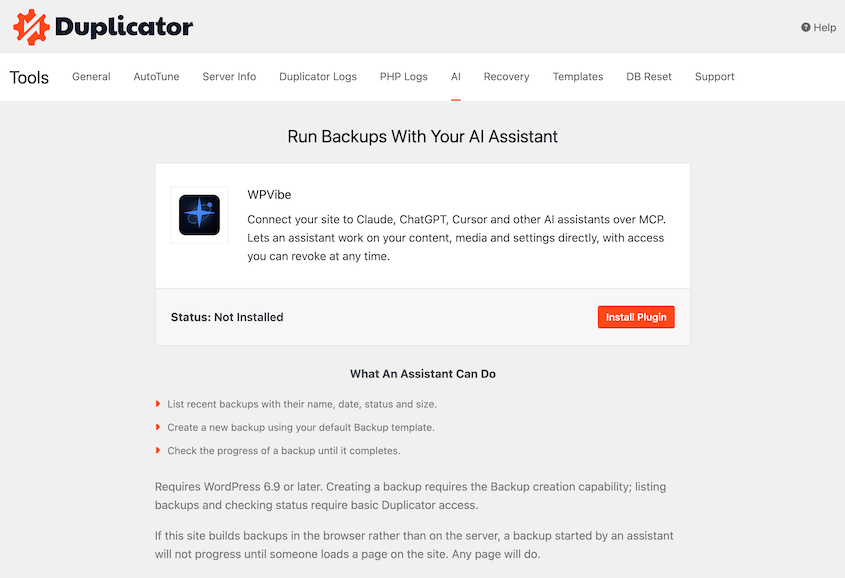
Go to Duplicator » Tools » AI. You’ll see WPVibe with an orange Install Plugin button on the right. Click it.
Once it’s installed and activated, open the WPVibe menu in wp-admin. Click Check site connectivity.
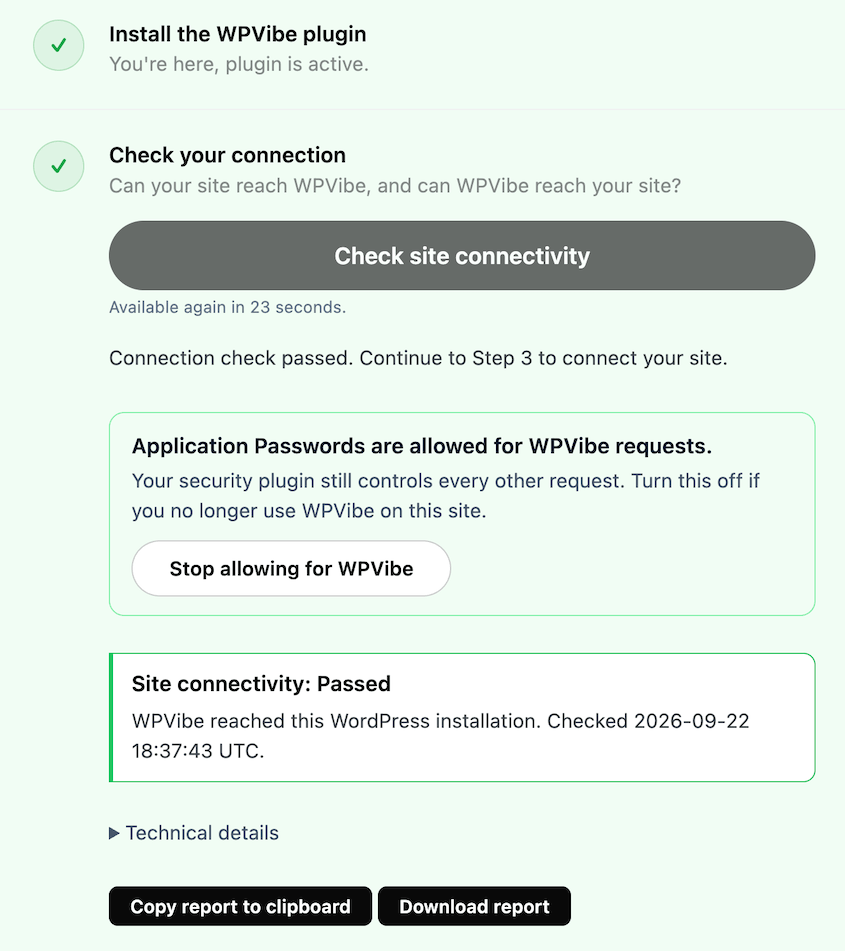
WPVibe will generate an encrypted application password and store it for you. That’s the credential your assistant will use. You never had to create it, copy it, or keep it anywhere yourself.
At this point, WPVibe will connect to your site.
Step 3: Add the MCP Server URL to Your Assistant
WPVibe gives you an MCP server URL. That URL is your site’s address as far as your assistant is concerned, and this step is moving it from one place to the other.
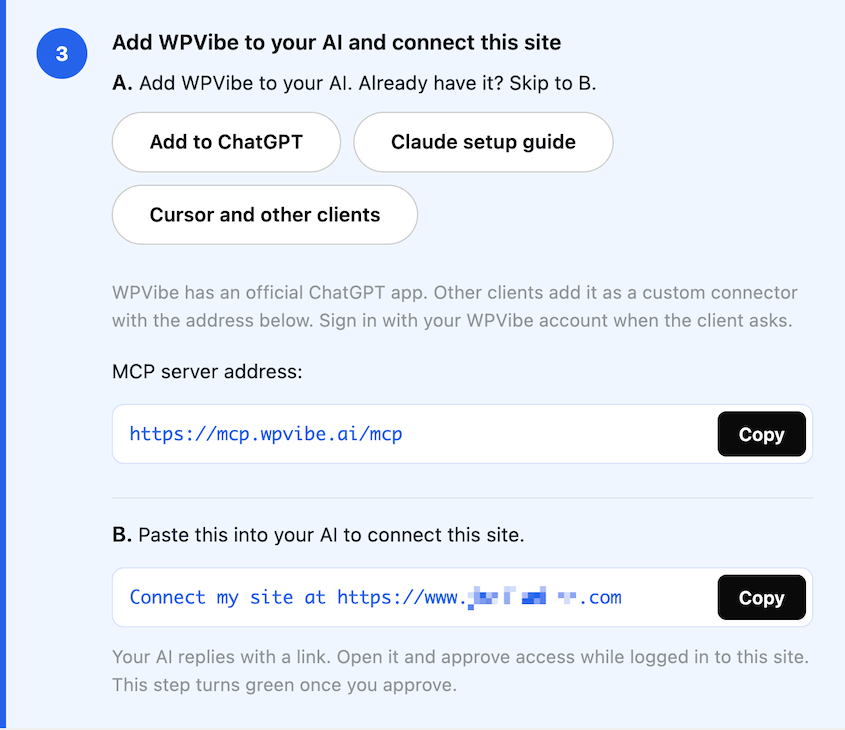
There are a few different ways to do this. I’m using ChatGPT for this tutorial, so I installed the WPVibe ChatGPT plugin.
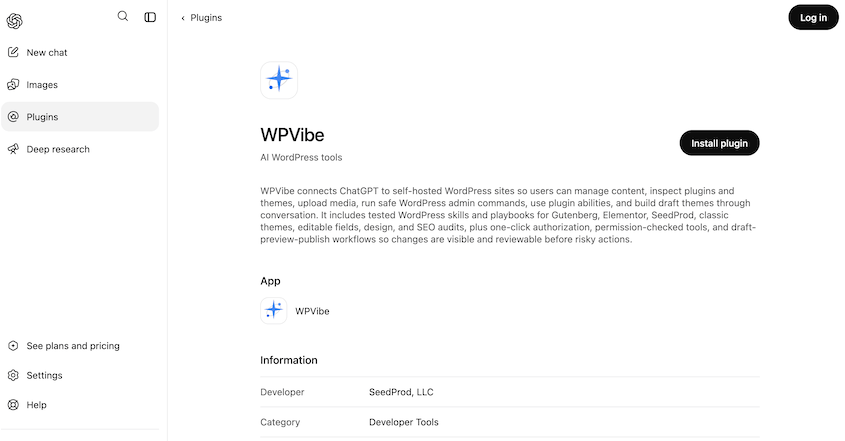
Once installed, it’ll open a WPVibe sign-in in a new browser window. Enter your email and paste the 6-digit code it sends you.
For other WPVibe AI client setups, read this guide.
Then, ask your AI client to connect to your website. Use this prompt: Connect my site at [Your Site URL]
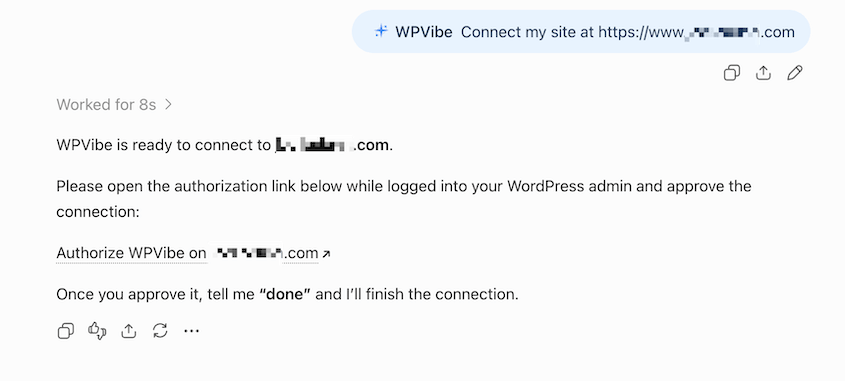
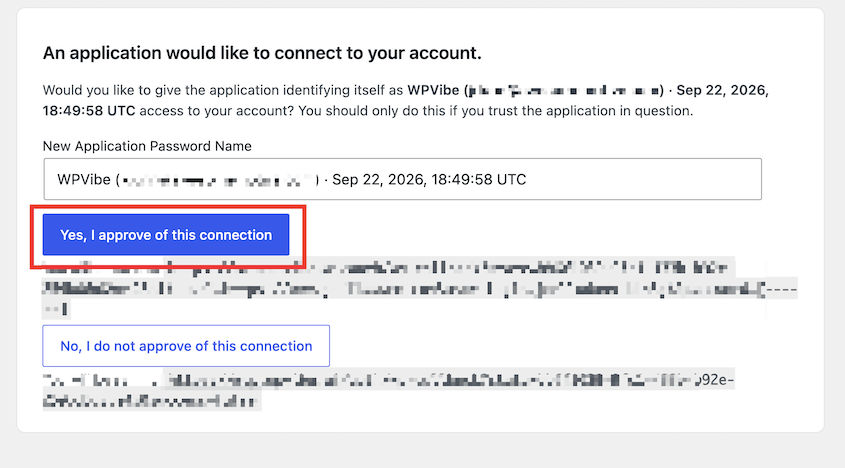
It’ll give you a link where you can authorize the connection. Open it, then click Yes, I approve of this connection.
Test it before you move on. Copy the prompt that WPVibe gives you and paste it back into ChatGPT (or the AI client you’re using).
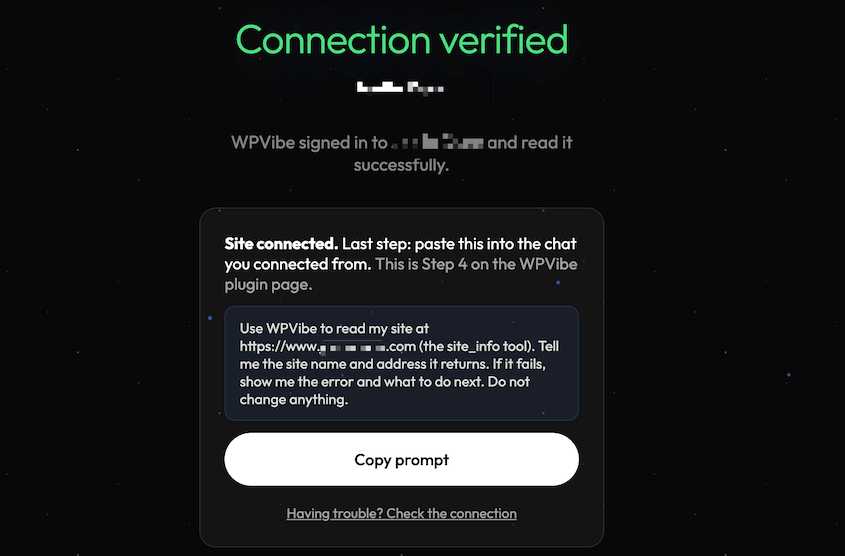
If it lists your site name and address, you’re connected.
Step 4: Prompt Your First Backup
This is the part you set everything up for. Ask your assistant to back up your site with Duplicator.
The AI client calls Duplicator’s create ability and Duplicator starts building.
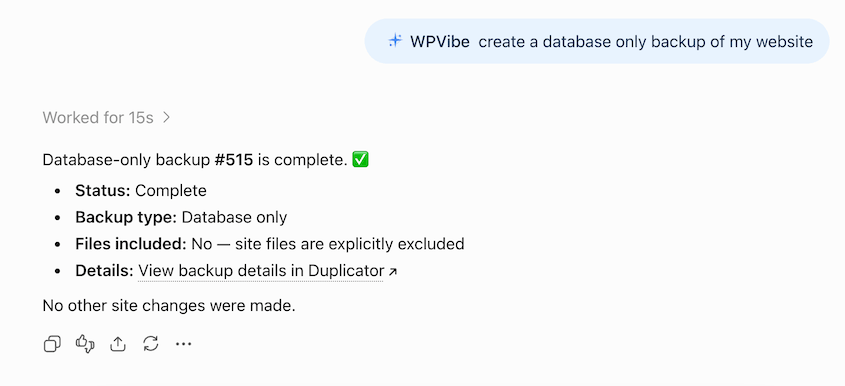
You can create both full-site and database-only backups. It’ll work in the background and let you know once the backup is complete.
Step 5: Verify the Backup Finished
On a large site, a backup can take time, and your AI client won’t sit and watch it. It’ll tell you that the backup is still processing.
You can use status checks to prompt AI to see if it finished.
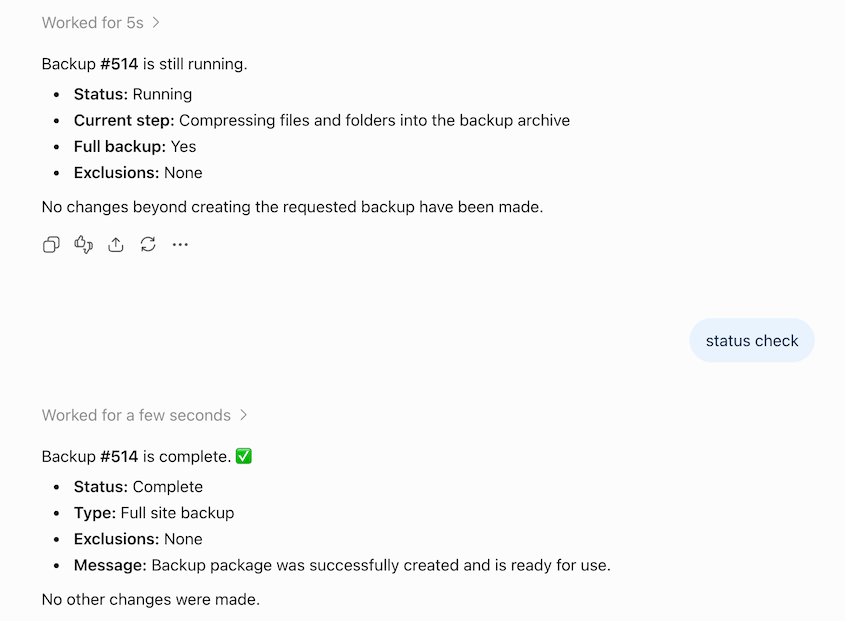
Your assistant comes back with the backup’s current status.
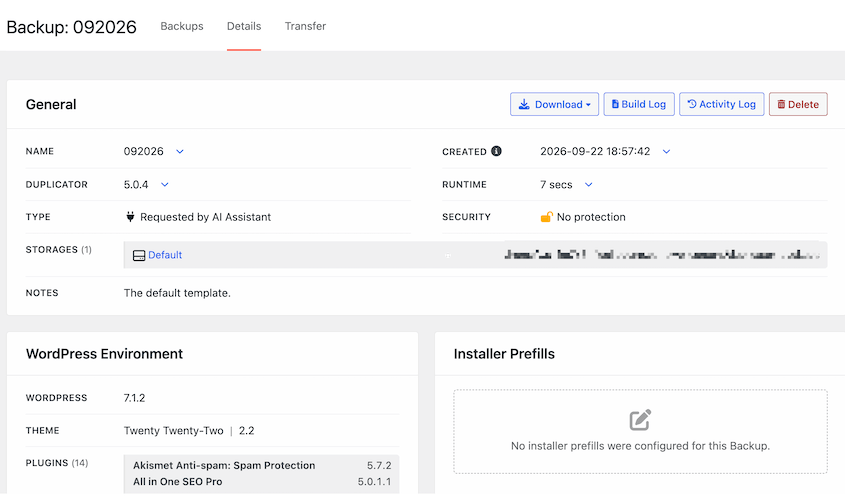
Once it completes, you’ll get a link to the backup details in wp-admin. You’ll see a full overview of the backed-up data, runtime, WordPress environment, and other important information.
If the backup is stuck at 0%
This one catches people, and it has nothing to do with AI.
Duplicator normally builds backups on the server, using background requests to keep the work moving along. Some hosts block those requests. When that happens, Duplicator falls back to building in the browser instead.
That fallback works fine when a person clicks Create Backup. That person is sitting on the site with a page open, and the open page is what drives the build forward.
An assistant triggers the backup from outside your site. Nobody’s there.
So on a quiet site, an assistant-triggered backup can sit at zero indefinitely while your assistant politely reports that it’s in progress. Nothing is broken. The build is waiting for someone to turn up.
The fix takes a second. Open any page on your site in a browser tab. Any page at all. The build picks up where it left off.
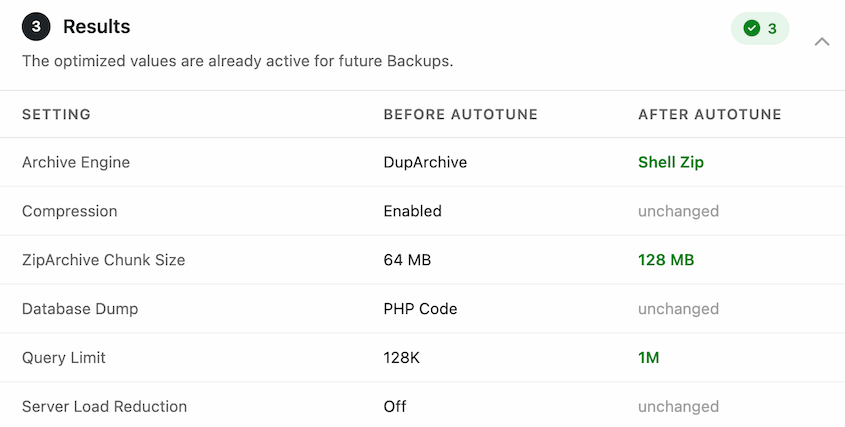
If you’d rather not think about this again, run AutoTune. It runs test backups against your server to find settings that work, and it’ll tell you whether your host can handle server-side builds in the first place.
Step 6: Put the Backup at the Front of Every AI Workflow
This one backup will protect you from whatever you decide to do with WPVibe today. However, I’d suggest adding a backup to the beginning of every new chat.
Always back up, confirm it finished, then make your changes.
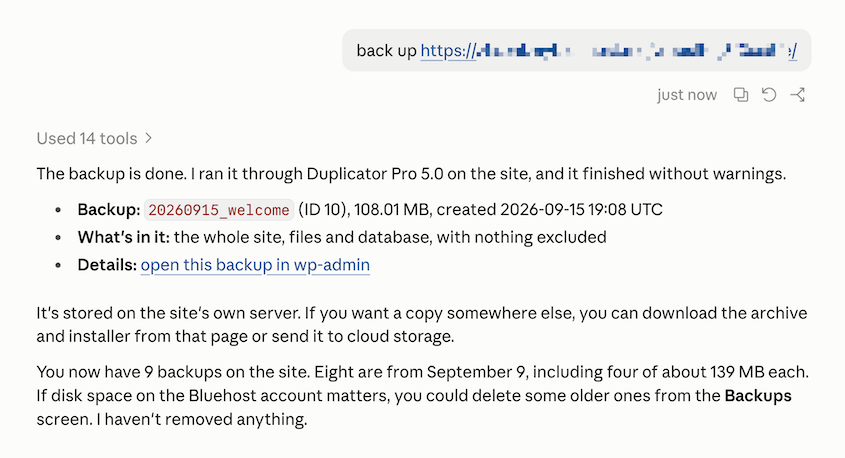
Your assistant can check which backups already exist before making another one. To make sure you’re not accidentally consuming too much server space, adjust the Max Backups value in Duplicator’s local storage settings.
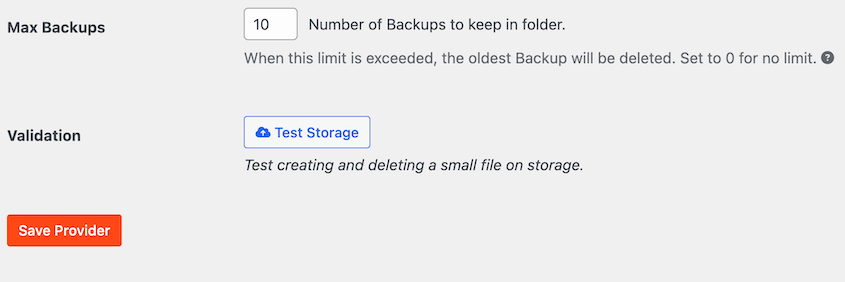
Duplicator will keep the number of backups you specify and delete any older ones.
What to Do If Your AI Assistant Breaks Something
Sooner or later, you’ll need the backup. An agent could rewrite a template you liked or update something that takes the site down.
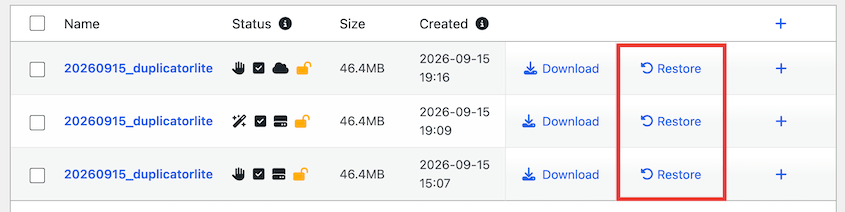
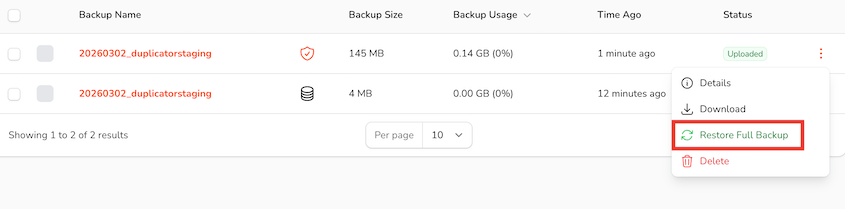
Open Duplicator » Backups, find the most recent clean backup, and restore it. One click from wp-admin, and Duplicator handles the rest.
If you can’t reach wp-admin at all, you can restore from Duplicator Cloud. Just enter your FTP credentials in the recovery connector and restore a cloud backup.
Troubleshooting AI Backups
Your backup sits at 0% and never moves
What you see: Your assistant reports a backup in progress. An hour later, it’s still in progress.
Why it happens: Your host blocks the background requests Duplicator uses to build on the server, so it’s building in the browser instead, and nobody’s on the site to move it along.
How to fix it: Load any page on your site. Then run Duplicator’s AutoTune to find the best backup settings for your server.
Your assistant says a backup is already running
What you see: Another backup is in progress, and you didn’t start one.
Why it happens: Duplicator 5.0 allows one backup at a time, across everything: the wizard, Create buttons, transfers, WP-CLI, schedules, and AutoTune. A scheduled backup that fired a few minutes ago will block your assistant.
How to fix it: Wait for the running backup to finish, then ask again. Duplicator » Backups shows you what’s currently building.
You’re on multisite, and the create ability fails
What you see: A notice that backup creation isn’t available on this site.
Why it happens: The free version of Duplicator doesn’t support backup creation on multisite networks.
How to fix it: Multisite backups need Duplicator’s Pro tier. Upgrade, then try the backup again.
You hit WPVibe’s daily action limit
What you see: Requests start failing partway through a session, with a message about your allowance.
Why it happens: WPVibe’s free plan includes a daily allowance of WordPress actions, and every request your assistant makes counts against it.
How to fix it: Wait for the reset or move up to a paid WPVibe plan. It’s also worth checking whether something is looping requests, because ordinary use rarely comes close to the limit.
Frequently Asked Questions (FAQs)
Can AI restore my WordPress site automatically?
No. Duplicator gives an AI assistant three abilities: list backups, create one, and check its status. Restoring isn’t among them, and that’s deliberate, because a restore overwrites a live site with an older copy of itself. You do the restore yourself from Duplicator » Backups, which takes one click from wp-admin.
Do I need Duplicator Pro to back up with AI?
No. AI backups work in the free version of Duplicator and in Pro. You’ll need WordPress 6.9 or newer and the free WPVibe plugin. Pro adds scheduled backups, multisite support, more storage destinations, and recovery points, but you don’t need any of those to back up with an assistant.
Is it safe to connect an AI assistant to my WordPress site?
Every Duplicator ability runs through a permission check first, so your assistant can only do what the connected WordPress account could do on its own. WPVibe adds approval prompts before destructive actions, keeps a record of what was done, and lets you revoke access at any time. Connect with an account whose permissions you’re comfortable granting.
What WordPress version do I need for AI backups?
WordPress 6.9 or newer. Duplicator’s backup abilities are built on the WordPress Abilities API, which shipped in 6.9. This one catches people, because WPVibe runs on WordPress 6.0 and up, so your connection can succeed on an older site while Duplicator’s abilities are missing entirely. Check Duplicator » Tools » AI to confirm they registered.
Can ChatGPT back up my WordPress site?
Yes, through WPVibe and Duplicator. WPVibe connects your site to ChatGPT or Claude, and Duplicator supplies the backup abilities those assistants call. Setup is the same whichever one you use: install WPVibe, connect your site, then add the MCP server URL to your assistant.
Why is my AI-triggered backup stuck at 0%?
Your host is most likely blocking the background requests Duplicator uses to build backups on the server, so it’s building in the browser instead. A browser build only moves forward while someone has the site open, and an assistant triggers backups from outside. Load any page on your site, and the build continues. Run AutoTune to stop it recurring.
Give Your AI Assistant an Undo Button
Now, a backup is one AI prompt away. This lets you protect your site at the top of your session.
AI assistants are getting more capable and more willing to make changes on your behalf. The sites that come through that in one piece will be the ones with a verified pre-session backup.
Duplicator Pro handles backups, restores, and migrations for more than 1.5 million WordPress professionals. It’s the plugin that still works when WordPress doesn’t. Set it up once, and your assistant can take a backup any time you ask.
If this tutorial helped, these guides are worth bookmarking too.
- [New] Introducing Duplicator 5.0: AI Backups, AutoTune, and Extra Free Features
- How to Back Up a Large WordPress Site
- How to Restore a WordPress Site to a Previous Date Without a Backup
- 22 Most Common WordPress Errors (And Some Quick Fixes)
- How to Secure a WordPress Database: Hardening, Encryption, and Ongoing Protection
- How to Back Up WordPress with SSH




