

How to recover files removed with the WP Media Cleanup plugin
The WP Media Cleanup plugin includes a restore feature that allows you to recover media files that were previously removed. If files were deleted unintentionally, this feature makes it possible to restore them directly from the WordPress dashboard.
This article explains how the restore process works and outlines the different recovery options available, depending on whether you want to restore all files, a group of files, or a single media item.
How the restore feature works
When media files are removed using WP Media Cleanup, they are not immediately deleted permanently. Instead, the plugin keeps a record of the removed files and displays them on a dedicated restore screen.
As long as the files appear on this screen, they can be recovered without re-uploading the media or rebuilding content that relies on them.
Accessing the restore page
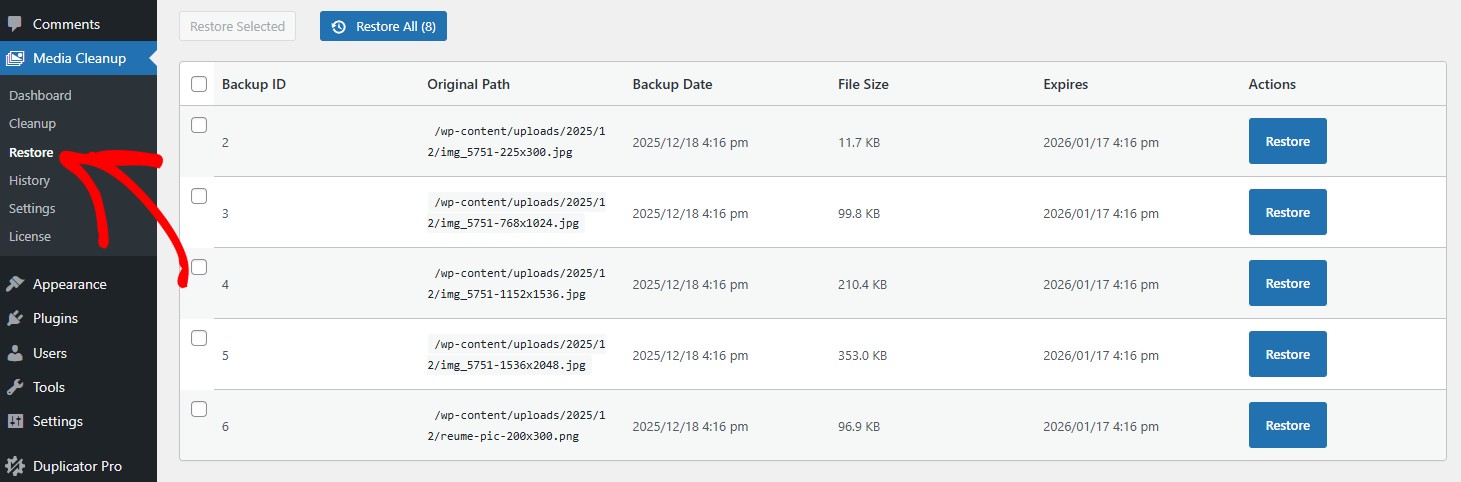
To view and restore media files removed by the plugin:
- Log in to your WordPress admin dashboard.
A list of removed media files appears, along with options to restore them: a Backup ID, Original Path, Backup Date, File Size, and Expires date for each, plus the restore actions.
Restoring all removed media files

If you want to restore every media file that was removed by the plugin:
- Go to Media Cleanup » Restore.
- Confirm the action when prompted.
This will restore all removed files in a single process, which is useful if the cleanup was performed unintentionally.
Even if you have a large number of images, the Media Cleanup plugin ensures a smooth and stable restoration process.
The same action is available from the command line: wp media-cleanup restore --all --yes.
Restoring multiple media files at once

To provide you with more options, the Media Cleanup plugin allows you to restore the multiple media files at once.
- Check the checkbox next to the column “Backup ID”
- Click Restore Selected.
- Confirm the restoration.
This option allows you to recover multiple files without restoring everything.
Restoring a single media file

For more flexibility, and in case you need to restore a specific file, the Media Cleanup plugin allows you to restore a single file.
- Locate the file you want to recover in the restore list.
From the command line, restore a specific file with:
wp media-cleanup restore --attachment-id=<id> or wp media-cleanup restore --backup-id=<id>.
Using the restore feature in the WP Media Cleanup plugin provides a safe way to recover removed media files without re-uploading or rebuilding content. Understanding the available restore options makes it possible to manage media cleanups confidently while maintaining full control over the site’s files.
To learn what gets removed in the first place, see Removing Unused Media Files Using WP Media Cleanup. For a broader look at the plugin’s capabilities, see Important Features of WP Media Cleanup Plugin.


