

![[NEW] Duplicator DB Optimizer: Clean Your WordPress Database Before It Becomes a Problem](https://duplicator.com/wp-content/uploads/2026/06/Announcement-DB-Optimizer.jpg)
DNS Migration Done Right: How to Avoid the Most Common Mistakes
 Joella Dunn
Joella Dunn
Joella Dunn
 John Turner
John Turner
John Turner
You update your DNS settings, hit save, and suddenly your WordPress site vanishes. Your email stops working. Panic sets in.
DNS migration sounds technical, but it’s just pointing your domain name to a new location. The process itself is straightforward, and most of the complexity comes from not knowing what to expect or skipping a few preparation steps.
In this post, I’ll show you everything you need to know about DNS migrations.
You’ll learn when to change nameservers versus A records, how to keep your email working, and what to do when DNS propagation seems to take forever.
Here are the key takeaways:
- DNS migration redirects your domain to a new server by updating nameservers or A records at your domain registrar
- Lower your TTL to 300-600 seconds 24-48 hours before the migration to speed up propagation from 24+ hours to 1-4 hours
- Back up your entire site with Duplicator before touching DNS and store it somewhere accessible regardless of which server DNS points to
- Document your MX records before migration because changing nameservers often wipes email configuration and causes delivery failures
- Test your new site thoroughly using the temporary host URL before changing any DNS settings. Visitors should never land on a half-built site
- Expect 1-4 hour propagation with lowered TTL, 24-48 hours without—different DNS servers update at different times, so inconsistent results are normal
- Changing nameservers (recommended) gives your host full DNS control, while updating A records only keeps you managing individual records at the registrar
Table of Contents
- What is a DNS Migration?
- Why Migrate Your DNS?
- Key DNS Terms You Should Know
- Pre-Migration Checklist Before You Change DNS Records
- How to Perform a DNS Migration for WordPress
- How to Handle Email During a DNS Migration
- Top DNS Migration Mistakes to Avoid
- Tools and Resources for DNS Migration
- Post-Migration DNS Tasks and Optimization
- Frequently Asked Questions (FAQs)
What is a DNS Migration?
DNS migration means updating your Domain Name System (DNS) records so your domain name points to a new location. When someone types your domain into their browser, the DNS tells their computer which server to connect to.
Your domain registrar is where you bought your domain name. This may be GoDaddy, Namecheap, Google Domains, wherever you paid the annual fee.
Your hosting provider is where your WordPress files and database actually live. The web host and domain registrar are sometimes two different companies.
DNS migration doesn’t mean transferring your domain registration from one registrar to another. That’s a domain transfer, which is a separate process with different rules.
You can keep your domain registered at GoDaddy while pointing it to a host like SiteGround, Kinsta, or WP Engine. The registrar still manages your domain ownership and renewal. You’re just telling the DNS where to find your website.
Why Migrate Your DNS?
DNS migrations happen for different reasons, each with its own requirements. Here are the most common scenarios.
Switching Web Hosts
You’re moving from one hosting provider to another, usually for better performance, support, or pricing. Your WordPress site is already set up at the new host, and now you need to redirect all traffic there instead of the old server.
Changing Domain Registrars
You want all your domains in one place for easier management, or you found better pricing. This actually involves transferring the domain registration itself, not just DNS changes.
The process includes DNS migration but adds domain transfer steps and usually requires an authorization code.
Implementing a CDN
You’re adding Cloudflare, Sucuri, or another Content Delivery Network (CDN) for speed and security. These services require DNS changes to route traffic through their servers first before reaching your host. Most CDN setups mean pointing your nameservers to the CDN provider.
Rebranding
You’re moving to an entirely new domain name. This requires setting up DNS for the new domain plus 301 redirects from the old domain so you don’t lose search rankings and existing links still work.
Key DNS Terms You Should Know
Understanding these five DNS terms makes the migration process much clearer. You’ll see them throughout your registrar’s dashboard and hosting control panel.
Nameservers
Nameservers are the authoritative servers that hold all your DNS records. They look like ns1.hostingcompany.com and ns2.hostingcompany.com.
When you change nameservers, you’re handing over complete DNS control to whoever runs those servers (usually your hosting provider).
A Record
This maps your domain to a specific IPv4 address. If your WordPress site lives at IP address 192.0.2.1, the A record tells DNS servers, “When someone requests example.com, send them to 192.0.2.1.”
You can update just the A record instead of changing nameservers entirely.
CNAME Record
A CNAME creates an alias that points one domain to another. The most common use is making www.yoursite.com point to yoursite.com.
You cannot use a CNAME on your root domain at most DNS providers. It only works for subdomains.
MX Record
MX records direct email delivery for your domain. Each record has a priority number where lower numbers mean higher priority.
If you don’t configure these correctly after a DNS migration, your email stops working completely.
TTL
TTL (Time to Live) is measured in seconds and tells DNS servers how long to cache your records before checking for updates.
A TTL of 3600 means one hour. 86400 means 24 hours.
Lower TTL values mean faster propagation when you make changes, but they also create more DNS queries hitting your nameservers.
Pre-Migration Checklist Before You Change DNS Records
Complete these preparation steps before touching any DNS settings. Skipping them is where most migrations go wrong.
Back Up Your Website
Use a backup plugin like Duplicator to create a complete snapshot of your site. This gives you a restore point before you touch any DNS settings.

Store the backup somewhere you can access regardless of which server your DNS points to—your local computer, Duplicator Cloud, Dropbox, Google Drive, anywhere except your current host.
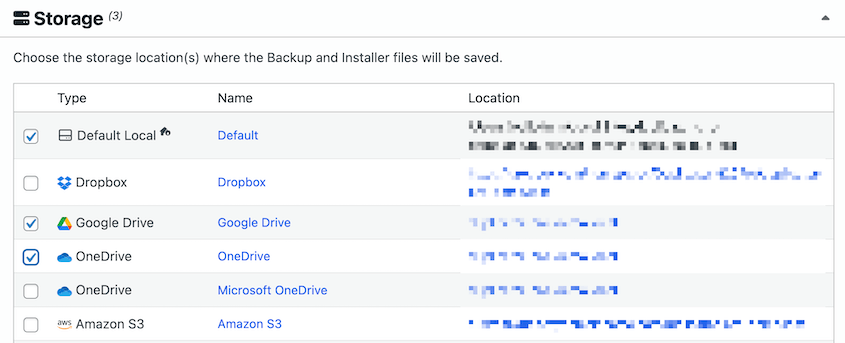
I also recommend testing that the backup restores correctly.
Migrate Files First
Your WordPress site should be 100% functional on the new host before you change DNS records.
Set up everything, install plugins, configure settings, and test functionality. Here’s your migration checklist.
Duplicator handles the file and database migration cleanly. It even allows you to search and replace old domain names during the move.
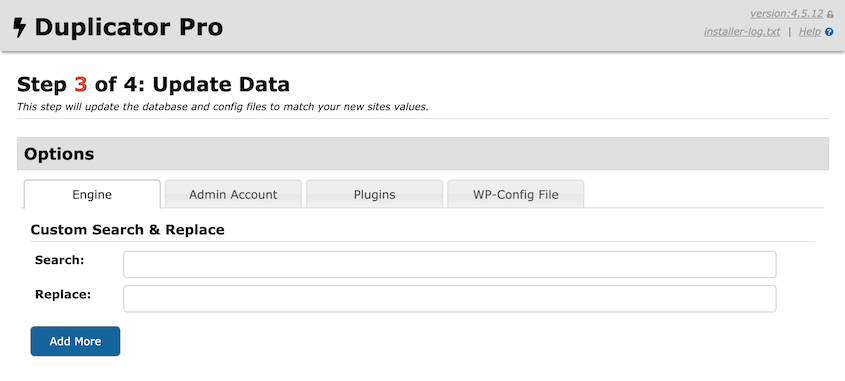
Most hosts provide a temporary URL like temp-12345.hostingcompany.com for testing. Click through your entire site using that URL. Only when everything works should you think about DNS changes.
Check Email Settings
Document your current MX records before changing anything. Log into your registrar’s DNS management and either screenshot or copy-paste every MX record you see.
For example, in DreamHost, you can go to Mail » Custom MX and see mail delivery for your domain.
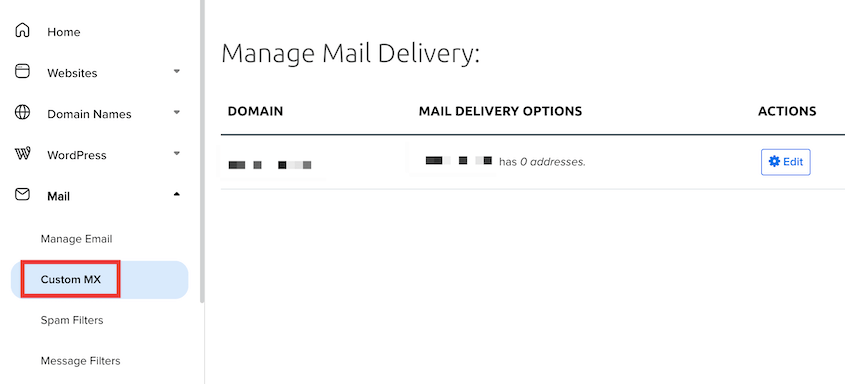
If you use Google Workspace or Microsoft 365, you’ll need to manually add those MX records to your new DNS after the migration. Most hosts don’t automatically know about your email configuration.
Lower Your TTL
24 to 48 hours before migration, change your DNS records’ TTL from 86400 down to 300 or 600. This means DNS servers will only cache your records for 5-10 minutes instead of 24 hours.
When you make the actual DNS change, propagation happens much faster. You can raise the TTL back up after migration completes.
How to Perform a DNS Migration for WordPress
Here’s a quick look at how to perform a DNS migration:
- Step 1: Locate Your New Nameservers or IP Address: Get nameservers from your hosting welcome email or control panel (ns1.host.com format)
- Step 2: Log in to Your Domain Registrar: Access DNS management at GoDaddy, Namecheap, Domain.com, or wherever you bought your domain; use WHOIS lookup if you’ve forgotten which registrar manages it
- Step 3: Update the DNS Records: Change nameservers to hand full DNS control to your host (recommended), or update just the A record to point your domain to the new IP while keeping other DNS settings at the registrar
- Step 4: Wait for Propagation: Expect 1-4 hours with lowered TTL or 24-48 hours without; different DNS servers update at different times, so seeing mixed results (old site vs new site) is normal behavior
Step 1: Locate Your New Nameservers or IP Address
Check the welcome email your new host sent when you signed up. It usually contains nameserver addresses right in the email.
Log into your hosting control panel and look for sections labeled Account Information, DNS Settings, or Nameserver Information. You need at least two nameserver addresses, sometimes up to four.
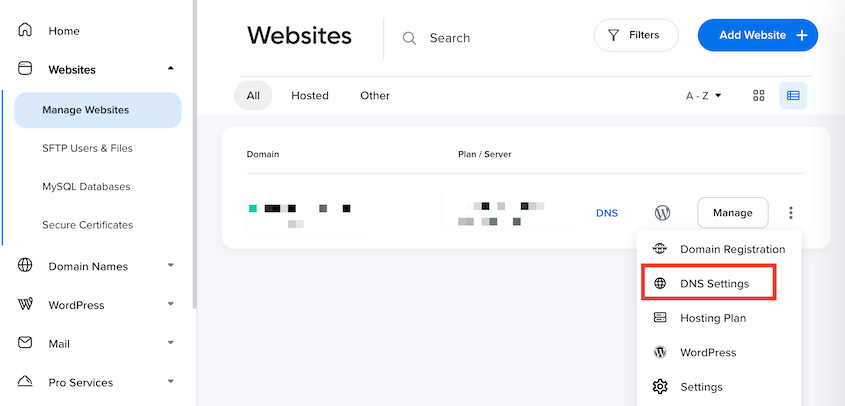
They look like this:
- ns1.hostingcompany.com
- ns2.hostingcompany.com
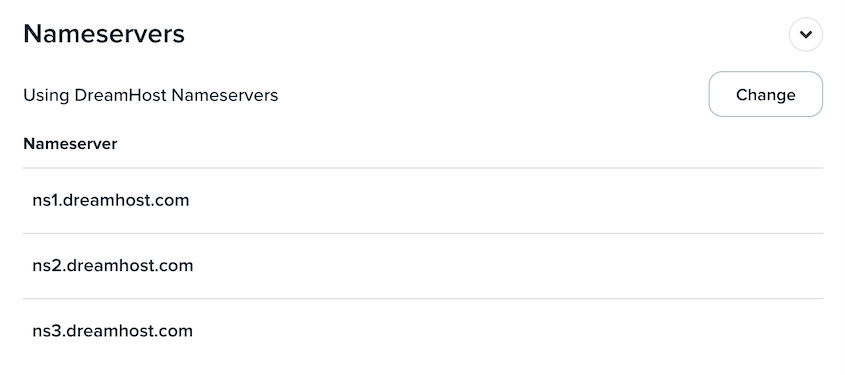
Step 2: Log in to Your Domain Registrar
Each registrar organizes their interface differently, but here’s where to look:
- GoDaddy: My Products » Domains » click your domain » DNS
- Namecheap: Domain List » Manage button next to your domain » Nameservers section
- Domain.com: My Domains » select domain » DNS » Nameservers tab
If you’ve forgotten which registrar manages your domain, use a WHOIS lookup tool. Enter your domain, and the results will show your registrar.
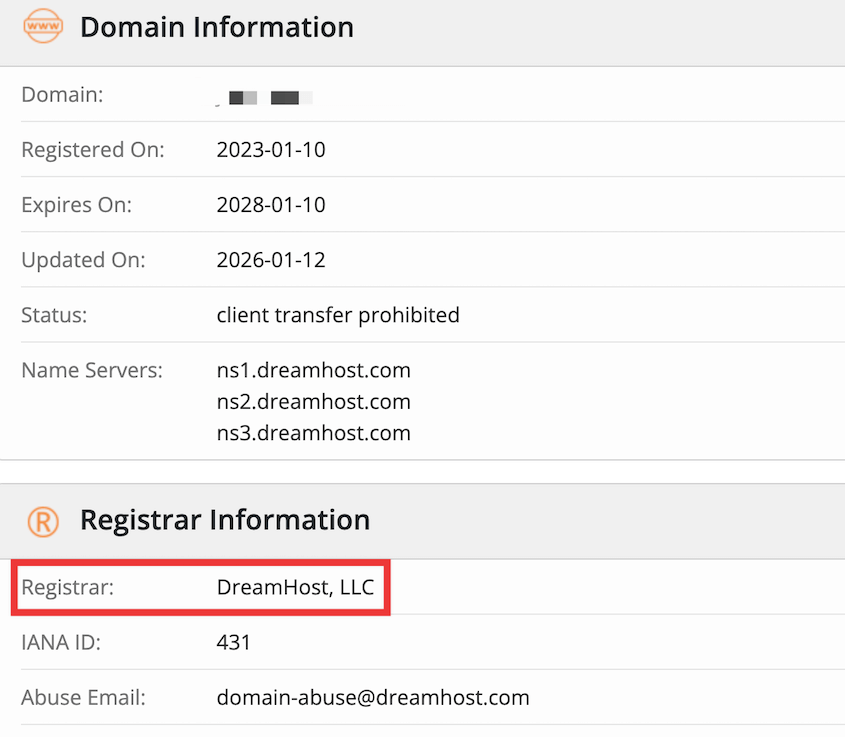
Have your login credentials ready. Some registrars require two-factor authentication or email verification before letting you change DNS settings.
Also check if your domain is locked. Some registrars enable transfer locks by default, which you’ll need to disable first.
Step 3: Update the DNS Records
Find the Nameservers or Custom DNS section in your registrar’s dashboard. You’ll see it’s currently set to Default or the registrar’s own nameservers.
Switch the setting to Custom Nameservers or Use custom nameservers.
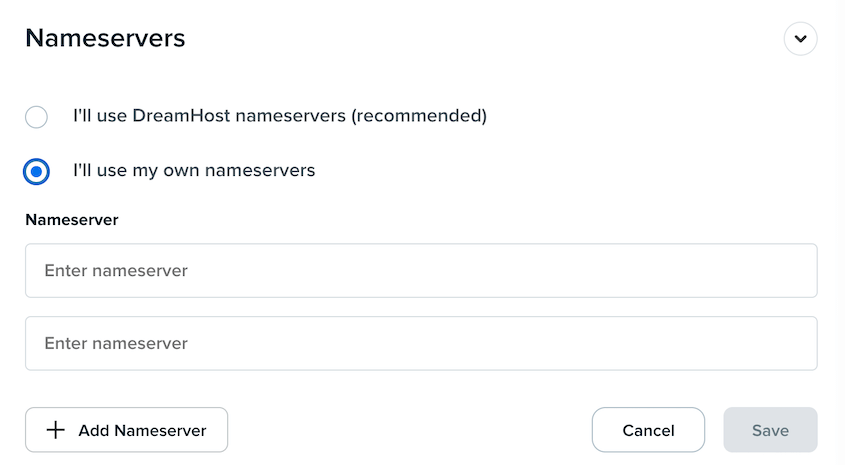
Paste each nameserver address from your new host into the provided fields. Add all the nameservers your host gave you—usually between two and four.
Click save. The registrar will show a warning about propagation time. That’s normal.
This approach works well because it hands complete DNS control to your hosting provider. They can manage all records—A records, MX records, subdomains, everything—from their control panel. You don’t need to manually configure individual records.
Step 4: Wait for Propagation
DNS changes aren’t instant. The update needs to spread across thousands of DNS servers worldwide.
With a lowered TTL, propagation typically takes one to four hours. Without lowering TTL beforehand, expect 24 to 48 hours in the worst cases.
You might see your new site while someone across the country still sees the old one. This is normal behavior during propagation.
DNS servers cache records based on TTL values. Different servers expire their cache at different times. Your ISP’s DNS might update in 20 minutes while someone else’s takes six hours.
During propagation, avoid making additional DNS changes. Try checking from your phone using cellular data instead of WiFi—different networks use different DNS servers, so you might see the new site on mobile.
How to Handle Email During a DNS Migration
Email is the biggest casualty of DNS migrations. Here’s how to protect it based on your email setup.
Solution for Third-Party Email (Google Workspace, Microsoft 365, Zoho)
Changing nameservers often wipes your email configuration. Your new host doesn’t automatically know about your MX records. Email either bounces back to senders or disappears completely.
Before you change nameservers, log into your new host’s DNS management panel.
Add the MX records for your email provider. Google Workspace has five MX records pointing to google.com servers. Microsoft 365 has one MX record pointing to their mail servers.
Also add any required TXT records for SPF, DKIM, and DMARC. These verify you’re authorized to send email from your domain.
After DNS migration completes, test email by sending a message to yourself and replying to it. Check that both incoming and outgoing mail works.
Solution for Host-Provided Email
This is more complex because you’re moving both your website and email. Create new email accounts on the new host that match your old email addresses exactly.
Migrate email data using IMAP transfer tools, set up forwarding from old to new, or manually export/import if you only have a few messages. Most hosts provide migration assistance for email.
Consider switching to Google Workspace instead. Host-provided email is less reliable and harder to manage. Google Workspace costs $6/user/month, but you won’t lose email during future migrations.
Pro tip: Keep your old hosting account active for 30 days after DNS migration. Set up email forwarding from the old server to the new one. This catches any stragglers still hitting the old server due to slow DNS propagation or cached records.
Top DNS Migration Mistakes to Avoid
These mistakes cause most DNS migration problems.
Not Lowering TTL First
Jumping straight to DNS changes with an 86400-second TTL means you’re waiting 24 hours for full propagation. Lower it to 300-600 before migration.
Forgetting to Copy MX Records
Email immediately stops working after you change nameservers. You’re missing client emails and support requests while scrambling to fix it. Document all MX records before making any DNS changes.
Changing DNS Before New Site is Ready
Test everything thoroughly using the temporary host URL first. Only change DNS when the new site is 100% complete and functional.
Not Having a Backup
DNS goes wrong, your old host deletes your account, and the backup was stored only on that old host. Now you’re rebuilding from memory.
Keep backups in multiple locations. I recommend following the 3-2-1 backup rule.
Using Wrong Nameservers
Don’t copy nameservers from a tutorial instead of getting them from your actual hosting provider. Your domain will start pointing to some random server or nowhere at all.
Always get nameservers directly from your hosting account or welcome email.
Not Testing After Migration
Click through your entire site after propagation completes. Test forms, shopping cart, user registration, search functionality—everything.
Tools and Resources for DNS Migration
The right tools make DNS migration faster and less stressful. Here’s what to use for managing DNS, testing propagation, and handling WordPress migrations.
DNS Management Tools
Cloudflare offers a free tier with fast propagation and a clean interface. The dashboard is easier to use than most registrar DNS managers.
Amazon Route 53 provides enterprise-grade DNS with programmatic access through their API—you pay per query, which is pennies for most sites.
Google Cloud DNS integrates well if you’re already using Google services and need reliable, fast DNS resolution.
Most domain registrars include a basic zone file editor. Advanced users can export DNS records in BIND format and import them elsewhere, which is useful when migrating many records at once.
Some registrars offer bulk editing tools for managing multiple domains—uploading a CSV file to update DNS across 50 domains simultaneously. Only worth the setup time if you’re managing 10 or more domains.
Testing and Monitoring Tools
WhatsMyDNS.net shows what DNS servers worldwide currently see for your domain. This lets you verify propagation without clearing your browser cache repeatedly.
DNSChecker.org provides similar functionality with more server locations included. Use these tools instead of constantly checking your site and wondering if you’re seeing cached content.
Command-line tools give you direct DNS query results. On Mac or Linux, type dig yourdomain.com in Terminal. On Windows, use nslookup yourdomain.com in Command Prompt. These query DNS directly and bypass any local caching on your computer.
UptimeRobot monitors your site every five minutes on the free tier. Pingdom offers more detailed monitoring with paid plans that check more frequently.
Set these up before migration starts so you catch issues immediately instead of hours later.
WordPress Migration Tools
Duplicator creates a complete backup of your website before DNS changes. It handles the database search-replace for URLs automatically and scans for serialized data that breaks if you manually edit the database.

Duplicator Pro also adds scheduled backups, cloud storage integrations, and drag-and-drop migrations that simplify the entire transfer process.
Post-Migration DNS Tasks and Optimization
Your migration isn’t finished when DNS propagates. Complete these extra tasks to optimize performance and prevent future issues.
Restore TTL Values
After 24-48 hours, raise your TTL back to 3600 or 86400 seconds. Keeping it at 300 forever means DNS servers constantly query your nameservers instead of caching results.
You can leave it low if you’re planning more DNS changes soon.
Update Documentation
Change stored passwords for the new hosting account in your password manager. Update internal documentation with new nameserver addresses and hosting login credentials.
Notify team members about new FTP credentials and database access information so they don’t waste time trying to connect to the old server.
Clear All Caches
WordPress object cache needs manual flushing from WP-CLI or a plugin.
Page caching plugins like WP Rocket or W3 Total Cache have cache clearing options in their settings.
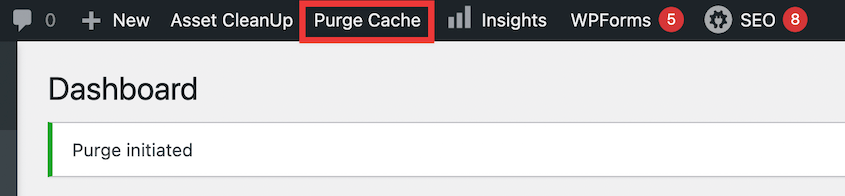
Purge your CDN cache from Cloudflare, StackPath, or whichever CDN you’re using.
Hard refresh your browser with Ctrl+Shift+R (Cmd+Shift+R on Mac) to see the latest version without cached files.
SSL Certificate Verification
Check that HTTPS loads correctly without browser warnings. Let’s Encrypt certificates usually auto-generate within a few minutes of DNS pointing to the new host.
If you’re using Cloudflare SSL, verify it’s set to “Full” or “Full (Strict)” mode, not “Flexible.”
Test several pages for mixed content warnings. These happen when some resources load over HTTP while the page is HTTPS.
Update DNS in External Services
UptimeRobot and Pingdom need to verify they’re monitoring the correct IP address.
Google Search Console might require domain re-verification after major DNS changes.
Check that analytics tracking still works—sometimes DNS migrations break tracking codes if URLs changed.
Email marketing services need updated SPF and DKIM records if you changed those during migration.
Review DNS Record Structure
Look for orphaned subdomains still pointing to the old server’s IP address.
Remove unnecessary CNAME records leftover from services you no longer use.
Verify both www and non-www versions of your domain resolve correctly.
Add SPF and DMARC records if they’re missing. These help prevent email spoofing and improve deliverability.
Set Up DNS Monitoring
Configure alerts for unauthorized DNS record changes. Some registrars offer this built-in.
Third-party services like DNS Spy send notifications whenever your DNS records change. This prevents DNS hijacking, where attackers change your nameservers to redirect traffic to malicious sites.
Frequently Asked Questions (FAQs)
How long does DNS migration take?
Most DNS migrations complete within one to four hours if you lower the TTL beforehand. Without lowering TTL, expect 24-48 hours for full propagation worldwide. The timing depends on how long DNS servers cached your old records before you made changes.
Is changing your DNS a good idea?
Changing DNS is necessary when switching hosting providers, implementing a CDN, or moving to better infrastructure. It’s not something you do for fun, but it’s also not risky if you prepare properly with backups and documentation.
Do I have to wait 60 days to transfer a domain?
The 60-day lock applies to domain registration transfers between registrars, not DNS changes. You can change DNS settings immediately after registering or transferring a domain. The lock prevents you from moving the domain registration itself to a different registrar.
Why is DNS propagation taking so long?
Long propagation usually means you didn’t lower the TTL first, so DNS servers are caching the old records for 24 hours. Other causes include DNS servers that ignore TTL values, your ISP’s DNS being slow to update, or you’re checking from a network that aggressively caches DNS.
What is a good DNS processing time?
Under one hour is excellent. One to four hours is typical. Anything beyond six hours suggests something is misconfigured or you didn’t lower TTL beforehand. Check that nameservers are spelled correctly and that you saved the changes at your registrar.
Make Your Next DNS Migration Smooth
DNS migration becomes manageable once you know the right steps.
Your next hosting migration doesn’t need to be stressful. Prepare properly, and you’ll switch hosts without downtime or data loss.
Duplicator creates a safety net by packaging your entire WordPress site before DNS changes. If something goes wrong during migration, you can restore from the backup and try again. The database search-replace handles URL updates automatically, which solves one of the biggest WordPress migration headaches.
While you’re here, I think you’ll like these related WordPress guides:
- How to Move a WordPress Website from a Subdomain to a Main Domain
- How to Migrate a WordPress Site to a New Domain
- Why You Can’t Log Into WordPress After a Migration
- How to Audit Content Before a Website Migration
- How to Migrate a WordPress Site for FREE
- The Complete Post-Migration WordPress Testing Checklist




