

![[New Plugin] Activity Log: Track Every Change, Login, and Action on Your WordPress Site](https://duplicator.com/wp-content/uploads/2026/02/Announcement-Activity-Log.jpg)

Announcing One-Click Staging and Remote Cloud Restores for Bold Changes, Zero Consequences
 Joella Dunn
Joella Dunn
Joella Dunn
 John Turner
John Turner
John Turner
Your live site is not the place to experiment.
Testing a new plugin, switching themes, or making code changes directly on a production site is how things break. And when they break in front of real visitors, the damage is already done.
At the same time, setting up a proper staging environment used to mean extra hosting accounts, manual file transfers, and plenty of things that could go wrong before you even started testing.
We just made it a whole lot simpler. Duplicator Pro now lets you create a staging site from any backup with one click—right inside WordPress.
And if your live site ever goes completely down? The same update adds remote cloud restores, so you can recover your site from Duplicator Cloud even if your server is totally inaccessible.
Ready to see what’s new in Duplicator Pro?
Test Changes Risk-Free With One-Click Staging Sites
You know you should test changes before pushing them live. But if setting up a staging environment takes an hour, you’re probably skipping that step more often than you’d like to admit.
We added true one-click staging that creates a perfect, isolated copy of your site from any backup.
You won’t need separate hosting or manual file transfers. You’ll get a clean, sandboxed environment ready for testing.
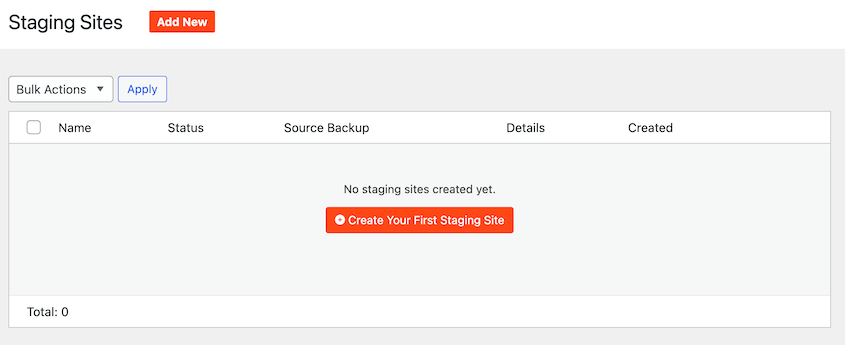
Here’s how it works. First, create a full-site backup from your Duplicator Pro dashboard. Then go to Duplicator Pro » Staging and click Create Your First Staging Site.
Select your source backup, give the staging site a title, and choose an admin color scheme.
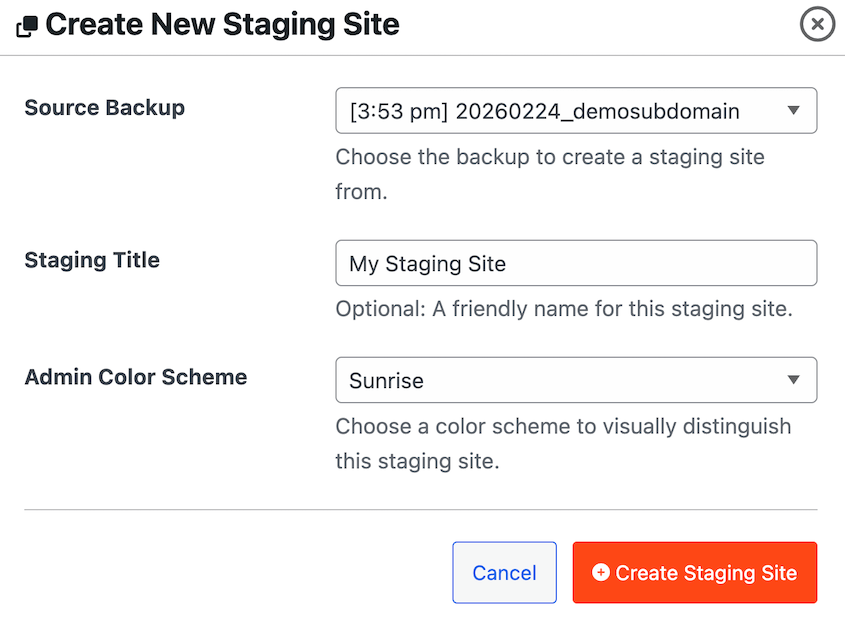
That last step matters more than it sounds. A different color in your staging admin bar makes it immediately obvious which site you’re working on. It’s a small detail that prevents very costly mistakes.
Continue, and you’ll see the familiar Duplicator installer. Accept the terms and notices, confirm the installation, and log in with your regular admin credentials.
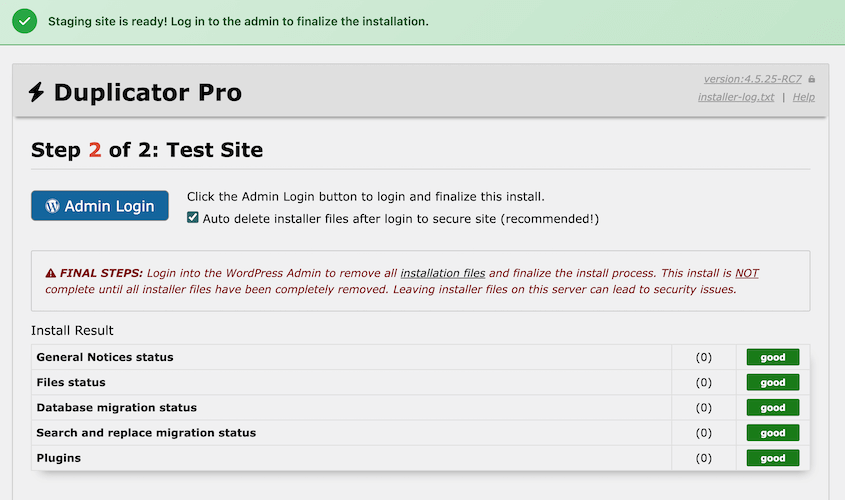
Your staging site is ready!
Built-In Safety Features That Protect Your Live Site
The biggest risk with staging isn’t breaking the staging site. It’s accidentally affecting your live site.
A staging environment that sends real emails, shows up in Google search results, or looks identical to production is an accident waiting to happen.
Duplicator automatically applies a full set of safety measures to every staging site it creates:
- Search engines are blocked from indexing it
- Emails are disabled, so test actions don’t reach real inboxes
- The staging admin gets a colored bar so you always know where you are
If you go to Settings » Reading on the staging site, you’ll see that search engine visibility is already disabled. You don’t have to configure any of it.
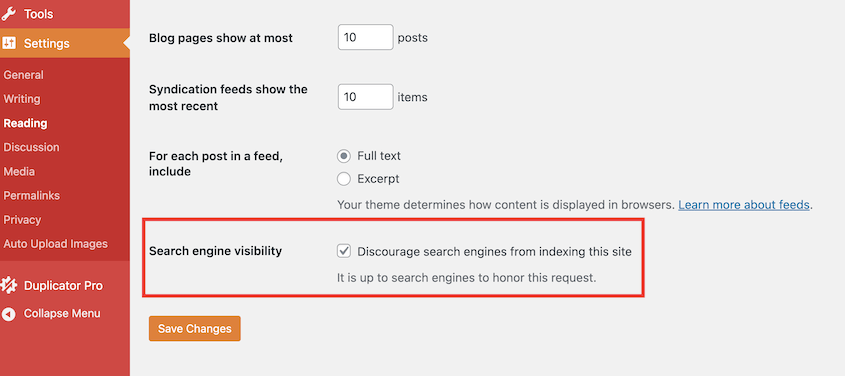
Staging sites also get unique database prefixes and obfuscated URLs, so they stay isolated from your live environment at the database level too.
Manage and Delete Staging Sites with Ease
Once your staging site is up, Duplicator gives you a simple set of controls to manage it.
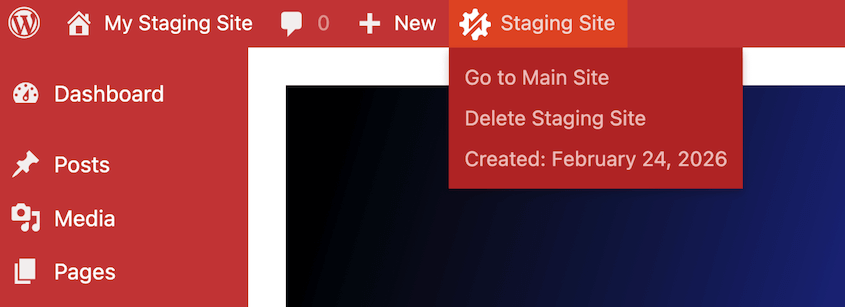
At the top of every staging site, you’ll see a Staging Site button with the Duplicator logo. Hover over it, and you get three quick options: go back to your main site, delete the staging site, or check when it was created.
Back on your live site, Duplicator Pro » Staging shows you a full list of every staging site you’ve created. You can see each site’s status, source backup, WordPress version, Duplicator version, and creation date—along with options to open the admin or delete it entirely.
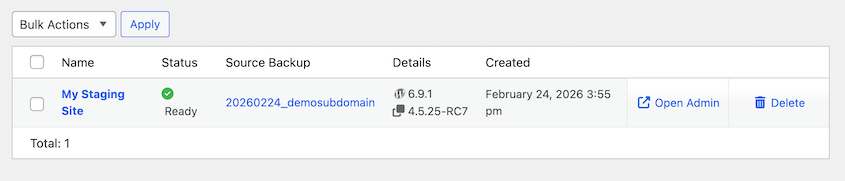
For agencies and developers managing multiple sites, this keeps projects from getting messy. Every staging environment is accounted for, visible, and easy to clean up when the work is done.
Restore Your Site from the Cloud Even If Your Server Is Down
Staging handles the “before” side of things. Remote cloud restores handle the worst-case scenario.
Your server crashes. Your host has a catastrophic failure. Local backups are gone or unreachable.
Most backup plugins aren’t prepared for this situation. If WordPress goes down, you won’t be able to access or restore any backups.
Now, you can recover your site from Duplicator Cloud even when your server is completely inaccessible. As long as you send full-site backups to Duplicator Cloud, you have everything you need to get back online from anywhere.
In your Duplicator Cloud dashboard, configure a recovery connector by adding your FTP/SFTP credentials for the website you want to restore.
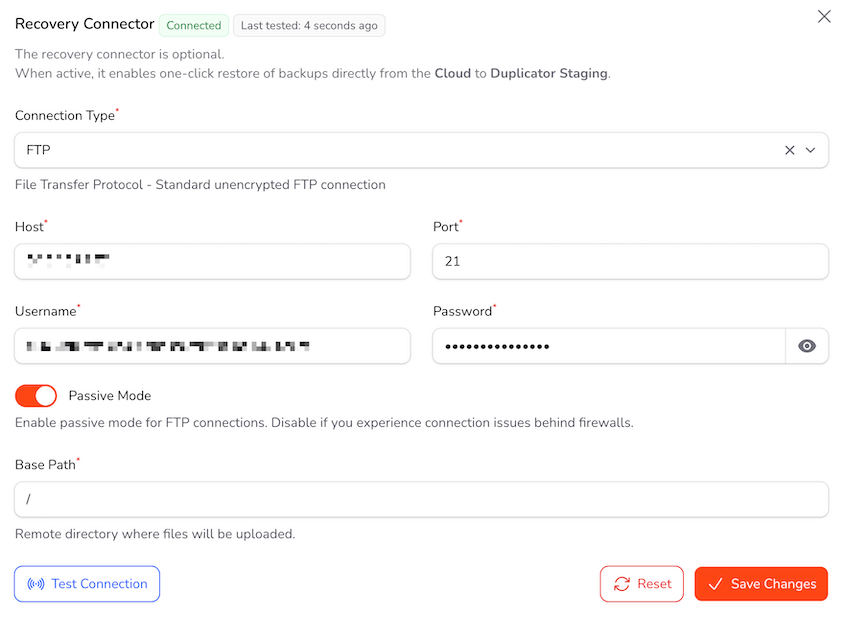
Fill in your hostname, username, password, and the path to your site files. Test the connection to make sure everything’s talking properly.
Once that’s configured, disaster recovery becomes absurdly simple. Open your website’s storage, find the latest backup, and hit Restore Full Backup.
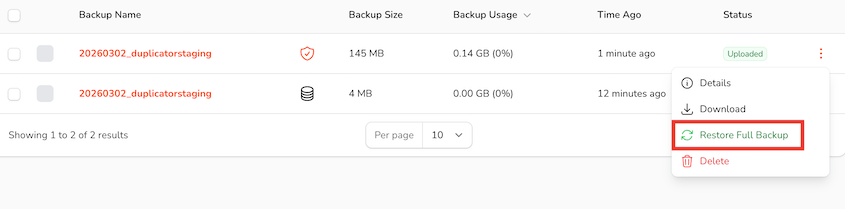
You can even recover partial backups to roll back your database, media library, or other individual files you have saved.
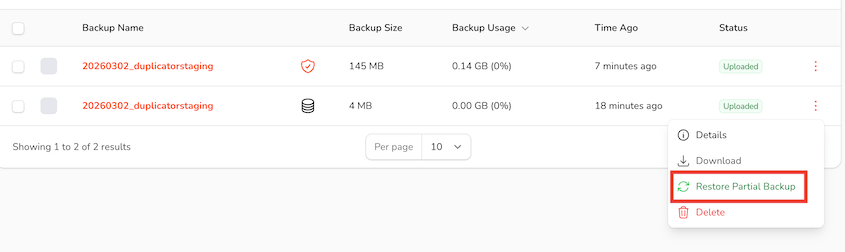
Duplicator downloads the installer script and backup files automatically, then launches the familiar restoration wizard.
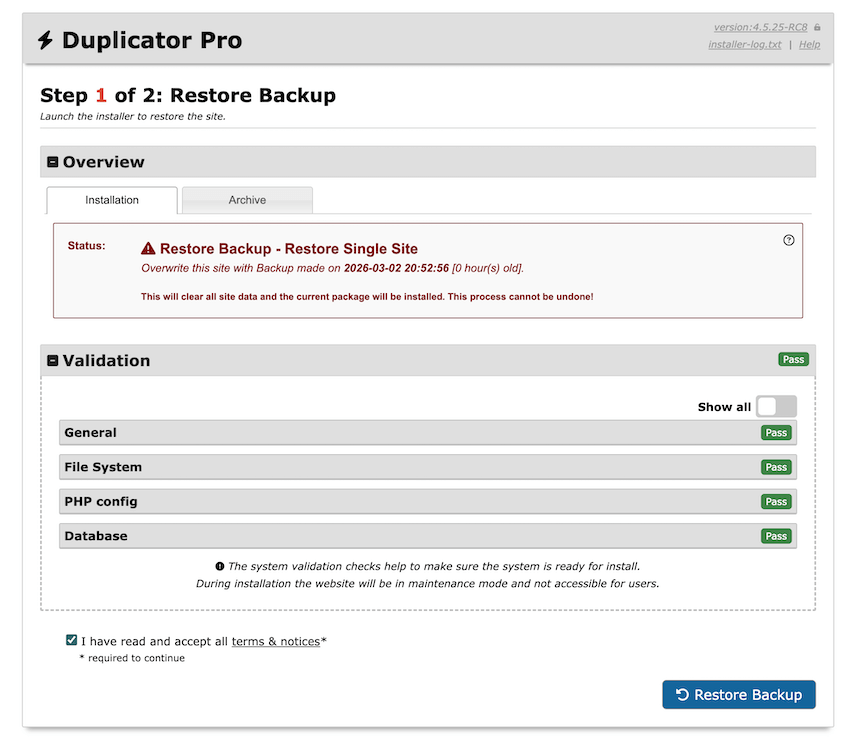
Accept the terms, let it run, and log back into your dashboard. Your site will be back online!
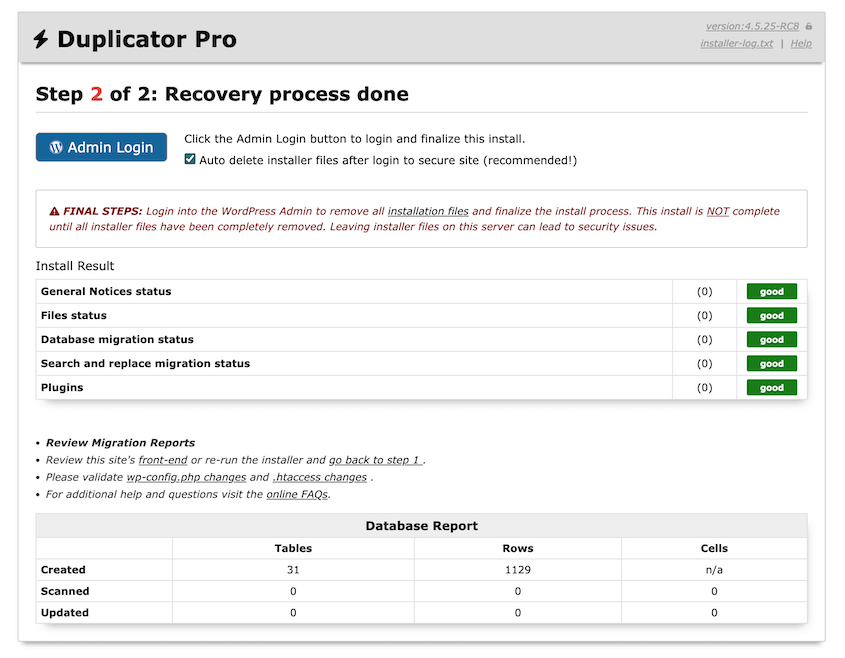
The beautiful part? You can do this from anywhere. Coffee shop WiFi, your phone during a vacation, a borrowed laptop at 3 AM. You’re not tied to any specific device or location when disaster strikes.
Manage Multiple Sites From One Control Center
Managing a single WordPress site is simple enough. But managing 100 scattered websites? That’s a completely different story.
Keeping track of backups for each individual site usually means logging in and out of dozens of different dashboards. It’s complicated, time-consuming, and makes it far too easy to let a site slip through the cracks.
You can now use Duplicator Cloud as a control center for all your managed websites.
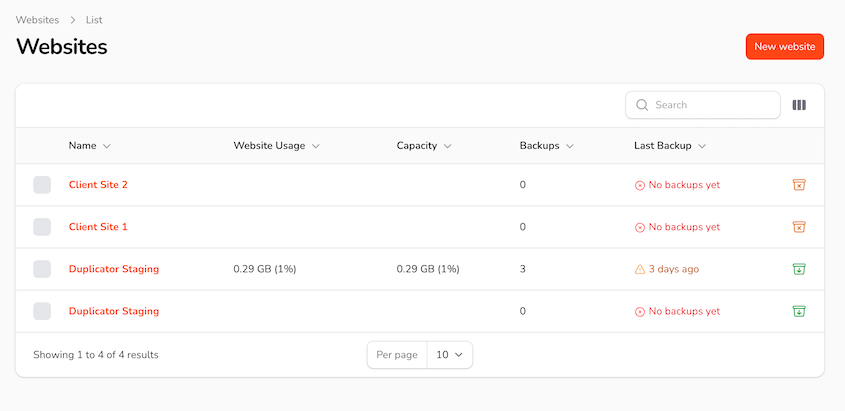
With the cloud, you’ll finally stop jumping between logins. You’ll instantly see when the last backup was created for every site in your portfolio.
More importantly, you can now handle centralized backup restorations from the cloud.
Whether you’re managing five client sites or a hundred, you have a bird’s-eye view of your entire network’s backup status. Plus, you can restore them all centrally without leaving your Duplicator Cloud dashboard.
Upgrade to Risk-Free WordPress Workflows
Duplicator is your complete confidence package. Staging sites let you test any change without breaking stride, while remote cloud restores mean no disaster can take you down permanently.
You can now make bold changes knowing you’ve got both prevention and recovery covered.
If you’re already using Duplicator Pro, update your plugin to start setting up your first staging site. For cloud recovery, choose a cloud storage plan.
Running Duplicator Lite? Duplicator Pro includes all of these features plus automatic backups, cloud storage, drag-and-drop migrations, and a free WP Media Cleanup plugin. Upgrade today!
While you’re here, check out Duplicator’s other new features:
- [NEW] WP Media Cleanup Deletes Unused Images Hiding in Your Media Library
- [New] Cloud Backups Just Got Simpler: Duplicator Cloud Eliminates Third-Party Storage
- Duplicator’s New Migration Service: Move Your Website Without Lifting a Finger
- Duplicator’s New One-Click Backup Cleanups, Auto-Deletion, and Version Updates
- Announcing Duplicator WP-CLI Commands (And How They Speed Up Backups)




