


Is Duplicator Safe to Use?
 Joella Dunn
Joella Dunn
Joella Dunn
 John Turner
John Turner
John Turner
When you’re backing up or migrating your WordPress site, you want to know you’re using a tool that works. Otherwise, you risk losing data forever.
I’ve used Duplicator on hundreds of projects over the years. Client sites, personal sites, massive e-commerce stores, and tiny portfolio pages.
Here’s what I’ve learned: Duplicator has key security features built into how the plugin actually works.
In this post, I’ll walk you through Duplicator’s security features. By the end, you’ll understand exactly why I trust it with my sites—and whether you should too.
Here are the key takeaways:
- Duplicator is safe by design: The plugin uses non-destructive, read-only processes that never touch your live site during backups
- Multiple security layers protect your data: AES-256 encryption, secure cloud storage, pre-backup scans, and post-migration cleanups
- Zero downtime during migrations: Your original site stays fully operational while you work on the new location, giving you a perfect fallback
- Built-in cleanup protocols: One-click removal of installer and archive files after migration prevents unauthorized access
- Professional development standards: Code has consistent updates, regular security audits, and fast vulnerability patches
- You control the security level: Keep plugins updated, delete old backups, use strong encryption passwords, and enable two-factor authentication on cloud storage
Table of Contents
How Does Duplicator Work?
Duplicator is a WordPress plugin that creates complete backups of your site and lets you move that site to a new location. New host, new domain, staging environment—wherever you need it to go.

Here’s the thing that makes Duplicator fundamentally safe: it’s non-destructive.
When you create a backup, Duplicator doesn’t touch your live site. It reads your files and database, but it doesn’t change anything. Your site keeps running exactly as it was.
Duplicator creates two files when you run a backup: an archive file (a zip) and an installer file (a PHP script).
The backup process is entirely read-only. Duplicator copies your data into that archive, but your actual site files? Untouched. Your site stays fully operational the entire time.
Think of it like taking a photograph. The camera captures the image, but your subject doesn’t change.
When I migrate a client site to a new host, the old site stays live and active while I work on the new host. If something goes wrong during the move (and sometimes things do go wrong), my client’s site never goes down. The live site is my fallback.
Zero downtime. Zero risk to the production environment. That’s the architecture that makes Duplicator safe by design.
Is Duplicator Safe to Use?
Yes. Duplicator is safe to use. The safety comes from multiple layers: secure code, encryption options, validation checks, and built-in cleanup protocols.
Duplicator isn’t just throwing your data into a zip file and hoping for the best. There’s actual security engineering behind it.
Let me break down the specific features that protect your data.
What Security Features Does Duplicator Have to Protect Your Data?
Here are the security features built into Duplicator:
- Secure and Clean Code: Professional development following WordPress best practices
- Backup Encryption: AES-256 encryption to protect your package contents (Pro feature)
- Secure Off-Site Cloud Storage: Integration with Amazon S3, Google Drive, Dropbox, and more
- Pre-Backup Scans: Environment checks before creating packages to catch potential issues
- Step-by-Step Migration Wizard: Guided installation process that prevents human error
- Post-Installation Cleanups: One-click removal of installer and archive files
Now let me break down what each of these actually does for you.
Secure and Clean Code
Duplicator is developed by professional engineers who follow WordPress coding best practices. The codebase is mature, well-maintained, and built with security as a priority from the ground up.
It’s also one of the oldest backup plugins in the WordPress ecosystem. Plugins don’t survive that long without earning trust and maintaining quality. Duplicator has been around since the early days of WordPress, and it’s still here because it works.
Consistent updates. Regular security audits. A development team that responds to vulnerabilities quickly.
That’s the foundation everything else is built on.
When security researchers discover potential issues (and they do—this happens with all software), the Duplicator team patches them fast. You’re not waiting months for fixes. Updates typically roll out within days of a vulnerability being reported.
Backup Encryption
Duplicator uses AES-256 encryption to scramble your package contents. That’s military-grade encryption for your data.
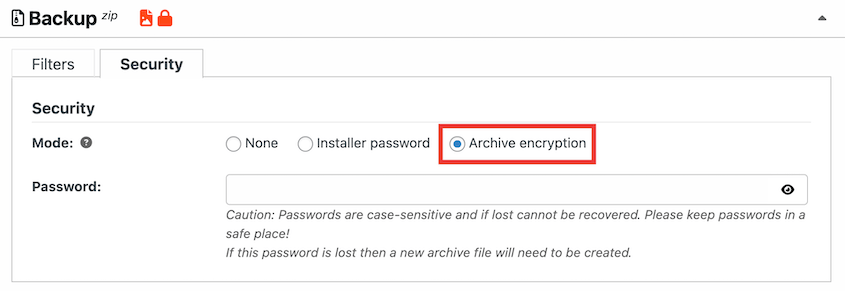
What does this mean practically? If someone steals your backup file—from your server, from your cloud storage, wherever—they can’t access it without your password. They’d have better luck guessing lottery numbers.
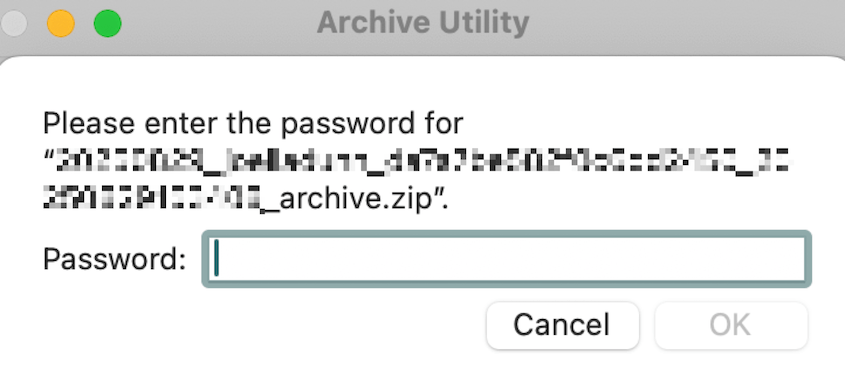
Backups contain everything about your site. You won’t want anyone to find your database credentials, API keys, customer data, or payment gateway settings. That’s sensitive information.
Without encryption, anyone who gets their hands on your backup file has immediate access to all of it. With encryption, that backup file is worthless to them.
Secure Off-Site Cloud Storage
Storing backups on the same server as your website is like keeping your house key under the doormat. If the server gets compromised, your backups are compromised too.
Duplicator Pro integrates with all of these third-party storage providers:
- Google Drive
- Dropbox
- Microsoft OneDrive
- Amazon S3
- Wasabi
- Google Cloud
- DreamObjects
- Vultr
- DigitalOcean Spaces
- Cloudflare R2
- Backblaze B2
- FTP
The connections are made through secure APIs, so your credentials stay protected.
And if you want to skip the hassle of managing third-party credentials entirely, Duplicator Cloud gives you built-in storage that lives inside Duplicator.
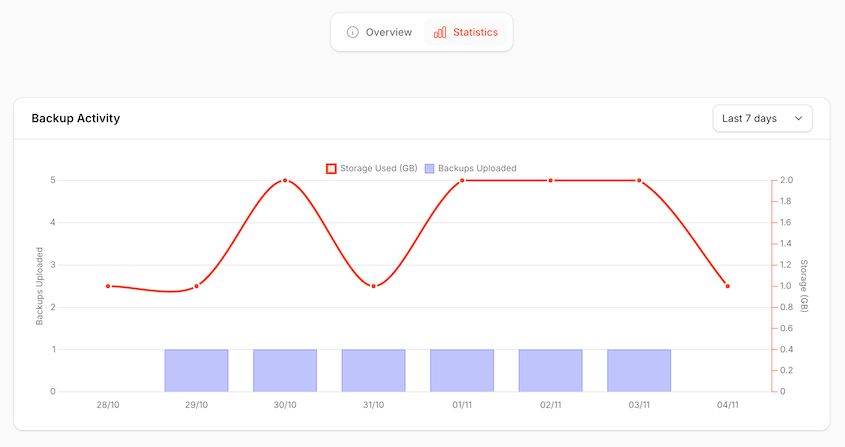
You won’t have to generate API keys or manage separate cloud accounts. Just straightforward cloud storage that connects with your Duplicator Pro license in minutes.
Once you’ve connected your cloud storage, Duplicator can automatically upload every backup as soon as it’s created. You don’t have to remember to manually transfer files.

Your backups live somewhere safer than your live server. If disaster strikes your website, your data is still intact and accessible.
Pre-Backup Scans
Before Duplicator builds your backup, it scans your server environment first.
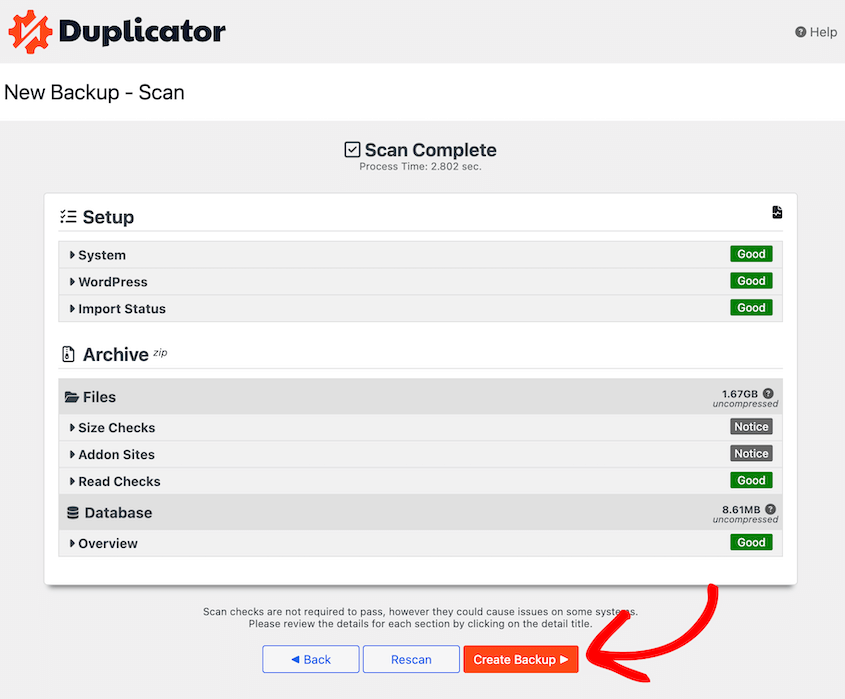
This is for safety. The scan looks for potential issues—permission errors, server configuration problems, file path issues—that could cause the backup to fail or corrupt.
You get to fix these issues before running the backup, not after. That’s the difference between a smooth backup process and a frustrating troubleshooting session.
Step-by-Step Migration Wizard
Human error is one of the biggest security risks in any technical process. Miss a step, skip a configuration, forget to update a setting—and suddenly things break.
Duplicator’s migration wizard walks you through each step of the installation process. Even as a beginner, you’ll easily connect databases, replace URLs, and update paths.
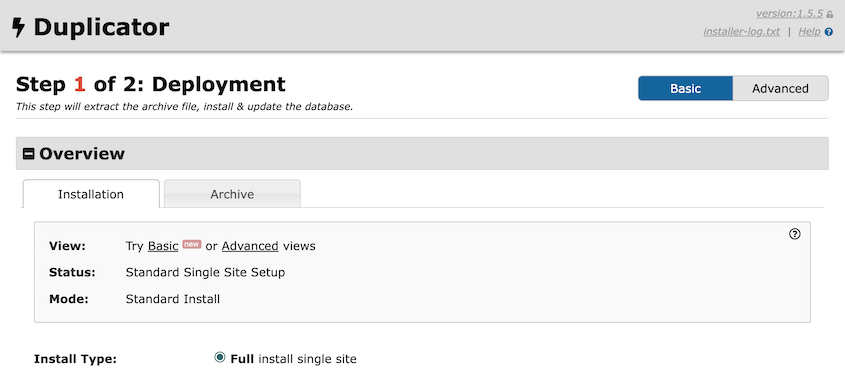
There are validation checks during the migration, so you’ll be aware of issues before they happen.
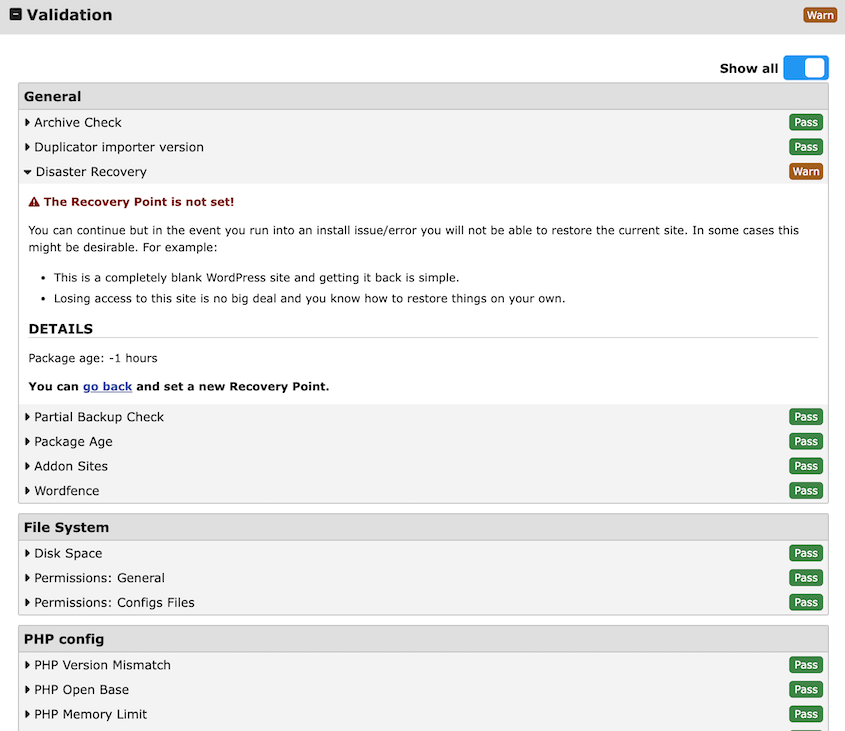
You’ll simply upload a backup to a new server. Duplicator handles everything else, so you don’t lose any data during the move.
Post-Installation Cleanups
In a migration, you’ll upload two backup files to a new server. One is an archive zip file that contains all the data on your site. The other is an installer PHP file that unpacks the data.
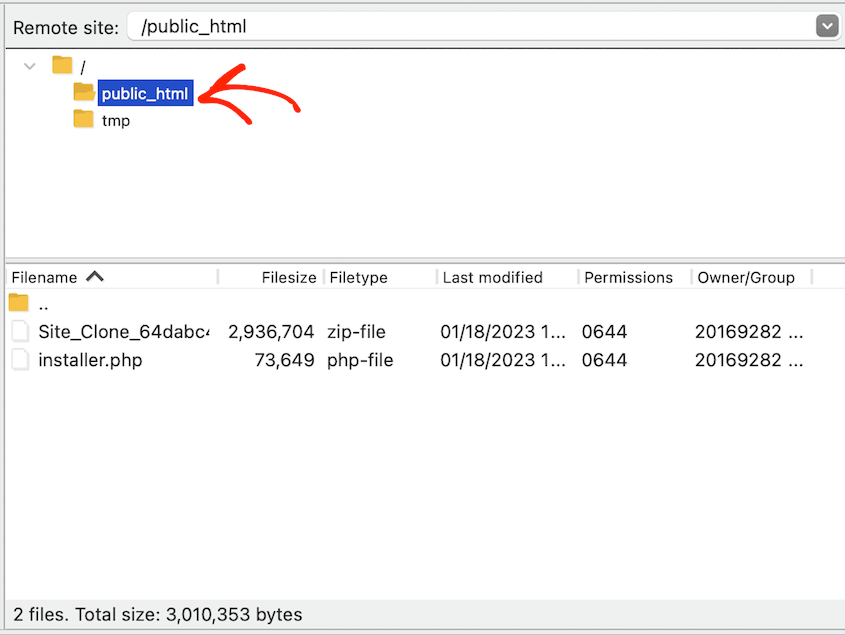
The installer and archive files are powerful. If you leave them sitting on your server after migration, anyone who finds them can potentially access your data or even reinstall your site over itself.
Duplicator prompts you for a one-click cleanup immediately after successful installation. It wants those files gone, and it makes it dead simple to remove them.
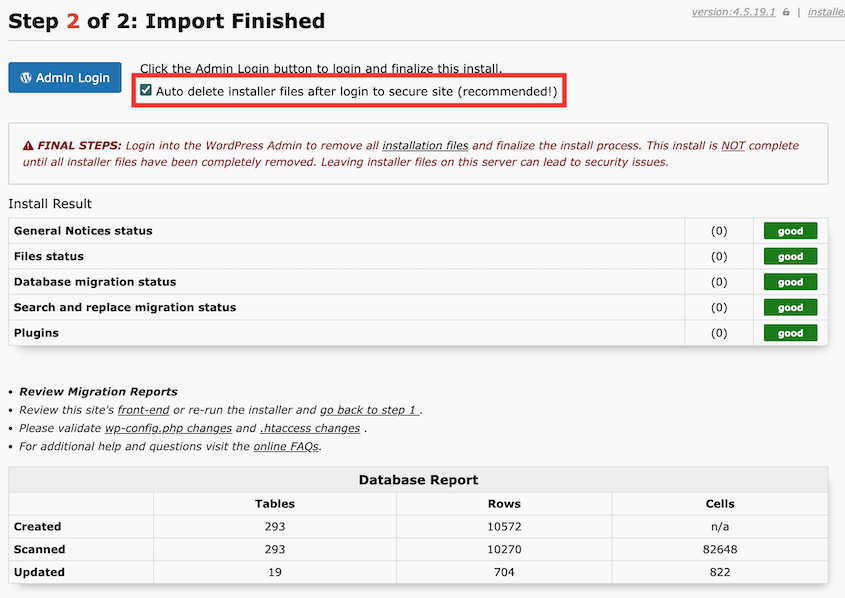
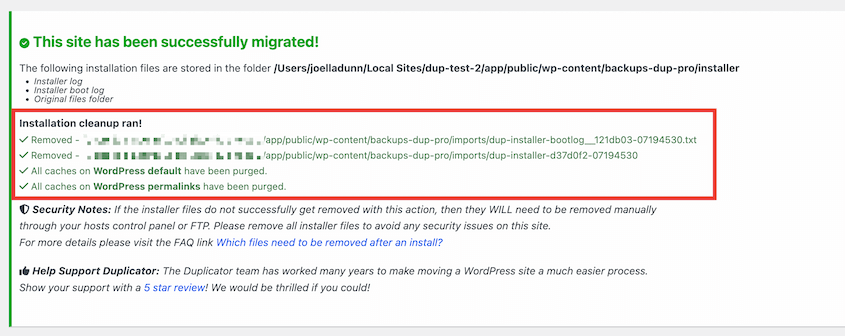
Once you log back into the migrated site, Duplicator will tell you what data was automatically cleaned up for security.
Just in case Duplicator misses something, you can clean these files yourself. In the Tools settings, remove installation files, backup orphans, or the build cache.
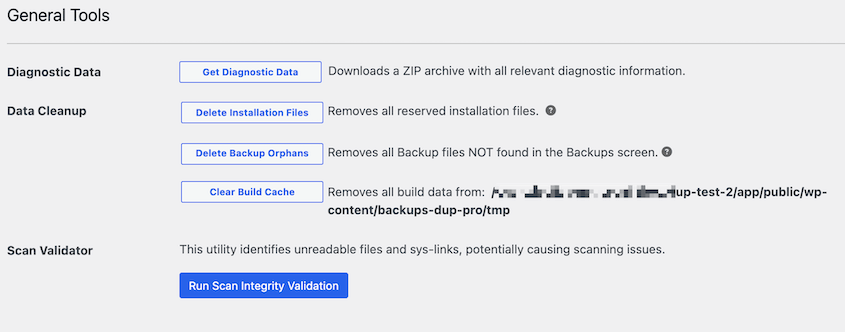
This keeps your newly migrated site safe and clutter-free!
How You Can Boost Duplicator’s Security
Duplicator gives you the tools, but you still need to use them properly.
Here’s what I do on every site to make sure my backups stay secure.
Keep Your Plugin Updated
Updates can bring new features, but they often contain security patches. The developers are constantly working on ensuring Duplicator works well with WordPress, other plugins, and other themes.
When Duplicator releases an update, install it. If you wait too long, hackers could use your outdated plugin as a backdoor into your website.
This can happen with any outdated plugin, not just with Duplicator. So if you want to keep Duplicator performing at high security levels, keep it updated!
Always Clean Up Installation Files
After every migration, delete the installer and archive files. Use Duplicator’s one-click cleanup. As an extra security step, you could manually verify they’re gone.
Log into your server via FTP or your hosting file manager. Check the directory. Make absolutely sure those files aren’t there.
Delete Backup Orphans
Old backups pile up fast if you’re not paying attention.
I’ve logged into servers where clients had dozens of backup files sitting there. Some from months ago. Some from migrations that happened a year prior.
Here’s the problem: those old backups contain old code. If someone finds them, they’re accessing an outdated version of your site that might have known security holes.
Keep your most recent backups. Delete everything else.
Duplicator Pro has scheduling and retention limits that handle this automatically. If you’re using the free version, set a calendar reminder to clean up old backups monthly.
Use Secure Passwords and Storage
If you’re using Duplicator Pro’s encryption feature (and you should be), use a strong password that’s difficult to crack.
I use a password manager to generate random 20-character passwords for encrypted backups. You should too.
And if you’re storing backups on cloud services like Dropbox or Google Drive? Turn on two-factor authentication. Your backup is only as secure as the account it’s stored in.
Frequently Asked Questions (FAQs)
How do I use Duplicator for free?
Download it directly from the WordPress.org plugin repository. You can install it from your WordPress dashboard by going to Plugins » Add New and searching for “Duplicator.”
What is the difference between Duplicator and Duplicator Pro?
The free version handles manual backups and migrations perfectly well. Duplicator Pro adds backup scheduling, cloud storage integrations, encryption, better support for large sites, and a handful of other advanced features that make life easier if you’re managing multiple sites or need automation.
How much is Duplicator Pro?
Duplicator Pro plans start at $49.50 yearly. These support premium features like automatic backups, drag-and-drop migrations, cloud storage, and backup encryption.
What is the best WordPress backup plugin?
Duplicator excels at both backup and migration, which is its unique strength. Unlike other backup plugins, it can restore a completely broken site when WordPress is down. It can also migrate a site when WordPress isn’t pre-installed.
Will Duplicator backups slow down my website?
Creating a backup is resource-intensive because it has to copy your entire site. But it runs in the background with minimal impact on your visitors. To limit impact to your site, I’d recommend scheduling backups during off-peak hours when traffic is lowest.
Your Site is in Safe Hands with Duplicator
Duplicator’s safety isn’t up for debate. It’s proven.
The non-destructive architecture means your live site never gets touched during backup creation. The off-site migration process gives you a perfect fallback if anything goes wrong.
And the security features—encryption, validation checks, automatic cleanup prompts—are there to catch problems before they become disasters.
The question isn’t whether Duplicator is safe. It is. The question is whether you’re ready to stop worrying about backups and migrations and start using a tool that actually works.
Do you need automated backups, cloud storage, and military-grade encryption? Upgrade to Duplicator Pro today and protect your website the right way.
While you’re here, I think you’ll like these other hand-picked WordPress resources:
- Duplicator Free vs Pro: Which Version Has the Best Value?
- Duplicator Review: Is It the Best Backup and Migration Plugin?
- Stop Guessing Why Backups Fail (Check These Logs Instead)
- How to Encrypt Website Backup Files for Maximum Data Security
- How to Fix a Slow WordPress Site After a Migration
- WordPress Security Checklist: Step-by-Step Guide to Protect Your Site




