

![[NUOVO] Duplicator DB Optimizer: Pulisci il tuo database WordPress prima che diventi un problema](https://duplicator.com/wp-content/uploads/2026/06/Announcement-DB-Optimizer.jpg)
Carica qualsiasi cosa: come aumentare la dimensione massima di caricamento dei file in WordPress
 Joella Dunn
Joella Dunn
Joella Dunn
 John Turner
John Turner
John Turner
In sintesi: Di fretta? Ecco i 7 metodi trattati in questa guida:
- Duplicator: Migra un sito di grandi dimensioni senza superare i limiti di caricamento
- Contatta il tuo hosting: La soluzione più semplice per i principianti, di solito gratuita
- Modifica php.ini: Controllo diretto tramite cPanel o FTP
- functions.php (WPCode): Aggiungi uno snippet PHP in modo sicuro
- .htaccess: Aggiungi direttive PHP sui server Apache
- Plugin EasyMedia: Aumenta il limite dalla tua dashboard
- Multisite: Impostalo a livello di rete nelle Impostazioni di rete
Carichi un video o un tema ricco di funzionalità e WordPress ti blocca con un errore di dimensione del file.
È uno degli ostacoli più comuni per i nuovi proprietari di siti. Sei pronto ad aggiungere qualcosa di nuovo, ma il caricamento non va a buon fine.
Molti utenti di WordPress devono affrontare limiti di caricamento file e oggi affronteremo questo problema di petto. Ti mostrerò come aumentare la dimensione massima di caricamento file in WordPress!
Ecco i punti chiave:
- I limiti di caricamento file di WordPress sono impostati dalle impostazioni PHP del tuo server, non da WordPress stesso. I valori predefiniti possono essere bassi come 2 MB.
- Puoi controllare il tuo limite attuale sotto Media » Aggiungi Nuovo File Multimediale o Strumenti » Stato del Sito » Info.
- La soluzione più semplice per i principianti è contattare il tuo provider di hosting e chiedere loro di aumentare il limite.
- Per gli utenti che amano mettere le mani in pasta, la modifica del file php.ini o .htaccess ti dà il controllo diretto sulle impostazioni della dimensione di caricamento.
- WPCode ti consente di aggiungere in modo sicuro snippet PHP per aumentare i limiti senza rischiare i file del tuo tema.
- Se stai migrando un sito di grandi dimensioni, il formato DupArchive di Duplicator aggira completamente i limiti di caricamento.
- Gli utenti di WordPress Multisite possono regolare i limiti di caricamento direttamente dalla dashboard di Network Admin.
Indice
- Qual è la dimensione massima di caricamento file in WordPress?
- Quando aumentare la tua dimensione massima di caricamento file
- Come controllare la dimensione di caricamento file del tuo sito
- Come aumentare la dimensione massima di caricamento file in WordPress
- Metodo 1: Usa Duplicator per migrare dati senza limiti di caricamento
- Metodo 2: Contatta il tuo provider di hosting WordPress
- Metodo 3: Crea/Modifica il tuo file php.ini
- Metodo 4: Aggiungi codice al file functions.php
- Metodo 5: Aggiungi codice al file .htaccess
- Metodo 6. Usa un plugin per aumentare la dimensione di caricamento file di WordPress
- Metodo 7: Aumenta la dimensione di caricamento file in Multisite
- Cosa fare se non riesci ancora ad aumentare la dimensione di caricamento
- Domande frequenti (FAQ)
- Pronto a caricare senza limiti?
Qual è la dimensione massima di caricamento file in WordPress?
WordPress stesso non imposta una dimensione massima di caricamento file. Può variare da 2 MB a 150 MB. Questa dimensione è impostata dalla configurazione del tuo server, in particolare dalle impostazioni PHP.
Ogni provider di hosting ha una dimensione di caricamento WordPress predefinita diversa. Alcuni offrono limiti generosi, mentre altri possono essere piuttosto restrittivi. È comune ritrovarsi limitati a soli 2 MB.
Immagini ad alta risoluzione, plugin ricchi di funzionalità e temi più grandi spesso superano questo limite di dimensione. Questa restrizione può impedirti di caricare file e strumenti di grandi dimensioni che potrebbero migliorare il tuo sito web.
Quando aumentare la tua dimensione massima di caricamento file
Ecco alcuni scenari comuni in cui potresti dover aumentare il limite massimo di caricamento file:
- Messaggi di errore
Se hai mai visto l'errore "supera la dimensione massima di caricamento per questo sito", è un chiaro segno che hai bisogno di un limite più alto.
- Temi e plugin di grandi dimensioni
Temi e plugin WordPress moderni sono spesso ricchi di funzionalità, con conseguenti dimensioni di file maggiori. Se non riesci a installare quel tema perfetto che stavi cercando, potrebbe essere il momento di un aumento.
- Media di alta qualità
I siti web di oggi prosperano sui contenuti visivi. Se lavori con immagini o video ad alta risoluzione, probabilmente avrai bisogno di un limite di caricamento più elevato per mostrare il tuo miglior lavoro.
- Migrazione del sito web
Stai spostando il tuo sito su un nuovo host? Un limite di caricamento più elevato può rendere il processo più agevole, specialmente se hai un database di grandi dimensioni o molti file.
- Materiali per l'e-learning
Se gestisci un corso online o un sito di appartenenza, potresti dover caricare file PDF di grandi dimensioni, lezioni video o contenuti audio. Probabilmente avrai bisogno di una dimensione di caricamento massima di WordPress più elevata.
- Siti portfolio
Fotografi, designer e altri creativi spesso devono caricare file ad alta risoluzione per mostrare efficacemente il loro lavoro.
Come controllare la dimensione di caricamento file del tuo sito
Prima di iniziare ad aumentare il tuo limite di caricamento, è importante sapere da dove parti. Vediamo come controllare rapidamente la tua dimensione massima di caricamento file.
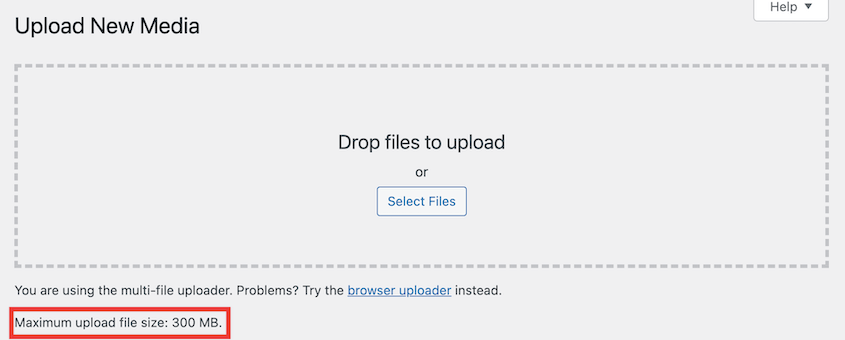
WordPress visualizza la tua dimensione massima di caricamento file mentre aggiungi nuovi file alla tua libreria multimediale.
Vai su Media » Aggiungi nuovo file multimediale e guarda in fondo alla pagina. Vedrai un messaggio che dice Dimensione massima del file caricato: X MB.
Puoi anche andare su Strumenti » Stato del sito » Info e trovare la sezione Gestione media.
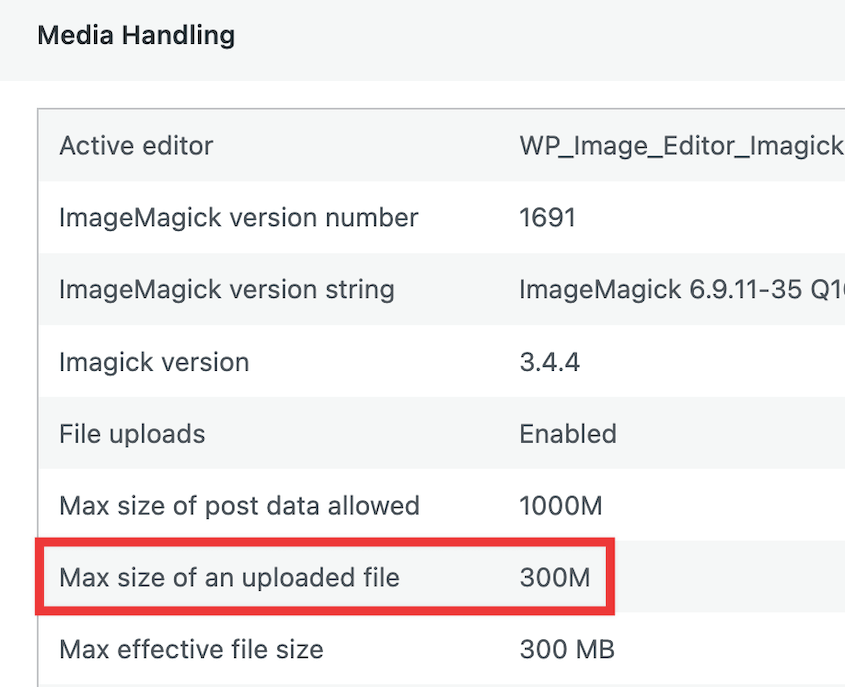
Conoscere la tua attuale dimensione massima di caricamento ti aiuta a capire quanto devi aumentarla. Se raggiungi costantemente il limite, potresti voler considerare di raddoppiare o addirittura triplicare la tua dimensione attuale.
Come aumentare la dimensione massima di caricamento file in WordPress
Ora che conosci il tuo limite attuale, esploriamo diversi metodi per aumentare i limiti di dimensione di caricamento.
- Metodo 1: Usa Duplicator: Ideale per migrazioni di siti; il suo formato DupArchive trasferisce file di grandi dimensioni senza raggiungere i limiti di caricamento del server.
- Metodo 2: Contatta il tuo Web Host: L'opzione più semplice per i principianti; la maggior parte degli host aumenterà il tuo limite rapidamente e senza costi aggiuntivi.
- Metodo 3: Modifica il tuo file php.ini: Un metodo pratico e affidabile; usa l'editor MultiPHP INI di cPanel o modifica il file direttamente tramite FTP.
- Metodo 4: Modifica del file functions.php: regola le impostazioni di caricamento PHP tramite i file del tuo tema; WPCode le mantiene sicure e reversibili.
- Metodo 5: Modifica del file .htaccess: aggiungi direttive PHP direttamente al file .htaccess principale; esegui sempre un backup prima di apportare modifiche.
- Metodo 6: Utilizza un plugin per aumentare i limiti di caricamento file: il plugin EasyMedia ti consente di selezionare un limite di caricamento superiore dalla tua dashboard.
- Metodo 7: WordPress Multisite: aumenta i limiti di caricamento a livello di rete da Impostazioni » Impostazioni di rete nella dashboard di Amministrazione di rete.
Metodo 1: Usa Duplicator per migrare dati senza limiti di caricamento
Duplicator è un plugin progettato per rendere più agevoli le migrazioni di WordPress, specialmente quando si tratta di file di grandi dimensioni. Se hai problemi a migrare il tuo sito a causa dei limiti di dimensione del caricamento file, Duplicator può aiutarti.
Con Duplicator, puoi utilizzare un formato di file personalizzato chiamato DupArchive. Questo gestisce file di grandi dimensioni anche su server con limiti PHP bassi.
Sia che tu abbia un database di grandi dimensioni o molti file multimediali, Duplicator può eseguire il backup del tuo sito. Quindi, lo importerà agevolmente nella nuova posizione senza errori.
Per iniziare, installa e attiva Duplicator sul tuo sito web.
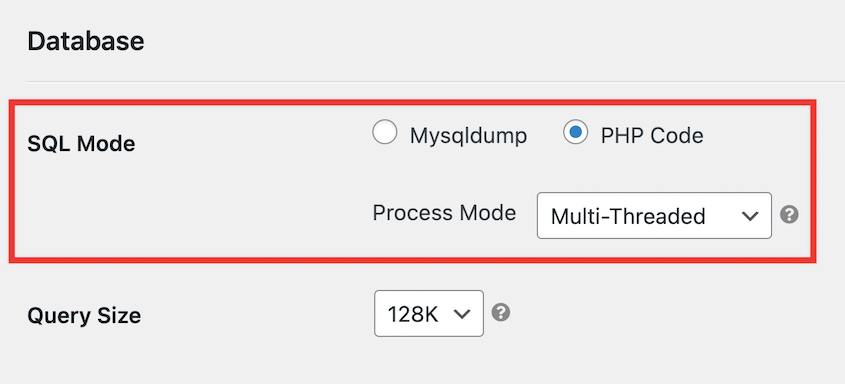
Trova Duplicator Pro » Impostazioni » Backup. Vai alla sezione Database e cambia la Modalità SQL in Codice PHP e Multi-Threaded.
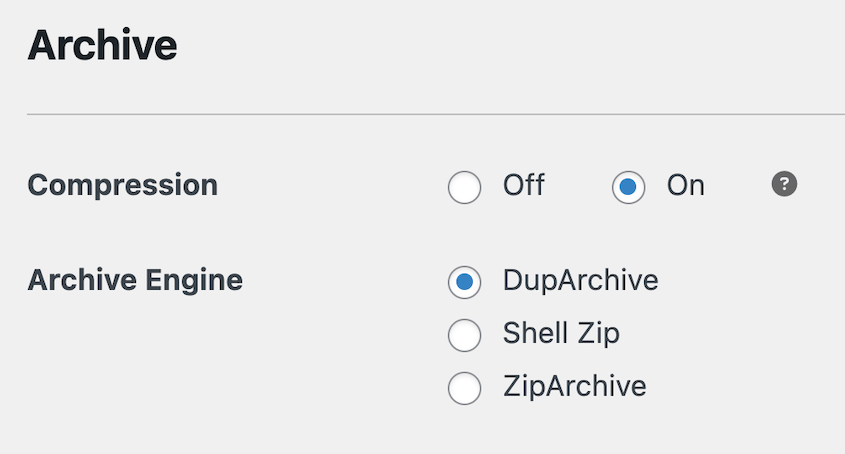
Nelle impostazioni di Archivio, imposta Motore di archivio su DupArchive. Salva queste modifiche.
Successivamente, crea un nuovo backup del tuo sito. Includi tutti i tuoi dati.

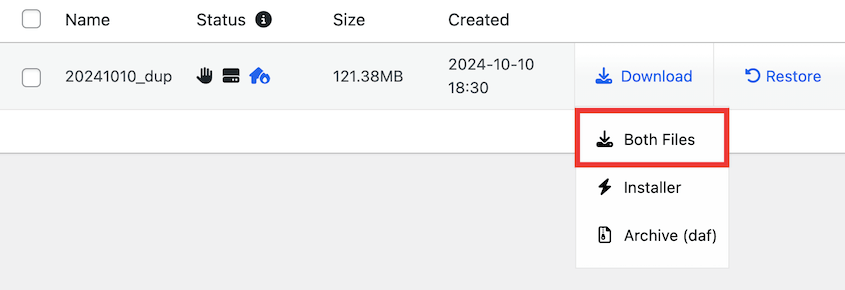
Una volta creato il backup, scarica entrambi i file.
Per migrare il tuo sito in un'altra posizione, puoi installare Duplicator Pro e aprire la pagina Importa backup. Trascina e rilascia il file di archivio di backup nella casella di importazione.

Se non vuoi installare WordPress prima, puoi anche caricare i file di backup sul tuo nuovo server. Naviga nel file installer.php nel tuo browser con questo link: https://tuo-dominio/installer.php
In entrambi i casi, Duplicator aggirerà il problema della dimensione del caricamento e trasferirà i tuoi dati al nuovo host!
Metodo 2: Contatta il tuo provider di hosting WordPress
Mentre Duplicator è ottimo per le migrazioni, potresti comunque voler aumentare il tuo limite di caricamento per le operazioni quotidiane. Un metodo semplice per aumentare i limiti di caricamento file è contattare il tuo provider di web hosting.
Per i principianti, questo è il metodo più semplice e consigliato per aumentare il limite di caricamento del tuo sito. La maggior parte dei provider di hosting comprende la necessità di caricamenti di file più grandi ed è spesso disposta ad aumentare il tuo limite.
Contatta il team di supporto del tuo host. Di solito puoi farlo tramite chat dal vivo (spesso l'opzione più veloce), ticket di supporto o chiamata telefonica.
Spiega che devi aumentare la dimensione massima di caricamento. Specifica il nuovo limite che stai cercando.
Metodo 3: Crea/Modifica il tuo file php.ini
Se hai familiarità con i file del server, puoi aumentare il limite massimo di caricamento modificando il tuo file php.ini. Se il tuo web host fornisce l'accesso a cPanel, questo è un processo semplice.
Per questo tutorial, utilizzerò Bluehost. Accedi al tuo pannello di controllo e apri cPanel.
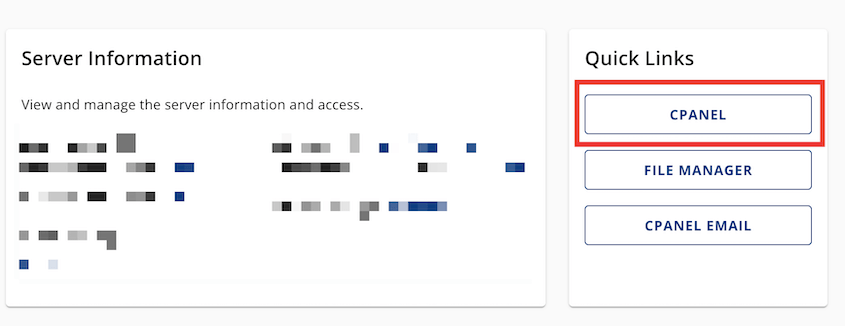
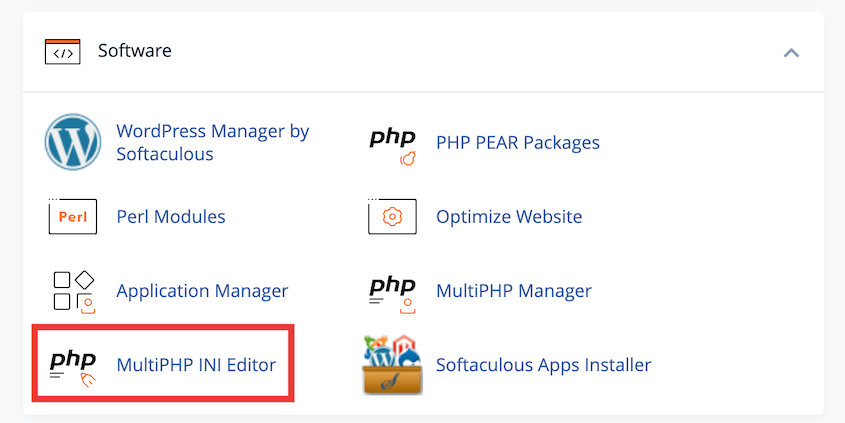
Nella sezione Software, fai clic su MultiPHP INI Editor.
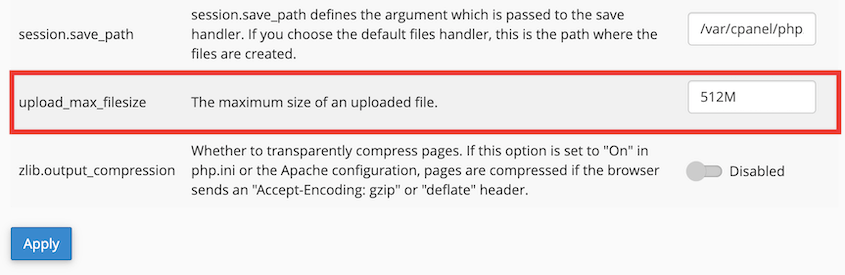
Trova l'impostazione upload_max_filesize. Modifica il valore e fai clic su Applica.
Se non hai cPanel, connettiti al tuo server tramite FTP o utilizza il file manager del tuo host.
Cerca un file chiamato php.ini nella tua directory principale. Se non esiste, creane uno.
Aggiungi o modifica le seguenti righe nel file:
upload_max_filesize = 256M

post_max_size = 256M

max_execution_time = 300
Ricorda, i valori sopra sono solo esempi. Modificali in base alle tue esigenze e alle capacità del server.
Salva il file e caricalo nuovamente sul tuo server se stai usando FTP. Riavvia il tuo web server affinché le modifiche abbiano effetto.
Metodo 4: Aggiungi codice al file functions.php
Se non riesci a trovare o modificare il file php.ini, puoi provare ad aggiustare il limite di dimensione del caricamento tramite il file functions.php del tuo tema.
Anche se potresti farlo manualmente, potresti accidentalmente danneggiare il tuo tema. WPCode offre un modo sicuro per aggiungere snippet di codice personalizzati al tuo sito, e ti consiglio vivamente di usarlo.
Installa WPCode e aggiungi un nuovo snippet di codice personalizzato.
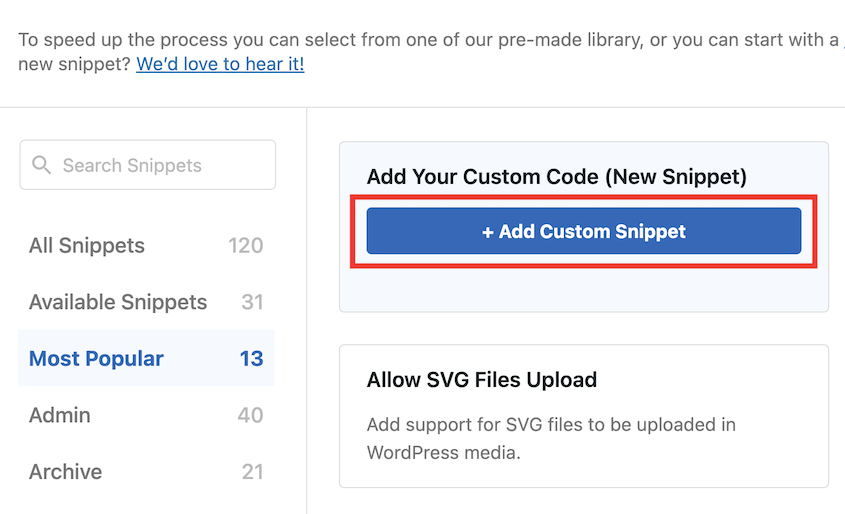
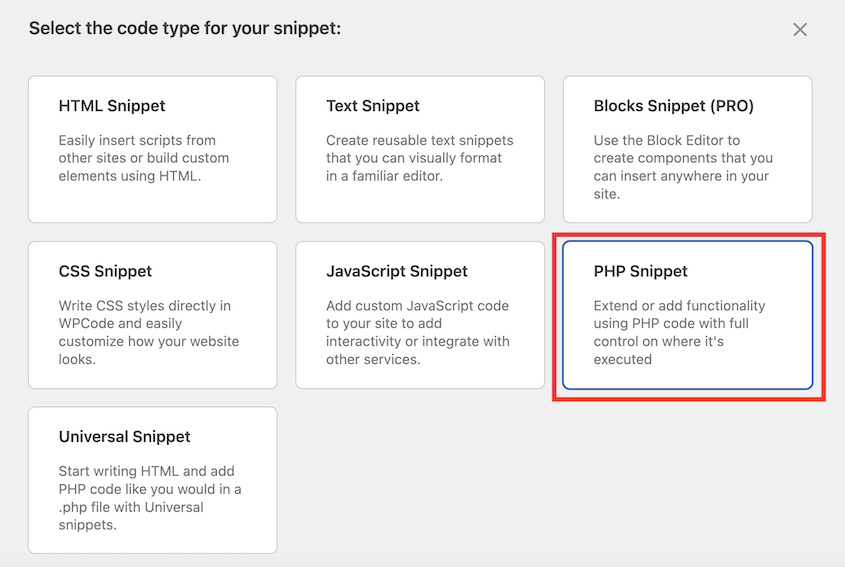
Scegli PHP Snippet come tipo di codice.
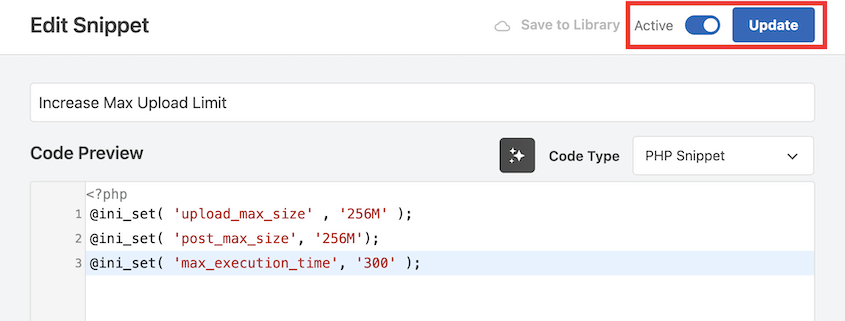
Nell'editor, aggiungi questo codice:
@ini_set( 'upload_max_filesize', '256M' );

@ini_set( 'post_max_size', '256M');

@ini_set( 'max_execution_time', '300' );
Salva e attiva lo snippet di codice.
Metodo 5: Aggiungi codice al file .htaccess
Un altro modo per aumentare la dimensione del file di caricamento è modificare il file .htaccess.
Per fare ciò, connettiti al tuo sito web tramite FTP. Individua il file .htaccess nella directory principale di WordPress.
Aggiungi le seguenti righe al file:
php_value upload_max_filesize 256M

php_value post_max_size 256M

php_value max_execution_time 300

php_value max_input_time 300
Salva il file e ricaricalo sul tuo server.
Metodo 6. Usa un plugin per aumentare la dimensione di caricamento file di WordPress
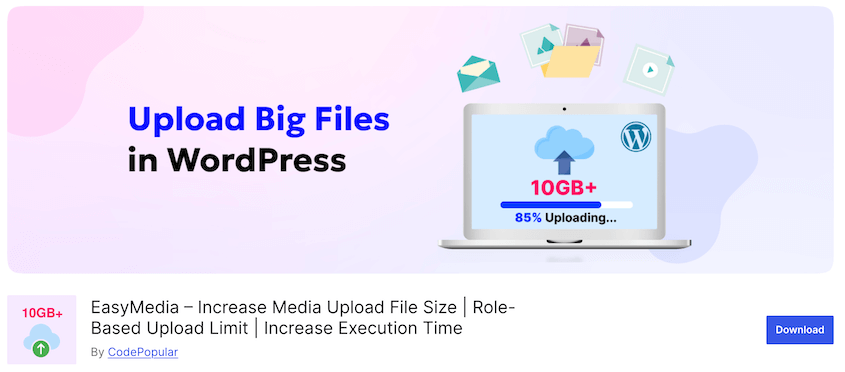
Se non ti senti a tuo agio a modificare direttamente i file, puoi utilizzare un plugin di WordPress per aumentare il tuo limite di caricamento. EasyMedia (precedentemente Increase Maximum Upload File Size) è una buona opzione.
Dopo aver attivato il plugin, vai su Media » EasyMedia. Seleziona una dimensione di caricamento maggiore e salva le modifiche.
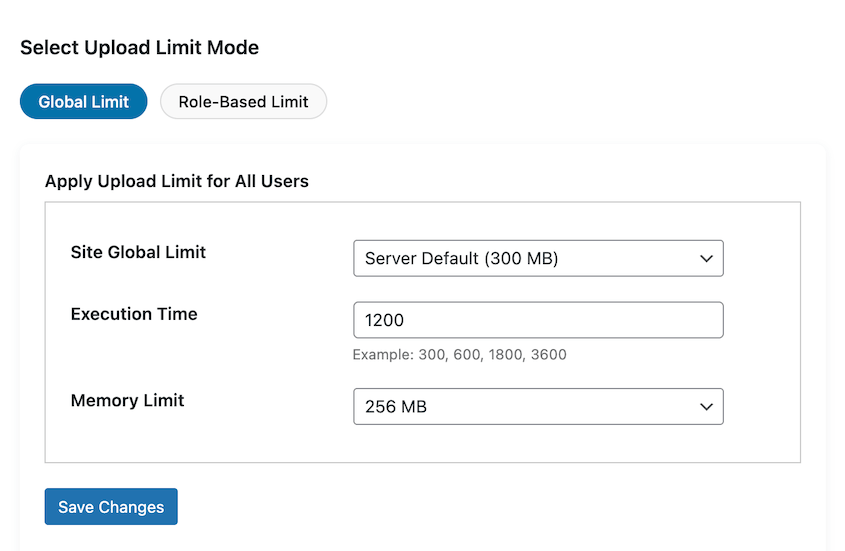
Il plugin ti fornirà solo la dimensione massima di caricamento consentita dal tuo web host. Se hai bisogno di più, contatta il tuo provider di hosting.
Metodo 7: Aumenta la dimensione di caricamento file in Multisite
Se gestisci una rete WordPress Multisite, puoi aumentare direttamente la dimensione del caricamento dei file dalla tua dashboard.
Accedi alla dashboard di Network Admin. Fai clic su Impostazioni » Impostazioni di rete. Nella sezione Impostazioni di caricamento, modifica il valore di Dimensione massima file caricabile.
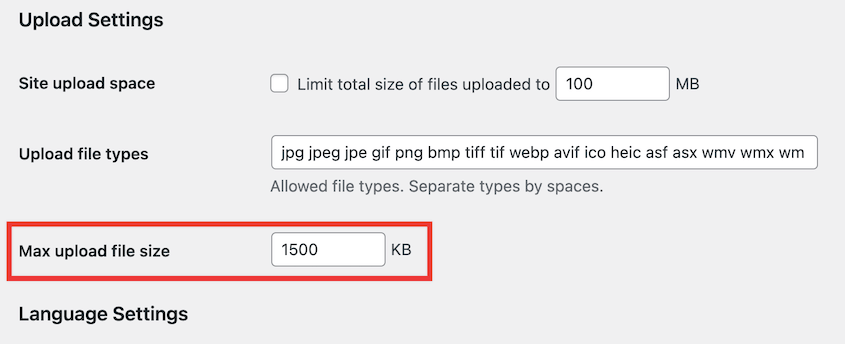
Se imposti questo valore più alto di quanto consentito dal tuo server, il tuo server lo ignorerà. Pertanto, potresti anche dover contattare il tuo provider di hosting per aumentare il limite per la tua rete Multisite.
Alternativa: Carica file di grandi dimensioni direttamente tramite FTP
A volte la soluzione più rapida non è aumentare il limite, ma saltare del tutto l'uploader del browser. Un client FTP come FileZilla ti permette di caricare file direttamente sul tuo server.
Questo funziona bene per temi e plugin di grandi dimensioni. Decomprimi il tema o il plugin sul tuo computer, quindi carica la cartella direttamente in wp-content/themes o wp-content/plugins. WordPress lo rileverà e potrai attivarlo dalla tua dashboard come al solito, senza limiti di caricamento.
I file multimediali sono un po' diversi. Puoi caricare immagini o video in wp-content/uploads tramite FTP, ma non appariranno automaticamente nella tua Libreria multimediale. Per registrarli, usa un plugin di supporto come Add From Server, o semplicemente fai riferimento all'URL diretto del file dove ti serve.
Cosa fare se non riesci ancora ad aumentare la dimensione di caricamento
Hai provato un metodo e il limite non è cambiato? Ecco cosa succede di solito.
- Sei su hosting gestito: Hosting come WP Engine e Kinsta bloccano le modifiche a php.ini e .htaccess. Su questi, contatta il supporto e di solito aumenteranno il limite rapidamente.
- Il tuo server usa NGINX, non Apache: Il metodo .htaccess funziona solo su Apache. Sui server NGINX, le modifiche a .htaccess non hanno effetto, quindi usa php.ini, un plugin o il tuo hosting.
- La modifica non è stata applicata: Verifica di aver modificato il file giusto, di averlo salvato e (per php.ini) di aver riavviato il server. Quindi ricontrolla il tuo limite in Strumenti » Integrità del sito » Info.
- Stai cercando di spostare un sito di grandi dimensioni: Se il limite di caricamento ti ostacola solo perché stai migrando, saltalo del tutto con il formato DupArchive di Duplicator (Metodo 1), che trasferisce file di grandi dimensioni senza utilizzare l'uploader del browser.
Domande frequenti (FAQ)
Come aumento la dimensione di caricamento in All-in-One WP Migration?
La versione gratuita di All-in-One WP Migration ha un limite di caricamento file di 512 MB. Se desideri aumentare questo valore, dovrai acquistare un'estensione per $69.
Se vuoi evitare timeout ed errori di limite di caricamento file, considera l'utilizzo di Duplicator. Questo plugin di migrazione ha un formato file personalizzato (DupArchive) creato per gestire trasferimenti di file di grandi dimensioni.
Come carico file di grandi dimensioni nella libreria multimediale di WordPress?
Per caricare file di grandi dimensioni nella tua libreria multimediale, potresti dover aumentare il limite massimo di dimensione del caricamento file. Puoi farlo modificando il tuo file php.ini, functions.php o .htaccess. Potresti anche contattare il tuo provider di hosting per ricevere aiuto.
Come aumento la dimensione massima di caricamento file in cPanel?
In cPanel, apri il MultiPHP INI Editor. Cerca upload_max_filesize e aumenta questo valore secondo necessità. Salva le modifiche.
Pronto a caricare senza limiti?
Le restrizioni sul caricamento di file non devono rallentarti.
Per la maggior parte dei principianti, contattare il proprio provider di hosting è il primo passo più semplice. Ma se ti senti a tuo agio a lavorare con i file, modificare il tuo file php.ini o utilizzare WPCode per aggiungere uno snippet personalizzato ti dà un maggiore controllo sulle impostazioni del tuo server.
E se stai migrando un sito di grandi dimensioni e incontri limiti di caricamento lungo il percorso, non dimenticare Duplicator. Il suo formato DupArchive è creato per gestire trasferimenti di file di grandi dimensioni senza i soliti errori e timeout.
Duplicator Pro offre il modo più affidabile per spostare il tuo sito su un nuovo host senza perdere dati. Usalo per evitare i limiti di caricamento file!
Mentre sei qui, penso che ti piaceranno queste guide aggiuntive su WordPress:
- Come migrare un sito WordPress di grandi dimensioni
- Come eseguire il backup di un sito WordPress di grandi dimensioni
- Come Ergo Creative migra siti web di grandi dimensioni in meno di 20 minuti
- Come Aumentare il Limite di Memoria in WordPress
- Padroneggiare il debug di WordPress: dalle basi alle tecniche avanzate




