

Plugin di migrazione WordPress che funzionano davvero nel 2026
 Joella Dunn
Joella Dunn
Joella Dunn
 John Turner
John Turner
John Turner
Spostare un sito WordPress può essere un compito complesso. Ogni file, voce del database e impostazione deve essere trasferito correttamente.
Ma cosa succederebbe se potessi impacchettare tutto in un'unica scatola ordinata e spacchettarla nella nuova posizione con un solo clic?
Questo è ciò che fanno i plugin di migrazione WordPress. Semplificano il compito di ricollocare il tuo sito su un nuovo host, server o nome di dominio.
Il nostro team migra siti web WordPress da anni. Quindi, sappiamo quanto sia importante trovare lo strumento migliore per il lavoro.
Abbiamo recensito i migliori plugin di migrazione WordPress disponibili oggi. Troviamo quello giusto per te!
Ecco i punti chiave:
- I plugin di migrazione WordPress impacchettano il tuo intero sito (file, temi, plugin e database) e lo spostano in modo sicuro in una nuova posizione senza perdita di dati.
- L'utilizzo di un plugin elimina i rischi tecnici associati alle migrazioni manuali, come tempi di inattività del sito o collegamenti SEO interrotti.
- Duplicator è la nostra scelta migliore per la sua facilità d'uso, le migrazioni drag-and-drop e l'installer autonomo.
- Abbiamo testato 7 plugin leader per aiutarti a decidere quali funzionalità (come ambienti di staging o backup in tempo reale) sono giuste per il tuo progetto.
Riepilogo rapido: i migliori plugin di migrazione WordPress
| Plugin di migrazione | Versione gratuita? | Prezzo Premium | Ideale per |
| Duplicator | ✅ | 69,30 €/anno | Qualsiasi proprietario di sito web che necessita di uno strumento completo per backup, migrazioni e clonazione |
| UpdraftPlus | ✅ | 70 €/anno | Backup e ripristini facili per principianti |
| All-in-One WP Migration | ✅ | 99 €/anno | Migrazioni semplici e gratuite |
| Jetpack (VaultPress) | ❌ | € 4,95/mese | Log di archivio backup e ripristino istantaneo |
| Migrate Guru | ✅ | N/D | Migrazioni con un clic |
| Solid Backups | ❌ | 99 €/anno | Backup flessibili e opzioni di ripristino personalizzate |
| BlogVault | ❌ | $89/anno | Funzionalità di sicurezza avanzate e staging con un clic |
Indice
Cosa cercare in un plugin di migrazione WordPress
WordPress è molto facile da usare quando si tratta di creare post del blog o gestire commenti. Tuttavia, spostare l'intero sito in una posizione diversa può essere un compito difficile.
Durante una migrazione manuale, dovrai avere familiarità con i file del tuo sito e il database. Questo processo comporta sempre il rischio di tempi di inattività, perdita di dati o diminuzione dei ranking di ottimizzazione per i motori di ricerca (SEO).
Se sei un principiante, c'è un modo più semplice.
Raccomando di spostare il tuo sito con un plugin di migrazione WordPress. Questi strumenti di migrazione sono progettati per impacchettare i tuoi dati e trasferirli in modo sicuro su un nuovo dominio, host, server o directory.
Ecco alcune funzionalità principali da cercare in un plugin di migrazione di siti web:
- Funzionalità drag-and-drop
- Trasferisce file e database del sito
- Ripristino in caso di disastro in caso di errori
- Supporto per siti web di grandi dimensioni e reti WordPress Multisite
- Funzionalità di ricerca e sostituzione
Prima di installare qualsiasi nuovo plugin, è bene assicurarsi che abbia buone recensioni dei clienti. È anche una buona idea evitare plugin di migrazione che non sono stati aggiornati di recente.
I 7 migliori plugin di migrazione per WordPress (Revisionati per il 2026)
Anche quando sai cosa cercare, potresti faticare a restringere tutti i plugin di migrazione per WordPress. Ecco quelli che consiglio sempre:
- Duplicator: Miglior plugin di migrazione in assoluto con funzionalità drag-and-drop e un installer autonomo che funziona anche se WordPress non è installato
- UpdraftPlus: Popolare plugin di backup con add-on di migrazione, perfetto per i principianti
- All-in-One WP Migration: Semplice strumento di migrazione gratuito con oltre 5 milioni di installazioni attive
- Jetpack: Suite completa di plugin con funzionalità di backup, clonazione e migrazione
- Migrate Guru: Plugin di migrazione gratuito con un clic che gestisce siti fino a 200 GB
- Solid Backups: Soluzione premium di migrazione e backup con supporto per siti di staging
- BlogVault: Strumento di migrazione avanzato con migrazione selettiva e funzionalità di sicurezza
1. Duplicator
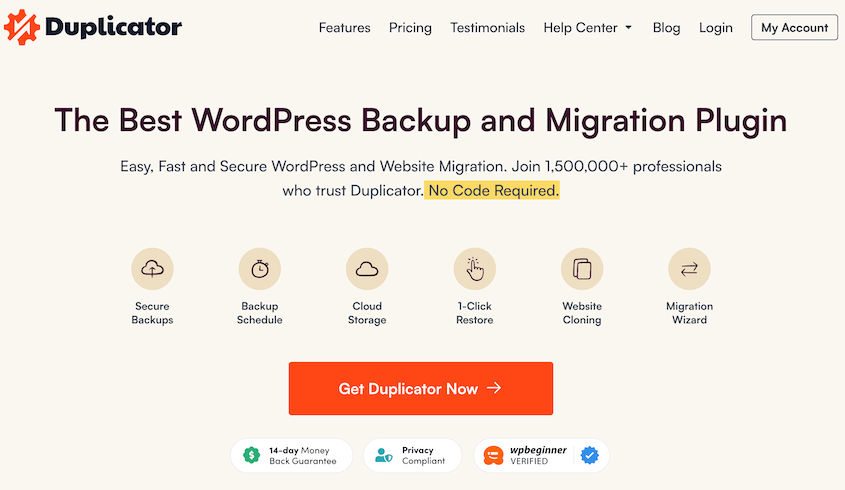
Duplicator è il miglior plugin di migrazione per WordPress. Questo strumento ti consente di migrare il tuo sito WordPress su un altro host o dominio con tempi di inattività pari a zero.
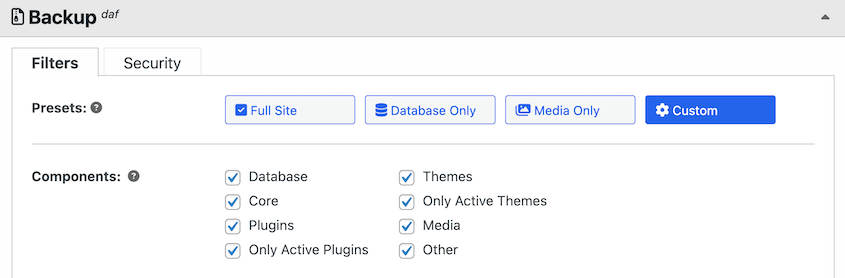
Quando inizi a usare Duplicator, puoi creare backup del tuo sito. Essenzialmente, questi raggrupperanno tutti i tuoi file di WordPress, contenuti, plugin, temi e database in un file zip.
Se vuoi scegliere quali dati includere, personalizza il backup. Questo ti aiuta a migrare solo i dati necessari dal sito originale.
Una volta che hai un backup, questo può essere spostato in qualsiasi posizione che supporti WordPress. Inizierai semplicemente scaricando il file di archivio del backup.
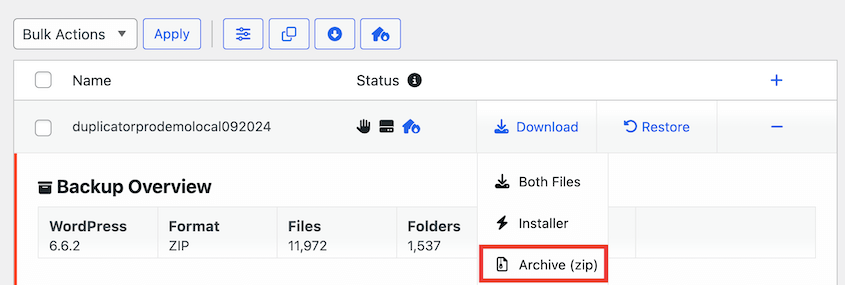
Con Duplicator Pro, puoi trascinare e rilasciare questo file sul nuovo sito web. Questo importerà immediatamente il tuo vecchio sito.

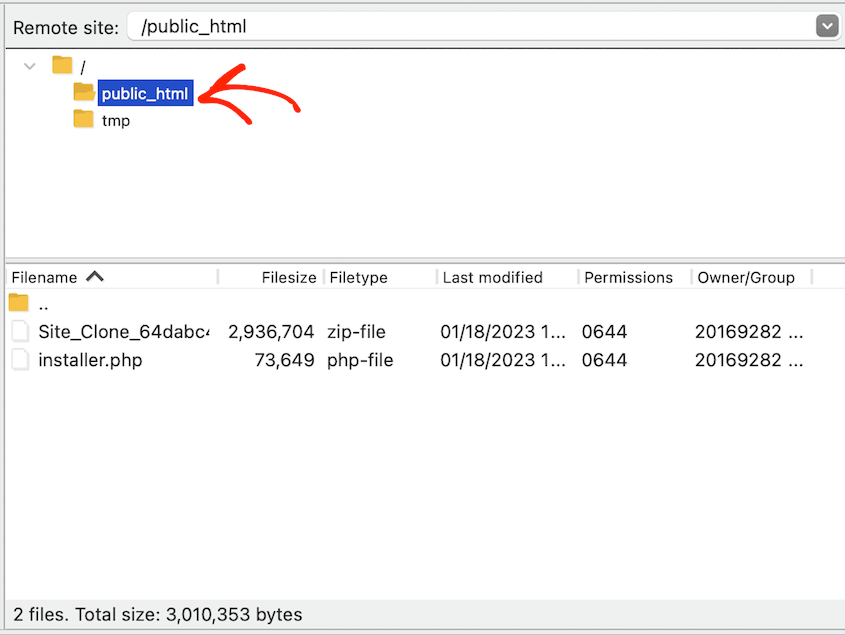
Tuttavia, non hai nemmeno bisogno di avere WordPress installato. Puoi caricare il backup sul nuovo server e visitare https://tuo-dominio/installer.php per avviare la procedura guidata di migrazione.
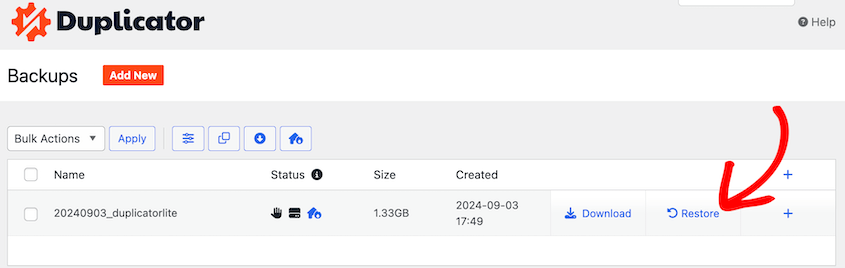
Duplicator è utile anche come plugin di backup per WordPress. Puoi creare e scaricare manualmente i backup o impostare una pianificazione di backup automatica. Quindi, puoi facilmente ripristinare un backup recente con un clic.
Mentre Duplicator Pro ti offre il controllo completo sulle tue migrazioni WordPress, a volte hai bisogno di mani esperte per gestire l'intero processo per te. Duplicator's Migration Service si occupa di tutto, dalla creazione del backup al test finale, senza alcun lavoro tecnico richiesto da parte tua!
Funzionalità chiave di Duplicator
- Migrazioni drag and drop
- Backup pianificati
- Archiviazione cloud su Dropbox, Google Drive, Microsoft OneDrive, Amazon S3, FTP e altro
- Archiviazione cloud nativa Duplicator Cloud
- Ripristini con un clic
- Ripristini di backup remoti
- Un installer semplificato in due passaggi
- Recupero disastri per ripristini rapidi del sito in emergenza
- Supporto per host gestiti come WordPress.com, WPEngine, GoDaddy Managed e altri
- Multi-threaded per supportare siti web e database più grandi & database
- Notifiche email giornaliere, settimanali o mensili
- Supporto clienti premium
- Plugin gratuito WP Media Cleanup incluso con Elite
Cosa ci è piaciuto di Duplicator
- Migra siti WordPress verso nuovi host, nomi di dominio o server
- Procedura guidata di migrazione passo-passo per semplificare il processo
- Pianifica backup automatici e archiviali nel cloud
- Supporta siti di grandi dimensioni e reti WordPress multisito
- Non richiede l'installazione di WordPress
- Versione gratuita
Prezzi: Duplicator è disponibile come plugin WordPress gratuito. Tuttavia, Duplicator Pro offre utili funzionalità avanzate come installazioni drag-and-drop e opzioni di archiviazione cloud. Gli abbonamenti per la versione premium partono da $69.30 all'anno.
2. UpdraftPlus

Un altro plugin popolare per le migrazioni WordPress è UpdraftPlus. Sebbene sia utilizzato principalmente per i backup, la versione premium include un add-on Migrator. Questo può migrare o clonare un sito web.
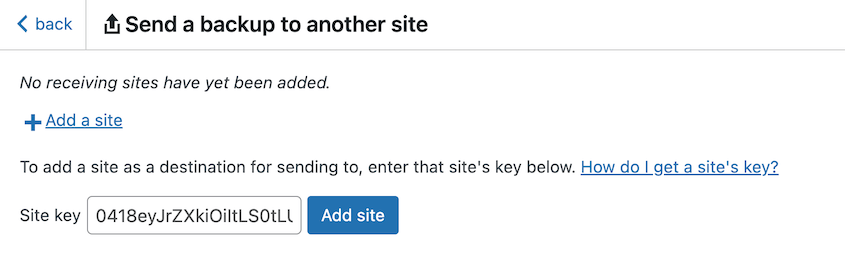
Con UpdraftPlus Migrator, puoi spostare facilmente i tuoi contenuti su un URL diverso. Al termine della migrazione, eliminerà ogni menzione dell'URL del tuo vecchio sito web dal tuo database MySQL. Inoltre, UpdraftPlus supporta migrazioni illimitate.
Funzionalità chiave di UpdraftPlus
- Migrazione e clonazione
- Pulisce il database dai vecchi URL
- Opzioni di backup e ripristino
- Archiviazione cloud su Amazon S3, Rackspace, Dropbox, Google Drive, OneDrive e altro
- Supporto per Multisite
Cosa ci è piaciuto di UpdraftPlus
- Facile da usare per backup e migrazioni
- Pianifica backup automatici nel cloud
- Compatibile con WordPress multisite
- Versione gratuita
Cosa non ci è piaciuto di UpdraftPlus
- Devi installare WordPress sul nuovo server per avviare la migrazione
- Genera file di backup separati per database, temi, plugin e caricamenti
- Opzioni di ripristino accessibili solo dalla dashboard, il che potrebbe lasciarti bloccato fuori dal tuo sito
Prezzi: Puoi installare la versione gratuita del plugin e aggiungere la funzionalità Migrator per $30. In alternativa, UpdraftPlus Premium include tutti gli add-on. Questi abbonamenti partono da $70 all'anno.
Non sei sicuro di come decidere tra questi due migliori plugin di migrazione? Dai un'occhiata alla nostra recensione di Duplicator vs UpdraftPlus!
3. All-in-One WP Migration
All-in-One WP Migration è stato creato specificamente per la migrazione di siti web. Con oltre 5 milioni di installazioni attive, è uno dei plugin di migrazione WordPress più popolari disponibili.
Se sei un principiante, troverai il plugin All-in-One WP Migration molto facile da usare.
Puoi esportare rapidamente i tuoi file, plugin, temi e database in un unico file. Quindi, sarai in grado di trascinare e rilasciare semplicemente questo file nel tuo nuovo dashboard di WordPress.
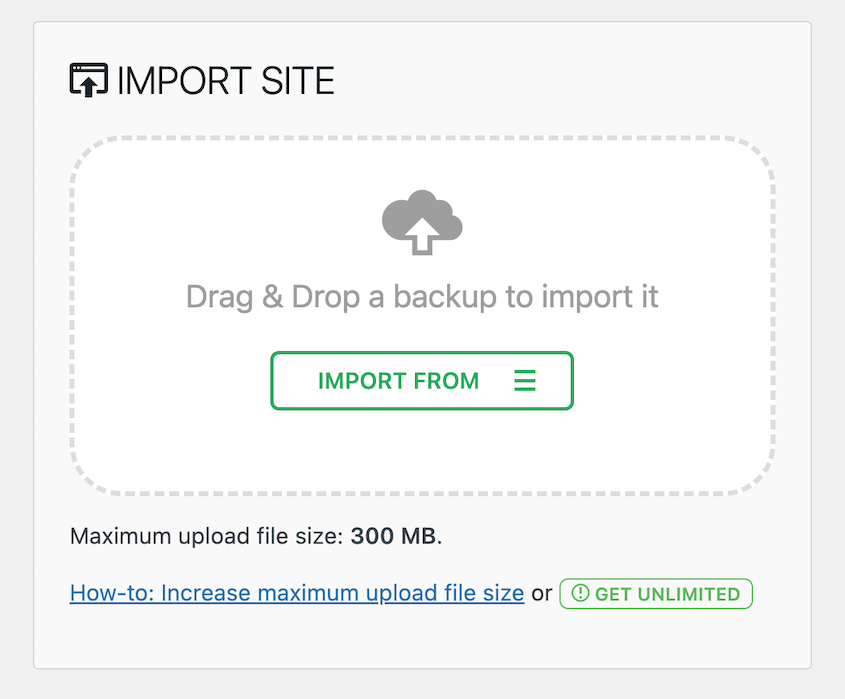
Funzionalità chiave di All-in-One WP Migration
- Migrazione drag and drop
- Archiviazione cloud
- Sostituisce automaticamente l'URL del sito web durante l'importazione
- Estensioni premium per il supporto Multisite, limiti aumentati per l'upload di WordPress e altro ancora
- Compatibile con molti provider di hosting WordPress
Cosa ci è piaciuto di All-in-One WP Migration
- Adatto ai principianti
- Pronto per la traduzione in 50 lingue diverse
Cosa non ci è piaciuto di All-in-One WP Migration
- Le estensioni premium possono diventare costose se hai bisogno di molte funzionalità estese
- Dimensione di importazione file 512MB
- È necessario installare WordPress sul nuovo server
- Recente ondata di recensioni negative su wordpress.org
Prezzi: Il plugin principale è gratuito. La versione premium costa $99, a meno che tu non abbia bisogno di supportare più di 50 siti. Puoi anche installare estensioni premium separate per il supporto multisite e upload illimitati, a partire da $69.
4. Jetpack
Jetpack è una suite di plugin completa con strumenti per eseguire il backup, clonare e migrare siti web. Precedentemente noto come VaultPress, Jetpack ti consente di salvare regolarmente backup del tuo contenuto. Quando necessario, puoi facilmente clonare o migrare questo backup in un'altra posizione.
Inoltre, Jetpack può essere utile per ripristinare un backup dopo un errore o un crash. Fornisce un registro delle attività con tutti i tuoi backup recenti. Dopo aver trovato il backup giusto, puoi ripristinarlo con un clic.
Funzionalità chiave di Jetpack
- Clonazione e migrazione
- Backup automatici
- Ripristini con un clic
- Archiviazione cloud
- Archivio e registro attività
- Monitoraggio backup
Cosa ci è piaciuto di Jetpack
- Opzioni di backup e ripristino semplici
- Backup incrementali
- Tutti i dati di backup sono archiviati nel cloud, quindi non è necessario ricaricare i backup per migrare il tuo sito
Cosa non ci è piaciuto di Jetpack
- Processo di configurazione complicato, poiché dovrai installare due plugin, acquistare un abbonamento Jetpack e creare un account WordPress.com
Prezzi: Puoi acquistare Jetpack Backup per $4,95 al mese per il primo anno. In alternativa, è incluso in un pacchetto di sicurezza insieme a funzionalità utili come la protezione da forza bruta e il monitoraggio dei tempi di inattività. Questo piano costa $20 mensili.
5. Migrate Guru
Se stai cercando un plugin di migrazione WordPress di base, Migrate Guru potrebbe fare al caso tuo. Questa è un'alternativa gratuita a BlogVault (la sua società madre) che si concentra su migrazioni rapide e semplici.
Con il plugin, puoi utilizzare chiavi di migrazione per spostare i tuoi dati.
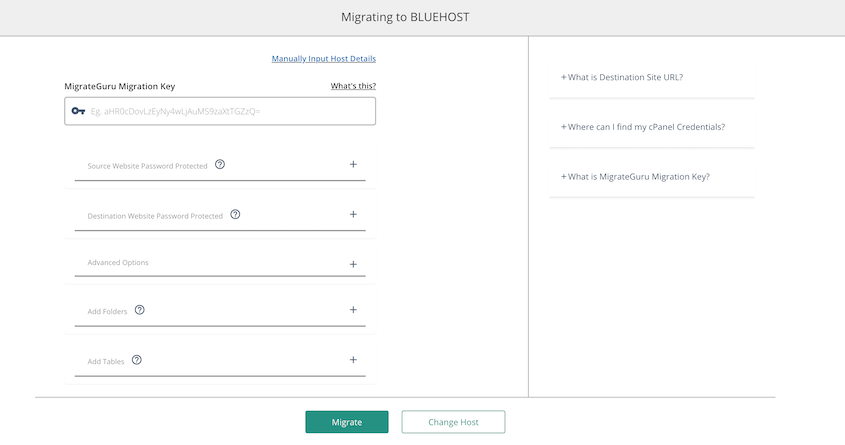
Poiché Migrate Guru viene eseguito sui server di BlogVault, non grava sul tuo piano di hosting. Sarai anche in grado di evitare problemi di timeout durante la migrazione di un sito più grande.
Tuttavia, tieni presente che questo plugin è più limitato rispetto alle altre opzioni in questo elenco. Non funziona come soluzione di backup. Inoltre, Migrate Guru non supporta le migrazioni su localhost.
Funzionalità chiave di Migrate Guru
- Migrazione in un clic
- Supporta siti di grandi dimensioni fino a 200 GB
- Ricerca e sostituzione automatiche
- Migrazioni multisito
- Archiviazione esterna
Cosa ci è piaciuto di Migrate Guru
- Procedura guidata di migrazione facile da usare
- Versione gratuita
- Può migrare siti web più grandi
Cosa non ci è piaciuto di Migrate Guru
- Nessuna funzionalità di backup
- Non supporta migrazioni da o verso un localhost
- Non supporta multisito
Prezzi: Migrate Guru è completamente gratuito.
6. Solid Backups (precedentemente BackupBuddy)
Solid Backups (precedentemente noto come BackupBuddy) non si limita a eseguire il backup del tuo sito web WordPress. Sono disponibili soluzioni integrate per cambiare dominio, hosting o server. Dopo la migrazione, gli URL verranno aggiornati automaticamente.
Come sviluppatore, Solid Backups ti aiuta a impostare un sito di staging. Puoi clonare il sito del tuo cliente e migrarlo su un server locale. Qui, puoi apportare modifiche in sicurezza e inviarle al sito live quando sei pronto.
Funzionalità principali di Solid Backups
- Migrazione a un nuovo server o hosting
- Sostituzione URL
- Backup completi, solo database e solo file
- Backup pianificati
- Archiviazione remota
- Strumento di ripristino ImportBuddy
Cosa ci è piaciuto di Solid Backups
- Funzionalità di migrazione, backup e clonazione
- Supporta backup automatici nel cloud
- Distribuzione con un clic da staging a produzione
Cosa non ci è piaciuto di Solid Backups
- Non supporta multisito
- Piani premium costosi
- Nessuna versione gratuita
Prezzi: Solid Backups è un plugin premium a partire da $99 all'anno. Questo include il supporto per un singolo sito e 20 GB di spazio di archiviazione per i backup.
7. BlogVault
Se hai bisogno di una soluzione più completa rispetto a Migrate Guru, puoi utilizzare BlogVault. Questo plugin premium ti consente di creare backup, salvarli nello spazio di archiviazione cloud e persino migrare il tuo sito in un'altra posizione.
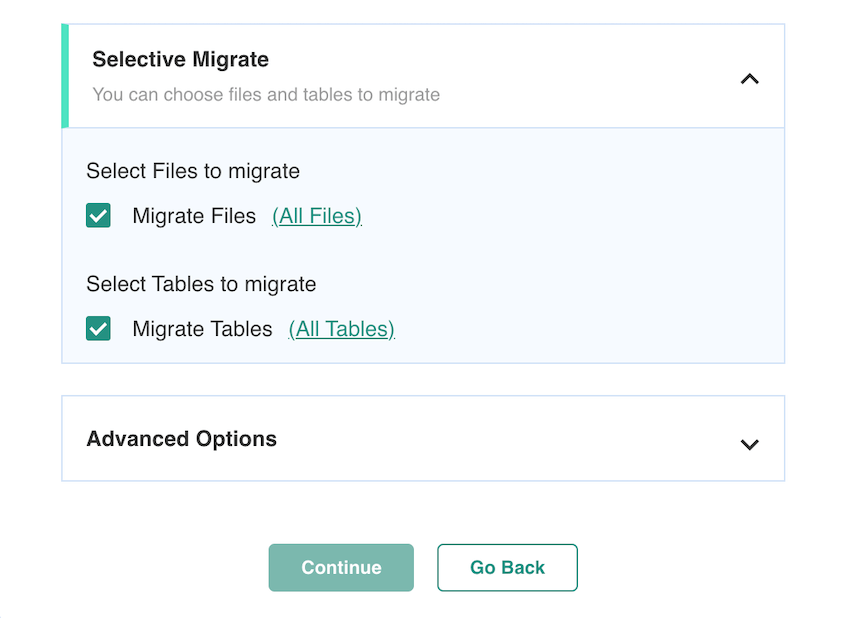
BlogVault può anche aiutarti a migrare parti specifiche del tuo sito. Se non hai bisogno di spostare tutti i tuoi dati, puoi scegliere file WordPress, plugin o tabelle di database specifici da includere nella migrazione.
Inoltre, BlogVault ha efficaci opzioni di ripristino. Se qualcosa va storto durante la migrazione, puoi ripristinare il sito originale con un clic. BlogVault fornisce anche un Emergency Connector per rimettere online un sito in crash.
Funzionalità principali di BlogVault
- Migrazione in un clic
- Migrazione selettiva
- Ricerca e sostituzione automatiche
- Supporto per siti di grandi dimensioni e WordPress Multisite
- Backup incrementali
Cosa ci è piaciuto di BlogVault
- Funzionalità di sicurezza come monitoraggio uptime e rimozione malware
- Dashboard esterna per un facile ripristino dei backup
- Migra dati specifici
Cosa non ci è piaciuto di Blog Vault
- Processo di backup più lungo
- Non così tante opzioni di archiviazione cloud
- Nessuna versione gratuita
Prezzi: Per iniziare a usare BlogVault, dovrai acquistare un abbonamento. Questi partono da $89 all'anno per una licenza base.
FAQ sui plugin per la migrazione di WordPress
Quali plugin possono essere utilizzati per migrare un sito web completo da un server all'altro?
Ecco i migliori plugin per la migrazione di WordPress per migrare il tuo sito web su un altro server:
WordPress offre la migrazione gratuita?
Di per sé, WordPress non offre uno strumento di migrazione gratuito. Tuttavia, esistono molti plugin per la migrazione di WordPress progettati per aiutarti a spostare l'intero sito web su un server, host o nome di dominio diverso.
Qual è il modo più semplice per migrare un sito WordPress?
Il modo più semplice per migrare un sito WordPress è utilizzare un plugin di migrazione come Duplicator Pro. Utilizzando questo strumento, sarai in grado di creare copie di tutti i dati del tuo sito e trasferirli con successo in un'altra posizione. Duplicator può aiutarti a migrare il tuo sito web su un host locale, un altro host live, un nuovo nome di dominio o ovunque altro supporti WordPress.
Come sposto il mio sito WordPress da un server all'altro?
Puoi spostare il tuo sito WordPress su un altro server creando un backup Duplicator che contenga tutti i file del tuo sito, plugin, temi e tabelle di database. Successivamente, installa Duplicator sul nuovo sito web e vai allo strumento Importa. Trascina e rilascia il tuo file di archivio originale qui per completare la migrazione.
Come posso migrare il mio sito web senza perdere la SEO?
Puoi migrare il tuo sito web senza perdere la SEO aggiornando prima il tuo file hosts per puntare all'indirizzo IP del tuo nuovo host. Quindi, crea una copia del tuo sito con Duplicator e caricala nella nuova posizione. Infine, esegui un reindirizzamento completo del sito e informa Google del cambiamento.
Per maggiori dettagli, consulta la nostra guida completa sulle migrazioni SEO!
All-in-One WP Migration è gratuito?
Sì, All-in-One WP Migration è un plugin gratuito per la migrazione di WordPress. Tuttavia, puoi anche acquistare estensioni premium a causa della funzionalità limitata della versione gratuita. Ad esempio, potresti dover aumentare il limite di caricamento di WordPress o aggiungere il supporto multisito.
Qual è il miglior plugin per la migrazione di WordPress?
Duplicator è il miglior plugin per la migrazione di WordPress sia per principianti che per utenti esperti. Puoi usare Duplicator per eseguire il backup del tuo sito web in un file zip e semplicemente importarlo in una seconda posizione.
Scegli il Plugin di Migrazione Giusto per Trasferimenti Sicuri
Spero che questa guida ti abbia aiutato a trovare il plugin che soddisfa le tue esigenze specifiche, sia che tu stia cercando un'opzione facile da usare per principianti o qualcosa che supporti configurazioni multisito complesse.
Questi strumenti sono progettati per semplificare il processo, ridurre al minimo i tempi di inattività e proteggere i tuoi dati, rendendo facile per chiunque eseguire una migrazione.
Ricorda, una migrazione di successo non riguarda solo il trasferimento dei dati, ma anche il mantenimento dell'integrità e delle prestazioni del tuo sito.
Vuoi evitare di migrare manualmente i tuoi file e il tuo database? Scarica Duplicator Pro per migrazioni di siti facili con il drag-and-drop!
Mentre sei qui, potresti apprezzare questi tutorial aggiuntivi su WordPress:
- Come migrare un sito WooCommerce
- Quanto costa migrare un sito WordPress?
- La checklist definitiva per la migrazione di WordPress
- La guida completa alla migrazione di siti web SEO
- I 5 migliori servizi di migrazione WordPress per trasferimenti semplici
- Come spostarsi da WordPress.com a WordPress.org




