
AI Assistant Cheat Sheet for Duplicator: Ready-to-Use Requests
Want to run your WordPress backups by typing a sentence to your AI assistant? Duplicator, our backup and migration plugin, works with WPVibe, so an AI assistant such as Claude can create backups, check your site, and troubleshoot problems for you.
In this cheat sheet, we’ve collected ready-to-use requests for managing Duplicator with your AI assistant, for both Duplicator Lite and Duplicator Pro.
- Before You Start
- Getting the Best Results From Your Assistant
- Quick Reference
- Checking Your Site
- Creating and Managing Backups
- Storing Backups Off-Site
- Scheduling Automatic Backups
- Saving Backup Setups as Templates
- Setting a Recovery Point
- Running Incremental Backups
- Speeding Up and Cleaning Up
- Changing Settings
- Deleting Backups, Schedules, and Templates
- Migrating or Restoring a Site
- Running Full Routines
- Troubleshooting With Your Assistant
- What Your Assistant Can’t Do
- FAQs
Before You Start
We tested these requests on real sites with Duplicator Lite and Duplicator Pro, through Claude connected with WPVibe. If your assistant isn’t connected yet, or you haven’t decided about sensitive actions, follow our guide on managing Duplicator with your AI assistant first.
Each request shows where it works and whether it’s a sensitive action. Text in square brackets, such as [storage name], is a placeholder. Before you send the request, replace it with your own details. To copy a request, click the Copy button in its top right corner.
Getting the Best Results From Your Assistant
Your assistant decides what to do from the words you type. A few habits make the difference between a precise result and a surprise:
- Name Duplicator. You can start with “Use Duplicator to…” or “In Duplicator…”, so your assistant goes to your backups and not to another tool.
- Say what must not happen. When you only want a check, add “Don’t change anything yet,” and “Don’t run the updates” when you’ll do a risky step yourself.
- Ask for a report back. To get a clear confirmation, end with “tell me when it’s done, with the size.”
- Ask to be shown first. For anything that deletes or changes a setting, add “show it to me first and ask before you do it.” Your assistant doesn’t always ask by itself.
- Name the backup type. In your request, say “whole site” or “database only.” A request with no type follows your default template.
The table below shows requests that are too open, and a safer way to ask:
| Instead of | What can happen | Ask this |
|---|---|---|
| Is my site protected? | Your assistant offers to start a full backup right away, and runs it when you say yes. | Use Duplicator to check: is my site backed up properly? Don’t change anything yet. |
| Turn on the trace log and remind me to turn it off later. | Your assistant can’t set reminders, so the log stays on until you ask again. | Turn on the Duplicator trace log so we can debug a backup problem. |
| Add Google Drive as a backup storage. | Your assistant can’t add storages, so you only get general steps. | Which off-site storages can I use with Duplicator on this site? |
Quick Reference
The table below lists the most used requests. Each one is explained in its own section further down.
| What you want | What to ask | Duplicator Lite | Sensitive |
|---|---|---|---|
| Check your backups | Use Duplicator to check: is my site backed up properly? Don’t change anything yet. | Yes | No |
| Back up the whole site | Back up my whole site now with Duplicator and tell me when it’s done, with the size. | Yes | No |
| Back up the database | Back up only the database with Duplicator and tell me when it’s done. | Yes | No |
| See recent backups | Show me my last 5 Duplicator backups with date, size and status. | Yes | No |
| Copy a backup off-site | Copy Duplicator backup [number] to Duplicator Cloud and tell me when it’s there. | Yes | No |
| Back up every night | Using Duplicator, make sure my site is backed up automatically every night at 2 AM. | No | No |
| Leave folders out | Create a Duplicator template that leaves out the uploads folder and .log files. | No | No |
| Set a recovery point | With Duplicator, make a complete backup of my whole site, then set it as the recovery point. | No | Yes |
| Find out why a backup failed | Why did my last Duplicator backup fail? Read its log and explain in plain words. | Yes | No |
| Fix slow backups | My Duplicator backups are slow. Run AutoTune and tell me which settings it chose. | Yes | Yes |
| Change a setting | Turn on the Duplicator trace log so we can debug a backup problem. | Yes | Yes |
| Delete a backup | Delete Duplicator backup [number]. Show it to me first and ask before deleting. | Yes | Yes |
| Move to a new host | Using my latest Duplicator backup, walk me through installing it on a new host. | Yes | No |
Checking Your Site
Start here. These requests only check your site. They don’t create, change, or delete a backup. They work in Duplicator Lite and Duplicator Pro.
Get a Site Overview
Give me an overview of my site and my Duplicator setup.Your assistant reports your Duplicator, WordPress, PHP, and database versions, your last backup, your storages, and whether the site counts as protected. In Duplicator Pro, it adds your schedules and incremental backups.
Check Whether Your Site Is Backed Up
Use Duplicator to check: is my site backed up properly? If it isn't, tell me exactly what's missing and what I should do first. Don't change anything yet.Duplicator counts a site as protected when a finished backup from the last 7 days has a copy on remote storage. A database-only backup counts too, so check what the off-site copy contains. Your assistant tells you whether your site is protected, how old your last off-site copy is, and the first thing to fix. In Duplicator Pro, it also reports whether a recovery point is set.
List Every Gap in Your Backups
Using Duplicator, list every gap in my backups right now and how to close each one. Don't change anything.This goes deeper than the check above. Your assistant lists each gap it finds, such as no off-site copy, a failed backup and its cause, or no schedule, with a fix next to each one.
Get a Backup Report
Give me a Duplicator backup report for this site: recent backups, any failures and why, storage status, and what I should fix. Don't change anything.Your assistant combines your backup list, your storages, and the Activity Log into a single report. This is a good request to repeat every week.
See What Your Assistant Can Do
What can you do with Duplicator on this site, and which actions need my approval first?Your assistant lists what it can do and which actions need your approval first. For the full list, with the permission each action needs, see our complete list of AI assistant actions.
Creating and Managing Backups
These requests create backups and follow them until they finish. They work in Duplicator Lite and Duplicator Pro, except where noted.
Back Up Your Whole Site
Back up my whole site now with Duplicator and tell me when it's done, with the size.Your assistant starts a full backup, checks it until it completes, and reports its name, size, and where it’s stored. Without a storage in your request, the backup stays on your default local storage.
Back Up Only the Database
Back up only the database with Duplicator before I edit my content, and tell me when it's done.A database-only backup is small and finishes fast, so it suits quick edits. Your assistant reminds you that site files aren’t included.
Back Up Before an Update
I'm about to update my plugins myself. Using Duplicator only: check my backups, make a database-only backup, and tell me when it's safe to start. Don't run any updates and don't install or remove any plugin.Your assistant checks your backups, makes the new one, and tells you when to go ahead. It also warns you if your newest off-site copy is old. For a theme change or a large update, ask for a whole site backup.
Protect a Backup With a Password
Back up only the database with Duplicator, protected with the password [your password], and tell me when it's done.The backup’s installer asks for this password before anyone can install it. You’ll need this password to install the backup, so keep it somewhere safe.
See Your Recent Backups
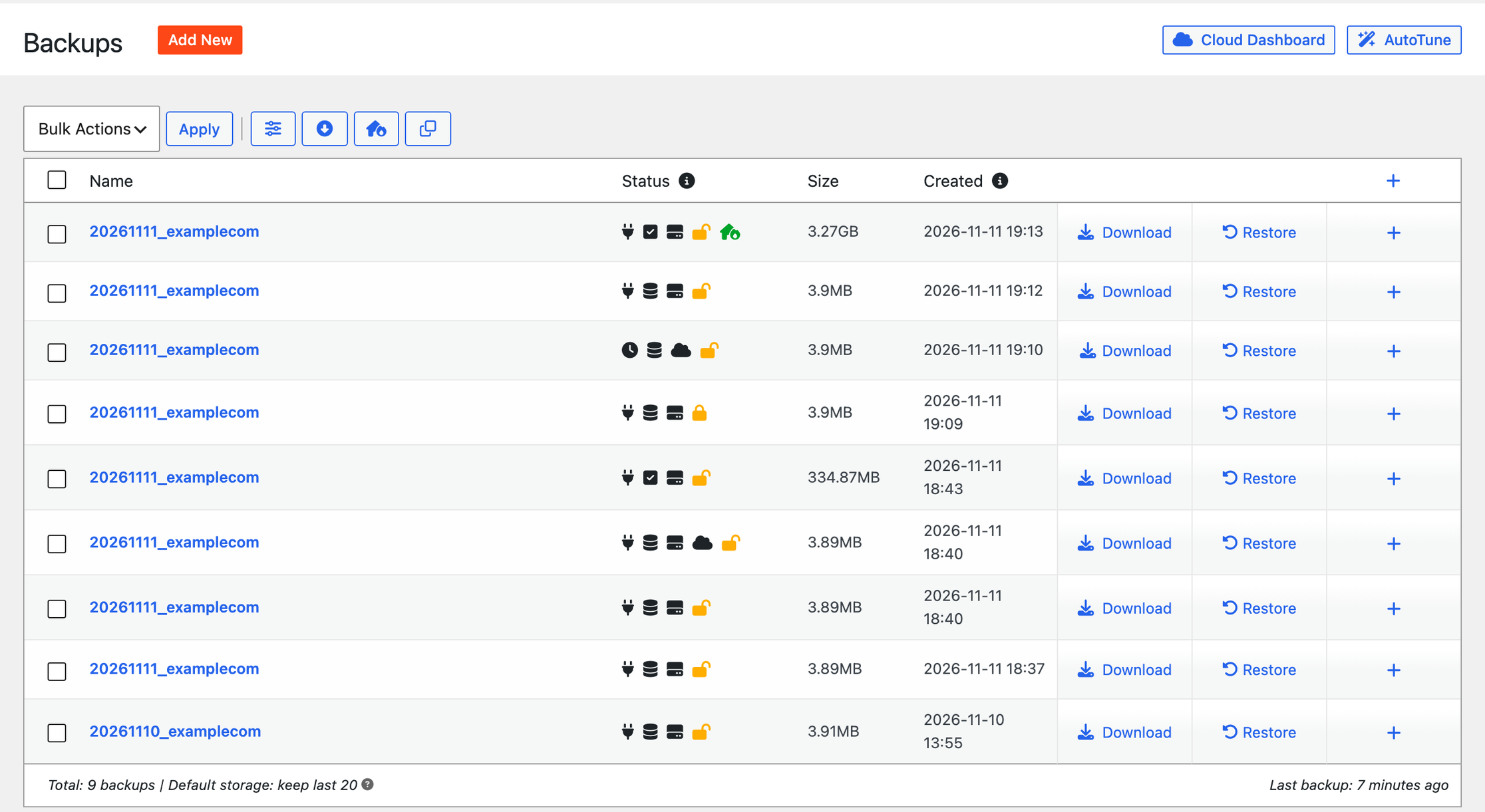
Show me my last 5 Duplicator backups with date, size and status.Your assistant lists each backup with its number. You’ll use that number in other requests, such as copying or deleting a backup.
Every backup your assistant creates also appears under Duplicator Pro » Backups:
Show Only Failed Backups
Show only the Duplicator backups that failed or were cancelled, with the date of each.Your assistant filters the list, so you see the backups that need attention.
Cancel a Running Backup
Cancel the Duplicator backup that's running and confirm it stopped.The backup stops at its next step, and its partial files are discarded. Your assistant checks again until the status shows as cancelled.
Back Up With a Template
Run a Duplicator backup using my [template name] template and tell me when it's done.Your assistant finds the template by name and builds the backup with its settings. This request needs Duplicator Pro, because templates are a paid feature.
Storing Backups Off-Site
A backup that sits only on your server is lost if the server fails. These requests check your storages and copy backups to them.
See Your Storages
Which storages are connected in Duplicator, and how many backups does each keep? Which other off-site storages could I use?Your assistant lists each storage with its type and how many backups it keeps.
Test a Storage
Test my [storage name] storage connection in Duplicator and tell me if it works.Duplicator writes a test file to the storage and deletes it again. If the storage isn’t connected, your assistant tells you to connect it on the Storage page first.
Copy a Backup Off-Site
Copy Duplicator backup [number] to Duplicator Cloud and tell me when it's there. Then tell me whether my site now counts as protected.Your assistant copies the backup, waits for the copy to finish, and runs the protection check again.
Add a Note to a Storage
In Duplicator, add the note "Off-site copies" to my [storage name] storage.Your assistant can change a storage’s notes, and the name of a storage you added yourself. The built-in Default and Duplicator Cloud storages keep their names. Changing how many backups a storage keeps is a sensitive action, covered under Changing Settings.
Add Another Off-Site Storage
I want my Duplicator backups to also go to Google Drive. What do I need to do myself, and what can you do for me after that?Your assistant explains that you add the storage and sign in to it yourself on the Storage page. After that, it can test the storage, add it to your schedules, and copy backups to it.
Scheduling Automatic Backups
A schedule runs your backups for you, hourly, daily, weekly, or monthly, and sends them to the storage you choose. Hourly schedules need a Plus license or higher.
Create a Schedule
Using Duplicator, set up a weekly full backup on Sunday at 3 AM and a daily database backup at 2 AM, both to Duplicator Cloud. Don't run a backup now.Your assistant creates both schedules and tells you each one’s next run time. A database-only schedule needs a database-only template, so your assistant creates that template too.
Review Your Schedules
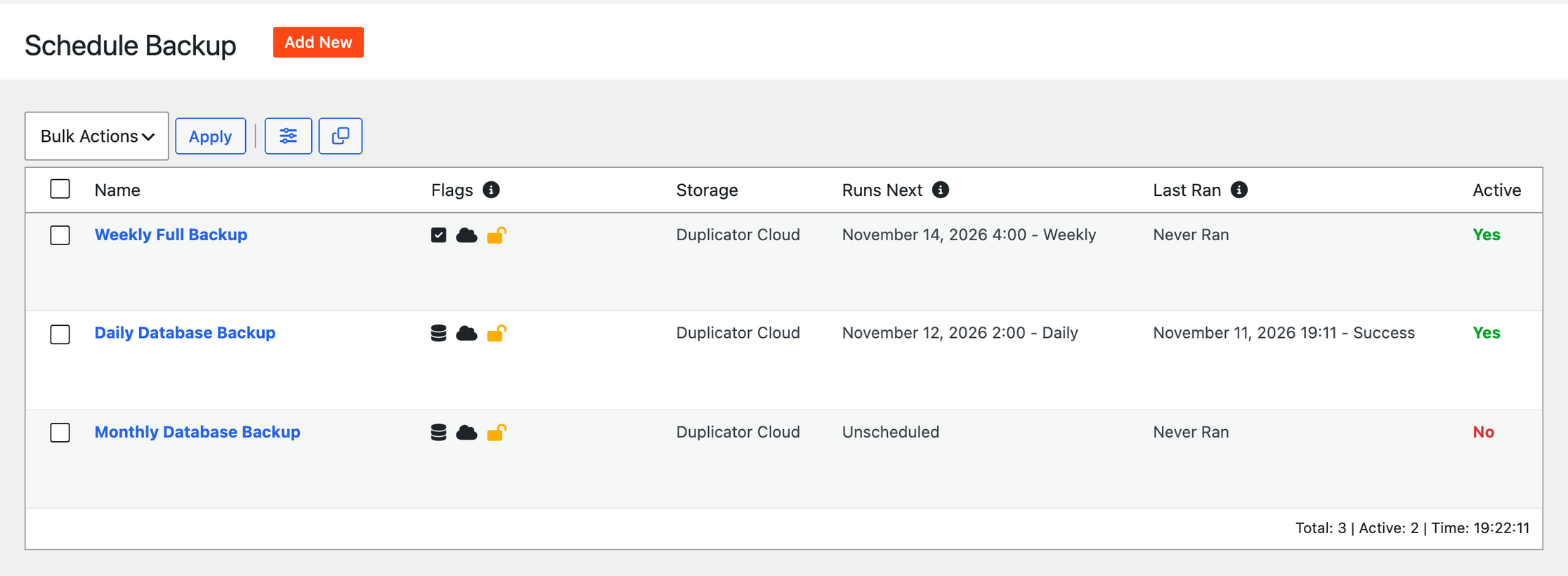
List my Duplicator schedules and tell me if any is inactive and why. Don't change anything.Your assistant lists every schedule with its status. Duplicator doesn’t always give a reason for an inactive schedule, so for a deeper check, use the request under Find Out Why a Schedule Isn’t Running.
The same list is under Duplicator Pro » Schedule Backups:
Change a Schedule
In Duplicator, change my [schedule name] schedule to run on Saturday at 4 AM. Keep it paused and don't run it.Only the settings you name change. Everything else on the schedule stays as it was.
Copy a Schedule
In Duplicator, copy my [schedule name] schedule and make the copy run monthly on the 1st. Keep the copy paused.Your assistant creates the copy with the new timing and leaves the original untouched.
Pause a Schedule
In Duplicator, pause my [schedule name] schedule and confirm it's paused. Don't run a backup.The schedule stays saved but stops running. To start it again, ask “Turn on my [schedule name] schedule and tell me when it will run next.”
Turn a Schedule On and Run It Now
Turn on my [schedule name] schedule in Duplicator and run it now. Tell me when it's done and where the backup went.Your assistant activates the schedule, starts a backup from it, and reports which storage received the backup.
Saving Backup Setups as Templates
A template saves what a backup includes and leaves out, such as folders, file types, and database tables. You can reuse it for single backups and for schedules.
Leave Folders and File Types Out
Create a Duplicator template called No uploads that leaves out the uploads folder and .log files. Don't run a backup yet.Your assistant creates the template and tells you the exact folder path it excluded. If your site uses a custom uploads folder, check that path.
Back Up Without a Large Folder
Back up my site without the uploads folder. Keep it on this server only.When a matching template exists, your assistant uses it and the backup is much smaller. On our test site, this turned a backup of about 3GB into 335MB.
See and Change Your Templates
List my Duplicator templates and tell me what each one leaves out. Don't change anything.Your assistant lists every template with its exclusions. To adjust one, name the change and what must stay the same, for example “Change my No uploads template so it also leaves out .zip files. Keep everything else as it is and don’t run a backup.”
Copy a Template
In Duplicator, copy my [template name] template as [new name] and show it to me.Your assistant creates the copy, so you can adjust it without touching the original.
Encrypt Your Backups
Encrypt my Duplicator backups and password-protect the installer. Ask me for the password before you set anything.Your assistant stops and asks for the password before it changes a template. Then, send the password in your next message.
Setting a Recovery Point
A recovery point is a backup you can restore from even when your WordPress admin area is unreachable. Setting and reading it are sensitive actions.
Make a Backup and Set It as the Recovery Point
I'm switching themes tomorrow. With Duplicator, make a complete backup of my whole site with nothing left out, keep it on this server only, then set it as the recovery point. Tell me which backup it is and how I use the recovery point if the site breaks.Your assistant builds the backup, sets it as the recovery point, and tells you which backup it is. A recovery point needs a complete backup on your server. Database-only backups and backups that leave out WordPress core folders are refused, and your assistant tells you why.
Check Your Recovery Point
Which Duplicator backup is my recovery point, and how old is it? Don't start a backup and don't change anything.Your assistant tells you which backup is set, or that none is set yet.
Running Incremental Backups
Incremental backups send only what changed on your site to Duplicator Cloud, so they’re fast and use less space.
Check Incremental Backups
In Duplicator, are incremental backups on, how often do they run, and how much Duplicator Cloud space is left? Don't change anything.Your assistant reports whether they’re on, the interval, the last snapshot, and your Duplicator Cloud space.
Turn Incremental Backups On
In Duplicator, turn on incremental backups and tell me when the next one will run and whether it can run.Your assistant turns them on and tells you the next run time. To turn them off again, ask “Turn off incremental backups in Duplicator.” Backups already on Duplicator Cloud are kept.
Run an Incremental Backup Now
In Duplicator, run an incremental backup now. Tell me when it's done, what was backed up, and how much Duplicator Cloud space is used now.Your assistant starts the backup and checks its progress. The first run after a long gap sends everything that changed, so on a large site it can take a while. If your assistant stops checking before the upload finishes, ask it again later for the status.
Change How Often They Run
In Duplicator, change incremental backups to run every 6 hours.Your assistant changes the interval and confirms the new value.
Speeding Up and Cleaning Up
These requests tune Duplicator to your server and remove files you no longer need. They work in Duplicator Lite and Duplicator Pro.
Run AutoTune
My Duplicator backups are slow. Run AutoTune and tell me what it tested and which settings it chose.AutoTune runs test backups to find the build settings that work on your server. Starting it is a sensitive action. Your assistant reports each test and the settings AutoTune chose.
Stop AutoTune
Stop Duplicator AutoTune, confirm it stopped, and tell me whether my settings changed.Your assistant stops the running session, cancels its test backup, and tells you whether any settings changed. AutoTune changes the build settings for each test, and stopping it doesn’t undo a change it already made.
See the Last AutoTune Result
Has Duplicator AutoTune run on this site? Tell me what it tested and which settings it chose. Don't run it again.This only reads the last result, so it isn’t a sensitive action.
Clean Up Temporary and Installer Files
Clean up Duplicator's temporary files and remove any installer files left on my site.Your assistant removes temporary build files and any installer files left after a migration, and names each installer file it removed. Leftover installer files are a security risk, so run this after every migration.
Delete Orphaned Backup Files
Find Duplicator backup files that no backup owns and delete them. Ask me first.Orphaned files are backup files on your server that no longer belong to any backup in your list. This is a sensitive action, so WPVibe asks you to approve it first. Your assistant then tells you which files were deleted. Duplicator skips recent files, so a file from a backup that just ran isn’t treated as an orphan.
Changing Settings
Reading settings works right away. Changing them is a sensitive action, so the Allow AI assistants to run sensitive actions option must be checked first.
Read Your Settings
List the Duplicator settings you can change, with their current values, and explain each one in plain words. Don't change anything.Your assistant reads the live values from your site. This is useful before you ask for a change.
Turn the Trace Log On
Turn on the Duplicator trace log so we can debug a backup problem.The trace log records extra detail for troubleshooting. Once the problem is solved, ask your assistant to turn it off again.
Change the Email Summary
In Duplicator, send the backup summary email monthly instead of weekly, and add you@example.com as a recipient. Show me the change and ask before you apply it.Your assistant reads the current summary settings first, then applies the change. This works in Duplicator Lite and Duplicator Pro.
Change How Many Backups a Storage Keeps
In Duplicator, keep only the last 5 backups on my Default local storage.Your assistant changes the limit and tells you whether any backup will be removed. When a storage holds more backups than the new limit, Duplicator removes the oldest ones after the next backup completes.
Deleting Backups, Schedules, and Templates
Deleting is always a sensitive action, and it has 2 safety steps. First, Duplicator only allows it when sensitive actions are turned on. Second, WPVibe pauses the delete and gives you an approval link. Nothing is deleted until you open that link and approve. If you turned approvals off in WPVibe, the delete runs right away.
Delete a Backup
Delete Duplicator backup [number]. Show it to me first and ask before deleting.Your assistant shows you the backup, asks you to confirm, and then gives you the WPVibe approval link. After you open the link, click Approve and execute. WPVibe then shows the result, such as “Backup 4 deleted. Its copies on remote storages are kept.”
Your assistant doesn’t see that result by itself. To let it know, copy the message from the approval page and paste it into your chat. Approval links expire after about 10 minutes, so if a link has expired, ask your assistant to try again.
The backup set as your recovery point can’t be deleted. To delete it, first set another recovery point, or reset it under Duplicator Pro » Tools » Recovery.
Delete a Schedule or a Template
Delete the Duplicator schedule called [schedule name]. Ask me before deleting.The same 2 steps apply. Your default template, and any template a schedule uses, can’t be deleted.
Migrating or Restoring a Site
Your assistant can prepare a migration and explain every step, but it can’t install or restore a backup for you. You run the install yourself.
Move to a New Host
I'm moving this site to a new host. Using my latest Duplicator backup, walk me through installing it there. Don't start a new backup.Your assistant confirms your latest complete backup and gives you the steps: download the archive and the installer, upload both to the new host, and run the installer. If you prefer the command line, see our guide on installing a backup from the command line.
Get Back After a Broken Update
My site broke after an update. Can you restore it from my last backup?Your assistant tells you that it can’t restore the site itself. In Duplicator Lite, it gives you the manual install steps for your latest backup. In Duplicator Pro, it points you to your recovery point when one is set.
Running Full Routines
A routine puts several steps in a single request. Your assistant runs them in order and reports once at the end.
Set Up Backups You Never Think About
Set this site up with Duplicator so I never have to think about backups. Tell me what you set up and what I still have to do myself. Don't start a backup right now.In Duplicator Pro, your assistant turns on the schedules you already have. If you have none yet, ask for the schedule you want, as shown under Create a Schedule. In Duplicator Lite, it changes nothing. It tells you what’s missing, such as an off-site storage to connect, and that automatic backups need Duplicator Pro.
Check, Fix, and Back Up Again
Check my Duplicator backups. Explain any failure from its log, then run a new database-only backup and tell me if it worked. Don't install or remove any plugin.Your assistant finds failed backups, explains the cause of each one, and runs a new backup. If another backup is still running, it waits and tries again.
Review Disk Space
My server is low on disk space and I think Duplicator backups are the cause. Show me in one list what Duplicator is storing and what can safely go, including failed and cancelled backups. Don't delete anything yet.Your assistant lists every backup with its size and status, so you can decide what to delete.
Troubleshooting With Your Assistant
When something goes wrong, your assistant can read the backup log and the Activity Log, and explain the problem in plain words.
Find Out Why a Backup Failed
Why did my last Duplicator backup fail? Read its log and explain in plain words, then tell me the fix. Don't change anything.Your assistant reads the build log and names the cause. For example, when Duplicator can’t write to its temporary folder, your assistant tells you to make that folder writable, or to ask your host, and then run the backup again.
Find Out Why a Schedule Isn’t Running
My [schedule name] schedule in Duplicator isn't running. Find out why and tell me what to do. Don't turn anything on and don't run a backup.Your assistant checks whether the schedule is active, tests its storage, and checks its template. Then it tells you what to change.
Find Out Why Incremental Backups Stopped
My incremental backups in Duplicator haven't run for two weeks. Find out why and tell me what to do. Don't change anything.Your assistant checks whether incremental backups are on, when the last one ran, and whether Duplicator Cloud is connected.
See What Duplicator Did Recently
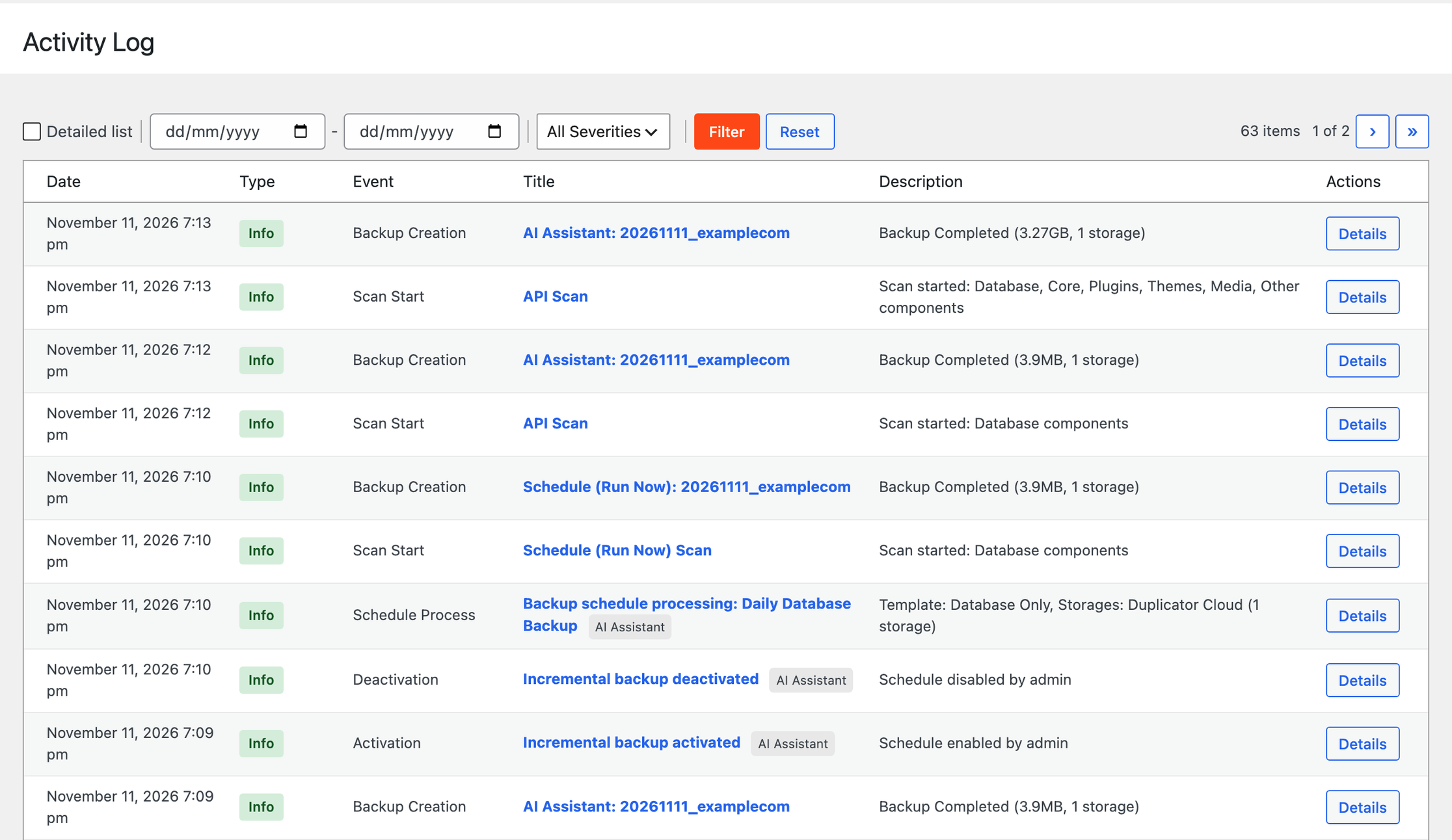
What did Duplicator do on my site in the last 24 hours? Tell me which changes were made by an AI assistant.Your assistant reads the newest Activity Log events, such as backups, schedule runs, and settings changes. Events started by an assistant are labeled AI Assistant, and events started from WP-CLI are labeled WP-CLI, so you can tell them apart.
The same events are listed under Duplicator Pro » Activity Log:
Messages You May See
The table below explains the answers your assistant can pass on from Duplicator, and what to do about each one:
| What your assistant tells you | What it means | What to do |
|---|---|---|
| Sensitive actions are turned off on this site. | The request deletes or changes something, and the option is unchecked. | First, check Allow AI assistants to run sensitive actions under Duplicator Pro » Settings. Then, ask again. |
| This is a Duplicator Pro feature. | You asked for a schedule, a template, or a recovery point in Duplicator Lite. | You can use the manual option your assistant offers, or upgrade your license. |
| Another backup is already in progress. | Duplicator builds a single backup at a time. | Once the running backup finishes, ask again. Cleaning temporary files is refused until then too. |
| The storage isn’t ready: not connected. | The storage exists but hasn’t been connected to an account. | First, connect it on the Storage page. Then, ask your assistant to test it. |
| Database-only backups can’t be used. | You asked to set a database-only backup as the recovery point. | First, make a complete backup of the whole site. Then, set that as the recovery point. |
| No backup exists with that number. | The backup was deleted, or the number is wrong. | To find the right number, ask for your backup list. |
| Here is an approval link. | WPVibe paused a delete until you approve it. | After you open the link, check what will be deleted, and approve. |
| Your account isn’t allowed to do this yet. | The WordPress user your assistant connected with is missing a Duplicator permission. | An administrator can give that user the permission in Duplicator. |
What Your Assistant Can’t Do
A few things stay with you, by design. Your assistant can’t install or restore a backup, connect a new storage or change its login details, or do more than its WordPress user is allowed to do. For every limit and the permission each action needs, see our complete list of AI assistant actions.
FAQs
Below, we’ve addressed some of the most common questions about managing backups with an AI assistant.
That’s it! You now have ready-to-use requests for managing Duplicator with your AI assistant.
Next, for the full list of actions with the permission each one needs, check out our guide on what your AI assistant can do in Duplicator.