
Managing Duplicator Backups With AI Using WPVibe
Want to check your backups or start a new one just by asking? Duplicator, our backup and migration plugin, works with WPVibe, so AI assistants such as Claude, ChatGPT, and Cursor can manage backups, storages, and settings on your site for you.
In this guide, we’ll show you how to manage Duplicator backups with your WPVibe AI assistant, from connecting it to every action it can run.
How AI Assistants Work With Duplicator
An AI assistant is a chat tool, such as Claude or ChatGPT, that can take actions for you. Duplicator gives these assistants a set of actions they’re allowed to run on your site, through the WordPress Abilities API. The Abilities API is a part of WordPress that lets plugins describe what an assistant can do.
Once your site is connected, you type a request in plain words, like “Back up my database.” The assistant picks the matching Duplicator action, runs it on your site, and tells you the result.
Here’s what an assistant can help you with:
- Backups: list, create, check, cancel, transfer, and delete backups, and read their build logs.
- Protection status: check whether your site has a recent backup with a copy on remote storage.
- Storages: list your storages, test their connection, and change how many backups they keep.
- Settings and site overview: read and change Duplicator settings, and get a summary of your site and Duplicator.
- AutoTune and tools: check or start AutoTune, clean temporary files, and remove installer files.
- Activity Log: read what happened on your site, or to a single backup.
- Duplicator Pro features: manage schedules, templates, the recovery point, and incremental backups.
You’ll find every action, with the permission it needs, in the full list below.
Viewing What Your Assistant Can Do
To see the full list on your own site, navigate to Duplicator Pro » Tools in your WordPress dashboard. Then, click the AI tab.
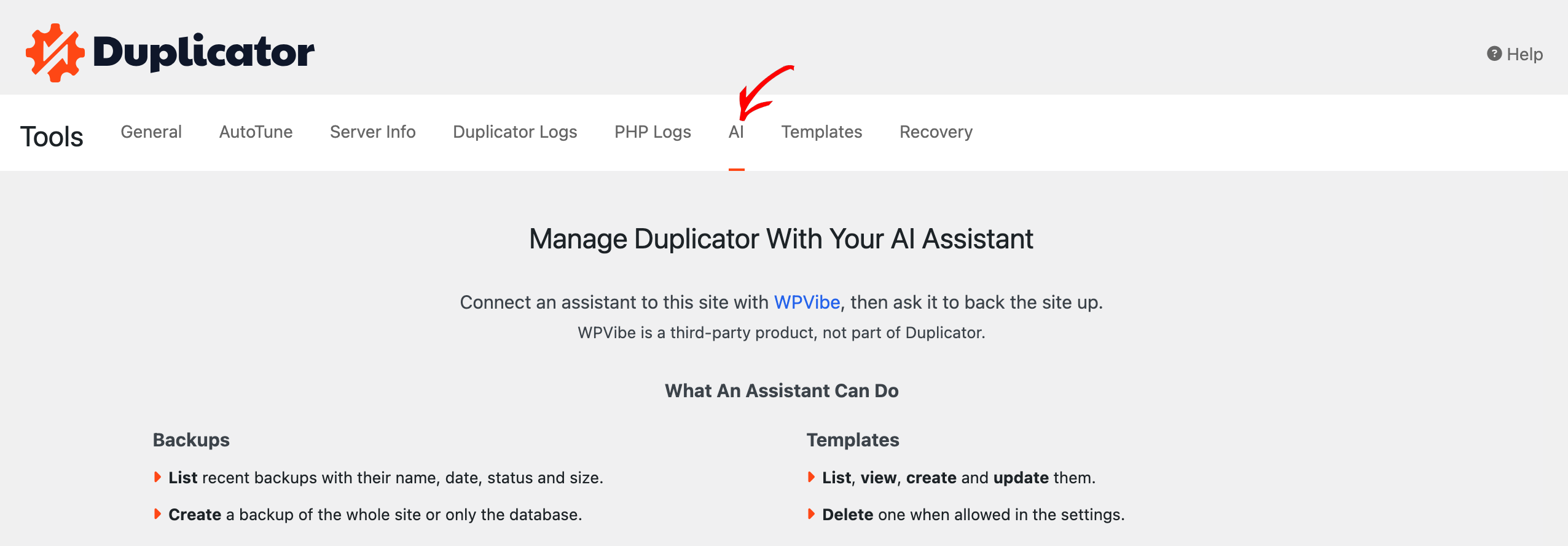
The Manage Duplicator With Your AI Assistant page groups everything an assistant can do by area, such as Backups, Storages, and AutoTune. Actions marked when allowed in the settings are sensitive actions. We’ll cover those in a moment.
If your site runs a WordPress version older than 6.9, this page shows the message The AI features need WordPress 6.9 or later. Update WordPress to use them. Once you update WordPress, the AI features turn on by themselves.
Connecting Your AI Assistant
Your assistant needs a secure connection to your site before it can run anything. The easiest way is WPVibe, a plugin that connects your site to Claude, ChatGPT, Cursor, and other AI assistants. WPVibe is a separate product, not part of Duplicator.
In Duplicator Lite, you can install WPVibe right from the AI tab. To do this, click the Install Plugin button on the WPVibe card.
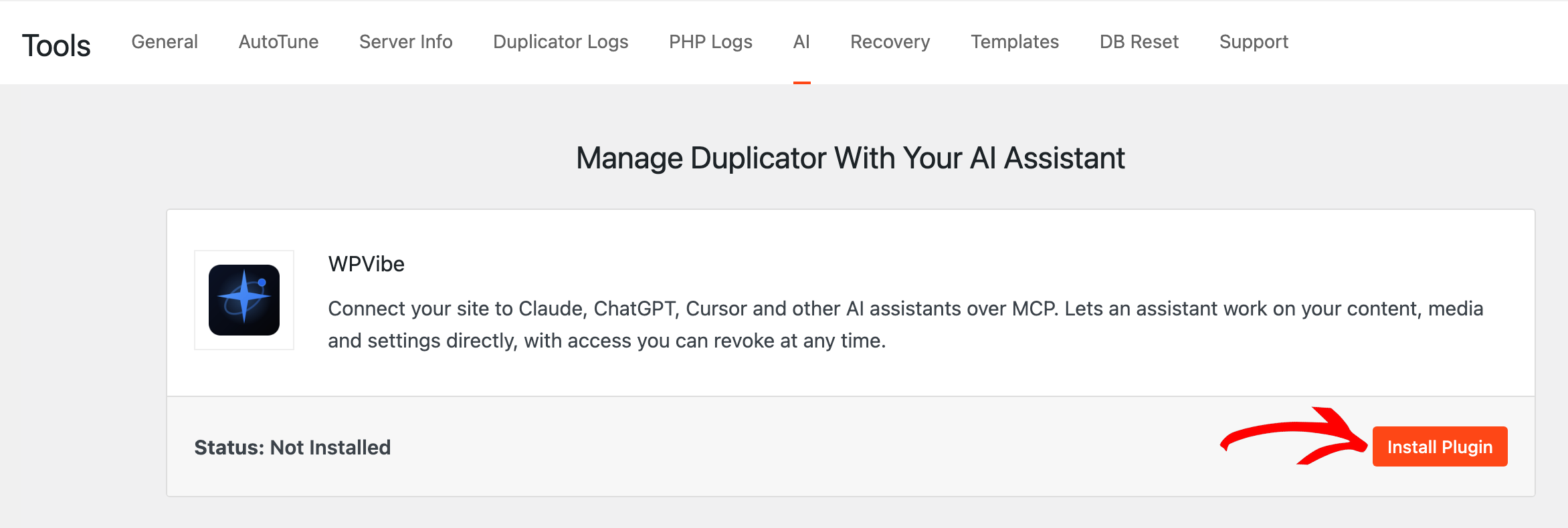
After that, follow WPVibe’s setup steps to link your site with your assistant. When the connection is ready, your assistant can see the Duplicator actions right away. There’s nothing else to turn on in Duplicator.
Allowing Sensitive Actions
Some actions delete or change things, or give out your recovery link. Duplicator calls these sensitive actions, and it blocks them by default. Sensitive actions include:
- Deleting backups, schedules, templates, and storages.
- Changing settings and the number of backups a storage keeps.
- Starting AutoTune and purging orphaned backup files.
- Setting or reading the recovery point.
To allow them, navigate to Duplicator Pro » Settings and stay on the General tab. Next, find the AI Assistants option and check the Allow AI assistants to run sensitive actions box.

Then, scroll down and click Save Settings.
Even with this option checked, your assistant is told to ask you to confirm each sensitive action before it runs it. If the option is unchecked and you ask for one, the assistant tells you:
Sensitive actions from an AI assistant, such as deleting, changing settings or getting the recovery link, are turned off on this site. A site administrator can allow them in Duplicator > Settings > General.Asking Your Assistant to Manage Backups
You don’t need special commands. Just ask in your own words. The table below shows requests you can try and what Duplicator does with each one:
| You ask | What happens |
|---|---|
| “Is my site protected?” | Duplicator checks for a recent backup with a copy on remote storage, and whether a recovery point is set. |
| “Back up my database before I update plugins.” | Duplicator starts a database-only backup, notes your reason, and reports its progress until it’s done. |
| “Make a full backup and send it to Duplicator Cloud.” | Duplicator backs up the whole site and stores it on the storage you name. |
| “Show my last 5 backups.” | Your assistant lists each backup with its name, date, status, and size. |
| “Why did my last backup fail?” | Your assistant reads the build log and explains the reason and the fix. |
| “Test my Google Drive storage.” | Duplicator writes a test file to the storage, deletes it, and reports whether the connection works. |
| “How do I move this site to a new host?” | Your assistant explains how to install a backup on another site. |
Example: Checking Your Protection
Let’s say you ask, “Is my site protected?” Your assistant runs a protection check and answers with a short summary, like this one from our test site:
Not protected: the last backup with a remote copy was 2 weeks ago. No recovery point is set: set a recent full backup as the recovery point, so the site can be restored even when wp-admin is unreachable.From here, you can simply reply, “Then make a full backup now.”
Example: Creating a Backup
Next, let’s say you ask, “Back up my database before I update plugins.” Your assistant starts the backup and tells you it has started. Then, it checks the backup until it finishes. On our test site, the database backup was ready in under a minute, and the assistant reported:
Status: complete
Size: 3.91MB
Backup package has been successfully created and is ready for use
This backup contains the database only; site files are not included.
The new backup also shows up on the Duplicator Pro » Backups page, just like one you create yourself.
For more ready-to-use requests, see our AI assistant cheat sheet.
Understanding Permissions and Limits
Your assistant can only do what its WordPress user is allowed to do in Duplicator. If the user is missing a permission, the assistant replies with Your account isn't allowed to do this yet, followed by the permission it needs, such as Backup Create or Manage Settings. An administrator can give that permission under Duplicator Pro » Settings » Access.
A few more limits apply:
- Staging sites: assistants can’t manage Duplicator on a staging site. Use your live site instead.
- Restoring and installing: assistants can explain how to install a backup, but they can’t run the install for you.
- Storage credentials: assistants can’t create a storage or change its connection details and passwords. You set those up on the Storage page.
- Recovery point backup: the backup set as your recovery point can’t be deleted. First, set another recovery point, or reset it under Duplicator Pro » Tools » Recovery.
Everything Your Assistant Can Do
Each table below covers one group from the Duplicator Pro » Tools » AI page. Here’s what each column means:
- Action: the name your assistant shows.
- What it does: what happens when your assistant runs the action.
- Sensitive: “Yes” means the action runs only when Allow AI assistants to run sensitive actions is checked in Duplicator Pro » Settings, and your assistant is told to ask you to confirm it first.
- Permission: the Duplicator permission the assistant’s WordPress user needs. By default, administrators have all of them (Super Admins on multisite).
- Duplicator Lite: whether the action works in Duplicator Lite.
Backups
Backups are available in both Duplicator Lite and Duplicator Pro. Example requests: “Back up my database,” “Show my last 5 backups,” “Why did my last backup fail?”
The table below shows each backup action:
| Action | What it does | Sensitive | Permission | Duplicator Lite |
|---|---|---|---|---|
| List Backups | Lists recent backups with name, date, status, and size. You can ask for a number of backups, or only failed or complete ones. | No | Backup Read | Yes |
| Get Backup Status | Shows the status of one backup and reports progress until it’s complete, failed, or cancelled. | No | Backup Read | Yes |
| Create Backup | Starts a backup of the whole site or the database only, with an optional password, reason, and storages. Without a scope, it follows your default template. | No | Backup Create | Yes |
| Cancel Backup | Stops a backup that’s being created or transferred. | No | Backup Create | Yes |
| Transfer Backup | Copies a complete backup from the default local storage to another storage, or back. | No | Backup Create | Yes |
| Get Protection Status | Answers “Is my site protected?” by checking for a complete backup from the last 7 days with a copy on remote storage. In Duplicator Pro, it also reports whether a recovery point is set. | No | Backup Read | Yes |
| Get Backup Log | Reads the build log of a backup to explain a failure. A very long log returns only its end. | No | Backup Read | Yes |
| Get Backup Install Guide | Explains how to install a backup on this or another site. | No | Backup Read | Yes |
| Delete Backup | Deletes a backup and its files on this server. Copies on remote storage are kept. | Yes | Backup Create | Yes |
Recovery Point
The recovery point needs a Duplicator Pro license. In Duplicator Lite, the assistant explains what a recovery point does and shares an upgrade link.
The table below shows each recovery point action:
| Action | What it does | Sensitive | Permission | Duplicator Lite |
|---|---|---|---|---|
| Get Recovery Point | Shows which backup is the recovery point, with its recovery link. | Yes | Restore Backup | No |
| Set Recovery Point | Sets a full backup as the recovery point, or explains why a backup can’t be used. | Yes | Restore Backup | No |
Schedules
Schedules need a Duplicator Pro license. Example requests: “Create a weekly full backup schedule,” “Pause my daily schedule.”
The table below shows each schedule action:
| Action | What it does | Sensitive | Permission | Duplicator Lite |
|---|---|---|---|---|
| List Schedules | Lists every schedule with its settings. | No | Manage Schedules | No |
| Get Schedule | Shows one schedule. | No | Manage Schedules | No |
| Create Schedule | Creates a schedule. A schedule saved with a storage that isn’t ready stays inactive. | No | Manage Schedules | No |
| Update Schedule | Changes the settings you name on a schedule. | No | Manage Schedules | No |
| Copy Schedule | Copies a schedule and changes the settings you name on the copy. | No | Manage Schedules | No |
| Run Schedule | Starts a backup from the schedule now. | No | Manage Schedules | No |
| Enable Schedule | Activates a schedule. If a storage isn’t ready, the schedule stays inactive and says why. | No | Manage Schedules | No |
| Disable Schedule | Deactivates a schedule until you activate it again. | No | Manage Schedules | No |
| Delete Schedule | Deletes a schedule. | Yes | Manage Schedules | No |
Templates
Templates need a Duplicator Pro license. The default template, and templates used by a schedule, can’t be deleted.
The table below shows each template action:
| Action | What it does | Sensitive | Permission | Duplicator Lite |
|---|---|---|---|---|
| List Templates | Lists every template with its settings. | No | Backup Create | No |
| Get Template | Shows one template. | No | Backup Create | No |
| Create Template | Creates a template. | No | Backup Create | No |
| Update Template | Changes the settings you name on a template. | No | Backup Create | No |
| Copy Template | Copies a template and changes the settings you name on the copy. | No | Backup Create | No |
| Delete Template | Deletes a template. | Yes | Backup Create | No |
Incremental Backups
Incremental backups need a Pro license or higher and Duplicator Cloud.
The table below shows each incremental backup action:
| Action | What it does | Sensitive | Permission | Duplicator Lite |
|---|---|---|---|---|
| List Incremental Backups | Lists the incremental backup schedule with its settings. | No | Backup Create | No |
| Get Incremental Backup Schedule | Shows the incremental backup schedule. | No | Backup Create | No |
| Update Incremental Backup Schedule | Changes how often incremental backups run. Changing how many snapshots Duplicator Cloud keeps is a sensitive action. | No (Yes for the number kept) | Backup Create | No |
| Enable Incremental Backups | Turns incremental backups on. | No | Backup Create | No |
| Disable Incremental Backups | Turns incremental backups off. Backups already on Duplicator Cloud are kept. | No | Backup Create | No |
| Run Incremental Backup | Backs up the site changes now. | No | Backup Create | No |
Storages
Storages work in both Duplicator Lite and Duplicator Pro. Assistants can’t create a storage or change its connection details and credentials.
The table below shows each storage action:
| Action | What it does | Sensitive | Permission | Duplicator Lite |
|---|---|---|---|---|
| List Storages | Lists every storage with its type, location, and how many backups it keeps. | No | Manage Storage | Yes |
| Get Storage | Shows one storage. | No | Manage Storage | Yes |
| Update Storage | Changes a storage’s name or notes. Changing how many backups it keeps is a sensitive action. | No (Yes for the number kept) | Manage Storage | Yes |
| Test Storage | Writes a test file to the storage, deletes it, and reports whether the connection works. | No | Manage Storage | Yes |
| Delete Storage | Deletes a storage. Built-in storages can’t be deleted. | Yes | Manage Storage | Yes |
AutoTune
AutoTune runs test backups to find the build settings that work on your server.
The table below shows each AutoTune action:
| Action | What it does | Sensitive | Permission | Duplicator Lite |
|---|---|---|---|---|
| Get AutoTune Status | Shows the test backups AutoTune ran and the settings it chose. | No | Manage Settings | Yes |
| Start AutoTune | Starts an AutoTune session. | Yes | Manage Settings and Backup Create | Yes |
| Abort AutoTune | Stops the running AutoTune session. | No | Manage Settings | Yes |
Tools
These match the cleanup tools under Duplicator Pro » Tools on the General tab.
The table below shows each tool action:
| Action | What it does | Sensitive | Permission | Duplicator Lite |
|---|---|---|---|---|
| Clean Temporary Files | Removes temporary build files. It’s refused while a backup runs. | No | Backup Read | Yes |
| Remove Installer Files | Removes the installer files left after a migration. | No | Backup Read | Yes |
| Purge Orphaned Backup Files | Deletes backup files in the default local storage that no backup owns. | Yes | Backup Read | Yes |
Settings and Site
Example requests: “Turn on the trace log,” “Give me an overview of my site.”
The table below shows each settings and site action:
| Action | What it does | Sensitive | Permission | Duplicator Lite |
|---|---|---|---|---|
| List Settings | Lists the Duplicator settings an assistant can change, with their current values. | No | Manage Settings | Yes |
| Get Setting | Shows one setting. | No | Manage Settings | Yes |
| Update Settings | Changes the settings you name. | Yes | Manage Settings | Yes |
| Site Info | Gives an overview of Duplicator, WordPress, PHP, the database, the last backup, storages, schedules, and incremental backups. | No | Backup Read | Yes |
| List Activity Log | Reads the newest Activity Log events, or the events of one backup. | No | Backup Read | Yes |
FAQs
Below, we’ve addressed some of the most common questions regarding this feature.
That’s it! You now know how to connect your AI assistant, allow sensitive actions, manage your Duplicator backups just by asking, and check every action it can run.
Want ready-to-use requests to try? Check out our AI assistant cheat sheet.
Prefer the command line? To learn more, see our guide on using WP-CLI with Duplicator Pro.