

Verifying Your License
Verifying your license key grants you access to automatic updates and support, finalizing the installation.
This tutorial will guide you through verifying your Duplicator Pro license within your WordPress admin area.
Make sure to install the Duplicator Pro plugin on your site before you begin.
Accessing Your License Key
After installing and activating the plugin, you’ll need to obtain your license key to verify your Duplicator Pro installation.
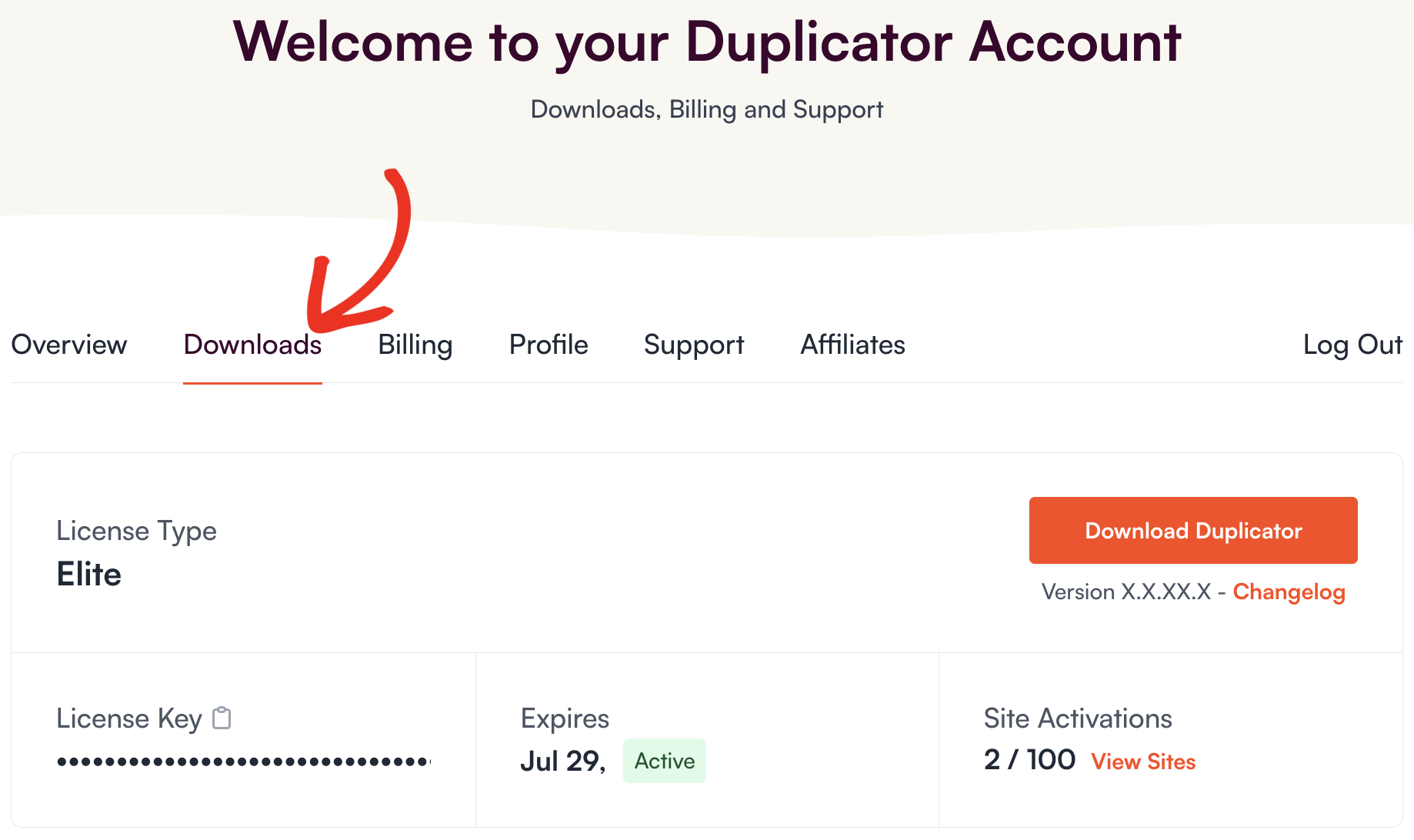
To access your license key, log in to your Duplicator Pro account. After logging in, click on the Downloads tab to find your License Key.
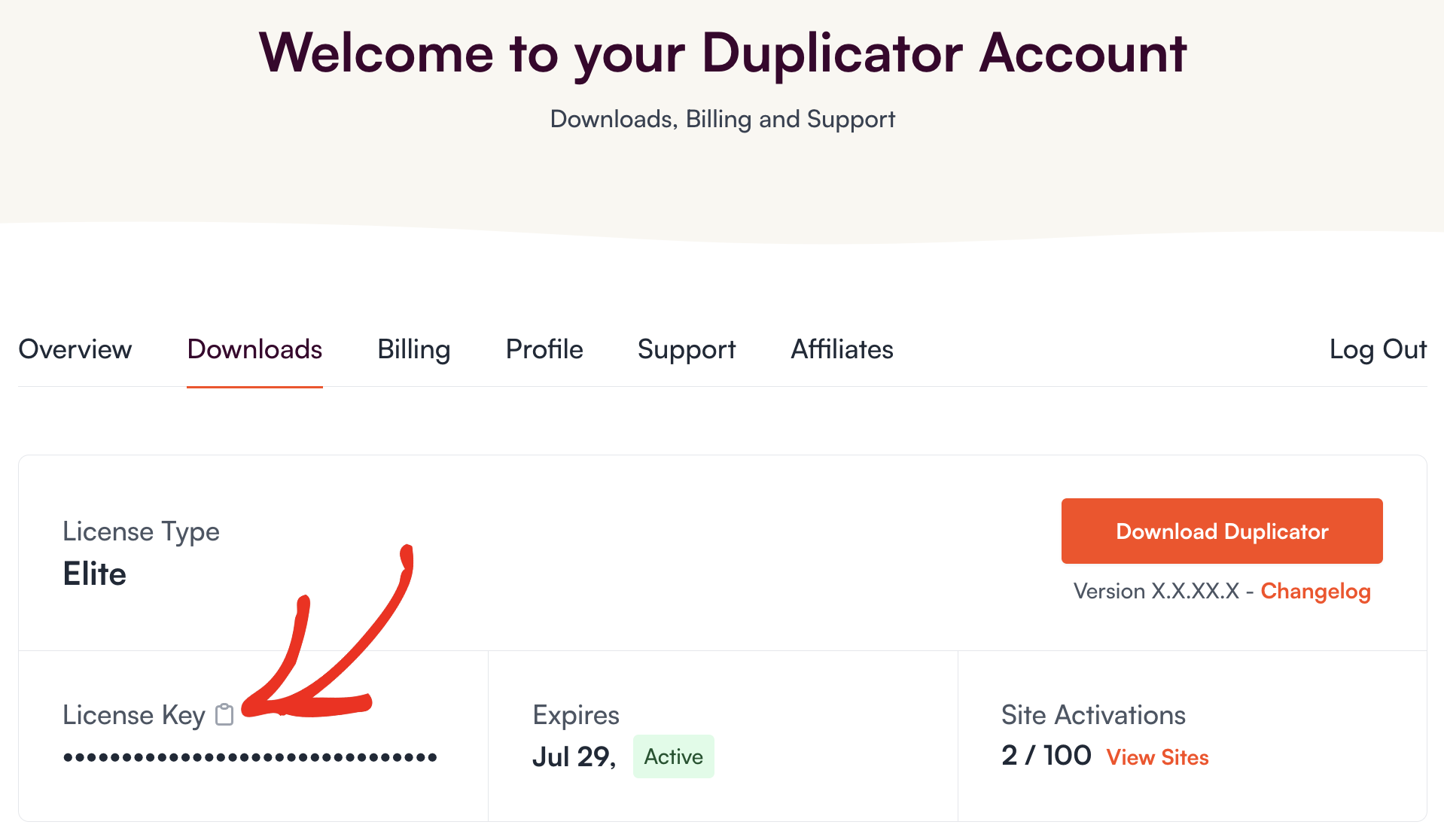
Click the clipboard icon to copy your license key:
Verifying Your Duplicator Pro License
Once you’ve copied your license key, you need to verify your Duplicator Pro license to access the features and plugin updates included with your license.
Go to Duplicator Pro » Settings » under the General tab and navigate to the License section. Paste the copied License Key and click on the Activate button.
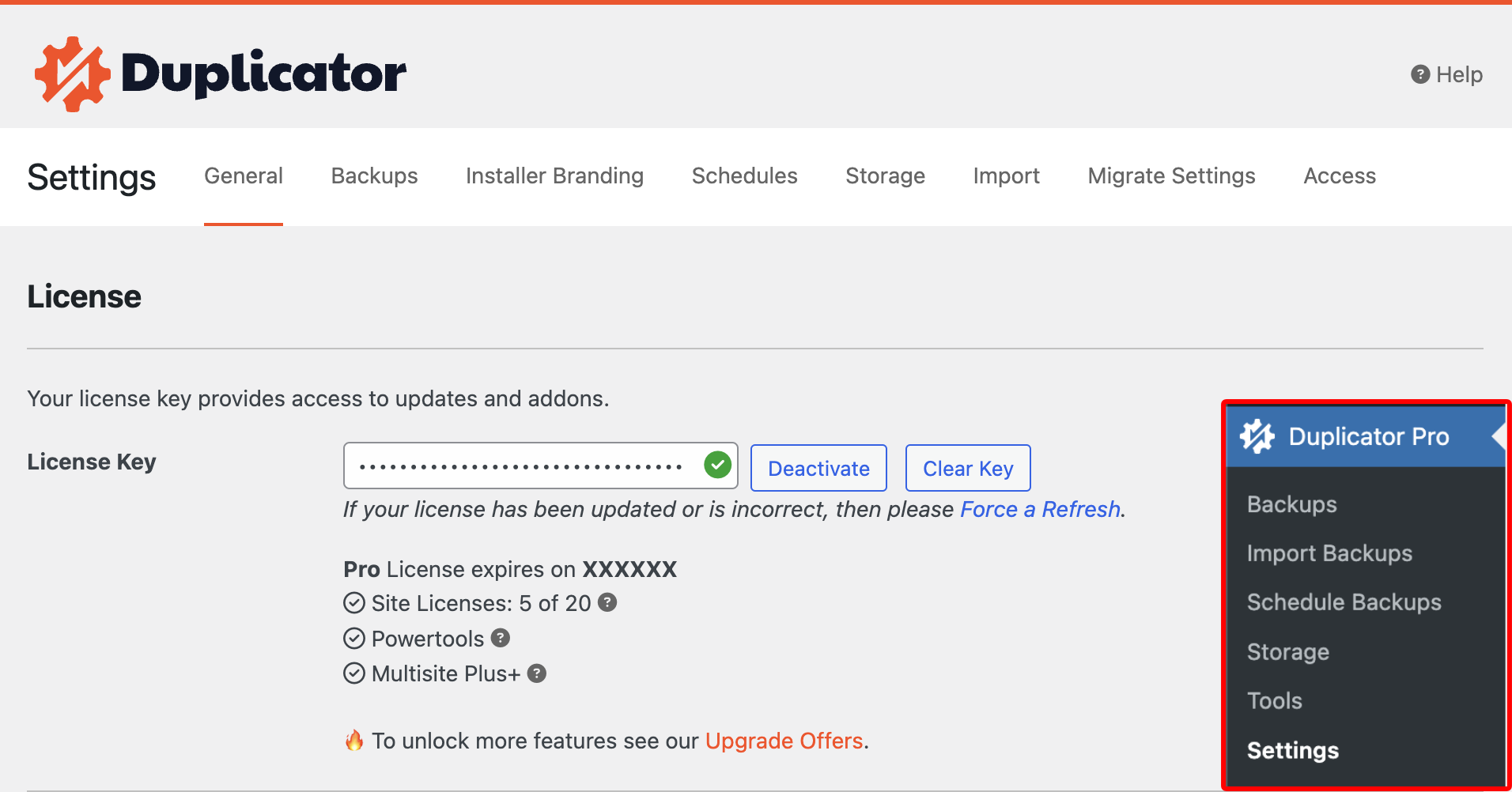
If your license has been successfully activated, you will see the Status and Expiration Date.
Frequently Asked Questions
Below, we’ve addressed some of the most common questions regarding license verification:
That’s it. Your Duplicator Pro license is verified, so you have full access to plugin updates and support going forward.
Running into an activation error? See License Activation Issues for the full troubleshooting guide.


