

Why Your WordPress Backup Is Slow or Failing (And How to Fix It)
 Joella Dunn
Joella Dunn
Joella Dunn
 John Turner
John Turner
John Turner
Your WordPress backup has been running for 45 minutes. Nothing is broken, but a progress bar keeps moving. Or it stopped at 63% an hour ago and hasn’t moved since.
Or maybe your site slows to a crawl every night at 3 AM, and you can’t figure out why. You check your plugin settings, run a speed test, and nothing obvious turns up. Then someone mentions backups, and it clicks.
Slow and failed WordPress backups are the same problem wearing different clothes. The backup process itself could be taking too long or failing silently before finishing. On the other hand, your backup might be completing fine, but the resources it consumes while running are slowing down your live site.
The fix is different depending on which issue you’re facing. This tutorial walks through both.
By the end, you’ll have dealt with poor website backup speed, worked through the Duplicator Pro settings that address it, and set up a backup schedule that doesn’t compete with your real traffic.
Here are the key takeaways:
- There are two distinct backup speed problems: A backup process that is slow (or broken) and a backup that slows your live site during the backup window. The fix is different for each, and this post covers both.
- A backup that looks complete but fails to restore is a PHP timeout problem, not a corruption problem. Duplicator Pro’s DupArchive format prevents this by processing files in chunks instead of one continuous operation.
- Cutting your archive size is the single fastest lever. Cache directories, log files, and leftover backup archives from other plugins are safe to exclude and often account for the majority of unnecessary backup weight.
- Daily full-site backups are usually overkill. A daily database-only backup paired with a weekly full-site backup reduces build time and server load without sacrificing restore coverage.
- WordPress cron does not run on a real schedule. Backups scheduled for 3 AM can silently shift to peak traffic hours. Replacing WP-Cron with a real server cron job is what makes scheduled backups actually reliable.
- Test a restore before you need one. Most people discover a broken backup during a real disaster. Verifying a restore on a staging site only takes a few minutes and is the one step that separates a fast recovery from a painful one.
Table of Contents
- How Long Should a WordPress Backup Take?
- What You Need Before You Start
- How to Speed Up Your Website Backups
- Start Here: Let AutoTune Find Your Settings
- Step 1: Identify Your Backup Performance Problem
- Step 2: Reduce What Gets Backed Up
- Step 3: Switch to a Faster Backup Engine
- Step 4: Fix Slow Database Backups
- Step 5: Replace WordPress Cron with a Real Server Cron Job
- Step 6: Set Up a Two-Schedule Backup Strategy
- Troubleshooting: When Backups Are Still Slow or Broken
- Frequently Asked Questions (FAQs)
How Long Should a WordPress Backup Take?
On a well-configured site with decent hosting, a full backup should complete in two to ten minutes. Large sites on shared hosting could take 30 to 45 minutes, sometimes longer. And the time varies not just by site size but by how the backup runs, what your host allows, and whether your server is under load when the process starts.
Four factors drive most of the variation.
- Host I/O limits
Shared hosting throttles how many read and write operations your account can perform per second. A backup reads every file on your site and writes them into an archive. On a throttled server, that process slows to a crawl and can take down your site’s response time while it runs.
- Site size
A large media library, a bloated database, or years of accumulated plugin files all extend build time. A 500MB site and a 5GB site won’t back up the same.
- Backup method
Full backups compress everything from scratch every time. Incremental backups save only what changed since the last run, which makes them faster after the first backup completes.
Duplicator doesn’t run true incremental backups, but the two-schedule strategy in this tutorial gets you most of the same benefit: daily database-only backups capture what actually changes on a typical site, and the heavy full-site build runs weekly.
- PHP timeouts
Most shared hosts set PHP execution time limits between 30 and 60 seconds. A backup that exceeds that limit gets killed mid-process. The file looks complete. It is not. This is one of the most common causes of backups that appear to succeed but fail during a restore.
What You Need Before You Start
Before you change any settings, make sure you have the following in place.
- A WordPress backup plugin installed and active. This tutorial uses Duplicator, a WordPress backup, migration, and disaster recovery plugin used by more than 1.5 million WordPress professionals. It handles backups, site migrations, staging, and restores — including a chunk-based archive format designed specifically to survive the PHP timeout limits common on shared hosting.
- WordPress admin access (you’ll need it to reach your backup plugin settings)
- Hosting control panel access (cPanel or your host’s equivalent — needed for server cron setup and PHP limit changes)
- Your current backup size (find this in your backup plugin’s package or backup history screen)
- Your hosting type: shared, VPS, managed WordPress, or dedicated. This matters because some fixes in this tutorial require your host’s cooperation. On shared hosting, you can’t always change PHP settings yourself.
- Hosting support access (live chat or a support ticket system — you may need it for Steps 3 and 8)
Knowing your hosting type before you start will save you time. Shell Exec and PHP memory limit increases are controlled at the server level. What you can change yourself depends entirely on your plan.
How to Speed Up Your Website Backups
Working through these steps will get you the fastest results. The first step is a diagnosis, so you know which fixes actually apply to your situation before you start changing settings.
Here is what you’ll do:
- Step 1: Identify your backup performance problem: diagnose whether your backup process is slow or broken or whether completed backups are slowing your live site, since the fix is different for each
- Step 2: Reduce what gets backed up: exclude cache directories, log files, and leftover plugin archives to shrink your archive size, which is the fastest way to reduce build time
- Step 3: Switch to a faster archive engine: replace PHP-based ZipArchive with Shell Exec for speed or DupArchive for resilience on hosts with tight PHP execution limits
- Step 4: Fix slow database backups: switch SQL Mode to PHP Code and run a database cleanup to cut export time on databases over 20MB
- Step 5: Replace WordPress cron with a real server cron job: make scheduled backups run at the exact time you set instead of firing whenever the first visitor arrives
- Step 6: Set up a two-schedule backup strategy: run daily database-only backups and weekly full-site backups separately so heavy builds happen as infrequently as possible
- Step 7: Request higher server resource limits: increase PHP memory and execution time limits as a last resort when all other settings are already optimized
Start Here: Let AutoTune Find Your Settings
Before you change any settings on your website, let Duplicator test them for you.
Duplicator’s AutoTune runs real test backups on your server. It starts with the fastest configuration, and when a test fails, it changes only the setting that caused the failure and tries again, until a backup succeeds.
That’s the same process you would run manually, except it takes minutes instead of an afternoon of guess-and-check.
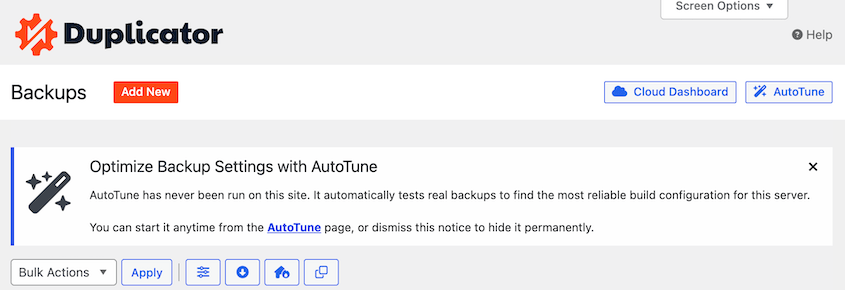
Click AutoTune at the top of your Backups page, or go to Tools » AutoTune. It works through:
- Archive engine and compression
- ZIP mode and chunk size
- Database engine and PHP dump mode
- Server load reduction
You also get a Server Overview panel, which checks worker mode, loopback requests, HTTP authentication, process locks, and your PHP time and memory limits.
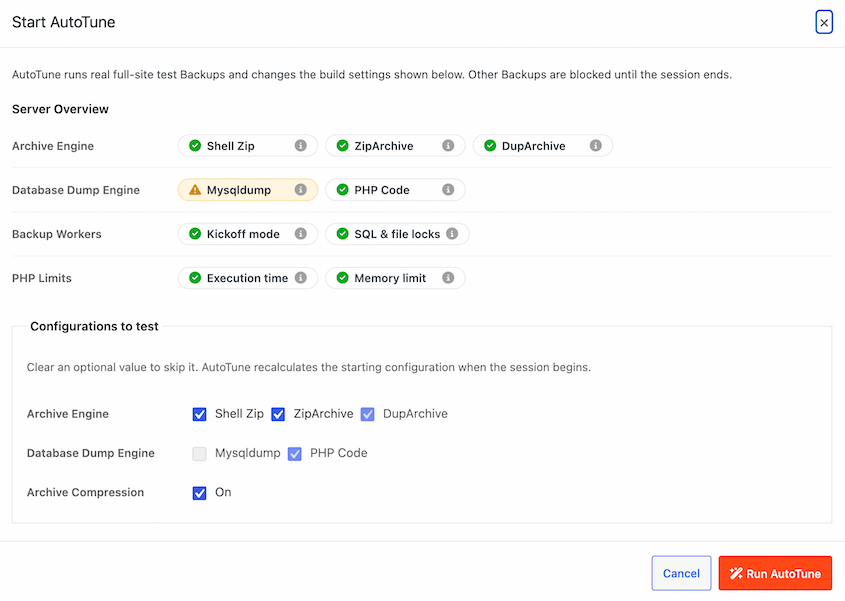
Each item passes or fails, with advice attached when something needs your attention. Some problems live at the server level, where no plugin setting can fix them—AutoTune flags those and tells you what to ask your host for.
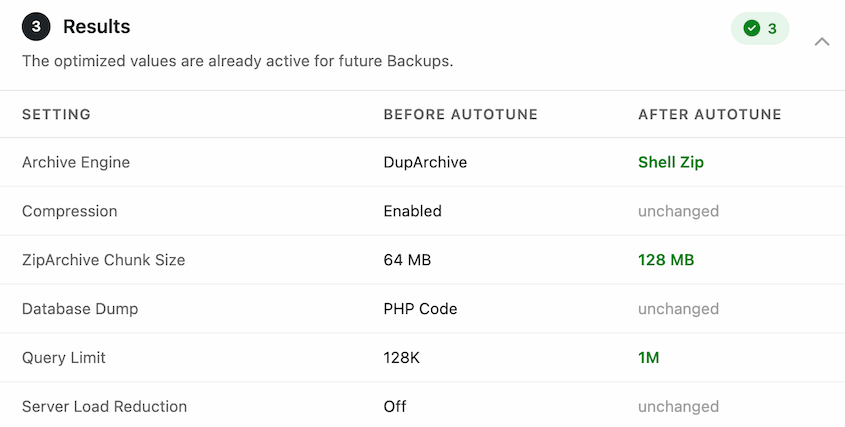
If you run scheduled backups, they pause while AutoTune tests and resume when it finishes, so a tuning run won’t collide with your nightly build.
Step 1: Identify Your Backup Performance Problem
There are two different problems hiding inside “my backup is slow.”
- Problem A: The backup process itself is slow or broken. Signs include builds that take 20-plus minutes, a progress bar that freezes at a specific percentage, or a backup that appears to complete but fails during a restore.
- Problem B: Your backups are slowing your live site. Signs include visitors or admins reporting sluggishness during a recurring time window or a monitoring tool showing a spike in response time that happens on a predictable schedule.
To tell them apart, start with your backup plugin’s build log. For Duplicator, go to Duplicator Pro» Tools » Duplicator Logs. Find the log for your most recent backup.
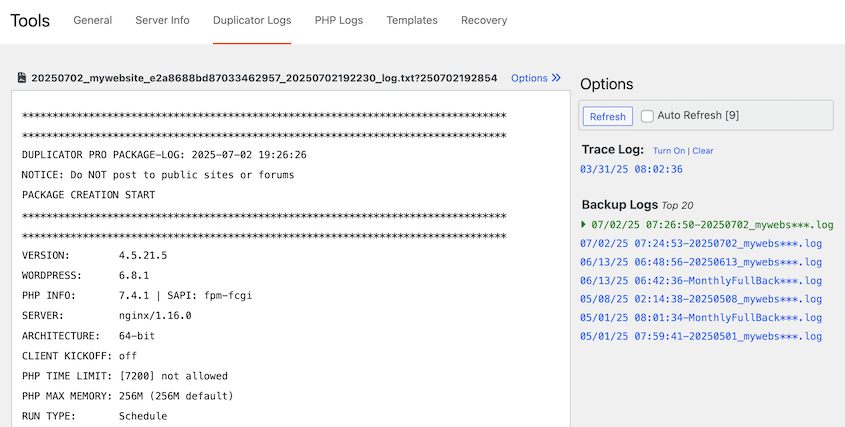
Other plugins have similar logs—check your plugin’s advanced settings.
Scroll to the bottom. If you see a timeout error, a memory error, or a line that cuts off mid-process, that’s Problem A. If the log shows it completed, but your site is still dragging, that’s Problem B.
If your build log says the backup completed but the backup fails during a restore, a PHP execution time limit likely cut the build off silently before it finished.
The file exists, but it was truncated. It looks like Problem A, but the root cause is a hosting resource limit. Step 3 covers this directly.
Step 2: Reduce What Gets Backed Up
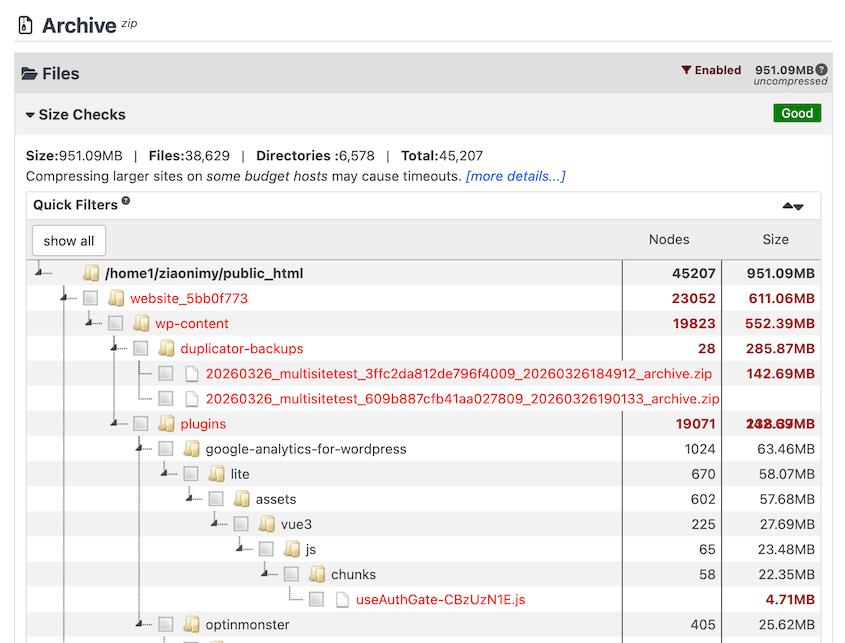
Every extra megabyte in your backup extends build time. On shared hosting, where CPU and disk I/O are already constrained, a bloated archive makes backups slower and pushes you closer to the timeout threshold.
The fastest way to shrink your backup is to stop including files that don’t need to be there.
The most common offenders:
- Cache directories
- Log files
- Temp files
- Backup archives left behind by other plugins
- Large media files like videos you also store on a CDN or external service
None of these affect your ability to restore a working site. Caches regenerate automatically when visitors load pages. Logs aren’t part of your site. Old backup archives from other plugins just add weight.
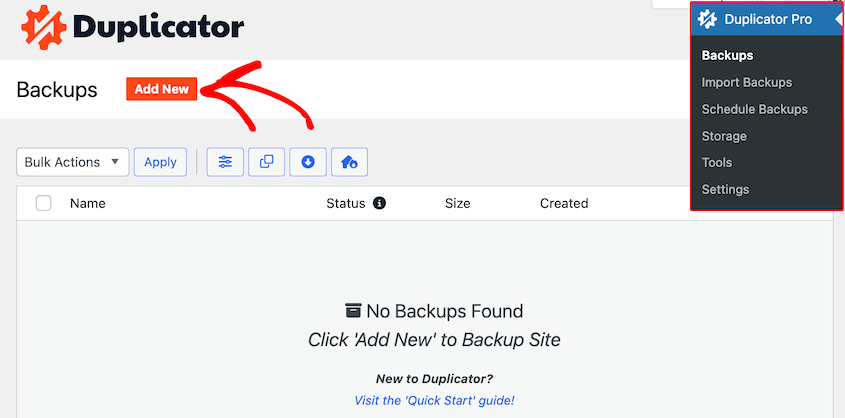
Here is how to customize backups in Duplicator Pro. Create a new backup by going to Duplicator Pro » Backups » Add New.
In the Backup section, you’ll see presets and filters.
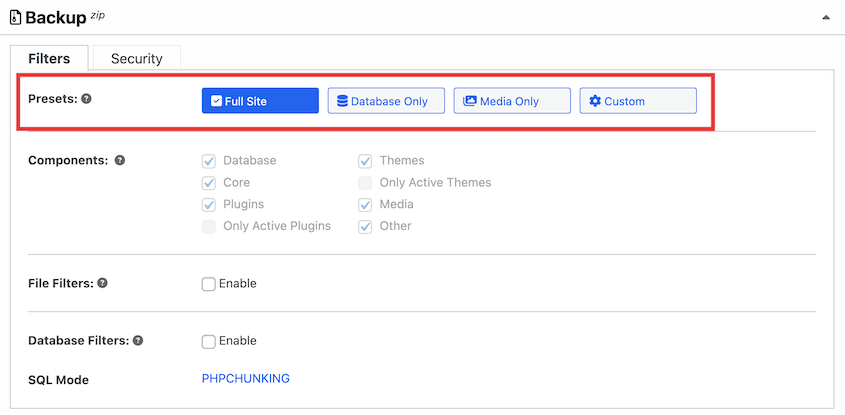
Enable file filters. Exclude your cache directory first by selecting the cache filter.
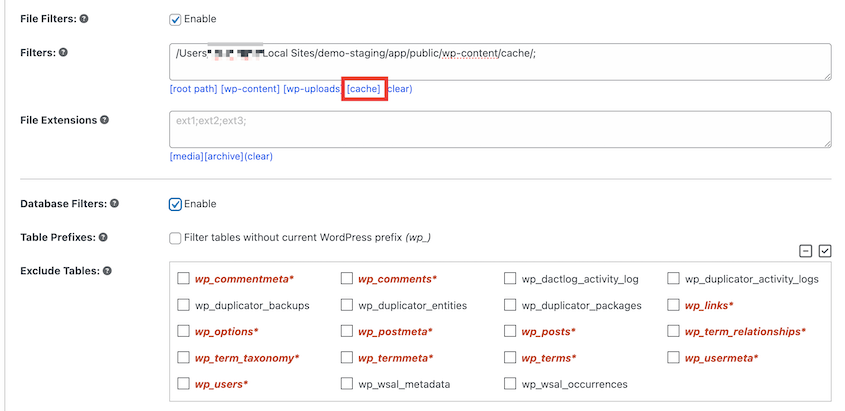
If you use a caching plugin like WP Rocket or W3 Total Cache, there may be a plugin-specific subfolder inside wp-content as well. Add the full path for each one.
Then add any log directories. Common locations include wp-content/debug.log and plugin-specific log folders.
Don’t exclude wp-content/uploads unless you store all your media in a separate CDN and have a confirmed, current copy of every file. Only exclude specific file extensions you are certain are backed up elsewhere. Getting your media wrong here means a successful restore that is missing half your images.
Once you have added your filters, continue with the backup. Duplicator Pro will scan your site and report on any other large file sizes.
Step 3: Switch to a Faster Backup Engine
Once your backup file is as lean as it can be, the next variable is how the backup is created. By default, it uses PHP’s built-in ZipArchive. That works, but it runs entirely inside PHP, which means it’s subject to every resource limit your host sets: execution time, memory, and CPU throttling.
On a capable server, it’s probably fine. On shared hosting, it could create bottlenecks.
You have two alternatives, and which one to use depends on your host.
Option A: Shell Zip
This switches the backup archive engine from PHP to your server’s native system zip binary. The operating system’s zip tool is faster than PHP for most compression tasks and doesn’t count against your PHP execution time limit in the same way.
To switch, go to Duplicator Pro » Settings » Backups » Archive and select Shell Zip.
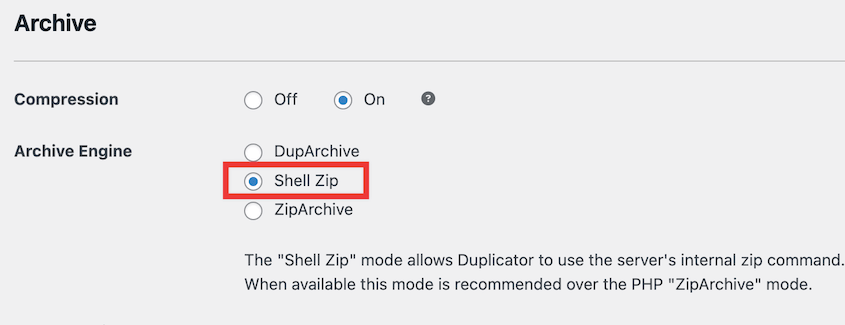
Before you make the switch, know this: some budget shared hosts disable shell_exec at the server level. If you change the setting and your next build fails immediately at 0%, that is what happened.
Switch back to ZipArchive in the same settings screen, then contact your host and ask them to enable shell_exec for your account. If they can’t help, move to Option B.
Option B: DupArchive
DupArchive is Duplicator’s own archive format, and it works differently from standard ZIP. Instead of one continuous compression operation, DupArchive processes your files in smaller chunks. Each chunk completes before the next one starts.
On shared hosting plans with PHP execution time limits of 30 to 60 seconds, a standard ZIP backup that takes longer than that limit gets killed mid-build. The process stops, but the file is already written to disk.
Your backup looks complete. Then when you try to restore it, it fails. The file was cut off before it finished.
DupArchive avoids this entirely. Because each chunk resets the PHP execution clock, the backup survives limits that would kill a standard ZIP build. I have seen this fix problems on shared hosting more than once.
To switch, go to Duplicator Pro » Settings » Backups » Archive and choose DupArchive.
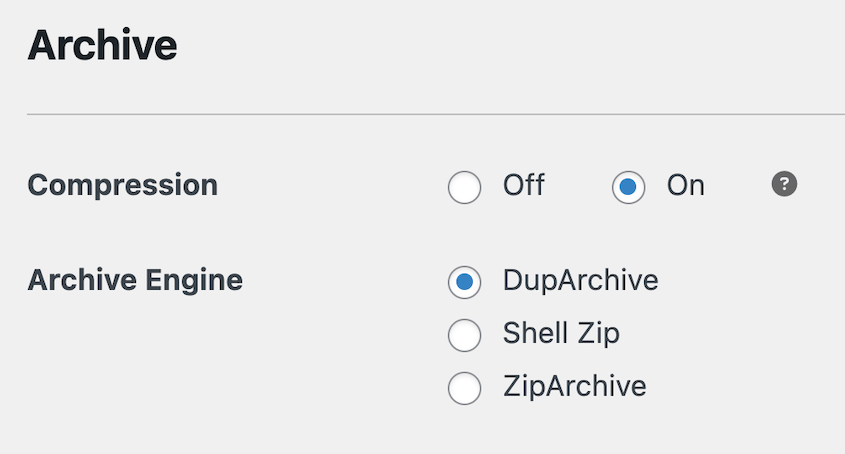
After switching to either option, run a test backup. Build a small backup, then check the log when it finishes. Scroll to the bottom of the log and confirm that it completed successfully.
Step 4: Fix Slow Database Backups
A large database slows the entire backup build, not just the portion where the database gets exported. If your database is bloated, you’ll feel it across the whole process.
To find your database size, start a new backup in Duplicator Pro and let the setup wizard run through the scan. It’ll list your database size before you commit to building the backup.
If it’s over 20MB, these fixes can make a noticeable difference.
Fix 1: Switch SQL Mode to PHP Code
Go to Duplicator Pro » Settings » Backups » SQL Mode and change the setting from MySQL dump to PHP Code. This changes the method Duplicator uses to export your database tables.
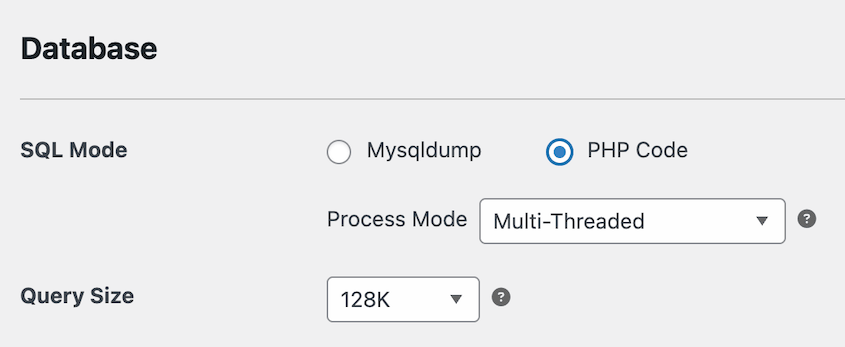
The PHP Code method is generally more reliable on shared hosting because it’s less likely to trigger table lock timeouts that stall the export. It’s a small change with a meaningful effect on larger databases.
Fix 2: Clean the database before your next backup
This one takes a few minutes, but it’s worth doing before any major backup.
Install DB Optimizer and run it to remove post revisions, spam comments, expired transients, and orphaned metadata. These accumulate quietly on active sites and can account for 30 to 50 percent of database bloat without containing anything you actually need to restore.
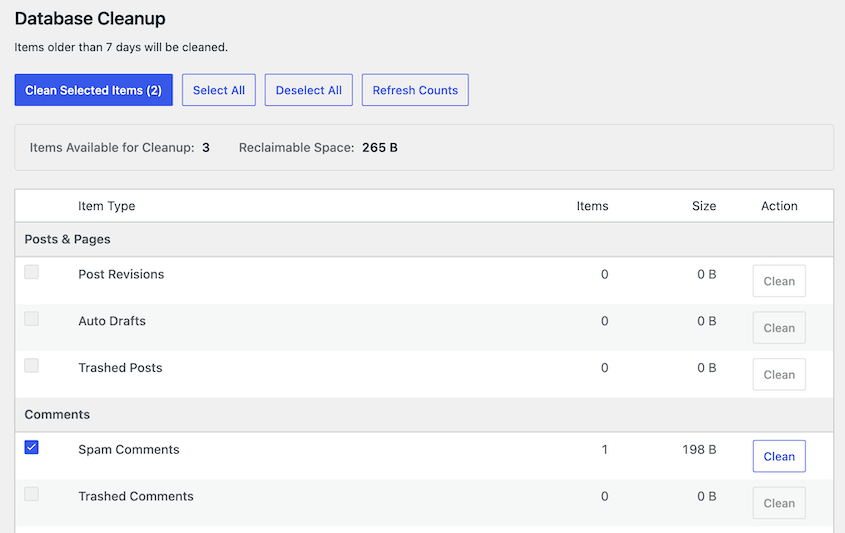
However, don’t clean your database and immediately run a critical backup for the first time. Run the cleanup, then browse your site and verify everything works normally, then back up.
Cleanups are safe when done with a reputable tool, but you want to confirm your site is healthy before you lock that state into a backup.
After making both changes, run a new backup and compare the build time to your previous baseline. On databases over 20MB, the difference is usually visible.
Step 5: Replace WordPress Cron with a Real Server Cron Job
If your backups are scheduled but keep running at the wrong time, or if your site slows down during business hours instead of the quiet window you set, WordPress cron is likely the reason.
WP-Cron doesn’t run on a real schedule. It fires only when someone visits your site.
When traffic arrives, WordPress checks whether any scheduled tasks are overdue and runs them at that moment. A backup you scheduled for 3 AM runs when the first visitor shows up, which might be right in the middle of your peak traffic window.
Replacing WP-Cron with a server cron job ensures your backups run at the exact time you set, every time, regardless of traffic.
Start by creating an account on https://cron-job.org/. Then, create a new cron job.
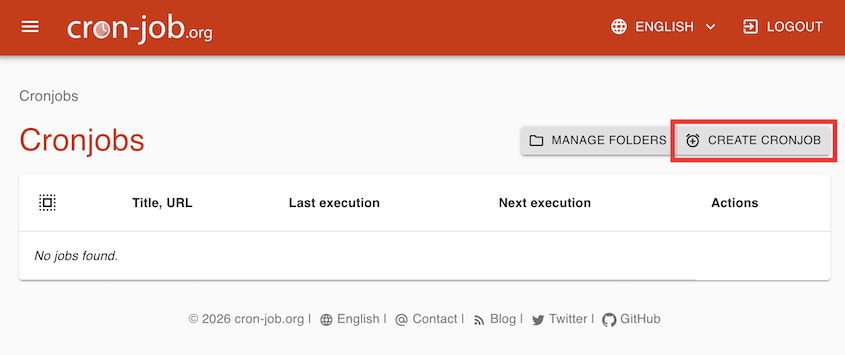
Name the new cron job. Set this as the URL, replacing it with your site’s domain: https://example.com/wp-admin/admin-ajax.php?action=duplicator_process_worker
Set the Execution schedule to Every 1 minute.
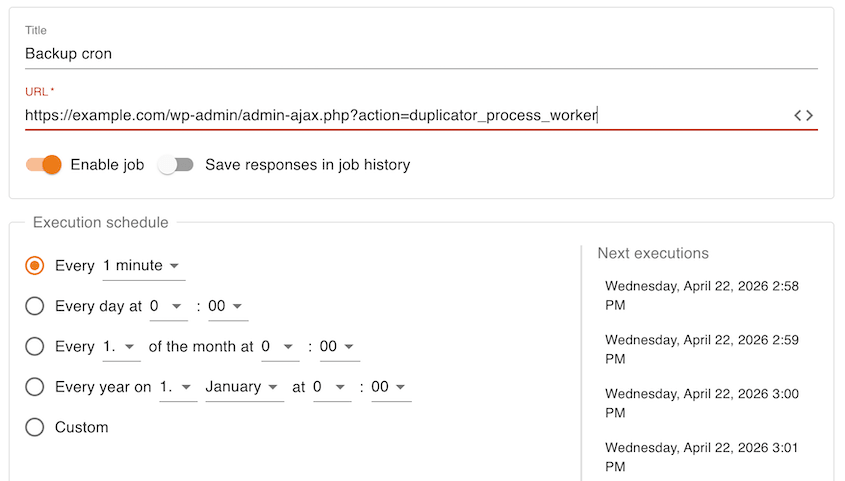
Once the server cron job is active and saved, add this line to your wp-config.php file, above the line that reads "That's all, stop editing!":
define('DISABLE_WP_CRON', true);This tells WordPress to stop running its own cron system.
Add the define line to wp-config.php only after the server cron job is confirmed and saved. If you disable WP-Cron first, all scheduled tasks on your site pause immediately. Scheduled backups, scheduled posts, anything relying on WP-Cron stops until the server cron is active.
If you’re on a managed WordPress host like WP Engine, Kinsta, or Flywheel, check your host’s documentation before editing wp-config.php. Some managed hosts handle server cron differently or manage it on your behalf.
After setup, return to Duplicator Pro » Settings » Schedule Backups and verify the next scheduled run time reflects exactly what you configured. That confirmation is your signal the handoff worked.
Step 6: Set Up a Two-Schedule Backup Strategy
Daily full-site backups are one of the most common causes of both slow backups and slow sites on shared hosting. They are also, for most WordPress sites, more than you actually need.
Your database changes constantly, with new posts, orders, form submissions, comments, and plugin activity. In contrast, your files, themes, plugins, and uploads update occasionally.
Running a full backup every day means compressing and archiving gigabytes of files that haven’t changed recently.
The fix is two separate backup schedules.
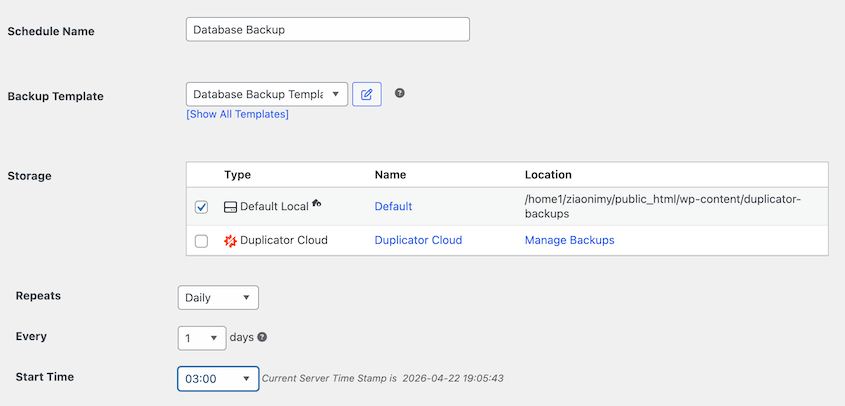
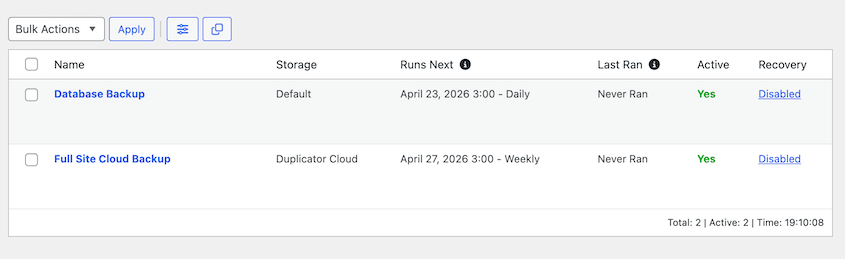
- Schedule A: daily database-only backup. A database-only backup captures every change to your content, orders, and settings without touching your files. On most sites it completes in under 30 seconds. Run this daily.
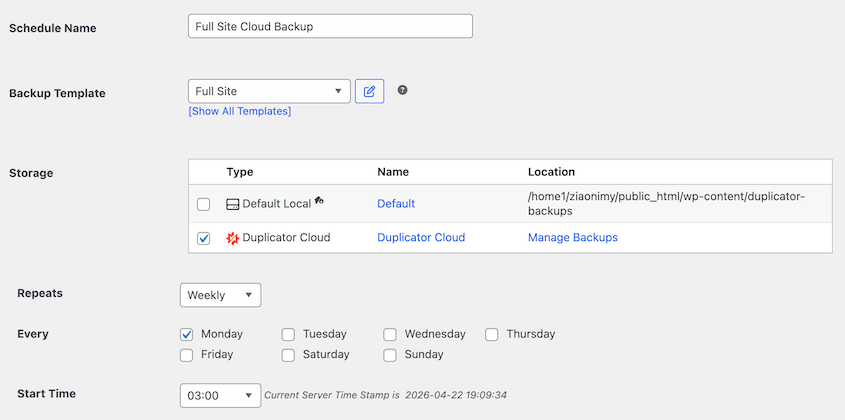
- Schedule B: weekly full-site backup. Files included, run once a week during your actual lowest-traffic window. This is the backup you restore if something goes badly wrong.
Before you set the schedule, find your real low-traffic window. Look for the two-hour block with the fewest sessions across a typical week.
For most sites this lands somewhere between 2 and 5 AM, but verify with your own data. Your traffic pattern is not the same as anyone else’s.
Then, go to Duplicator Pro » Schedule Backups » Add New. Name the schedule something like Database Backup. Add a new backup template.
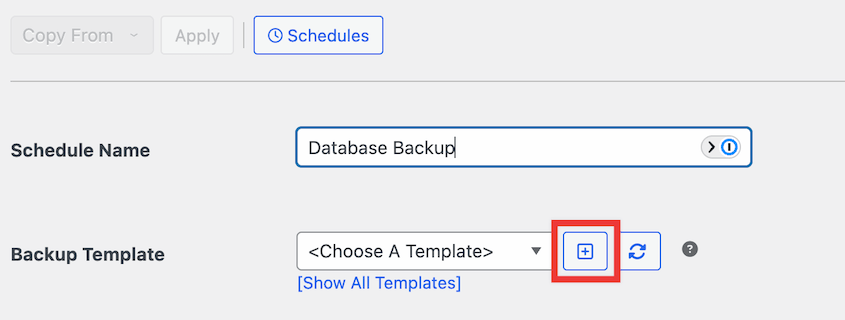
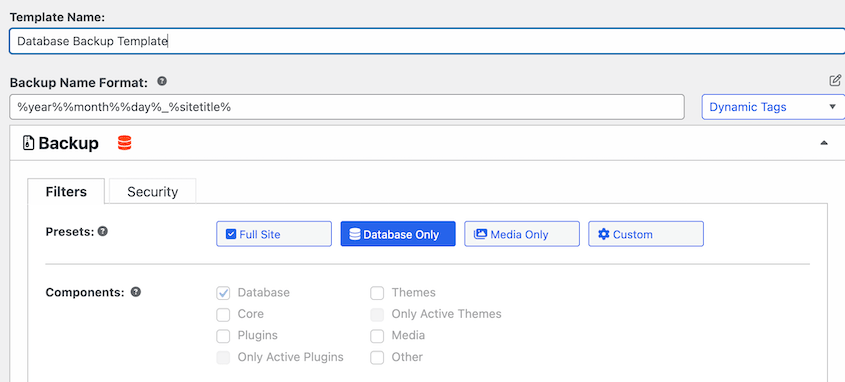
Name the template. Choose the Database Only backup preset and save it.
Go back to the new schedule and choose the database backup template you just created. Choose a storage location and set it to run daily.
Save it. Then create a second schedule and repeat the process, but with a full-site backup template. Let it run weekly.
Both schedules will appear in Duplicator Pro » Schedule Backups with their next run times listed.
Troubleshooting: When Backups Are Still Slow or Broken
Working through the steps above resolves most website backup speed problems. If something is still wrong, here’s what you are most likely seeing and how to get past it.
Backup Completes but Fails to Restore
You see a backup, the build log shows no obvious errors, but when you run the installer, it errors out or restores a blank site.
This happens because a PHP execution time limit cut the build off before it actually finished. The file was written to disk up to that point and then stopped.
Switch to DupArchive (covered in Step 3), then delete the failed backup and build a new one. Run the installer and verify the restore completes before you rely on it.
The Backup Builds but Never Reaches Your Storage
The build log says the archive completed, but the file never appears in Dropbox, Google Drive, or your S3 bucket. The backup exists locally; the handoff is what failed.
Three causes cover most of these.
- Your storage account is full, so the upload starts and dies partway.
- The connection token expired, which happens after a password change or a revoked app permission.
- The archive is larger than the destination accepts in a single upload.
Check the storage account’s free space first, then reconnect the destination in Duplicator to refresh the token. If both look fine, the file size is the likely culprit. Shrink the archive with the exclusion filters from Step 2, or split your schedule so the daily run is database-only.
Backup Is Stuck at a Specific Percentage
The progress bar freezes at a particular point and stays there for more than ten minutes without moving.
Run Duplicator’s AutoTune first. It’ll test chunk sizes and engines against your server without you guessing.
If it still stalls, a large file or a locked database table is blocking the process at that exact point in the build. Go to the backup log and scroll to find the last file or table listed before the log cuts off. That’s your culprit.
If it’s a file, add it to your exclusion filters (Step 2) and rebuild. If it’s a database table, switch SQL Mode to PHP Code (Step 4) and try again.
Site Slows Down Every Night at the Same Time
Visitors or your monitoring tool report sluggishness during a specific window. The timing matches your scheduled backup.
Your backup is running during a period of active traffic and competing for the same CPU and disk resources serving your visitors. Check your actual low-traffic window in Google Analytics and reschedule the backup to that time.
If you’re running daily full-site backups, switch to the two-schedule strategy from Step 6. Database-only backups complete fast enough that the performance impact is minimal even during moderate traffic.
Shell Exec Causes Immediate Build Failure
You switched the archive engine to Shell Exec, and the very next build fails at 0% with an immediate error.
Your host has disabled shell_exec at the server level. Switch back to ZipArchive or DupArchive. Then contact your host and ask specifically whether shell_exec can be enabled for your account.
If they say no, DupArchive is your long-term archive engine. It handles the same timeout problems Shell Exec would have solved, just through a different method.
Backups Work in Staging but Fail on the Live Server
Your backups succeed on staging or local sites but time out or produce corrupt files on production.
Your live server has stricter PHP limits or is under active CPU throttling that your staging environment doesn’t have. Compare PHP settings between environments: check memory_limit and max_execution_time in both. Request higher limits from your live host (Step 7), or switch to DupArchive to work within whatever limits exist.
If none of the above resolves your issue, Duplicator Pro’s support team is the right next step. Go to duplicator.com and open a support ticket. Include your build log, your PHP settings, and your hosting environment. Those three pieces of information will get you to a resolution faster than a generic description of the problem.
Frequently Asked Questions (FAQs)
Do backups slow down my website?
Yes, they can. Backups read every file in your WordPress install, compress them into an archive, and export your database. All of that draws on the same CPU, memory, and disk I/O that serves your visitors. On shared hosting, the effect is most noticeable because those resources are already divided across multiple accounts.
The fix is scheduling backups during your actual lowest-traffic window and splitting daily database-only backups from weekly full-site backups, so the heavy work happens as infrequently as possible.
Why is DupArchive better than zip?
DupArchive is Duplicator’s backup archive format. Instead of one continuous compression, it processes files in smaller chunks, with each chunk completing before the next starts. This makes it more resilient on shared hosting where PHP execution time limits are tight.
A standard ZIP build that takes longer than your host’s limit gets killed mid-process and produces a broken package. DupArchive survives those limits because each chunk resets the clock.
It’s not always faster than ZIP on capable servers, but it’s significantly more reliable on constrained shared hosting environments.
Can I back up just the database to save time?
Yes, and for daily backups it is often the right call. Your database captures everything that changes regularly: posts, orders, comments, form submissions, and plugin settings. Your files change far less often.
Running a database-only backup daily and a full-site backup weekly gives you current restore points for your content without the overhead of compressing gigabytes of files every 24 hours.
How often should I back up my WordPress site?
It depends on how often your content changes. For an active site with daily posts, orders, or form submissions, a daily database backup and a weekly full-site backup are a practical baseline. For a site that changes infrequently, weekly full-site backups may be enough.
The more important question is whether you have tested a restore recently. A backup you have never tested is a backup you do not actually know works. Pick a staging environment, restore your most recent backup, and verify the site loads correctly.
Run Your Next Backup Without Wondering If It’ll Work
A slow backup is an inconvenience. A backup that looks complete but cannot restore is a different problem entirely, and it is a more common one than most people expect.
The settings in this tutorial exist because shared hosting wasn’t designed with WordPress backups. Duplicator Pro was.
More than 1.5 million WordPress professionals use Duplicator Pro to handle backups, migrations, staging, and disaster recovery on sites of every size. The DupArchive format, two-schedule strategy, and file exclusion filters help you avoid slow or resource-heavy backups.
If this tutorial helped, these guides are worth bookmarking too.
- How WordPress Backups Affect Site Performance (and How to Fix It)
- Stop Guessing Why Backups Fail (Check These Logs Instead)
- Site Just Crashed? Here’s Your Complete Website Recovery Plan
- Why Your WordPress Site Needs Backup Monitoring (Not Just Backups)
- How to View Your WordPress Backup as a Working Website




