

WordPress Database Cleanup: A Beginner’s Guide to Removing the Junk
 Joella Dunn
Joella Dunn
Joella Dunn
 John Turner
John Turner
John Turner
Every time you edit a post, WordPress saves a revision. Every time a plugin runs a task, it may leave an expired transient behind.
Most site owners don’t notice until something feels off. Wp-admin starts loading slowly, backups take a long time, or migrations time out halfway through.
By that point, the database is already working against you.
In this tutorial, I’ll walk you through cleaning your WordPress database. You’ll assess your database health, remove the junk safely, optimize your tables, and verify the cleanup actually worked.
I ran this process on a site that had been live for three years. It had over 200MB of recoverable space, mostly from post revisions I’d never thought to touch.
Here are the key takeaways:
- DB Optimizer handles the full cleanup in one place: revisions, spam, expired transients, and table optimization with a preview step before anything gets deleted.
- A pre-cleanup backup is non-negotiable. Some plugins store configuration data in ways that look like junk to cleanup tools; without a verified backup stored off-server, you have no recovery path if something breaks.
- The health score tells you where the problem is. Autoload size is the most common culprit behind slow wp-admin performance, and it won’t show up in the revision or transient counts — check the Dashboard tab before cleaning anything.
- Build a monthly habit of checking the health score and cleaning when it drops, especially after major plugin installs or removals.
Table of Contents
Why Clean Your WordPress Database?
Most database junk is invisible until it starts affecting your website. Here are some of the warning signs that your database needs attention.
Your wp-admin slows down
Every database query has to sift through more rows than it needs to. On an active publishing site, post revision tables can swell to thousands of rows within a year. The admin panel is usually the first place you feel it.
Your backups get bigger
Backup size is tied directly to database size. Clean up 50MB of bloat, and you’ve shaved that off every future backup. Over time, that adds up in both transfer time and cloud storage costs.
Migrations get riskier
A bloated database takes longer to back up and transfer. Longer transfers mean more exposure to timeouts and connection errors mid-migration.
I’ve seen migrations on clean databases complete in minutes that took over an hour on bloated ones.
Autoload data loads on every page request
Some plugins write data to the wp_options table with autoload enabled. WordPress loads all of it on every single page request, whether the plugin needs it right now or not.
You won’t see this in your revision count, but it shows up in your site’s response time.
Bloat compounds
Bloat doesn’t plateau at some manageable level and stay there. It grows with every post edit, comment received, and plugin activated. A database that felt fine six months ago can be a real problem today.
How to Clean Up Your WordPress Database
Here’s the full process of cleaning your database from backup to verification.
Here’s what you’ll do:
- Step 1: Back up your site with Duplicator: create a verified backup and store it in cloud storage before touching anything. If cleanup breaks something, this is your only recovery path.
- Step 2: Install DB Optimizer: get the cleanup tool in place, or access it through Duplicator Pro if it’s already bundled with your plan.
- Step 3: Check your database health score: read the 0–100 score across five categories so you know where the bloat is.
- Step 4: Adjust your retention settings: set the threshold that protects recently created data from being caught in the cleanup; the default 7-day window is a good starting point for most sites.
- Step 5: Run the cleanup: remove revisions, spam, transients, and other junk in bulk, with a preview step before each deletion so nothing disappears without confirmation.
- Step 6: Optimize your database tables: reclaim the fragmented space left behind after deletions.
- Step 7: Verify the cleanup worked: confirm the health score improved, check the before/after database size, and spot-check the live site before calling it done.
Step 1: Back Up Your Databasse
If you delete something a plugin was actively using, your only way back is a working backup. That’s why this is the first step and not an afterthought.
Duplicator is a WordPress backup and migration plugin used by over 1.5 million site owners. The free version handles full-site backups and is available directly from the WordPress plugin directory.
If you’re not on Duplicator Pro yet, install the free version now, and it’ll get you through this step.
We’ll be using DB Optimizer later in this tutorial, which is included with Duplicator Pro, so it’s worth upgrading. However, you can also get DB Optimizer as a standalone plugin if you want to work with Duplicator Lite.
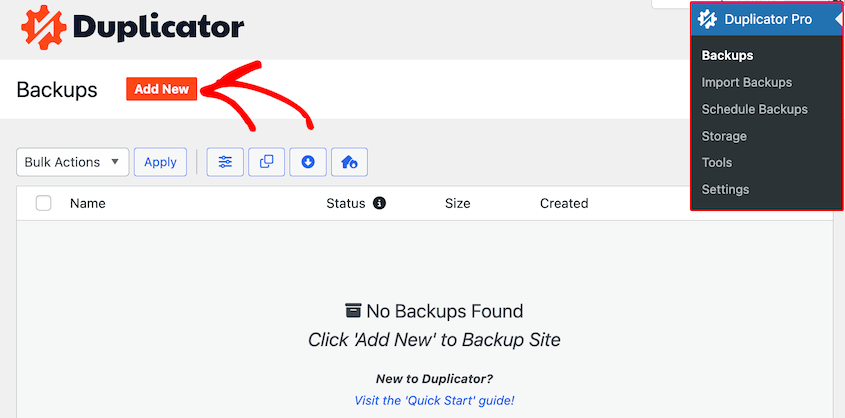
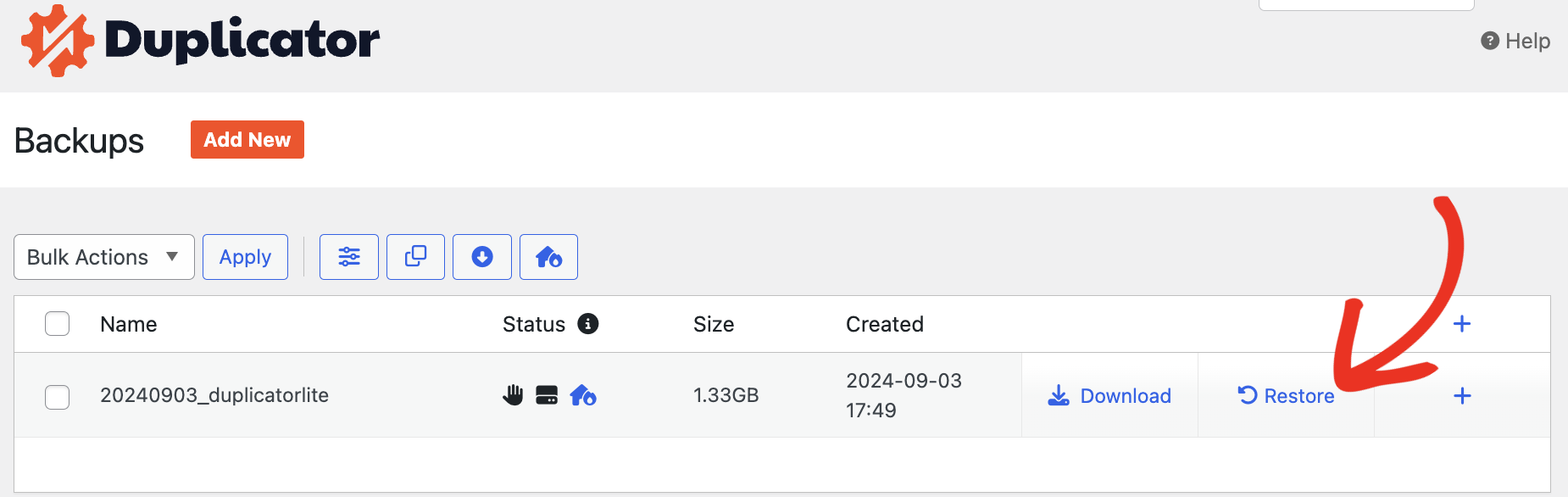
Install and activate Duplicator on your WordPress site. To create your backup, go to Backups and click Add New.
I recommend storing a copy somewhere off your server. Duplicator Pro has native Duplicator Cloud storage, as well as Amazon S3, Google Drive, Dropbox, and more.
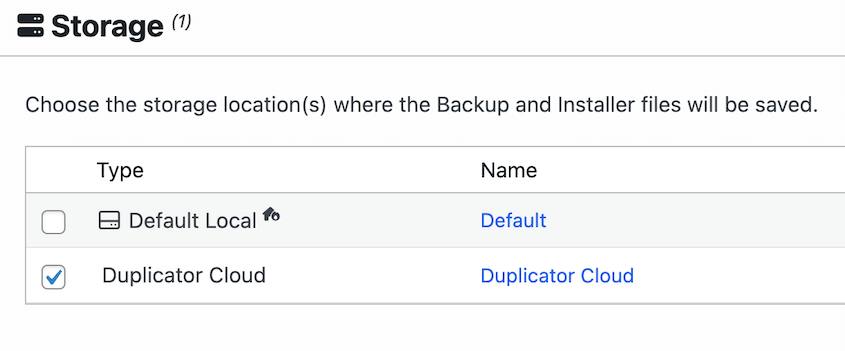
If your server goes down or gets corrupted, a backup sitting on the same server won’t help you. With a cloud copy in place, Duplicator Pro lets you restore directly from cloud storage with one click.
Select the Full Site preset. This includes everything on your website.

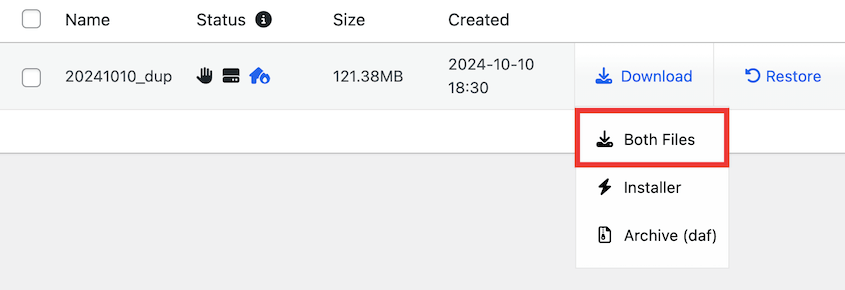
Finish building the backup. If you chose cloud storage, Duplicator automatically uploads your files there. If you saved the backup locally, download both files.
Step 2: Install DB Optimizer
DB Optimizer is Duplicator’s dedicated database cleanup plugin. It handles revisions, transients, spam, orphaned cache data, and table optimization.
Here’s what you’ll get with DB Optimizer:
- 0-100 database health score
- Pre-cleanup backups with Duplicator integration
- Bulk database cleanup
- Removes table overhead, transients, revisions, autoload size, and trash items
- Individual database table cleanup and repair
- Custom retention period to avoid deleting recent data
The plugin is included free with Duplicator Pro or Elite plans. It’s also available as a standalone plugin for $29/yr.
Once you get the plugin, download it from your Duplicator account. Upload it as a new plugin in WordPress and activate it.
Step 3: Check Your Database Health Score
Open DB Optimizer. You’ll immediately see your database health score: a number from 0 to 100, color-coded.
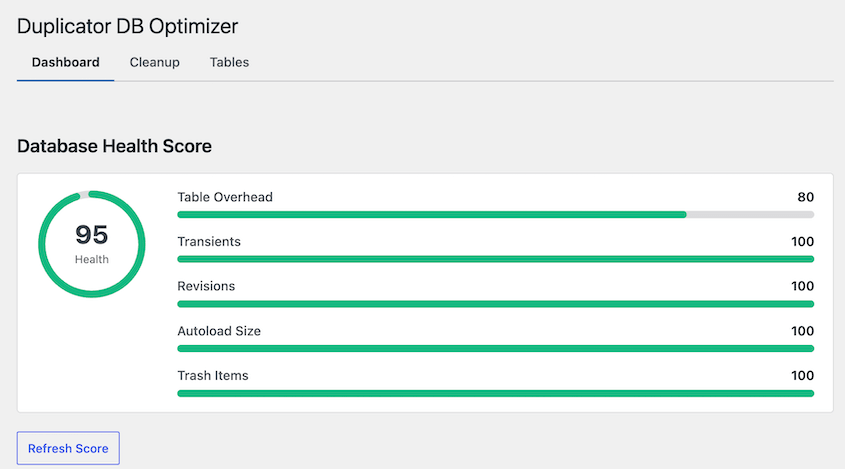
Green means the database is in good shape. Orange or red means there’s meaningful bloat worth addressing.
The score breaks down across five categories:
- Table Overhead: fragmented space left behind after rows have been deleted
- Transients: expired cached values plugins stored but never cleaned up
- Revisions: saved versions of posts and pages from every edit session
- Autoload Size: data WordPress loads on every page request, whether it’s needed or not
- Trash Items: posts, pages, and comments sitting in the trash folder
My test site scored a 61 on the first run. Most of the damage was in Revisions, since there were three years of post edits with WordPress’s default unlimited revision storage. Once I knew that, I knew exactly where to focus.
Note which categories are scoring low before moving on. You’ll use that to decide what to prioritize in the cleanup.
Step 4: Adjust Your Retention Settings
Before running any cleanup, set your retention threshold. This is the safeguard that keeps DB Optimizer from deleting something you created or edited recently.
Find it in the Settings area within DB Optimizer. The default is 7 days. Any revision, draft, or transient created in the last 7 days won’t be touched, no matter what you select in the cleanup step.
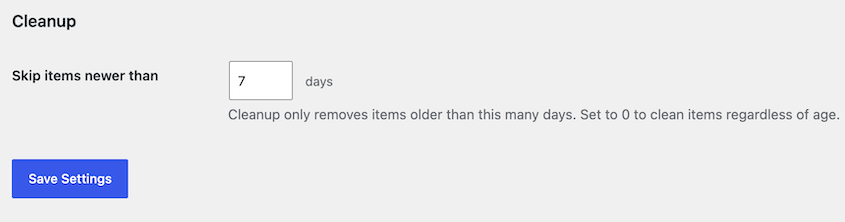
If you’re running a stable production site with mostly published content, you can lower it to 3–5 days. If your site has active drafts or content that gets revised frequently, keep it at 7 or raise it higher.
I don’t recommend setting it to 0. That removes the safety net entirely, and unless the site has been completely dormant, you risk catching data that’s still in use.
Step 5: Clean Up Your Database
Now head over to the Cleanup tab. This is where the data removal happens.
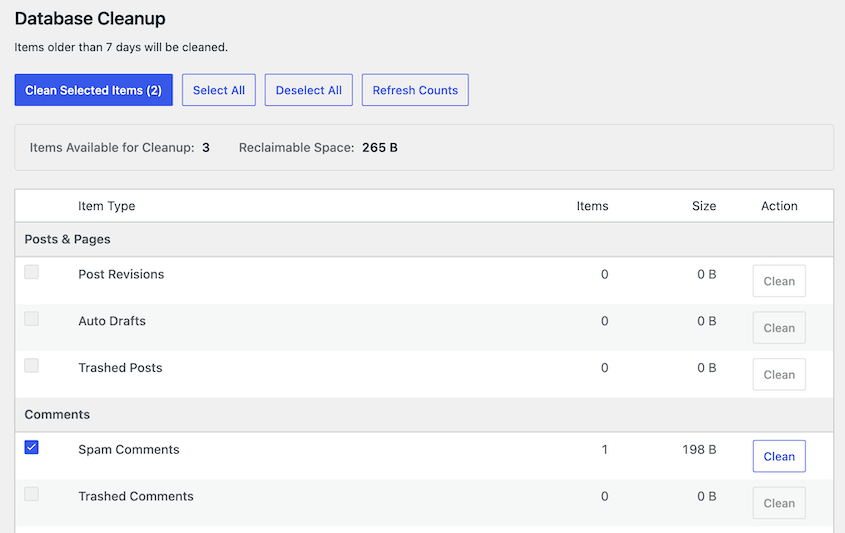
DB Optimizer organizes removable items into three groups. Before you click anything, read the item counts and reclaimable space shown next to each category. That tells you exactly what’s about to go.
You’ll see ratings across these categories:
- Posts & Pages: post revisions, auto-drafts, and trashed posts
- Comments: spam comments, trashed comments, pingbacks, and trackbacks
- Transients & Cache: expired transients and oEmbed cache
Hit the Select All button and then Clean Selected Items. You can also use individual Clean buttons next to each item.

When you proceed to cleanup, DB Optimizer shows you a preview of exactly what will be deleted. Confirm it before executing.
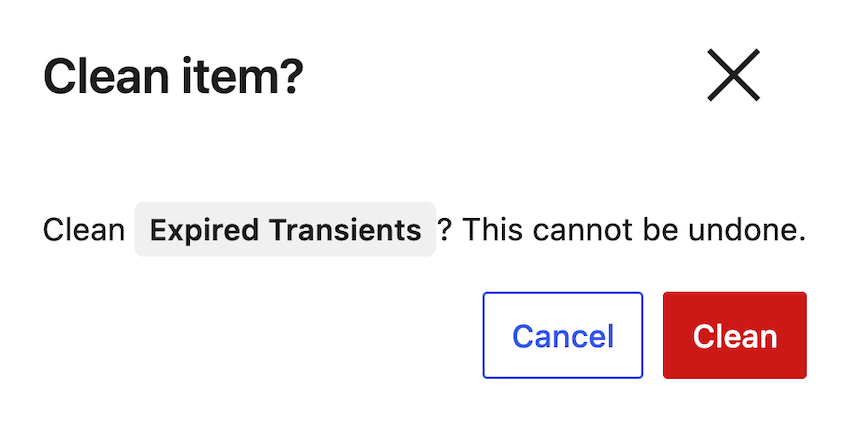
This preview step is the reason I recommend this tool over running SQL queries manually. You can see the list before you commit.
Step 6: Optimize Your Database Tables
Cleanup removes rows. This step reclaims the space those deletions left behind.
Think of it like defragging a hard drive. The data is gone, but the database still has fragmented gaps where those rows used to be. Table optimization closes those gaps and makes queries more efficient.
Open the Tables tab. DB Optimizer shows each table’s name, size, and overhead.
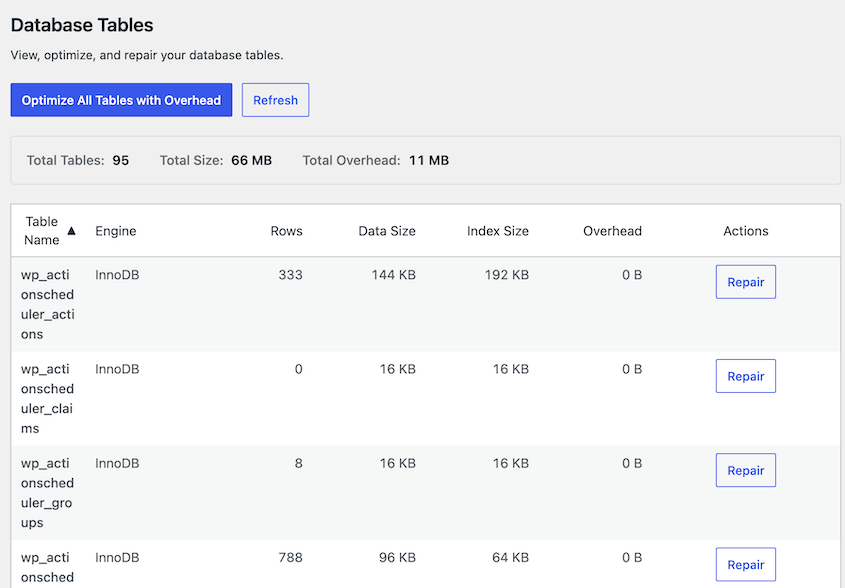
Click Optimize on any table with significant overhead. You can also click Optimize All Tables with Overhead to clean in bulk.
The process runs quickly on most tables. After it finishes, the overhead column should show 0 or near-zero.
Step 7: Verify the Cleanup Worked
Return to the Dashboard tab and refresh the health score. It should be higher than when you started.
How much higher depends on how bloated the database was. A site with three years of unmanaged revisions will see a bigger jump than one that’s been maintained.
Check the total database size shown in the stats panel. Compare it to what you noted before starting. That difference is real storage recovered.
Then spot-check your site. Visit the front end, log into wp-admin, open a few posts, and poke around any plugins that were active during the cleanup.
You’re looking for anything broken: missing content, plugin errors, settings that have reset.
If something is wrong, don’t troubleshoot blind. Restore the Duplicator backup you created in Step 1 and start the diagnostic from there.
If the health score barely moved despite a successful cleanup, look at the Autoload Size category specifically. A high autoload score means a plugin is forcing WordPress to load a large amount of data on every page request.
That’s a plugin configuration issue, not something cleanup removes — see the troubleshooting section below.
How Often Should You Clean Your Database?
Think of the health score like a warning light. You don’t need to stare at it constantly, but checking it regularly means you catch problems before they compound.
For most sites, checking once a month is enough. Clean when the score drops below a threshold you’re comfortable with. Somewhere around 70 is a reasonable target.
If the site is in solid shape after a cleanup, it’ll hold for a month without much trouble.
High-activity sites with daily publishing, high comment volume, or frequent plugin changes may need a check every two weeks. The revision and transient categories build up faster on busy sites.
Low-traffic sites or ones rarely updated can stretch to quarterly checks without issue.
Add a recurring reminder to your calendar. Make it part of the same routine as checking backups and updating plugins. It takes about five minutes once you know what you’re looking at.
You should also run a quick health score check after any major plugin install or uninstall. New plugins can add autoload data, and uninstalling plugins doesn’t always clean up their database tables.
Catching that early is easier than digging it out months later.
Troubleshooting: When the Cleanup Doesn’t Go as Expected
Most cleanups run without a hitch. Here’s what to do when yours doesn’t.
The Health Score Didn’t Improve After Cleanup
You ran through every cleanup step, and the score barely moved. The culprit is almost always Autoload Size.
Autoload data is information plugins store in the wp_options table and tell WordPress to load on every page request. It doesn’t show up in the revision or transient categories — it lives separately, and cleanup doesn’t touch it.
Check the Autoload Size indicator on the Dashboard tab. If it’s red or low-scoring, that’s your bottleneck.
Identify which plugins are contributing the most by searching “WordPress autoload bloat” alongside the plugin name, or use a tool like Query Monitor to inspect wp_options directly.
The fix is usually in the plugin’s own settings. Some plugins let you disable autoload for certain data, and others just need to be replaced.
Something on the Site Broke After Cleanup
You finished the cleanup, and something stopped working. A widget disappeared, a plugin threw an error, or settings reset to default.
This happens when a plugin stores configuration data as a transient or stores it in a way that looks like junk to a cleanup tool. It’s bad plugin behavior, but it exists.
Restore the Duplicator backup you created in Step 1. Don’t try to patch around the issue first. A full restore gets you back to a known working state in minutes.
Once you’re restored, run the cleanup again with the retention threshold raised to 14 or 30 days. That wider safety net will protect more recent data and usually isolate the problem.
Post Revisions Keep Coming Back
You cleaned out the revisions, and a week later the count has climbed back up. That’s expected behavior. Cleanup removes the existing stack, but WordPress keeps saving new revisions with every edit.
The cleanup fix is temporary unless you address the source. Add this line to your wp-config.php file:
define('WP_POST_REVISIONS', 3);That caps revision storage at 3 per post going forward. Your next cleanup will have far less to remove. You can adjust the number, but 3 is fine for most sites, and 10 is reasonable for sites with frequent content revisions.
wp-admin Still Feels Slow After Cleanup
The cleanup ran successfully, and the health score improved, but the admin panel still feels sluggish.
Database size is one factor. If Autoload Size scored low on your Dashboard tab, a bloated wp_options table is making WordPress load unnecessary data on every request, and that affects admin performance directly.
The other common culprit is unrelated to the database entirely: too many plugins running on admin pages, slow hosting, or a theme loading heavy assets in the backend. If the Autoload Size score is healthy after cleanup, the database isn’t the bottleneck, and you’ll need to look elsewhere.
Frequently Asked Questions (FAQss)
Is it safe to delete post revisions?
Yes, with one clarification. Revisions are only useful if you need to roll back a post to an earlier version. Once a post is published and you’re satisfied with it, those revisions serve no purpose. DB Optimizer’s retention threshold protects anything created in the last 7 days by default, so recently edited content won’t be touched.
Will cleaning my database speed up my website?
It can, but the improvement depends on how bloated the database was and where the bottleneck lives. The most consistent gains show up in wp-admin response time and backup speed. Front-end performance depends more on caching, hosting infrastructure, and image optimization. A clean database removes one drag on performance; it doesn’t replace the rest of the work.
Do I need to back up before cleaning my database?
Yes. A database cleanup deletes rows permanently. If a plugin stored configuration data in a format that looks like junk to a cleanup tool, you could break something without a backup to restore from. Duplicator Pro creates a full-site backup in minutes, and you can store it directly to cloud storage for a remote restore if anything goes sideways.
What’s the difference between cleaning and optimizing a database?
Cleaning removes unnecessary rows: revisions, spam comments, expired transients, and auto-drafts. Optimizing reclaims the fragmented space left behind after those rows are deleted — the database equivalent of defragging a drive. DB Optimizer handles both: cleanup in the Cleanup tab and table optimization in the Tables tab. Do the cleanup first, then optimize.
Can I clean my database without a plugin?
Yes. phpMyAdmin lets you run SQL queries directly against the database, and WP-CLI has built-in transient deletion commands. Both methods work, but neither shows you a preview before deleting. One wrong query in phpMyAdmin and the data is gone. A plugin like DB Optimizer adds a confirmation step that SQL queries don’t have. That preview is worth a lot when you’re working with a production database.
What are transients and is it safe to delete them?
Transients are temporary cached values that plugins store in your database. WordPress is supposed to delete them automatically when they expire, but it uses lazy deletion. It only removes them when something requests them, not on a schedule. That means expired transients pile up over time and never get cleaned unless you do it manually. DB Optimizer’s retention threshold leaves active (non-expired) transients alone and only removes the ones that have already expired.
A Clean Database Doesn’t Stay That Way Without a Plan
You’ve done the hard part. The backup is verified and stored off-server, the junk is gone, the tables are optimized, and the health score is back in the green.
What tends to undo that work isn’t neglect — it’s normal site activity.
Every plugin you add writes something to the database. Every post you publish and revise adds to the revision stack. Every plugin you uninstall may leave a table behind.
The database doesn’t stay clean on its own, but it also doesn’t take much to keep it from getting out of hand again.
Check the health score monthly and clean when it slips. After any significant plugin install or removal, run a quick check to see what changed. Those two habits catch most of the accumulation before it becomes a problem.
A database cleanup without a working backup is one wrong click from a broken site. DB Optimizer‘s preview step reduces the risk, but it doesn’t eliminate it. The one scenario it can’t protect against is a plugin that stored critical data somewhere it didn’t belong.
Duplicator Pro handles both sides of this: the backup before you clean and the restore if something goes wrong. Over 1.5 million WordPress professionals use Duplicator to protect their sites, and the cloud storage integration means your backup is off-server and ready to restore with one click if you ever need it.
If this post helped you clean your WordPress database, I think you’ll like these other resources:
- How to Clean Up Your WordPress Media Library
- How to Clean Up a WordPress Site
- How to Optimize Your WordPress Database: Get a Fast Site in 10 Steps
- Here Are the WordPress Database Repair Steps I Took Myself (No Developer Needed)
- WordPress Database Maintenance: What to Do Weekly, Monthly, and Quarterly
- How to Fix a Slow WordPress Database: A 4-Step Checklist
- 7 WordPress Database Warning Signs Most Site Owners Miss




