


8 Best WordPress Plugins for Speed in 2026 (Beyond Caching)
 Joella Dunn
Joella Dunn
Joella Dunn
 John Turner
John Turner
John Turner
You installed a caching plugin last year. Your Core Web Vitals score still isn’t moving.
That’s not unusual, and it’s not really about the caching plugin.
We’ve handled WordPress backups on more than 1 million sites for over a decade. That means our team spends its time in file structures and database exports: the layer underneath a speed test.
Most of what hurts site speed never shows up in a Core Web Vitals score. It shows up in the backup file size.
This list covers the best WordPress plugins worth installing for speed in 2026: caching plugins, image tools, and one category almost nobody writes about. I’ll show you what each one fixes, what it costs, and where it falls short.
Every entry below includes what we liked, what we didn’t, and who it’s built for. Skip to the comparison table if you just want the shortlist.
Key Takeaways
- Best overall: WP Rocket handles caching, lazy loading, and script optimization with almost no manual tuning.
- Best free option: LiteSpeed Cache delivers full-page caching at no cost if your host runs LiteSpeed.
- Best for database bloat: DB Optimizer scores your database 0-100, deletes unnecessary data, and even repairs database tables.
- Best for advanced users: Perfmatters gives you script-by-script controls that go beyond what caching plugins expose.
WordPress Speed Plugins Compared
| WordPress Speed Plugin | Best For | Free Version | Starts At |
|---|---|---|---|
| WP Rocket | Overall caching and optimization | No (14-day refund) | $59/year |
| LiteSpeed Cache | Free caching (LiteSpeed hosts) | Yes | Free |
| DB Optimizer | Database bloat cleanup | No (Duplicator Elite) | $29/year (or bundled with Duplicator Pro/Elite) |
| WP Media Cleanup | Hidden image variation bloat | No (Duplicator Elite) | $29/year (or bundled with Duplicator Pro/Elite) |
| Perfmatters | Advanced script control | No | $29.95/year |
| Imagify | Dedicated image compression | Yes (20MB/month) | $4.99/month |
| WP Fastest Cache | Simple free caching | Yes | $49 one-time |
| Autoptimize | Free script and CSS optimization | Yes | Free |
Table of Contents
- How We Evaluated These Plugins
- What's Slowing Down Your WordPress Site?
- What Speed Plugins Do You Actually Need?
- What to Do Before You Install Any of These
- Best WordPress Plugins for Speed in 2026
- How Do You Know If a Speed Plugin Actually Worked?
- Still Slow After All of This? Here's What Isn't a Plugin Problem
- Frequently Asked Questions (FAQs)
- Your Site Doesn't Need More Plugins. It Needs the Right Two.
How We Evaluated These Plugins
We looked at these WordPress speed optimization plugins across three criteria:
- Real impact on Core Web Vitals
- Setup time for a non-developer
- Pricing transparency
We read documentation, tested free tiers where available, and checked claims against plugin changelogs and support forums, not just marketing pages.
One disclosure: DB Optimizer and WP Media Cleanup are both Duplicator products. We included them because each solves a real problem caching plugins don’t touch (database bloat and unused image variations).
Neither is a caching plugin, and neither will replace one. We say so below, along with their limitations.
What’s Slowing Down Your WordPress Site?
A caching plugin speeds up delivery. It doesn’t touch what’s sitting underneath it.
Several things build up on almost every WordPress site, and none of them show up in a PageSpeed score:
- A database carries years of post revisions and expired transients nobody cleared out.
- A media library with 5,000 uploaded images can quietly generate 20,000 or more unused thumbnail and crop variations.
- Old plugins leave behind render-blocking scripts long after anyone uninstalls them.
- Full-resolution photos get uploaded and served as-is because nobody resized or compressed them before hitting publish.
- An outdated PHP version slows down every request on the site, even one that otherwise looks lean.
- No CDN means every visitor loads assets from one server location, no matter how far away they are.
None of that shows up in the score itself. It shows up in slower backups, heavier admin queries, and hosting bills that creep up every month.
Caching plugins mask the symptom, not the cause, which is why the list below covers more than page caching.
What Speed Plugins Do You Actually Need?
The right plugins to speed up your site depend on what’s slowing it down in the first place. Match your WordPress speed symptom to the fix instead of installing everything on this list.
- Pages load slowly for visitors, but wp-admin feels normal: That’s a delivery problem. Start with a caching plugin.
- wp-admin is sluggish, and your backups keep getting bigger: That’s database bloat, not delivery. A database cleanup tool fixes this.
- Your media library is huge, and storage costs keep climbing: Check for unused image variations before you reach for compression. Compression shrinks what you keep. Cleanup removes what you don’t need.
- Pages load fast, but clicks and taps feel laggy: That’s usually JavaScript, not caching. A script-control plugin will do more here than a caching plugin will.
- You’re on a host with its own built-in caching: Check what it already handles before adding a third-party plugin on top of it.
Most sites need two categories: something for delivery and something for the bloat sitting underneath it.
What to Do Before You Install Any of These
Back up your site first. A caching plugin rarely breaks anything, but a database cleanup tool deleting the wrong rows or two caching plugins fighting over the same cache folder can take a site down.
A recent backup turns any issue into a five-minute restore.
I recommend installing Duplicator and creating a full-site backup. Set this backup as the disaster recovery point, just in case anything happens.
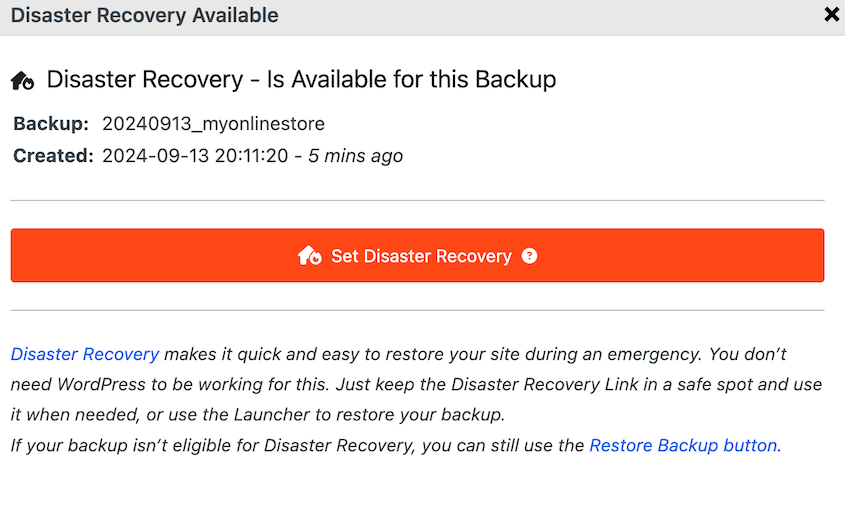
Copy your recovery URL and save it in a safe place. If you notice new plugins cause software conflicts, paste this link and instantly roll back your site.
Install one plugin at a time and test after each one. Install three at once, and if something breaks, you won’t know which plugin did it.
Best WordPress Plugins for Speed in 2026
Here are the best WordPress plugins for speed optimization that made the cut, ranked by what they actually fix and what they cost.
- WP Rocket: handles caching, lazy loading, and script optimization with almost no manual tuning.
- LiteSpeed Cache: free optimization features on any host, plus server-level caching if you’re on LiteSpeed.
- DB Optimizer: scores your database 0-100 and shows what it’ll remove before you delete anything.
- WP Media Cleanup: removes the unused image variations no caching plugin ever looks at.
- Perfmatters: script-by-script controls for advanced users who want more than a caching plugin offers.
- Imagify: compresses images on upload and bulk-optimizes your existing media library.
- WP Fastest Cache: a simple, free caching plugin for straightforward sites.
- Autoptimize: free minification and script deferral, with no caching built in.
1. WP Rocket
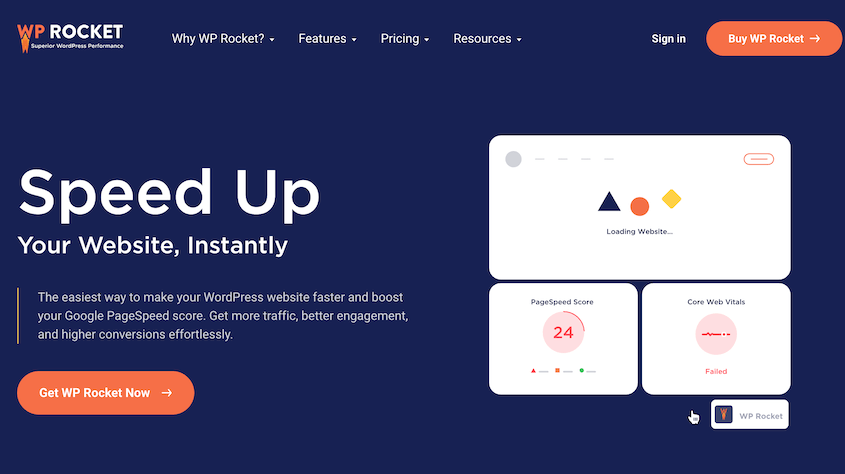
WP Rocket is a premium caching plugin that turns on page caching, lazy loading, and file minification the moment you activate it. It’s the plugin most WordPress professionals reach for first because it requires almost no configuration to produce real Core Web Vitals gains.
Under the hood, it works the way every caching plugin here does. It generates static HTML copies of your pages, then serves those instead of running PHP and database queries on every visit.
What sets WP Rocket apart is how much it automates around that. Cache preloading, database cleanup, and a CDN come bundled in. You don’t have to buy them separately.
Best for: Site owners who want caching and optimization working correctly without touching many settings.
Why We Chose WP Rocket: WP Rocket earns its reputation. Activate it, and most of the performance wins happen automatically.
What We Liked:
- Works immediately after activation without cache warming steps
- Built-in lazy loading, database cleanup, and CDN integration
- Compatible with most major page builders and WooCommerce out of the box
What We Didn’t Like:
- No free version, so you can’t test it beyond the 14-day refund window
- Costs more per site than bundling caching into a broader hosting-level tool
2. LiteSpeed Cache
LiteSpeed Cache is a free plugin with two tiers of features. The general set works on any web server (LiteSpeed, Apache, NGINX, and others). The server-level page caching is exclusive to hosts running LiteSpeed.
That split matters when you’re deciding whether to install it. Image optimization, CSS/JS/HTML minification, lazy loading, database cleanup, and the free QUIC.cloud CDN are all available to everyone. So is Cloudflare API support.
The LiteSpeed-only features are the caching ones. Automatic page caching, a private cache for logged-in users, ESI support, and dedicated WooCommerce and bbPress caching all require a LiteSpeed server.
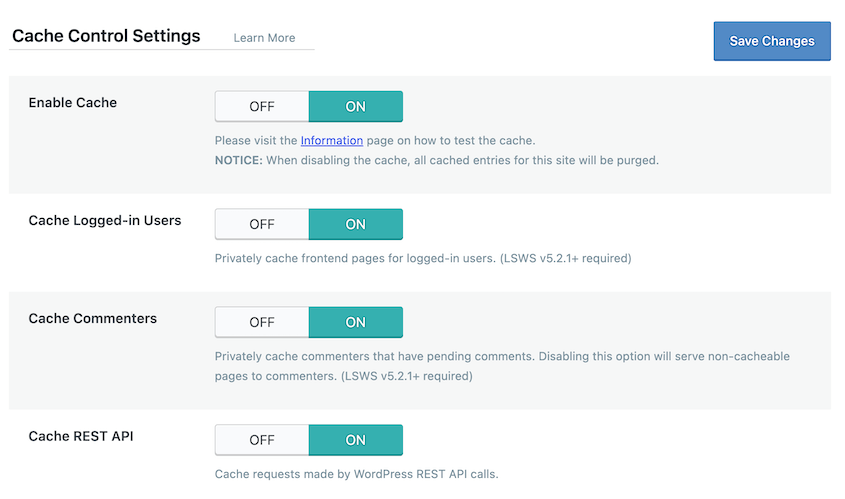
It handles that caching at the server level rather than inside WordPress’s PHP process, which is why it benchmarks faster on server response time than PHP-based caching plugins do.
Best for: Anyone on LiteSpeed hosting who wants the full caching stack for free, or anyone on any host who wants free image optimization and minification.
Why We Chose LiteSpeed Cache: On a LiteSpeed host, it’s hard to beat free server-level caching. Off one, it’s still a capable free optimization plugin, just without the piece that makes it the fastest.
What We Liked:
- Full-page caching at the server level, not just browser-side
- Image optimization and CDN options bundled in for free
- No licensing cost at any tier
What We Didn’t Like:
- Many features are inactive unless your host runs LiteSpeed or OpenLiteSpeed
- Settings interface is dense and not beginner-friendly
3. DB Optimizer
A bloated database slows down every query your site runs. DB Optimizer helps you fix that problem.
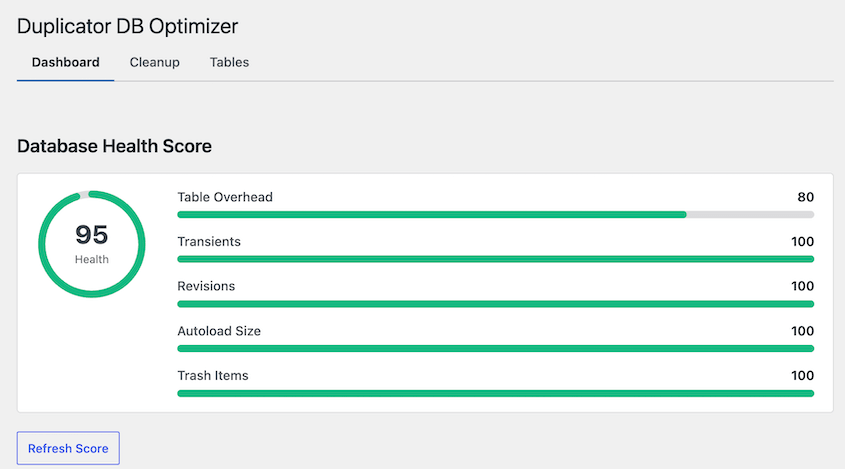
DB Optimizer scores your WordPress database from 0 to 100 across overhead, transients, revisions, autoloaded data, and trash. It shows you the space you can reclaim before you delete anything.
It’s a newer, more specialized tool than the caching plugins here, so it doesn’t have years of public reviews behind it. What it has is a narrower job: clean the database safely.
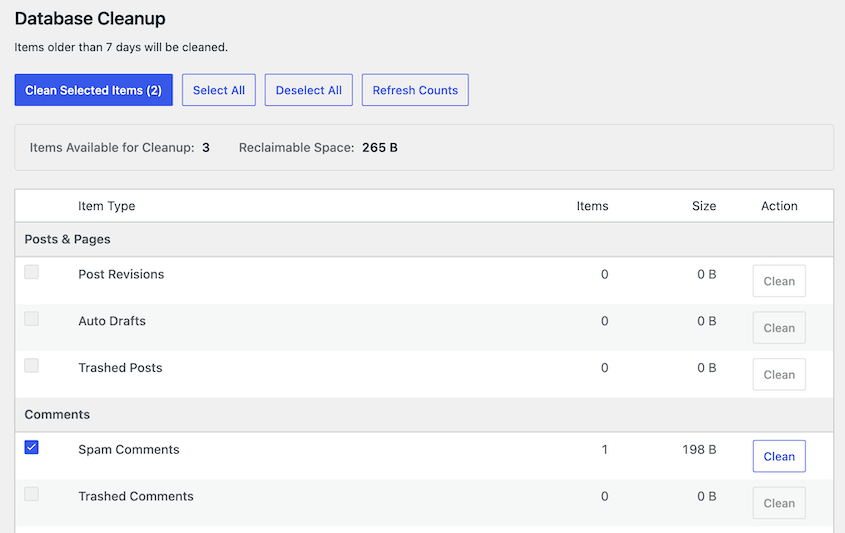
Backups are built into the database optimization workflow, so you always have a restore point ready to avoid data loss.
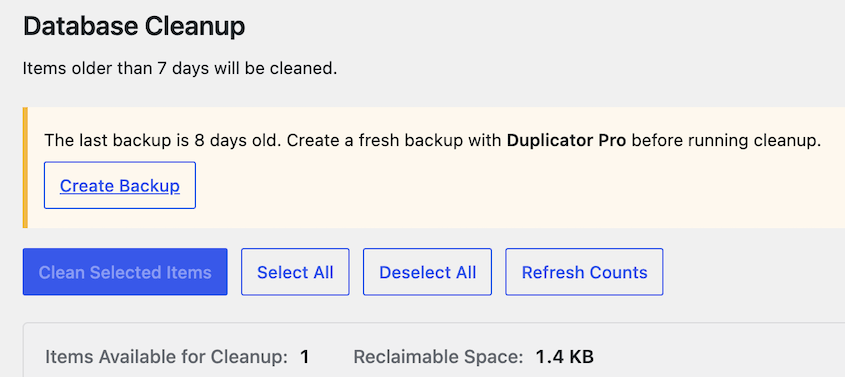
Best for: Site owners who want to see what’s wrong with their database and fix it without writing a SQL query.
Why We Chose DB Optimizer: What earns DB Optimizer a spot this high is the preview-first approach. Plus, the 7-day retention default protects anything created in the last week, and it prompts a backup before cleanup starts.
What We Liked:
- Database health score (0-100) turns table overhead, autoload size, and trash into one number you can re-check after cleanup
- Bulk database optimization
- Prompts a Duplicator backup before it deletes anything
- Per-table optimization and repair for fixing one misbehaving table without a full site-wide cleanup
What We Didn’t Like:
- $29/year standalone, unless you’re already on Duplicator Pro or Elite, where it’s bundled
4. WP Media Cleanup
WP Media Cleanup finds image variations WordPress generated automatically but your site doesn’t actively use. It removes old thumbnail sizes, discontinued theme crops, and duplicate resolutions sitting untouched in wp-content/uploads.

Most image optimization plugins, Imagify included, compress the images you’re actively using. They don’t touch the copies WordPress generates on its own.
By default, WordPress creates several resized versions of every image you upload: thumbnail, medium, large, and often more if your theme or page builder adds custom sizes. None of those get deleted when you switch themes or stop using a size.
WP Media Cleanup clears this bulk in one click. It’ll keep years of accumulated variations from bloating your media library.
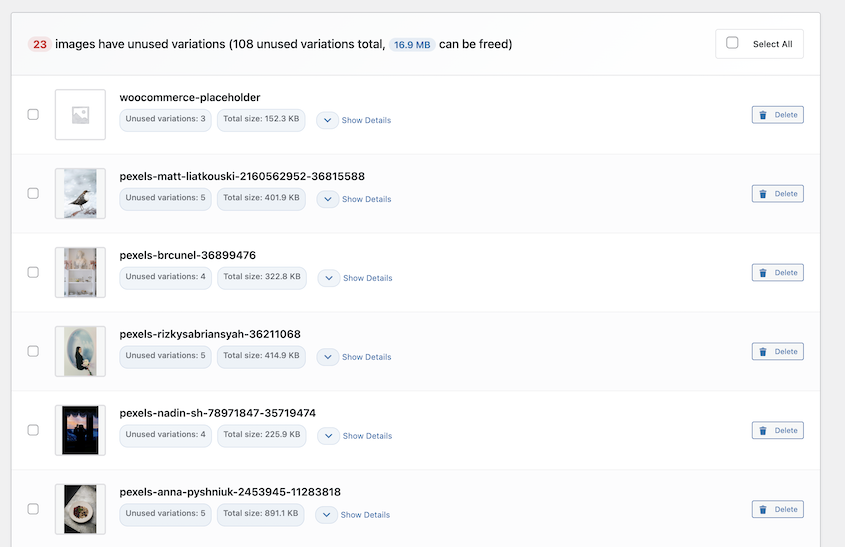
Best for: Sites with large or long-running media libraries where storage and backup size have crept up over years, not just page load time.
Why We Chose WP Media Cleanup: WP Media Cleanup removes image variations nobody remembers creating (three, four, sometimes five sizes per photo) that quietly inflate storage costs and slow down migrations.
What We Liked:
- Flags unused image variations without touching original full-size images
- Removed files are moved to a temporary folder for 30 days before permanent deletion, so mistakes are reversible
- Smaller media libraries mean faster backups and lower hosting storage costs
What We Didn’t Like:
- Doesn’t compress or optimize the images you keep, only removes what’s unused
5. Perfmatters
Perfmatters is a lightweight performance plugin built for people who want to selectively disable WordPress features and scripts, rather than rely on a caching plugin’s defaults. Instead of caching pages, it fine-tunes what loads on each one.
It shows up often in WordPress toolkits because of its size. At a few kilobytes, it adds almost nothing to page weight. That’s unusual for a plugin doing this much configuration work.
Reviews consistently land on the same point: Perfmatters is a companion tool, not a caching plugin replacement. It’s often recommended as a second install alongside WP Rocket, because the two don’t overlap.
WP Rocket handles delivery. Perfmatters handles which scripts load in the first place.
Best for: Developers and advanced users who already have a caching plugin and want granular control on top of it.
Why We Chose Perfmatters: It does one thing most caching plugins do poorly: script-by-script and page-by-page control. With Perfmatters, you can disable a chat widget’s script everywhere except the contact page without touching code.
What We Liked:
- Script manager lets you disable individual scripts per page or post type
- Extremely lightweight; adds negligible overhead
- Lower annual price than most caching plugins
What We Didn’t Like:
- Not a caching plugin on its own; you’ll need to pair it with one
- Aggressive disabling can break plugin functionality if you’re not careful
- No free version to test the interface first
6. Imagify
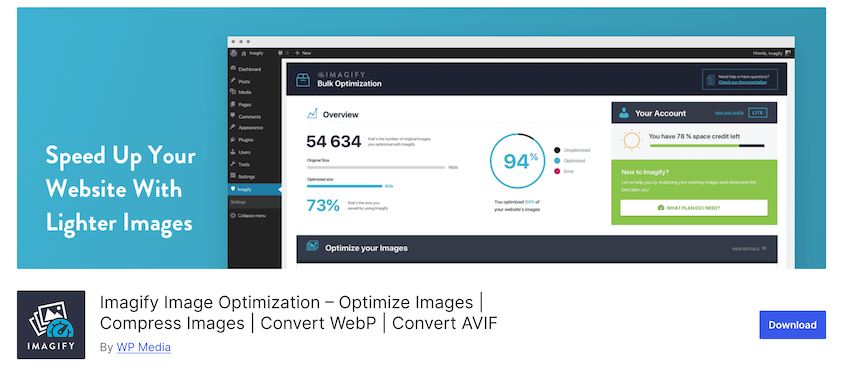
Imagify compresses images on upload and can bulk-optimize your entire existing media library. Images are consistently the heaviest asset on a WordPress page, and Imagify addresses that directly.
Compression happens on Imagify’s servers, not yours. You upload an image, it gets processed externally, and the optimized version comes back.
That keeps the work off your host, which matters if you’re on shared hosting where a bulk optimization could otherwise tie up resources.
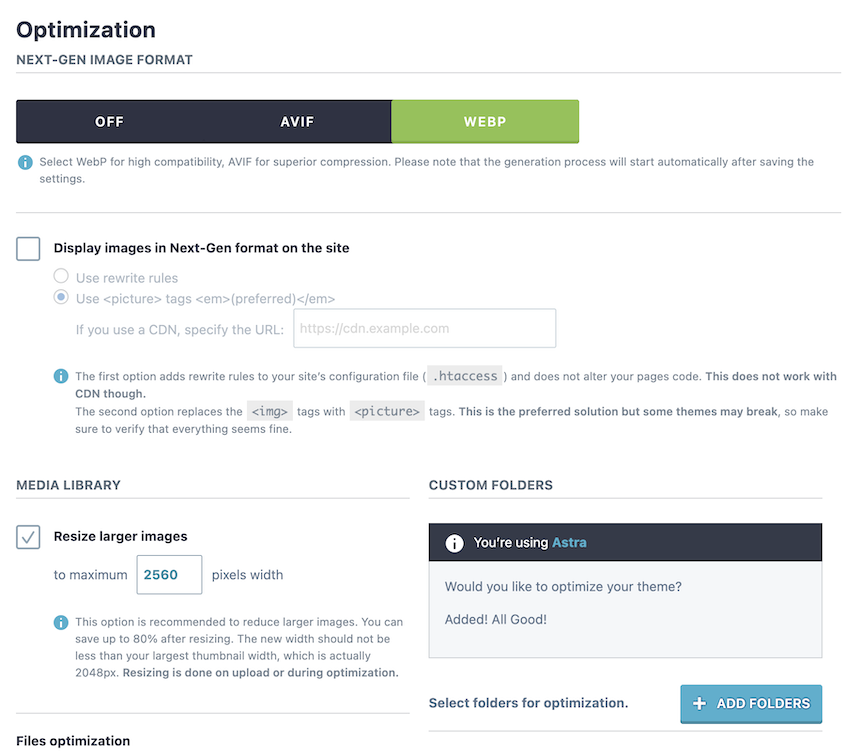
You get three compression levels: Normal, Aggressive, and Ultra. Imagify keeps a backup of every original, so you can restore a photo or re-compress it at a different level if you push too far.
It also converts images to WebP and serves the original format as a fallback for browsers that need it. That conversion is where most of the page-weight savings come from on a modern site.
One thing it doesn’t do is remove unused image variations. Imagify compresses what’s on your server. It doesn’t ask whether those files need to be there at all.
Best for: Sites with large, growing media libraries where images are the biggest page-weight problem.
Why We Chose Imagify: Most caching plugins bolt on basic image compression. Imagify’s compression algorithm and automatic WebP conversion are noticeably better than what’s built into a general-purpose plugin.
What We Liked:
- Three compression levels balance file size against visual quality
- Automatic WebP conversion with a fallback for unsupported browsers
- Bulk optimization for your existing media library, not just new uploads
What We Didn’t Like:
- Free tier caps out at 20MB of images per month
- Paid plans are priced by data processed, which is hard to estimate upfront
- Compresses existing files but doesn’t remove unused image variations sitting on the server
7. WP Fastest Cache

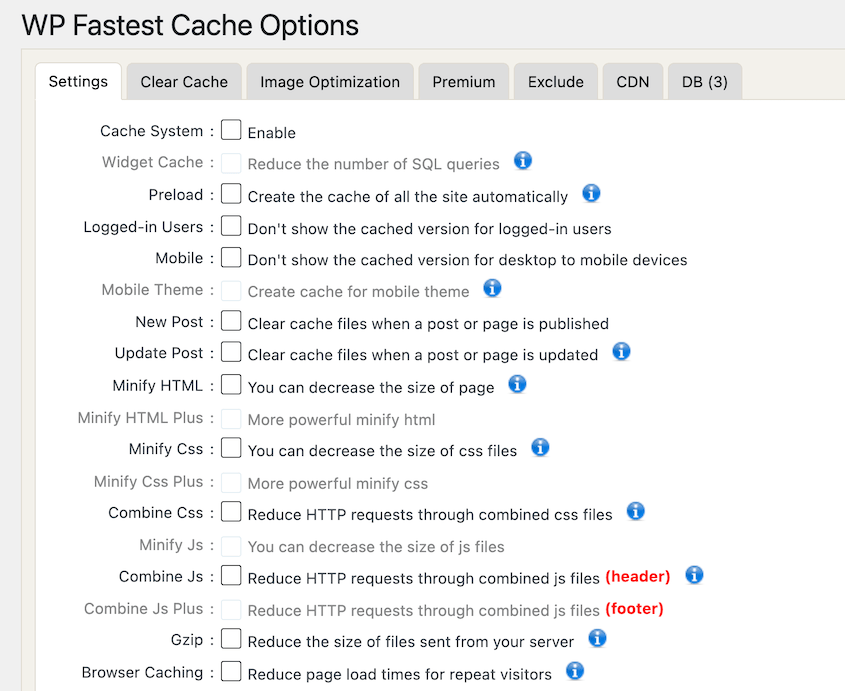
WP Fastest Cache is a free page caching plugin with a settings screen that fits on one page. It doesn’t offer as many features as WP Rocket, but it can be a good place to start for free.
It’s been one of the top caching plugins for years, in the same tier as WP Super Cache and W3 Total Cache. Its reputation rests on reliability more than features.
Reviewers consistently note that it rarely conflicts with themes or other plugins. That matters more than it sounds. Caching conflicts are one of the most common causes of a broken site after an update.
The tradeoff is a dated interface. It hasn’t been redesigned with the guided setup flows WP Rocket and LiteSpeed Cache use, so it can come with a higher learning curve.
Best for: Smaller sites or beginners who want basic caching.
Why We Chose WP Fastest Cache: It rarely breaks themes, and setup takes minutes. For a lot of WordPress sites, it offers genuinely all the caching they need.
What We Liked:
- Free version covers page caching, browser caching, and basic minification
- Settings are simple enough for a non-technical site owner
What We Didn’t Like:
- Fewer advanced features than WP Rocket or Perfmatters
8. Autoptimize

Autoptimize is a free plugin focused on one job: combining, minifying, and deferring your site’s CSS and JavaScript. It doesn’t cache pages, so most people pair it with a dedicated caching plugin instead of using it alone.
It’s one of the longest continuously maintained performance plugins in the repository, predating most of this list by several years. That longevity is important for a plugin touching every script and stylesheet on a site.
Best for: Budget-conscious site owners who want script optimization without paying for a full caching suite.
Why We Chose Autoptimize: Autoptimize has been around for years and stayed reliably maintained, which matters for a plugin that touches every script on your site. It’s free, focused, and it does what it says.
What We Liked:
- Handles CSS and JS minification well on its own
- Pairs cleanly with LiteSpeed Cache or WP Fastest Cache for full coverage
What We Didn’t Like:
- No caching functionality, so it’s only half a performance stack
- Aggressive minification settings can break scripts on complex sites
- Interface feels dated compared to newer plugins on this list
How Do You Know If a Speed Plugin Actually Worked?
The hard part of WordPress website speed optimization isn’t installing the plugins. It’s knowing which one made a difference.
Run a baseline test before installing anything. Google PageSpeed Insights and GTmetrix are both free site speed tools that return a Core Web Vitals score in under a minute.
Write the score down. Install one plugin at a time and retest after each one. That’s the only way to know which plugin caused which change instead of guessing.
If a plugin shows its own internal score (DB Optimizer’s 0-100 health rating, for example), treat that as a helpful signal, not a replacement for testing the live page with an outside tool.
Still Slow After All of This? Here’s What Isn’t a Plugin Problem
If you’ve installed a caching plugin, compressed your images, and cleaned up your database, and the site is still slow, the cause probably isn’t a missing plugin.
Three common culprits sit outside what any tool on this list can fix.
- A heavy page builder theme: some generate bloated CSS and markup no minifier fully cleans up.
- Third-party embeds like YouTube videos, live chat widgets, and ad networks, each loading its own scripts from someone else’s server.
If you’ve ruled out plugins and files, the theme or the host is next.
Frequently Asked Questions (FAQs)
What is the best WordPress plugin for speed?
For most sites, WP Rocket is the best overall pick. It handles caching, lazy loading, and minification with almost no setup. If your slowdown is coming from years of accumulated image bloat rather than delivery speed, pair it with WP Media Cleanup, which targets a different problem entirely.
Do WordPress speed plugins actually work?
Yes, but only within their category. A caching plugin measurably improves load times by reducing server processing per visit. It won’t fix bloat sitting in your database or media library. Expect real gains, just not from one plugin covering every cause of slowness.
Can too many plugins slow down my WordPress site?
Yes. Each active plugin adds database queries, scripts, or styles that load on every page. Running two caching plugins together, or several plugins that all touch the same functionality, usually causes more slowdown than any one of them fixes.
Is a caching plugin enough to speed up WordPress?
Usually not on its own. Caching addresses delivery speed, not the underlying weight of your site. A site with a bloated database or an oversized media library will still load slowly for first-time visitors, even with a good cache in place.
Will a speed plugin fix a slow host?
No. A plugin can’t compensate for a server that’s underpowered or overcrowded with other sites. If your site is still slow after installing a caching plugin correctly, the host is the more likely bottleneck, not the plugin choice.
How much does WordPress speed optimization cost?
Does my host already cache my site, and do I still need a plugin?
Many hosts, including SiteGround, Kinsta, and WP Engine, run server-level caching by default. Installing a second caching plugin on top of one can cause conflicts instead of extra speed. Check your host’s dashboard for an existing cache before adding WP Rocket or LiteSpeed Cache, and turn one off if both are active.
Do these plugins help with INP, not just page load time?
Interaction to Next Paint (INP) measures how fast a page responds to clicks and taps, not how fast it loads. Heavy JavaScript is the usual cause of a poor INP score, which is what Perfmatters’ script manager is built to reduce. Caching and compression plugins won’t move INP much on their own.
Your Site Doesn’t Need More Plugins. It Needs the Right Two.
Pick one caching plugin. WP Rocket if you want it handled for you, LiteSpeed Cache if your host supports it and you want free.
Then pick one tool for the weight your caching plugin can’t see: DB Optimizer if years of database clutter is the problem, WP Media Cleanup if it’s accumulated image variations.
One habit worth adopting before you touch any of these settings: back up your site first. Database cleanups and caching plugin conflicts are two of the most common ways a speed fix turns into a support ticket.
Start with DB Optimizer or WP Media Cleanup if bloat, not delivery speed, is your actual bottleneck. Both are included free with Duplicator Elite, alongside Activity Log and full Multisite backup support.
While you’re optimizing your website, here are some more helpful guides:
- How to Clean Up a WordPress Site
- How to Optimize Your WordPress Database: Get a Fast Site in 10 Steps
- WordPress Database Cleanup: A Beginner’s Guide to Removing the Junk
- How to Fix a Slow WordPress Database: A 4-Step Checklist
- 7 WordPress Optimization Services (and Tools) Worth Your Money
- WordPress Database Maintenance: What to Do Weekly, Monthly, and Quarterly




