


Comment annuler les modifications dans WordPress : 5 méthodes pour chaque situation
 Joella Dunn
Joella Dunn
Joella Dunn
 John Turner
John Turner
John Turner
Modifier votre site WordPress est facile. Mais que se passe-t-il lorsque vous effectuez une modification que vous n’aviez pas l’intention de faire ?
Supprimer accidentellement du contenu, casser votre site avec un mauvais plugin, ou être victime d’un piratage peut être incroyablement frustrant. Mais avec la bonne approche, vous pouvez annuler les dégâts et revenir à une version fonctionnelle de votre site.
Prêt à devenir un expert en « annulation » WordPress ? Je vais vous montrer les différentes méthodes pour annuler les modifications dans WordPress.
Voici les points clés à retenir :
- Restaurer des sauvegardes : Utilisez des plugins comme Duplicator pour restaurer l’intégralité de votre site à un état précédent en un clic
- Utiliser les révisions de publication : WordPress enregistre automatiquement les versions de vos publications et pages que vous pouvez restaurer à tout moment
- Annuler les modifications de formulaire : Des plugins comme WPForms suivent les révisions de formulaire afin que vous puissiez récupérer des champs supprimés accidentellement
- Annuler les mises à jour : Revenez aux mises à jour du cœur de WordPress, des plugins ou des thèmes en restaurant une sauvegarde datant d’avant la mise à jour
- Récupérer après piratage : Les sauvegardes propres vous permettent de supprimer le code malveillant et de retrouver l’accès à votre tableau de bord
Table des matières
- Pourquoi annuler les modifications dans WordPress ?
- Comment annuler les modifications dans WordPress
- Méthode 1. Restaurer une sauvegarde
- Méthode 2. Restaurer une révision de publication dans l’éditeur de blocs
- Méthode 3. Restaurer une révision de publication dans l’éditeur classique
- Méthode 4. Annuler les modifications dans WordPress.com
- Méthode 5. Annuler les modifications dans un formulaire de contact
- FAQ sur l’annulation des modifications dans WordPress
Pourquoi annuler les modifications dans WordPress ?
Il existe plusieurs scénarios courants où vous pourriez avoir besoin d’annuler des modifications apportées à votre site WordPress. Parlons-en de quelques-uns !
Modifications accidentelles ou erreurs
Il est facile de supprimer accidentellement du contenu, de modifier des paramètres que vous n’aviez pas l’intention de modifier, ou d’apporter d’autres modifications involontaires en travaillant dans WordPress. Plutôt que d’essayer de recréer l’état précédent, il est parfois plus rapide d’annuler simplement la modification.
Tester les modifications
En tant que propriétaire de site Web, vous pourriez vouloir tester de nouveaux plugins, des paramètres de thème, des mises en page de pages ou d’autres modifications. Si c’est le cas, vous aurez besoin d’un moyen simple de revenir en arrière sur votre site si vous n’aimez pas les résultats. De cette façon, vous pouvez expérimenter sans risque.
Corriger les problèmes de mise à jour
Les mises à jour sont des tâches de maintenance importantes pour la sécurité et la fonctionnalité. Cependant, elles peuvent parfois causer des conflits ou casser des parties de votre site. Pouvoir annuler la mise à jour restaure votre site pendant que vous enquêtez sur le problème.
Récupérer après des attaques
Si votre site est piraté ou infecté par un logiciel malveillant, vous voudrez restaurer une version propre de votre site. Cela supprime tout code malveillant et vous permet de retrouver l’accès à votre tableau de bord. Vous ne perdrez pas votre site pour toujours !
Comment annuler les modifications dans WordPress
Quelle que soit la raison, annuler les modifications dans WordPress peut vous faire économiser des heures de maux de tête et de dépannage.
Je vais vous guider à travers les moyens les plus simples d’annuler les modifications dans WordPress !
- Méthode 1 : Restaurer une sauvegarde : Revenez sur l’intégralité de votre site en un clic à l’aide de plugins de sauvegarde comme Duplicator
- Méthode 2 : Révisions de publication dans l’éditeur de blocs : Annulez les modifications de contenu sur des publications/pages individuelles dans l’éditeur WordPress moderne
- Méthode 3 : Révisions de publication dans l’éditeur classique : Restaurez les versions précédentes du contenu si vous utilisez l’éditeur classique
- Méthode 4 : Modifications WordPress.com : Utilisez les outils intégrés pour récupérer les articles supprimés ou restaurer votre site WordPress.com
- Méthode 5 : Modifications du formulaire de contact : Annulez les modifications du formulaire grâce à l'historique des révisions de WPForms
Méthode 1. Restaurer une sauvegarde
La manière la plus simple pour les débutants d'annuler des modifications dans WordPress est de restaurer une sauvegarde complète de votre site. Cela vous permet de revenir à un état antérieur de chaque élément — contenu, paramètres, plugins, thèmes, et plus encore — tel qu'il était au moment de la sauvegarde.
La sauvegarde régulière de votre site est cruciale pour que cette méthode fonctionne. Je recommande vivement l'utilisation d'un plugin de sauvegarde WordPress comme Duplicator pour créer facilement des sauvegardes selon un calendrier.
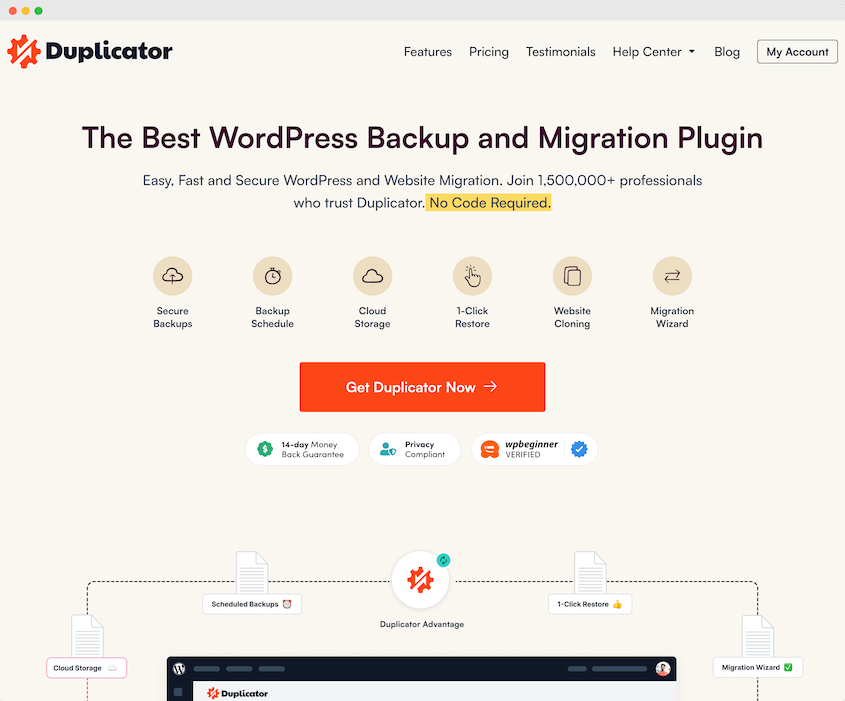
Duplicator prend des instantanés de votre site entier (fichiers, base de données, plugins et thèmes) et les regroupe dans un fichier zip soigné. Si vous avez besoin d'annuler des modifications, il vous suffit de restaurer cette sauvegarde en un seul clic.
Le processus de restauration est incroyablement convivial. Allez simplement dans Duplicator » Sauvegardes et trouvez une sauvegarde créée avant l'erreur. Cliquez sur le bouton Restaurer à côté.
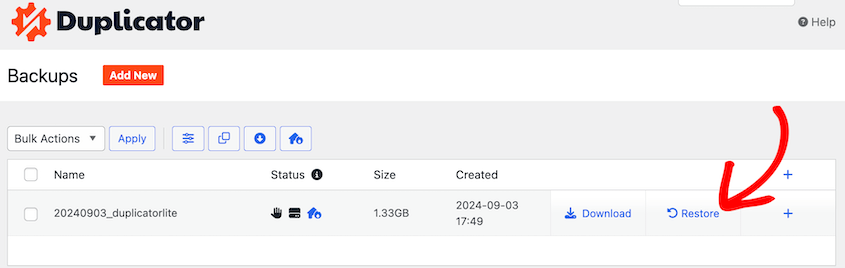
En quelques minutes, Duplicator écrasera votre site actuel avec la version de sauvegarde. Tout sera restauré exactement comme il était.
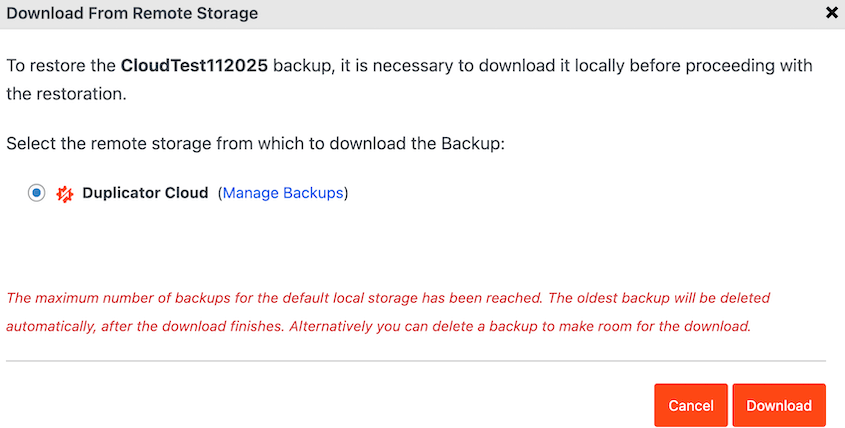
Vous pouvez faire de même avec les sauvegardes cloud. Vos données seront déplacées vers le stockage local, vous permettant de les restaurer.
Si votre site est complètement hors service et que vous ne pouvez même pas vous connecter, vous pouvez toujours récupérer vos données !
Duplicator vous permet de restaurer les sauvegardes directement depuis son stockage natif Duplicator Cloud. Il vous suffira de configurer le connecteur de récupération avec vos identifiants FTP.
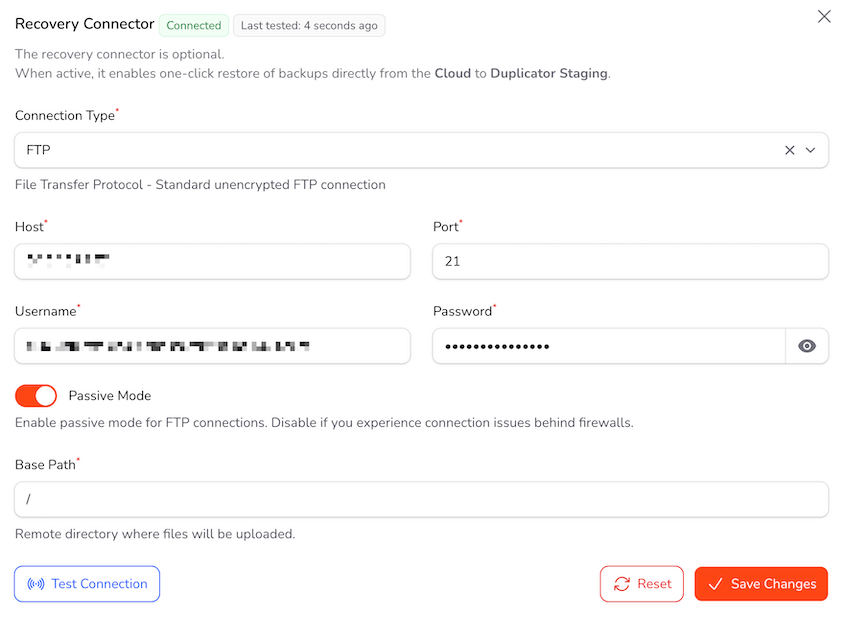
Automatisez les sauvegardes pour qu'elles soient envoyées vers Duplicator Cloud selon un calendrier horaire, quotidien, hebdomadaire ou mensuel. Si quelque chose tourne mal, ouvrez votre tableau de bord cloud et restaurez la sauvegarde propre la plus récente.
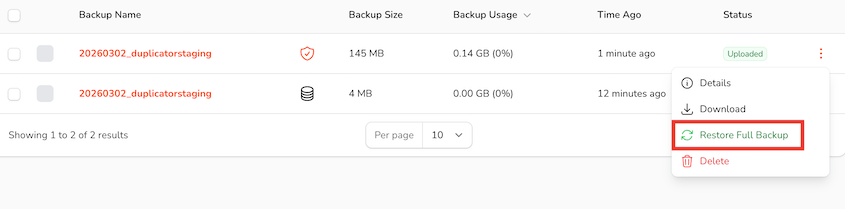
Toute modification survenue après la création de cette sauvegarde sera annulée !
Méthode 2. Restaurer une révision de publication dans l’éditeur de blocs
Si vous avez seulement besoin d'annuler les modifications d'un article ou d'une page spécifique, WordPress dispose d'un système de révisions intégré.
Dans l'éditeur WordPress, cliquez sur l'option Révisions dans la barre latérale.
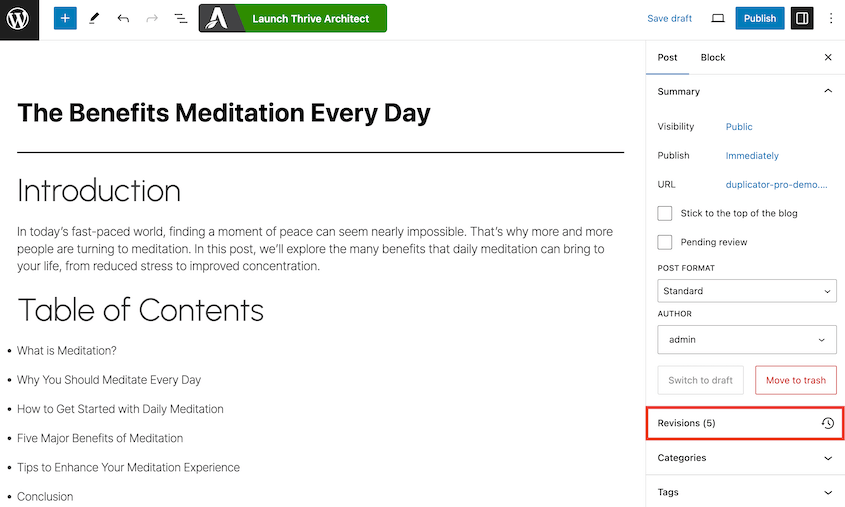
Cela ouvre l'écran des Révisions. Vous verrez une liste de toutes les révisions enregistrées pour ce contenu. WordPress vous montrera ce que vous avez supprimé ou ajouté à l'article.
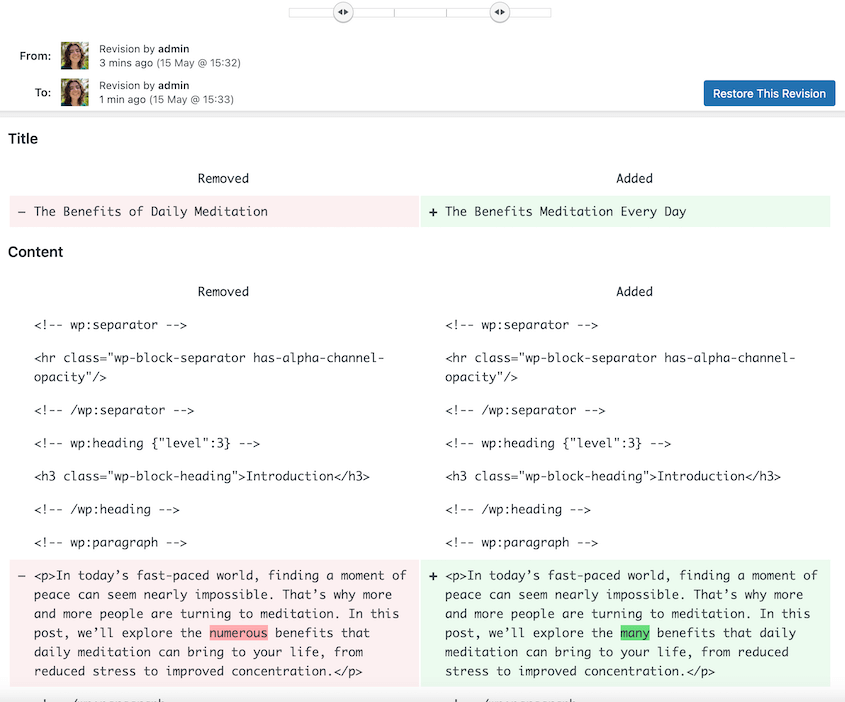
Si vous souhaitez restaurer une révision spécifique, cliquez sur Restaurer cette révision.

Cela restaure la version précédente de votre article ou de votre page ! Vous serez automatiquement redirigé vers l'Éditeur de blocs pour le contenu original.
C'est un moyen rapide d'annuler les modifications de contenu récentes sans affecter le reste de votre site !
WordPress enregistrera également automatiquement votre article même si vous n'appuyez pas sur Enregistrer le brouillon, Publier ou Mettre à jour. Ces sauvegardes automatiques seront avec les révisions de l'article. Vous pouvez les restaurer de la même manière que vous avez restauré les révisions d'articles.
Méthode 3. Restaurer une révision de publication dans l’éditeur classique
Si vous utilisez toujours l’Éditeur Classique pour gérer les articles et les pages WordPress, le processus de restauration des révisions est très similaire.
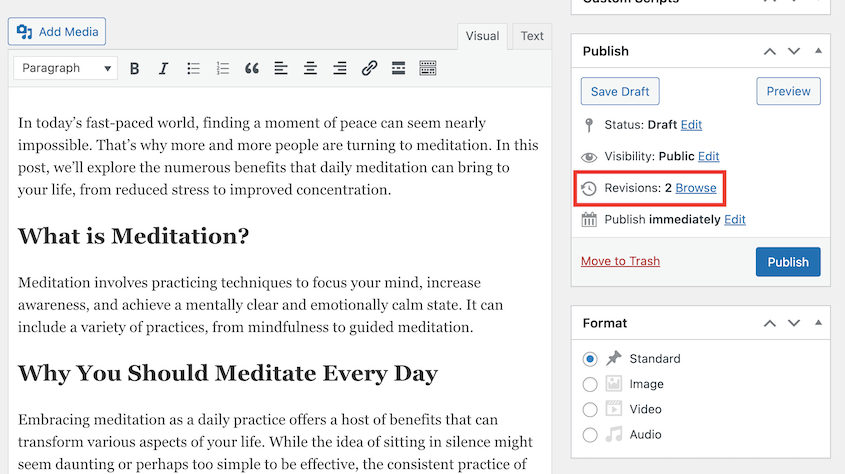
Lors de la modification d’un article ou d’une page, vous verrez un certain nombre de révisions sur le côté droit. Cliquez sur Parcourir pour voir les différentes versions.
Comme avec l’Éditeur de blocs, utilisez le curseur pour afficher toutes vos révisions. Vous verrez un écran partagé montrant les différences entre le brouillon actuel et cette révision. Le contenu ajouté sera en vert et le contenu supprimé sera en rouge.
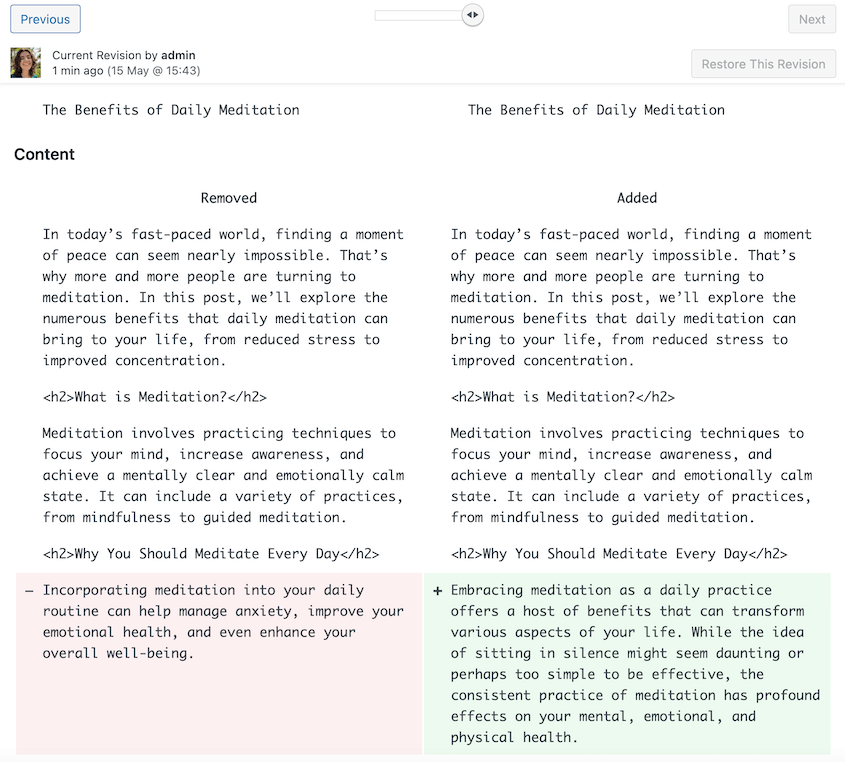
Une fois que vous avez trouvé la version que vous aimez, cliquez sur Restaurer cette révision.
Cette révision deviendra le nouvel état du brouillon pour l’article ou la page. Vous serez redirigé vers l’écran de l’Éditeur Classique.
Comme pour les révisions de l’Éditeur de blocs, cela ne s’applique qu’au corps du contenu lui-même, et non à d’autres paramètres ou configurations du site. C’est juste pour annuler les modifications de contenu sur cet article ou cette page spécifique.
Méthode 4. Annuler les modifications dans WordPress.com
Si vous avez un site WordPress.com au lieu d’un WordPress auto-hébergé, le processus pour annuler les modifications est un peu différent. WordPress.com dispose de capacités uniques de sauvegarde et de révision.
Pour les articles et les pages, le système de révisions fonctionne de la même manière que l’éditeur de blocs auto-hébergé. Vous pouvez parcourir les révisions précédentes et restaurer le contenu à un état antérieur.
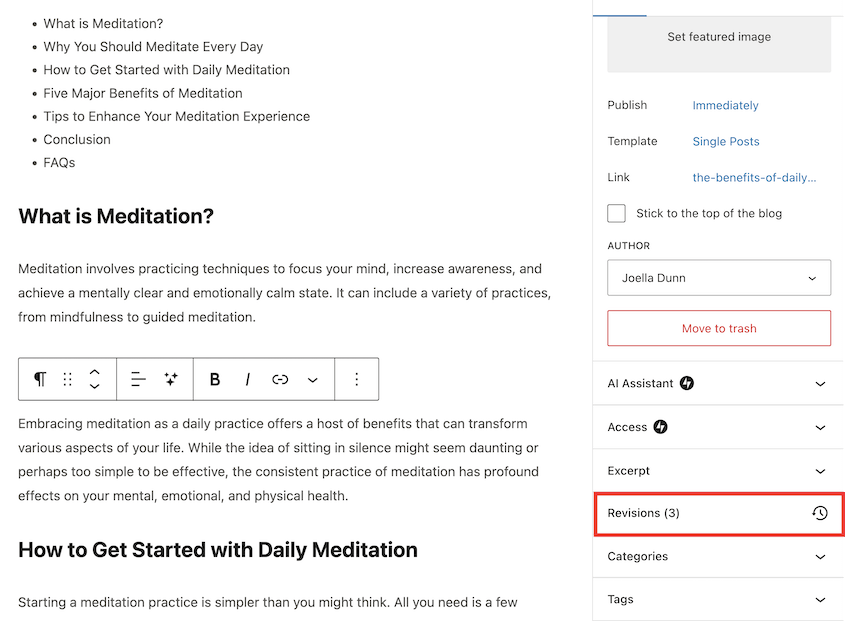
Dans l’éditeur d’articles WordPress.com, trouvez Révisions.
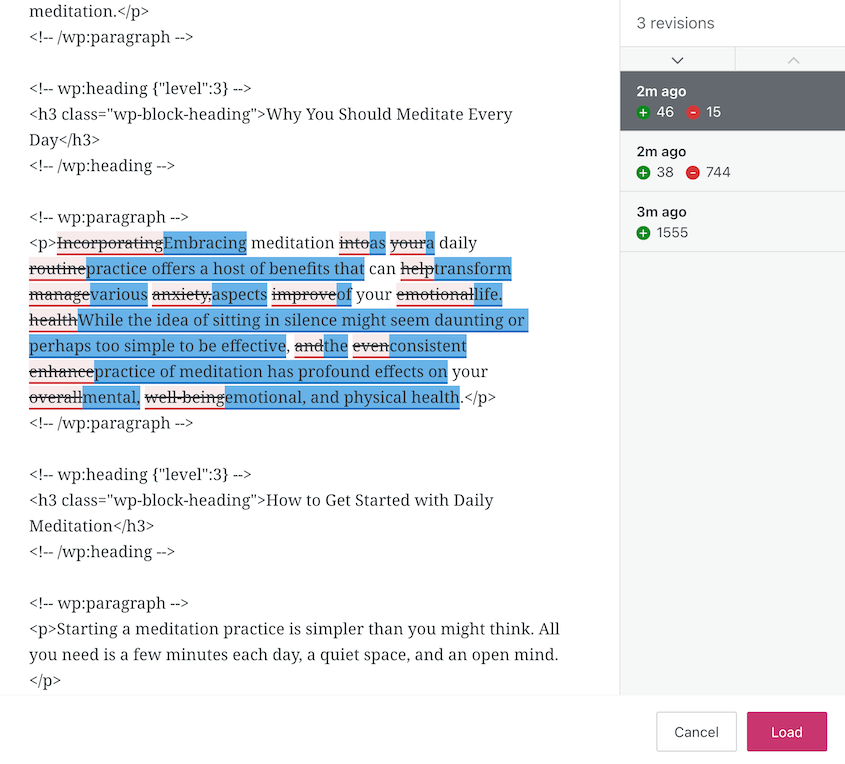
Dans la fenêtre contextuelle, vous verrez toutes vos modifications. Pour utiliser une version spécifique, cliquez sur Charger.
WordPress.com dispose également d’un moyen de restaurer les articles supprimés accidentellement. Allez dans Articles » Corbeille. Localisez le bon article et sélectionnez Restaurer.
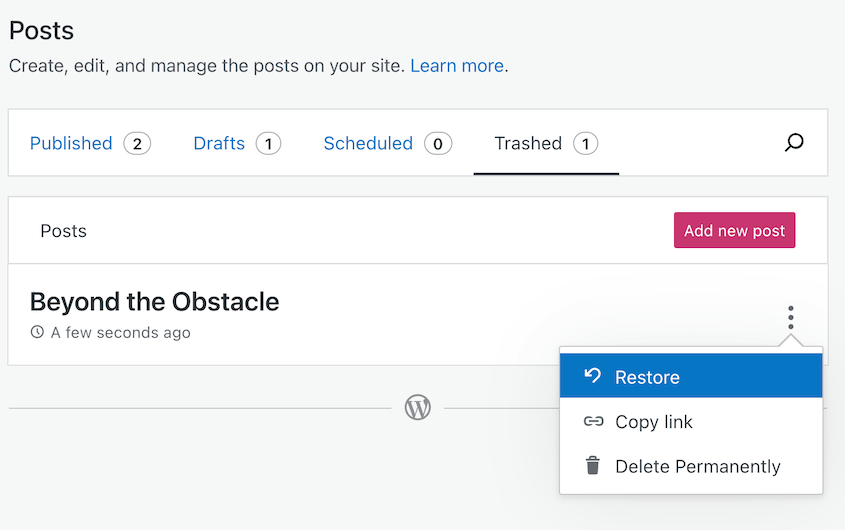
Vous pouvez également utiliser des plugins comme Jetpack pour restaurer l’intégralité de votre site.
Méthode 5. Annuler les modifications dans un formulaire de contact
Vous pourriez également avoir besoin de rétablir d’autres fonctionnalités de votre site, comme votre formulaire de contact. Si vous supprimez accidentellement des champs importants ou cassez le formulaire entier, vous pouvez annuler ces modifications.
WPForms est un formulaire de contact avec une fonctionnalité de révisions intégrée. Chaque fois que vous enregistrez un formulaire, il sauvegarde vos nouvelles modifications. Ensuite, vous pouvez consulter l’historique des révisions et restaurer une ancienne version si nécessaire.
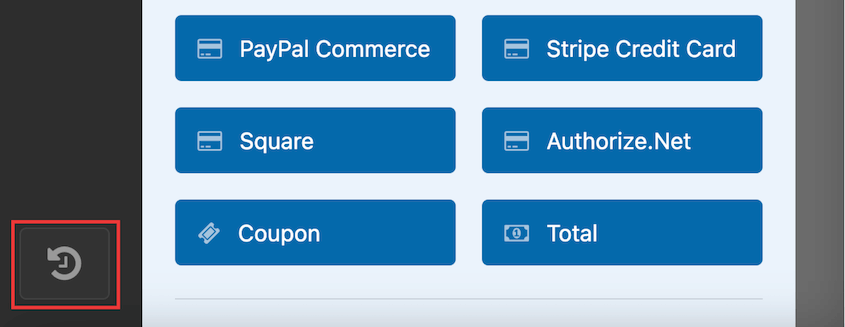
Dans l’éditeur de formulaire, cliquez sur le bouton dans le coin inférieur gauche.
Ici, vous verrez des aperçus de toutes les versions précédentes du formulaire. Sélectionnez une ancienne version avant l’erreur et cliquez sur Restaurer cette version.
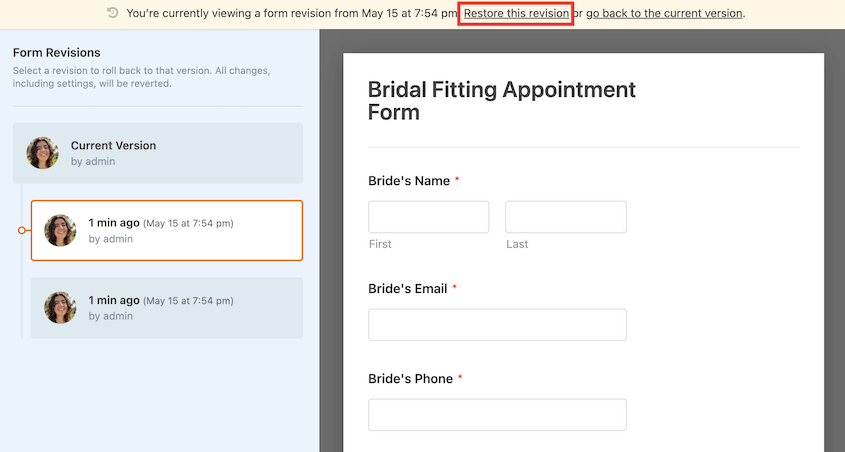
De cette façon, vous n’avez pas à recréer entièrement les formulaires à partir de zéro après des modifications involontaires.
FAQ sur l’annulation des modifications dans WordPress
Puis-je annuler une mise à jour dans WordPress ?
Oui, vous pouvez annuler une mise à jour WordPress. Tout ce que vous aurez à faire est de trouver une sauvegarde qui a été créée avant la mise à jour. Si vous utilisez un plugin de sauvegarde comme Duplicator, il vous indiquera la version de WordPress pour chaque sauvegarde.
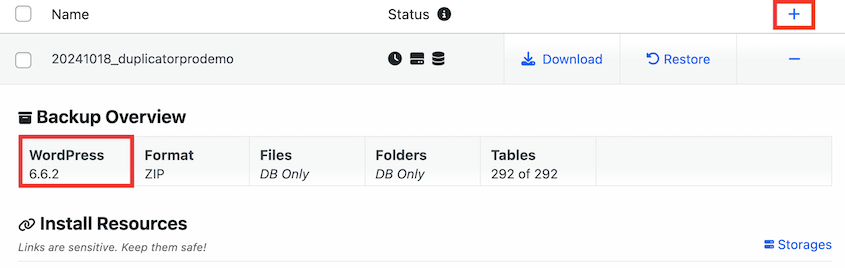
Une fois que vous avez trouvé la bonne sauvegarde, restaurez-la ! Cela remplace instantanément la version actuelle de WordPress par l’ancienne version.
Comment puis-je annuler une modification de page dans WordPress ?
Pour annuler les modifications apportées lors de la modification d'une page WordPress spécifique, vous avez deux options :
- Utilisez la fonctionnalité Révisions pour parcourir les versions précédentes du contenu de la page et restaurer une révision antérieure, en suivant le processus décrit précédemment.
- Restaurez votre site complet à partir d'une sauvegarde effectuée avant les modifications de la page.
La méthode des révisions est plus rapide pour simplement annuler les modifications de texte. Mais la restauration d'une sauvegarde garantit que vous annulez toutes les autres modifications apportées en même temps.
Comment puis-je voir les modifications dans l'historique de WordPress ?
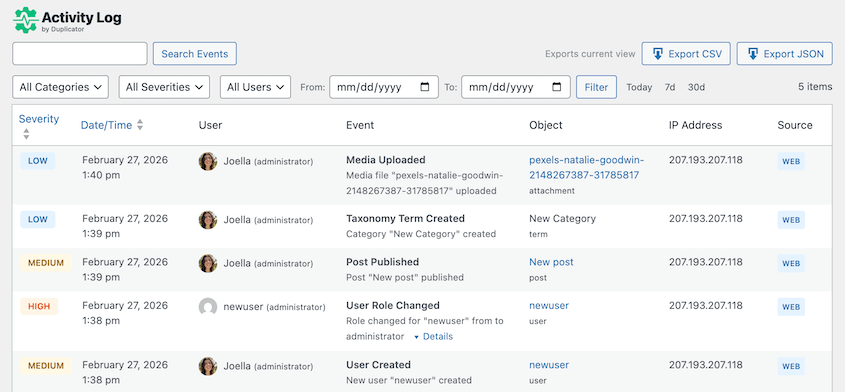
WordPress dispose d'une fonctionnalité de révisions qui suit les modifications apportées aux articles, pages, types d'articles personnalisés et autres contenus. Vous pouvez également utiliser un plugin comme Activity Log by Duplicator pour suivre les modifications apportées aux fichiers, plugins, thèmes et autres composants du site. Il enregistrera et affichera toutes les activités des utilisateurs sur votre site.
Où sont stockées les révisions de WordPress ?
Les révisions d'articles et de pages dans WordPress sont stockées dans les tables wp_posts et wp_postmeta de votre base de données WordPress. La table wp_posts contient le contenu textuel complet de chaque nouvelle révision créée. Les métadonnées relatives à ces révisions sont stockées dans wp_postmeta.
Comment puis-je limiter les révisions d'articles WordPress ?
Pour limiter les révisions d'articles WordPress, vous devrez ouvrir le répertoire public_html de votre site dans un client FTP ou cPanel. Ouvrez le fichier wp-config.php et ajoutez le code suivant :
define(‘WP_POST_REVISIONS’, 5);
N'hésitez pas à changer '5' par le nombre de révisions d'articles que vous autorisez sur votre site.
Après avoir enregistré les modifications de votre fichier wp-config.php, vous n'aurez plus à vous soucier d'une interface de révisions d'articles désorganisée. Les anciennes révisions seront supprimées une fois qu'elles dépasseront votre limite personnalisée.
Conclusion
La possibilité d'annuler les modifications dans WordPress peut vous sauver la vie. De la restauration de sauvegardes à l'annulation des révisions d'articles, vous disposez désormais de plusieurs méthodes pour récupérer rapidement votre site.
Pendant que vous êtes ici, je pense que vous aimerez ces tutoriels WordPress supplémentaires :
- Comment rétrograder votre version de WordPress et annuler les mauvaises mises à jour
- Comment restaurer WordPress à partir d'une sauvegarde
- 9 meilleurs plugins de sauvegarde WordPress
- Comment Conceptstore Creative a rendu ses sauvegardes accessibles et sécurisées
- 8 meilleurs plugins de restauration WordPress pour une récupération rapide des données
Vous voulez annuler rapidement une modification dans WordPress ? Utilisez Duplicator Pro pour restaurer votre site en un clic !




