

Cleaning Up Your Database
The Cleanup tab is where you clear out the clutter that builds up in your WordPress database. This guide walks through what each item is, what’s safe to remove, and how to run a cleanup.
The short version
WordPress holds on to a lot of data you rarely need: old post revisions, expired cache entries, trashed comments, and more. The Cleanup tab shows you how much of each kind you have and lets you clear it all in one go.
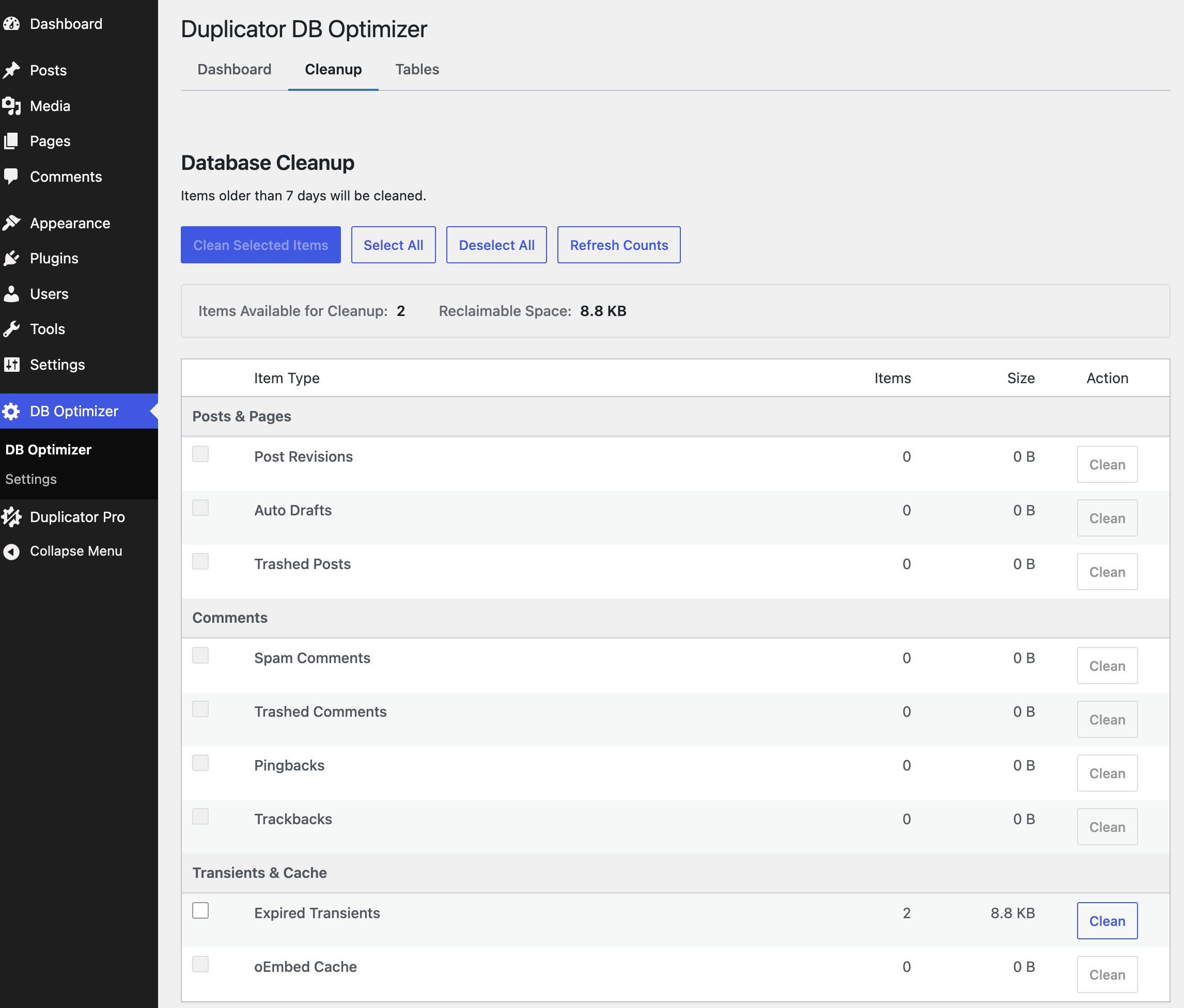
What you can clear out
DB Optimizer handles nine kinds of data. Here’s what each one is, in plain terms, and whether it’s generally safe to remove.
| Item | What it actually is | Safe to remove? |
|---|---|---|
| Post revisions | Older saved versions of your posts and pages. | Yes. Clearing them doesn’t change a single thing on your live site. Recent ones are protected by your retention window anyway. |
| Auto-drafts | The blank drafts WordPress creates the moment you start a new post. | Yes. These are almost always abandoned empty drafts. |
| Trashed posts | Posts and pages sitting in your trash. | Yes, once you’re sure you don’t want them back. This empties the trash for good. |
| Trashed comments | Comments you’ve moved to the trash. | Yes, if you’re not planning to restore them. |
| Spam comments | Comments flagged as spam. | Yes. |
| Expired transients | Temporary cached values (the regular and site-wide kind) that have already expired. | Yes. WordPress rebuilds anything it still needs. |
| Pingbacks | Automatic notes from other sites that linked to yours. | Yes, if you don’t use them. |
| Trackbacks | An older style of cross-site link notification. | Yes, if you don’t use them. |
| oEmbed cache | Saved embed data for things like tweets and videos. | Yes. It’s rebuilt the next time that embed loads. |
How your recent data stays safe
DB Optimizer keeps a “keep last X days” window (7 days out of the box) on every cleanup type except one: expired transients are cleared regardless of age, since they’re only counted once WordPress itself has already marked them expired. For every other type, including spam comments and oEmbed cache, anything newer than that window won’t be deleted, even if you tick its box. That’s there to protect the revision you saved this morning or the post you trashed yesterday in case you change your mind.
Auto-drafts use a slightly different date column than the other types: retention is based on the post’s local post_date rather than post_date_gmt, since a brand-new auto-draft has a post_date_gmt of 0000-00-00 that would otherwise make it look old enough to delete immediately.
You can adjust the window in Settings. See Configuring the Retention Window.
Running a cleanup
- Take a backup first. (Back Up Before You Clean.)
- Open DB Optimizer » Cleanup.
- Check the count next to each item. It only counts items that are actually eligible to go once your retention window is applied.
- Tick the items you want to clear, or hit Select All. Anything showing a count of zero is skipped for you.
- Confirm. When it’s done, the counts and the on-screen message update to show exactly what got removed.
A few things worth knowing
- Big cleanups run in batches. Each item type only fetches up to 1,000 items per run, so the request stays quick even on large sites. If a huge count doesn’t fully clear the first time, just run it again to finish the job. See A Cleanup Count Won’t Drop to Zero for more.
- Counts can shift a little. New items can show up between the moment you see a count and the moment you click clean. The final message always reflects what was really removed.
- Empty items are skipped. If there’s nothing to clear for a particular type, Select All leaves it out.


