

Understanding Your Database Health Score
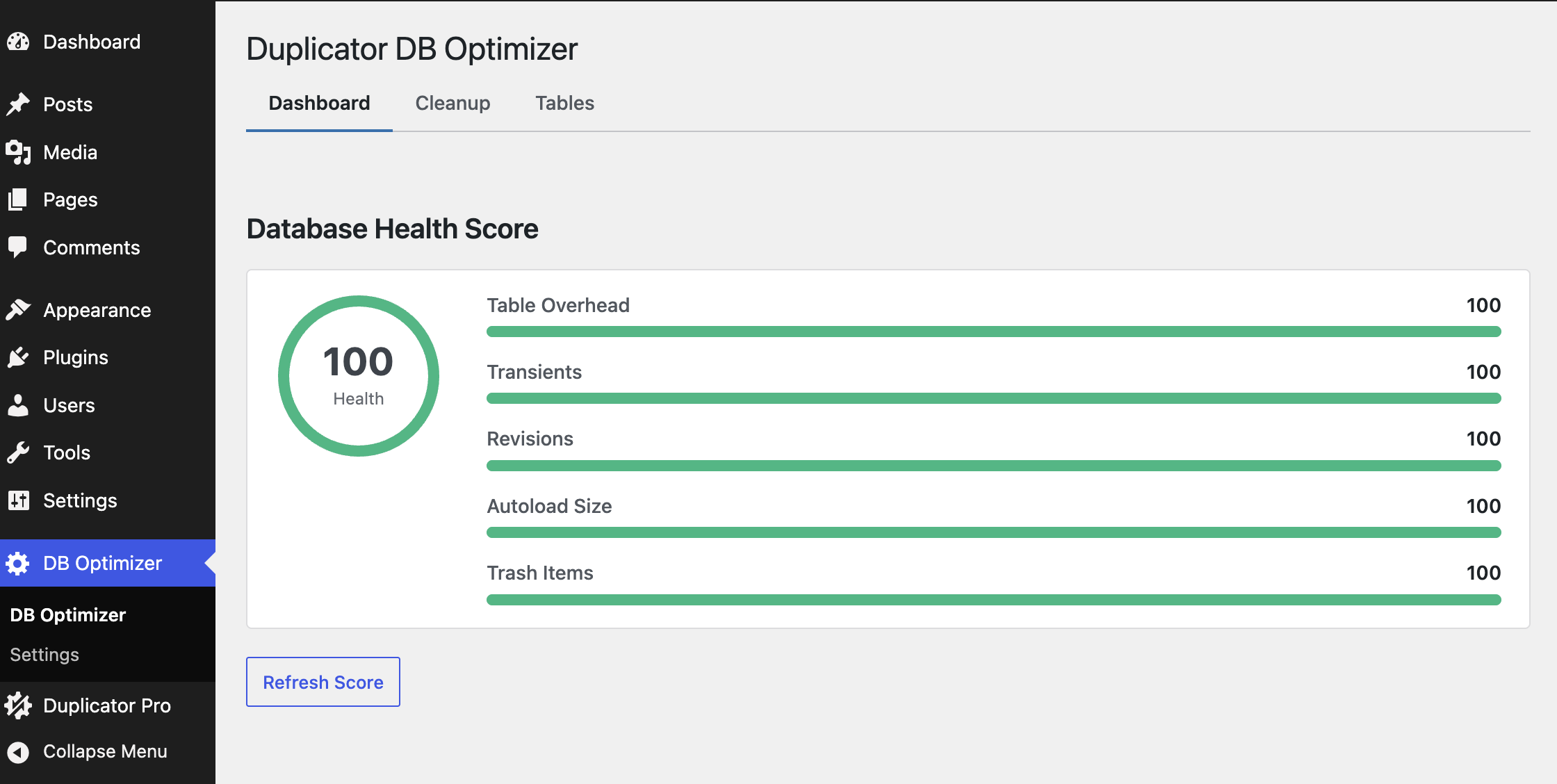
The Dashboard tab gives your database one number, somewhere between 0 and 100, its health score.
This guide explains what your database health score is telling you, the five things behind it, and how to push it up.
The short version
Your health score answers a simple question: how much clutter is weighing your database down right now? A high number means things are lean. A low number means there’s cleanup and tidying worth doing.
Behind the scenes, the score blends five separate measurements. Each one is scored on its own from 0 to 100, and then they’re combined into the single number you see.
What your grade means
Your overall score lands in one of three grades:
| Grade | Score | What it’s telling you |
|---|---|---|
| Good | 70 to 100 | Your database is in healthy shape. A little routine upkeep is all it needs. |
| Warning | 40 to 69 | There’s some real clutter or wasted space building up. A cleanup pass will help. |
| Critical | 0 to 39 | A lot has piled up. Both cleanup and table optimization are worth doing. |
What goes into the number
Five things make up the score, and each one carries a different weight. The heavier the weight, the more that piece moves your overall number.
| Piece | Weight | What it’s measuring |
|---|---|---|
| Table overhead | 25% | Empty space left inside tables after data gets deleted or changed. Optimizing your tables wins it back. |
| Expired transients | 20% | Temporary cached data, including oEmbed cache, that’s past its use-by date but still sitting in the database. |
| Post revisions | 20% | The older saved versions of your posts and pages. WordPress keeps these automatically. |
| Autoload size | 20% | The total size of the options WordPress loads on every page view. When this gets bloated, your whole site feels it. |
| Trash items | 15% | Trashed posts, empty auto-drafts, trashed and spam comments, pingbacks, and trackbacks. |
Each piece scores 100 when it’s at a healthy level and drops toward 0 as things get worse, sliding smoothly in between. Table overhead, for example, scores a perfect 100 at roughly 1 MB or less and bottoms out around 50 MB.
How to bring the number up
Start with the pieces that carry the most weight:
- Optimize tables with wasted space on the Tablse tab. This goes straight at the 25% overhead piece. See Managing Database Tables.
- Clear expired transients and oEmbed cache on the Cleanup tab. That’s the 20% transients piece.
- Clear old post revisions, also on Cleanup. That’s another 20%.
- Trim your autoload size. A big autoload almost always comes from another plugin storing large values. DB Optimizer reports the size, making the culprit easier to track down, but reducing it usually means reconfiguring or removing whatever plugin is responsible.
- Empty your trash items on the Cleanup tab for the last 15%.
After each step, reopen the Dashboard tab or click Refresh Score to see the number move. The score isn’t calculated continuously: it’s fetched fresh each time the tab loads or the button is clicked.
That’s it. Working through these five pieces in order of weight is the fastest way to move the number, and checking back after each step shows exactly what changed.
Ready to start clearing things out? See Cleaning Up Your Database.


