

Configuring the Retention Window
DB Optimizer protects your most recent data from cleanup using a setting called the retention window. This guide explains what it does, why it shapes both your cleanups and your health score, and how to change it.
The short version
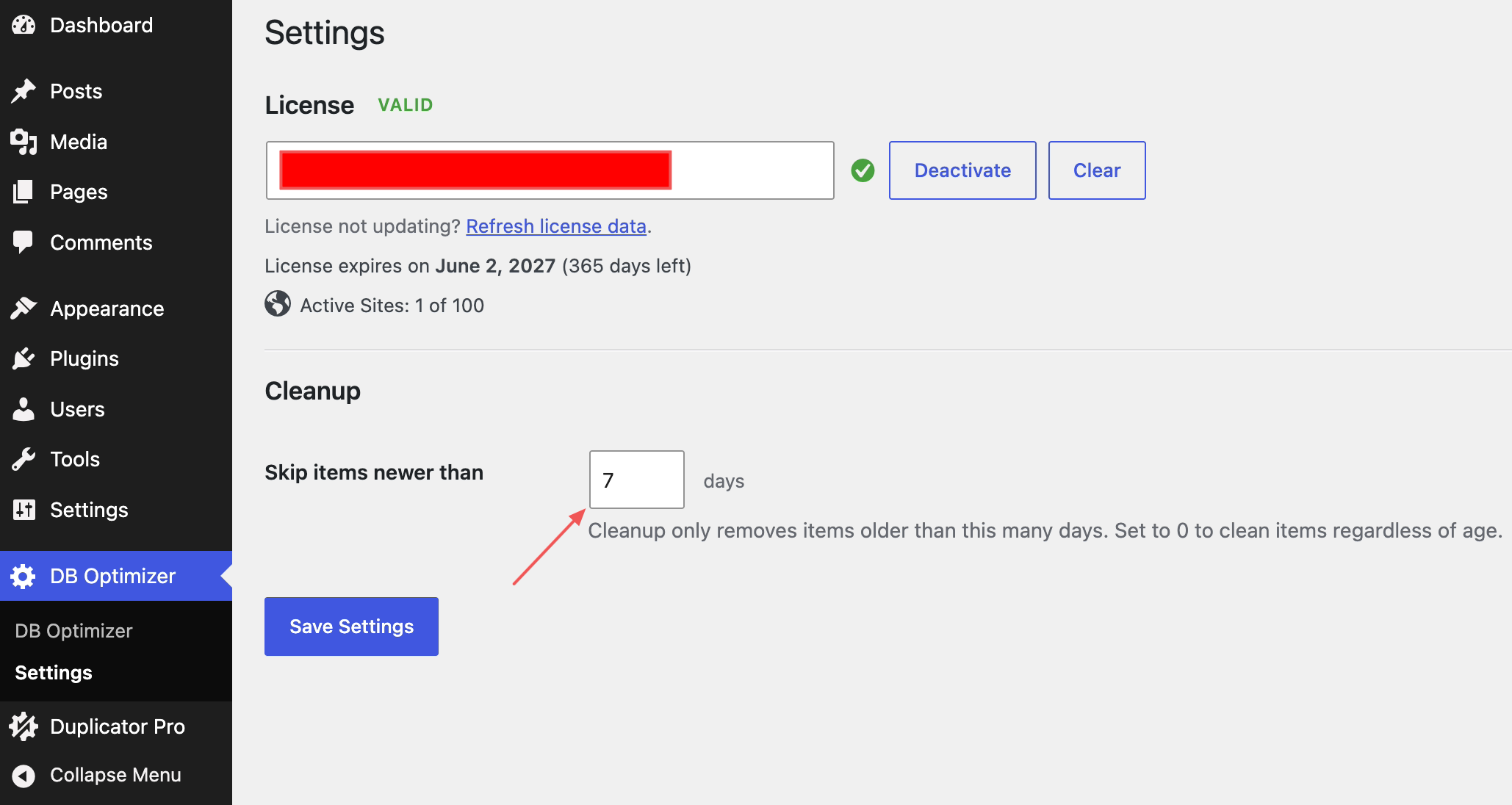
The retention window is a “keep last X days” setting. Anything created more recently than the window is protected: cleanup won’t delete it, even if you tick its box. Out of the box, the window is 7 days.
Think of it as a safety net. It means a routine cleanup never wipes out the revision you saved this morning or the comment someone trashed yesterday, while still clearing the older buildup you don’t need.
What the window protects
The window applies to every cleanup type based on when the item was created, with one exception, expired transients ignore it entirely, since a transient that’s already expired doesn’t have a meaningful age to protect. Everything else respects the window, including:
- Post revisions
- Trashed posts and comments
- Other dated cleanup items
Anything created more recently than your window simply isn’t counted as removable, and it’s skipped during cleanup, except expired transients, which are cleaned regardless of age.
Why it changes your health score too
The health score is built to reflect what cleanup actually removes. So it uses the same retention window: recent items inside the window don’t count as clutter, because cleanup won’t touch them yet.
That keeps the score honest. Counting protected data as clutter would leave the score artificially low even after a full cleanup, understating the credit you’ve actually earned.
Changing the window
- Open DB Optimizer and go to the Settings area.
- Find the retention setting (“keep last X days”).
- Type in the number of days you want to protect, or 0 to turn protection off entirely.
- Save.
Your new window kicks in the next time you view counts, run a cleanup, or refresh the health score.
Picking a number
| If you want to… | Set the window to… |
|---|---|
| Play it safe and keep a recent recovery cushion (what we’d suggest) | 7 days (the default) |
| Hold on to more history before anything goes | 14 to 30 days |
| Clean as hard as possible while still keeping a same-day cushion | A low number, like 1 day |
| Turn off the protection entirely and clean everything eligible right now | 0 |


