

Managing Database Tables (Optimize and Repair)
The Tables tab helps you win back wasted space and fix damaged tables in your WordPress database.
This guide walks through managing database tables with DB Optimizer: what table overhead is, the difference between Optimize and Repair, and how to make sense of the results.
The short version
Your WordPress database is built out of tables. As data gets added, changed, and deleted, tables can leave behind empty space (that’s “overhead”) and, much more rarely, get damaged. The Tables tab lists each table’s name, storage engine, and row count alongside its size and overhead, and gives you two buttons: Optimize and Repair.
What overhead is
Overhead is space a table has reserved but isn’t using anymore. It’s normal, and it builds up over time, especially on tables that change a lot. It won’t break anything, but it does make your database bigger than it needs to be and can slow some queries down.
InnoDB tables are a special case. DB Optimizer only reports InnoDB overhead once it’s substantial enough to be worth optimizing, so an InnoDB table can show 0% overhead even though it has some unused space sitting inside it. That’s expected behavior, not a bug.
Optimizing a table clears that overhead and tidies the data so it’s quicker to read.
Optimize vs Repair
These two buttons do very different jobs:
- Optimize clears overhead and tidies the table. This is the routine upkeep you’ll run most often, and it’s safe to run any time.
- Repair checks a table for damage and fixes it if needed. You only reach for this when a table is genuinely broken, say after a server crash or a write that got cut off partway.
Optimizing your tables
- Open DB Optimizer » Tables.
- Look down the Overhead column to spot tables with space to reclaim.
- Select the tables you want to optimize.
- Click Optimize and let it run.
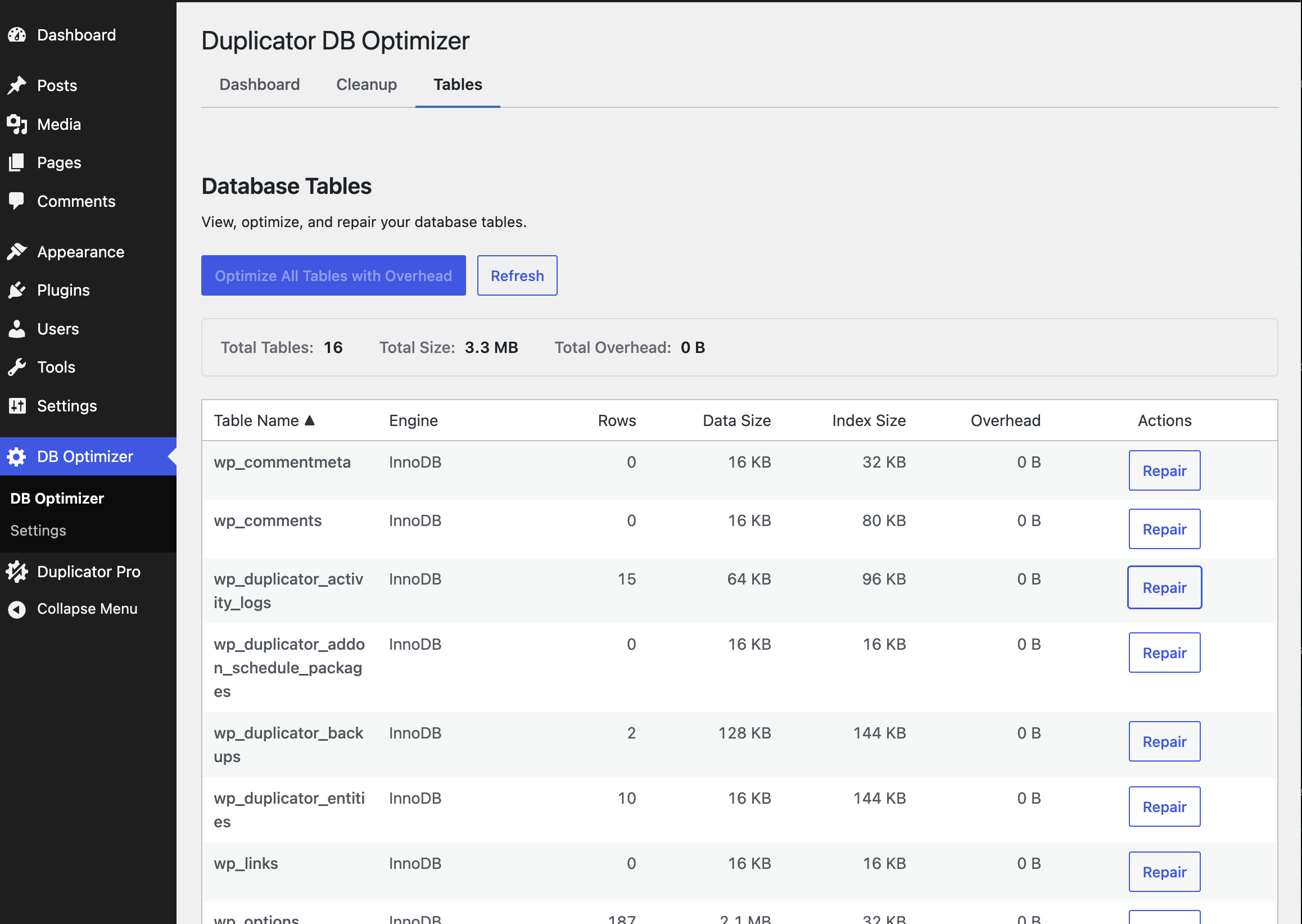
If any table couldn’t be optimized, DB Optimizer tells you which ones by name.
Repairing your tables
- Open DB Optimizer » Tables.
- Select the table or tables you want to check.
- Click Repair. DB Optimizer checks each one first and only repairs the tables that actually need it.
Every table you repair comes back with one of four results:
| Result | What it means | What to do |
|---|---|---|
| OK | The table checked out fine. Nothing needed fixing. | Nothing. It’s healthy. |
| Repaired | The table had a problem and DB Optimizer fixed it. | Nothing more. It’s healthy now. |
| Unsupported | The table uses the InnoDB storage engine, which doesn’t support the REPAIR command. | This isn’t an error. See the note below. |
| Failed | The check or repair couldn’t finish. | See the note below. |
About “Unsupported” results
Most modern WordPress sites run on the InnoDB storage engine, and InnoDB simply doesn’t support the manual REPAIR command. Seeing “unsupported” just means there’s nothing to repair this way, not that anything’s wrong. InnoDB looks after itself with its own built-in crash recovery. If you really do suspect an InnoDB table is damaged, your host can run a deeper recovery at the server level.
About “Failed” results
A failed result almost always points to something on the server side, like a permissions issue or a table that was briefly locked. Give it a minute and try again. If it keeps happening, reach out to your host or open a support ticket with the table name and the exact message you saw.
That’s it. With overhead cleared and any damaged tables repaired, your database tables are running as efficiently as they can.
Curious how much this moves your overall score? See Understanding Your Database Health Score.


