

Exporting Your Activity Log Data
Activity Log lets you export your event data directly from the admin, no database access or third-party tools required.
This guide walks through exporting your activity log data in CSV or JSON format, including exactly which fields each format includes.
Exporting from the Admin
To export your log, go to Activity Log in your WordPress admin sidebar. Exporting requires the manage_options capability, so only administrators and roles with that capability will see the export buttons.
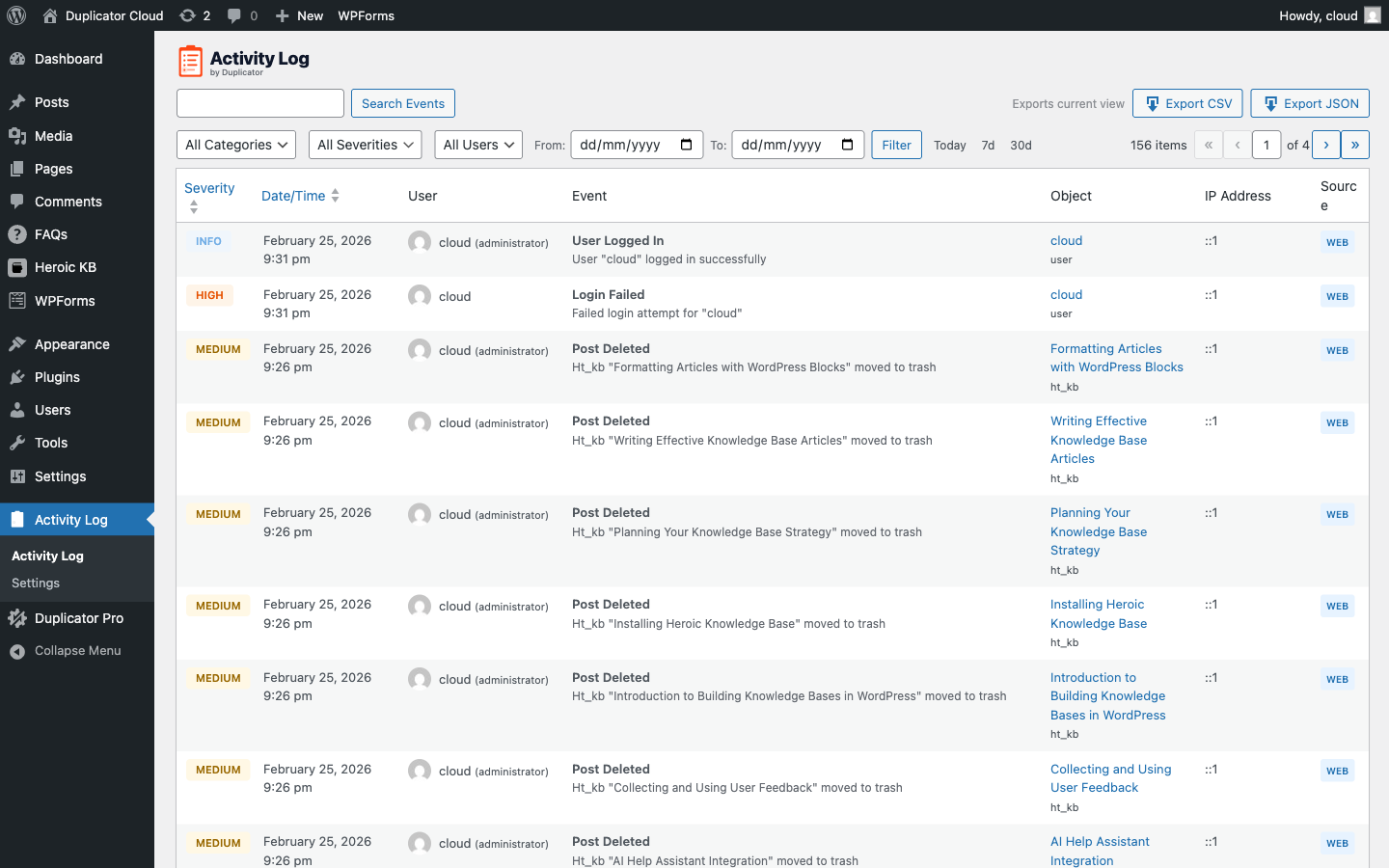
In the top-right corner of the log page, you’ll see two buttons: Export CSV and Export JSON. Both export the current view, meaning all filters you’ve set will be applied to the export. If you want a filtered export, set your filters first, then click the export button.
In the top-right corner of the log page, you’ll see two buttons: Export CSV and Export JSON. Both export the current view, meaning all filters you’ve set will be applied to the export. If you want a filtered export, set your filters first using Filtering and Searching Your Activity Log, then click the export button.
The file downloads automatically to your computer, named with the current date and time (activity-log-YYYY-MM-DD-His.csv or .json). Export batches up to 500 entries per pass.
CSV Export
Clicking Export CSV downloads a comma-separated values file with a UTF-8 byte-order mark for compatibility with Excel. The file includes 22 columns, in this order: ID, Date/Time (UTC), Severity, Event Type, Event Label, Category, Subcategory, Action, Message, User ID, User, User Role, Object Type, Object ID, Object Name, IP Address, User Agent, Request Method, Request URI, Source (Web or CLI), Site ID, and Metadata.
CSV files open directly in Excel, Google Sheets, or any spreadsheet application. This format is ideal for:
- Sharing event data with team members or clients
- Sorting and analyzing events in a spreadsheet
- Creating custom reports or charts
JSON Export
Clicking Export JSON downloads a structured JSON file with the same 22 fields, using their raw field names as keys: id, date_gmt, severity, event_type, event_label, category_l1, category_l2, category_l3, message, user_id, user_login, user_role, object_type, object_id, object_name, ip_address, user_agent, request_method, request_uri, source, site_id, and metadata. Each event is a JSON object with all fields included, making it easy to:
- Import into log management systems or SIEMs
- Process programmatically with custom scripts
- Preserve exact data types (timestamps as numbers, etc.)
Need to automate exports or handle very large logs from the command line? See Using WP-CLI with the Activity Log.
Use Cases
Compliance and auditing:
Export a date-range filtered log to document who made what changes during a specific period. Use the From/To date pickers before exporting to narrow the scope.
Security review:
Filter by High severity before exporting to get a focused report of all security-relevant events (failed logins, user deletions, role changes).
Long-term archiving:
Your log is automatically pruned based on your retention setting. If you need to keep records longer than your retention period, schedule regular exports before old entries are deleted.
User activity audit:
Filter by a specific user and export their full activity history for HR or compliance purposes.
That’s everything you need to export your activity log data. To adjust the log retention period or purge old entries, see Configuring Activity Log Settings.


