

Handling Backup Scan Notices
After the scan runs, each check reports either “Good” or “Notice.” A Notice status doesn’t prevent the build from running, but if a build issue does come up afterward, it’s worth investigating any Notices first.
If you’re not sure how to proceed on a Notice, try building the backup anyway and see if it completes. This guide walks through each scanner section and what to do about a Notice in it.
How to locate the Scanner Notices
Scanner notices are triggered on the Scan Results page. This page is displayed after clicking the Next button on the Backup creation page once Duplicator has scanned the website files and database.
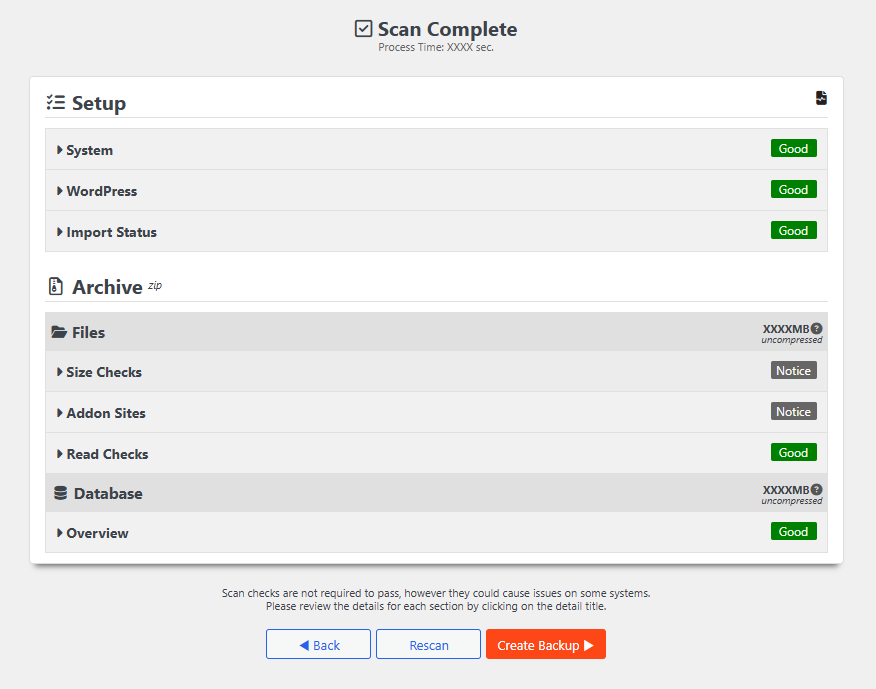
Setup
The Setup section displays various information about the server and WordPress environments, including details about the PHP version, database engine, server, WordPress version, and more.
System
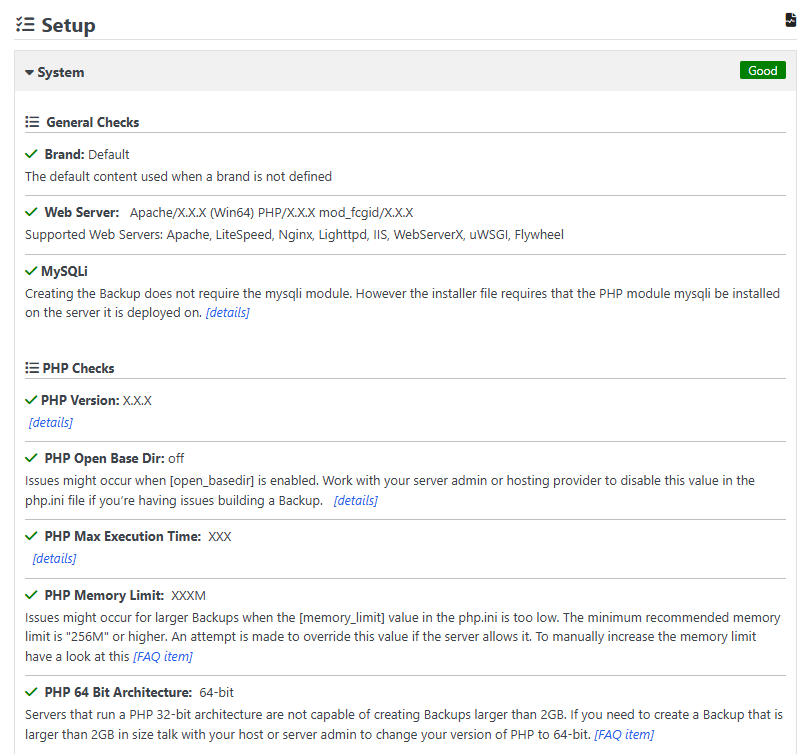
The System area consists of various tests for your web server, PHP, and hosting environment. Each notice in this section includes details on how to proceed.
WordPress
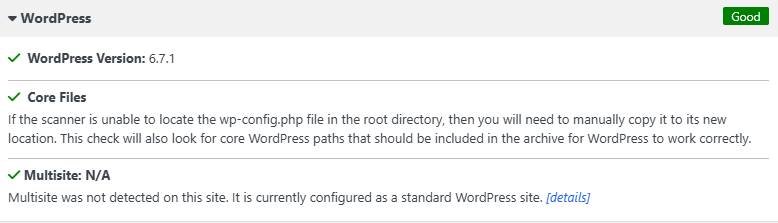
This section tests for various WordPress setup issues and alerts you if anything is found.
Import Status
This section shows whether the backup is compatible with Drag and Drop import, a faster alternative to running the full installer wizard. If this check shows a Notice, the backup can still be restored using the standard installer; it just won’t qualify for the drag-and-drop path. See Importing a Backup using Duplicator Pro for both import methods.
Archive
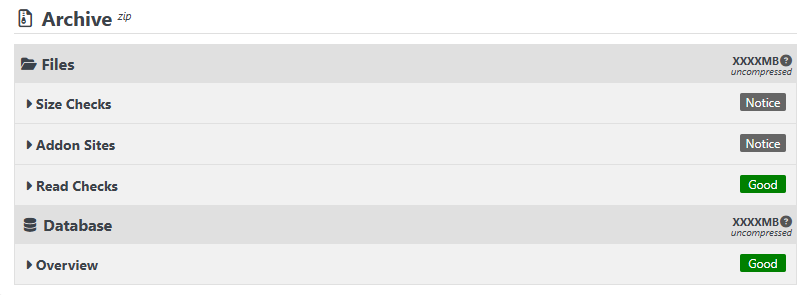
This section displays information about the backup archive, such as the archive size, the number of files and directories, and any add-on sites. Navigate the backup files, exclude specific items from the backup, and access additional options and information here.
Size Checks
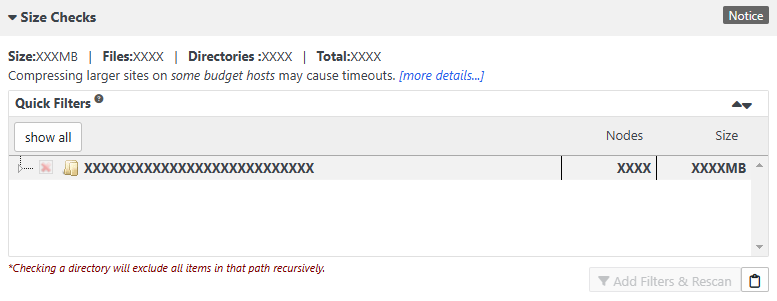
If the scanner shows warnings for large files or databases, you might run into issues on a shared-budget host. If you have access to your own server or VPS, follow the instructions for timeouts to get Duplicator running without any issues. With Duplicator Pro, multithreaded support for large sites can help improve the overall build process.
With Duplicator Pro, multithreaded support for large sites can help improve the overall build process.
Addon Sites
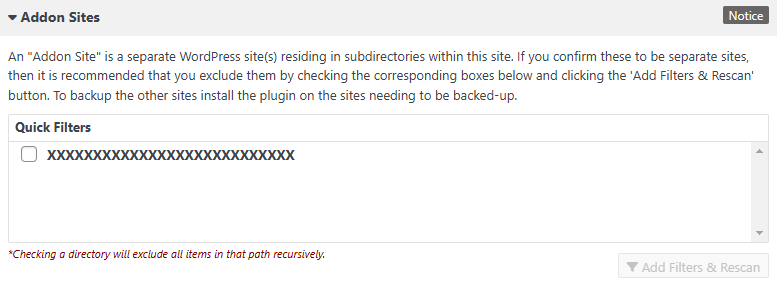
Duplicator detects if there are WordPress sites in subdirectories within the website files. The Quick Filters area allows excluding these Addon Sites from the backup.
Budget Hosts
It’s possible that you may run into timeout issues more so with Duplicator Lite on a budget host as it has a single threaded process. If the host kills the PHP process in the middle of trying to zip up your files, then it will not be able to archive the file. Duplicator Pro has a multithreaded process that allows for larger sites but can still run into issues with sites above 2 GB depending on your hosting provider and their limitations on PHP processes.
Name/Read Checks
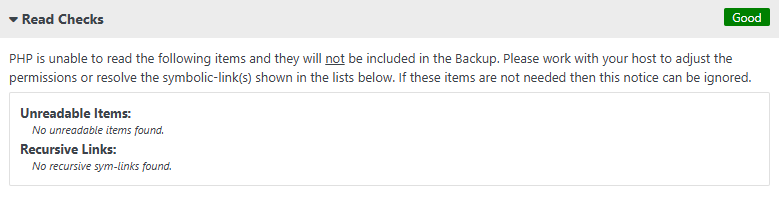
This Notice type is specific to Duplicator Lite and no longer appears on the Scan Results page in Duplicator Pro. The underlying path-length limit isn’t a fixed number: it depends on your server’s operating system, with 256 characters being common on Windows servers. If you want to check path lengths directly, the same check is available from the Tools page, where the current limit is 244 characters.
Basically, what happens with zip programs like WinRAR/WinZip and even the PHP library used to extract the files is that they work fine to back up the files. However, when they are extracted on some operating systems, such as Windows, they run into a path limit. One way to validate if the zip file is corrupt or unusable when extracted to its new destination is to try to extract it with a program like WinRAR/WinZip, and it will throw errors about file length issues if they are present.
Database
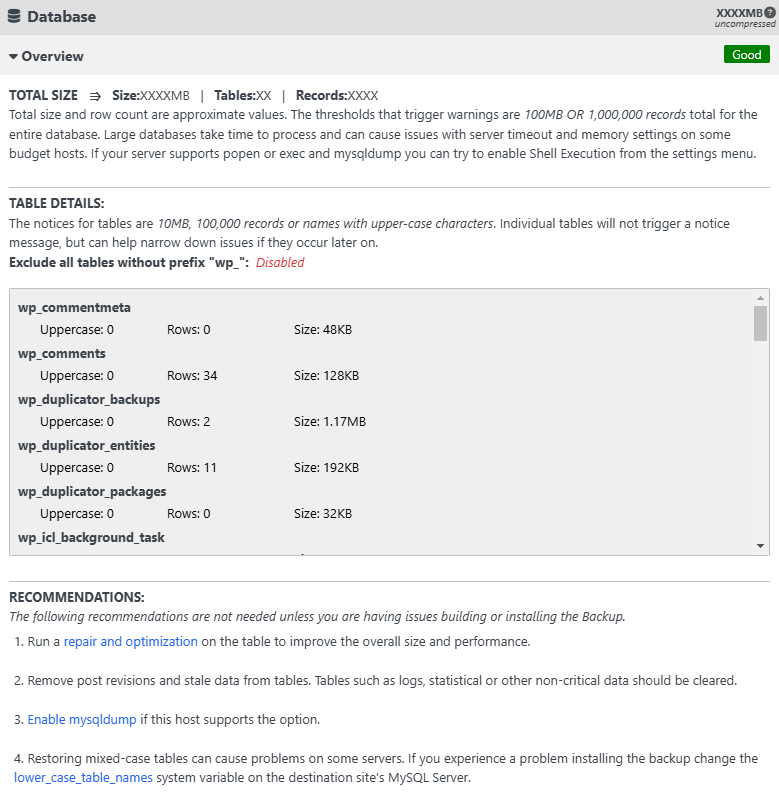
This section provides information about the database and its tables, including the database size, total row count, and the row count and size for each database table included in the backup.
Total Size
The total size and row count are approximate values. Warnings are triggered if the database size exceeds 100 MB or if the total number of records exceeds 1,000,000. Large databases may take time to process and can cause issues with server timeouts and memory settings, particularly on some budget hosts. If issues arise and your server supports popen, exec, and mysqldump, enable Shell Execution from the settings menu.
Table Details
Notices for tables are triggered if a table size exceeds 10 MB, the number of records exceeds 100,000, or if table names are in uppercase characters. While individual tables will not trigger a notice message, this information can help narrow down issues if they occur later.
Recommendations
The following recommendations are not needed unless you are having issues building or installing the Backup:
- Run a repair and optimization on the table (via WordPress’s built-in database repair tool) to improve its overall size and performance.
- Remove post revisions and stale data from tables. Tables such as logs, statistical, or other non-critical data should be cleared.
- Enable mysqldump if your host supports the option.
- Watch for mixed-case table names when restoring. Restoring mixed-case tables can cause problems on some servers; if you run into this, change the
lower_case_table_namessystem variable on the destination site’s MySQL server.
Switching the archive engine to Shell Zip (on servers with shell access) can also help if a large database is turning the overall build into a timeout or failure rather than just a Notice. See Managing Server Resources for CPU, Memory and Disk.
Also see:


