

Resolving Zip format Issues
Errors related to missing files or ZipArchive failures can prevent a successful backup build in Duplicator. This article provides solutions to resolve these issues.
Resolving Zip warning: No such file or directory
This error occurs when a plugin or process modifies files during the backup process.
Option 1: Check for Plugin Conflicts
- Identify any security or backup plugins that may be altering files.
- Temporarily deactivate the identified plugin.
- Build the backup again.
- Reactivate the plugin once the backup is complete.
Option 2: Filter Cache Directory
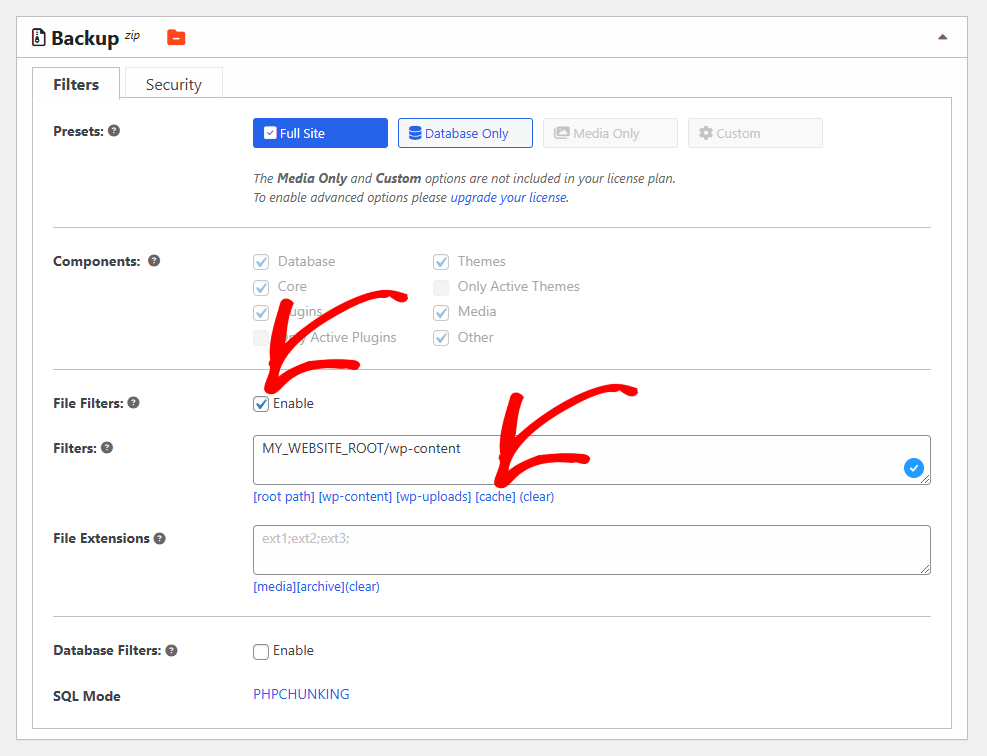
If the source of the issue is unknown, filter out the cache directory:
- Enable File Filters.
- Click the cache link below the Directory box to exclude it from the backup.
Resolving ZipArchive Close Failures
ZipArchive close failures can occur due to host restrictions, file sizes, or insufficient disk space.
Option 1: Switch to the Duplicator Archive Format (DupArchive)
The DupArchive format is optimized for restricted hosting environments.
- Go to Settings » Backups.
- Set Archive Engine to DupArchive.
Note: In Duplicator Lite, DupArchive supports backups up to 500 MB.
Option 2: Filter Unnecessary Files
Filtering non-essential files can reduce the backup size and prevent failures:
- During the scan phase, check the Size Checks under Archive » Advanced.
- Exclude unnecessary backup files, nested WordPress installations, or large unused directories.
Option 3: Check Disk Space
Ensure you have at least twice the size of your site available:
- Log in to your hosting panel and check your available disk space.
- Delete unnecessary files if space is insufficient.
- If needed, contact your host to increase your disk quota.
Option 4: Adjust Custom Options
Modify settings based on your Duplicator version:
- Go to Settings » Backups Tab » Archive Engine and enable ShellZip if available.
Option 5: Use a Two-Part Install
For hosts with resource limitations, performing a two-part install can help bypass ZipArchive failures. Follow the steps outlined in Two-Part Installation to complete the process.
If you need to extract a ZIP backup manually outside the installer, see How to Manually Extract and Run the Installer. For broader build troubleshooting beyond ZIP-specific issues, see Resolving Build Issues on Your Host or Server.


