

7 WordPress Optimization Services (and Tools) Worth Your Money in 2026
 Joella Dunn
Joella Dunn
Joella Dunn
 John Turner
John Turner
John Turner
Your site failed Core Web Vitals again. Or maybe a client forwarded you a PageSpeed score with a red number on it and asked what you’re going to do about it.
At that point, you’ve got two paths. Hire someone to fix it, or fix it yourself.
WordPress optimization services cover a wider range than most people expect. On one end, you’ve got agencies that manage your entire site’s speed for a monthly fee. On the other, you’ve got plugins that handle one piece of the job (database cleanup, media bloat, caching) and leave the rest to you.
Both can work. Neither is automatically the right call for your site.
This post covers the best WordPress optimization services (and tool alternatives) for improving your websites.
Here are the key takeaways:
- Best for hands-off help: WP Buffs manages ongoing speed work so you never have to touch a setting.
- Best safety net before optimizing: Duplicator backs up your site first, so a bad cleanup or plugin change isn’t permanent.
- Best DIY database cleanup: DB Optimizer scores your database health and removes revisions, transients, and spam without guesswork.
- Best for media bloat: WP Media Cleanup clears out unused image variations without touching your originals.
- Best automated platform: NitroPack runs caching, compression, and minification through an external network with almost no setup.
Table of Contents
- WordPress Optimization Services at a Glance
- What Does a WordPress Optimization Service Do?
- Service or DIY? How to Tell Which You Need
- Best WordPress Optimization Services
- 1. WP Buffs: Best For Hands-Off Optimization
- 2. NitroPack: Best For Affordable Hands-Off Optimization
- 3. WP Speed Fix: Best For a One-Time Speed Fix
- 4. Duplicator: Best For Pre-Optimization Backups
- 5. DB Optimizer: Best For DIY Database Cleanup
- 6. WP Media Cleanup: Best For Media Cleanup
- 7. WP Rocket: DIY Caching and Code Optimization
- Frequently Asked Questions (FAQs)
- Which WordPress Optimization Service Is Right For You?
WordPress Optimization Services at a Glance
| Tool / Service | Best For | Type | Pricing |
|---|---|---|---|
| WP Buffs | Fully managed, ongoing optimization | Service | $235/mo |
| NitroPack | Automated all-in-one optimization | Service | $7/mo (free tier available) |
| WPSpeedFix | One-time speed audit and fix | Service | Free audit; implementation plans from $795 (one-time) |
| Duplicator | Backup before any optimization work | Plugin | Free; Pro plans from $69.30/yr |
| DB Optimizer | DIY database cleanup with a health score | Plugin | $29/yr (1 site); free with Duplicator Pro |
| WP Media Cleanup | Cleaning bloated media libraries | Plugin | $29/yr; free with Duplicator Pro/Elite |
| WP Rocket | DIY caching and code optimization | Plugin | $59/yr (no free version) |
What Does a WordPress Optimization Service Do?
A WordPress optimization service typically covers five things:
- Database cleanup (removing old revisions, drafts, and spam comments)
- Caching setup (page caching, object caching, sometimes server-level caching like Redis or Varnish)
- Code optimization (minifying and delaying CSS and JavaScript)
- Image compression (converting heavy files to WebP or AVIF)
- Plugin audits (finding the plugins slowing your site down and replacing or removing them).
Some services bundle all of these into one plan. Others focus on a single audit and fix. The freelance route on platforms like Fiverr usually covers one or two of these tasks at a time, priced per job.
Knowing which of these five your site actually needs is the difference between paying for a full-service plan and paying for one plugin that fixes your actual problem.
Service or DIY? How to Tell Which You Need
If you don’t have time to optimize your website or you manage client sites and need consistent results, a managed service makes sense. You’re paying for someone else’s attention, not just their tools.
If your site has one specific problem (a bloated database, a media library full of unused image sizes, or no caching at all), a single plugin that targets that problem is usually faster and cheaper than a full audit.
Budget matters too. A managed plan running hundreds of dollars a month adds up. A plugin is typically a cheaper (and sometimes free) decision.
If your site only has one or two issues, start with an optimization plugin and see how much it actually moves the needle before paying for ongoing management.
Best WordPress Optimization Services
Here’s a closer look at each WordPress optimization service, starting with the fully managed services and working through the DIY tools that handle the same core tasks yourself.
- WP Buffs: Ongoing, hands-off speed management for site owners who don’t want to touch settings.
- NitroPack: Automated caching, compression, and minification through one dashboard.
- WPSpeedFix: A free audit followed by a one-time fix.
- Duplicator: A full backup of your site and database before anything else changes.
- DB Optimizer: A database health score, then guided cleanup of revisions, spam, and transients.
- WP Media Cleanup: Removes unused image variations bloating your media library.
- WP Rocket: Caching and code optimization that applies most best practices on activation.
1. WP Buffs: Best For Hands-Off Optimization
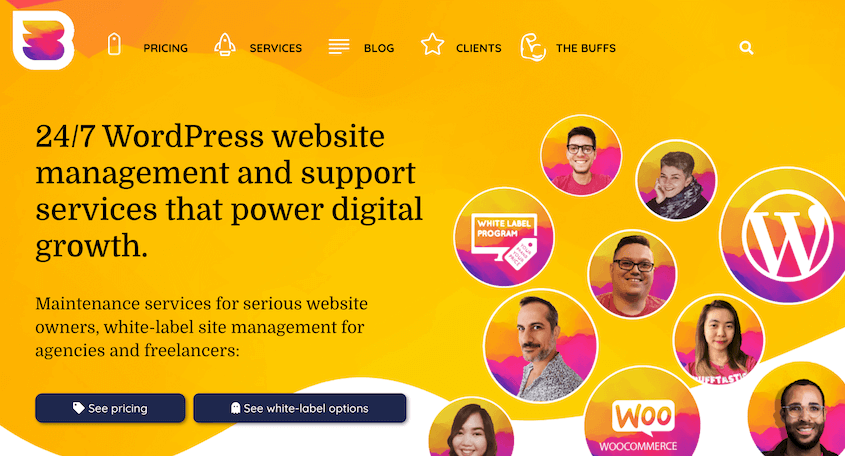
WP Buffs runs ongoing WordPress speed optimization as a managed service, handling caching, image compression, and code-level fixes. It’s built for site owners and agencies who want speed handled continuously, in the background.
WP Buffs works like a maintenance subscription, but for speed. You get a team that monitors your site’s load times and makes changes when something slows down, without you needing to know what changed.
That ongoing attention is the main benefit. A site that scores well today can drift slower over time as plugins update and content piles up. WP Buffs catches that drift before it shows up in a client’s PageSpeed report.
It’s bundled with broader site maintenance too, so speed work happens alongside the updates and uptime checks you’d already want done.
What We Liked:
- Targets sub-2-second load times
- Moves render-blocking resources
- Minifies JavaScript and CSS
- Optimizes images and implements compression
What We Didn’t Like:
- Monthly cost adds up
- Less visibility into exactly what changed on your site and when
Why We Chose WP Buffs: It’s one of the few services that treats speed as an ongoing job rather than a one-time fix, which matches how WordPress sites actually work. Plugins update, content grows, and a site that was fast in January can slow down by June without anyone touching it.
WP Buffs Pricing: To get speed optimization, you’ll need to get WP Buffs’s $235/mo plan. This includes malware removal and e-commerce plugin management, along with basic optimization.
2. NitroPack: Best For Affordable Hands-Off Optimization
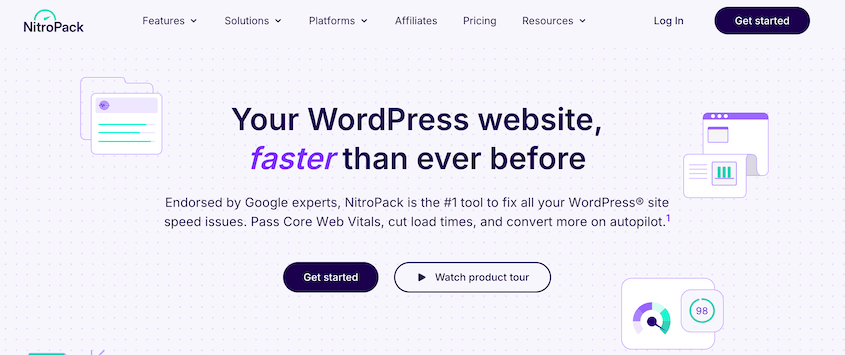
NitroPack automates caching, image optimization, and code minification through an external cloud network. It applies most of the standard performance fixes without you configuring individual settings.
NitroPack sits between a plugin and a service. You install it, connect your site, and it routes your pages through an external network that handles caching, image compression, and code minification.
Instead of installing a caching plugin, an image optimizer, and a minifier separately, NitroPack covers all three from one dashboard. For someone who wants results without learning what each setting does, that’s a real time saver.
The free tier is generous enough to test on a smaller site before deciding whether the paid plans are worth it.
What We Liked:
- Free tier available, so you can test results before paying
- Combines caching, compression, and minification in one dashboard
- Works through an external network, so some processing happens off your server
- Built-in CDN
- Compatible with WooCommerce
What We Didn’t Like:
- Pricing scales with monthly page views, so costs grow as your traffic does
- Routing optimization through an external network can complicate troubleshooting
- Less granular control than running WP Rocket and Perfmatters separately
Why We Chose NitroPack: It covers necessary core optimization tasks without the high price tag of other optimization services.
NitroPack Pricing: NitroPack optimization services start at $7/mo.
3. WP Speed Fix: Best For a One-Time Speed Fix

WP Speed Fix offers a free speed audit followed by a one-time fix. It started as an offshoot of an SEO agency and has optimized more than 5,000 sites since 2008.
It’s built for site owners who want a problem diagnosed and fixed once, not managed indefinitely.
WPSpeedFix starts with a free audit. You submit your site, and their team reviews it and reports back on what’s actually slowing it down before you pay anything.
That diagnosis step is the benefit. A lot of site owners assume they need a full caching overhaul when the real issue is one bloated plugin or an unoptimized hero image. The audit tells you which one it is.
From there, the fix is a one-time engagement rather than a recurring plan, which suits a site owner who wants the problem solved once and doesn’t expect to need it again soon.
What We Liked:
- Free speed audit
- Good track record across thousands of sites
- Core Web Vitals analysis
- SEO analysis
- Hosting assessment
What We Didn’t Like:
- A one-time fix doesn’t address new bloat that accumulates over the following months
- Doesn’t replace ongoing maintenance if your site changes frequently
- Expensive implementation plans after the free audit
Why We Chose WPSpeedFix: The free audit is a low-risk way to find out what’s actually slowing your site down before you commit to paying anyone (including the services higher on this list).
WP Speed Fix Pricing: Free for an initial audit. To get a prioritized action plan, WP Speed Fix offers optimization services starting at $795 (one-time).
4. Duplicator: Best For Pre-Optimization Backups
Every option on this list, from a managed service to an optimization plugin, involves changes to your database, files, or settings. Duplicator is the step that makes those changes reversible.
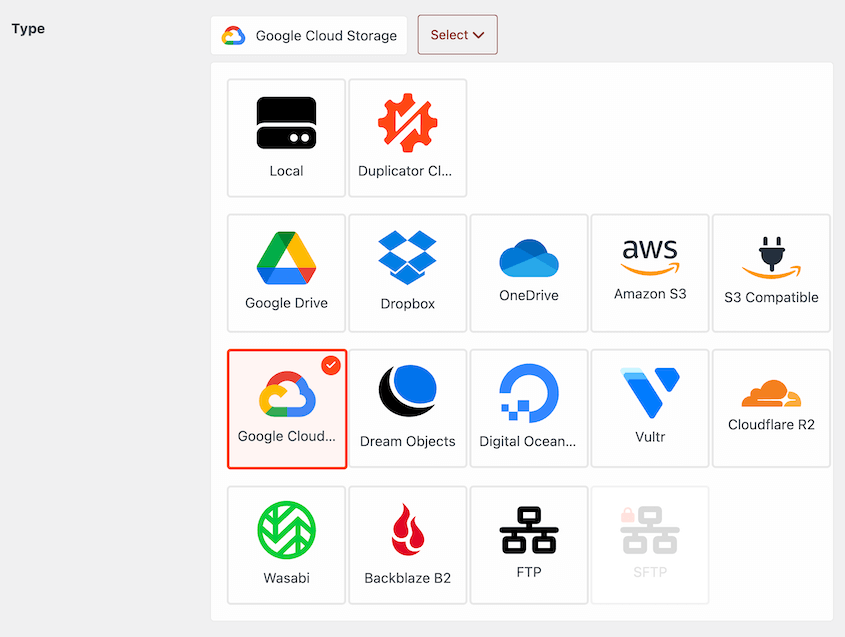
Duplicator creates a complete copy of your WordPress site that you can store wherever you choose: your server or off-site storage like Duplicator Cloud, Google Drive, Dropbox, or Amazon S3.
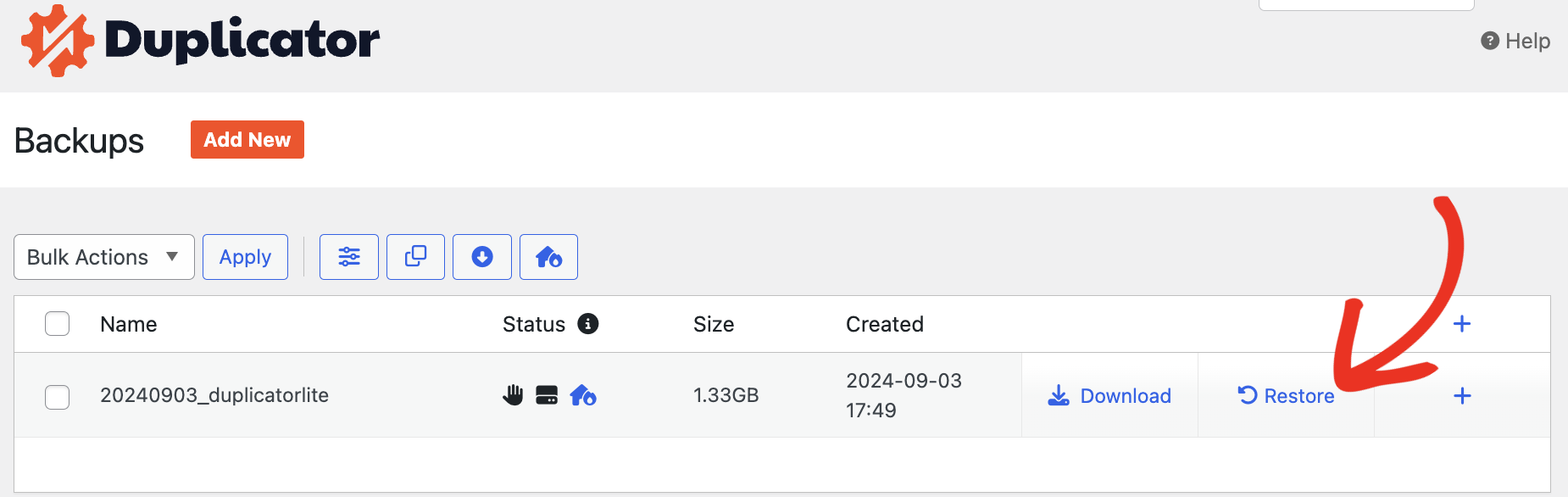
The benefit shows up the moment something goes wrong. If a database cleanup removes something it shouldn’t have or a new caching plugin breaks your checkout page, restore the backup and you’re back to where you started.
It’s also the step that makes the rest of this list lower-risk. Run a backup first, and every other tool here becomes something you can experiment with instead of something you have to get right on the first try.
What We Liked:
- Disaster recovery URL restores a site even when you’re locked out of wp-admin entirely
- Native Duplicator Cloud storage with remote recovery available
- DupArchive format has no size limit (we’ve seen 400GB site backups completed)
- One-click restores from the WordPress dashboard
- Free version covers basic backups and migrations
What We Didn’t Like:
- It doesn’t speed up your site on its own. Pair it with one of the optimization tools on this list to get the actual performance gain.
Why We Chose Duplicator: Database cleanup and cache changes are the kind of edits that go wrong quietly. Duplicator’s disaster recovery URL can restore a site even when WordPress itself won’t load, which none of the optimization tools here can do for you.
Duplicator Pricing: There’s a free version for manual backups and FTP migrations. Duplicator Pro plans start at $69.30/yr.
5. DB Optimizer: Best For DIY Database Cleanup
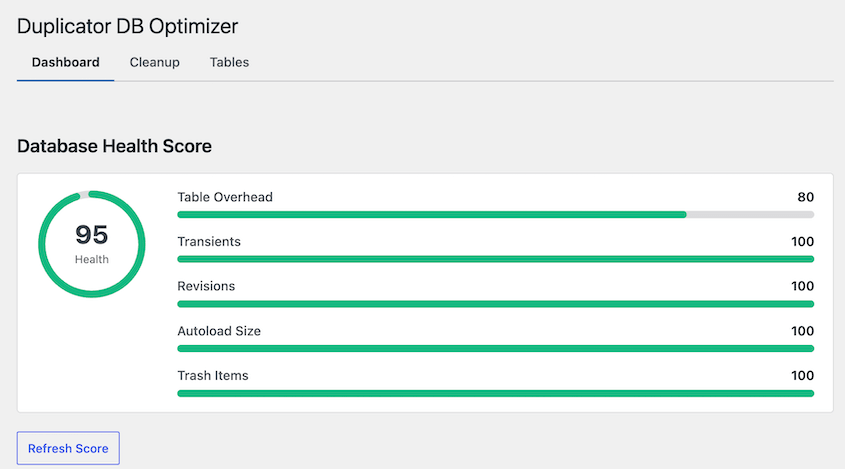
DB Optimizer scores your WordPress database from 0-100 across overhead, transients, revisions, autoload size, and trash. Then, it lets you clean up each category so your database runs smoothly.
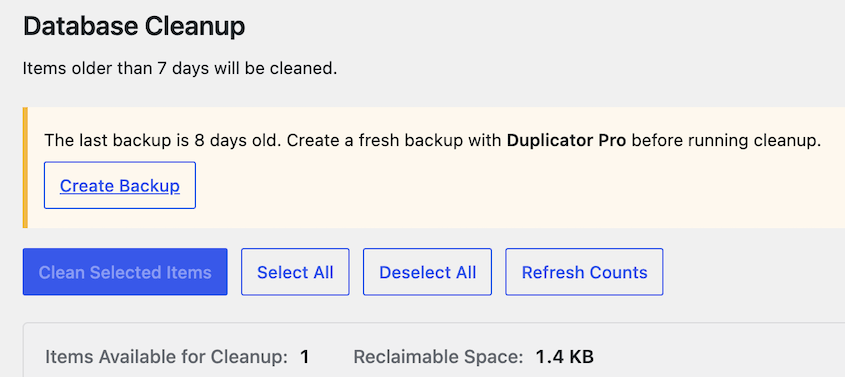
It also checks whether you’ve backed up recently with Duplicator and prompts you to do so before any bulk deletion runs. That pairing is the point: clean up safely, not just quickly.
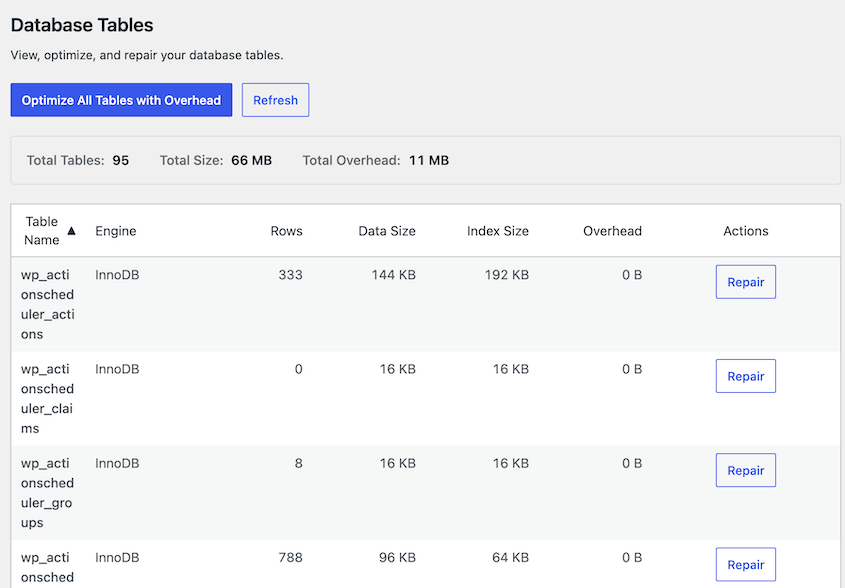
You can instantly optimize your entire database in bulk. There are options to repair individual database tables if you need to.
What We Liked:
- Health score dashboard rates your database across five categories
- Configurable retention settings (7-day default) so recent revisions and comments aren’t wiped by mistake
- Backup-aware workflow prompts you to back up before any bulk deletion
- Standalone plans start at $29/year for one site, or it’s bundled into Duplicator’s Pro and Elite plans
What We Didn’t Like:
- It’s focused on the database. It won’t touch caching, image sizes, or front-end code, so it’s one piece of a larger optimization job, not the whole thing.
Why We Chose DB Optimizer: The health score answers the question every site owner has: “Is this bad enough to deal with right now?” It also auto-detects whether you have a recent backup and prompts you to make one before cleanup, protecting your data.
DB Optimizer Pricing: You can get DB Optimizer free with a Duplicator Pro plan. It’s also a standalone plugin for $29/yr.
6. WP Media Cleanup: Best For Media Cleanup
Every time you upload an image to WordPress, it generates several resized copies for thumbnails, featured images, and other display sizes. Most of those copies never get used, and WordPress doesn’t clean them up on its own.
WP Media Cleanup scans your library, finds those unused variations, and lets you remove them in bulk. The benefit compounds: a smaller media library means smaller backups, faster migrations, and less storage to pay for on your host.
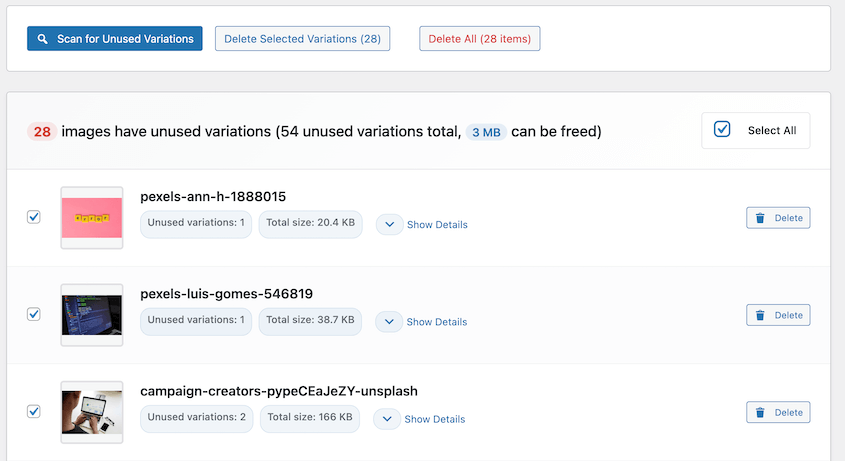
Anything it removes goes into a temporary holding area for 30 days first, so if it turns out something was needed after all, you can get it back.
What We Liked:
- Targets only unused size variations, never the original full-size images
- Removed files sit in a temporary directory for 30 days before permanent deletion, so cleanup is reversible
- Smaller media library means smaller backups and faster migrations down the line
- Free when you’re on Duplicator’s Pro or Elite plans
What We Didn’t Like:
- It cleans up unused variations, but it won’t compress the images you’re actively using. You’ll still want a compression tool for that.
Why We Chose WP Media Cleanup: Media bloat is one of the most common reasons backups take forever and hosting storage bills creep up, and it’s almost invisible until someone goes looking for it. This tool finds it and removes it safely.
WP Media Cleanup Pricing: On its own, WP Media Cleanup starts at $29/yr. Since it’s a Duplicator product, you can get it free with Duplicator Pro or Elite plans.
7. WP Rocket: DIY Caching and Code Optimization
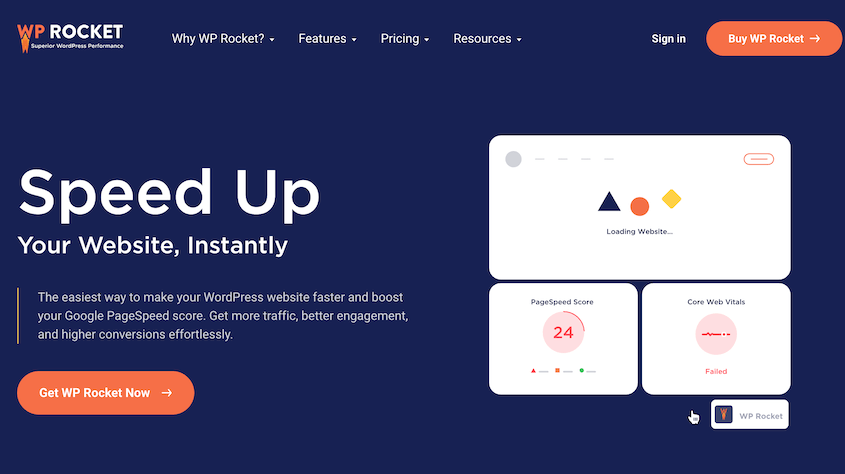
WP Rocket handles the part of optimization most site owners think of first: making pages load faster. Page caching, GZIP compression, and image lazy loading all turn on as soon as you activate it.
Most caching plugins need you to understand what each setting does before you flip it on. WP Rocket applies sensible defaults immediately, then lets you adjust the more advanced settings later if you want to.
For site owners who want to handle the caching side themselves rather than route everything through a platform like NitroPack, this is usually the plugin that comes up first.
What We Liked:
- Most performance best practices apply automatically on activation
- Installed on millions of sites, so documentation and troubleshooting guides are easy to find
- Page and browser caching
- Image optimization
- Database cleanup
- Built-in RocketCDN
What We Didn’t Like:
- No free version
Why We Chose WP Rocket: It’s the plugin most likely to move your PageSpeed score on its own, with minimal setup. Site owners who want to handle caching themselves, without an automated platform, tend to land here.
WP Rocket Pricing: Plans start at $59/yr for one site.
Frequently Asked Questions (FAQs)
What’s the best WordPress optimization plugin?
For most sites, the best starting point is a small toolkit rather than one plugin: Duplicator for a backup, DB Optimizer for database cleanup, and WP Media Cleanup for media bloat, all bundled together in Duplicator’s Elite plan. If your main issue is page speed specifically, pair that toolkit with WP Rocket for caching.
How much does a WordPress optimization service cost?
Managed services typically run $50-60/month for ongoing plans, with one-time fixes ranging from around $50 to $1,000 depending on scope. Dedicated Core Web Vitals work often costs extra, sometimes $225 or more on top of a base plan.
Can I optimize my WordPress site myself?
Yes, for most common issues. Database bloat, unused media files, and missing caching are all things a plugin can fix without developer help. More complex issues, like server configuration or custom code, usually benefit from an expert.
Do I need to back up my site before optimizing it?
Yes. Database cleanup deletes data, and caching or code changes can break a theme or plugin in ways that aren’t obvious until a page stops working. A full backup, including the database, means you can undo any of it.
Will database cleanup break my site?
It can, if it removes something still in use, like a transient a plugin depends on. Tools with retention settings and a preview step (rather than a blanket “delete everything” button) reduce that risk significantly.
How often should a WordPress site be optimized?
Database cleanup and media audits are worth running every few months or after a big content push. Caching and code optimization are mostly set-and-forget once configured, but worth rechecking after major plugin or theme updates.
Which WordPress Optimization Service Is Right For You?
If you’d rather not think about your site’s speed again, a managed service like WP Buffs handles it ongoing. If you want one specific problem fixed without a subscription, WPSpeedFix or a specialist from Fiverr gets you there.
If you’re handling it yourself, start with the boring step: back up your site with Duplicator, then run DB Optimizer and WP Media Cleanup to clear out what’s bloating your database and media library. From there, WP Rocket or NitroPack handle the caching and code side.
Whichever path you pick, do the backup first. It’s the one step that makes every other decision on this list reversible.
Download Duplicator Pro and create a full backup in a few minutes!
While you’re here, I think you’ll like these other optimization guides:
- How to Optimize Your WordPress Database
- Your WordPress Site is Bleeding Money Every Second It’s Slow (Here’s the Fix)
- 7 WordPress Database Warning Signs Most Site Owners Miss
- WordPress Database Maintenance: What to Do Weekly, Monthly, and Quarterly
- WordPress Maintenance Checklist: 20 Essential Tasks
- How to Secure a WordPress Database: Hardening, Encryption, and Ongoing Protection




