


How to Track WordPress User Activity on Multi-User and Client Sites
 Joella Dunn
Joella Dunn
Joella Dunn
 John Turner
John Turner
John Turner
You log into your site, and something’s off. A plugin you didn’t touch is gone. A post got edited at 2 a.m. A user account you don’t recognize has admin access.
And WordPress gives no record of user history. You have no way of knowing what happened or who did it.
WordPress doesn’t log user activity by default. Every change on your site happens silently, unless you set up activity tracking.
In this tutorial, I’ll show you how to track every meaningful action on your site (including user activity). By the end, you’ll have a working audit trail and alert rules running in the background, whether you’re checking in or not.
Here are the key takeaways:
- WordPress has no built-in user activity log. Once a change happens without a plugin active, that record is gone permanently.
- Duplicator’s Activity Log tracks 60+ event types, including logins, failed login attempts, role changes, profile edits, and content modifications.
- The plugin only captures events from the moment it’s activated. Install it before a problem happens, not after.
- Enabling notifications will save you from having to check the log manually.
Table of Contents
Why Track WordPress User Activity?
User activity is difficult to anticipate, harder to audit after the fact, and can lead to big consequences if missed.
Most WordPress sites have multiple users: editors publishing content, admins installing plugins, or clients logging in to review drafts. Without an activity log, there’s no record of who published what, who changed a setting, or which account was active before something broke.
A few things that only show up in user-level tracking:
- Login patterns
Who logged in, when, and from which IP address. If an account logs in from a location you’ve never seen at 3 a.m. and starts making changes, you’ll need to know about it.
- Role changes
If someone elevates a subscriber to an administrator, WordPress won’t alert you. Without a log, you might not notice until that account does something damaging.
- Failed login attempts
A single failed login is noise. Fifteen failed attempts from the same IP in ten minutes could be a brute-force attack in progress. User activity tracking catches that pattern.
- Profile edits
Password changes, email address updates, and display name modifications are quiet changes that can indicate an account takeover or a user covering their tracks.
- Content changes tied to specific users
Knowing that a post was edited is useful. Knowing it was edited by a user account that shouldn’t have had access to it is what actually tells you something went wrong.
If you manage a site with more than one user, tracking user activity specifically (not just general site events) will allow you to successfully troubleshoot when something goes wrong.
How to Track WordPress User Activity
The steps below walk through installing an activity log plugin, configuring which user events it tracks, setting up alerts, and pulling records when you need them. The whole setup takes about 15 minutes.
Here’s what you’ll do:
- Install and activate the plugin: get Activity Log running and confirm it’s capturing events before you move on to any other step.
- Configure your event settings and read the log: review which of the nine event categories are active, set your log retention period, and learn how to read a log entry before the log gets busy.
- Filter and search the log: use category, severity, and date range filters to find specific user actions quickly, instead of scrolling through hundreds of entries.
- Set up email alerts for critical events: configure notifications for High and Critical severity events so you’re alerted immediately when something important happens, without checking the log manually.
- Export your activity log: download records as CSV or JSON for client reports, compliance documentation, or support tickets.
Step 1: Install Duplicator’s Activity Log
For user activity tracking specifically, I use Activity Log by Duplicator. It tracks 60+ event types, including logins, failed attempts, role changes, profile edits, and content changes.
You’ll get everything you need to monitor what your users are doing.
Plans start at $29/year for one site. It’s also included in the Duplicator Elite bundle if you’re already using Duplicator for backups and migrations.
Get Activity Log and download the zip file from your account. Install it in your WordPress dashboard as a new plugin.
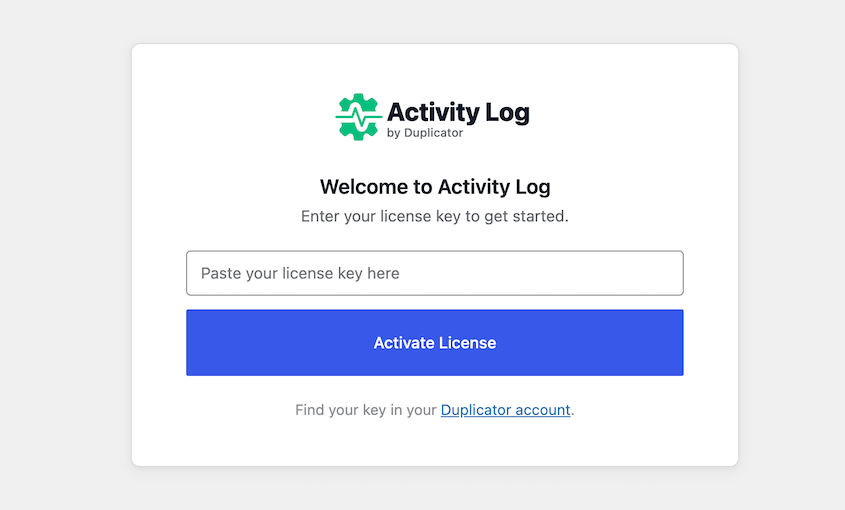
Then, enter your license key in the welcome screen. Once it’s connected to your account, logging has already begun.
Step 2: Read Your User Activity Log
Before you rely on the log, spend two minutes confirming it’s tracking the right things.
Go to Activity Log » Settings and click the Events tab. You’ll see nine categories, each with a toggle:
- User
- Content
- Media
- Plugin
- Theme
- WordPress
- Appearance
- Taxonomy
- Settings
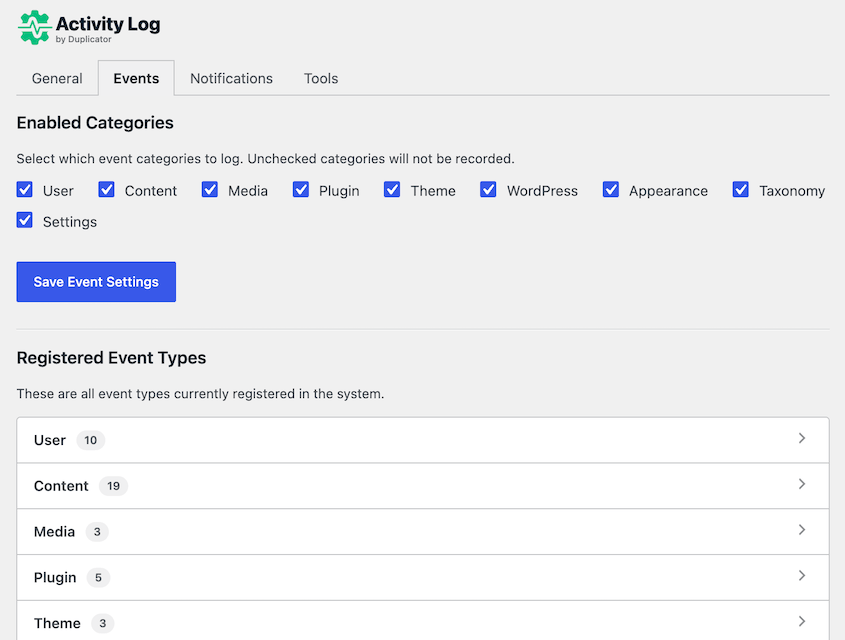
Expand each category under Registered Event Types to see the full list of what it captures. To track user activity, make sure User is checked.
Once you’ve reviewed the settings, navigate to Activity Log in the left admin menu. Each entry shows, left to right:
- Severity
- Date/time
- User
- Event description
- Object
- IP address
- Source
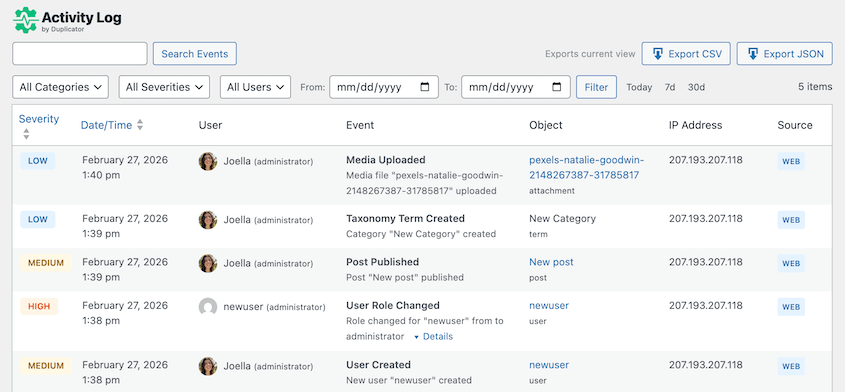
The severity colors tell you how urgent an entry is at a glance. Red for High, yellow for Medium, blue for Low.
Check the log right now. Then, log out and back in. If you see user login/logout entries there, everything is working.
Step 3: Filter and Search the Log
The log fills up fast on an active site. Without filtering, you’re scrolling through hundreds of entries to find the one that matters.
The filter controls sit at the top of the log view, and they’re what make the log useful. You can filter by category, severity level, and date range. Use them together.
Here’s a real example of how this plays out. I noticed a post was published I didn’t write. I opened the log, filtered by the Content category, and set the date range to the previous day.
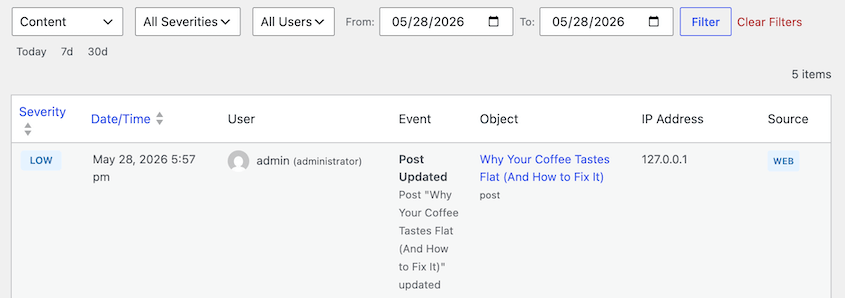
One entry. A username I didn’t recognize. That’s the kind of thing that would have taken 20 minutes to track down any other way — and that’s assuming I even knew where to start.
For day-to-day log review, filter by High and Critical severity. It cuts the noise significantly and makes the log scannable in under a minute.
Step 4: Set Up Email Alerts for Critical Events
When you only check your activity log manually, you have to remember to do it. Alerts solve that problem.
Go to Activity Log » Settings and click the Notifications tab. Toggle email notifications on and enter your email address.
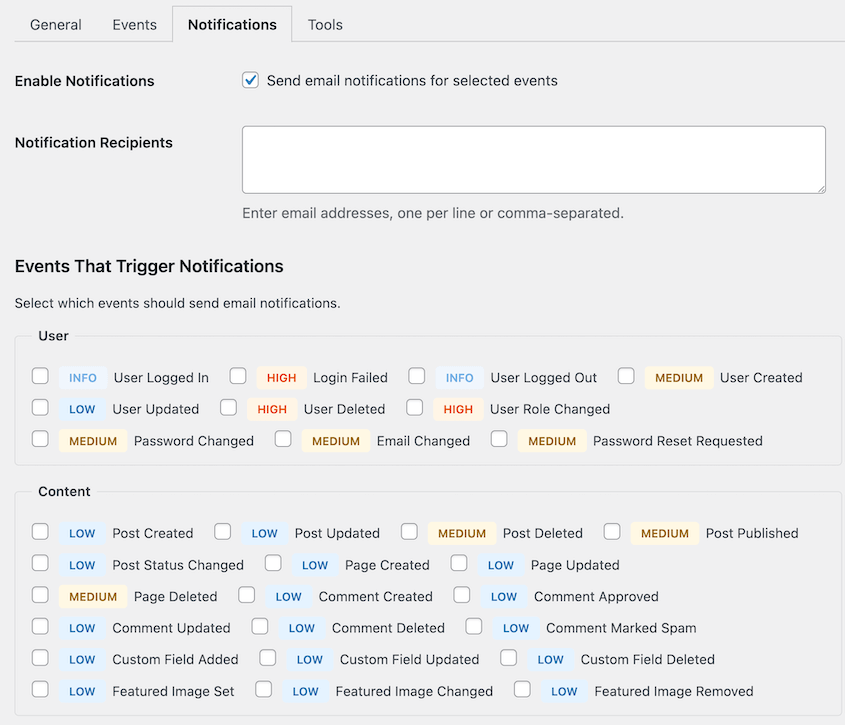
Then choose which severity levels trigger an alert. Enable Critical and High.
Leave Medium, Low, and Info as log-only entries. They’re useful for investigation but not worth an inbox interruption.
The events worth alerting for user activity:
- Failed login attempts (especially repeated ones from the same IP)
- New administrator account created
- User role changed
- Plugin deactivated or deleted
- Core settings changed (admin email, site URL)
Before you rely on this, test it. Make sure you know which email address is receiving alerts, then log out and enter the wrong password deliberately.
Log back in, and a High severity failed login event should trigger an email within a few minutes.
Step 5: Export Your Activity Log
Most people don’t think about exporting until they urgently need a record of something. It’s worth knowing how this works before that moment arrives.
You’ll get two format options:
- CSV for spreadsheets and client reports
- JSON for support tickets and technical documentation
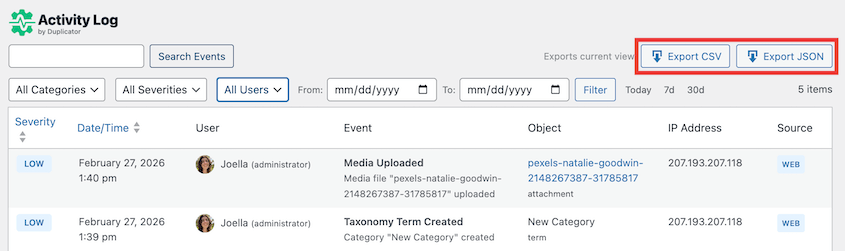
Apply filters before you export. Downloading the full log on a busy site produces a large, hard-to-read file.
Filter to the relevant date range and event category first, then export only what you need.
A practical example: a client asks what changed on their site last month. Filter by date range, export to CSV, and attach it to your report.
Frequently Asked Questions (FAQs)
Can I track WordPress activity without a plugin?
Technically, yes. Your server logs record HTTP requests, and a developer can query the WordPress database directly. But neither approach ties actions to specific user accounts in a readable way, and neither gives you real-time alerts. For practical, user-level tracking, an activity log plugin is the only approach that’s actually usable without significant technical overhead.
How do I check user activity in WordPress?
WordPress has no built-in user history view. With Duplicator’s Activity Log plugin installed, open the Activity Log viewer and filter by the username you want to review. Every recorded action tied to that account will appear in chronological order. It’s the closest thing to a per-user audit trail WordPress has.
Is it legal to track user activity on a website?
For backend activity (tracking what logged-in users do inside wp-admin), yes. Privacy regulations like GDPR are primarily concerned with tracking front-end visitors, not monitoring the actions of authorized users operating within your system. That said, it’s good practice to note in your privacy policy or terms of service that admin activity is logged, particularly if you’re managing a site on behalf of clients or a team.
Do I need Duplicator Pro to use the Activity Log plugin?
No. Duplicator Activity Log is a standalone plugin with its own plans starting at $29/year for one site. It works independently of Duplicator Pro. However, if you’re already using Duplicator, the Elite bundle includes Activity Log, so it’s worth checking whether upgrading makes more sense than purchasing separately.
Will an activity log slow down my site?
There’s no measurable impact on front-end performance. The plugin hooks into native WordPress actions and writes to a single dedicated database table. Your visitors won’t notice anything different about page load times.
What’s the difference between a user activity log and a security log?
They overlap significantly. A user activity log records meaningful actions tied to specific accounts like logins, content changes, role modifications, profile edits. A security log typically focuses on authentication events and potential threats. Duplicator’s Activity Log covers both, which is why the severity levels (Critical through Info) matter: security-relevant events surface at High or Critical, everything else logs quietly below.
What should I do if I see a suspicious entry in my log?
Note the full details: timestamp, username, IP address, and the exact event description. If the account isn’t one you recognize, go to Users » All Users, open the profile, scroll to the bottom, and click Log Out Everywhere to terminate all active sessions.
Force a password reset. If the account made significant changes before you caught it, restore from a backup that predates the first suspicious entry.
You Know What’s Happening on Your Site. Keep It That Way.
You’ve got an audit trail running, alert rules configured, and a way to pull records when you need them. That’s more visibility into your site’s user activity than most WordPress site owners ever set up and it took less than 20 minutes.
Going forward, build a quick log review into your routine. Once a week, open the Activity Log viewer, filter to High and Critical severity, and spend two minutes scanning.
Most weeks there’ll be nothing worth acting on. Occasionally there’ll be a failed login spike, an unexpected role change, or a setting that got modified without explanation. Those are the moments the log earns its keep.
I’d also recommend pairing the activity log with a regular backup schedule.
The activity log tells you what happened. But if the damage is already done, you need a clean restore point to fall back on. That’s where a reliable backup routine matters as much as the log itself.
Duplicator Pro gives you scheduled backups, one-click restores, and a disaster recovery URL that gets your site back even when WordPress is completely locked out. You’ll get Duplicator, Activity Log, and WP Media Cleanup bundled in the Elite plan!
While you’re here, I think you’ll like these other resources:
- WordPress Doesn’t Track Activity by Default: Here’s What I Do About It
- How to Set Up a WordPress Audit Trail in Under 10 Minutes
- How to Track EVERY Change on Your WordPress Site (Before It Breaks)
- I Switched From WP Activity Log to Duplicator’s Activity Log: Here’s What I Found Out
- WordPress Database Maintenance: What to Do Weekly, Monthly, and Quarterly




