


How to Delete All Transients in WordPress (4 Methods)
 Joella Dunn
Joella Dunn
Joella Dunn
 John Turner
John Turner
John Turner
Transients are temporary cached values your plugins store in the WordPress database.
A plugin runs an expensive operation (like an API call, a complex query, or a feed fetch). Instead of repeating that work on every page load, it saves the result as a transient with an expiration time.
When the timer runs out, WordPress is supposed to delete it. The problem is that WordPress only deletes a transient when something requests it.
If a plugin gets deactivated, or a developer changes a transient key, those rows stay in the database indefinitely.
On a site that’s been running for a few years, that can add up to thousands of orphaned rows in your wp_options table, each one adding weight to every database query that touches it.
In this post, I’ll show you how to delete all transients in WordPress.
Here are the key takeaways:
- Transients pile up because WordPress uses lazy deletion. A row only gets removed when something requests it, so deactivated plugins leave orphaned rows behind indefinitely.
- Before running any cleanup method, check your transient count first. Under 100 rows probably won’t move the needle.
- DB Optimizer is the safest plugin method. It previews what it’ll remove, applies a 7-day retention threshold to protect recently created data, and handles table optimization too.
- Each transient creates two database rows, a value row and a timeout row. Your cleanup method needs to remove both, not just one.
- A brief site slowdown immediately after cleanup is normal. Plugins rebuild their caches on the first request after deletion.
Table of Contents
What Are WordPress Transients?
Transients are temporary cached values stored in your WordPress database. Plugins use them to avoid repeating expensive work.
Instead of hitting a remote API or running a heavy database query on every page load, a plugin runs the operation once, stores the result as a transient, and reuses it until the expiration time passes.
A weather widget might cache the current forecast for 30 minutes. A plugin that pulls in an external product feed might cache the results for an hour. Without transients, every page load would trigger that request from scratch.
Here’s where things go wrong.
Every transient actually creates two rows in your wp_options table: a value row (_transient_pluginname) and an expiration timestamp row (_transient_timeout_pluginname). Both need to be removed for a real cleanup.
WordPress doesn’t clean them up on a schedule. It uses lazy deletion, meaning a transient only gets removed when something asks for it.
If a plugin is deactivated before its transients expire, or a developer changes the key name in a code update, those rows never get requested again. They just sit there.
On a site that’s changed plugins over the years, that’s a lot of rows that serve no purpose.
They don’t break anything, but they bloat the wp_options table and slow down every query that runs against it, including the ones that power your WordPress admin screens.
Do You Need to Delete WordPress Transients?
Not every site needs a transient cleanup. Before you run anything, it’s worth spending a few minutes confirming the problem actually exists on your site.
Signs It’s Worth Doing
If any of these sound familiar, a cleanup is worth running:
- Your wp_options table is unusually large (over 10MB is a common flag)
- WordPress admin screens are slow to load, especially the dashboard and plugin settings pages
- You’ve recently deactivated or deleted several plugins and suspect they left data behind
- A row count check shows hundreds or thousands of transient rows
Signs You Can Probably Skip It
If your site falls into either of these categories, transient cleanup likely won’t move the needle:
- Your site is fast, your database is healthy, and your host has a persistent object cache enabled. Redis and Memcached store transients in memory instead of the database, so there’s nothing to clean up in wp_options.
- You’re on a managed WordPress host like WP Engine or Kinsta. Most of these enable object caching by default. Check with your host if you’re not sure.
How to Check Your Transient Count
To see exactly how many transient rows are in your database, log into phpMyAdmin, click the SQL tab, and run this query:
SELECT COUNT(*) FROM wp_options WHERE option_name LIKE '%_transient_%';If the result is in the hundreds or thousands, cleanup is worthwhile. Under 100, it’s probably not worth the effort.
How to Delete All WordPress Transients
There are four ways to do this. The right one depends on what tools you already have access to.
- Method 1: DB Optimizer: the most beginner-friendly option. It shows you exactly what it’ll remove before you confirm anything, and it won’t touch data created in the last 7 days.
- Method 2: WP Rocket: if WP Rocket is already your caching plugin, transient cleanup is built into the Database tab.
- Method 3: WP-CLI: one command and it’s done. Best for anyone with SSH access to their server.
- Method 4: phpMyAdmin: direct SQL query that works on any host.
If your transient bloat is entirely from WooCommerce product caching, there’s a built-in shortcut first.
Go to WooCommerce » Status » Tools. Clear just WooCommerce transients or all WordPress transients.
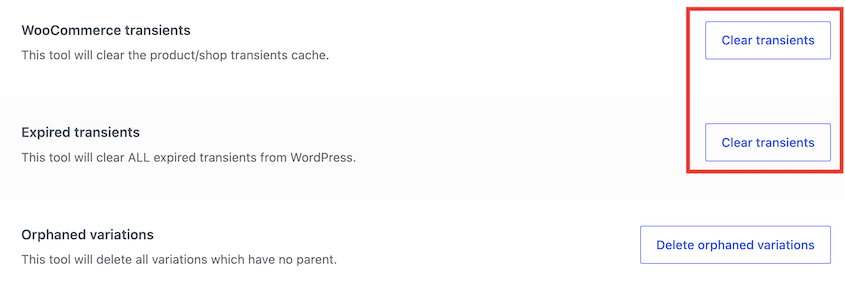
For anything broader, use one of the four methods below.
I recommend using Duplicator Pro for this. Create a new backup, name it something specific like “pre-transient-cleanup” and let it run.
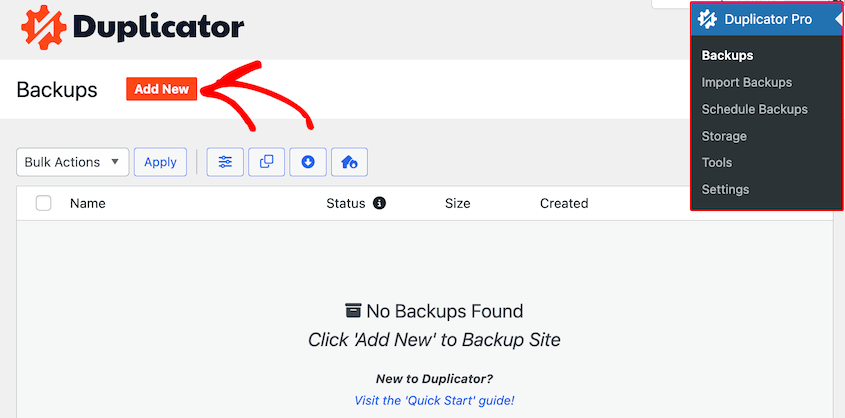
When it appears in the Backups screen, you’re ready to proceed. If anything behaves unexpectedly after the cleanup, you have a one-click restore path.
Method 1: Use DB Optimizer (Recommended)
DB Optimizer is a database optimization plugin that removes transients, along with revisions, table overhead, autoload size, and WordPress trash. It shows you a preview of what it’ll remove and applies a retention threshold to protect recently created data.
If you’re on a Duplicator Pro plan, DB Optimizer is included free. Once activated, open DB Optimizer from your WordPress admin sidebar.
The dashboard displays a health score from 0 to 100 with color-coded bars across several categories. Check the Transients score to see if they need to be cleaned up.
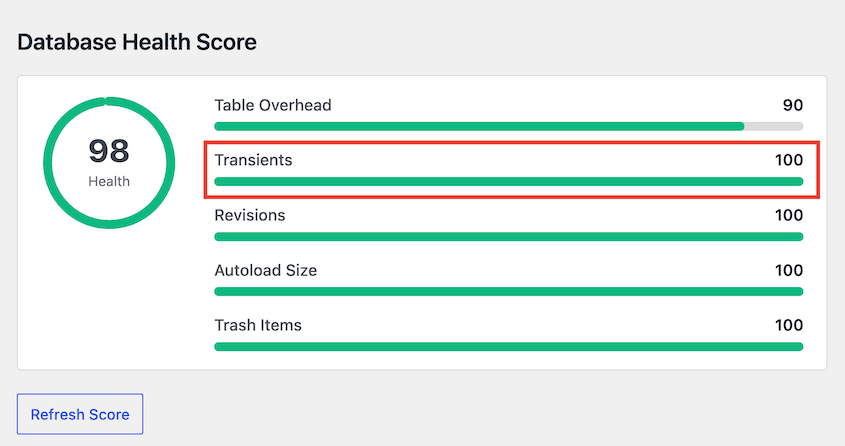
If they do, head over to Cleanup. Find the Transients & Cache row. It shows the count of expired transients in your database and the amount of space you’d reclaim by removing them.

Select it alongside other data that needs to be removed and hit Clean Selected Items. Or, click the Clean button next to just the transient row.
In the pop-up, confirm that you want to run the clean.
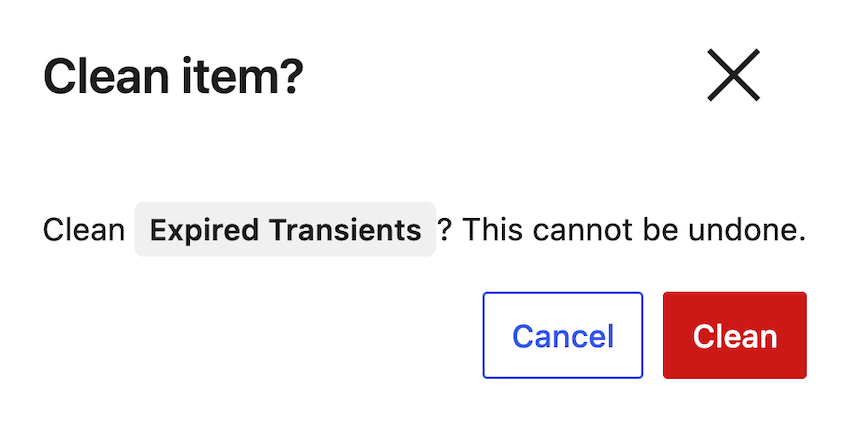
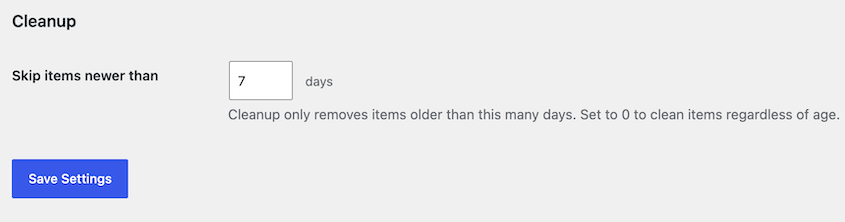
The retention threshold defaults to 7 days, which means it won’t touch anything created in the last week. That protects active plugin caches that happen to be expired by timestamp but are still in regular use.
When DB Optimizer finishes removing the transients, your health score updates and the transient count drops.
Method 2: Use WP Rocket
If WP Rocket is already running on your site, you don’t need to install anything extra. Transient cleanup is built into the Database tab.
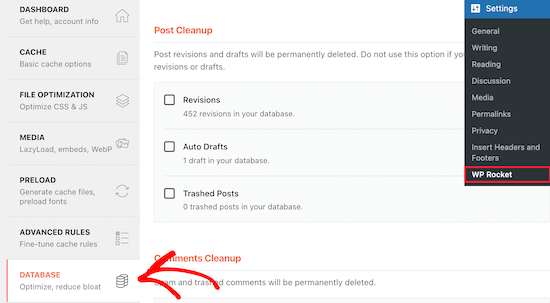
Go to Settings » WP Rocket in your WordPress admin and click the Database tab. Scroll down to the Transients Cleanup section.
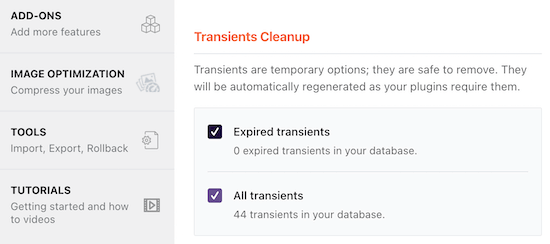
You’ll see two options:
- Remove all transients: clears everything, including active transients. Your plugins will rebuild them on the next request, but expect a brief slowdown on the first few page loads.
- Remove only expired transients: the safer option. It only removes rows that have already passed their expiration time and won’t affect anything your plugins are actively using.
Select your preference and click Save Changes and Optimize. WP Rocket runs the cleanup immediately.
This is the only method here that can run on a schedule automatically. Once you’ve set it up, WP Rocket handles ongoing transient cleanup without you having to come back and do it manually.
Method 3: Use WP-CLI
WP-CLI handles transient cleanup in seconds if you have SSH access to your server.
Connect to your server via SSH and navigate to your WordPress root directory:
cd /path/to/your/wordpressTo delete only expired transients, run:
wp transient delete --expiredTo delete all transients, run:
wp transient delete --allThe terminal will print a count of the deleted transients so you can confirm it ran.
Before you use --all, that command deletes active transients too, not just expired ones. Your plugins will recreate them on the next request, but there will be a brief slowdown while they rebuild.
If you want to be conservative, start with --expired.
If you’re running a WordPress Multisite network, --all only clears site-level transients. Run a second command to clear network-wide transients:
wp transient delete --all --networkMethod 4: Use phpMyAdmin
You can use phpMyAdmin to clean transients if you don’t want to install plugins or don’t have SSH access. It goes straight to the database.
Log into your hosting control panel and open phpMyAdmin. Select your WordPress database from the left sidebar, then click the SQL tab at the top.
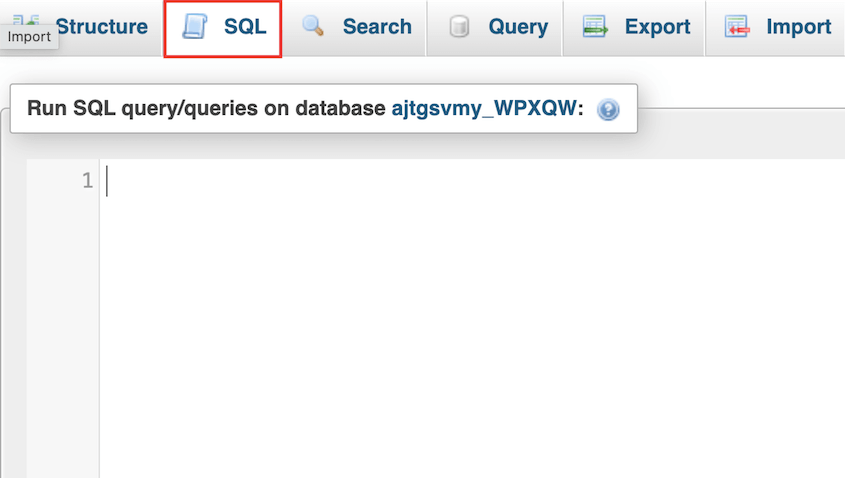
Before you run anything, check your table prefix. Look at the left panel in phpMyAdmin and confirm your options table is named wp_options.
Some installs use a custom prefix set during installation, like mysite_options. If yours is different, replace wp_options in the query with the correct name.
Paste this query into the SQL tab and click Go:
DELETE FROM wp_options WHERE option_name LIKE '%_transient_%';This single query removes both types of rows WordPress stores for each transient: the value row (_transient_pluginname) and the expiration timestamp row (_transient_timeout_pluginname).
Running it once clears both. If you only deleted the value rows, the timeout rows would stay behind as orphaned clutter.
After the query runs, select the wp_options table from the left sidebar and click Optimize Table. Deleting rows doesn’t reclaim disk space on its own. Optimizing the table is the step that actually shrinks it.
How to Prevent Transient Buildup Going Forward
A one-time cleanup is useful, but if you don’t address the source, the count will climb back. Here’s how to keep it from happening again.
Enable a persistent object cache. If your host supports Redis or Memcached, turn it on.
Transients are stored in memory instead of the database, expire natively, and never write to wp_options. This is the most effective long-term fix.
If you run a cleanup and the transient count is back in the thousands within a few days, a plugin is generating them faster than they expire. That’s a plugin behavior issue, not a cleanup problem.
Use wp transient list in WP-CLI or the Transients Manager plugin to see which plugin owns the rows, then check if it has a configuration option to reduce how often it creates them.
Troubleshooting Issues with Deleting Transients
Even a straightforward database cleanup can hit a snag. Here are the most common issues and how to get past them.
Site Slowed Down After Deleting Transients
You’ll notice this as slower page loads in the minutes immediately after the cleanup. It’s normal and temporary.
Your plugins are recreating their cached data on the first request after the cleanup. Give it 10 to 15 minutes and reload. Speed should return to normal or improve compared to before the cleanup.
The Transient Count Came Back Immediately
You ran the cleanup, but DB Optimizer or a row count check shows hundreds of transients again within hours. A plugin on your site is generating transients faster than they expire, which is a configuration or code issue with that plugin, not a problem with your cleanup method.
To find the source, run wp transient list in WP-CLI to see a full list of transient names and which plugin owns them.
Alternatively, install Transients Manager and browse the list under Tools » Transients.
Once you’ve identified the plugin, check its settings for any option that controls caching frequency. If there’s no setting and the volume is unreasonable, it’s worth contacting the plugin’s support team.
The phpMyAdmin Query Returned an Error
The most common cause is a table prefix mismatch. Your WordPress install may use a custom prefix set during installation, and the query is targeting the wrong table name.
Open wp-config.php and find the line that reads $table_prefix. Replace wp_options in your query with the correct prefix (like mysite_options), and run it again.
If the error mentions access permissions, your database user may not have DELETE privileges. Contact your host to confirm your database user has the necessary permissions.
A Plugin Stopped Working After the Cleanup
What you’ll see is a plugin feature returning empty results, throwing an error, or behaving as if it was just installed for the first time. You deleted an active transient that plugin was relying on.
Most well-coded plugins will recreate it automatically on the next request. Try deactivating and reactivating the affected plugin to force it to rebuild its cache.
If it doesn’t recover after reactivation, restore the Duplicator backup you created before starting.
That gets you back to the exact state your database was in before the cleanup, and from there you can investigate which plugin is the issue before trying again.
Nothing Is Working
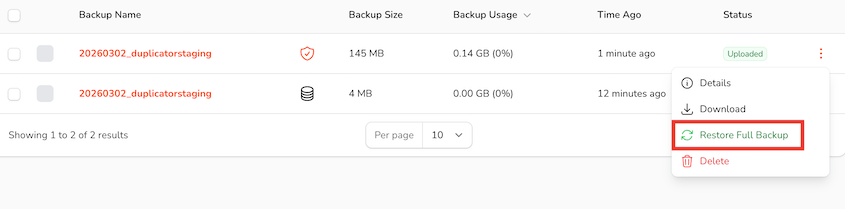
Restore a backup first. Open Duplicator Pro » Backups in your WordPress admin, find the backup you created before starting, and run the restore.
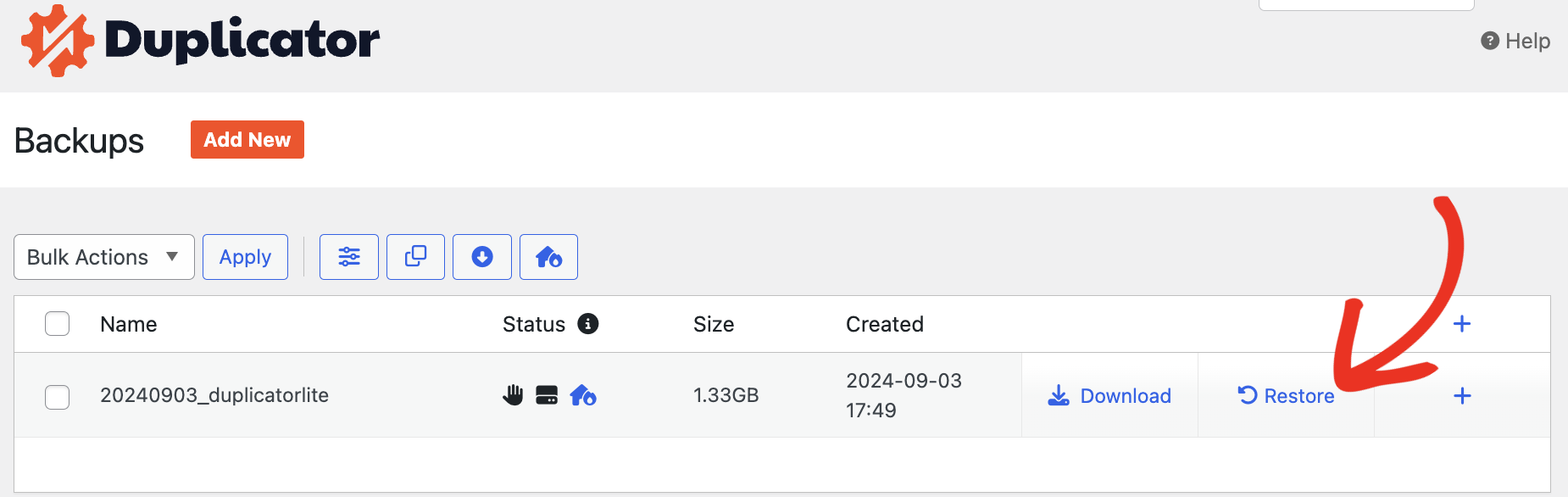
If your WordPress admin is inaccessible, Duplicator Pro’s disaster recovery URL can restore the site even when wp-admin is locked out.
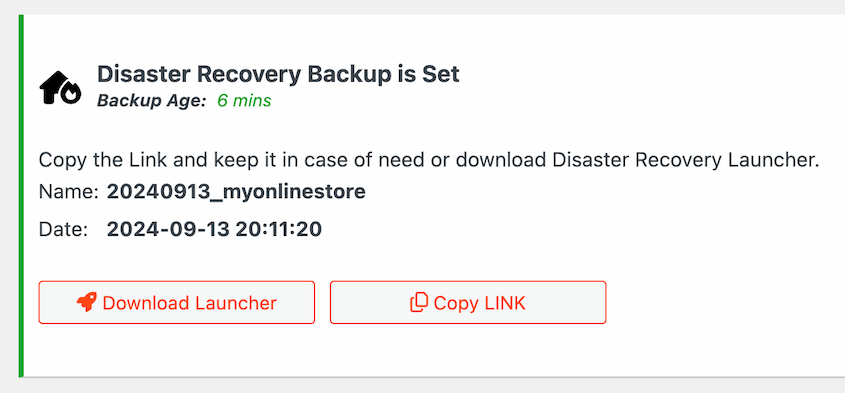
If you sent the backup to Duplicator Cloud, you can restore your site remotely.
Once the site is back to normal, reach out to your host’s support team with the specific error message you saw.
If you’re not sure where the error is coming from, the WordPress.org support forums are a good next stop — post your plugin list and the exact error text.
Frequently Asked Questions (FAQs)
What are WordPress transients?
Transients are temporary cached values stored in your WordPress database. Plugins use them to save the results of expensive operations, like remote API calls or complex database queries, so they don’t have to repeat that work on every page load.
Each transient has an expiration time. When it expires, WordPress is supposed to delete it automatically, though in practice that doesn’t always happen.
Is it safe to delete all WordPress transients?
Yes, with one condition: back up your database first. Transients are designed to be temporary, and WordPress and your plugins will recreate any they actually need.
The risk isn’t permanent breakage. It’s a brief slowdown while plugins rebuild their caches, and in rare cases a poorly coded plugin that doesn’t recover cleanly. A backup covers both scenarios.
How often should I delete transients?
There’s no universal schedule. If your database is healthy and your site is fast, there’s no urgency. If you’re seeing wp_options bloat or slow admin screens, run a cleanup. For active sites with many plugins, a monthly cleanup is reasonable.
Will deleting transients improve my site speed?
It depends on how bloated your database is. If your wp_options table has thousands of orphaned transient rows, removing them can meaningfully reduce query times, especially in the WordPress admin. On a clean database with fewer than 100 transient rows, you probably won’t notice a difference.
Should I delete transients before migrating my site?
It’s worth doing. Migrating a bloated database takes longer and produces a larger backup file. Running a transient cleanup before you clone or migrate means you’re moving a leaner database, which speeds up the migration and keeps the backup file size down.
What’s the difference between deleting expired transients and deleting all transients?
Expired transients have passed their time-to-live and serve no purpose. Deleting them is always safe. Deleting all transients includes rows your plugins are still actively using as a cache. WordPress will recreate them on the next request, but you’ll see a temporary slowdown as plugins rebuild. If you want to be conservative, start with expired only.
What if my host uses Redis or Memcached?
If your host has a persistent object cache enabled, transients are stored in memory rather than the database. The SQL query and DB Optimizer won’t find database transient rows to delete because there aren’t any. That’s expected behavior, not an error. Check with your host to confirm whether object caching is active on your account.
Does the WP-CLI –all flag also clear Multisite transients?
No. The --all flag clears site-level transients only. On a WordPress Multisite network, you need to run a second command to clear network-wide transients: wp transient delete --all --network. If you skip it, network-level transient rows stay in the database.
Your Database Doesn’t Stay Clean on Its Own
You’ve just removed rows that were silently adding overhead to every database query on your site. The wp_options table will run leaner, admin screens will load faster, and you’ll have one less thing accumulating in the background without you knowing.
Going forward, watch the transient count rather than treating this as a one-time fix. If it climbs back into the thousands within a week of a cleanup, that’s a signal worth acting on.
One more thing that’s easy to miss: deleting transient rows doesn’t automatically shrink your database on disk. The space those rows occupied stays reserved until you run an optimization.
DB Optimizer handles this as part of the cleanup process. That final step is what actually reclaims the space and gets the full performance benefit.
Get DB Optimizer free with Duplicator Pro!
If this tutorial helped you optimize your database, these guides are worth bookmarking too.
- How to Optimize Your WordPress Database
- Here Are the WordPress Database Repair Steps I Took Myself
- WordPress Database Maintenance: What to Do Weekly, Monthly, and Quarterly
- 7 WordPress Database Warning Signs Most Site Owners Miss
- How to Fix a Slow WordPress Database: A 4-Step Checklist




