

How to Set Up Incremental Backups
Incremental Backups keep your site protected without creating a full backup every time. Duplicator first saves one full copy of your site, called the baseline. After that, each backup uploads only the files and database tables that changed. Each backup is small, runs quickly, and uses much less storage than a full backup.
In this tutorial, we will show you how to set up Incremental Backups from start to finish: connect Duplicator Cloud, create your baseline, schedule your backups, and choose which files and tables Duplicator watches for changes.
Requirements:
- Duplicator Pro 5.1.0 or newer.
- A Duplicator Cloud connection. Incremental Backups are a Duplicator Cloud feature, and every backup in the chain is stored there.
- An active Duplicator Pro or Elite license to setup incremental backup.
In This Article
Connecting Duplicator Cloud
If your site isn’t connected to Duplicator Cloud yet, the Duplicator Pro » Incremental Backups page explains the feature and asks you to connect first.
1. On the Incremental Backups page, click on Connect Duplicator Cloud. This takes you to Duplicator Pro » Settings. Click on Connect via Duplicator Pro License.
2. Select one of your Duplicator Cloud storages from the pop-up.
3. When you see the success message, go back to Duplicator Pro » Incremental Backups. The page now shows Cloud storage connected.
For a detailed walkthrough with screenshots, see Storing Your Backup to Duplicator Cloud.
Creating Your Baseline Snapshot
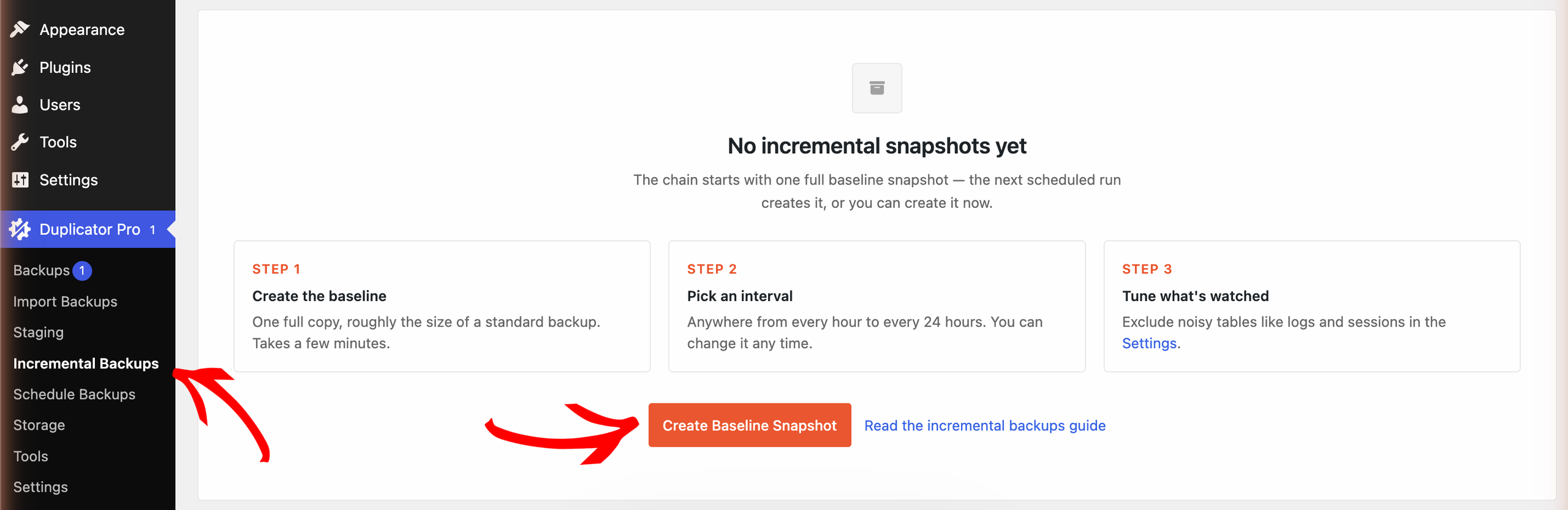
Every incremental backup chain starts with a baseline. This is one full copy of your site, roughly the size of a standard backup.
1. Navigate to Duplicator Pro » Incremental Backups and click on Create Baseline Snapshot:
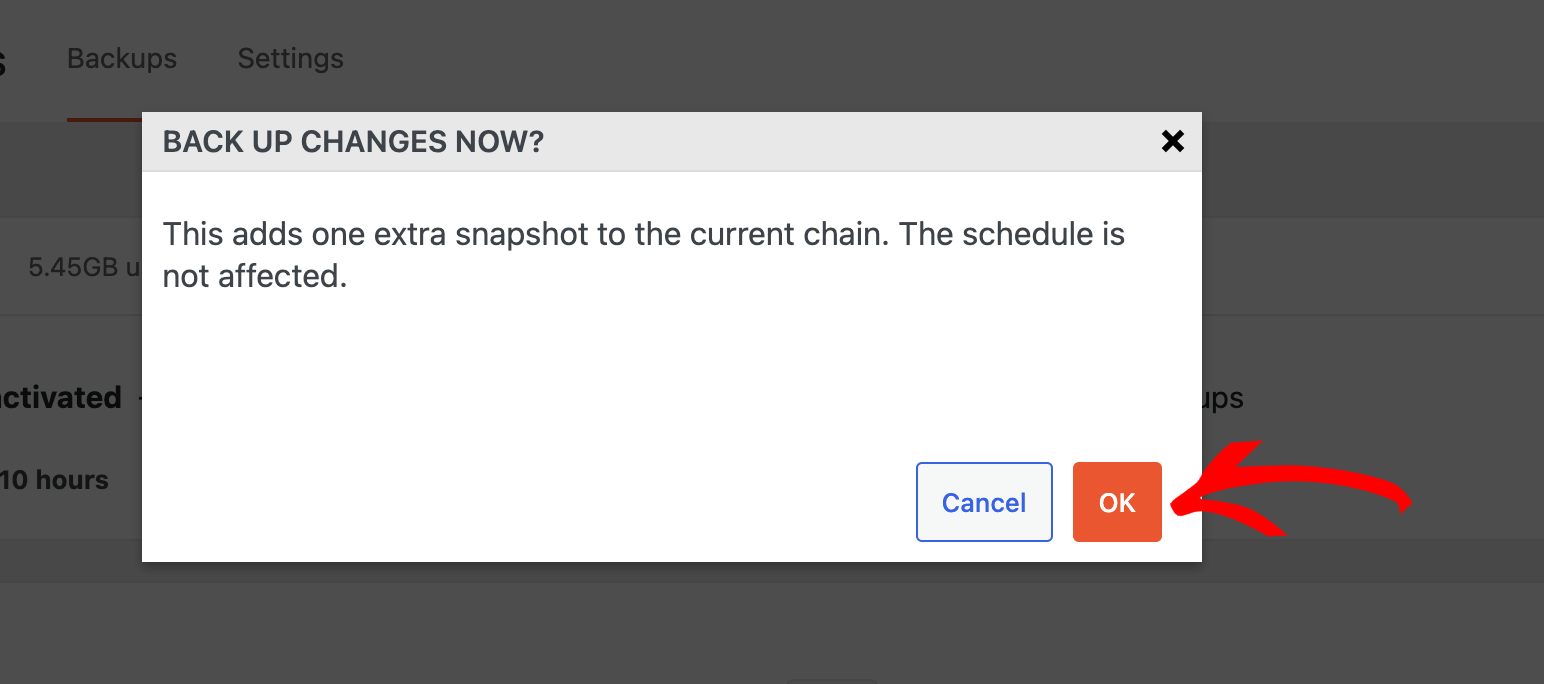
2. Click OK to confirm:
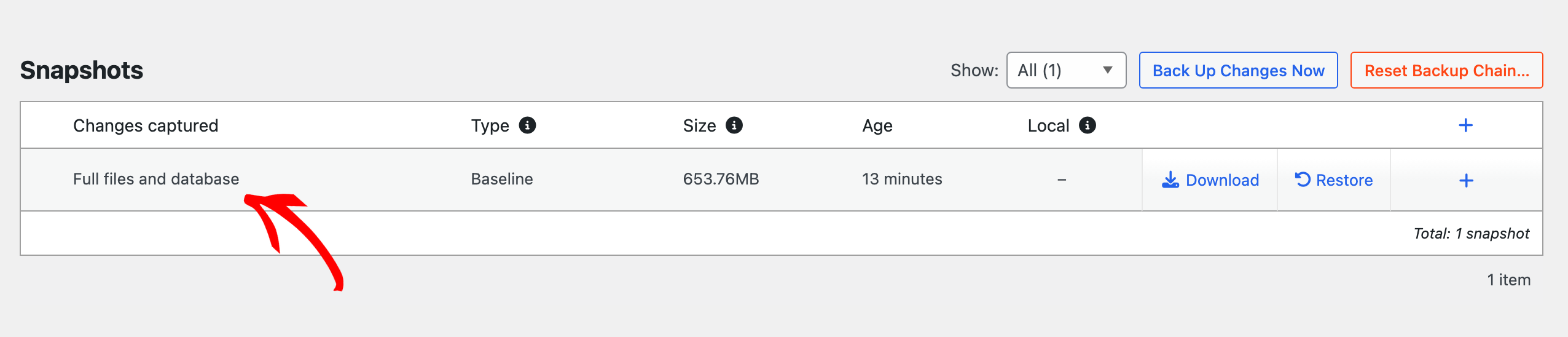
3. Duplicator creates the baseline and uploads it to Duplicator Cloud. This can take a few minutes, depending on the size of your site.
4. When it’s done, the baseline appears in the Snapshots list:
Note: If you skip this step, the first scheduled run creates the baseline for you.
Scheduling Incremental Backups
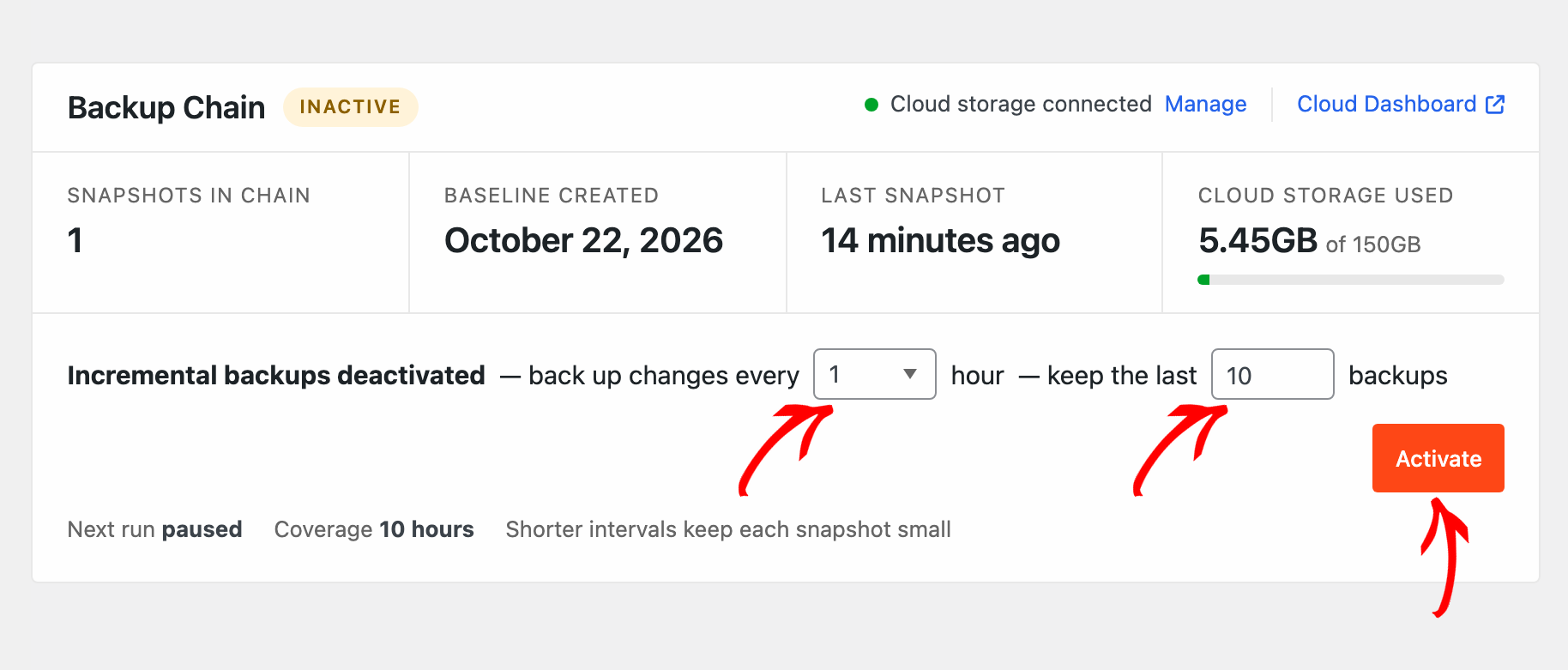
Once the baseline is ready, set how often Duplicator checks your site for changes and how many backups to keep.
1. In the Backup Chain panel, use back up changes every to choose an interval from 1 to 24 hours.
2. Use keep the last to set how many backups to keep. The minimum is 2.
3. Click on Activate:
4. The chain now shows as Active, and Next run tells you when the next backup starts:
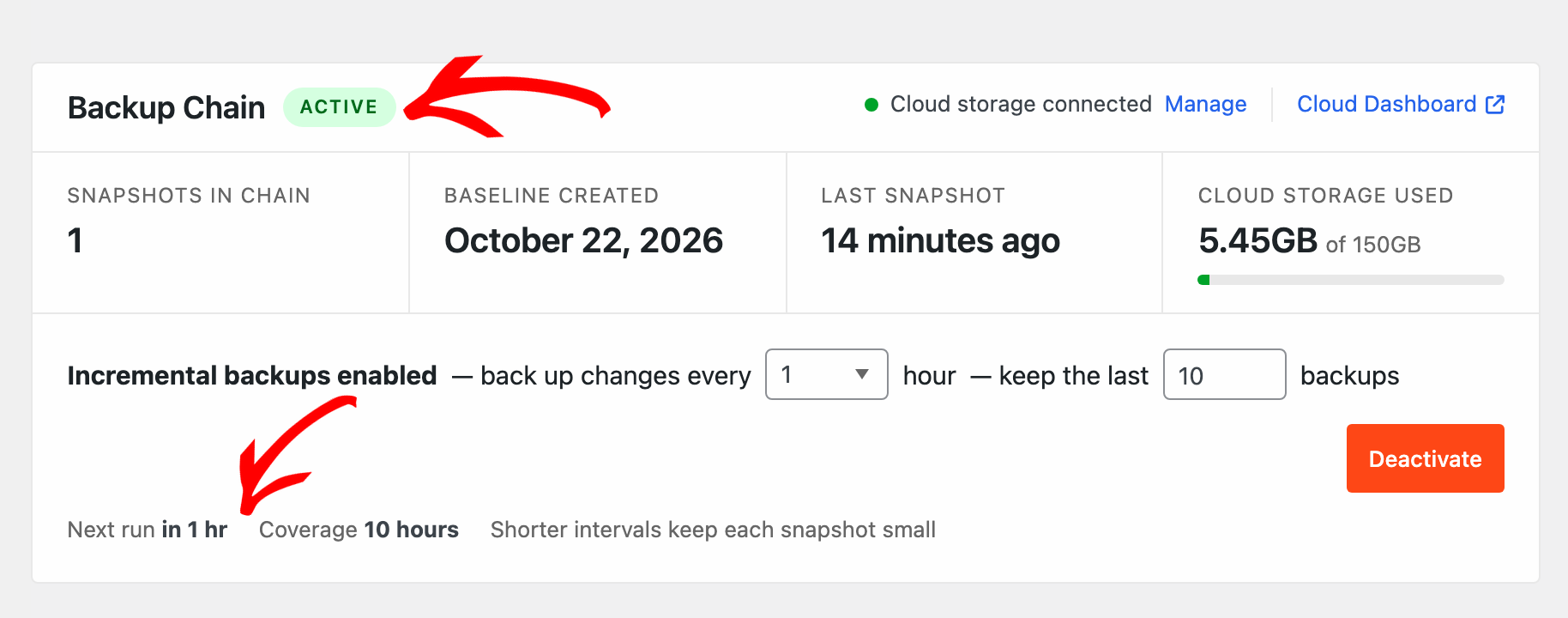
Shorter intervals keep each snapshot small. If nothing changed since the last backup, the run is skipped. A skipped run is not a failure.
Choosing What to Watch: Unwatch vs. Exclude
By default, any change to your files or database starts a new backup. On the Settings tab, you can change how specific folders, files and database tables are treated. Besides the default Backup, there are two options:
- Unwatch: Changes to this item do not start a new backup, but the item is still included in every backup. Use it for things that change often but should still be in your backups, such as log folders.
- Exclude: The item is left out of your backups completely, so it is never backed up and never starts a backup. Use it for things you don’t need to restore, such as a folder of large videos stored elsewhere.
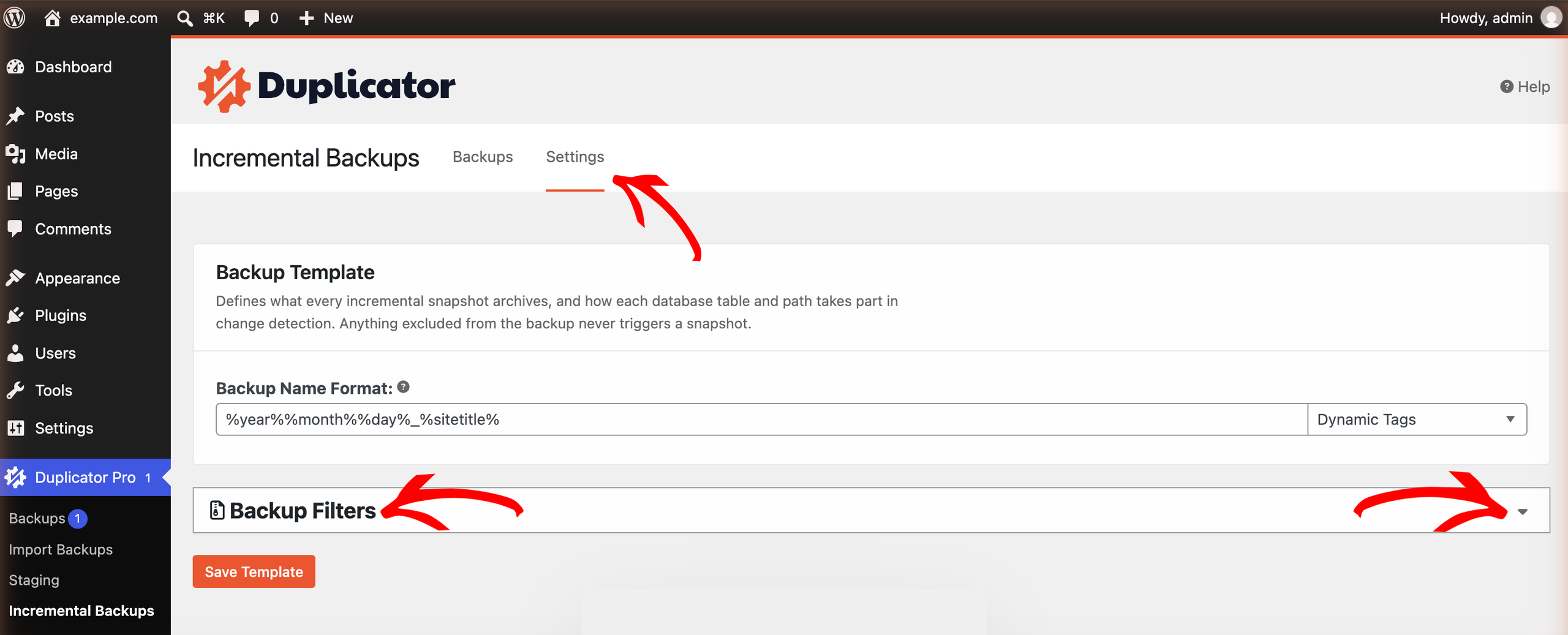
1. Open the Settings tab and expand Backup Filters:
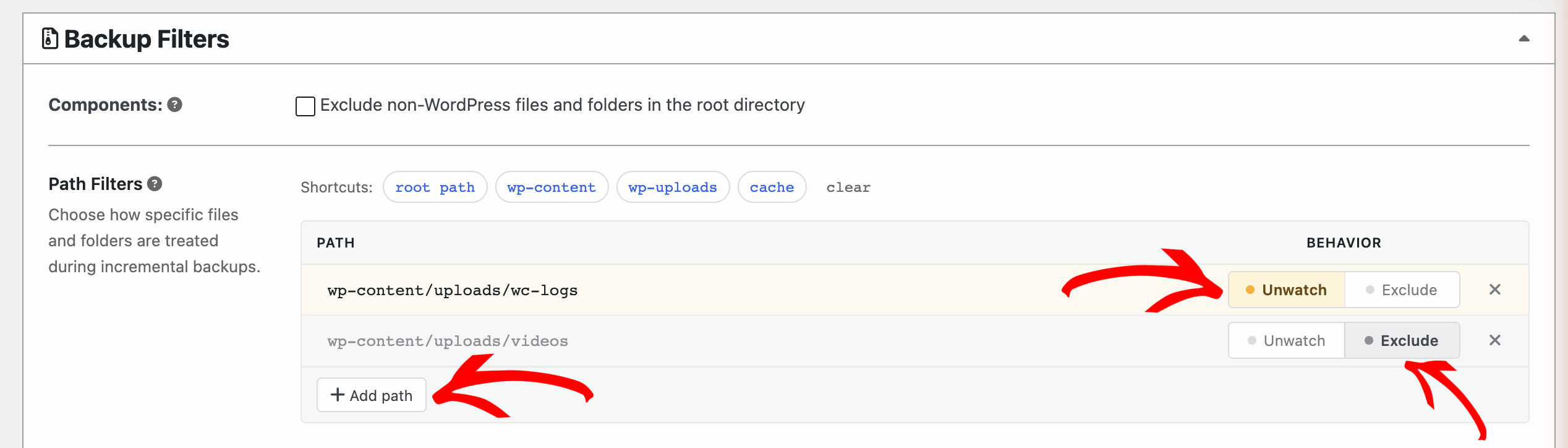
2. Under Path Filters, click on Add path, enter the folder or file path, and choose Unwatch or Exclude. In this example, the wp-content/uploads/wc-logs folder is unwatched and the wp-content/uploads/videos folder is excluded:
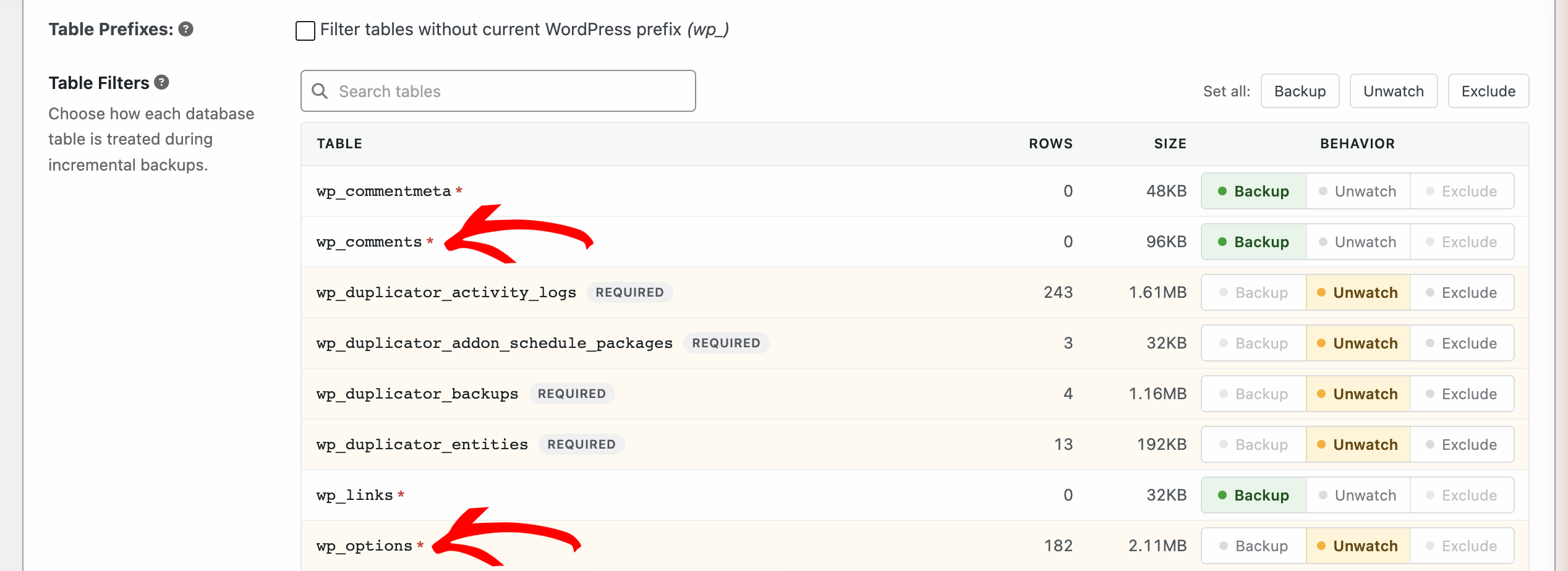
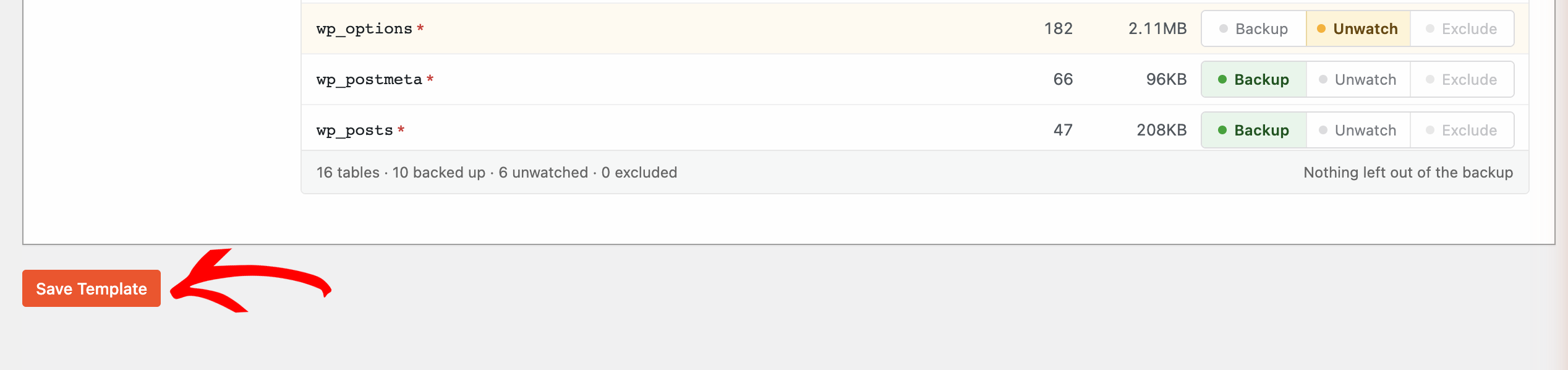
3. Under Table Filters, choose Backup, Unwatch or Exclude for each database table:
4. Scroll down and click on Save Template:
Backing Up Changes Manually
You don’t have to wait for the schedule. To create a backup right away, click on Back Up Changes Now and confirm with OK:
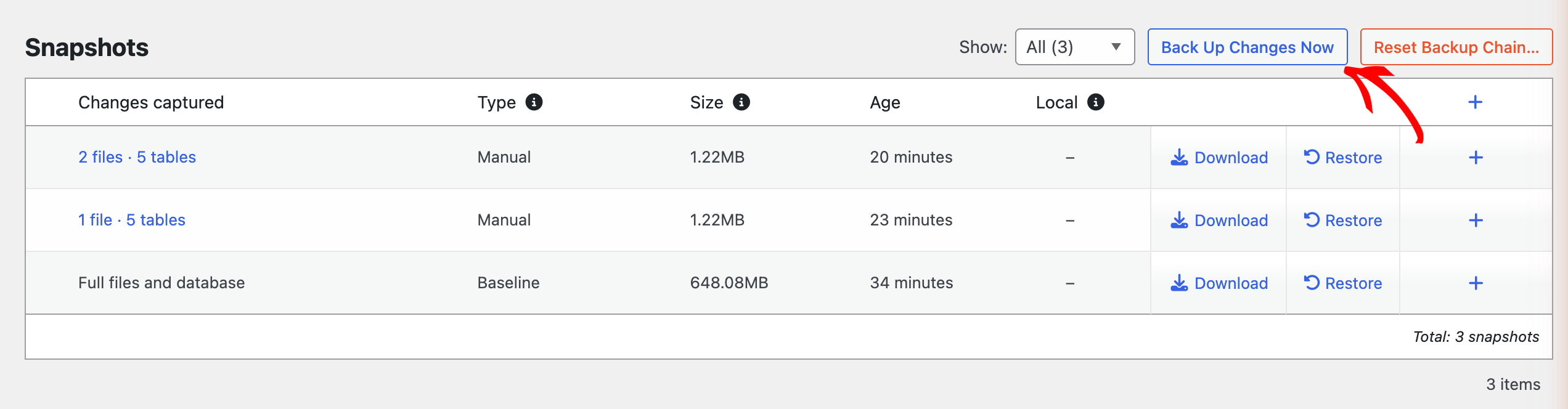
This adds one extra snapshot to the same chain. Your schedule is not affected.
Viewing What Each Backup Captured
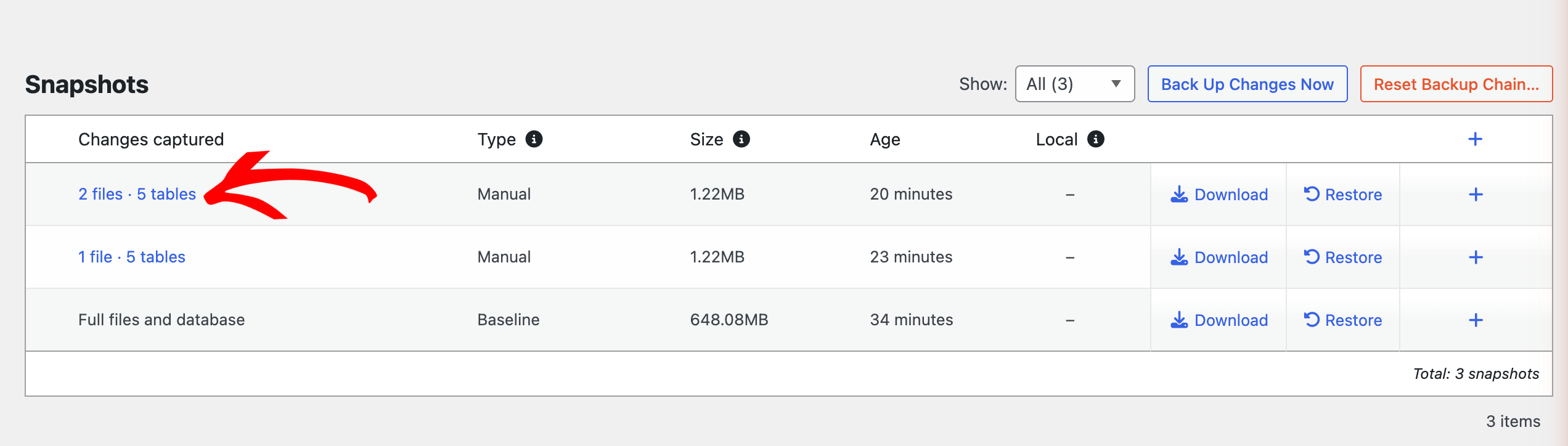
In the Snapshots list, click on the changes summary of any backup, for example 2 files · 5 tables:
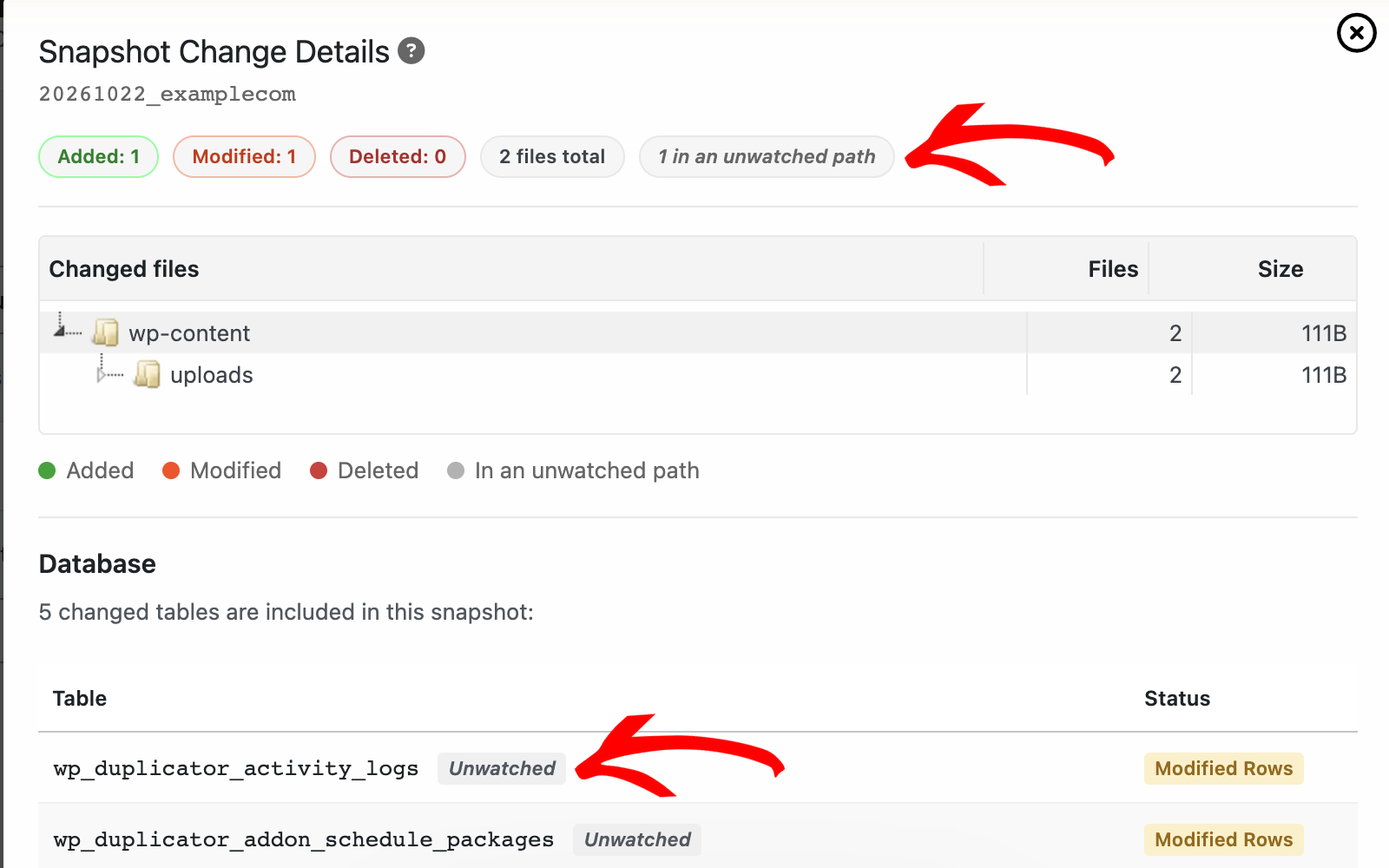
The Snapshot Change Details window lists every file and table the backup captured. Files in unwatched folders are shown as in an unwatched path, and unwatched tables are tagged Unwatched:
You can also see all your backups on Duplicator Cloud. Click on Cloud Dashboard in the Backup Chain panel to open it.
That’s it! You now know how to set up Incremental Backups and choose what Duplicator watches for changes.
As a next step, check out our guide on Restoring Your Backup.


