

Storing Your Backup to Duplicator Cloud
Duplicator Cloud is the in-house storage solution for keeping backups safe and accessible when your website is down. Because Duplicator Cloud was developed and is maintained by the Duplicator team, it works seamlessly with Duplicator Pro.
In this tutorial, we will show you how to connect to Duplicator Cloud. For this, you have two options.
Option 1: Connect from the Settings page via Duplicator Pro license
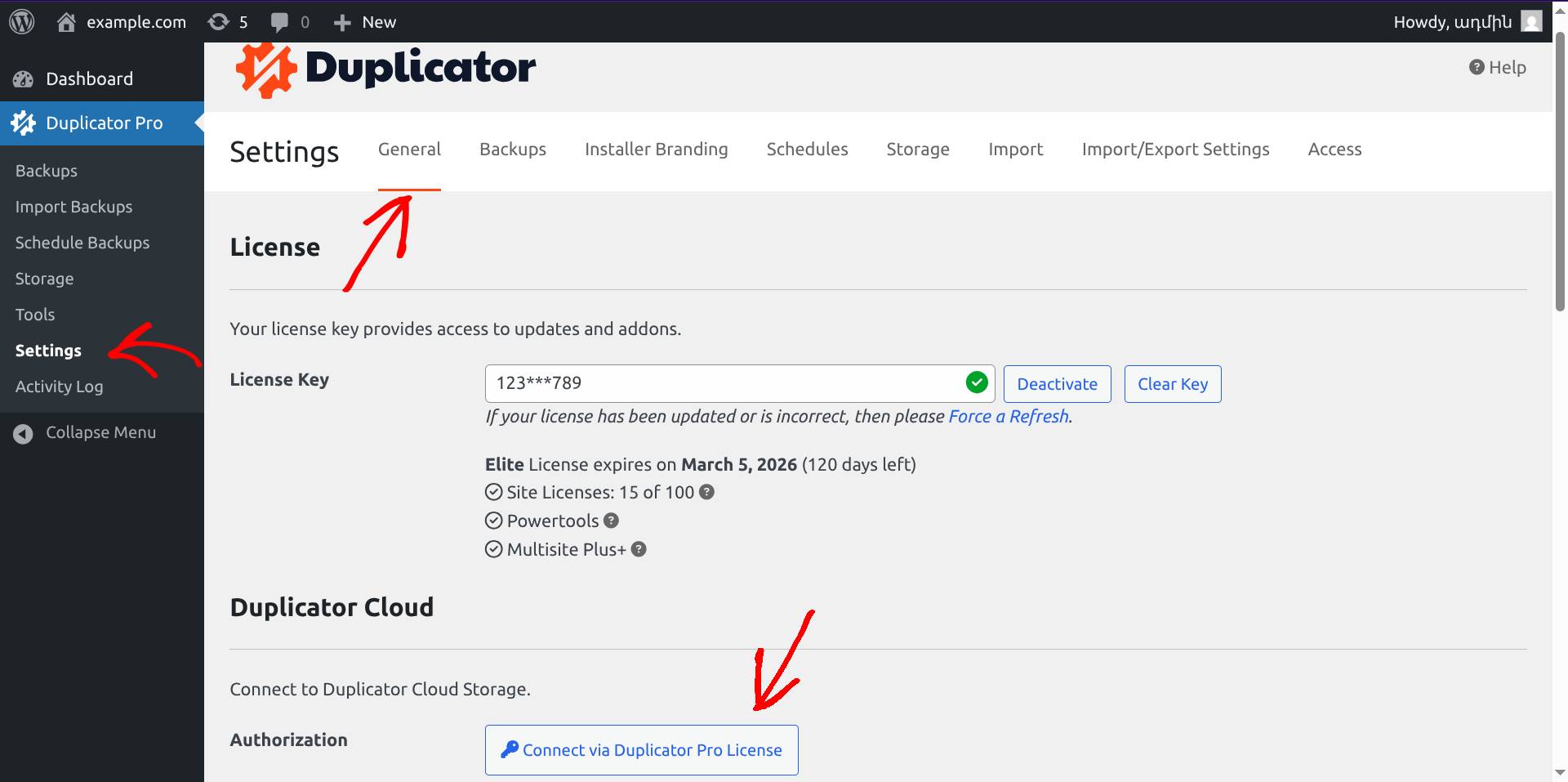
1. Open Duplicator Pro » Settings and click on the button Connect via Duplicator Pro License
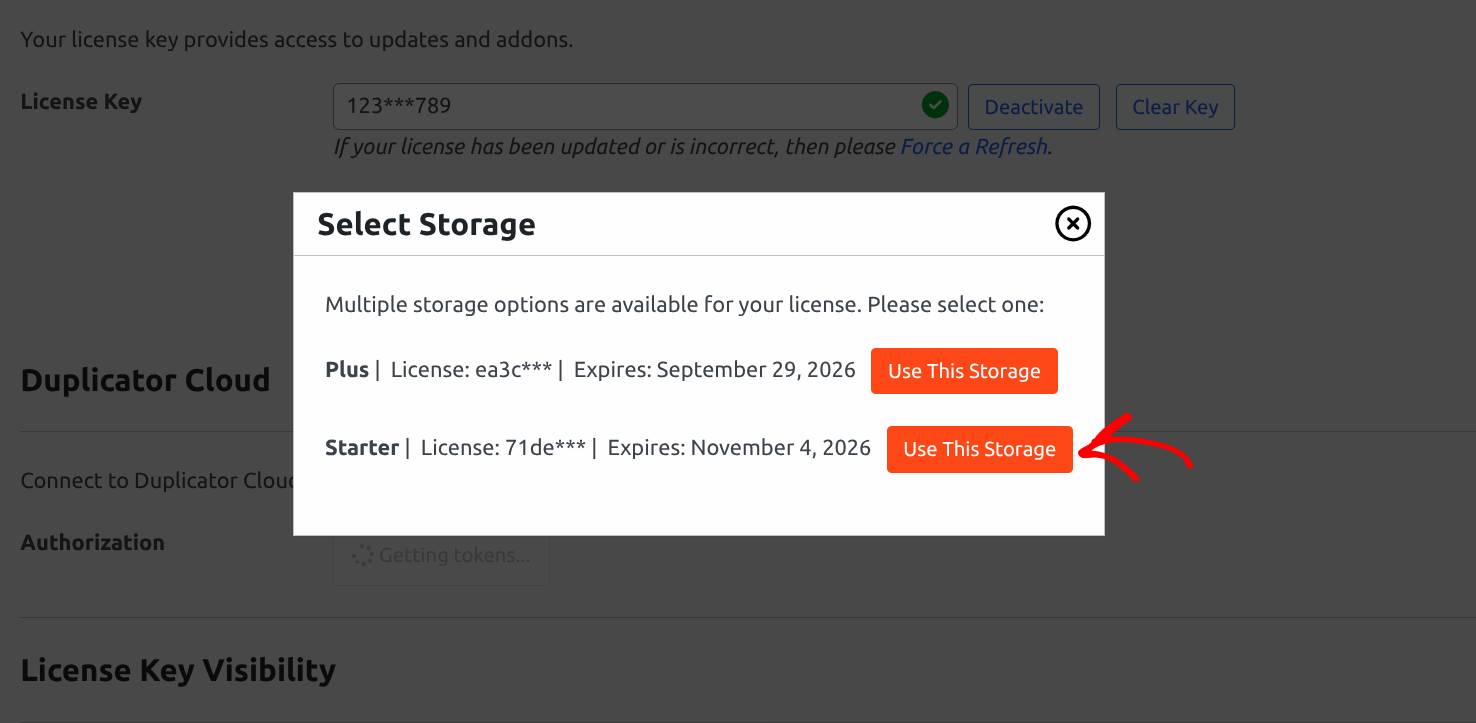
2. From the pop-up, select one of your available Duplicator Cloud storages
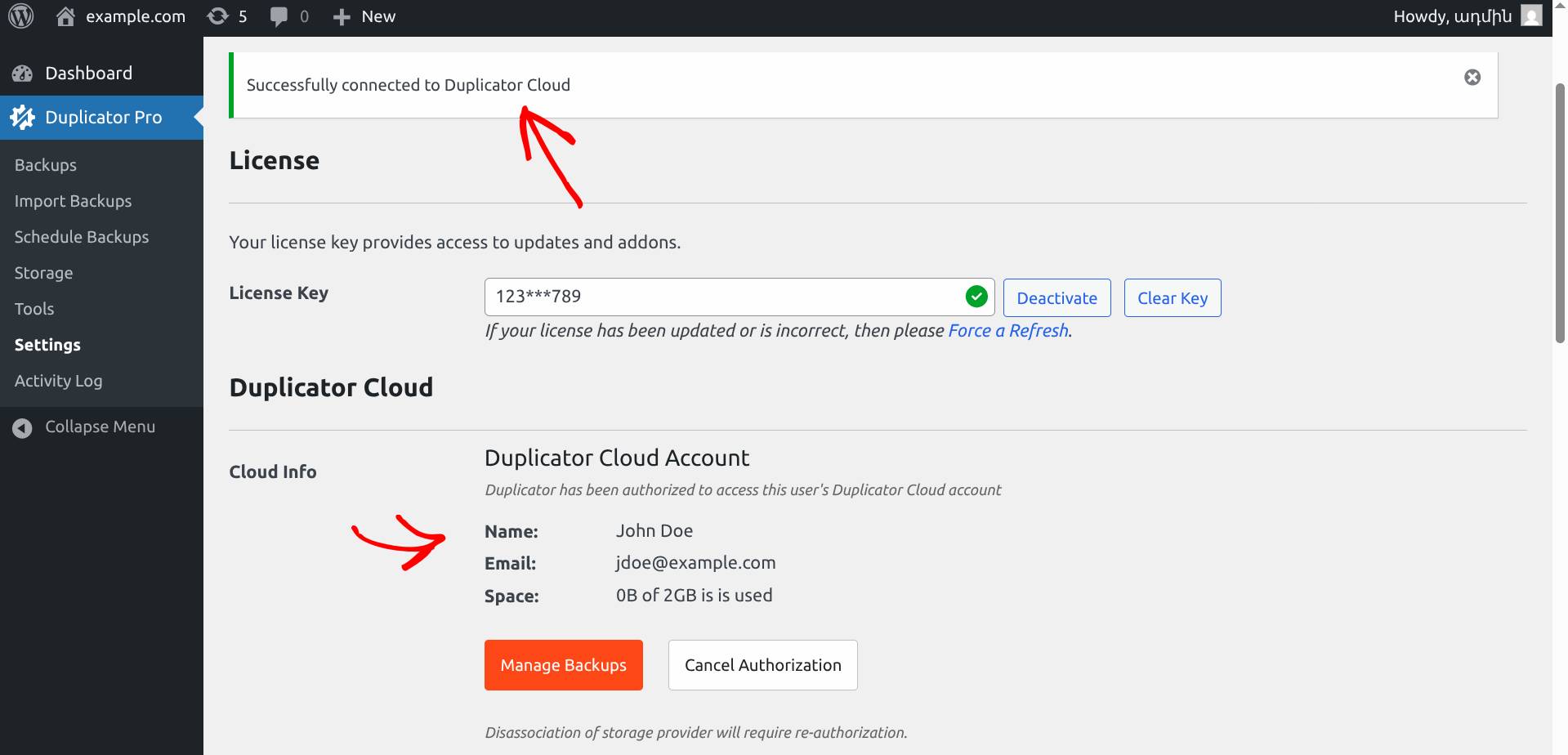
3. If you see the success message and information about your Duplicator Cloud account, congratulations, you are now successfully connected!
Option 2: Connect from Storage page by creating a new storage
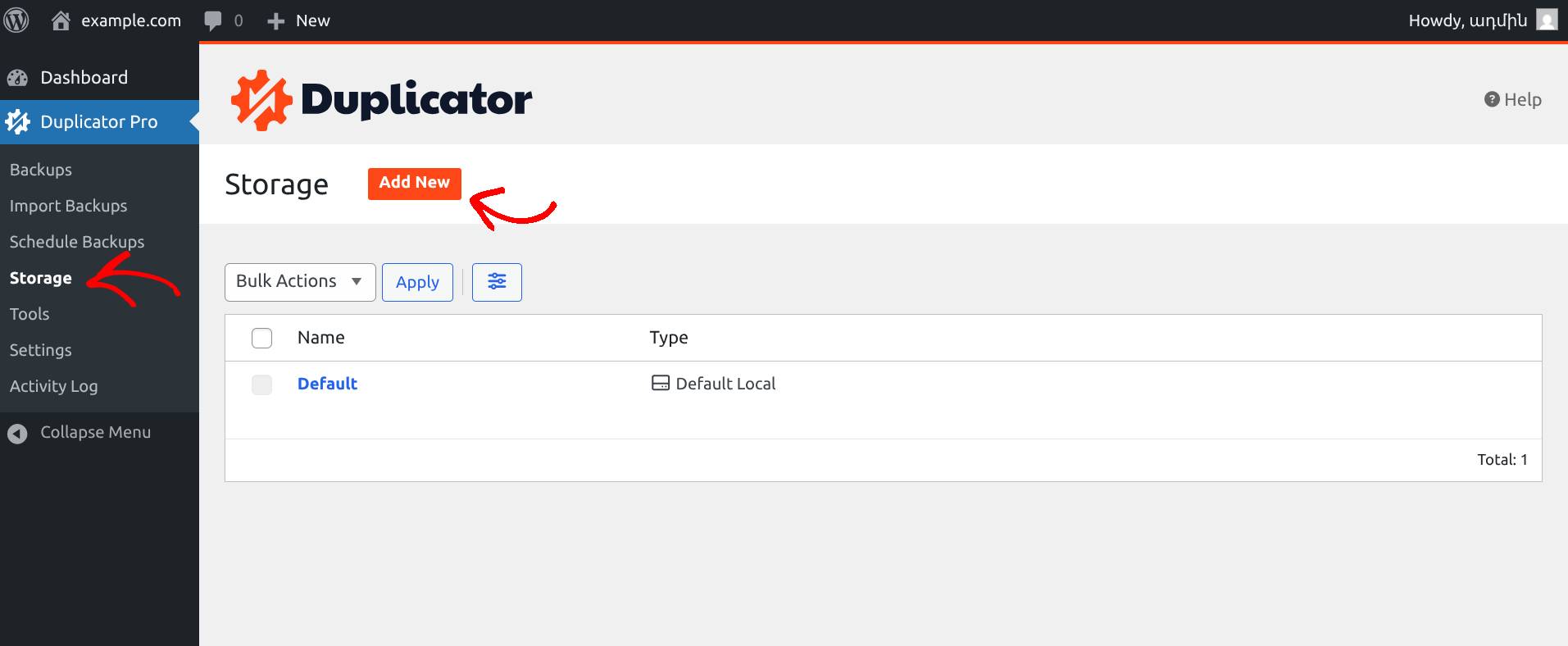
1. Open Duplicator Pro » Storage and click on the Add New button
2. Enter a Name for the storage and select Duplicator Cloud from the Type dropdown
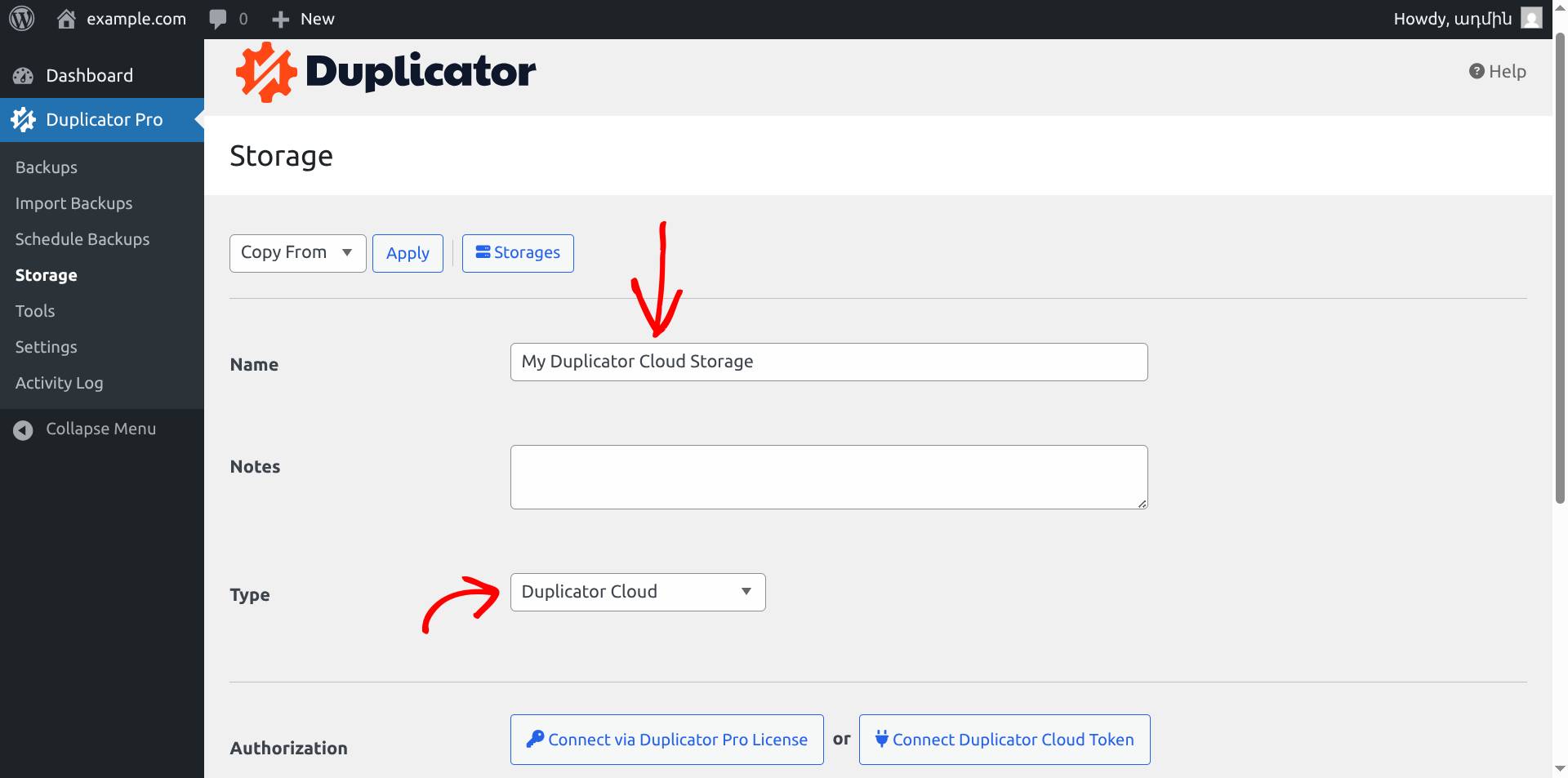
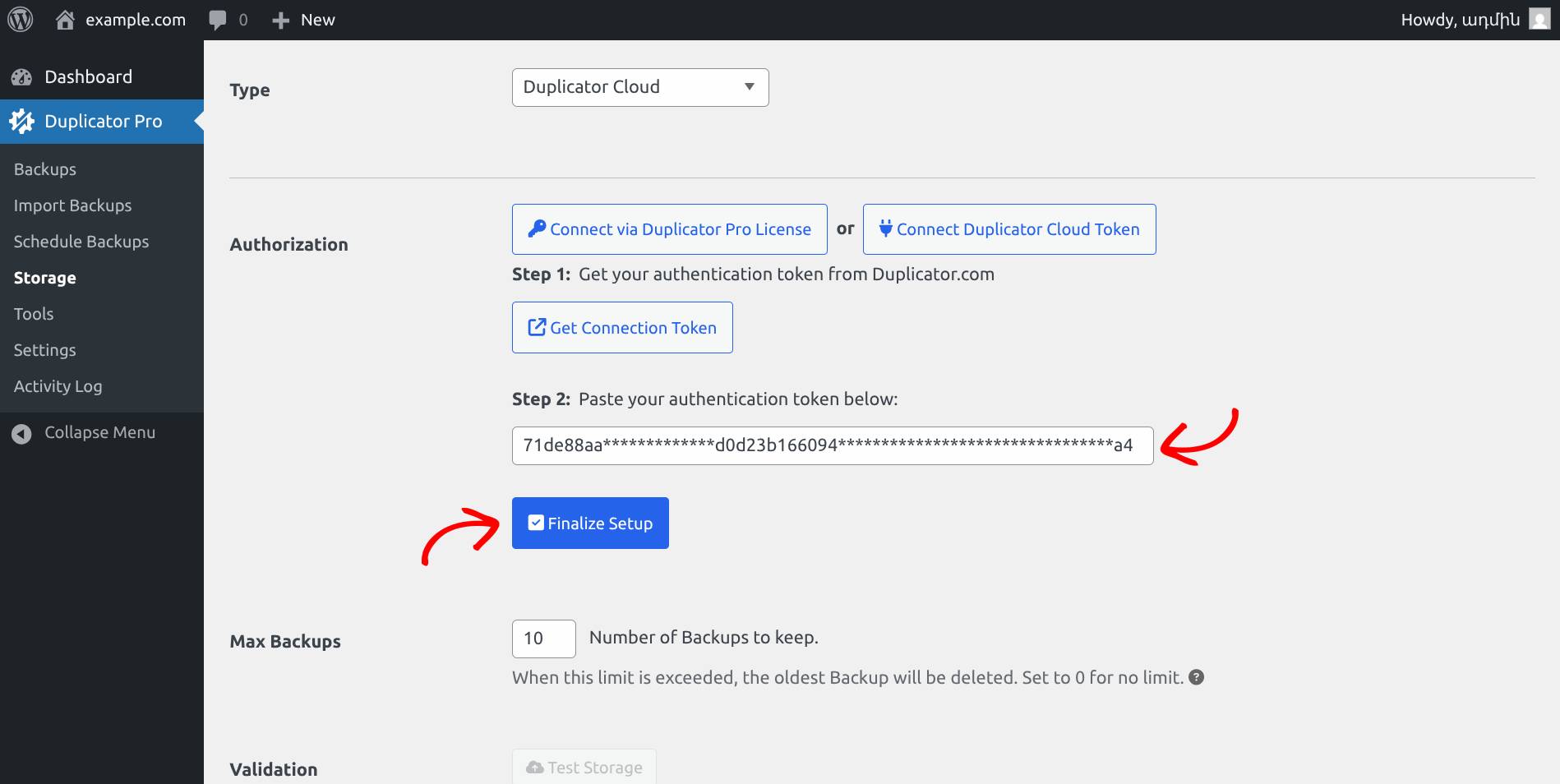
3. Click on the button Connect Duplicator Cloud Token (note, if you prefer to proceed with “Connect via Duplicator Pro License”, the steps are the same as in Option 1)
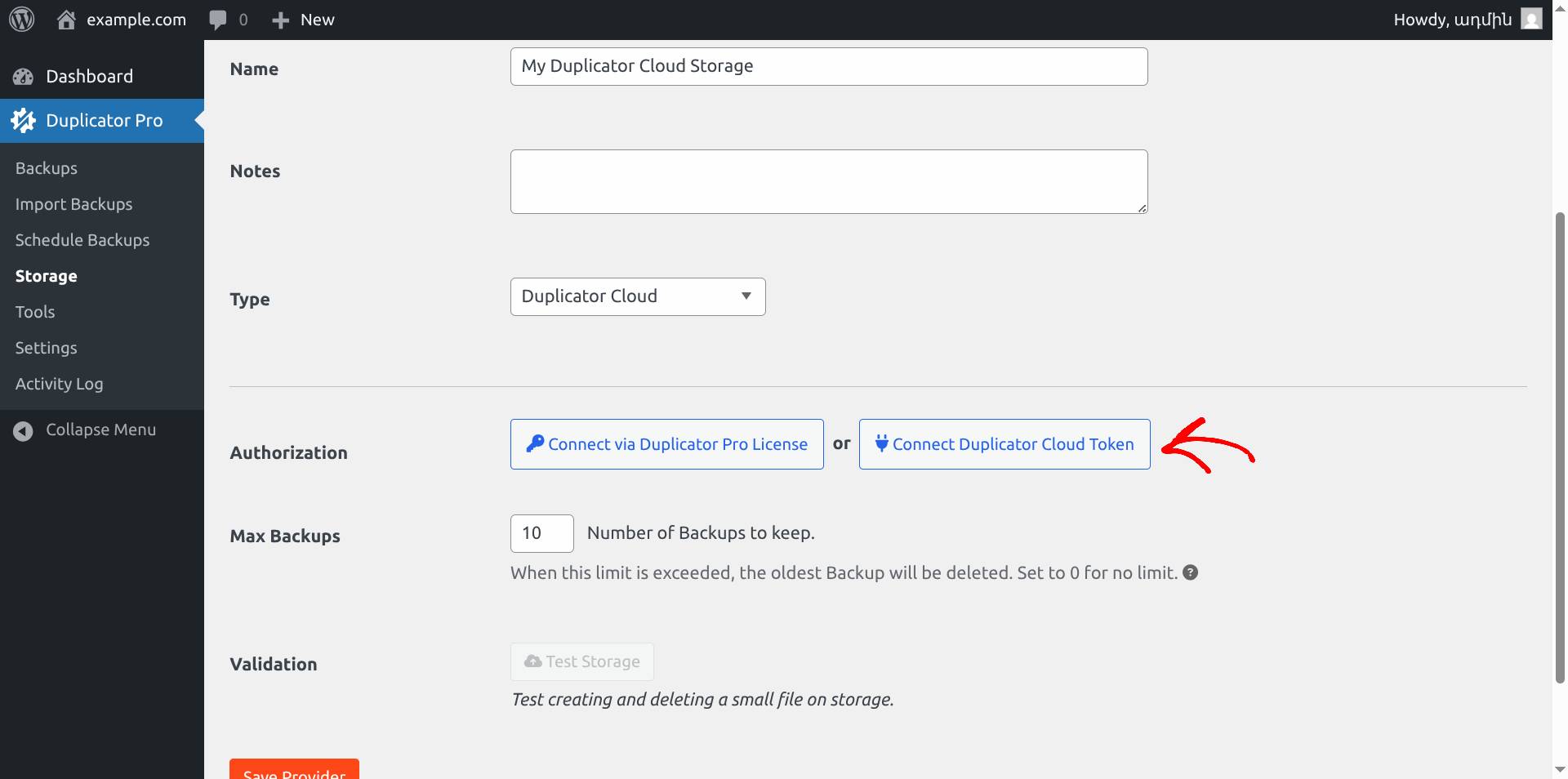
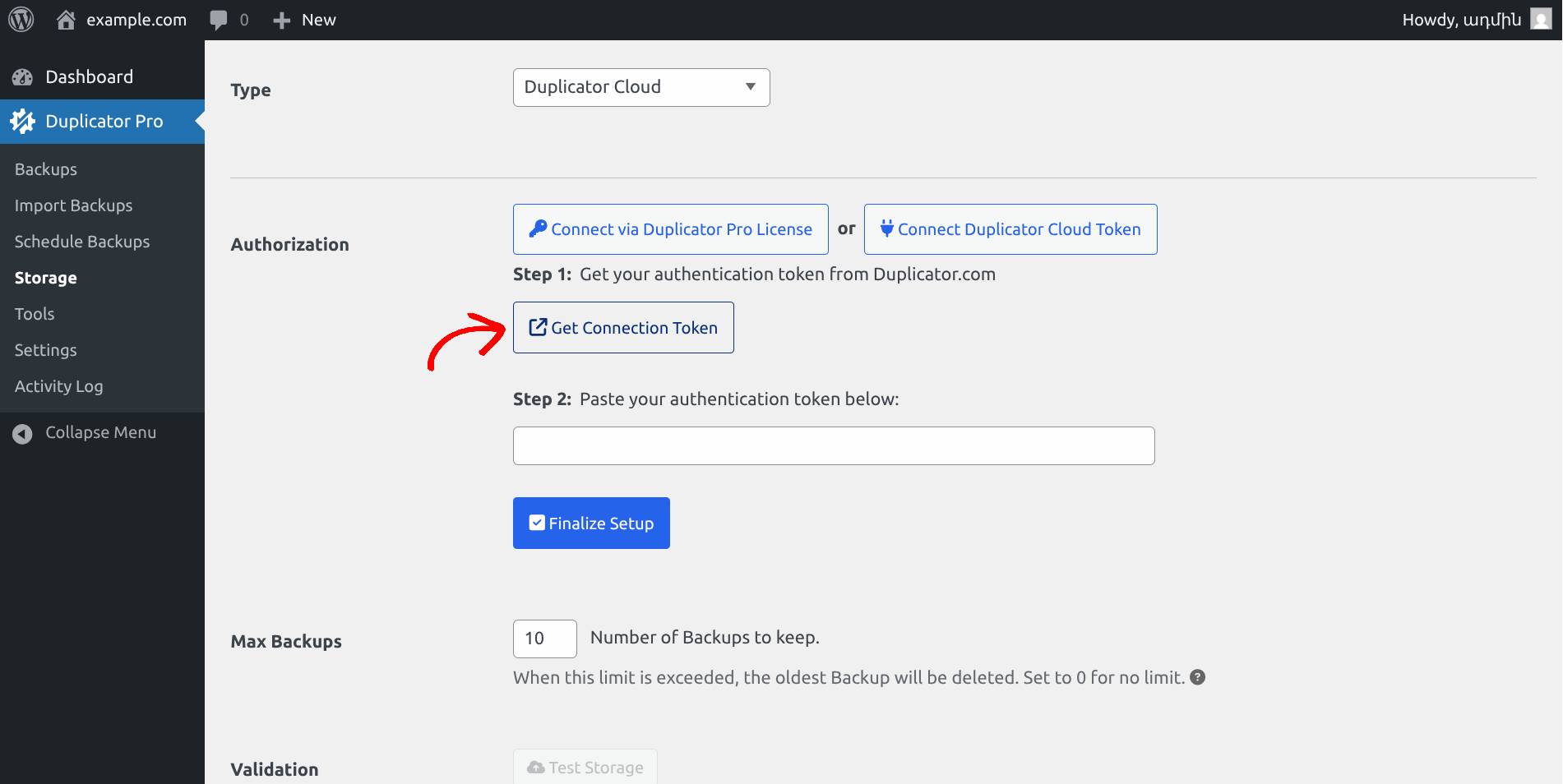
4. Click on the button Get Connection Token, this will open up duplicator.com
5. Locate your preferred Duplicator Cloud license type and click on Get Connection Token
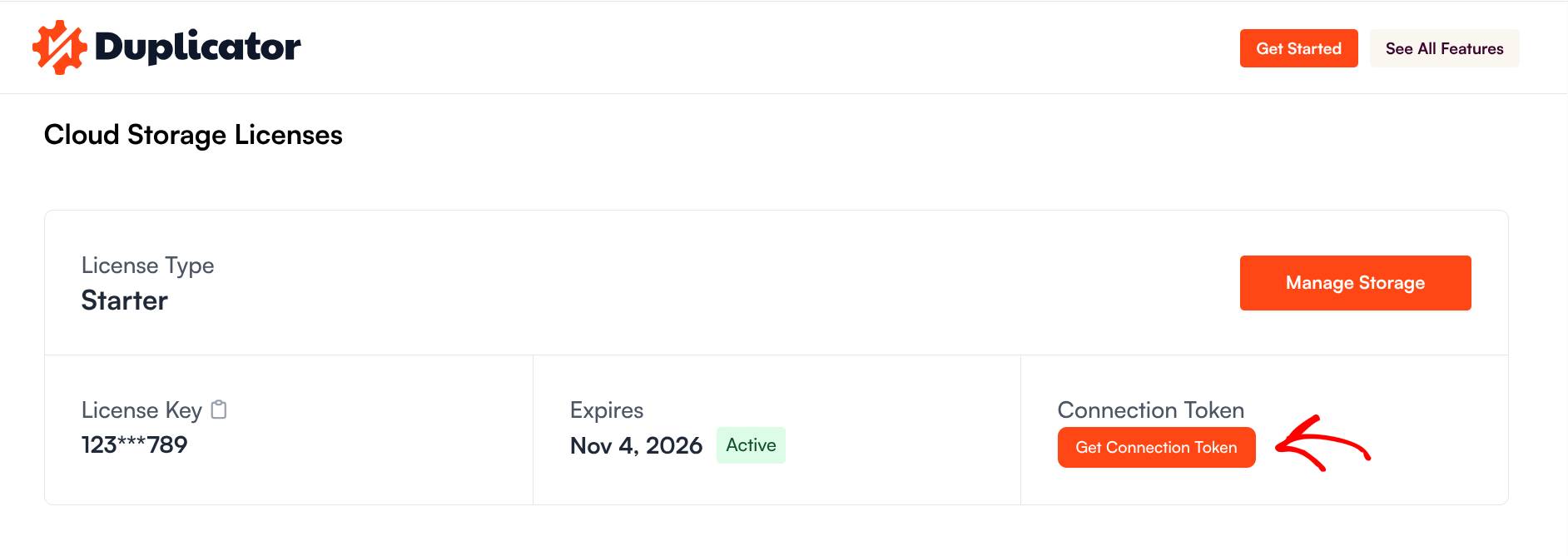
6. Copy the token
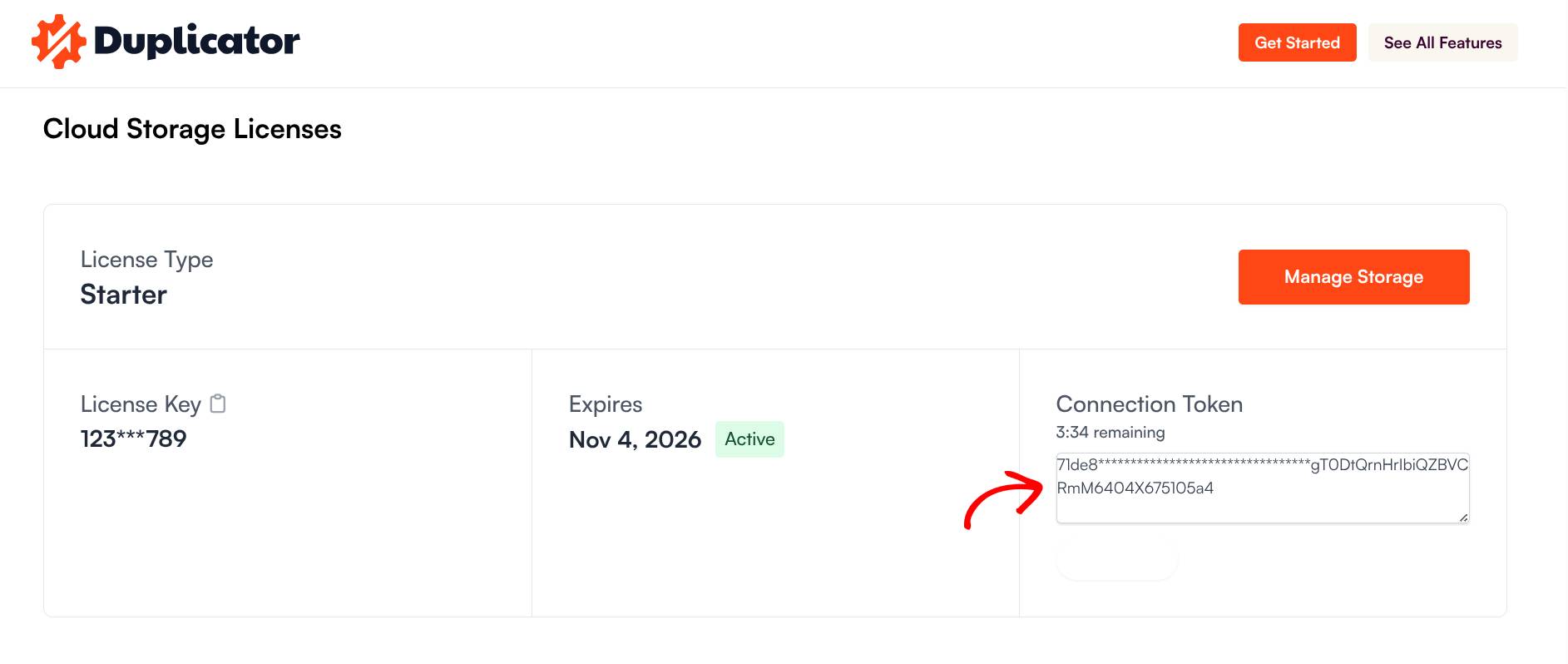
7. Paste the token into the input field for Step 2 and click the button Finalize Setup
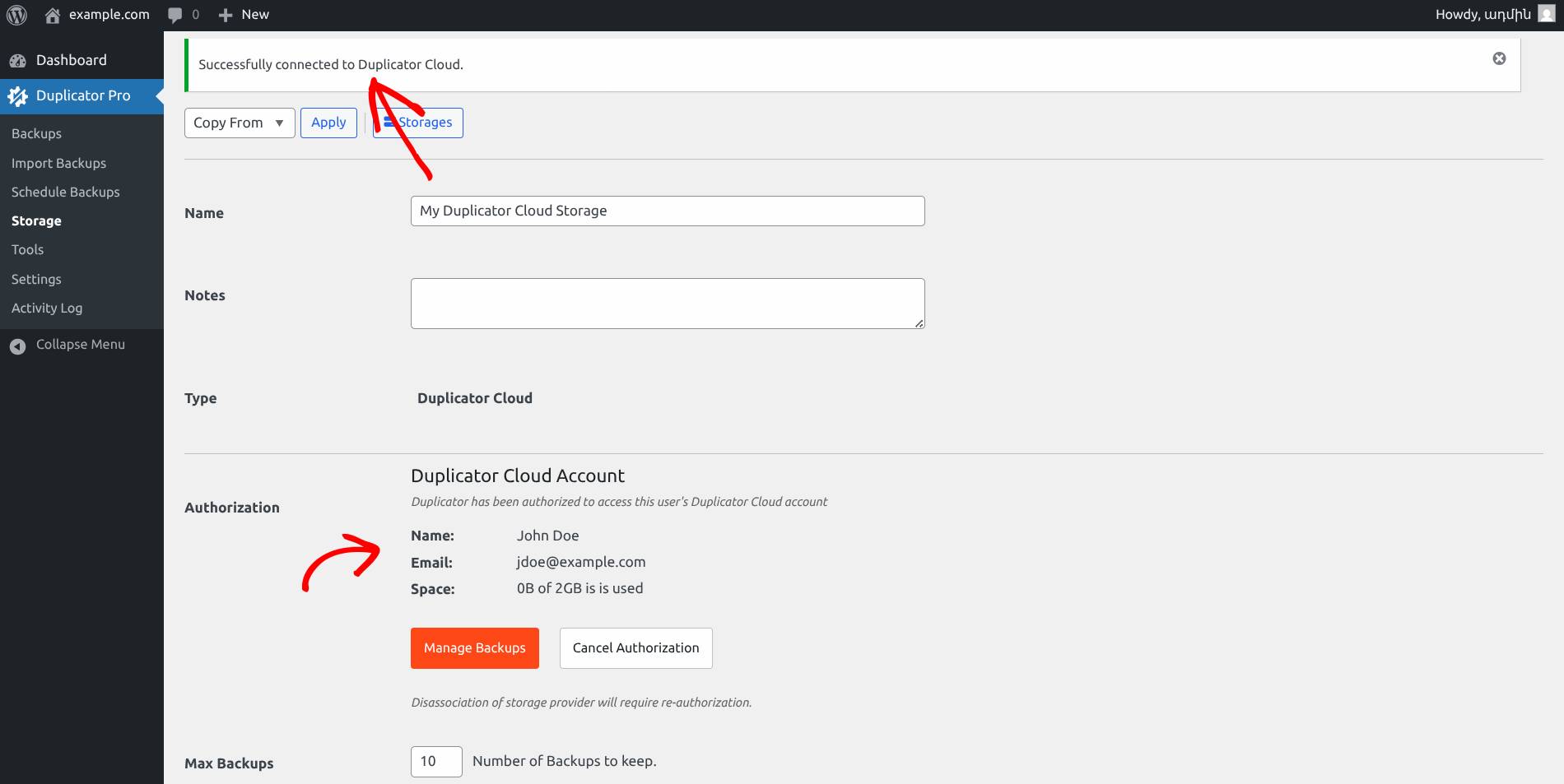
If you see the success message and information about the storage, congratulations, you successfully connected to Duplicator Cloud!
Creating Backup and Storing it to Duplicator Cloud
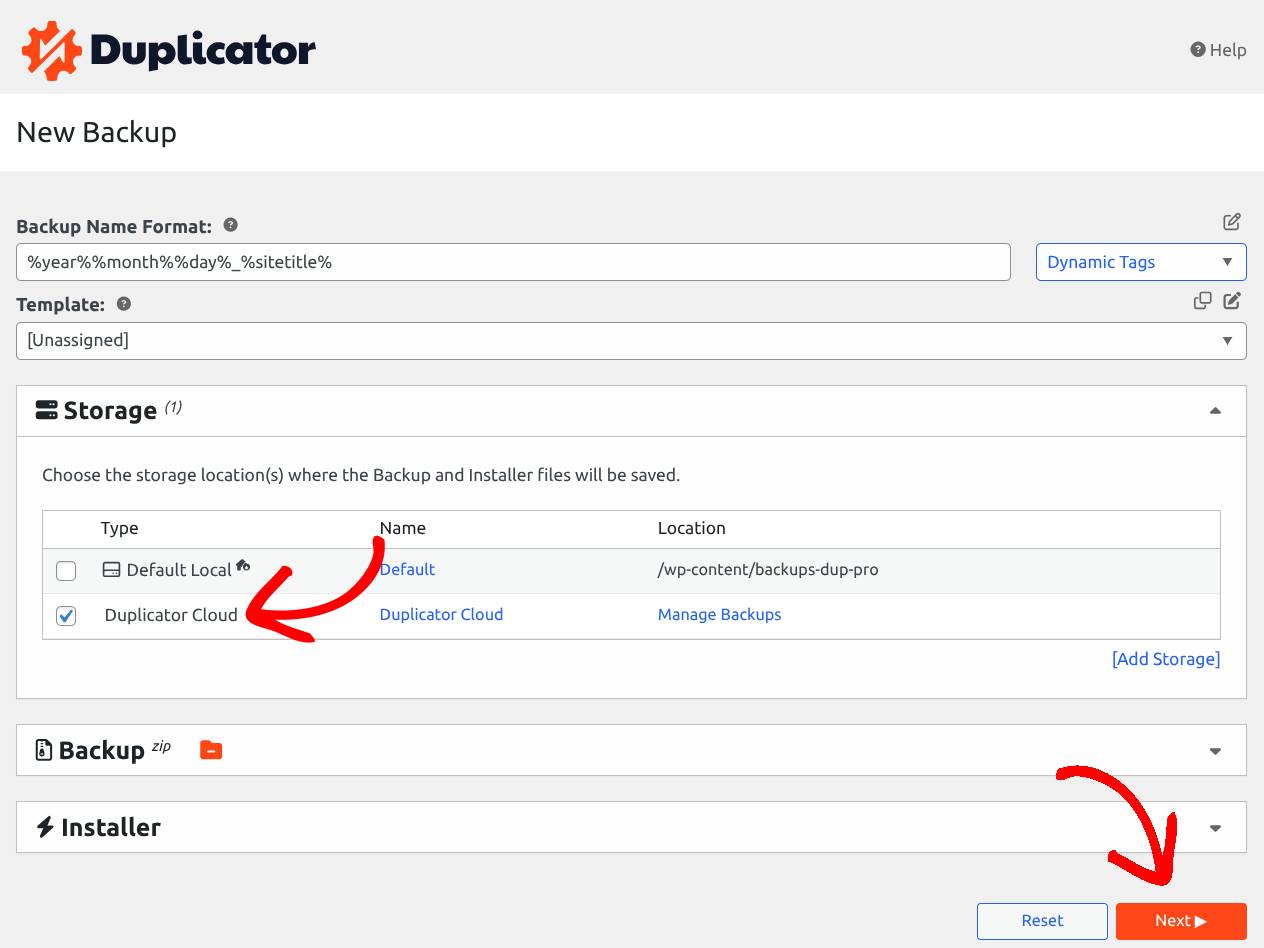
Begin with creating a backup and make sure to select the Storage as Duplicator Cloud.
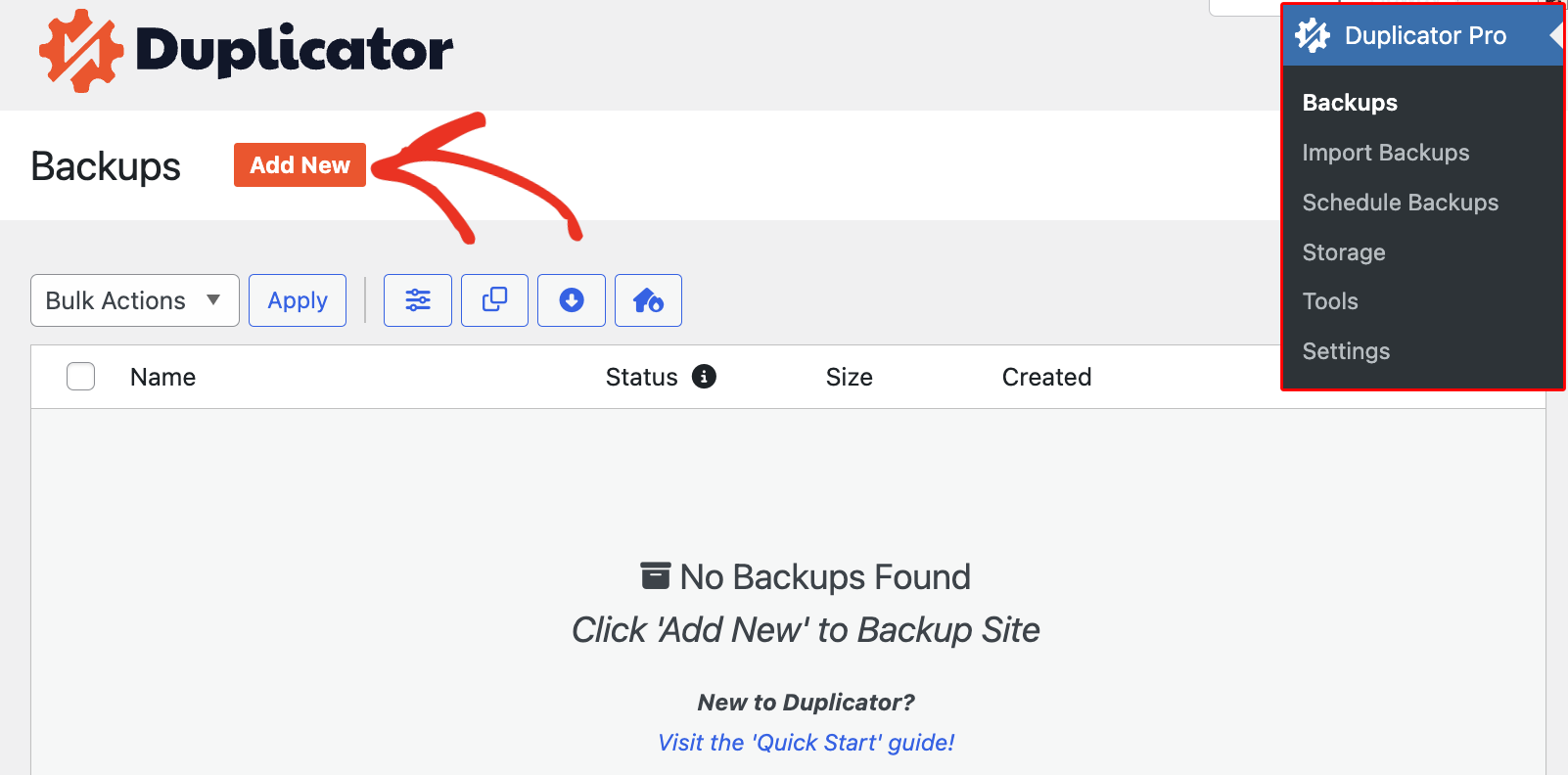
1. Navigate to Duplicator Pro » Backups » Add New
2. Set the backup name format, then set the Storage to Duplicator Cloud and click Next
3. Duplicator will scan your site and flag any issues before you continue
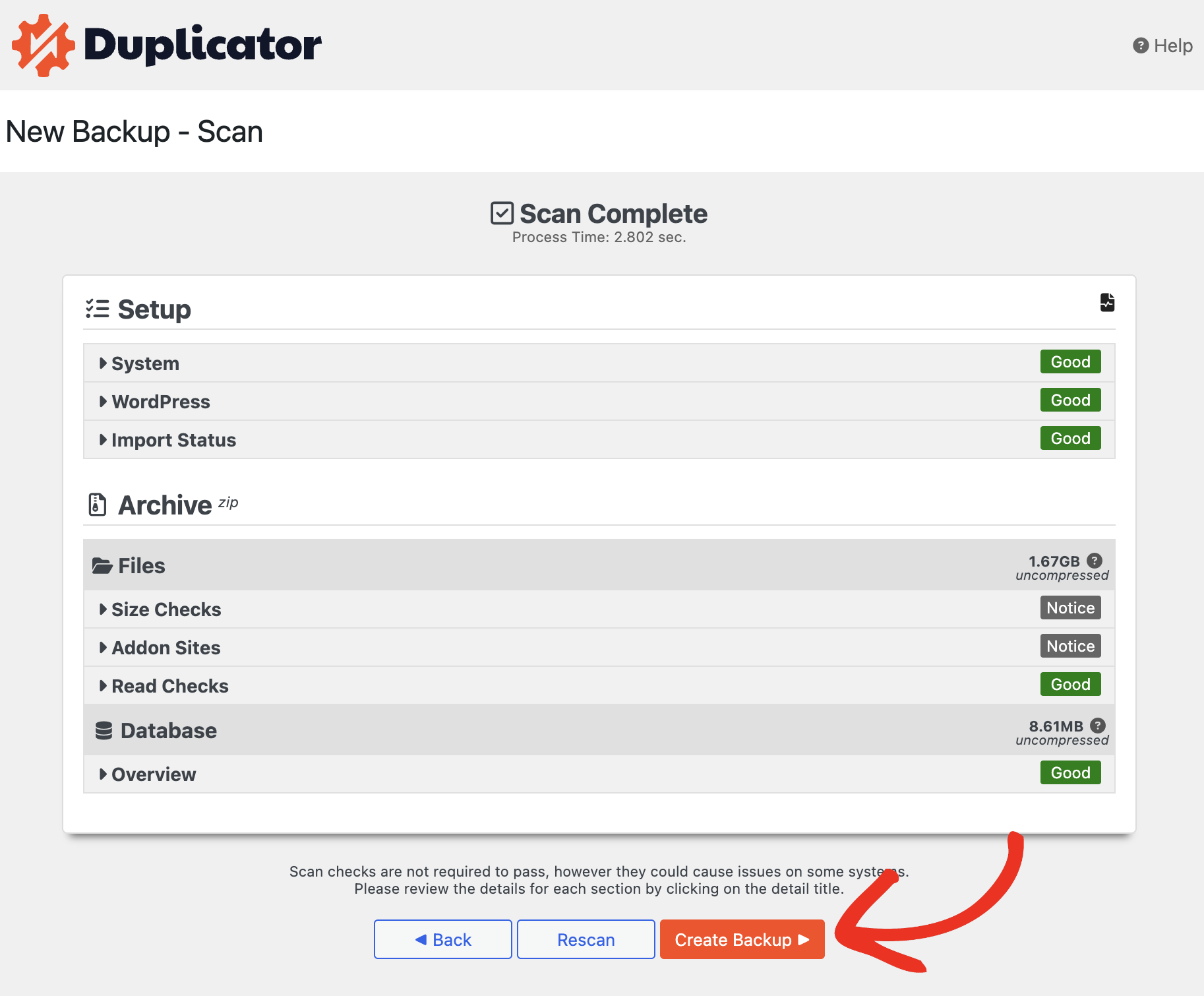
4. Click Create Backup to build the backup and transfer it to Duplicator Cloud
That’s it. Your backup is now stored on Duplicator Cloud, ready to restore whenever you need it.
To view, organize, or manage the backups you’ve stored, see Managing Duplicator Cloud.


