

Resolving 403/500/timeout issues on step 3
Running into a 403, 500, or timeout error on Step 3 of the installer? These issues aren’t common, but they can happen on budget hosts or hosts that aren’t configured well for running the installer.
Below is a list of quick options and error responses with recommendations for each. For a specific error code, jump directly to that section.
QUICK OPTIONS
Timeout Issues
The web server is not configured to run long enough to extract the archive and install the database.
- The quick fix is to perform a manual extraction, which skips the installer’s automatic extraction step.
- For large databases, set the Database Dump Engine to Mysqldump instead of PHP Code, if your host supports it. For large archives, set the Archive Engine to Shell Zip Or DupArchive instead of ZipArchive, if your host supports it. Both settings are under Duplicator Pro » Settings » Backup.
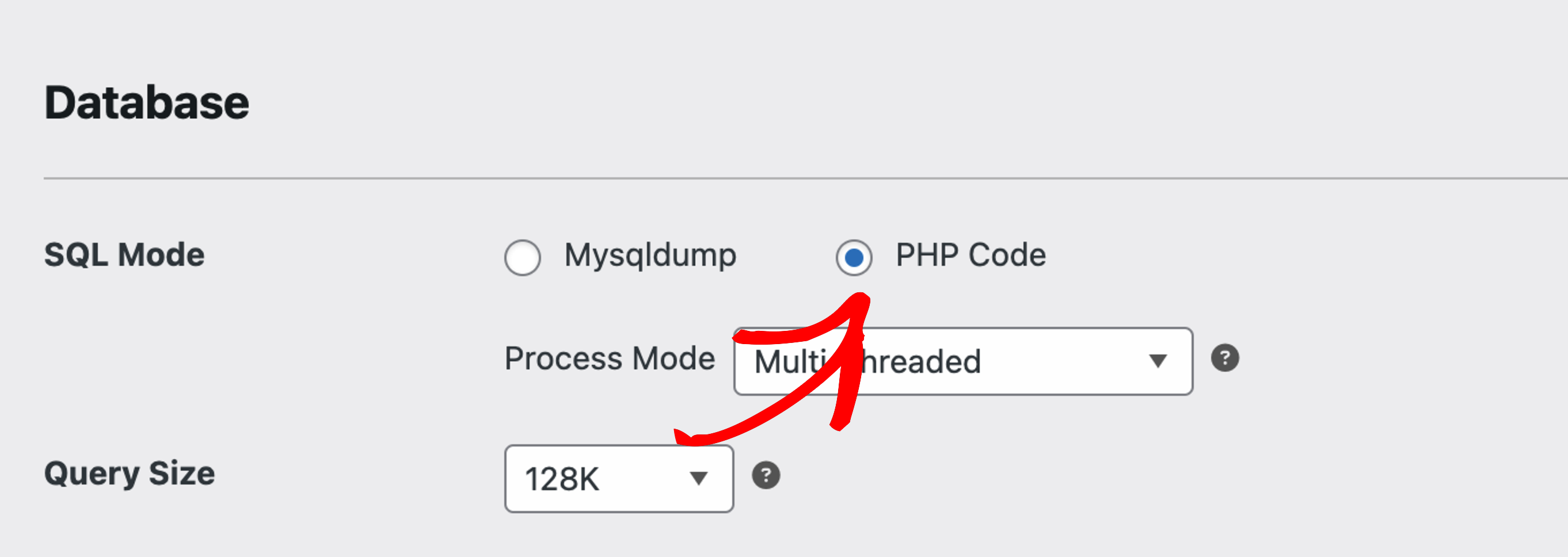
Disable Plugins
If you have security or caching plugins installed, it’s recommended to temporarily disable them to avoid conflicts at install time. Some security plugins can reach outside a WordPress installation and monitor external folders, while others, once enabled in a new environment, need additional configuration.
- During Build: This can be done by creating your backup with all cache and security plugins temporarily disabled and adding all cache paths to the directory filters list.
- Before Install: If you’re already too far into the installation process and don’t want to create a new backup, you can always perform a manual extraction and temporarily remove or rename the plugin folder of the plugin you suspect to be causing issues. Finish up the installation process and then restore the plugin.
- During Install: On Step 3 of the installer under options, there is a select box where you can disable plugins. Check the option to disable all plugins and continue with the installation. Once you have the site installed, you can then re-activate all the plugins.
Wordfence Plugin
Wordfence is an excellent plugin, but moving a WP site with it enabled can cause issues when initially trying to get the site re-deployed.
- The quickest fix is to disable the plugin’s firewall temporarily until you get your site deployed.
- Wordfence has a firewall feature that filters PHP code. So when running the installer.php, it could be blocked by Wordfence. This is more relevant for users with multiple WordPress installations. For example, if you’re attempting to duplicate a WordPress install while another WordPress site existed in another directory, then you may get a “403 Access Denied” error since Wordfence works across multiple directories. Below are some steps to whitelist the installer:
- Go to your Wordfence Live Traffic page.
- After installation, if you remove the rule, be sure to whitelist it again when you run the installer.
Check .htaccess file
Improper web server configurations can cause issues such as:
- Missing directory index. Fix by adding
DirectoryIndex index.html index.phpto .htaccess. - A mod_security rule blocking the installer. Ask your host which mod_security rule is responsible and how to remove it. Older documentation for this (including some SiteGround examples) uses the ModSecurity 1.x syntax
<IfModule mod_security.c>SecFilterRemove [rule ID]</IfModule>, but current ModSecurity 2.x hosts useSecRuleRemoveById [rule ID]instead. Confirm which version and syntax your host runs before applying either.
ERROR RESPONSES
500 Internal Server Error
If you get this error from any log or response, please see:
How do I handle ‘Internal Server 500’ messages?
403 Forbidden/Access Denied
If you get this response it can be related to permissions, below are a few options:
- Give your root WordPress folder permissions (such as 755)
Note: Step 1 Advanced options will allow you to recursively set permissions on directories or files - Contact your host with the error and ask them about any firewall rules they enforce.
- Check the .htaccess file, covered above under Quick options.
- Temporarily disable any firewall or security plugin, covered above under Disable plugins and Wordfence plugin.
If the build itself is timing out rather than failing outright, raise the PHP max_execution_time limit and check the Max Build Time setting under Duplicator Pro » Settings » Backup » Processing (measured in minutes, set to 0 for no limit). See Handling Scanner Warnings, Errors, and Timeout Issues for step-by-step tuning guidance.
Working through the options above resolves most 403, 500, and timeout errors encountered on Step 3 of the installer.
Also See:
How do I handle “Internal Server 500” messages?
Wordfence documentation
ModSecurity Site
ModSecurity Reference
Recommended hosting providers for Duplicator?


