


How to Set Up Duplicator’s Email Alerts
 Joella Dunn
Joella Dunn
Joella Dunn
 John Turner
John Turner
John Turner
When I first started running automated backups, I thought I was being responsible. Set it, forget it, and my site would always have a safety net.
However, backups can fail silently. You might have no idea until you actually need that backup to restore your site.
That’s where Duplicator’s email alerts can help.
Instead of wondering if your backups are running, you get a regular check-in. A simple email that confirms everything’s working or gives you a heads-up when something goes wrong.
In this guide, I’ll walk you through how to set up these email alerts, customize them for your workflow, and even turn them off if that’s what you need.
Whether you’re using Duplicator Lite or Pro, you’ll know exactly how to stay on top of your backup system without logging into WordPress every other day.
Here are the key takeaways:
- Backups can fail silently if storage runs out, servers update, or timeouts happen—and you won’t know until you need that backup
- Duplicator’s email alerts give you regular confirmation that your backups are working without logging into WordPress constantly
- Set up backup email summaries in Duplicator Pro » Settings » Email Summary with daily, weekly, or monthly frequencies depending on your site’s needs
- Free version includes basic weekly summaries; Pro lets you customize frequency and add multiple recipients
- You can disable summaries but still get failure alerts—a good middle ground if you only want emergency notifications
Table of Contents
Do You Need Website Backup Alerts?
Yes, website backup alerts are necessary because they let you know whether your backups are actually working.
Most of us set up automated backups with the best intentions. We configure a schedule, maybe test it once, and then move on to the hundred other things on our to-do list.
The problem is that backups don’t always keep working just because they worked once.
Here are some ways your backups could fail:
- Backup storage fills up without warning
- Server configurations change after an update
- A plugin conflict causes timeouts
- Your backup system stops working
You don’t find out until you’re trying to restore your site after a hack or a botched update. That’s when you discover your last successful backup is from two months ago.
Email alerts fix this. They give you an early warning system that doesn’t require you to remember to check anything.
Why I Use Backup Email Alerts
When I started managing client sites, these alerts became a simple reporting tool. I could forward the weekly summaries to clients as proof that their site was being monitored.
It built trust without requiring extra work—the system was already doing the reporting.
For my own sites, the alerts replaced a tedious habit: logging in every few days just to verify backups were running. Now I just glance at my email.
If I see the summary, I know things are fine. If I don’t, I can investigate before it becomes a crisis.
For teams, alerts keep everyone in the loop. Nobody’s left wondering whether someone else is handling it.
How to Set Up Duplicator’s Email Alerts
Duplicator is a WordPress backup and migration plugin that handles the heavy lifting of protecting your site. It zips up your entire WordPress installation into a single backup and stores it wherever you choose.

The plugin runs on autopilot once you schedule backups. You set a schedule, pick your storage location (local server, Dropbox, Google Drive, etc.), and Duplicator takes care of the rest.
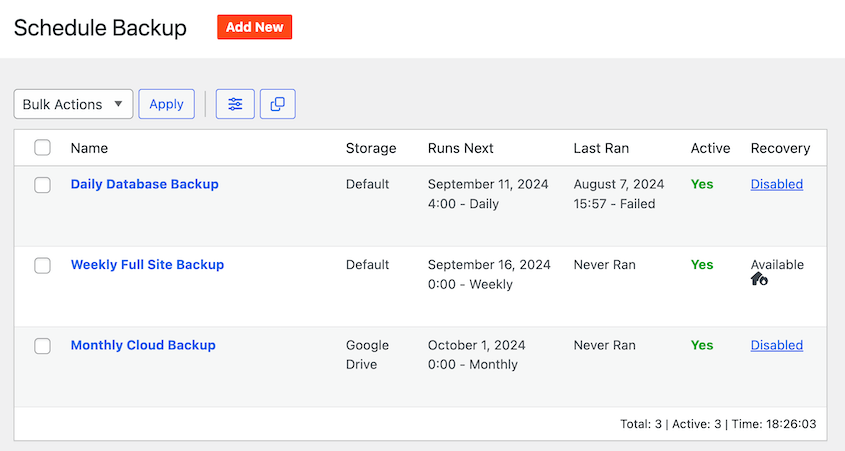
Sometimes, unexpected problems on your website cause scheduled backups to fail. That’s why Duplicator includes email alerts.
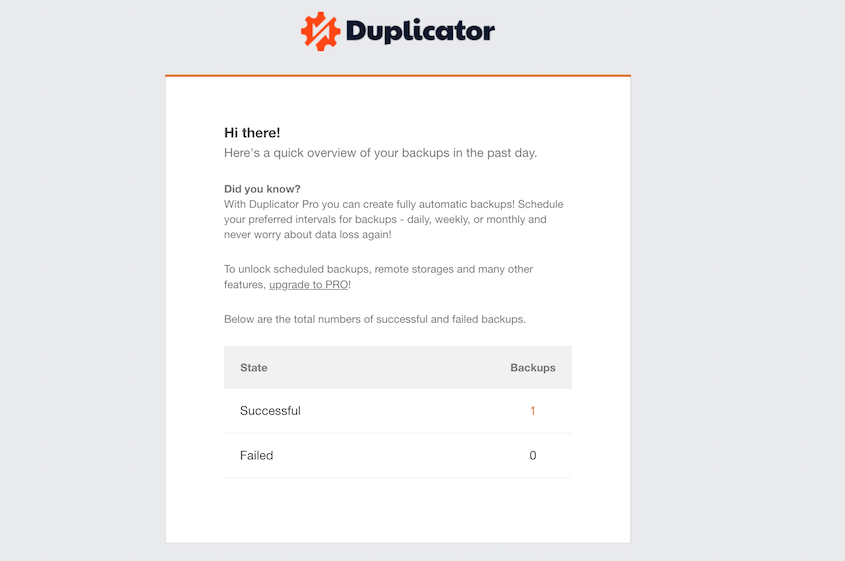
Duplicator’s email summaries give you a complete snapshot of your backup activity over a set period. You’ll see how many manual backups you created, how many scheduled backups ran automatically, and—most importantly—whether any of them failed.
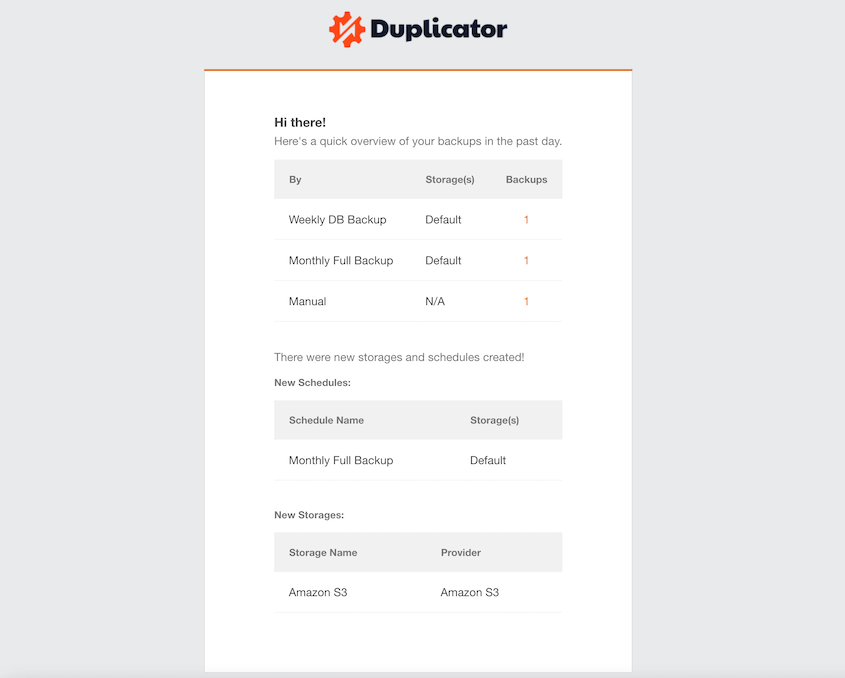
If you add a new storage location or create a new backup schedule, you’ll get notified about that too. It’s a paper trail that keeps you regularly informed.
It includes everything you need at a glance: the number of manual and scheduled backups that ran, whether they succeeded or failed, and notifications about any new storage locations or schedules you’ve created.
To set up email summaries, navigate to Duplicator Pro » Settings » Email Summary.
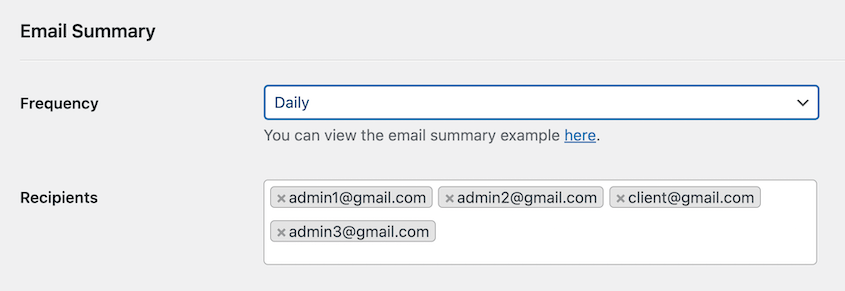
First, customize frequency. This controls how often you receive the summary email.
Here are your options:
- Daily: Best for high-traffic e-commerce sites or any site where you’re running backups multiple times per day. If something breaks, you’ll know within 24 hours.
- Weekly: The recommended default for most blogs and business sites. You get regular confirmation without inbox clutter.
- Monthly: Works well for static sites that rarely change and only need occasional backups.
By default, the summary goes to your site’s admin email address. But you can add multiple email addresses in the Recipients field.
This is useful when you’re working with a team or want to copy a client on the backup reports.
Once you’ve set your preferences, click Save Settings. Your first summary will arrive based on the frequency you selected.
The free version of Duplicator includes a basic weekly summary that tells you which backups succeeded and which failed. You can’t customize the frequency or add multiple recipients—those features require upgrading to Pro.
How to Disable Duplicator’s Email Alerts
You might not need regular updates about your site’s backups.
Maybe you’re managing 20+ client sites and your inbox is already overflowing. Maybe you only want to hear from Duplicator when something actually goes wrong.
Whatever the reason, turning off the email summaries is straightforward.
Go to Duplicator Pro » Settings » Email Summary. Find the Frequency dropdown and change it to Never.
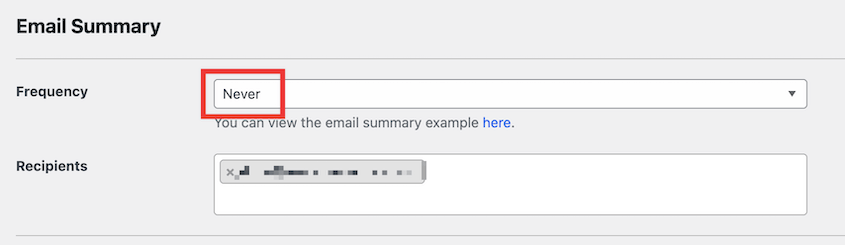
That’s it. You won’t receive any more scheduled summary emails.
However, disabling the email summary does not disable failure alerts.
If a backup actually fails—because of a timeout, storage issue, or any other problem—Duplicator will still send you an immediate notification. You’re only turning off the regular check-ins, not the emergency warnings.
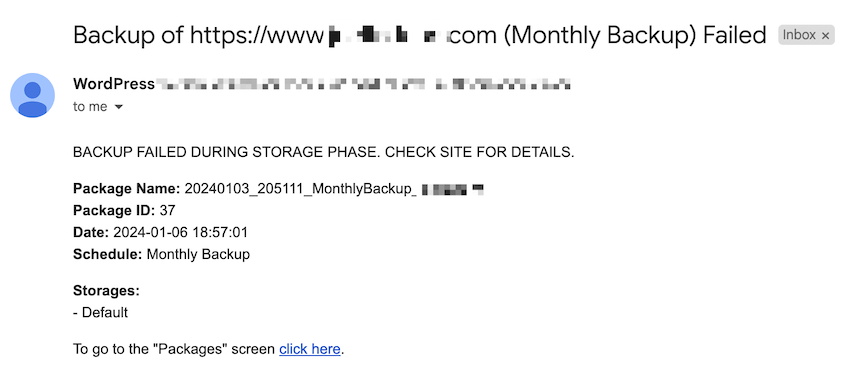
The failure notifications are your safety net, and they stay active regardless of your summary settings.
So if you want to reduce email volume but still catch problems when they happen, disabling summaries while keeping failure alerts is a solid middle ground.
Frequently Asked Questions (FAQs)
Are email alerts available in the free version of Duplicator?
Yes, Duplicator Lite includes a basic weekly email summary that shows which backups succeeded and which failed. You can’t customize the frequency or add multiple recipients without upgrading to Pro.
Can I send backup notifications to multiple email addresses?
Yes, you can send backup notifications to multiple email addresses with Duplicator Pro. Go to the Recipients field in your email summary settings and add multiple addresses or user roles.
Why am I not receiving Duplicator email alerts?
Start by checking your spam folder and verifying the email address in your settings is correct. The most common issue is WordPress email deliverability—most WordPress sites struggle to send reliable emails without help, so installing an SMTP plugin like WP Mail SMTP usually fixes the issue.
Can I customize the content of Duplicator’s notification emails?
No, Duplicator’s email summary templates are fixed and can’t be customized.
Peace of Mind, Delivered to Your Inbox
Email alerts turn backup anxiety into backup confidence.
You won’t have to wonder if your backups are working. Instead, you’ll get regular confirmation that your safety net is intact.
Automated backups are your site’s insurance policy. Email alerts are the confirmation that your policy is active.
If you’re using Duplicator Lite, you’re already getting basic weekly summaries. But if you want full control (custom frequencies, multiple recipients, detailed reporting), Duplicator Pro gives you the flexibility to monitor your backups exactly the way you need to.
Ready to unlock the full power of Duplicator’s email alerts? Get Duplicator Pro and never second-guess your backup system again.
While you’re here, I think you’ll like these other hand-picked WordPress resources:
- Duplicator Free vs Pro: Which Version Has the Best Value?
- Stop Guessing Why Backups Fail (Check These Logs Instead)
- Backup Compliance Tips to Turn Legal Requirements Into Business Advantages
- Why Backup Compression Works So Well For WordPress Sites
- From Breach to Recovery in 5 Minutes: My WordPress Backup Strategy




