

Creating One Click Staging Site
Duplicator Pro 4.5.25 introduces a built-in Staging Sites feature that lets you create an isolated WordPress testing environment directly from your WordPress dashboard. You can safely test plugin updates, theme changes, or code edits on a private copy of your live site without any risk to your production environment.
This feature is available on Pro and Elite plans only and requires a single-site WordPress installation. Multisite networks are not supported.
Requirements
Before creating a staging site, make sure you have the following:
- Duplicator Pro 4.5.25 or newer installed and activated
- An active Pro or Elite license (the Staging feature is not available on the Basic plan)
- A single-site WordPress installation (Multisite networks are not supported)
- Enough free disk space on your server to store a copy of your site’s files and database
- Have your full backup ready in Duplicator Pro » Backups that you are looking to create a staging site.
Creating a Staging Site
To get started, log in to your WordPress admin area and go to Duplicator Pro » Staging in the admin sidebar.
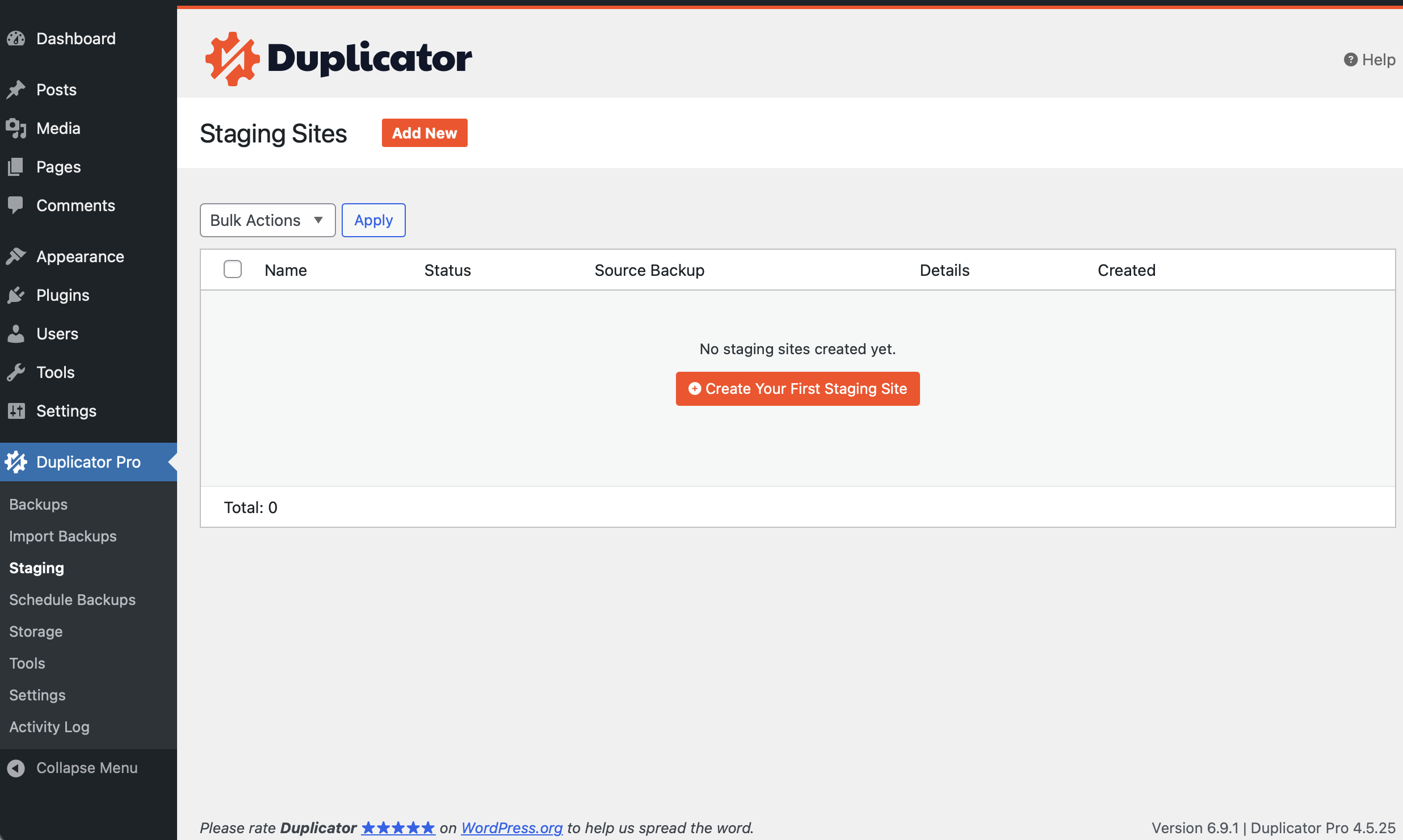
On the Staging Sites page, click the Create Staging Site button. Duplicator will scan your site and display a dialog showing the staging subfolder path and the unique database table prefix that will be used. Review the details and click Create to proceed.
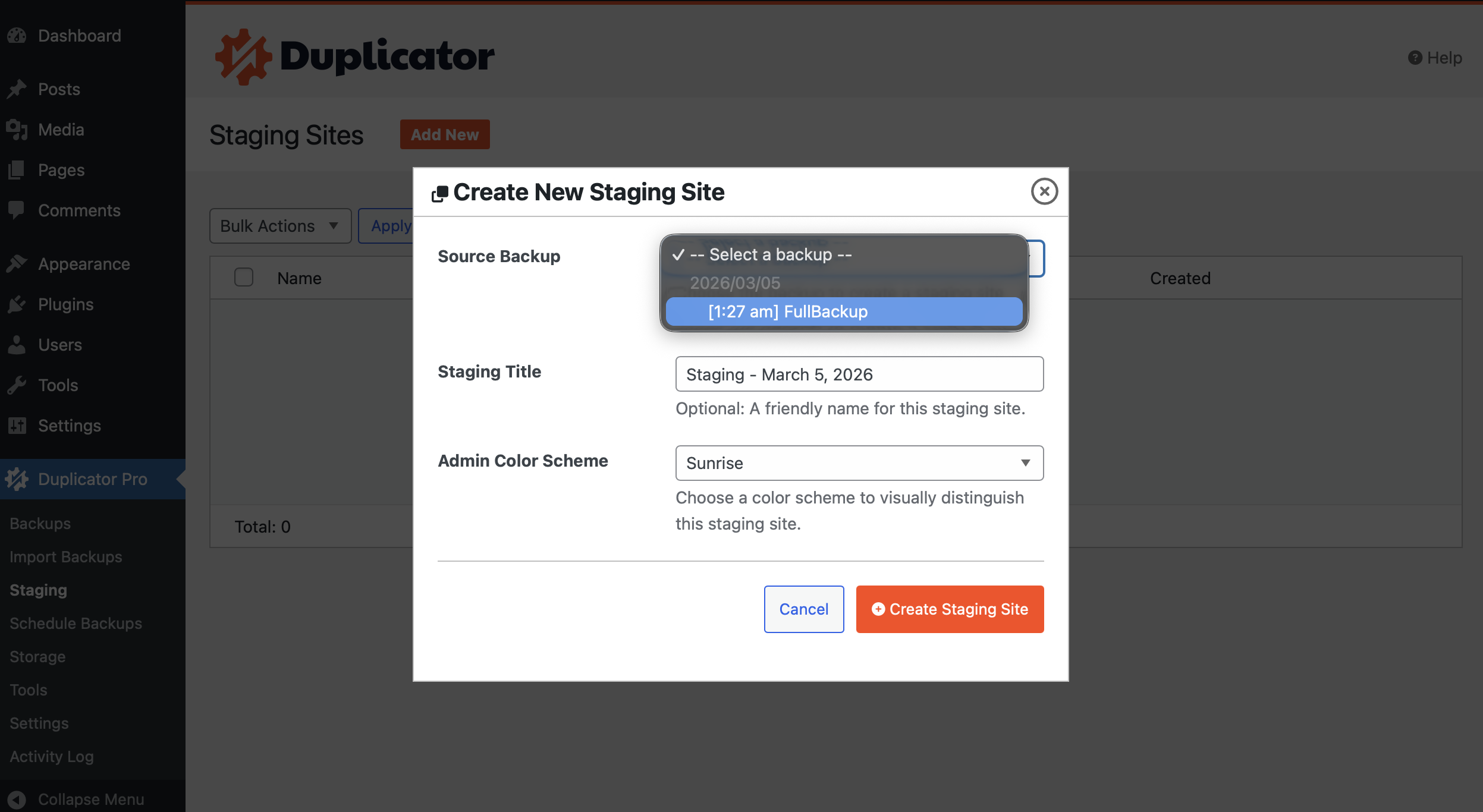
Duplicator will copy your WordPress files to the staging subfolder and create a fully isolated set of database tables. Once complete, your staging site will be accessible at a URL like https://yoursite.com/staging/. You can log in using the same WordPress credentials as your production site.
To help you identify which environment you’re on, the WordPress admin bar will display a Staging Site indicator on both the frontend and backend of the staging site.
Staging Site Safety Features
When Duplicator creates a staging site, it automatically applies the following safety restrictions to protect your production site — no additional configuration required:
- Email blocking: All outgoing emails are blocked so staging actions don’t send notifications to real users
- Search engine indexing disabled: Search engines can’t crawl or index your staging site
- Admin bar indicator: A “Staging Site” label appears in the admin bar with a link back to your production site
- Database isolation: Staging tables use a unique prefix, keeping them completely separate from your production database
- Production backup exclusion: Staging database tables are automatically excluded from your production backups
Managing Staging Sites
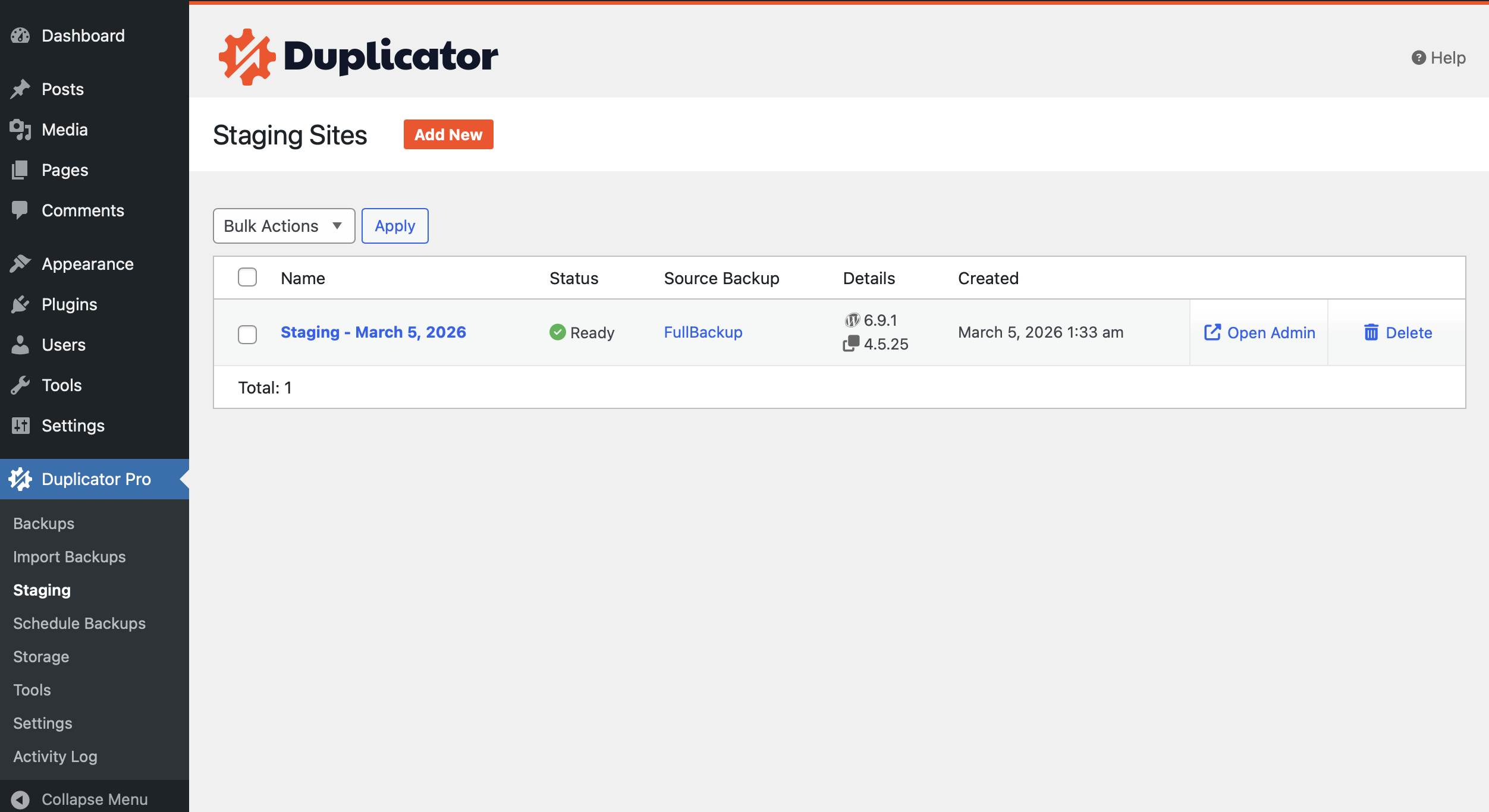
Duplicator Pro supports multiple staging sites per installation. Each staging site gets its own subfolder and isolated database tables. To view and manage all your staging environments, navigate to Duplicator Pro » Staging. The staging list shows each site’s URL, status, and creation date.
Deleting a Staging Site
When you’re done testing, navigate to Duplicator Pro » Staging and click Delete next to the staging site you want to remove. Confirm the action in the dialog that appears.
Duplicator will remove all staging files from the subfolder, drop the isolated database tables, and release the license activation used by the staging site. Note that deleting a staging site is permanent and cannot be undone.
That’s it! You now know how to create and manage one-click staging sites with Duplicator Pro.


