



Comment copier une base de données WordPress (4 méthodes)
 Joella Dunn
Joella Dunn
Joella Dunn
 John Turner
John Turner
John Turner
Vous êtes-vous déjà demandé pourquoi vous pourriez avoir besoin de copier une base de données WordPress ? Ce n'est pas juste une astuce technique, c'est une compétence cruciale pour tout propriétaire de site web WordPress.
Votre base de données WordPress est l'endroit où résident tous vos articles, pages, commentaires et paramètres. En apprenant à la copier, vous pouvez sauvegarder vos données.
De plus, vous ouvrirez la porte à des migrations de sites WordPress, au développement et bien plus encore, en toute simplicité.
Dans ce tutoriel, je vais vous montrer comment copier votre base de données WordPress. Des plugins conviviaux aux techniques plus avancées, vous trouverez une approche qui correspond à votre niveau de confort.
Voici les points clés à retenir :
- Votre base de données WordPress stocke tout : articles, pages, commentaires, données utilisateur, paramètres de plugins et configurations du site.
- Raisons principales de copier : créer des sauvegardes avant les mises à jour, migrer vers de nouveaux hébergeurs, tester les modifications en toute sécurité et résoudre les problèmes.
- Quatre méthodes pour copier votre base de données : utiliser le plugin Duplicator (le plus simple), exporter via phpMyAdmin, cloner avec phpMyAdmin, ou utiliser des commandes SSH (le plus avancé).
- Duplicator offre des sauvegardes de base de données en un clic, des planifications automatisées, des options de stockage cloud et une restauration facile.
Table des matières
Pourquoi copier votre base de données WordPress ?
Considérez votre base de données WordPress comme le cerveau de votre site web. C'est une collection structurée de tables qui stocke presque tout ce qui rend votre site unique.
La base de données stocke :
- Vos articles et pages
- Les commentaires et les informations utilisateur
- Paramètres et configurations des plugins
- Les placements de widgets et les structures de menus
- Les liens, catégories et tags
Essentiellement, si vous pouvez le modifier via votre tableau de bord WordPress, il est probablement stocké dans la base de données.
Alors, pourquoi voudriez-vous copier votre base de données ? Expliquons quelques raisons clés.
Sauvegarde des données
Une copie agit comme une sauvegarde de base de données. Si quelque chose tourne mal, vous avez une version récente sur laquelle vous rabattre.
Vous avez déjà ressenti cette pointe d'anxiété avant de commencer une mise à jour ? En copiant d'abord votre base de données, vous créez un point de sauvegarde. Si les choses tournent mal, vous pouvez revenir en arrière en toute confiance.
Migrations
Vous envisagez de passer à un nouvel hébergeur WordPress ? Une copie de la base de données garantit que tout votre contenu fera le voyage intact.
Pour déplacer les bases de données WordPress, créez une copie (ou une sauvegarde). Ensuite, téléchargez simplement la sauvegarde dans le nouvel emplacement.
Tests
Vous souhaitez essayer un nouveau thème ou tester une refonte majeure ? Copiez votre base de données pour créer un environnement de staging. C'est votre propre atelier privé où vous pouvez expérimenter librement sans affecter votre site en direct.
Dépannage
Face à des problèmes de base de données tenaces, la meilleure approche est parfois de travailler avec une copie. Cela vous permet de creuser sans craindre de casser votre site en direct.
Comment copier une base de données WordPress
Maintenant que vous comprenez pourquoi copier une base de données WordPress est si important, faisons-le réellement !
Voici vos options :
- Méthode 1 : Plugin de sauvegarde de base de données (Duplicator) : Idéal pour les débutants ; crée des sauvegardes de base de données uniquement et automatisées, et inclut des options de stockage cloud pour une sécurité supplémentaire.
- Méthode 2 : Exporter avec phpMyAdmin : Idéal pour les utilisateurs intermédiaires ; exportez manuellement votre base de données sous forme de fichier SQL via votre panneau de contrôle d'hébergement
- Méthode 3 : Cloner avec phpMyAdmin : Parfait pour créer des environnements de test ; duplique votre base de données directement sur le même serveur
- Méthode 4 : Exporter avec SSH : Idéal pour les utilisateurs avancés et les bases de données volumineuses ; utilise des outils en ligne de commande pour des exportations rapides et efficaces
Méthode 1. Utiliser un plugin de sauvegarde de base de données
Si vous débutez avec WordPress ou préférez une solution simple et sans code, un plugin de sauvegarde de base de données est votre meilleure option.
Et en matière de plugins fiables et conviviaux pour cette tâche, Duplicator se démarque de la concurrence.
Pourquoi choisir Duplicator ? C'est un plugin de sauvegarde et de migration WordPress qui vous permet de copier facilement les données de votre site. Vous pouvez l'utiliser pour copier votre base de données en quelques secondes.
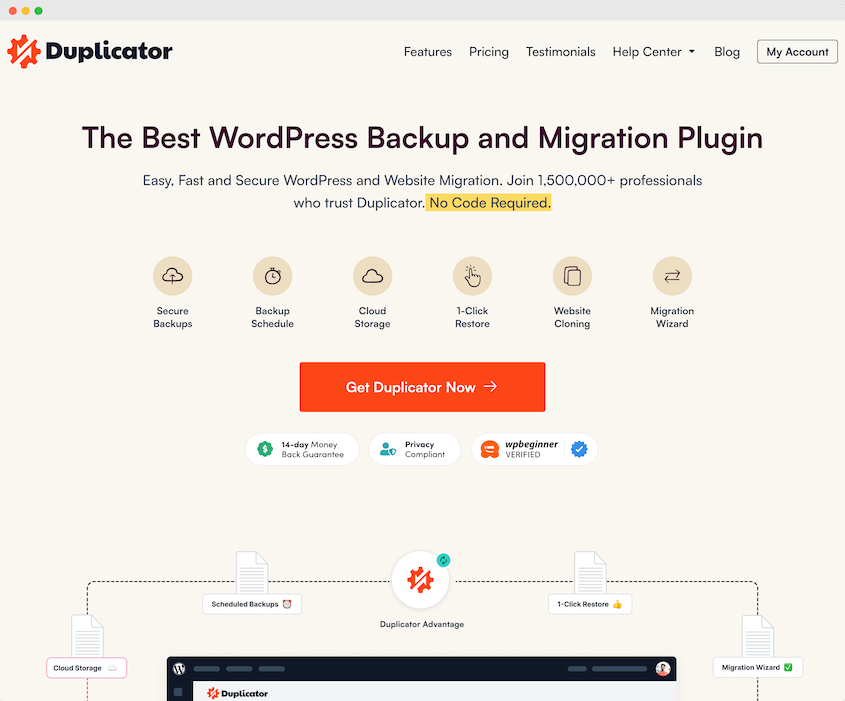
De plus, Duplicator offre ces fonctionnalités supplémentaires :
- Sauvegardes automatiques horaires, quotidiennes, hebdomadaires et mensuelles
- Restaurations en un clic
- Récupération après sinistre même en cas de blocage de l'accès à WordPress
- Stockage cloud vers Duplicator Cloud et des emplacements tiers
- Migrations par glisser-déposer
- Rechercher et remplacer
- Plugin gratuit WP Media Cleanup pour supprimer les images inutilisées
- Et plus encore !
Si vous souhaitez sauvegarder votre base de données gratuitement, il existe une version gratuite de Duplicator. Cependant, je recommande de passer à la version payante pour une personnalisation plus facile des sauvegardes et des planifications automatiques.
Après avoir installé Duplicator, créez une nouvelle sauvegarde.
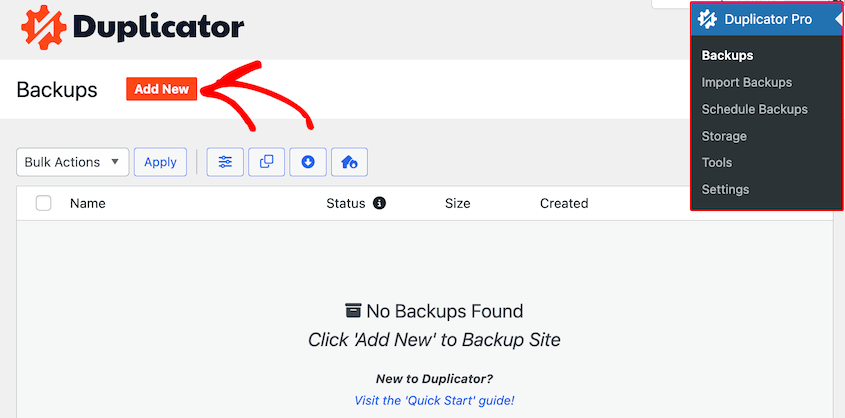
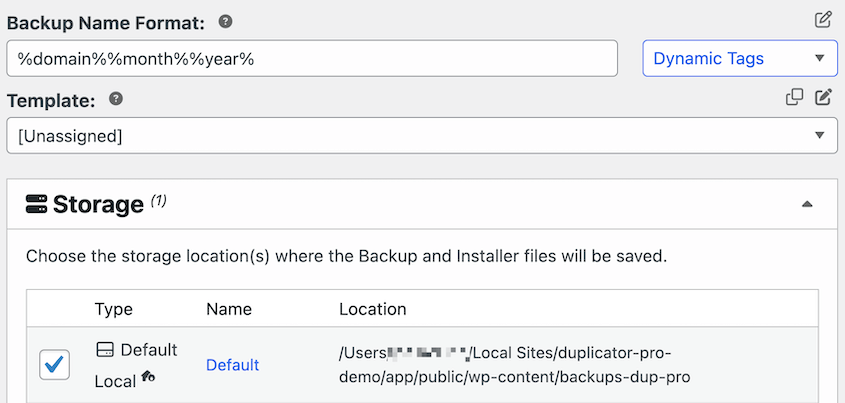
Personnalisez le nom de la sauvegarde avec des balises dynamiques. Vous pouvez également choisir un emplacement de stockage cloud pour protéger votre base de données contre les erreurs du serveur local.
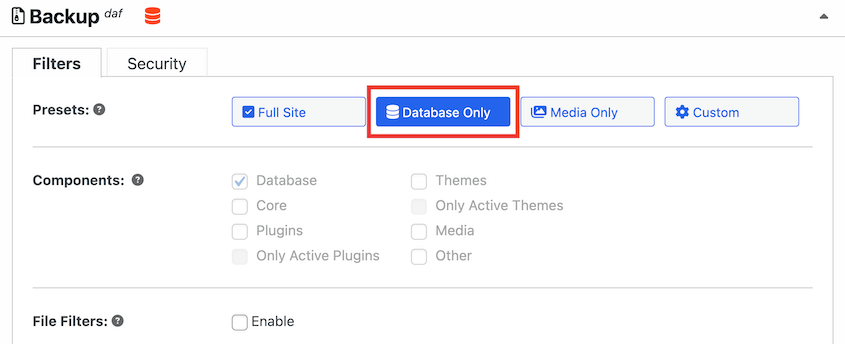
Dans la section Sauvegarde, vous verrez des options pour sauvegarder vos fichiers, votre base de données et d'autres données. Pour copier votre base de données, cliquez sur Base de données uniquement.
Cliquez sur Suivant, puis sur Créer une sauvegarde. Une fois terminé, vous verrez des liens de téléchargement pour les fichiers de l'installateur et de l'archive. Téléchargez les deux.
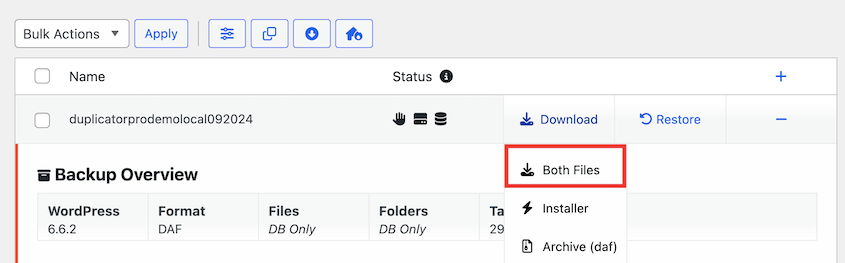
Et voilà ! Vous avez créé avec succès une copie de votre base de données. Vous pouvez maintenant utiliser cette sauvegarde pour restaurer les données WordPress (si nécessaire) ou pour migrer votre base de données vers un nouvel emplacement.
Méthode 2. Exporter votre base de données avec phpMyAdmin
Si vous êtes à l'aise avec la manipulation directe de votre base de données et souhaitez plus de contrôle sur le processus, vous pouvez exporter votre base de données manuellement.
PhpMyAdmin vous aidera dans ce processus. C'est une interface web pour gérer les bases de données MySQL et elle est préinstallée avec la plupart des offres d'hébergement web.
Pour copier votre base de données WordPress à l'aide de phpMyAdmin, connectez-vous à votre panneau de contrôle d'hébergement (souvent cPanel) et recherchez l'icône phpMyAdmin.
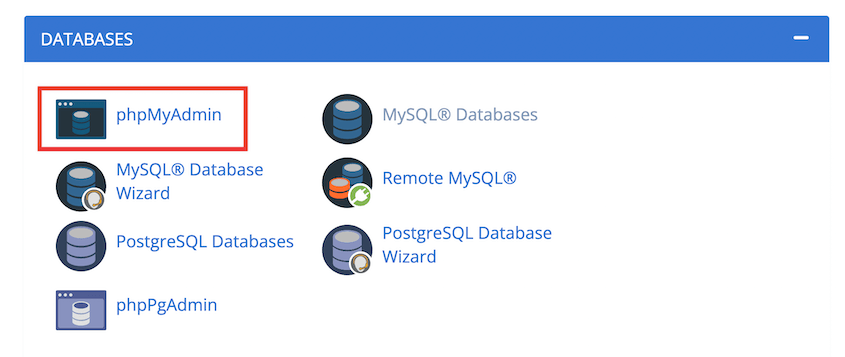
Dans la barre latérale gauche, vous verrez une liste de vos bases de données. Cliquez sur celle associée à votre site WordPress.
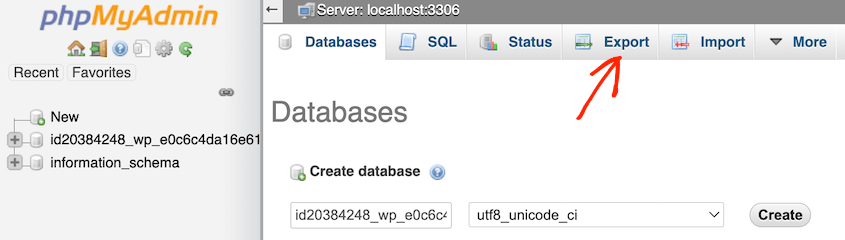
Une fois votre base de données sélectionnée, cliquez sur l'onglet Exporter en haut de la page.
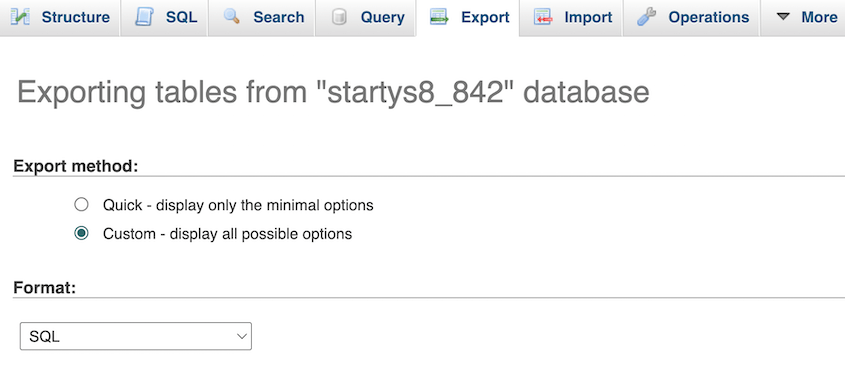
Sélectionnez la méthode d'exportation Personnalisée et le format SQL. C'est le format standard pour les sauvegardes de bases de données et il facilitera les restaurations.
Dans la section Sortie, enregistrez la sortie dans un fichier.
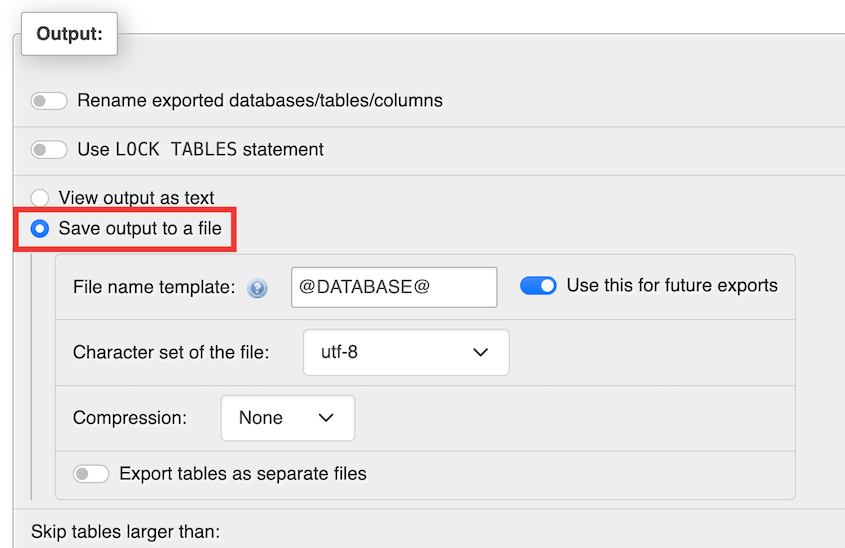
Cliquez sur Exporter en bas de la page. PhpMyAdmin générera votre exportation de base de données sous forme de fichier .sql. Ce fichier contient une copie complète de votre base de données WordPress.
Méthode 3. Cloner votre base de données avec phpMyAdmin
Parfois, vous n'avez pas seulement besoin d'une sauvegarde – vous avez besoin d'une copie de travail exacte de votre base de données. C'est là que la clonage s'avère utile. C'est particulièrement utile lorsque vous souhaitez créer un environnement de test.
Pour ce processus, ouvrez phpMyAdmin et sélectionnez la base de données que vous souhaitez cloner. Ensuite, ouvrez l'onglet Opérations.
Faites défiler vers le bas jusqu'à l'endroit où il est indiqué Copier la base de données vers. Dans le champ vide, créez un nom pour la nouvelle base de données. Sélectionnez Structure et données et CRÉER la base de données avant la copie.
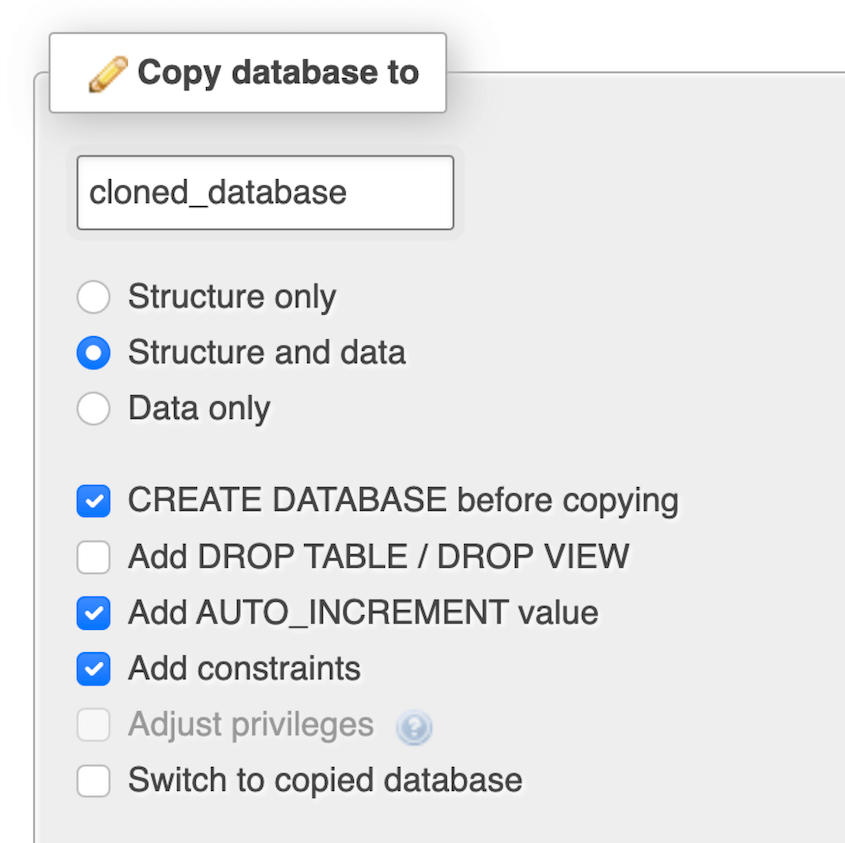
Cliquez sur Go. Cela clonera votre base de données WordPress et la configurera sur une nouvelle base de données. Vous pouvez maintenant l'utiliser pour des tests en toute sécurité !
Méthode 4. Exporter votre base de données avec SSH
SSH (Secure Shell) fournit une méthode rapide pour exporter les bases de données. Cette approche est particulièrement utile lorsque phpMyAdmin expire en raison de la taille de votre base de données ou des restrictions du serveur.
Ouvrez votre terminal (sur Mac ou Linux) ou un client SSH comme PuTTY (sur Windows). Connectez-vous à votre serveur en utilisant les identifiants fournis par votre hébergeur.
Une fois connecté, utilisez la commande cd pour naviguer vers le répertoire où vous souhaitez enregistrer votre exportation de base de données. Par exemple :
cd /home/username/backupsMaintenant, nous allons utiliser la commande mysqldump pour créer un fichier SQL de votre base de données. Voici la structure de base :
mysqldump -u username -p database_name > backup_file.sqlRemplacez « username » par votre nom d'utilisateur MySQL, « database_name » par le nom de votre base de données WordPress et « backup_file.sql » par le nom de fichier souhaité.
Après avoir exécuté la commande, vous serez invité à entrer votre mot de passe MySQL. Tapez-le (il ne s'affichera pas à l'écran pour des raisons de sécurité) et appuyez sur Entrée.
Pour les grosses bases de données, il est conseillé de compresser le fichier SQL. Utilisez cette commande :
gzip backup_file.sqlCela créera un fichier compressé nommé backup_file.sql.gz
Bien que la méthode SSH nécessite plus de connaissances techniques, elle est incroyablement puissante et efficace. C'est une compétence qui vaut la peine d'être développée si vous êtes sérieux au sujet de la gestion de WordPress.
FAQ sur la copie d'une base de données WordPress
Comment exporter ma base de données WordPress ?
Vous avez plusieurs façons d'exporter une base de données WordPress : utilisez un plugin comme Duplicator, exportez via phpMyAdmin, clonez dans phpMyAdmin ou utilisez des commandes SSH. Choisissez la méthode qui correspond le mieux à vos compétences techniques.
Comment puis-je copier un site WordPress entier ?
Pour copier un site WordPress complet, vous devrez sauvegarder votre base de données et les fichiers de votre site (thèmes, plugins, téléchargements, etc.). Un plugin comme Duplicator peut facilement gérer ce processus. Lorsque vous créez une sauvegarde, choisissez Site complet pour enregistrer tout le contenu de votre site Web.

Comment migrer une base de données WordPress ?
Pour migrer votre base de données WordPress, utilisez Duplicator pour créer une sauvegarde de la base de données uniquement. Téléchargez le fichier d’archive de cette sauvegarde. Sur un second site, installez WordPress et faites glisser le fichier de sauvegarde dessus.

Comment importer une base de données WordPress ?
Vous pouvez importer une base de données WordPress en déposant une sauvegarde de base de données sur la page Importer les sauvegardes de Duplicator. Vous pouvez également utiliser phpMyAdmin pour exporter et importer votre base de données sous forme de fichier SQL.
Comment sauvegarder ma base de données WordPress ?
Pour sauvegarder votre base de données WordPress, créez une nouvelle sauvegarde avec Duplicator. Lors de la personnalisation de la sauvegarde, sélectionnez uniquement la base de données. Cela enregistrera toutes les données de votre base de données d’origine !
Gardez vos données WordPress en sécurité
Que vous utilisiez un plugin convivial comme Duplicator, que vous plongiez dans phpMyAdmin ou que vous utilisiez vos muscles SSH, vous savez maintenant comment protéger les données précieuses de votre site.
Prêt à prendre le contrôle de votre base de données WordPress ? Essayez Duplicator Pro comme solution de sauvegarde et de migration facile et fiable !
Pendant que vous êtes ici, je pense que vous aimerez ces guides WordPress supplémentaires :
- Comment optimiser votre base de données WordPress : obtenez un site rapide en 10 étapes
- Comment sauvegarder une base de données WooCommerce
- 13 meilleurs plugins de base de données WordPress pour une gestion facile des données
- 9 meilleurs plugins de sauvegarde de base de données WordPress
- Comment restaurer une base de données WordPress
- Comment cloner rapidement un site WordPress




