


How to Merge WordPress Sites Without Losing Content, Links, or Traffic
 Joella Dunn
Joella Dunn
Joella Dunn
 John Turner
John Turner
John Turner
You’ve been running multiple WordPress sites for months (or years). Each one demands attention, updates, and maintenance.
Hosting bills add up every month, and you’re paying for resources you’re not fully using. Meanwhile, you’re constantly context-switching between different dashboards.
You have a heavy mental load juggling multiple websites, knowing deep down they’d be more powerful combined. The fear of losing content, breaking redirects, or watching years of SEO disappear keeps most people running multiple sites longer than they should.
Consolidating doesn’t have to be the nightmare most people imagine, especially with the right approach and tools to handle the technical heavy lifting.
I’ll walk you through the complete process of merging WordPress sites!
Here are the key takeaways:
- Consolidating multiple sites reduces overhead costs and concentrates your SEO efforts into a single, higher-authority domain.
- Success depends on a pre-merge audit: only migrate high-performing content and ensure your legal policies cover the combined user data.
- The technical migration involves exporting XML data, importing it to the primary site, and using specific plugins to fetch external images.
- You should implement 301 redirects immediately after the merge to preserve your search rankings and prevent broken links.
- Post-merge monitoring is critical to catch performance issues, broken forms, or navigation errors before they impact users.
Table of Contents
Why Merge Multiple WordPress Sites?
Hosting multiple WordPress sites gets expensive fast.
If you’re paying $15 monthly for decent hosting per site, plus $12 annually per domain, you’re looking at $192 per site each year.
With four sites, that’s $768 just in basic costs. Add premium plugins that need separate licenses for each domain, and you could easily hit $1,200+ annually just to keep everything running.
But the real cost is your time. Every WordPress site needs:
- Security monitoring
- Plugin updates
- Backup management
- Content planning
Google rewards focused authority over scattered effort. Instead of having three sites each trying to rank for similar keywords, you can create one authoritative resource that Google sees as the definitive source.
One consolidated site means one brand, one domain authority, and one place where your audience can find everything you’ve created.
Plan Your WordPress Site Merge
Not every site in your portfolio needs to survive the merge. List each site’s primary purpose, target audience, and monthly traffic. Some combinations make strategic sense; others don’t.
That lifestyle blog getting 500 monthly visitors while your main business site pulls 15,000? Easy merge candidate.
But your B2B SaaS site and your personal photography portfolio serve completely different audiences. Forcing them together creates confusion, not clarity.
Here’s my evaluation framework:
- Traffic volume
- Domain age
- Backlink profile
- Brand strength
- Content scope
Your highest-traffic site isn’t always the best choice if it has a narrow focus that can’t accommodate content from other sites.
I recommend allowing 2-4 weeks for planning, 1-2 days for execution, and 2-3 weeks for post-merge monitoring and optimization. Rush this process and you’ll spend months fixing problems that proper planning prevents.
Here’s what most tutorials skip: legal considerations.
When you merge sites, you’re often combining user databases, subscriber lists, and customer information. Privacy policies need updates. Terms of service require modifications. GDPR compliance becomes critical if you’re combining EU user data from multiple sources.
Handle the legal groundwork before you touch any technical migration tools.
Conduct a Pre-Merge Content Audit
For each site, list every published post, page, and downloadable resource. Include the URL, publication date, last modified date, and current word count. If you have Google Analytics access, grab the past 12 months of organic traffic data for each page.
Don’t forget about hidden content like PDFs in your media library, old landing pages you forgot about, or contact forms embedded across different pages.
Here’s where it gets tricky: you might find articles covering identical topics across different sites.
This might be accidental duplicate content that’s hurting your search rankings. Other times, you’ll discover you wrote essentially the same article three different ways because you forgot about the first two versions.
My rule: if content hasn’t received organic traffic in the past 12 months and doesn’t directly support your current business goals, archive it instead of migrating it.
Create your redirect plan now, not later. Every important page on your secondary sites needs a specific destination on your primary site. This might mean restructuring your category hierarchy or creating new parent pages to house related content.
Map old URLs to new URLs in a spreadsheet. Your SEO depends on this step.
Choose the Right Primary Domain
Most people overthink domain selection and focus entirely on SEO metrics. I’ve seen clients choose their newest domain just because it scored highest in domain authority tools, only to realize six months later it doesn’t align with their actual business direction or expansion plans.
Use the Semrush or Moz domain authority checker to compare your options. Ask yourself these questions about each domain.
- Can this domain name accommodate your business five years from now?
- Does it sound professional when you say it?
- Will customers immediately understand what you do?
If you’re merging sites that serve different niches—say a food blog, travel content, and photography tutorials—your domain choice determines whether the merged site feels cohesive or scattered.
Sometimes the smartest choice is registering a new domain that encompasses all your content areas naturally.
Before you decide, sketch out your new site architecture. Your category structure, main navigation, and internal linking strategy all need to accommodate content from multiple sources while maintaining logical flow.
Make the Configuration the Same
Before importing content, install and configure all plugins that were essential on your secondary sites. E-commerce functionality, membership systems, forum plugins, and contact forms all need to be properly set up first.
I’ve watched too many merges fall apart because someone imported posts from their WooCommerce site, only to realize their primary site didn’t have WooCommerce installed. Those product pages became broken content instantly.
Check your primary site’s media file upload size limits in WordPress Site Health settings. If your secondary sites had larger limits, you’ll lose media during the import unless you adjust this first.
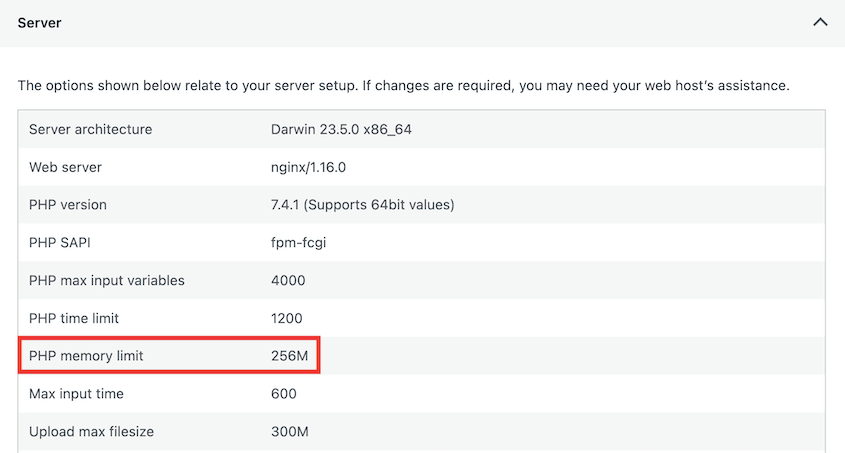
I recommend setting your memory limit to at least 64MB to handle most media files comfortably.
Permalink structure alignment affects your SEO during the transition. If your sites use different permalink structures (like one using post names and another using dates), decide on a consistent structure before importing.
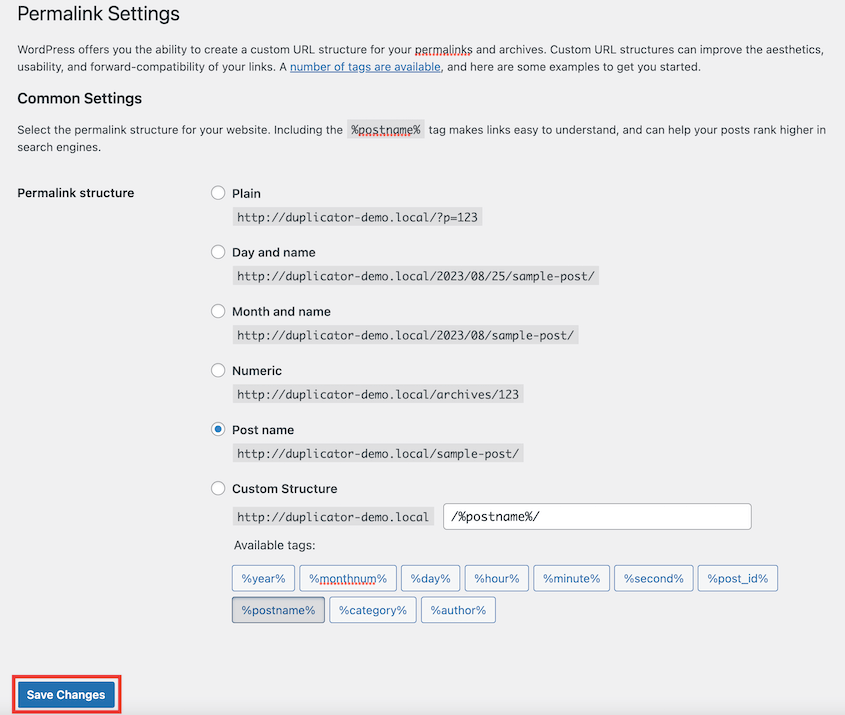
Changing this after the merge creates additional redirect complexity that’s better avoided.
How to Merge Multiple WordPress Sites
Before touching any content or making changes, create complete backups of all sites involved.
I use Duplicator Pro because it handles both files and database tables in one package and stores backups safely in Duplicator Cloud. I can access backup files from anywhere if something goes wrong.
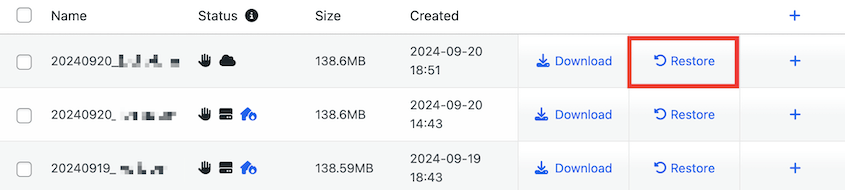
This is your safety net when the unexpected happens.
Once you’re protected, here’s how to merge your websites:
- Step 1: Export Content from Secondary Sites: Use the built-in WordPress Exporter to generate an XML file containing your posts, pages, comments, and media files.
- Step 2: Import Content to Your Primary Site: Use the WordPress Importer to upload your XML file and assign authors on your destination site.
- Step 3: Import External Images: Run the Auto Upload Images plugin to fetch image files from your old server and save them to your new media library.
- Step 4: Set Up Redirects for SEO Preservation: Configure 301 redirects in your .htaccess file so visitors and search engines find your new URLs automatically.
- Step 5: Post-Merge Testing and Optimization: Verify that forms, internal links, and page speeds are functioning correctly on the merged site.
Step 1: Export Content from Secondary Sites
WordPress’s built-in export tool is free and handles most content types well.
In your secondary site’s admin dashboard, go to Tools » Export. Select All content to grab everything at once—posts, pages, comments, and media attachments.
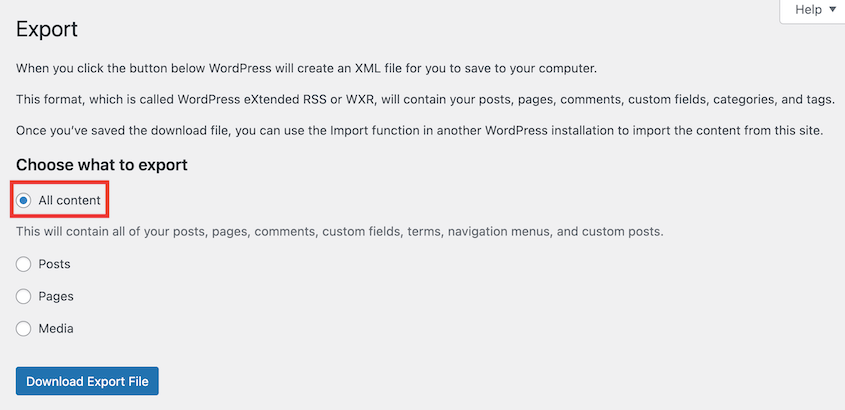
Click Download Export File and save the XML file.
Large sites might time out during export. If that happens, export content in smaller chunks by date range or content type.
The export file doesn’t include your theme, plugins, widgets, or WordPress settings. It’s purely your content—posts, pages, comments, and basic media information. Custom fields and plugin data may or may not transfer depending on how they’re stored.
This means your exported posts might lose formatting, custom layouts, or special functionality when imported elsewhere.
Step 2: Import Content to Your Primary Site
Now comes the actual import process.
In your primary site’s dashboard, go to Tools » Import and click Install Now under WordPress. Once installed, click Run Importer.
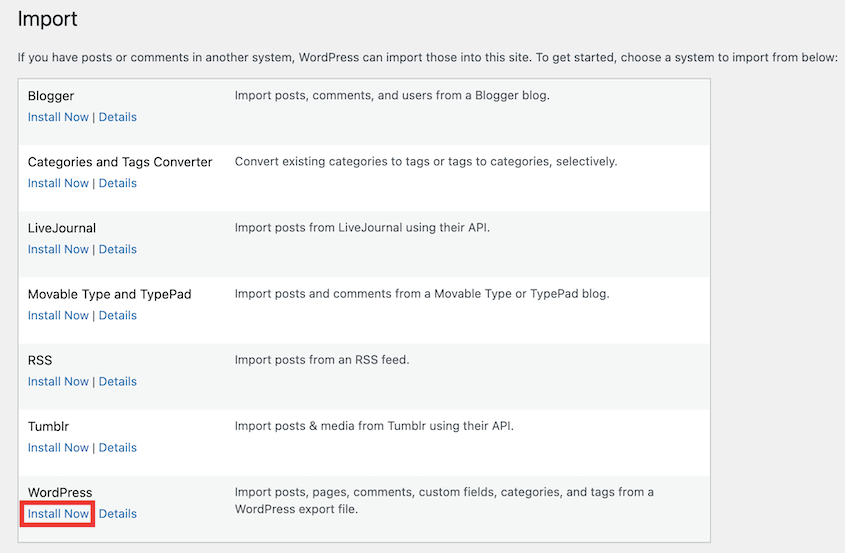
Upload your exported XML file. Hit Upload file and import.
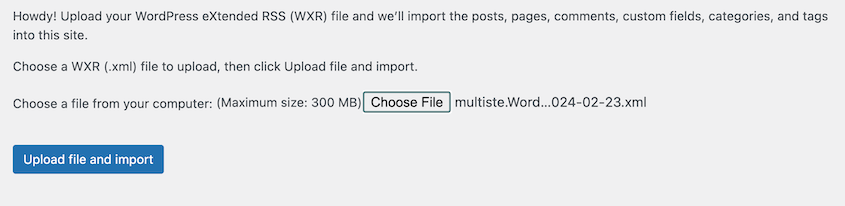
You can create new authors or assign all content to existing users. For most merges, assigning everything to your main author account keeps things simple and avoids creating unnecessary user accounts.
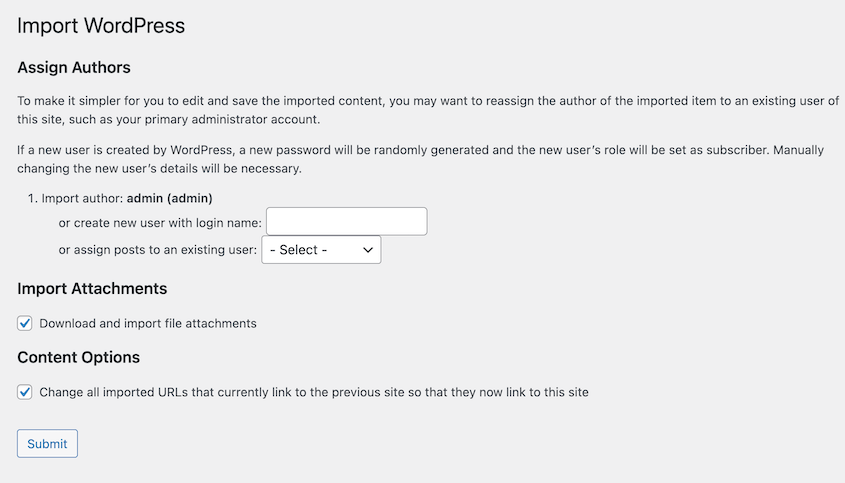
Check Download and import file attachments to bring over images, but understand this doesn’t always work perfectly. Images hosted on external CDNs or with certain file types might not transfer, leaving you with broken image links that you’ll need to fix manually later.
WordPress attempts to avoid importing duplicates (often by checking existing posts), which can block some near‑duplicate content you actually want to consolidate.
You’ll need to manually handle content consolidation after import if you have overlapping topics.
Large imports take time and may appear to stall completely. Be patient: importing 500 posts with media can take 10-15 minutes depending on your server speed and file sizes.
Don’t refresh the page or restart the process unless you see an actual error message.
Step 3: Import External Images
WordPress imports your content successfully, but here’s what catches everyone by surprise: half your images might be broken.
This happens because your secondary site’s images are still hosted on the old domain. WordPress imported the post content and basic media information but couldn’t actually download the image files themselves.
You’ll see gray placeholder boxes or “image not found” errors scattered throughout your merged content.
The Auto Upload Images plugin automatically downloads external images and uploads them to your media library. I’ll be honest, it hasn’t been updated in years, which normally would be a red flag for any plugin recommendation.
But it still works reliably for this specific task, and I’ve used it on site merges without issues.
Install Auto Upload Images from the WordPress plugin directory. Once activated, it works automatically on any imported content you edit.
You can also run it manually on existing posts by simply editing them and clicking update. The plugin scans for external images and imports them during the save process.
Step 4: Set Up Redirects for SEO Preservation
All those search rankings and bookmarks pointing to your secondary sites are about to break.
Every page on your secondary sites that had search traffic or inbound links needs a 301 redirect to its new location. Without redirects, visitors clicking old links get 404 errors, and you lose all the SEO value those pages built up over time.
The simplest approach is a blanket redirect that sends everything from your old domain to the corresponding path on your primary site. Add this to your secondary site’s .htaccess file:
RewriteEngine On
RewriteCond %{HTTP_HOST} ^olddomain.com$ [OR]
RewriteCond %{HTTP_HOST} ^www.olddomain.com$
RewriteRule (.*)$ https://www.newdomain.com/$1 [R=301,L]
This redirects everything from the old domain to the same path structure on your new domain. So olddomain.com automatically becomes newdomain.com.
Timing matters here. Set up redirects after your content import is complete and you’ve verified everything works properly on the primary site. Once redirects are active, your secondary sites essentially become forwarding services.
Step 5: Post-Merge Testing and Optimization
Merging sites creates countless opportunities for something to break.
Here’s the checklist I use with every merge.
Basic Functionality Testing
Click through every menu item, test all forms, verify that search works, and check that user registration and login functions properly. If your site has e-commerce, place test orders through the entire checkout process.
Don’t assume anything works until you’ve personally verified it.
Pay special attention to contact forms and newsletter signups. These often break during merges because they depend on specific plugin configurations that don’t always transfer cleanly. Test every form on every imported page.
Performance Impact Assessment
Merged sites often perform differently than they did on their own. Run speed tests using GTmetrix or Google PageSpeed Insights before and after your merge to compare performance.
Check that your hosting plan can handle the combined traffic and resource requirements. I’ve seen sites crash within hours of going live because the merged content pushed them past their server limits.
Sometimes merging reveals that you need to upgrade your hosting tier. Better to discover this during testing than when real visitors arrive.
If performance becomes an issue after merging, Duplicator can help you quickly migrate to a more powerful hosting environment without repeating this entire merge process.
Find a web host with better infrastructure and scalability. Back up your original site and drop it into the new site.

Duplicator will import all of your original data!
Analytics and Tracking Updates
Update your Google Analytics and Search Console properties to reflect the new site structure. Set up goal tracking for your merged content and install the same tracking codes across all imported pages.
This is essential for measuring post-merge performance. You need baseline data to know if the merge succeeded or if you’re losing traffic somewhere.
The Critical Monitoring Period
Plan to monitor closely for the first month after the merger. Check search rankings weekly, monitor traffic patterns for unusual drops, and watch for crawl errors in Search Console.
Most merge-related issues surface within 2-3 weeks if they’re going to appear.
Troubleshooting Common WordPress Merge Issues
Even with careful planning, WordPress merges rarely go perfectly smooth.
Import timeouts are the most common issue with large sites. If your import stalls or fails, try breaking the export into smaller date ranges. Increase your PHP memory limit and execution time if you have server access.
Beyond external images, you might find that some media files didn’t import properly even with the built-in attachment downloader. Check your uploads folder and verify that images referenced in posts actually exist in your media library.
Sometimes manual re-uploading of key images is necessary.
Internal links between posts on secondary sites now point to nonexistent pages. Use a plugin like Broken Link Checker to identify these systematically. Some can be fixed with find-and-replace in your database, but others need individual attention.
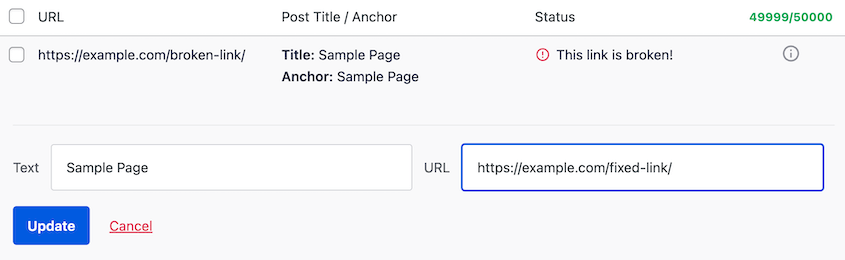
Plugins that worked fine on separate sites sometimes conflict when combined. Deactivate non-essential plugins immediately after issues, then reactivate them one by one while testing functionality.
This isolates which plugin is causing problems.
Merging sites often leaves behind duplicate media files, unused plugin data, and other database bloat. Use a plugin like WP Media Cleanup to identify and remove orphaned images.
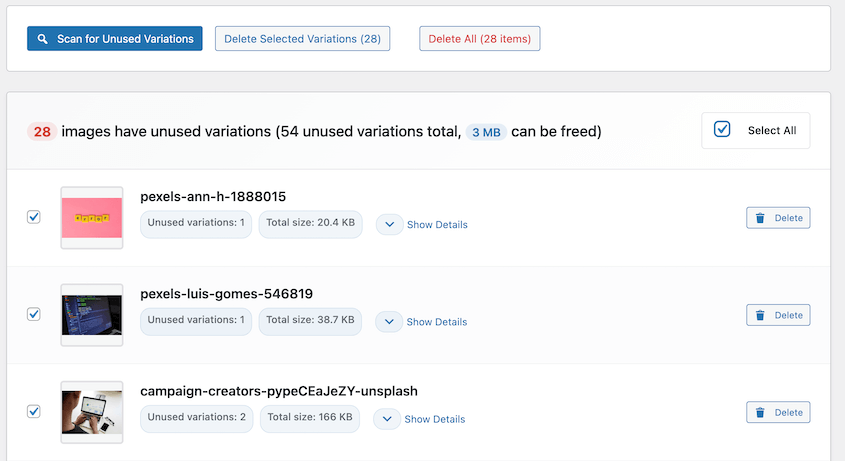
Your database can easily double in size during a merge, and most of that bloat serves no purpose on your combined site. Consider running a full database optimization to clean up after the merge.
Frequently Asked Questions (FAQs)
How do I merge multiple WordPress sites without losing content?
Export content from each secondary site using WordPress’s built-in export tool, then import everything into your primary site using the WordPress Importer. Make sure to check “Download and import file attachments” to bring over images and media files. For complex sites with custom post types or extensive customizations, tools like Duplicator Pro can handle the technical details more reliably.
Can I merge sites that use different themes and plugins?
Yes, but expect some formatting issues and broken functionality after the merge. Your primary site’s active theme will control how all imported content displays, so posts designed for different themes may look inconsistent. Deactivate any plugins from secondary sites that conflict with your primary site’s setup, and be prepared to manually fix styling issues on imported pages.
Will merging sites hurt my search engine rankings?
Merging sites properly with 301 redirects actually consolidates your SEO authority and can improve rankings over time. Set up redirects from old domain pages to their new locations on your primary site to preserve link equity and prevent 404 errors. Monitor your search rankings closely for the first month after merging, as temporary fluctuations are normal during the transition period.
How long does it take to merge WordPress sites?
Plan for 2-4 hours per site for straightforward content merges, plus additional time for testing and troubleshooting. Complex sites with e-commerce, membership areas, or heavy customizations can take significantly longer. The actual import process is usually quick, but setting up redirects, fixing broken links, and testing functionality takes the most time.
What should I do if my merged site breaks or performs poorly?
First, check if you’ve exceeded your hosting plan’s resource limits—merged sites often need more server capacity than individual sites. Deactivate non-essential plugins one by one to identify conflicts, and test all critical functionality like contact forms and checkout processes. If performance issues persist, consider migrating to a more powerful hosting environment using a tool like Duplicator Pro.
Do I need to keep my secondary sites active after merging?
Keep secondary sites running with 301 redirects in place for at least 6-12 months to ensure search engines and visitors can find your content at its new location. After that period, you can safely shut down the old sites but maintain the redirects as long as possible to preserve any remaining SEO value and handle bookmarked links.
How do I merge multiple WordPress websites into a multisite?
To merge multiple WordPress sites into a multisite, first set up a WordPress multisite network, then use Duplicator to back up each standalone site and import it into the network as a new subsite. Duplicator copies the files, database, and URLs so each site keeps its content, users, and settings during the move. This avoids manual database merging and reduces the risk of broken links or missing data.
Consolidate Your Content
Managing multiple WordPress sites might be draining your time and money. Every hour spent updating plugins across four sites is an hour not spent creating content, building relationships, or developing new revenue streams.
The opportunity cost of scattered site maintenance adds up fast, especially when you’re paying for multiple hosting plans, premium plugins, and security services that could be consolidated.
With a strategic merge plan, you can consolidate your sites over a weekend. You’ll eliminate duplicate expenses, streamline your workflow, and create a single powerful site that’s easier to maintain and grow.
Looking for other ways to optimize your time as a site owner? Duplicator Pro will automate backups to the cloud and even restore your site when it’s completely broken. Offload your tasks with Duplicator today!
While you’re here, I think you’ll like these other WordPress guides:
- How to Optimize Your WordPress Database: Get a Fast Site in 10 Steps
- How to Create a 301 Redirect Map for Website Migrations
- How to Redesign a WordPress Site
- How to Download Your Entire WordPress Site in 5 Minutes or Less
- Mastering WordPress Debugging: From Basics to Advanced Techniques




