


Top Media Cleaner WordPress Plugins: A Complete Guide for 2026
 Joella Dunn
Joella Dunn
Joella Dunn
 John Turner
John Turner
John Turner
You compress your images, use a CDN, and optimize every visible asset on your homepage. But your server is still running out of space.
Here’s what’s happening: WordPress doesn’t just store the image you upload—it creates 5 to 10 different versions of it automatically. Thumbnail size, medium, large, hero image dimensions, whatever your theme demands.
You upload a 2MB photo, WordPress generates nine variations, and you now have 10 files eating up space. Do this 500 times, and suddenly your 1GB media library balloons to 10GB, with about 90% of those files never used anywhere on your site.
The problem gets worse over time. Old themes leave behind their custom image sizes, deactivated plugins don’t clean up their thumbnails, and every new design adds another layer of digital clutter.
You can’t just delete files through FTP either, because you don’t know which specific image variation is being referenced on your site. Delete the wrong one and you break your site.
You need something that understands which files are actually referenced in your database.
This isn’t about image optimization—that shrinks files. This is about deleting duplicates, and it requires a different kind of tool.
In this post, I’ll recommend some of my favorite media cleaner plugins for WordPress sites!
Here are the key takeaways:
- WordPress automatically creates 5-10 variations of every uploaded image, causing a 1GB media library to balloon to 10GB with 90% unused files
- Media cleaner plugins scan your database to identify orphaned files and unused image variations that are safe to delete without breaking your site
- Cleaning your media library speeds up backups, prevents inode limit issues, reduces hosting costs, and makes site migrations smoother
- WP Media Cleanup is the top choice because it targets unused variations (the real source of bloat) and includes a 30-day recovery window
- Always run a full backup with Duplicator before cleaning your media library to prevent accidental data loss
Table of Contents
What is a Media Cleaner WordPress Plugin?
Media cleaner WordPress plugins optimize your wp-content/uploads folder.
They scan your SQL database to find every image reference—posts, pages, widgets, custom fields— anywhere an image might be called. It compares that list against the actual files sitting on your server.
Anything that exists as a file but doesn’t appear in the database gets flagged as an “orphan.”
An orphan file is exactly what it sounds like—a file that exists on your server but isn’t found in any post, page, or metadata. It’s taking up space with zero purpose.
You can’t just rely on image optimization plugins like Smush or ShortPixel. Those tools compress your files to make them smaller. Media cleaners delete files that shouldn’t exist in the first place. Different problem, different solution.
Why Clean Your WordPress Media Library?
If you’re running regular backups of your site, you already know that backing up 50,000 files takes significantly longer than 5,000 files. Cleaning your media library directly translates to faster daily backups and smaller backup archives.
But there’s another issue most people don’t know about: inode limits. Many managed hosting providers don’t just limit your storage space—they limit the number of files you can store.
Each thumbnail counts as a separate file. You can hit your inode cap while still having plenty of gigabytes left unused. Suddenly your site can’t upload anything new, and you’re stuck troubleshooting a problem you didn’t know existed.
Media bloat also makes site migrations more difficult. When you’re moving to a new host or domain, large media libraries can cause PHP timeouts and failed transfers. A lean media library means fewer points of failure during the migration process.
And if you’re storing files in the cloud or paying for premium hosting tiers, unused thumbnails are costing you actual money every month. You’re paying to host unused files.
Our Favorite Media Cleaner Plugins for WordPress
I’ll review each plugin in depth, but here’s a quick overview of our favorite WordPress media cleaners:
- WP Media Cleanup: Targets unused image variations with a 30-day recovery window, best for comprehensive cleanup
- Search & Replace Everything: Ideal for domain migrations and rebrands, combines URL updates with media cleaning
- Media Cleaner: Popular free option with frontend crawling capability to verify image usage
- Media Deduper: Focuses on finding and removing duplicate uploads
WP Media Cleanup
WP Media Cleanup is a new media cleaner plugin by the Duplicator team, and it takes a different approach than others on the market.
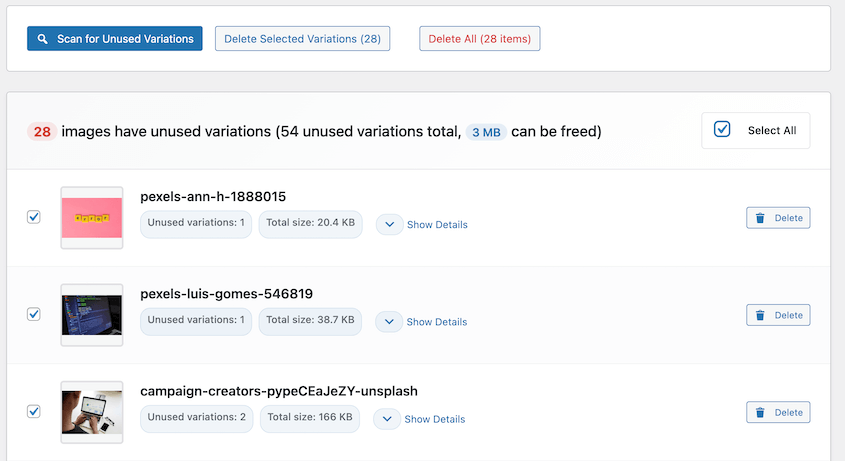
Instead of just flagging unattached media items (files not connected to any post), WP Media Cleanup targets unused image variations.
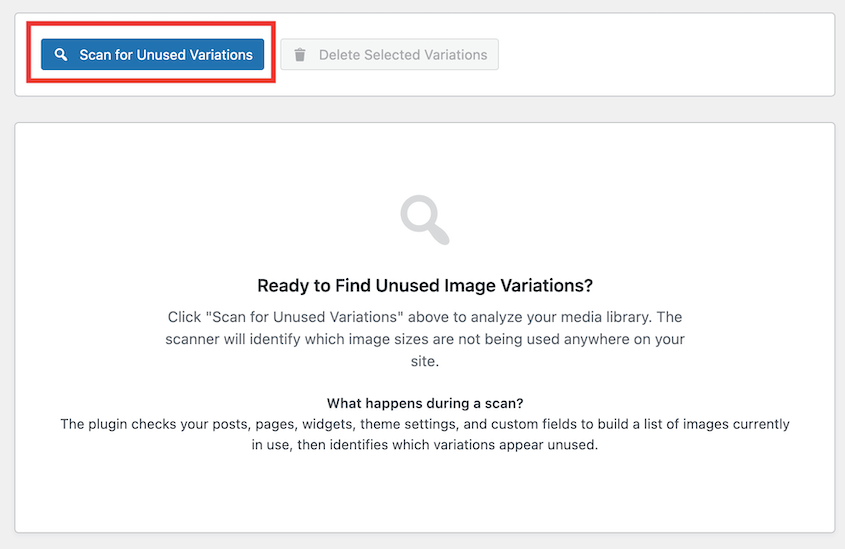
The scanning engine goes deep—it checks posts, pages, widgets, theme customizer settings, and even Advanced Custom Fields meta boxes. If a specific image size isn’t being referenced anywhere, it gets flagged for removal. This is where most of your actual bloat lives, not in completely unattached files.
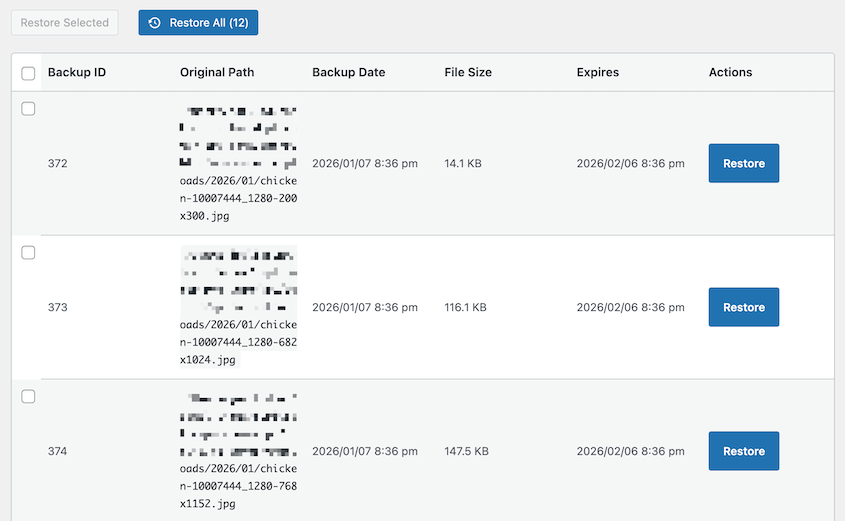
Files get soft-deleted to a temporary folder first, giving you a 30-day recovery window if something goes wrong. This prevents you from accidentally deleting your media library with one misclick.
And it will never delete your original full-size image—only the unused resized versions that are bloating your library. This is important because WordPress can regenerate thumbnails from the original, but it can’t do the opposite. With WP Media Cleanup, your source files stay untouched.
If you’re already using Duplicator for backups, this is the natural companion tool. It’s built with the same philosophy: safety first, automation second.
Search & Replace Everything
Built by the WPCode team, Search & Replace Everything is best for sites going through a rebrand or domain migration. It’s used for search and replace functions, but it has a built-in media cleaner.
The workflow makes sense: You’re already doing a database search-and-replace to fix URLs after a migration, so why not clean unused images in the same session? Search & Replace Everything lets you handle both tasks without switching tools or running multiple scans.
When you move to a new domain, all your image URLs in the database still point to the old domain. Search & Replace Everything lets you update those URLs in one pass, then immediately scan for any media files that aren’t being referenced anymore.
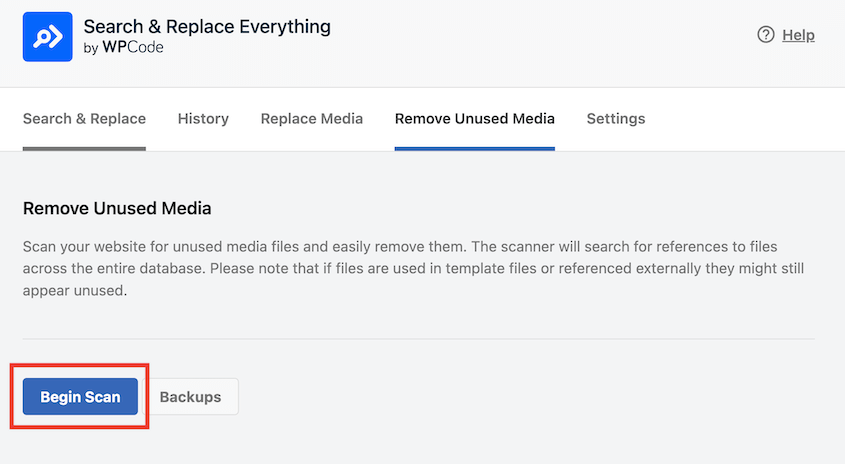
Maybe some test images from staging never made it to production. Now you can clean them up before they become permanent baggage.
You’ll get a list showing each file’s title, server path, and size. This gives you actual context before you delete anything.
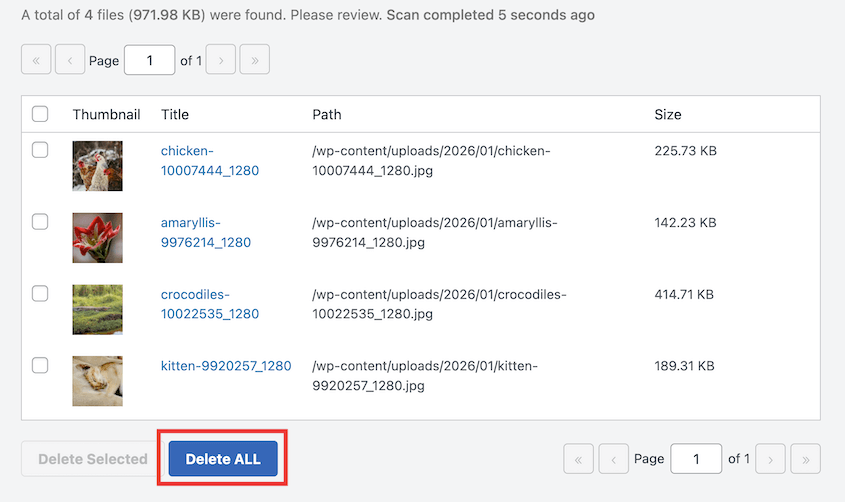
You can manually remove specific files rather than being forced into a bulk deletion you’re not confident about. This level of control matters when you’re dealing with a live production site and can’t afford to break something.
I found the interface very straightforward. You can easily scan for orphans and delete what you’re comfortable deleting. It’s particularly useful for agencies managing multiple client sites where every migration needs to be clean and documented.
Media Cleaner
Media Cleaner is one of the most popular plugins for optimizing your WordPress media library. It deletes unused media entries and files. Plus, it fixes broken images.
The free version does a basic scan for unused images in your posts, pages, post types, metadata, and widgets.
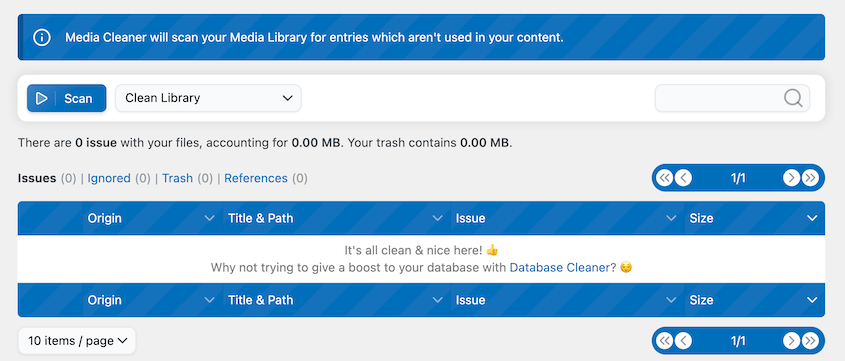
If you upgrade to the pro version, Media Cleaner can crawl your actual frontend pages to verify whether an image is being used. This live site scan can help you catch image references stored in ways that don’t show up in standard database queries.
Files don’t get deleted immediately—they’re moved to an internal trash folder that you have to manually empty. This gives you time to check your site, test critical pages, and make sure nothing broke before making deletions permanent.
In my testing, I found that WP Media Cleanup worked faster and found more unused images than Media Cleaner. But if you’re looking for a basic free option, it could be for you.
Media Deduper
Media Deduper solves a different problem—it focuses on redundancy rather than unused files. If your media library is bloated because you keep uploading the same images over and over, this is the tool you need.
When you first install it, Media Deduper will index all of your media library files. Then, you can see which images are duplicates. The plugin automatically adds new uploads, so you only have to run this index once.
You’ll get a list of duplicate images on your website. Each one displays the upload location, author, date, file size, and whether it’s used or unused.
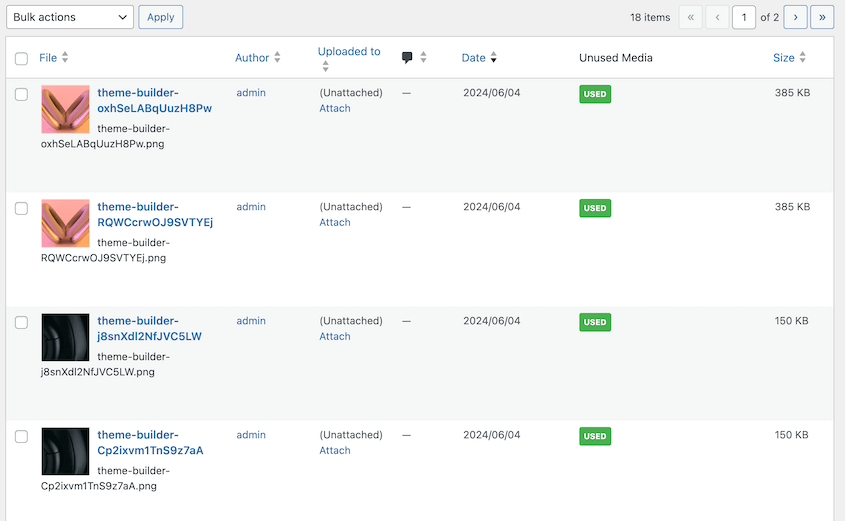
There’s a Smart Delete option, which prevents images from breaking on the front end. You’ll avoid losing a post’s featured image as you’re removing its duplicates.
Frequently Asked Questions (FAQs)
What’s the best tool for removing unused images from WordPress?
WP Media Cleanup is the best option for most sites because it targets unused variations, which are the biggest source of bloat in real-world WordPress installations. The recovery features also prevent you from accidentally breaking your site during cleanup.
Is there a Media Cleaner alternative?
You can manually remove files via FTP or use WP-CLI commands to query the database and delete orphaned media. Both methods are high-risk and prone to human error compared to plugins that automatically cross-reference the database with server files. I recommend WP Media Cleanup as a fast and error-free image variation remover.
Is it safe to use a media cleaner plugin?
There’s always some risk when deleting files, but plugins with soft delete or trash features significantly reduce that risk. Always run a full backup with Duplicator before starting any cleanup process, regardless of which plugin you choose.
Can I restore images after using a media cleaner?
It depends on the plugin. WP Media Cleanup has a 30-day recovery window with automatic backups of deleted files. Media Cleaner uses a trash system you can restore from before emptying. Other plugins may delete files permanently and immediately.
Does deleting unused media speed up my website?
It speeds up backend processes like backups, migrations, and media library loading in the WordPress admin. It also saves storage space and prevents inode limit issues. However, it doesn’t usually impact frontend page load speeds directly since those unused files weren’t being loaded on the frontend anyway.
Reclaim Your Server Space Today
You wouldn’t keep trash sitting in your office just because you have the floor space. Your server deserves the same respect.
Media library bloat doesn’t fix itself. Every day you wait, your theme and plugins are generating more thumbnail variations you’ll never use. Clean it now, and set up a maintenance schedule to keep it optimized going forward.
Here’s your action plan: Run a backup with Duplicator Elite so you have a restore point if anything goes wrong. Then use WP Media Cleanup to scan for unused variations and orphaned files.
Review the results, delete what you’re confident about, and enjoy a leaner site that’s faster to back up, easier to migrate, and cheaper to host.
While you’re here, I think you’ll like these related WordPress guides:
- How to Download the WordPress Media Library
- How to Restore the WordPress Media Library
- How to Clean Up a WordPress Site
- How to Optimize Your WordPress Database
- How to Empty Trash in WordPress For Better Site Health




