


How to Fix Broken Links in WordPress
 Joella Dunn
Joella Dunn
Joella Dunn
 John Turner
John Turner
John Turner
When a user clicks on a link on your website, they expect to see relevant content. But sometimes, they could see a 404 error instead.
This is called a broken link. It can easily be caused by a mistyped URL or a migration to a new domain name.
Broken links are more than just an annoyance. They can hurt your search engine rankings and drive visitors away.
The good news is that broken links are easy to fix. In this tutorial, I’ll show you a few different ways to find and replace broken links on your website!
Table of Contents
What Causes a Link to Be Broken?
A link can become broken because of a URL typo, moved or unavailable content, changed permalinks, HTML errors, or firewall restrictions. Broken links usually appear after moving to a new domain name or removing a web page without redirecting it properly.
Here are some other common causes for broken links:
- An external website deletes the linked page or shuts down altogether
- The linked website is down
- A malfunctioning WordPress plugin or coding error
- Geolocation restrictions
Different Types of Broken Links
If you click on a link and it doesn’t redirect to the correct page, it’s probably broken. But, there are a few different types of broken links to look out for.
- Broken internal links: a page on your website was lost or had its URL changed during a migration
- Broken external links: a third-party web page no longer exists or moved locations
- Broken backlinks: a link to your content from another website no longer works because of deleted pages or updated URLs
Additionally, these links could have different HTTP status codes. These tell you why the link isn’t working.
- 404 Page Not Found: the linked page couldn’t be found on the site’s server
- 400 Bad Request: the server can’t load the page, usually because of incorrect URL syntax
- 410 Gone: the page is no longer available on the server with the requested address
Why Is It Important to Fix Broken Links?
It’s important to fix broken links because they harm your site’s User Experience (UX). When users encounter a broken link, they are more likely to leave your website without reading your posts or making a purchase. A lot of broken links can also cause Google to decrease your ranking because you’re not providing valuable content for searchers.
How to Fix Broken Links in WordPress
Even if you try to avoid them, broken links might appear on your website. To minimize any harmful effects, it’s important to fix them as quickly as possible. Let’s walk you through how to do this!
Step 1: Install the Broken Link Checker Plugin
It can be difficult to find broken links on your site. Especially if your site has been around for a while, there are thousands of internal and external links for you to check.
What if we told you that you could find and fix broken links in minutes? With the Broken Link Checker plugin, this is possible!
Broken Link Checker is a powerful SEO tool that automatically crawls your content for broken links and provides easy ways to edit them.
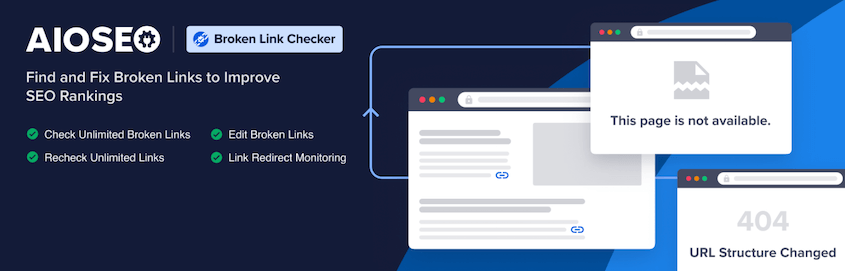
Here are some helpful features that come with Broken Link Checker:
- Periodical site scans every 3 days
- Detects valid links, redirects, and broken links (200, 301/302, and 404 HTTP response codes)
- Select which post types or custom post types to monitor
- Exclude specific URLs from the broken link scans
To take advantage of these benefits, download Broken Link Checker and install it on your WordPress site. For more information, check out this beginner’s guide on installing WordPress plugins.
Then, you’ll need to register for an account. You can sign up for free to start scanning up to 200 internal links. For as little as $4.99 per month, you can upgrade to 1,000+ link scans. Plus, it will check for broken external links.
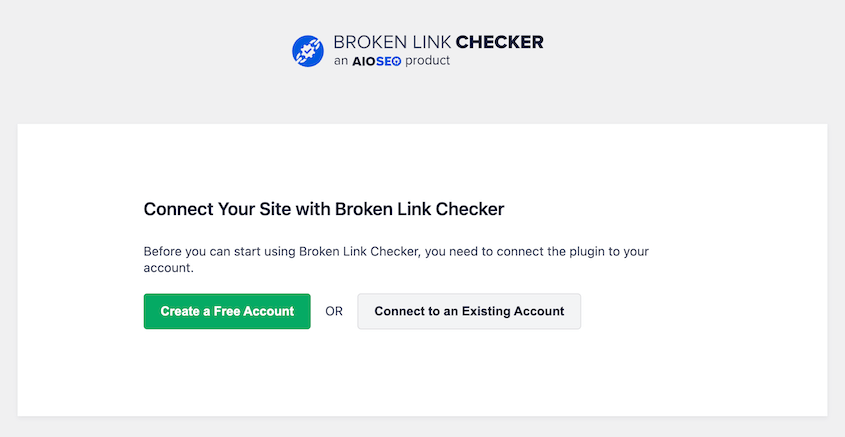
Now you’re ready to find broken links on your WordPress website!
Step 2: Prevent Search Engines From Following Broken Links
To figure out where to place your content in search results, search engines will crawl pages on your site. If they find broken links, you may end up losing your hard-earned ranking. It’s best to always have healthy links so that Google knows your website is a reputable source for visitors.
Right now, you might have live broken links on your site. Fortunately, you can hide these from search engines while you’re fixing them.
With Broken Link Checker, visit the Settings page. Under Link Tweaks, enable the setting that stops search engines from following broken links.
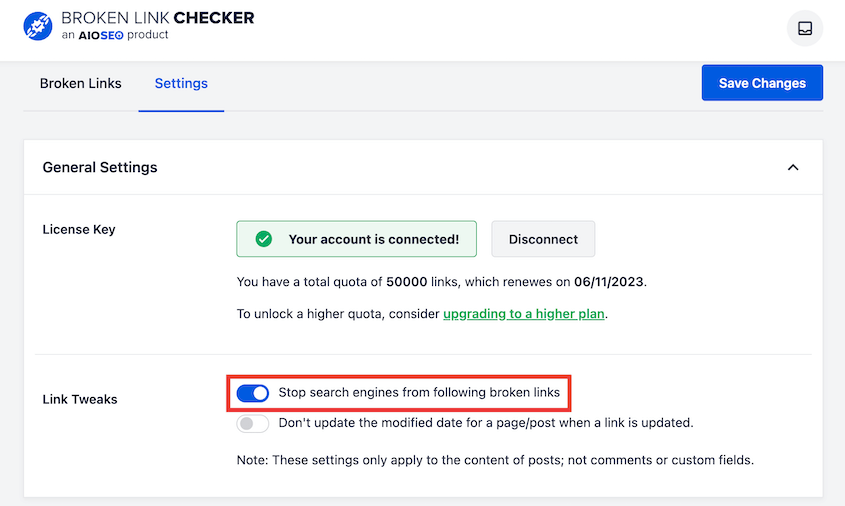
Be sure to save this change. After this, you don’t have to worry about search engines finding your broken links before you can update them.
Step 3: Find and Edit Broken Links
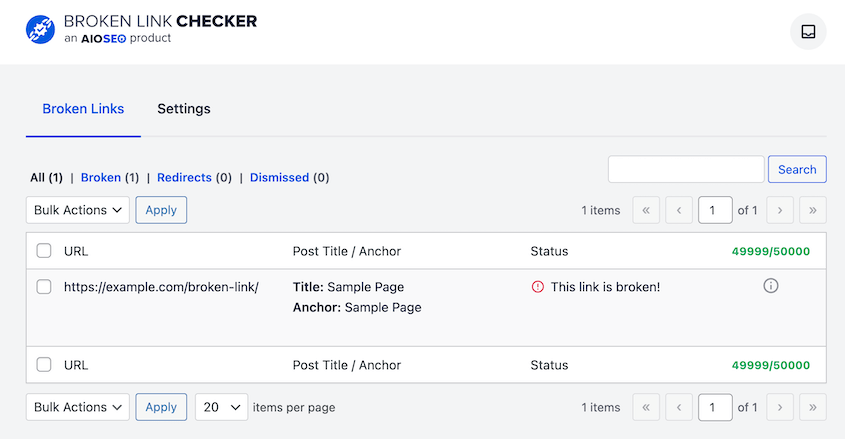
Once you click on the Broken Links tab, you’ll find that the plugin already scanned all the links on your site. Any broken links will be listed under Broken, along with the post title and anchor text.
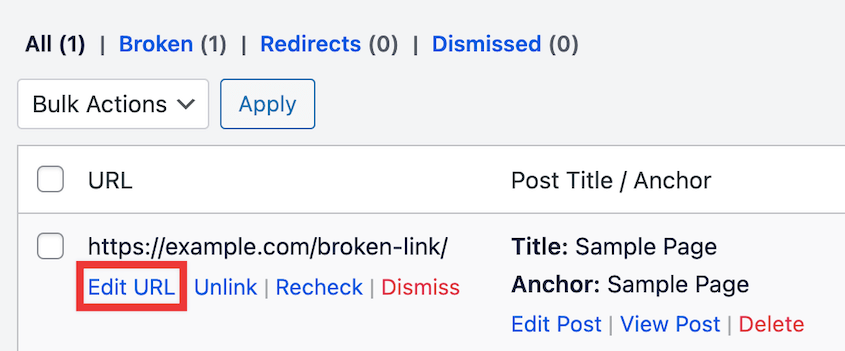
Luckily, it’s easy to update these broken links. To do this, simply find the Edit URL button.
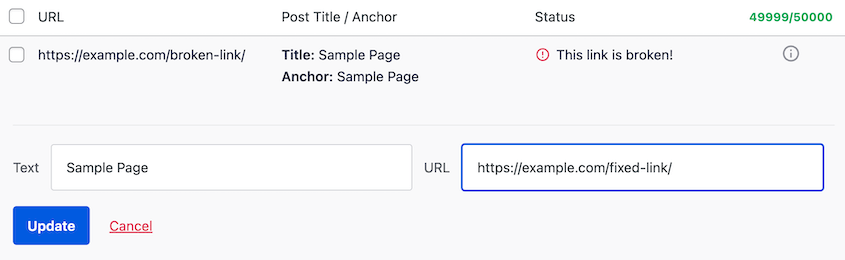
Enter the correct URL to replace the broken link. Then, update it.
After this, you’ll want to double-check that the link is no longer broken. Click on Recheck and the Broken Link Checker will revisit the link with the new URL. If it redirects to a new page, the link won’t have a 404 status code anymore.
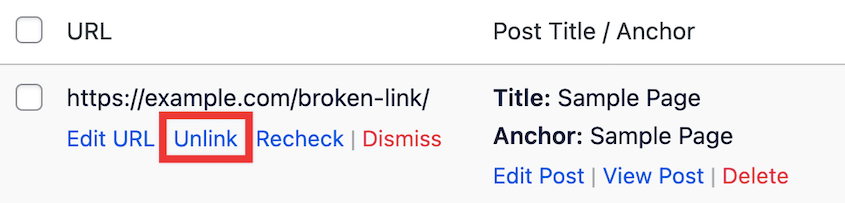
If you want to remove the link altogether, select Unlink. This will completely remove the link from the page.
Another option is to dismiss the alert if the link is working. You can continue to repeat this process until all the links on your website are healthy!
Other Ways to Find Broken Links
Although a broken link checker is the easiest method to find broken links, it’s not the only way.
Finding Broken Links with Google Analytics
To find broken links with Google Analytics, go to Reports » Engagement » Pages and screens.
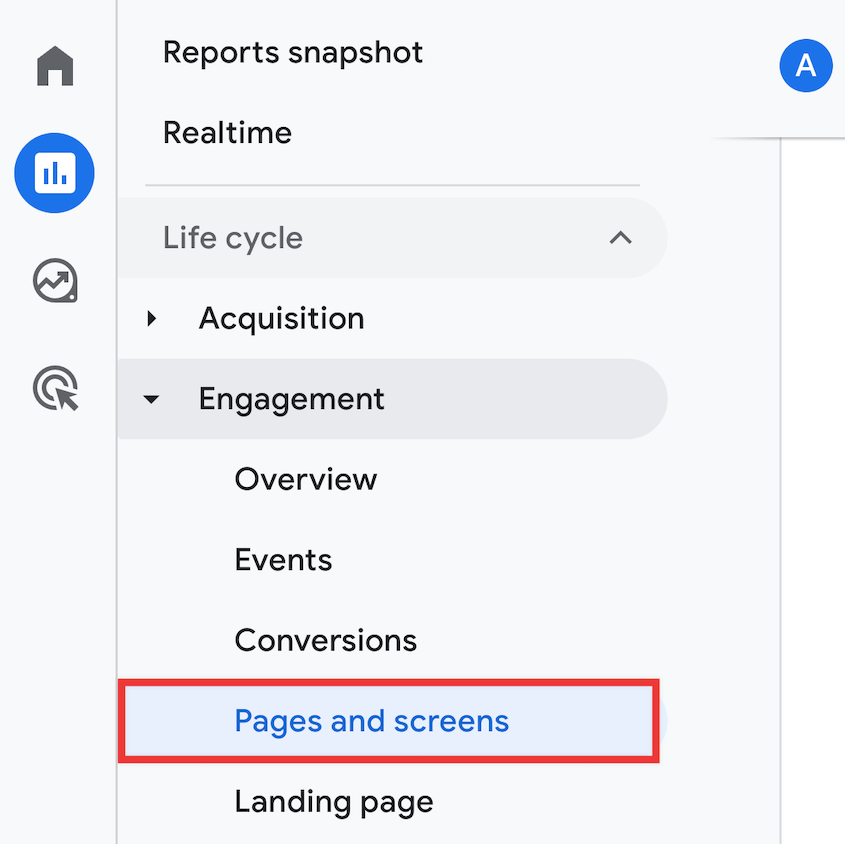
In the search box, enter 404 or page not found. Alternatively, search for the title of your custom 404 page.
Underneath the search box, choose Page title and screen class. Add Page path and screen class as a secondary dimension.
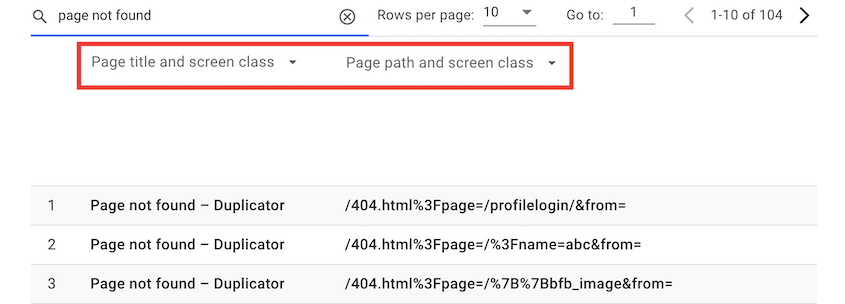
This will give you a list of any broken links on your site!
Finding Broken Links with Semrush
Semrush is a comprehensive SEO tool. With its Site Audit feature, you can identify broken links on your WordPress site.
To do this, be sure to sign up for a Semrush account. Then, click on Site Audit and create a new project.
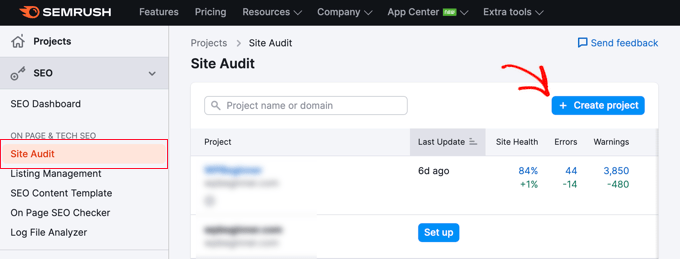
Enter the domain name for your website. Add a project name if you want to.
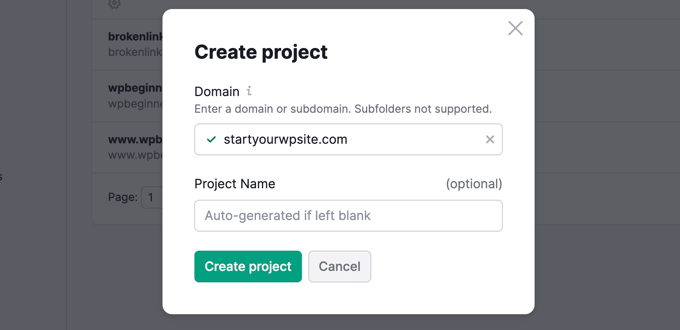
Once you hit Create Project, Semrush will crawl your website. In the Site Audit section, you’ll see a blue number next to Broken. This shows you how many broken links you have.
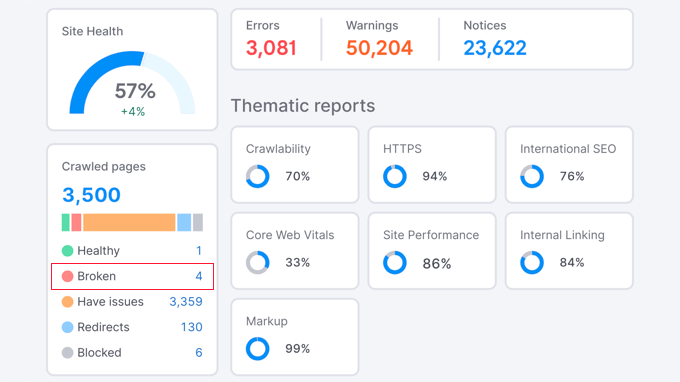
Click on this to view specific broken links.
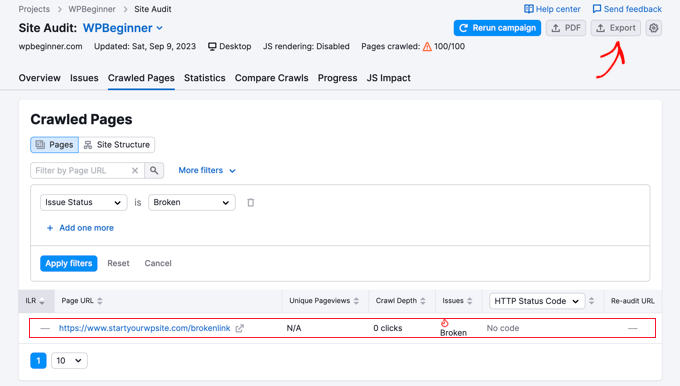
Finding Broken Links with Ahrefs
Another SEO tool you can use to find broken links is Ahrefs. Similar to Semrush, Ahrefs has a Site Audit tool to discover on-page SEO problems on your site.
Ahrefs is a premium service, so you’ll need to purchase a plan first. Next, add your site’s URL in the Site Explorer tool.
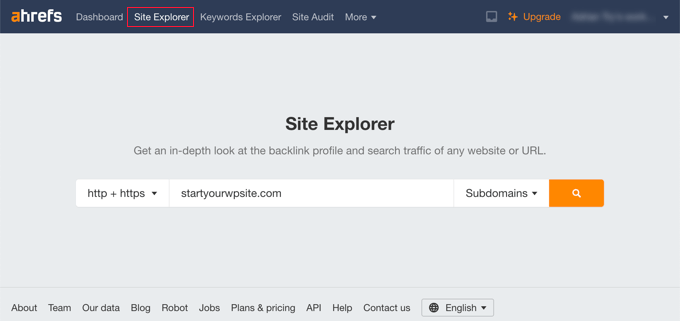
To find broken links, find Pages » Best by links. Choose the 404 not found filter.
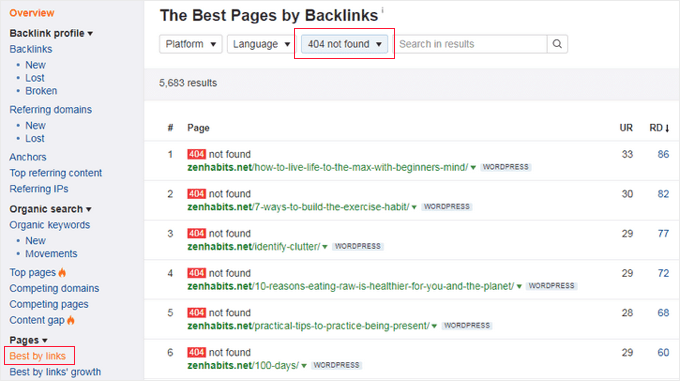
Feel free to export this list of broken links as a CSV file.
Finding Broken Links with MonsterInsights
MonsterInsights is a WordPress plugin that integrates with Google Analytics. Through its dashboard in WordPress, you can easily monitor and find broken links, leveraging the analytics data.
To get started, sign up for a Google Analytics account. Install MonsterInsights in your WordPress site and connect to Google Analytics.
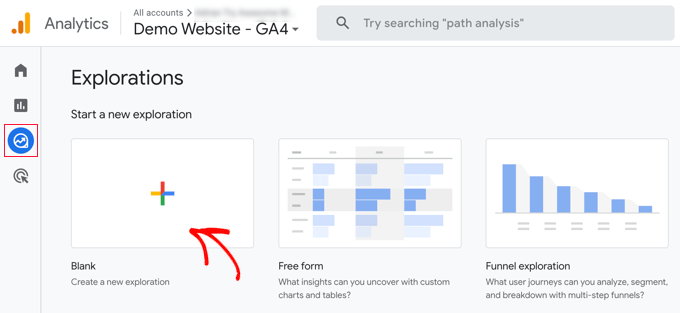
After this, create an Exploration report in Google Analytics. Find the Explore tab and choose the blank option.
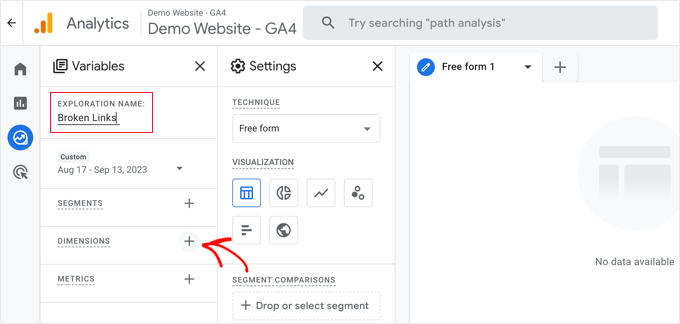
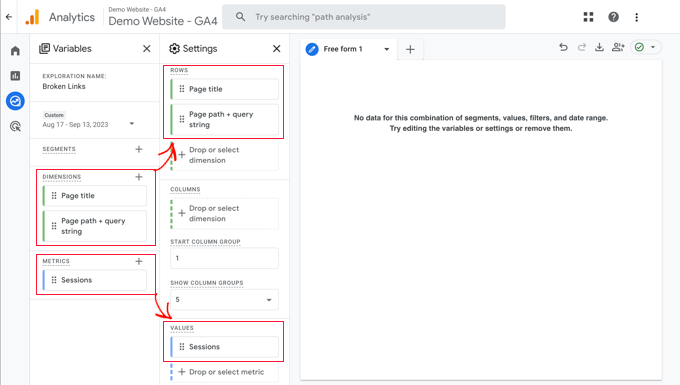
Name the exploration “Broken Links”. Click on the Dimensions plus sign.
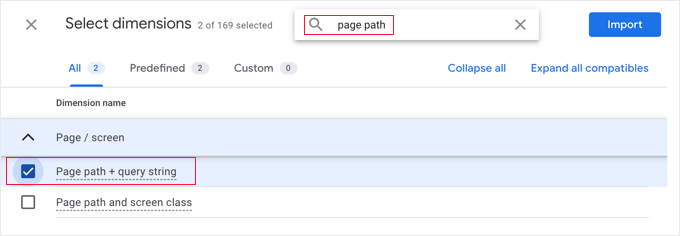
Search for the Page title dimension and check it. Do the same with the Page path + query string dimension. Then, hit Import.
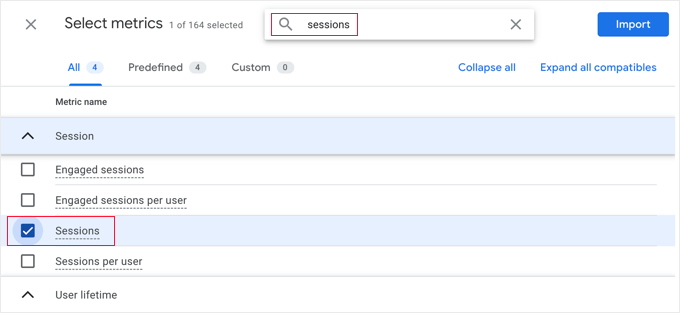
Next, click on Metrics. Import the Sessions metric.
At this point, drag the dimensions into the Rows box. Drag the metrics into the Values box.
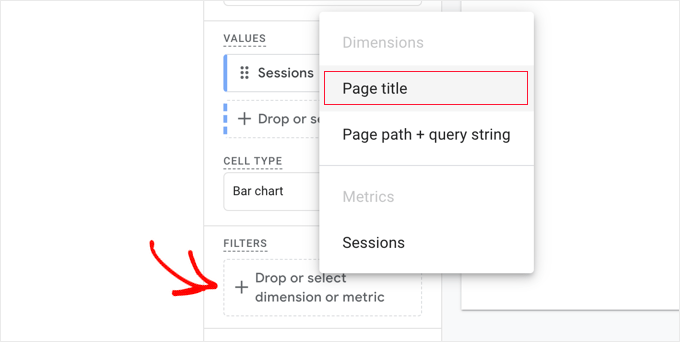
Now find the Filters box. Click on Drop or select dimension or metric and then hit Page title.
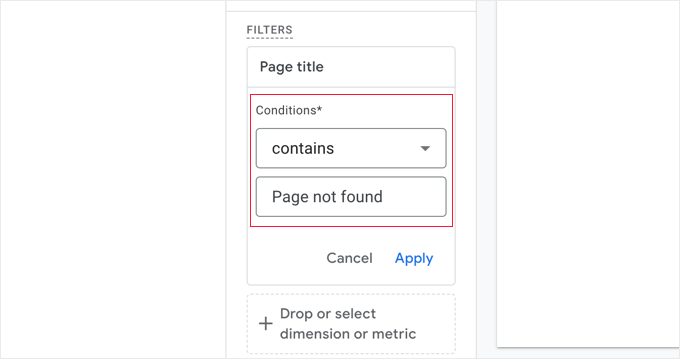
In the dropdown, choose contains and Page Not Found. Click Apply.
Now you’ll see a list of your site’s 404 errors for a given time frame.
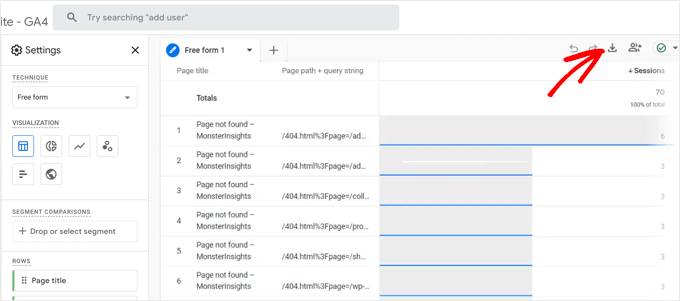
To see the full URLs, download the exploration.
Finding Broken Links with Google Search Console
You can also discover broken links with Google Search Console. Once you set up a free account, open Pages and select Not indexed.
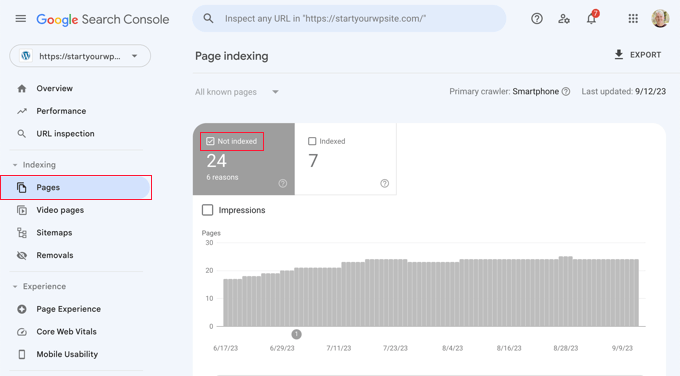
You’ll see a list of reasons why your pages aren’t being indexed. Click on Not found (404).
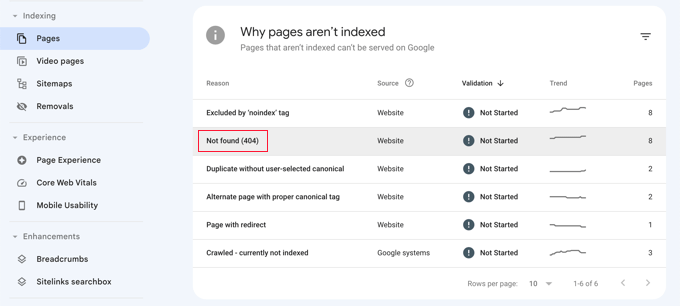
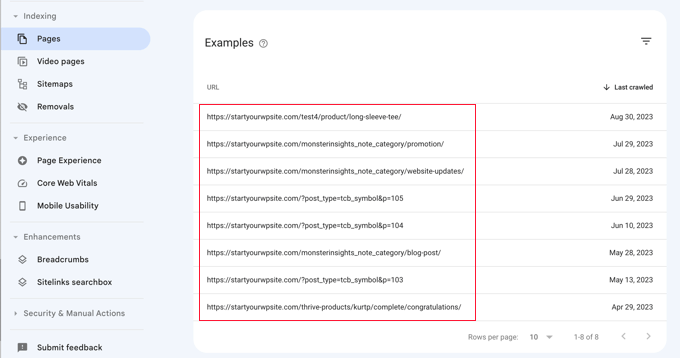
This will show you a list of links currently broken on your website.
How to Avoid Broken Links During a Site Migration
Broken links most often happen after migrating your website to a new domain name. If done incorrectly, your original visitors might not be able to find your new content.
To make sure you don’t lose any organic traffic, it’s important to have a well-thought-out plan before you move.
First, it can be helpful to install a WordPress migration plugin. These tools will help you back up your entire site and seamlessly move it to a different location. Duplicator Pro is the best option because it supports easy drag-and-drop migrations.
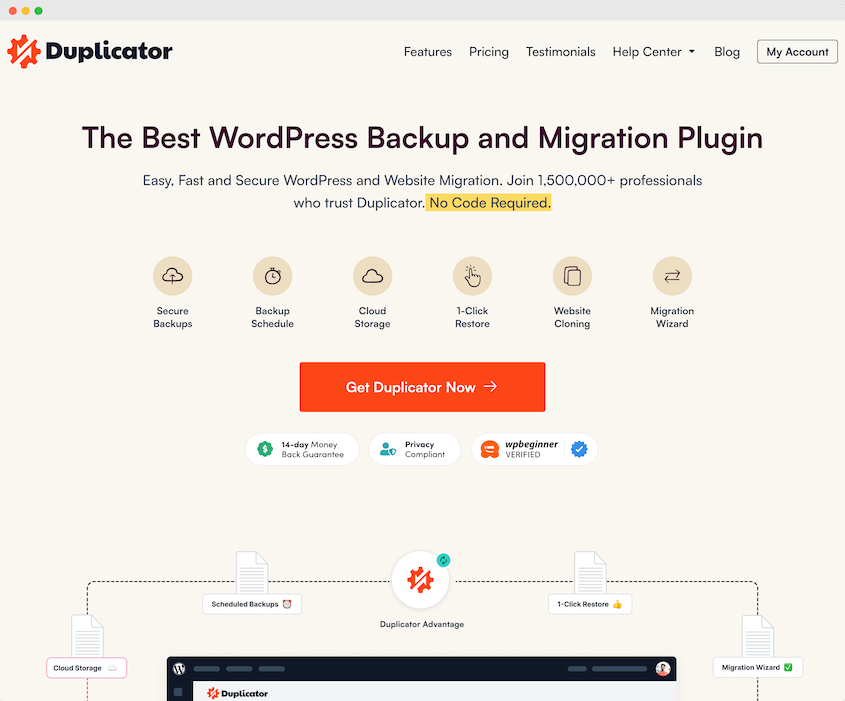
With Duplicator, you can create a backup of your site. This will bundle all of your WordPress files, themes, plugins, and database information into a zip file.

Once you build a backup, download its archive file.
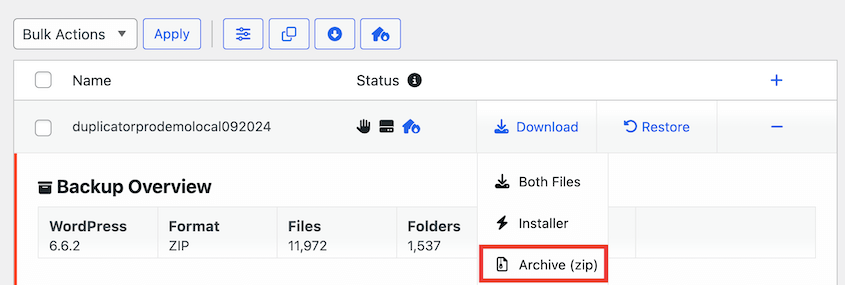
Then, simply install Duplicator Pro on your second WordPress installation. Go to the Import Backups page and upload your backup.

The Duplicator migration wizard will walk you through the rest of the installation!
After you move all of your content, you can redirect your entire site using All in One SEO. Using this plugin’s Redirection Manager, you’ll relocate your site and avoid any broken links.
Head over to AIOSEO » Redirects » Full Site Redirect. Enable the Relocate site option.
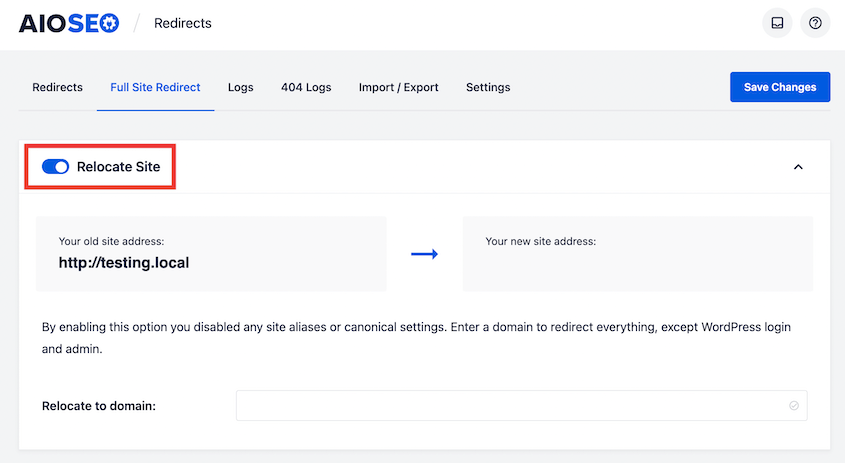
Enter your new domain in the text box and save your changes.
Frequently Asked Questions (FAQs)
What do broken links mean for SEO?
Broken links can harm Search Engine Optimization (SEO). When users view a 404 error page instead of the content they expected, they will likely leave your website. This high bounce rate can tell Google to decrease your SERP rankings.
What is the difference between a broken link and a 404 link?
A broken link is a link that doesn’t lead to the content that a user clicked on. Because of this incorrect URL, the user will often see a 404 Not Found error.
Does Google penalize for broken links?
Google may push your website lower in search results if it finds enough broken links. This can inform the search engine that you’re not regularly updating content and providing helpful information to searchers.
How do I remove broken links from Google search?
You can remove broken links from Google search by installing Broken Link Checker. Then, enable the setting that stops search engines from following broken links. This will prevent crawlers from scanning any of your site’s URLs that are broken.
How do I find and fix broken links on my website?
You can find broken links on your website using the Broken Link Checker plugin. This will give you a list of broken links, including broken internal links and broken outgoing links.
Alternatives: Google Search Console, Ahrefs, Google Analytics, Semrush, and Screaming Frog are webmaster tools that can give you a full site audit. These provide metrics about links, including crawl errors, broken backlinks, and internal dead links. However, many of these options can be expensive and not specifically designed for WordPress websites.
Conclusion
Now your site is full of healthy links instead of broken ones!
While you’re here, you may also like these WordPress tutorials:
- How to Restore WordPress From a Backup
- 20 Most Common WordPress Errors (And Some Quick Fixes)
- How to Fix the WordPress White Screen of Death
- How to Fix Your WordPress Site Not Working After a Migration
- The Ultimate WordPress Migration Checklist
- How to Fix the 500 Internal Server Error
Do you want to migrate your website without worrying about broken links appearing? Download Duplicator Pro for a seamless migration!




