

Removing Unused Media Files using WP Media Cleanup
Over time, WordPress automatically generates multiple image size variations for every image you upload — thumbnails, medium, large, and custom sizes added by themes or plugins. Many of these image variations are never actually used on your site, yet they still consume valuable disk space.
The Cleanup feature in WP Media Cleanup helps you safely identify and remove unused image variations without touching your original images. This allows you to reduce storage usage, speed up backups, and keep your media library clean and optimized.
Navigate to Media Cleanup Menu
Navigate to:
WP Media Cleanup → Cleanup
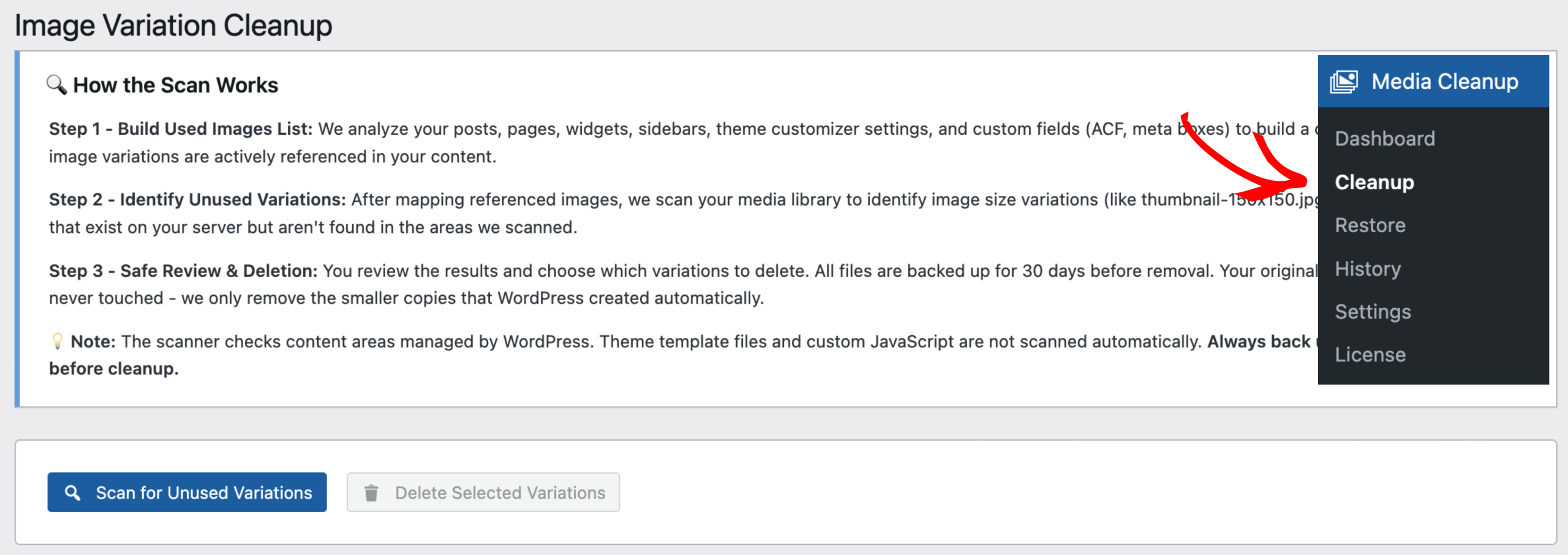
This is the main area where you scan your website and identify unused image variations.
How the Scan Works
WP Media Cleanup follows a safe, multi-step scanning process to ensure accuracy and prevent accidental data loss.
Step 1: Build Used Images List
The scanner analyzes all major WordPress-managed content areas to determine which image variations are actively used.
It checks:
- Posts and pages
- Theme Customizer settings
- Custom fields and meta data (including ACF and meta boxes)
This process builds a complete list of image variations that are currently referenced anywhere on your site.
Step 2: Identify Unused Image Variations
Once all referenced images are mapped, WP Media Cleanup scans your media uploads directory and compares existing image variations against the usage list.
At this stage, the plugin identifies:
- Image size variations (e.g.
thumbnail-150x150.jpg,medium-300x300.jpg) - Files that exist on the server but are not used anywhere in scanned content areas
Only unused variations are marked — your original full-size images remain untouched.
Step 3: Safe Review & Deletion
Before anything is removed, you are given full control.
- You review all detected unused variations
- You choose which files to delete
- Deleted files are backed up for 30 days
- Original images are never deleted
This ensures a safe and reversible cleanup process.
Important Note Before Scanning
Important:
WP Media Cleanup scans content areas managed by WordPress.
It does not automatically scan:
- Theme template files
- Custom PHP logic
- Images loaded via custom JavaScript
For maximum safety, we strongly recommend creating a full site backup using Duplicator before running a cleanup.
Running the Scan
Inside the Cleanup menu, you’ll see the main action button:
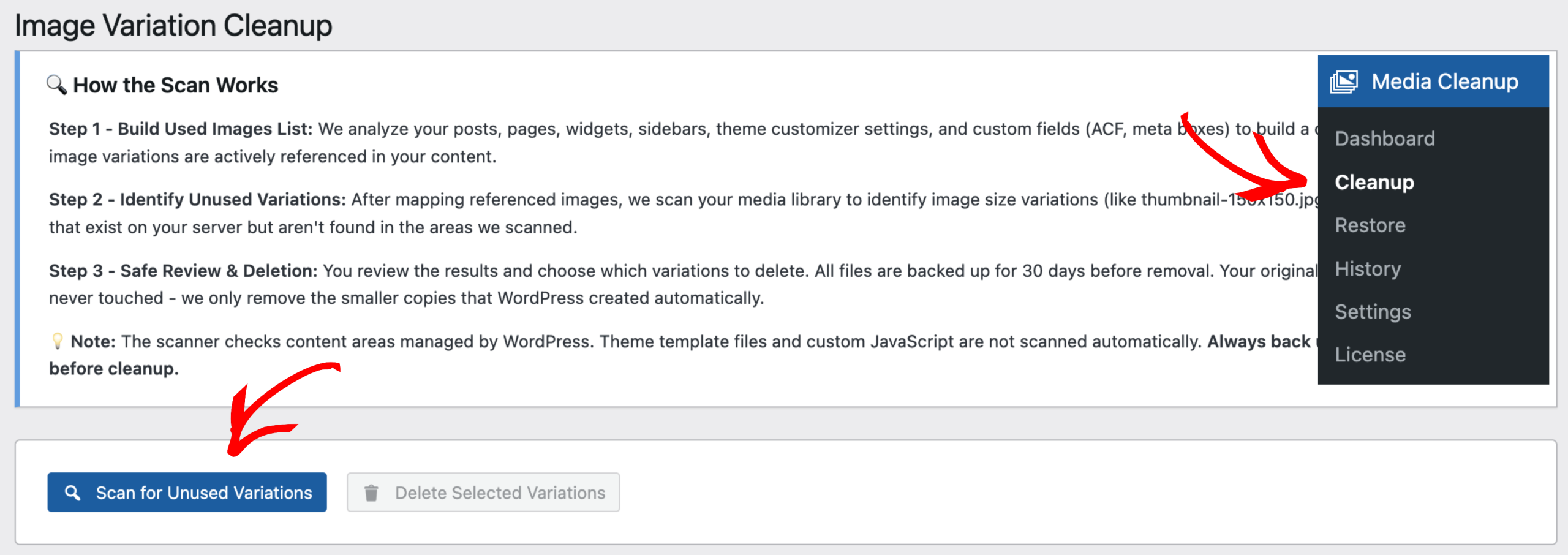
Scan for Unused Variations
Clicking this button will start the analysis of your media library.
What Happens During a Scan?
After clicking Scan for Unused Variations, WP Media Cleanup:
- Analyzes posts, pages, widgets, theme settings, and custom fields
- Builds a list of images currently in use
- Compares existing image variations on the server
- Identifies which variations appear unused
The scan runs automatically and may take a few moments depending on the size of your media library.
Scan Results
Once the scan is complete, you’ll see a summary similar to:
Images have unused variations (X unused variations total, X MB can be freed)
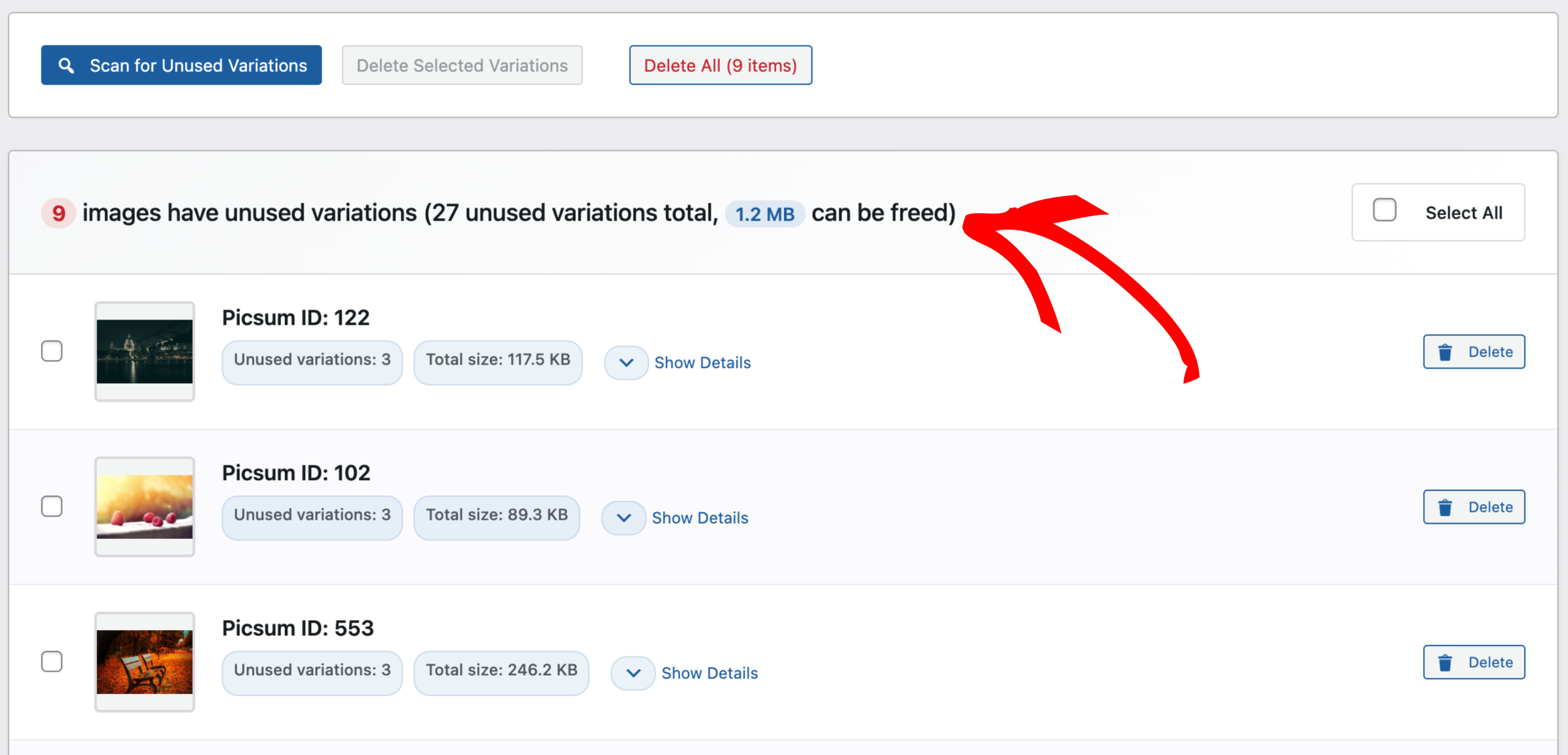
This summary tells you:
- How many images contain unused variations
- The total number of unused image files
- The estimated disk space that can be freed
Viewing Image Variation Details
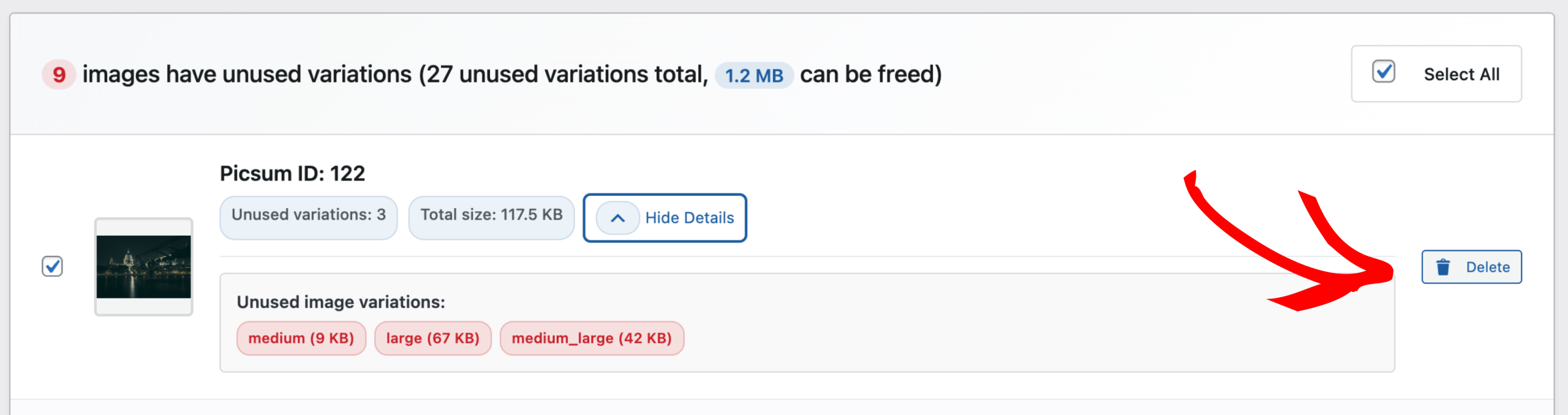
Clicking Show Details expands the image entry and reveals the unused image variations.

Here you can see:
- The exact image sizes (e.g.
medium,large,medium_large) - The file size of each variation
- A clear visual indicator that these variations are unused
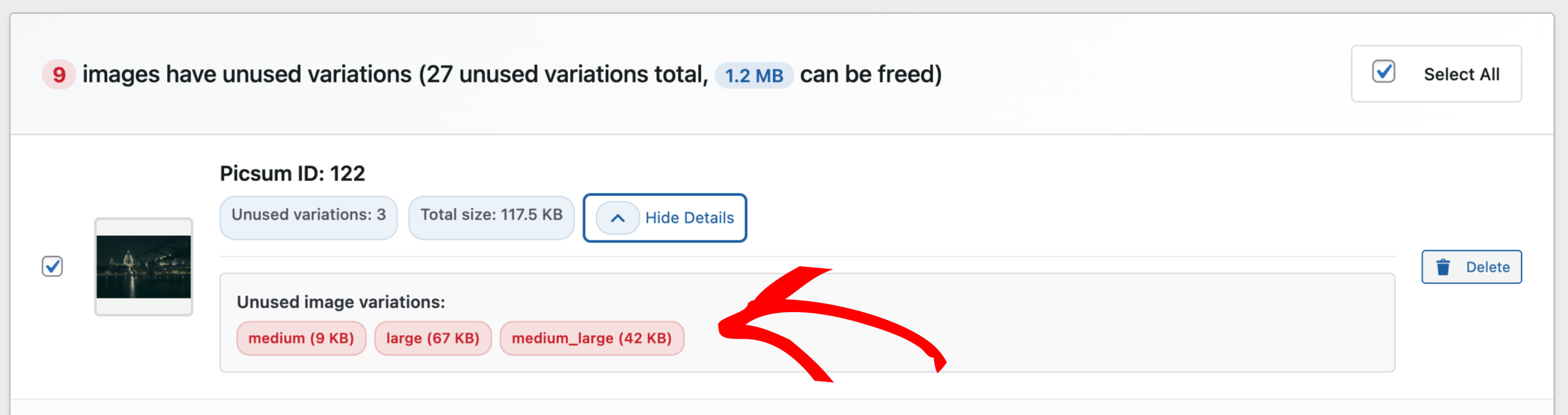
You can collapse the details anytime by clicking Hide Details.
Deleting Unused Variations Individually
If you choose to delete unused variations for a single image, click the Delete button next to that image.
Before deletion, a confirmation dialog appears explaining:
- The original image will NOT be deleted
- Files will be backed up first
- Deleted variations can be restored for 30 days
You must confirm the action before proceeding, ensuring full control and safety.
Bulk Cleanup Option
WP Media Cleanup provides flexible bulk cleanup options:
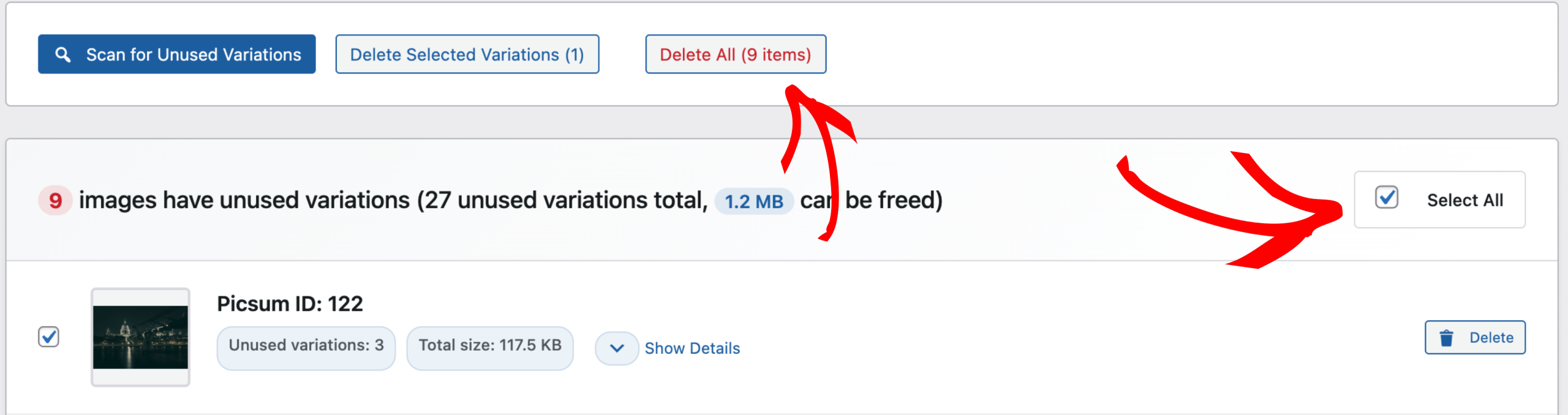
- Select All – Select all images with unused variations
- Delete Selected Variations – Delete only selected items
- Delete All – Remove all unused variations found in the scan
This allows you to clean aggressively or cautiously, depending on your needs.
After Cleanup
Once deletion is confirmed:
- Unused image variations are removed
- Disk space is immediately freed
- Your original images remain untouched
WP Media Cleanup also provides a recovery option, allowing you to restore deleted variations within 30 days.
Learn more about restoring deleted images here: How to Restore Deleted Media Files
Conclusion
The Cleanup feature in WP Media Cleanup makes it easy to identify, review, and safely remove unused image variations from your WordPress site.
With:
- Accurate scanning
- Clear image-level details
- Flexible deletion options
- Built-in backups and recovery
You can confidently clean your media library, reduce disk usage, and keep your site optimized — without risking your original images.


