

![[NOVO] Duplicator DB Optimizer: Limpe o Banco de Dados do WordPress Antes Que Ele Se Torne um Problema](https://duplicator.com/wp-content/uploads/2026/06/Announcement-DB-Optimizer.jpg)
UpdraftPlus vs Duplicator: Resolvendo o Debate de Uma Vez Por Todas
 Joella Dunn
Joella Dunn
Joella Dunn
 John Turner
John Turner
John Turner
Fazer backup e migrar seu site WordPress pode ser assustador, especialmente se você se preocupa em manter seus dados seguros. É por isso que você pode ter dificuldade em encontrar as melhores ferramentas para o trabalho.
Com tantos plugins de backup e migração por aí, como você escolhe?
Dois nomes consistentemente se destacam: UpdraftPlus e Duplicator. Ambos são poderosos, com seus próprios pontos fortes.
Eu dediquei tempo para usar extensivamente ambos os plugins. Comparei todos os seus recursos para que você saiba exatamente qual plugin atende às suas necessidades.
Aqui estão os principais pontos:
- Duplicator Pro vence em geral: Melhor para migrações, recuperação de desastres e sites grandes
- Vantagem de arquivo único: Duplicator cria um único arquivo de backup compactado em vez dos múltiplos arquivos separados do UpdraftPlus
- Recuperação de desastres: Somente o Duplicator permite restaurar sites quando você está bloqueado no painel administrativo do WordPress
- Diferença de preço: Duplicator Pro começa em $69/ano com backups e migrações ilimitados vs. UpdraftPlus Premium a $70/ano com tokens de clonagem limitados
- Facilidade de migração: Duplicator oferece migrações verdadeiramente de arrastar e soltar; UpdraftPlus requer mais etapas de configuração
- Versões gratuitas disponíveis: Ambos oferecem versões gratuitas capazes, mas a versão gratuita do Duplicator pode instalar backups em servidores vazios
Resumo Rápido: UpdraftPlus vs Duplicator
Aqui está uma prévia da nossa comparação entre UpdraftPlus e Duplicator!
| Recurso | UpdraftPlus | Duplicator | Veredito |
| Formato do backup | Múltiplos arquivos | Arquivo único | Duplicator |
| Backups agendados | Sim | Sim | Empate |
| Migração / clonagem | Custo extra (tokens) | Incluído | Duplicator |
| Staging com um clique | Não | Sim | Duplicator |
| Recuperação de desastres (restauração com bloqueio) | Não | Sim | Duplicator |
| Log de atividades | Não | Complemento | Duplicator |
| Otimização de mídia | Complemento | Complemento | Empate |
| Otimização de tabelas do banco de dados | Plugin irmão (WP-Optimize) | Não | UpdraftPlus |
| Facilidade de uso (iniciantes) | Fácil | Fácil | Empate |
| Armazenamento em nuvem gratuito | Sim | Não | UpdraftPlus |
| Armazenamento em nuvem integrado | Não | Sim | Duplicator |
| Instalação sem WordPress | Não | Sim | Duplicator |
| Preço inicial (pago) | R$ 70/ano | R$ 69/ano | Duplicator |
Sumário
- O que procurar em um plugin de backup e migração do WordPress
- UpdraftPlus vs Duplicator: Comparados
- Recursos: UpdraftPlus vs Duplicator
- Facilidade de Uso: UpdraftPlus vs Duplicator
- Opções de Restauração de Backup: UpdraftPlus vs Duplicator
- Migrações: UpdraftPlus vs Duplicator
- Logs de Atividade e Monitoramento
- Ambientes de Staging
- Otimização de Mídia
- Preços: UpdraftPlus vs Duplicator
- UpdraftPlus vs Duplicator: Prós e Contras
- Recursos: UpdraftPlus vs Duplicator
- UpdraftPlus vs Duplicator: Qual escolher?
- Perguntas Frequentes (FAQs)
O que procurar em um plugin de backup e migração do WordPress
Se você quer começar a fazer backup ou migrar seu site, existem muitos plugins do WordPress disponíveis para você. Para obter o melhor, veja o que você deve procurar:
- Backups manuais e automáticos
Um plugin amigável para iniciantes facilitará a criação de backups do site. Você também poderá definir agendamentos para fazer backup automático do seu site em um determinado horário.
- Armazenamento em nuvem
Para reduzir a carga em seu plano de hospedagem, você pode enviar backups para locais externos como Google Drive, Dropbox ou OneDrive.
- Opções de restauração
Backups não adiantam nada se você não puder restaurá-los. O melhor plugin permitirá que você substitua um site com problemas por uma cópia salva sem erros.
- Recursos simples de migração
Embora as migrações possam ser assustadoras, o plugin certo realizará este serviço em apenas algumas etapas.
- Suporte para Multisites e sites grandes
Um plugin de migração do WordPress básico só será equipado para lidar com sites de pequeno a médio porte. Se você planeja migrar um site maior, o plugin precisará empacotar facilmente arquivos grandes.
- Suporte ao Cliente
Assim como com qualquer plugin, você também vai querer que seu software venha com um suporte ao cliente estelar. Desta forma, se você encontrar alguma dificuldade, poderá obter respostas rapidamente.
UpdraftPlus vs Duplicator: Comparados
Com todos os diferentes plugins de backup e migração disponíveis, pode ser difícil reduzir suas opções. Se você precisa de ajuda para decidir entre UpdraftPlus e Duplicator, nós temos o que você precisa. Vamos comparar esses dois plugins populares para que você possa decidir qual é o certo para você!
Recursos: UpdraftPlus vs Duplicator
Primeiro de tudo, você vai querer saber o que cada plugin faz. Vamos dar uma olhada nos principais recursos incluídos no UpdraftPlus e no Duplicator.
Duplicator
Duplicator é uma ferramenta abrangente para fazer backup, migrar e até mesmo clonar sites. Devido às suas capacidades, o Duplicator é usado por mais de 1,5 milhão de usuários.
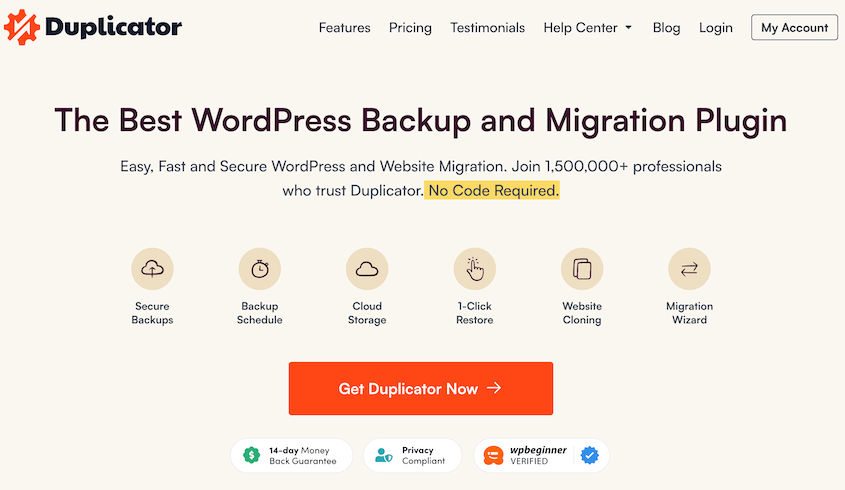
Aqui estão apenas alguns dos recursos incluídos com o Duplicator:
- Backups completos do WordPress
- Backups agendados automáticos
- Restauração de backup com um clique
- Armazenamento de backup na nuvem para Google Drive, Dropbox, Amazon S3, Microsoft OneDrive, FTP/SFTP e mais
- Migrações de sites por arrastar e soltar
- Suporta redes Multisite e sites grandes
- Pesquisa e substituição personalizadas
- Integração com cPanel
- Importações de servidor para servidor
- Compatível com provedores de hospedagem gerenciada
- Comandos WP-CLI
UpdraftPlus
Semelhante ao Duplicator, o UpdraftPlus pode realizar backups e migrações. É uma ferramenta popular para iniciantes gerenciarem a manutenção do WordPress sem nenhum código complexo.
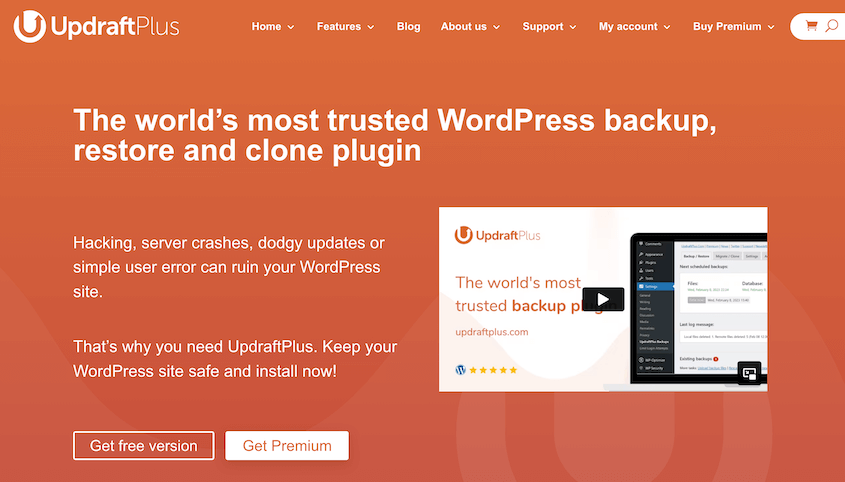
Aqui estão alguns dos principais recursos do UpdraftPlus:
- Backups agendados e manuais
- Backups incrementais
- Opções de restauração de backup
- Opções de armazenamento remoto para Rackspace Cloud Files, Microsoft Azure, Amazon S3 e mais
- Clonagem e migração
- Backups pré-atualização
- Suporta Multisite
Facilidade de Uso: UpdraftPlus vs Duplicator
Especialmente se você for iniciante, é importante instalar apenas plugins fáceis de usar. Dessa forma, você não perderá tempo tentando descobrir como fazer backup ou migrar seu site. Vamos comparar UpdraftPlus e Duplicator para ver qual tem funcionalidades mais amigáveis ao usuário.
Facilidade de Uso do Duplicator
Uma tarefa de manutenção comum que você precisará realizar é o backup do site. Com o plugin Duplicator, você pode facilmente criar uma cópia do seu site sempre que precisar.
Para iniciar um novo backup com o Duplicator, navegue até Duplicator Pro » Backups » Add New. Dê um nome ao backup e selecione um local de armazenamento.
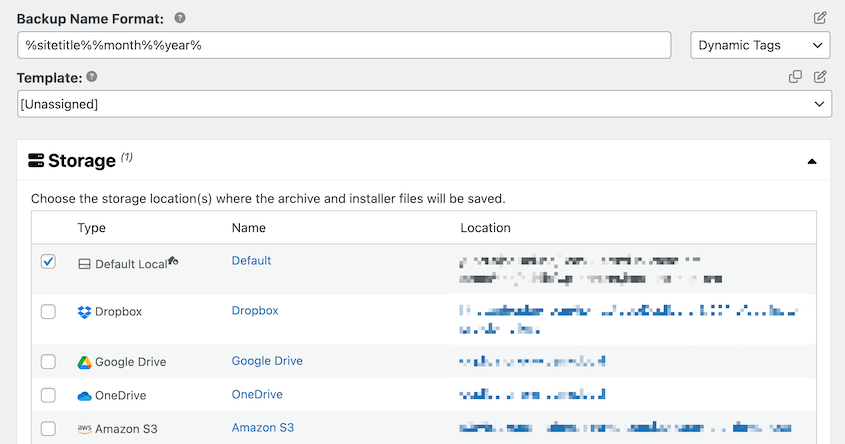
Se você quiser salvar o backup fora do local, o Duplicator suporta muitos serviços de armazenamento em nuvem de terceiros, incluindo:
- Google Drive
- Dropbox
- Microsoft OneDrive
- Amazon S3
- Wasabi
- DreamObjects
- Vultr
- DigitalOcean Spaces
- Cloudflare R2
- Google Cloud
- Backblaze B2
Ele até tem armazenamento em nuvem próprio da Duplicator Cloud, que foi criado especificamente para backups do WordPress. Ele armazenará seus backups fora do local e até os restaurará se todo o seu site estiver inativo.
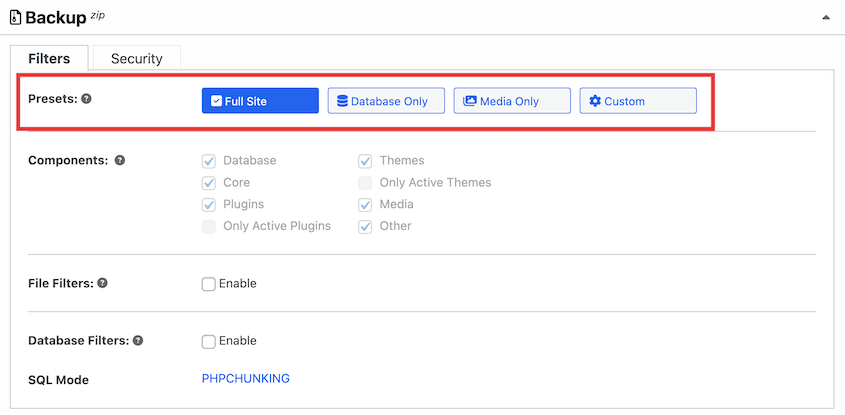
Em seguida, sinta-se à vontade para personalizar quais dados você deseja salvar no backup. O Duplicator tem predefinições que tornam isso super fácil.
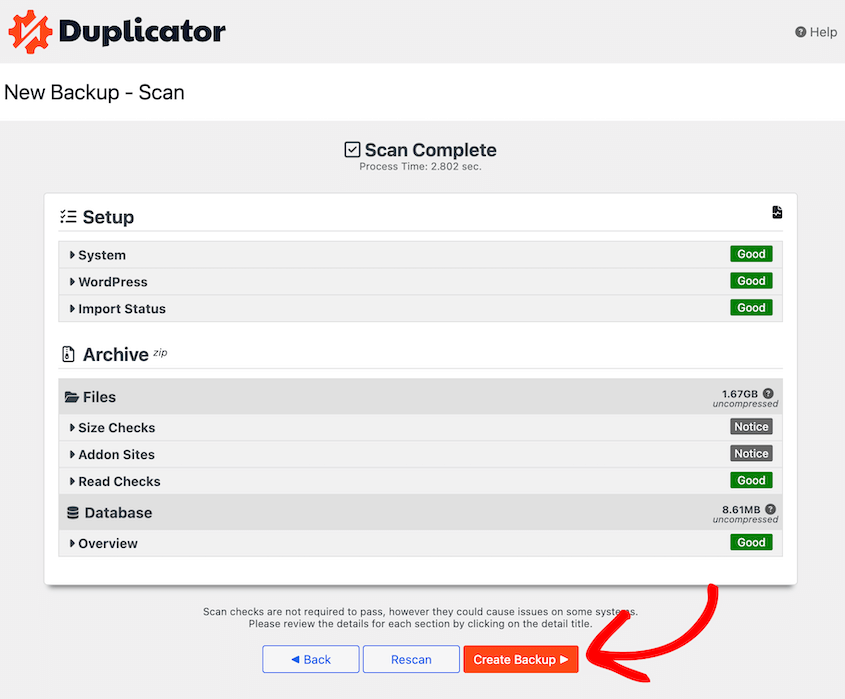
Depois de clicar em Next, o Duplicator escaneará seu site. Isso garante que seu conteúdo seja copiado com sucesso. Se não houver problemas, continue com o backup.
Agora você fez backup do seu site WordPress! Para baixá-lo, encontre a página Backups e clique em Download » Archive.
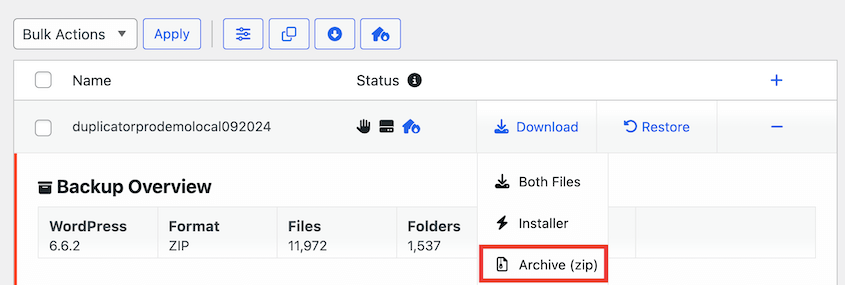
Você terá uma cópia móvel do seu site baixada em seu computador. Isso pode ser facilmente migrado para outro local ou simplesmente salvo como backup em caso de emergência.
Facilidade de Uso do UpdraftPlus
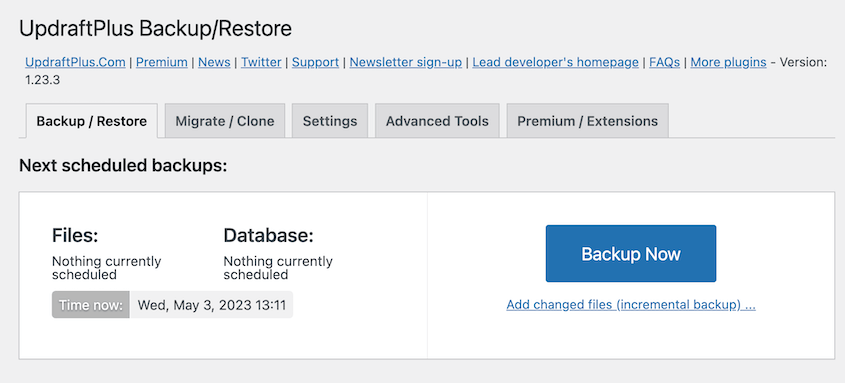
O UpdraftPlus também tem opções de backup integradas. Depois de instalar o plugin, vá para UpdraftPlus » Backup/Restore e clique em Backup Now.
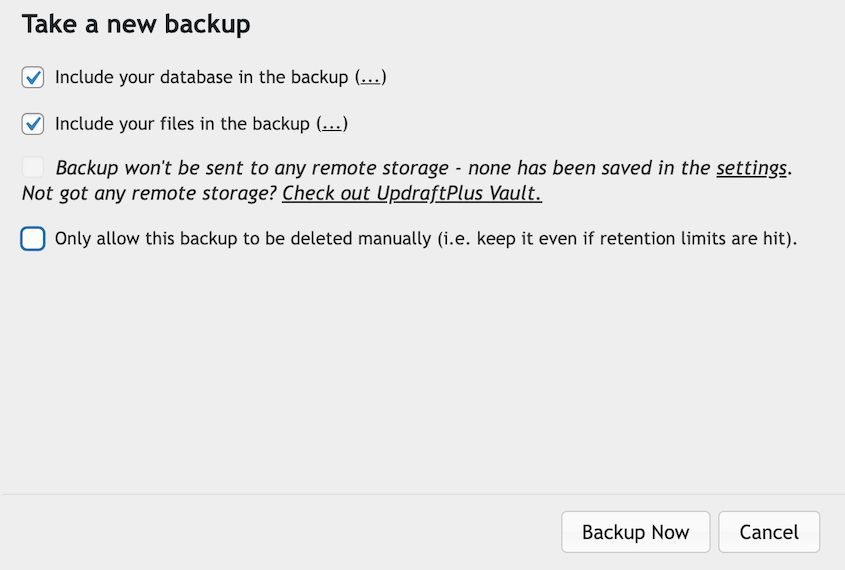
Em seguida, você terá algumas opções para personalizar o backup. Se desejar, exclua o banco de dados ou seus arquivos do WordPress.
Após criar um backup, ele será listado em Existing backups.
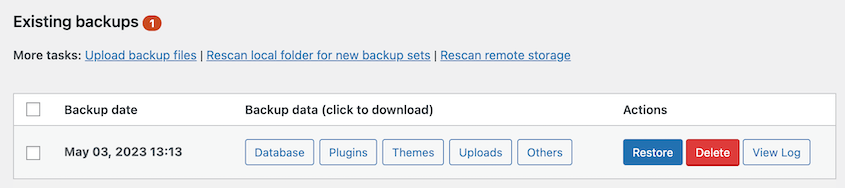
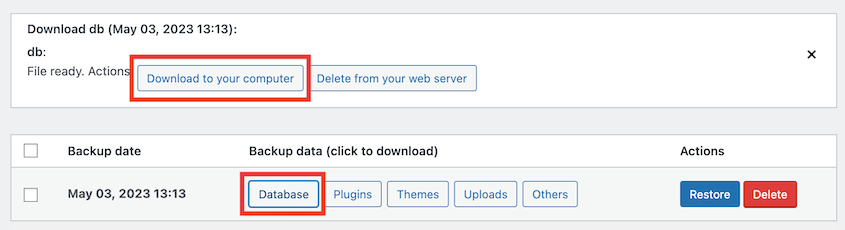
Você verá diferentes opções para baixar seu backup. Você pode salvar cópias do seu banco de dados, plugins, temas ou uploads.
Opções de Restauração de Backup: UpdraftPlus vs Duplicator
Em algum momento, você pode acidentalmente perder dados devido a um erro inesperado, falha do servidor ou ataque. Embora isso possa ser assustador, um plugin de backup pode ajudá-lo a restaurar rapidamente seu site ao normal.
Opções de Restauração de Backup do Duplicator
Assim que você criar um backup com o Duplicator, verá um botão Restaurar ao lado dele. Clique nele sempre que precisar reverter seu site instantaneamente para esta versão.
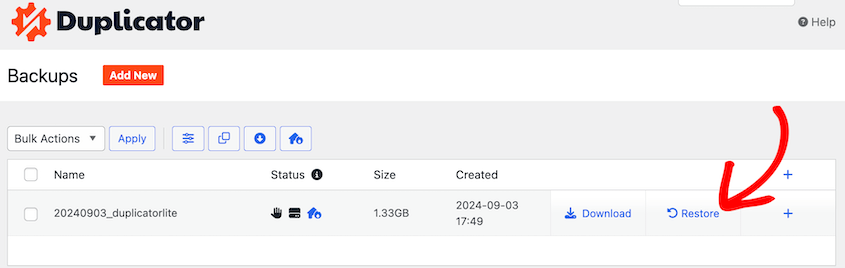
Isso pode ser útil se você quiser experimentar novas alterações. Se algo não sair como você deseja, você pode restaurar um backup anterior.
Se um erro catastrófico bloquear seu acesso ao painel, você não poderá acessar este botão de restauração. Felizmente, o Duplicator também oferece recuperação de desastres.
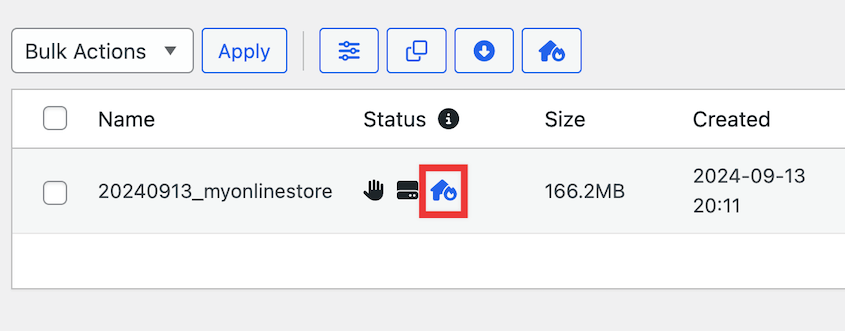
Antes que algo aconteça, clique no ícone de recuperação de desastres ao lado de um backup. Lembre-se de que este deve ser um backup completo armazenado em seu servidor local.
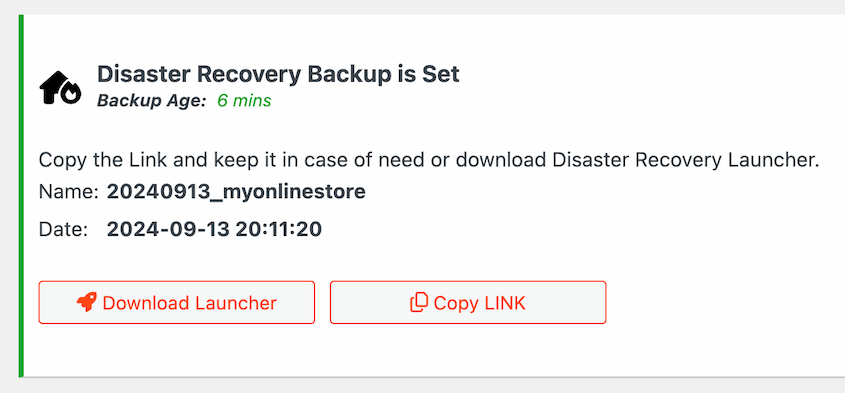
Após configurar a recuperação de desastres, você pode salvar o link de recuperação ou baixar o launcher.
Após algo dar errado em seu site, basta colar o URL em uma janela do navegador. Você também pode abrir o arquivo do launcher de recuperação. Ambos os métodos iniciarão o assistente de recuperação do Duplicator, mesmo que seu site esteja fora do ar.
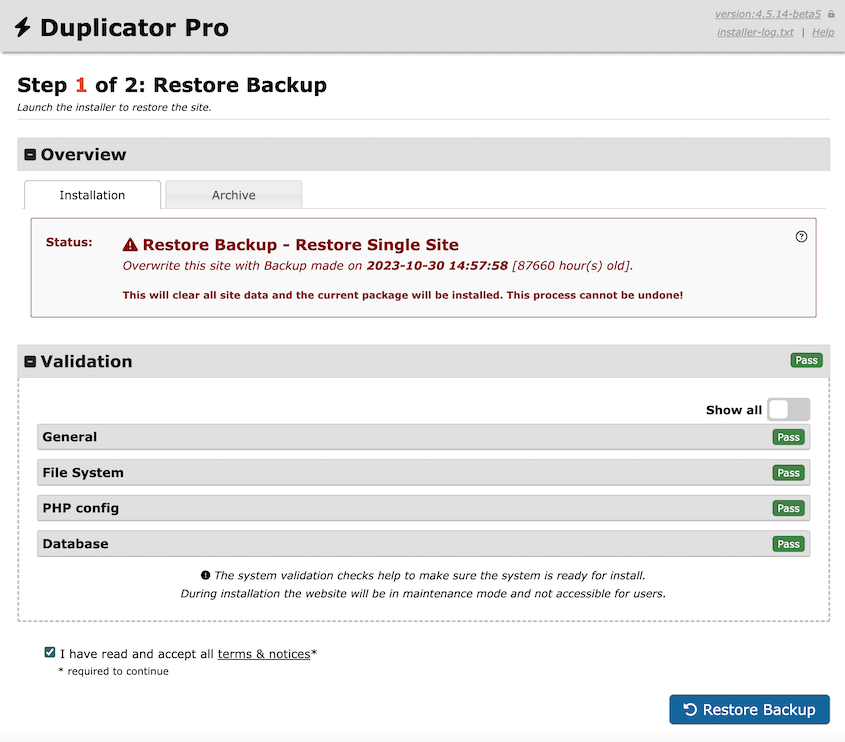
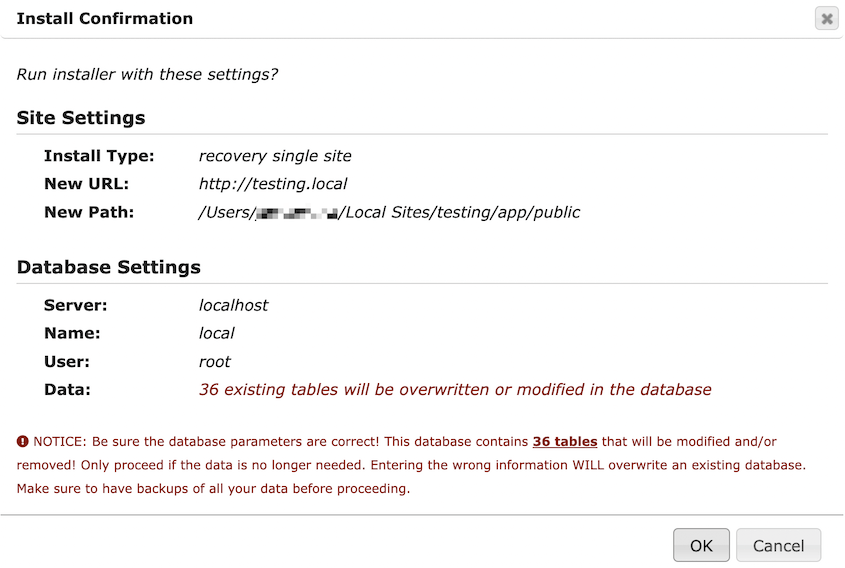
Após aceitar os termos e condições, clique em Restaurar Backup. Você precisará confirmar que deseja instalar esta versão mais antiga do seu site.
Em seguida, basta usar o botão Login do Administrador para acessar seu site novamente.
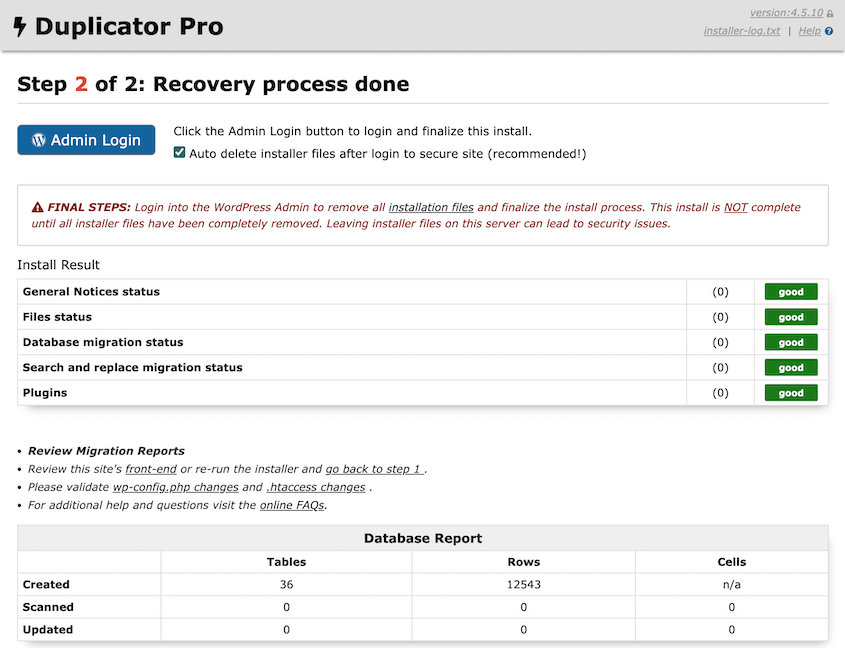
Você notará que o Duplicator substituiu o site com defeito por um backup do WordPress sem erros!
Você também pode restaurar backups diretamente do Duplicator Cloud. Configure o conector de recuperação com seus detalhes de FTP. Em seguida, restaure qualquer backup com um clique, mesmo que seu site esteja offline.
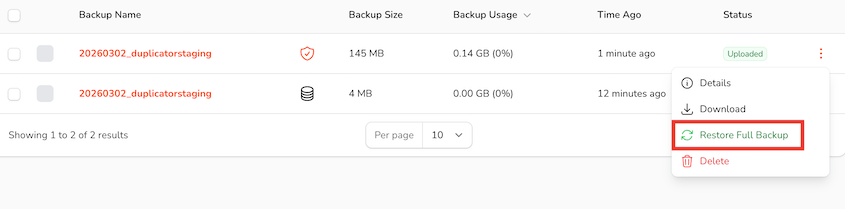
Nenhum outro plugin de backup que conhecemos oferece isso. É o único recurso que provavelmente economizará dinheiro real para o proprietário do site em uma emergência real.
Opções de Restauração de Backup do UpdraftPlus
Com o UpdraftPlus, você só poderá restaurar seu backup a partir do painel de administração do WordPress. Para fazer isso, clique em Restaurar ao lado do backup mais recente.
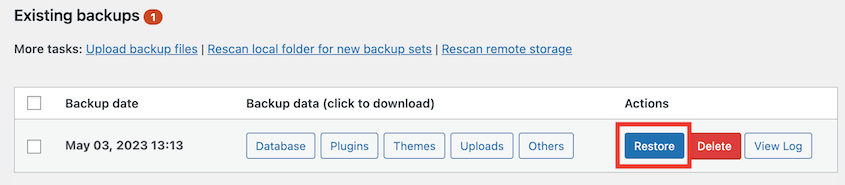
Em seguida, selecione os dados que deseja restaurar. O UpdraftPlus lhe dará a opção de desmarcar quaisquer plugins, temas, uploads ou informações de banco de dados.
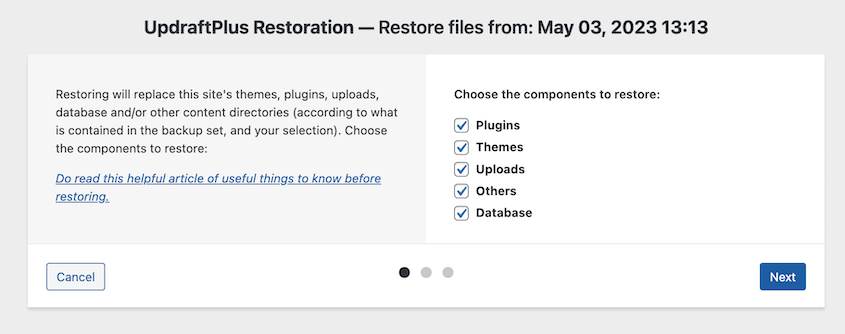
Se necessário, você pode escolher quais tabelas do banco de dados excluir da restauração. Em seguida, clique em Restaurar novamente.
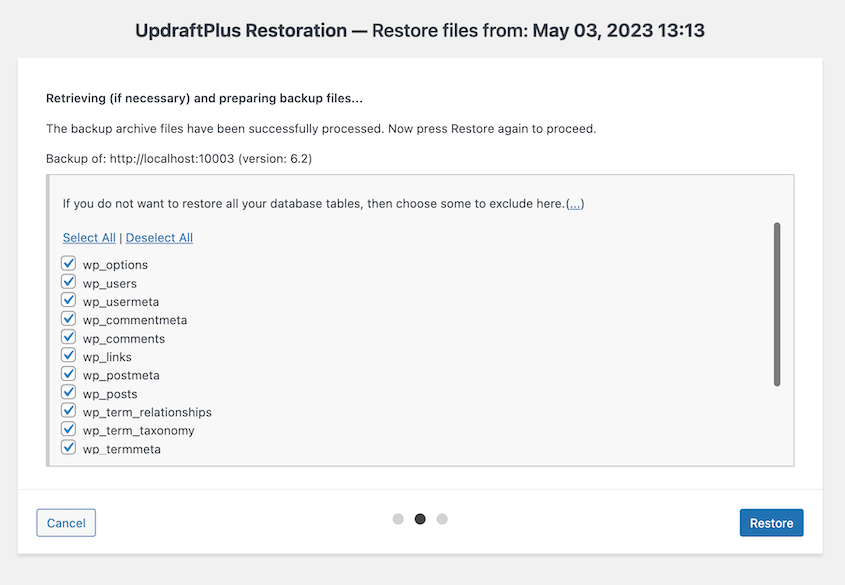
Agora o UpdraftPlus restaurará seu backup. Ele o notificará se for bem-sucedido.
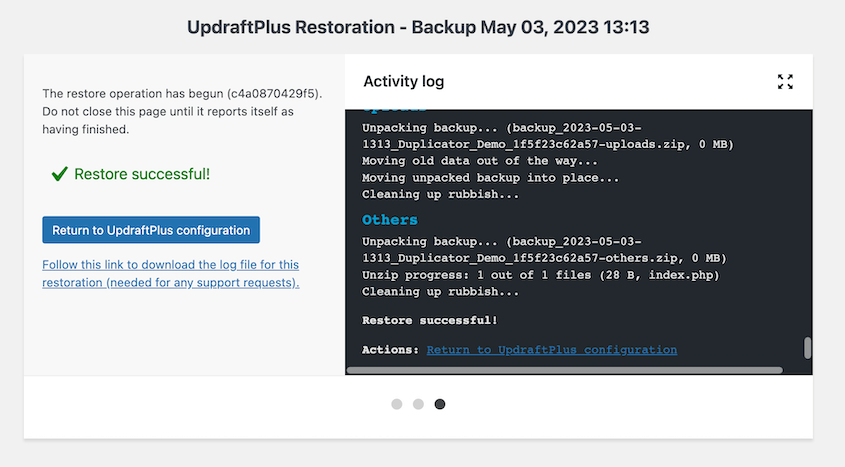
Você pode clicar em Retornar à configuração do UpdraftPlus para voltar ao seu painel do WordPress restaurado.
Migrações: UpdraftPlus vs Duplicator
O Duplicator e o UpdraftPlus são capazes de mover seu site para um host ou nome de domínio diferente. Mas qual deles é melhor?
Migrações Duplicator
Felizmente, o Duplicator torna as migrações muito simples. Comece criando um backup do seu site. Em seguida, baixe o arquivo de archive da mesma forma que você salvou um backup anteriormente.
Em um segundo site, instale e ative a versão Pro do Duplicator. Depois disso, navegue até a página Importar. Você pode então arrastar e soltar seu arquivo de arquivo na caixa de importação.

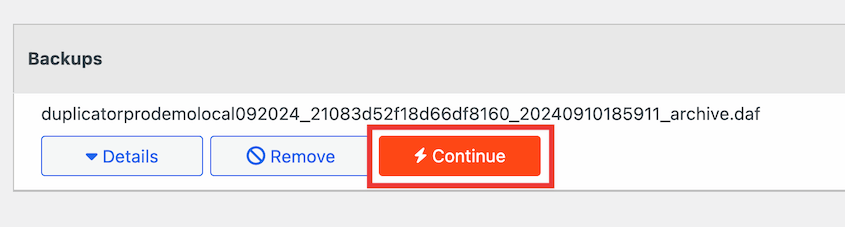
Quando o backup estiver pronto para instalar, clique em Continuar.
Em seguida, clique em Iniciar Instalador para iniciar a migração.
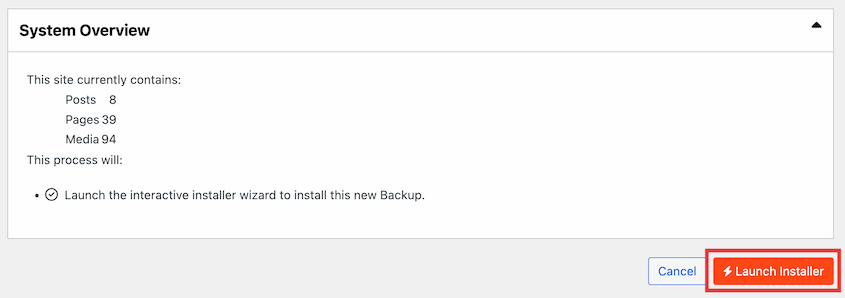
Agora, o assistente de instalação do Duplicator o guiará pelo restante do processo de migração!
Alternativamente, você nem precisa ter o WordPress instalado. Após baixar os arquivos de arquivo e instalador, faça o upload deles para o diretório raiz do novo site.
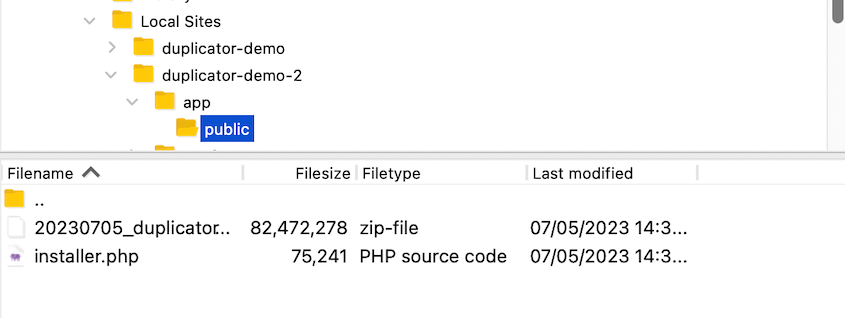
Então, tudo o que você precisará fazer é colar este URL em uma janela do navegador: https://seusite.com/installer.php
Certifique-se de editar isso para incluir o domínio do seu novo site. Este URL iniciará o instalador do Duplicator.
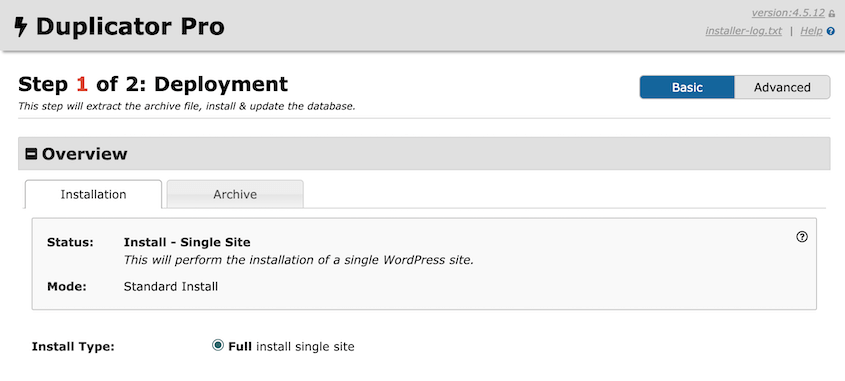
Você pode então seguir as instruções passo a passo sobre como instalar seu site original.
Este processo pode ser útil se você estiver configurando um site local sem instalar o WordPress primeiro. Se você desenvolve sites para clientes, pode migrá-los rapidamente para qualquer servidor sempre que precisar.
Migrações UpdraftPlus
Se você deseja migrar um site com o UpdraftPlus, pode restaurar um backup em uma instalação diferente do WordPress.
Primeiro, crie um backup do seu site ativo e baixe-o. Você terá que baixar manualmente cada parte do backup.
Em seguida, instale o UpdraftPlus no segundo site. Encontre Backups existentes » Enviar arquivos de backup. Aqui, faça o upload dos arquivos de backup do seu site original.
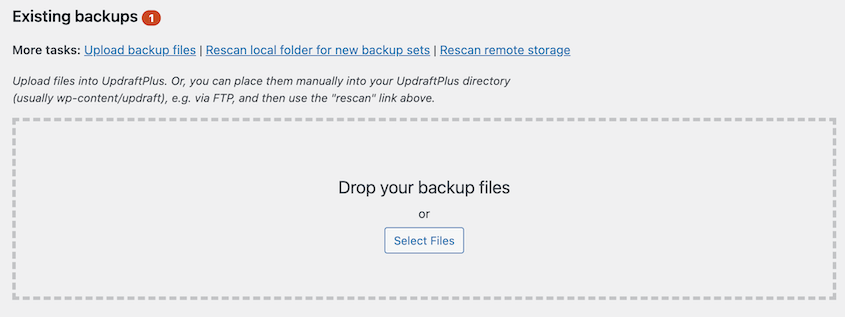
Agora você verá o backup listado na parte inferior da página. Você pode clicar em Restaurar para substituir a instalação padrão do WordPress pelo seu backup salvo.
Para uma transferência direta de servidor para servidor, você terá que comprar o add-on UpdraftMigrator. Isso está incluído no UpdraftPlus Premium.
Ao atualizar, você pode enviar um backup para outro site. Para fazer isso, instale o UpdraftPlus Premium no segundo site. Em seguida, clique em Receber um backup de um site remoto.
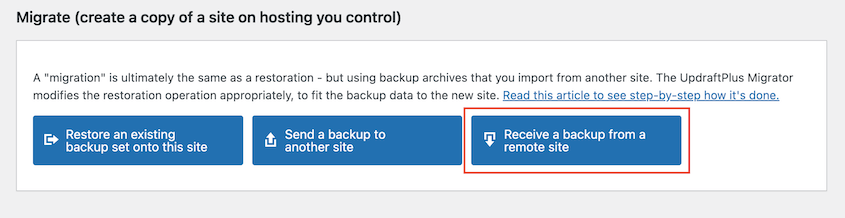
Em seguida, crie uma chave exclusiva para o site e copie-a.

No seu site original, cole a nova chave para adicionar o segundo site como destino.
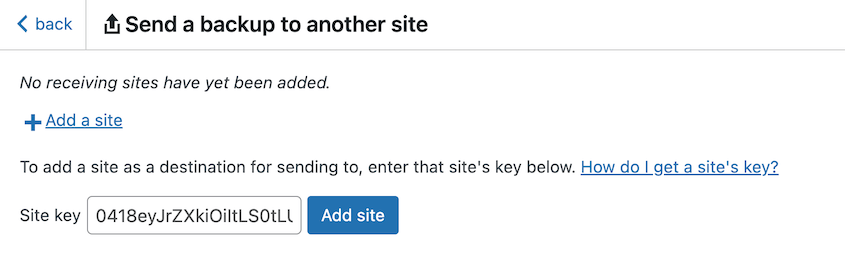
Agora você poderá transferir um backup do primeiro site para o segundo.
Logs de Atividade e Monitoramento
O UpdraftPlus não possui um log de atividades. Ele registra eventos de backup, mas não rastreia o que está acontecendo no próprio site: quem fez login, o que foi editado, quais configurações foram alteradas, quando um plugin foi ativado.
O Duplicator Pro (plano Elite) inclui o Registro de Atividades, que rastreia mais de 60 tipos de eventos em seu site WordPress. Cada login, edição de conteúdo, alteração de plugin, atualização de configuração e ação do usuário é registrada com um carimbo de data/hora, nível de gravidade e o usuário responsável. Dados confidenciais como senhas e chaves de API são automaticamente ocultados.
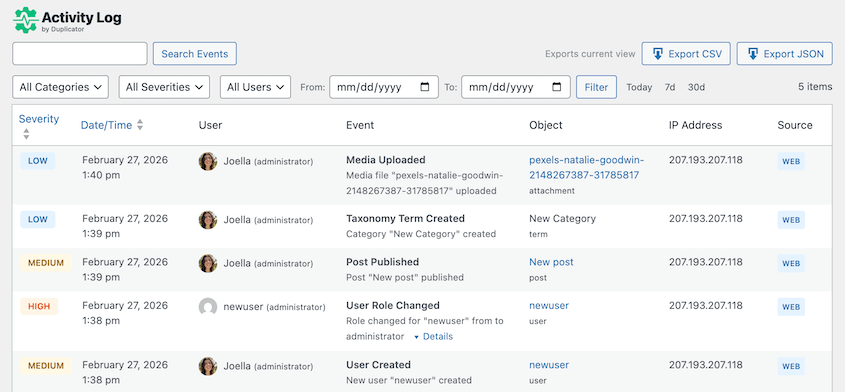
Isso é mais importante em sites com vários usuários. Se algo quebrar depois de uma terça-feira à tarde e você quiser saber o que mudou, o Registro de Atividade mostra para você.
Ambientes de Staging
O UpdraftPlus não tem um recurso nativo de staging. Você pode usá-lo para clonar um site para uma URL de staging, mas não há um fluxo de trabalho integrado de um clique para criar e gerenciar um ambiente de staging.
O Duplicator Pro adicionou recentemente a criação de sites de staging. Você pode criar um site de staging diretamente do seu painel do WP.
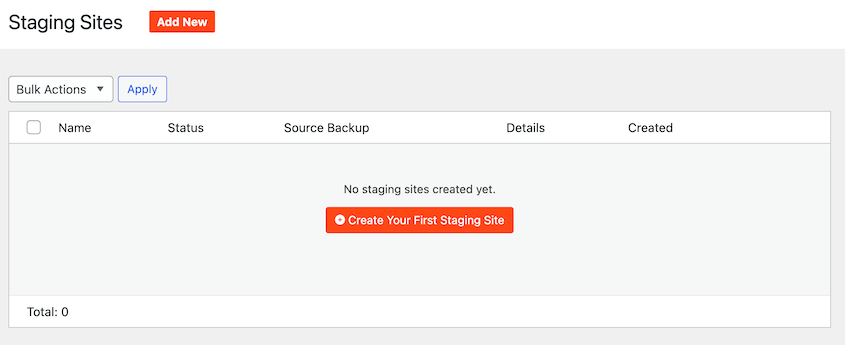
Ele constrói a área de staging com base em um backup completo recente do site. Você pode personalizar a cor do painel, para nunca confundi-lo com o painel do seu site ativo.
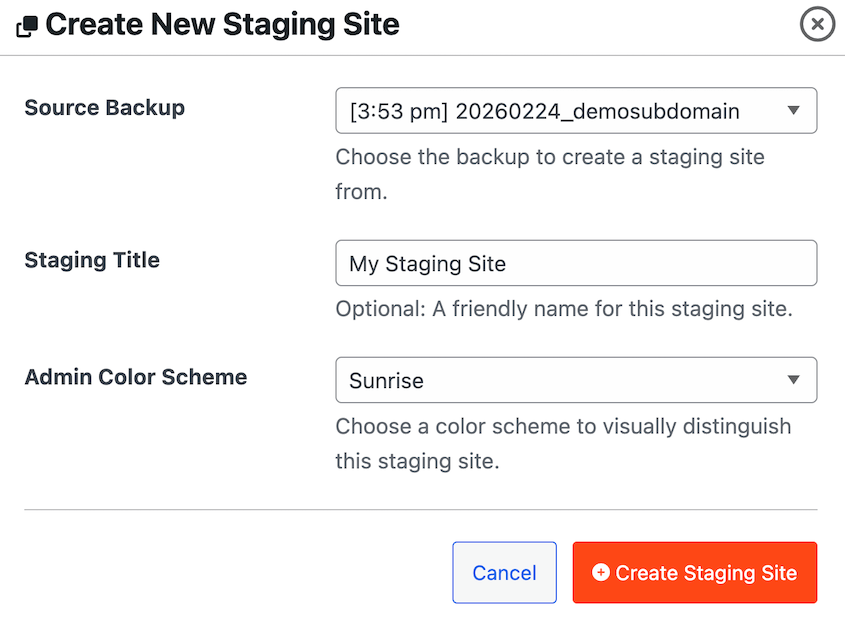
Nenhum outro plugin de backup faz isso nativamente. Normalmente, você precisaria de um plugin de staging separado ou uma ferramenta de staging no nível de hospedagem.
Otimização de Mídia
O UpdraftPlus não tem otimização de imagem, mas os mesmos desenvolvedores criaram o WP-Optimize. Este plugin gratuito é uma ótima ferramenta para comprimir imagens e remover variações não utilizadas. Ele também limpa todo o seu banco de dados em um clique.
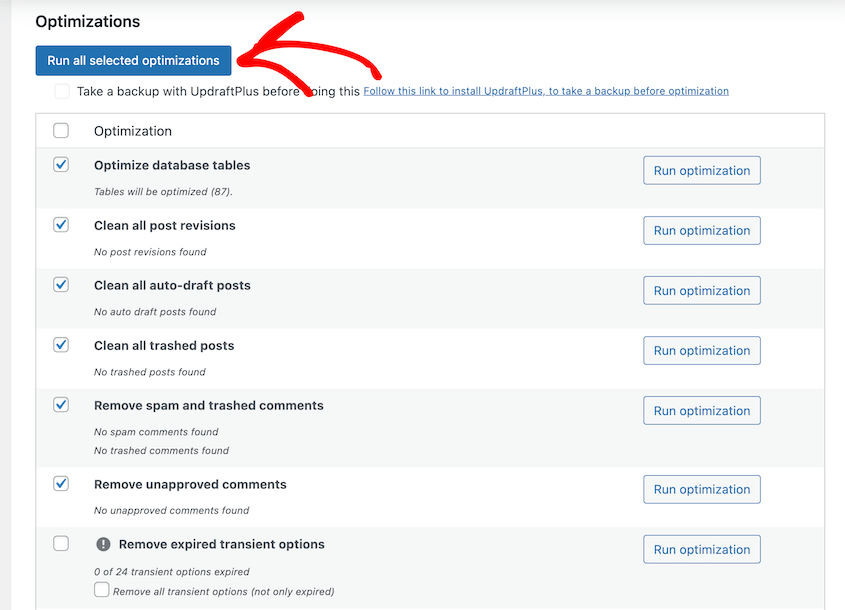
O Duplicator Elite inclui o WP Media Cleanup, que escaneia sua pasta de uploads e marca variações de imagem não utilizadas para remoção. As imagens originais em tamanho real nunca são tocadas. Apenas os tamanhos gerados redundantes são removidos.
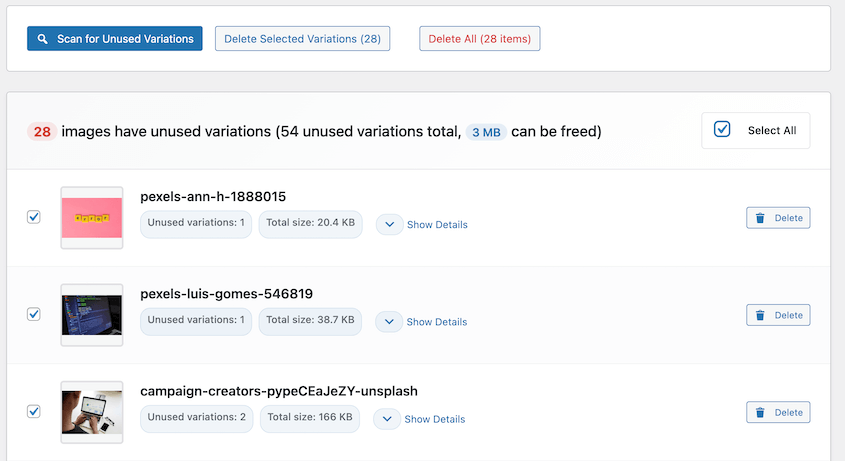
Os arquivos marcados são movidos para um diretório temporário de espera por 30 dias antes da exclusão permanente, para que o processo seja reversível caso você remova algo que precisava.
Preços: UpdraftPlus vs Duplicator
Mesmo que um plugin faça tudo o que você precisa, ele pode estar fora da sua faixa de preço. Especialmente se você é um blogueiro ou proprietário de uma pequena empresa, é importante comparar o custo do UpdraftPlus vs Duplicator. Vamos dar uma olhada!
Preços do Duplicator
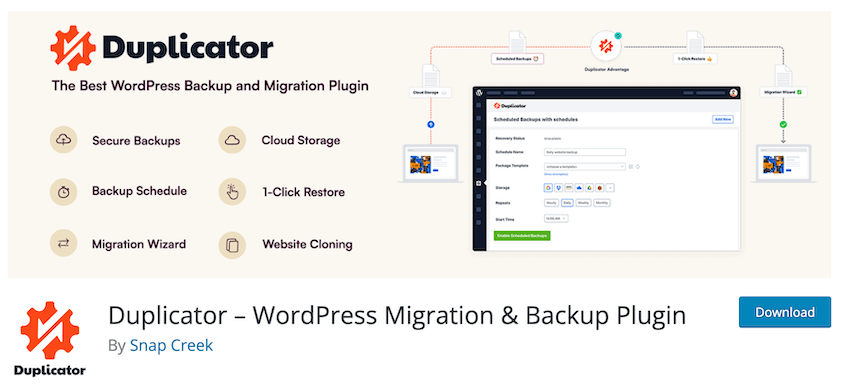
Você pode baixar uma versão gratuita do Duplicator do Diretório de Plugins do WordPress. O Duplicator Lite tem mais de 1 milhão de instalações ativas e uma classificação de 4,9 estrelas.
Com esta versão, você poderá fazer backup do seu site. Ao fazer upload dos arquivos de arquivo e instalador para um novo servidor, você também pode migrar ou clonar seu site facilmente.
Se você precisar de recursos mais avançados, o Duplicator Pro começa em US$ 69,30 por ano. Mesmo este plano básico suporta backups e migrações ilimitados. Você também aproveitará backups regulares agendados, pontos de recuperação, armazenamento em nuvem, migrações de arrastar e soltar e muito mais.
Preços do UpdraftPlus
Assim como o Duplicator, o UpdraftPlus oferece um plugin gratuito. Você terá opções de backup e restauração, bem como agendamentos de backup automatizados.
No entanto, o UpdraftPlus Premium custa no mínimo US$ 70 por ano. Com o plano pessoal básico, você receberá apenas um token UpdraftClone. Se você quiser clonar seu site com frequência, terá que comprar tokens adicionais.
UpdraftPlus vs Duplicator: Prós e Contras
Vamos reunir um breve resumo do UpdraftPlus e do Duplicator para que você possa compará-los!
Duplicator
Prós:
- Recursos de migração, clonagem e backup
- Agendamentos de backup automáticos
- Versão gratuita
- Migrações fáceis de arrastar e soltar
- Compila todos os dados do site em um único arquivo zip
- Muitas integrações de armazenamento em nuvem
- URLs de ponto de recuperação para restaurações sem acesso ao painel
- Suporta Multisite e sites grandes de até 100 GB
- Hooks de desenvolvedor
- Assistente de migração inteligente
- Plugins extras gratuitos (WP Media Cleanup e Activity Log) com o plano Duplicator Elite
Contras:
- A versão gratuita exige algum conhecimento técnico, pois você terá que fazer upload de arquivos para um cliente de Protocolo de Transferência de Arquivos (FTP).
Duplicator Pro é um plugin poderoso e útil para quem gerencia um site WordPress. Ele oferece maneiras simples de fazer backup e migrar seus dados. Isso o torna uma ótima opção para iniciantes completos.
Além disso, o Duplicator tem muitos recursos projetados para desenvolvedores e usuários com mais experiência técnica. Ele fornece ganchos de desenvolvedor, pesquisa e substituição personalizadas e regeneração de salts para que você possa personalizar o plugin para fazer o que precisar.
UpdraftPlus
Prós:
- Interface amigável para iniciantes
- Versão gratuita
- Recursos de migração, clonagem e backup
- Agendamentos automáticos de backup
- Suporte a multisite
- Backups incrementais
- Backups automáticos antes de atualizações
Contras:
- Arquivos de backup separados para banco de dados, temas, plugins e uploads
- Sem recursos para desenvolvedores
- Tokens limitados do UpdraftClone
- Opções de restauração disponíveis apenas no painel do WordPress
O UpdraftPlus pode ser um plugin eficaz de backup e migração se você for novo no WordPress. Sem muitas opções de personalização ou etapas extras, você pode facilmente criar cópias do seu site e movê-las para outros locais.
Embora possa parecer uma boa opção inicialmente, o UpdraftPlus não é tão flexível quanto o Duplicator. Você pode obter recursos mais avançados com a versão premium, mas os planos geralmente são mais caros do que plugins semelhantes.
UpdraftPlus vs Duplicator: Qual escolher?
Recomendamos o Duplicator Pro como o melhor plugin de backup, migração e clonagem. Ele permite que você baixe todo o seu site WordPress como um arquivo zip, que pode então ser salvo como backup ou migrado para outro servidor.
Embora o UpdraftPlus tenha alguns recursos amigáveis para iniciantes, suas versões pagas são caras. Além disso, add-ons como o UpdraftClone usam um sistema de tokens. Se você planeja clonar seu site mais de uma vez, precisará comprar um plano de nível superior.
Em comparação, até mesmo o plano mais barato do Duplicator suporta backups e migrações ilimitados. Há também muitas ferramentas para desenvolvedores personalizarem backups, configurarem sites de staging e muito mais.
Perguntas Frequentes (FAQs)
Qual é a diferença entre UpdraftPlus e Duplicator?
Duplicator e UpdraftPlus atendem a diferentes necessidades no gerenciamento do WordPress. O Duplicator se destaca em backups, migrações e recuperação de desastres. Ele oferece migrações de arrastar e soltar, um único arquivo de backup e suporte para sites grandes. O UpdraftPlus se concentra em backups automáticos e migrações básicas, mas carece de recursos avançados para desenvolvedores. O Duplicator é mais versátil para tarefas complexas.
Qual é a alternativa ao UpdraftPlus?
O Duplicator Pro é a melhor alternativa ao UpdraftPlus. Este plugin inclui recursos abrangentes para criar backups e migrar sites. Ele oferece até mesmo suporte avançado para desenvolvedores e migrações de arrastar e soltar.
Alternativas: BackWPup, BackupBuddy, BlogVault, WPvivid e Jetpack (VaultPress) são alguns dos melhores plugins de backup do WordPress. Para migrações, você pode considerar o All-in-One WP Migration.
O UpdraftClone é gratuito?
Não. Você pode começar a usar o UpdraftClone comprando tokens. Alternativamente, o UpdraftPlus Premium vem com tokens, mas esses planos começam em US$ 70 por ano.
Qual é o melhor plugin de backup para WordPress?
O melhor plugin de backup para WordPress é o Duplicator Pro. Você pode usá-lo para criar backups manuais ou automatizar backups horários, diários, semanais ou mensais. Ele suporta uma variedade de locais de armazenamento em nuvem, permitindo que você proteja seus dados contra erros críticos ou hacks.
Qual é a diferença entre UpdraftPlus e BackupBuddy?
Enquanto o UpdraftPlus tem uma versão gratuita, o BackupBuddy é uma ferramenta premium. Você pode atualizar para o UpdraftPlus por US$ 70, enquanto o BackupBuddy começa em US$ 99 por ano. O UpdraftPlus lhe dará apenas uma quantidade limitada de tokens UpdraftClone, mas também inclui backups incrementais e suporta o multisite do WordPress.
Para ver mais recursos do BackupBuddy, leia nossa análise BlogVault vs BackupBuddy vs Duplicator!
Qual a melhor maneira de fazer backup de um site WordPress?
A melhor maneira de fazer backup de um site WordPress é instalar um plugin de backup do WordPress como o Duplicator Pro. Com este plugin, você pode agendar backups automatizados e até enviá-los para locais de armazenamento em nuvem externos. O Duplicator também pode ajudá-lo a migrar seu site para um novo host, servidor ou nome de domínio, tornando-o uma ferramenta extremamente flexível.
Conclusão
Seu site é importante demais para ser deixado ao acaso. Invista em uma ferramenta que seja tão séria sobre a proteção de seus ativos digitais quanto você.
O Duplicator vai além dos plugins típicos, oferecendo recursos avançados como migrações de arrastar e soltar e opções de recuperação de desastres, proporcionando tranquilidade e proteção de dados confiável.
Você está pronto para se beneficiar de backups automáticos, migrações de arrastar e soltar, armazenamento em nuvem e recuperação de desastres? Baixe o Duplicator Pro hoje mesmo!
Enquanto você está aqui, acho que vai gostar destes outros guias do WordPress:
- Análise do Duplicator: É o Melhor Plugin de Backup e Migração?
- 9 Melhores Plugins para Clonar um Site WordPress
- Como Criar um Backup do WordPress na Nuvem
- All-in-One WP Migration vs Duplicator: Qual Plugin de Migração é o Melhor?
- O Guia Definitivo de Migração do WordPress: Domine a Mudança!




